


 Video Converter Ultimate
 Perekam Layar
 Perbaikan Video
Bagaimana Mengonversi MTV ke FLV dalam 2 Pendekatan yang Tak Tertandingi

Bagian 1. Bagaimana Mengkonversi MTV ke FLV Offline
Video Converter Ultimate adalah salah satu konverter MTV ke FLV terbaik. Anda dapat mengubah format video dari MTV ke FLV hanya dalam beberapa klik. Perangkat ini memungkinkan Anda mengedit dan mengompres video MTV dengan bantuan perangkat lunak ini. Konverter MTV ke FLV ini tersedia untuk digunakan di komputer Windows dan Mac, dan sepenuhnya gratis. Anda dapat dengan mudah mengonversi file MTV ke format FLV dengan mengunduh dan memasang aplikasi konverter, lalu mengimpor video yang ingin Anda konversi. Untuk penjelasan yang lebih mendalam, silakan lihat panduan berikut.
Langkah 1: Untuk mulai mengunduh perangkat lunak, klik tombol Gratis Download di bawah langkah ini. Setelah Anda mengkliknya, bersiaplah untuk memasangnya beberapa saat kemudian.
Unduh GratisUntuk Windows 7 atau yang lebih baruUnduhan Aman
Unduh GratisUntuk MacOS 10.7 atau yang lebih baruUnduhan Aman
Langkah 2: Setelah memasang perangkat lunak di komputer Anda, jalankan perangkat lunak tersebut dan sebuah jendela akan muncul di layar Anda. Perangkat lunak akan menampilkan antarmuka Converter di layar Anda, siap untuk mengimpor file.
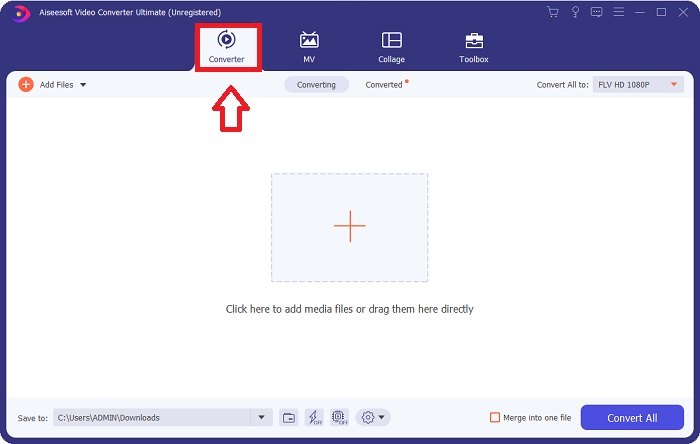
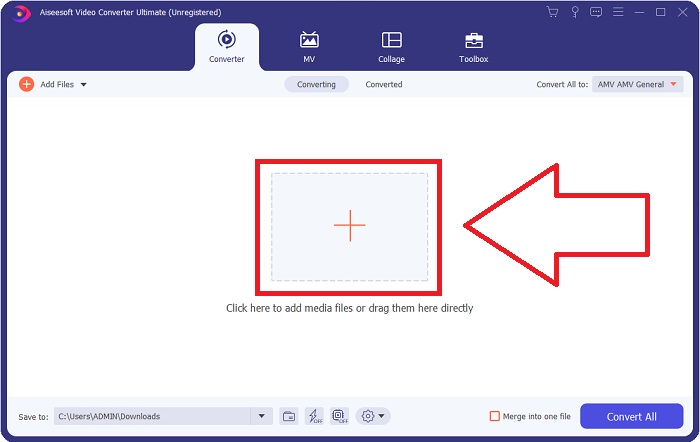
Langkah 3: Untuk mengimpor file ke dalam perangkat lunak, Anda harus mengklik tombol + di tengah jendela perangkat lunak, atau Anda juga dapat langsung menyeret file video apa pun.
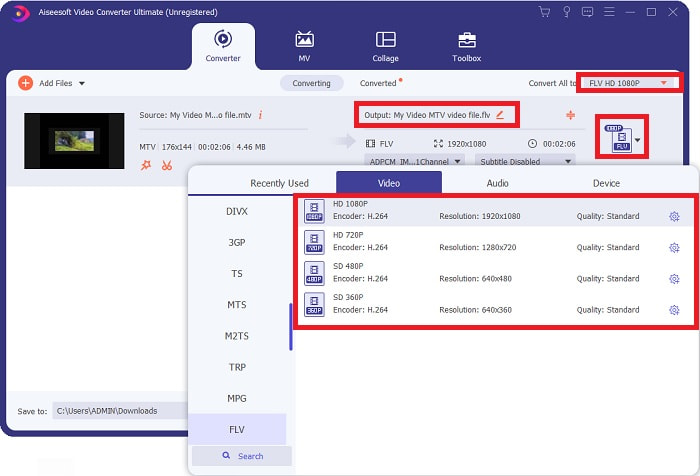
Langkah 4: Sekarang saatnya Anda memilih format video FLV, yang terletak di sudut kanan jendela dekat keluaran video. Klik pilihan tersebut dan cari format video FLV lalu tentukan kualitas yang Anda inginkan.
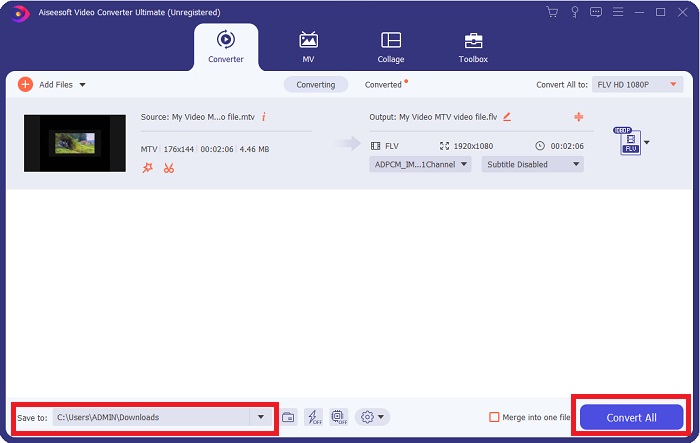
Langkah 5: Sekarang Anda dapat mengonversi file dengan mengklik tombol Convert All yang terletak di sudut kanan bawah jendela. Dan telusuri lokasi tempat Anda akan menyimpan file hasil konversi dengan mengklik tombol tarik-turun di dekat Save to.
Bagian 2. Bagaimana Mengkonversi MTV ke FLV Online
Berikut ini adalah alat online gratis yang dapat Anda pelajari yang dapat mengonversi MTV ke FLV. Free Video Converter Online dapat mengonversi format video dan audio seperti MP4, WMV, dan ASF ke berbagai format. Anda dapat mengembalikan video definisi tinggi Anda ke jenis file populer hanya dalam beberapa klik sambil mempertahankan kualitas visual aslinya. Mengonversi beberapa video atau file audio sekaligus tidak akan mengurangi kualitas. Berikut langkah-langkah yang perlu Anda lakukan:
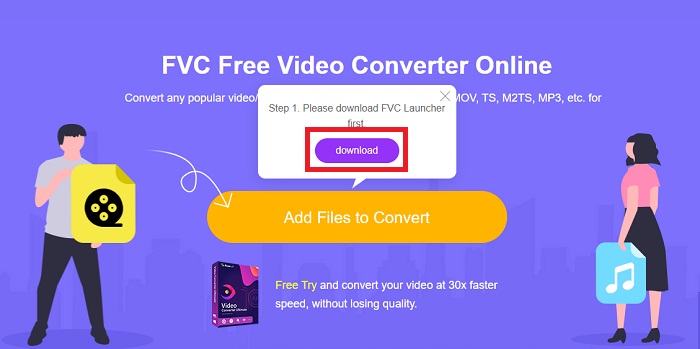
Langkah 1: Akses halaman utama Free Video Converter Online dengan mengklik tautan ini. Setelah itu, Anda harus mengklik tombol Add Files to Convert yang ditampilkan di layar utama untuk mengunduh peluncur yang akan memungkinkan Anda mengoperasikan alat online ini. Setelah selesai mengunduh, klik lagi untuk mengimpor file dari komputer Anda.
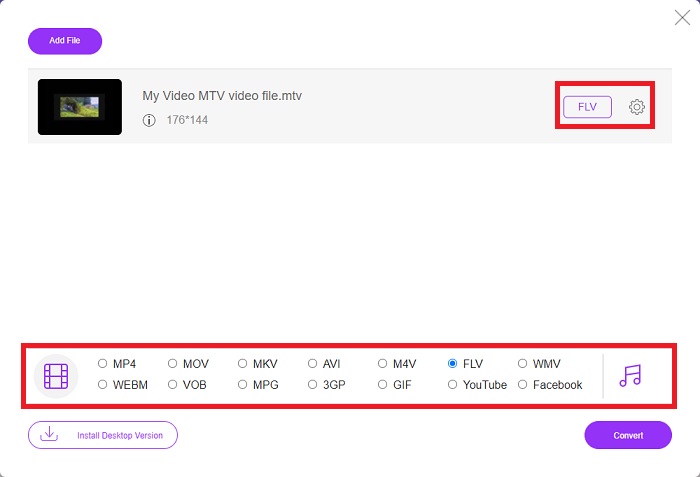
Langkah 2: Pilih format video FLV dari pilihan format video yang terletak di bagian bawah jendela. Jika Anda ingin mengetahui semua spesifikasi video keluaran, klik ikon roda gigi. Sesuaikan dengan pengaturan yang Anda inginkan dan setelah selesai mengatur, klik OK.
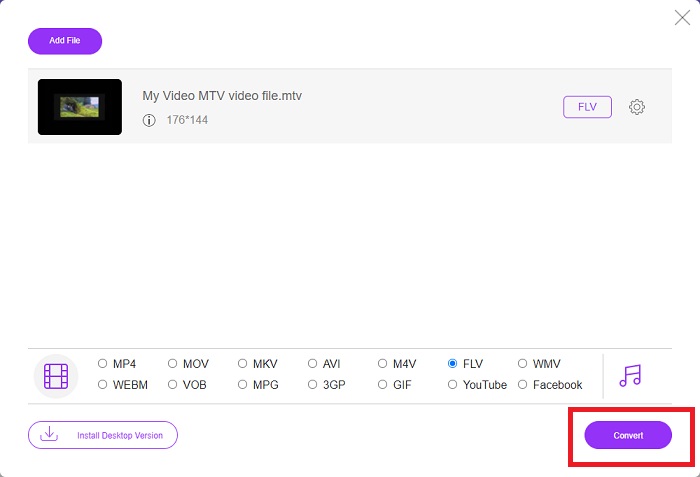
Langkah 3: Setelah Anda puas dengan semua penyesuaian, Anda dapat mengonversi format video MTV ke FLV dengan mengklik tombol Convert.
Terkait:
Bagian 3. Pengetahuan yang Diperluas tentang MTV dan FLV
Beberapa pemutar video MP4 portabel Cina menggunakan Pengetahuan luas tentang file Video MTV dan FLV dalam format MTV untuk menyimpan video. Pada kecepatan 12 frame per detik, ini menggabungkan audio MP3 dengan banyak gambar. Ada beberapa kesamaan antara file MTV dan file AMV, tetapi formatnya sedikit berbeda. Beberapa pemutar MP4 portabel Cina yang murah tidak menyimpan atau memutar video MP4. Video MTV, di sisi lain, ditampilkan. Video resolusi rendah (128x128 piksel) dan format kecil adalah standar di MTV (video satu menit kira-kira 24 MB data). Pemutar media tidak memerlukan banyak ruang penyimpanan atau daya pemrosesan. untuk menyimpan dan memutar banyak video MTV. Meskipun format MTV seperti format AMV, yang juga digunakan oleh pemutar media portabel Cina, formatnya cukup berbeda sehingga tidak semua perangkat atau pemutar media yang kompatibel dengan AMV dapat memutar file MTV.
Namun, Format Video Flash Adobe Systems dapat digunakan untuk video online di YouTube, Hulu, Vevo, dan banyak layanan video streaming lainnya. Kecuali iOS, hampir setiap sistem operasi dapat membaca dan melihat file FLV menggunakan Adobe Flash Player (termasuk plug-in browser) dan perangkat lunak pihak ketiga. FLV dapat diputar di perangkat iPhone dan Android melalui perangkat lunak sumber terbuka dan browser tertentu. Flash masih menyebabkan masalah di iOS. Pengguna versi Android Jellybean dapat menggunakan file FLV. Hanya program pemutar FLV yang dapat melihat file dengan ekstensi FLV. Perekaman layar video FLV dimungkinkan menggunakan perangkat lunak penangkap layar dan perekaman.
| Ekstensi File | MTV | FLV |
| Jenis File | Pemutar MP4/MTV Cina | File Video Flash |
| Dikembangkan oleh | Robert W. Pittman | Sistem Adobe |
| Pro | Salah satu keuntungan paling signifikan dari format MTV adalah kemampuannya untuk dimainkan di sebagian besar komputer di seluruh dunia. | Format FLV lazim di internet. Ribuan situs web menggunakannya; ini menyediakan lebih banyak fitur secara signifikan daripada ekstensi file video lainnya dan menghasilkan file yang jauh lebih kecil daripada kebanyakan format video lainnya. Video FLV bagus untuk menampilkan kualitas yang layak dan memuat dengan cepat. |
| Kontra | Karena kemampuan peningkatan suaranya yang buruk, resolusi gambarnya terbatas dan tidak dapat menampilkan video layar penuh dan gerakan penuh. | Perlu menginstal plug-in flash untuk memutar file file flash secara online. |
| Program yang mendukung/membuka | Pemutar Media VLC Pemutar Media AVS | Pemutar Media VLC Adobe Flash Player |
Bagian 4. FAQ tentang Mengonversi MTV ke FLV
Bagaimana cara mengonversi MTV ke FLV di Mac?
Anda dapat menggunakan Video Converter Ultimate yang disebutkan di atas untuk mengonversi file MTV Anda ke FLV. Pertama, Anda perlu mengunduh perangkat lunak di Mac Anda, lalu meluncurkannya setelah penginstalan. Selanjutnya, tambahkan file Anda ke program dan pilih format FLV yang Anda inginkan. Pada akhirnya, klik tombol Convert All untuk memulai konversi dari MTV ke FLV.
Bagaimana cara membuka file MTV?
Beberapa file MTV mungkin tidak dapat diputar di pemutar media VideoLAN atau VLC lintas platform atau pemutar media AVS Teknologi Media Online Windows saja. Bagian audio dari beberapa file MTV, misalnya, hanya dapat diputar menggunakan VLC. Video MTV dapat dikonversi ke AVI atau MP4 menggunakan FFmpeg, AnyMP4 Video Converter, atau AVS Video Converter dari Online Media Technologies, semua aplikasi lintas platform (Windows).
Bisakah VLC mengonversi video ke FLV?
Putar video menggunakan VLC Media Player. Pilih opsi Konversi/Simpan dari menu tarik-turun di tab Media. File video .flv dari sistem dapat ditambahkan dengan mengklik tombol 'Tambah' pada halaman Open Media.
Kesimpulan
Berdasarkan semua poin yang disebutkan di seluruh artikel ini, ada dua konverter yang direkomendasikan untuk Anda gunakan, yaitu Free Video Converter Online dan Video Converter Ultimate. Seperti yang dijelaskan di atas, keduanya telah menunjukkan potensi penuh mereka, dan keduanya lebih baik daripada konverter lain yang tersedia secara online.
-
 [Online & Gratis] 3 Metode untuk Mengonversi MTV ke AVI Tanpa Repot
 Pernahkah Anda mendengar format video seperti MTV? Karena Anda tidak tahu segalanya tentang format ini dan Anda ingin mengonversi video MTV ke AVI, baca artikel ini dengan cermat untuk mempelajari lebih lanjut tentang masalah ini.
-
 Panduan Konkrit untuk Membantu Anda Mengonversi AVI ke FLV secara Gratis
 Untuk mengonversi AVI ke FLV, Anda memerlukan konverter video yang kuat. Untungnya, Anda dapat mempelajari dua dan panduan langkah demi langkah mereka dari artikel tunggal ini.
-
 2 Cara termudah untuk Mengonversi File WMV ke FLV di PC/Mac
 Bagaimana Anda bisa mengubah WMV ke FLV? Pertama, Anda perlu membaca rekomendasi kami dan menemukan metode favorit Anda, lalu ikuti panduan kami untuk melakukan pekerjaan dengan cepat.
