


 Video Converter Ultimate
 Perekam Layar
 Perbaikan Video
Cara Mengedit Tag MP3 dengan Editor Tag MP3 Terbaik [Mudah & Efektif]
Saat menghadapi tugas seperti mengedit tag MP3, Anda bisa dengan mudah mengubah informasi lagu dengan editor tag musik bawaan, tetapi fitur yang ditawarkan tetap terbatas. Begitu juga ketika harus menangani banyak file MP3 atau audio sekaligus, menggunakan fitur bawaan mungkin bukan pilihan terbaik. Dalam kasus seperti ini, kita perlu menggunakan editor tag audio khusus yang dapat diunduh atau digunakan lewat web untuk membantu menyelesaikan masalah ini. Untuk menghemat waktu pencarian di internet dan membuat hari Anda lebih produktif, berikut adalah pilihan terbaik yang dapat Anda andalkan, yaitu beberapa opsi editor tag MP3 yang tersedia di pasaran saat ini.

Bagian 1. Editor Tag MP3 Terbaik untuk Mengedit Tag MP3 Mudah & Mudah [Sangat Disarankan]
Video Converter Ultimate adalah editor metadata MP3 serbaguna yang dapat Anda unduh di Windows atau Mac. Alat ini dapat mengatasi masalah ini tanpa perlu banyak usaha dari pengguna. Efisien, bukan? Itulah yang akan Anda dapatkan jika menggunakan editor tag terbaik di pasaran. Dengan alat ini, Anda bisa mengunggah berbagai format audio dan video lalu mengubah metadata-nya sesuai kebutuhan.
Tidak seperti editor tag lain yang dapat Anda unduh atau gunakan di web, alat ini dapat menangani berbagai masalah pada video dan audio Anda. Apakah Anda mengalami masalah karena audio terdengar agak rendah, sinkron dengan video, audio dan video berkualitas rendah, atau format yang tidak dapat diputar? Hebatnya, semua masalah diselesaikan dengan bantuan alat lengkap ini. Apakah Anda ingin tahu cara menggunakan editor tag MP3 terbaik? Jika demikian, ikuti langkah-langkah di bawah ini untuk mencapai kesuksesan dalam hitungan menit.
- 1. Ini adalah editor metadata paling andal yang dapat Anda gunakan yang telah membuktikan nilainya dengan jutaan + penggunanya di seluruh dunia.
- 2. Ini memiliki beberapa fitur canggih yang dapat Anda temukan di Toolbox, seperti kecepatan video, pembalikan, peningkatan, koreksi warna, dan banyak lagi.
- 3. Ini adalah pilihan yang sempurna untuk pemula dan ahli mengenai tugas tersebut.
- 4. Ia bekerja pada kedua sistem operasi, Windows dan Mac, dengan fungsi yang sama dan fitur-fitur canggih.
Langkah 1. Anda dapat mengunduh perangkat lunak dengan mengeklik tombol unduh, lalu pilih tombol yang sesuai. Ikuti proses instalasi, dan klik Start Now untuk mulai mengedit tag MP3.
Unduh GratisUntuk Windows 7 atau yang lebih baruUnduhan Aman
Unduh GratisUntuk MacOS 10.7 atau yang lebih baruUnduhan Aman
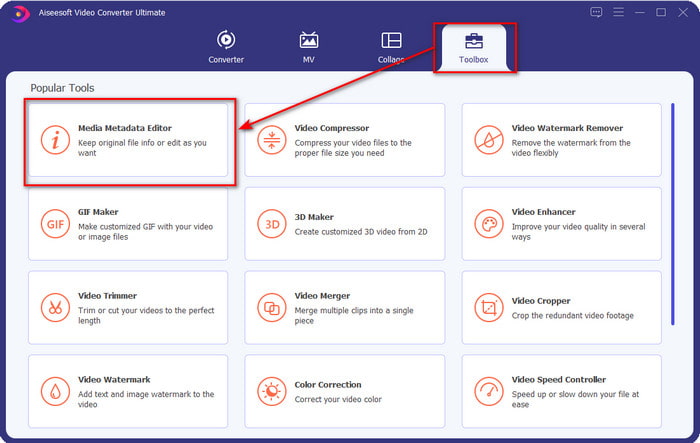
Langkah 2. Buka Toolbox dan cari Media Metadata Editor pada daftar fungsi pengeditan yang tersedia. Tidak perlu khawatir karena fungsi ini sudah terpasang di dalam alat, sehingga tidak memerlukan sumber daya tambahan.
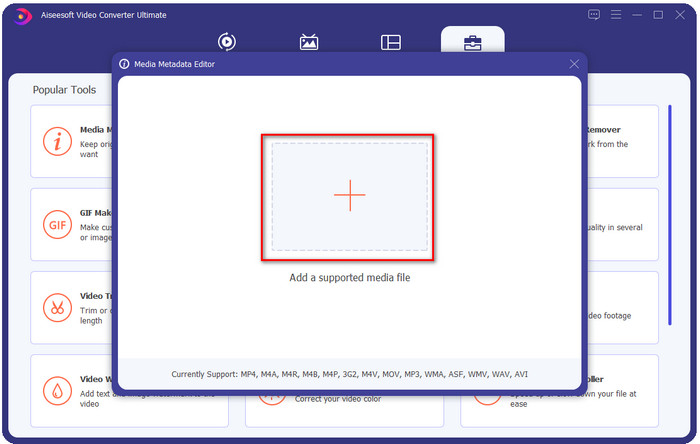
Langkah 3. Klik + dan cari file audio MP3 di folder yang muncul di layar Anda, pilih filenya, lalu klik Open untuk melanjutkan.
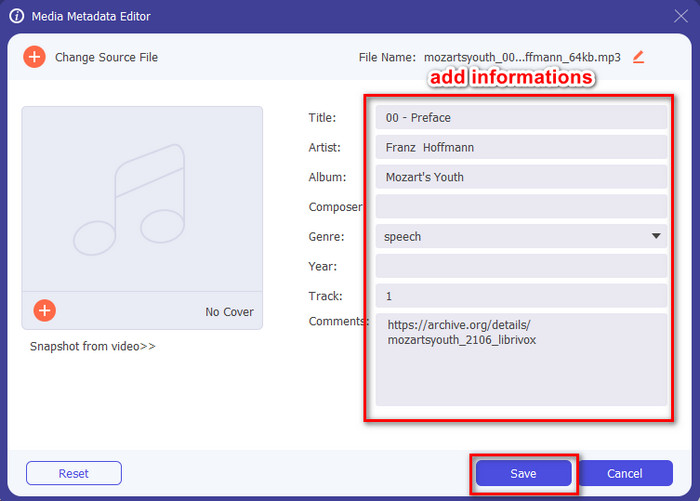
Langkah 4. Setelah itu, ubah atau hapus tag file Anda pada kotak teks. Jika Anda sudah puas dengan tag yang diisi, terakhir klik Save. Alat ini tidak akan membuat duplikat file MP3 dengan metadata baru, melainkan langsung menerapkan metadata pada file aslinya seperti itu.
Terkait:
Bagian 2. 4 Editor Tag MP3 Opsional yang Harus Anda Ketahui Tersedia di Windows, Mac, dan Online
TagMP3
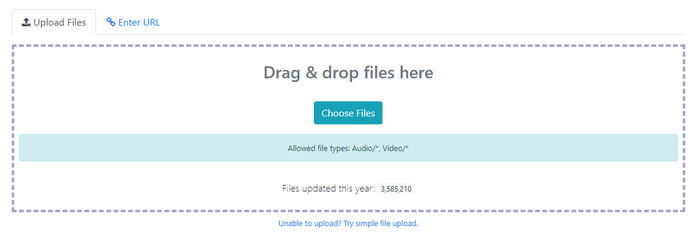
TagMP3 adalah editor tag MP3 online yang cukup dikenal dan bisa diakses secara gratis kapan saja melalui web. Dengan alat online ini, Anda tidak perlu mengunduh sumber daya tambahan karena semuanya berbasis web. Selain itu, alat ini dapat mendeteksi id3v1 dan id3v2 dari file MP3 Anda dan memperbaruinya ke id3v2 meskipun id3v1 sudah usang. Meski memiliki fungsi yang luar biasa, sebagian pengguna menganggapnya kurang dapat diandalkan karena dikabarkan kadang menambahkan informasi yang tidak terkait dengan file audio; namun hal ini masih sebatas rumor. Tetapi sebagian besar pengguna puas dengan kemampuan alat ini, dan alat ini tetap aman serta mudah digunakan.
Langkah 1. Cari TagMP3 di peramban Anda dan buka situsnya.
Langkah 2. Unggah file MP# dengan mengeklik Choose Now!
Langkah 3. Tambahkan informasi yang diperlukan, lalu klik Done! Generate New Files.
MetaBliss
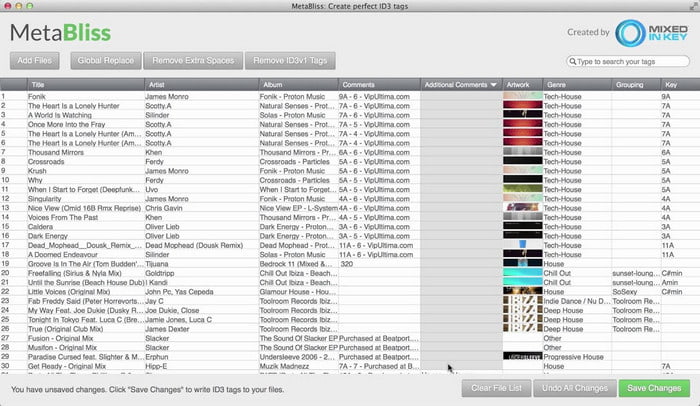
MetaBliss adalah editor tag MP3 menyerupai spreadsheet yang tersedia di Mac. Alat ini dapat menyelesaikan tugas kapan saja; berapa pun jumlah file yang Anda masukkan, alat ini dapat menanganinya dengan mudah. Dengan alat ini, Anda dapat menghapus atau mengedit tag pada file MP3 dengan memilih semuanya sekaligus sehingga banyak waktu yang bisa dihemat. Walaupun alat ini mendukung pengeditan secara batch, antarmukanya agak ketinggalan zaman, artinya tampilan GUI-nya tidak sebagus yang Anda bayangkan. Namun jika hal ini diabaikan, alat ini tetap layak digunakan jika Anda tidak keberatan bekerja dengan antarmuka mirip spreadsheet.
Langkah 1. Unduh editor tag di Mac dan buka aplikasinya.
Langkah 2. Klik Add Files dan cari file MP3.
Langkah 3. Ganti informasi pada setiap kolom, lalu klik Save Changes untuk menyimpan tag.
MetaTOGGer
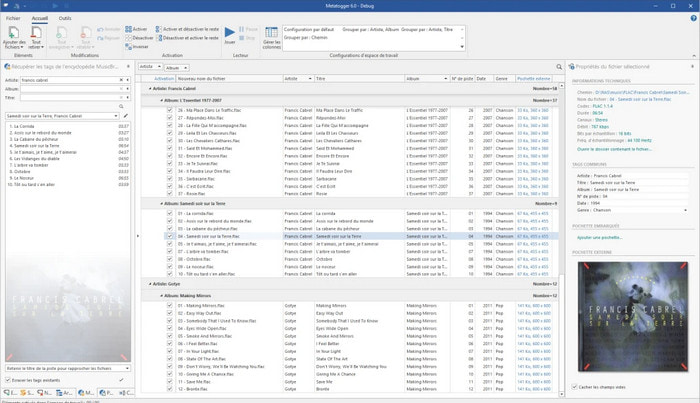
MetaTOGGer adalah editor tag Speex, OGG, FLAC, dan MP3 untuk Windows 10. Dengan bantuan alat ini, Anda dapat secara otomatis menambahkan metadata berdasarkan basis data online yang tersedia, namun Anda juga dapat melakukannya secara manual jika mau. Harapkan tampilan GUI yang mirip dengan Microsoft Office ketika Anda menggunakan alat ini. Meskipun tampilan GUI-nya mirip, mempelajari cara menggunakannya tetap akan memakan waktu, dan Anda perlu mengunduh sumber daya tambahan untuk dapat memakainya, yaitu Microsoft .Net 3.5 framework secara khusus.
Langkah 1. Setelah Anda menginstal framework tersebut, langkah berikutnya adalah mengunduh alatnya.
Langkah 2. Seret dan jatuhkan file ke dalam alat, lalu edit tag yang tersedia pada daftar.
Langkah 3. Buka menu File dan klik Save.
anak3
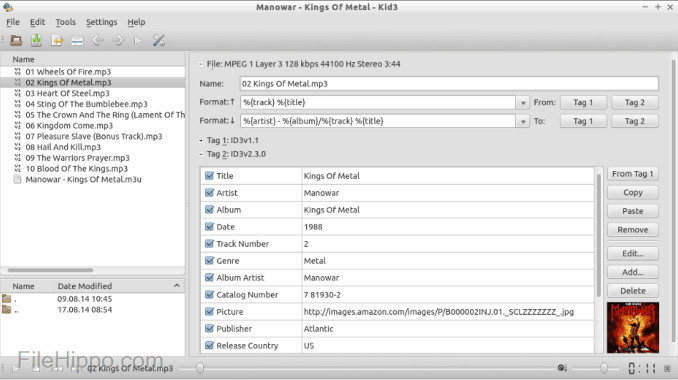
Terakhir dalam daftar kami untuk membantu Anda mengedit metadata MP3 di Linux dan perangkat lain adalah Kid3. Dengan alat ini, Anda dapat dengan mudah memanipulasi tag pada berbagai file media Anda. Sama seperti Metabliss, alat ini mendukung penandaan massal, yang berarti Anda dapat memasukkan banyak file sekaligus dan mengeditnya. Meskipun alat ini bagus untuk tugas tersebut, kinerjanya tetap paling optimal di Linux dibandingkan perangkat lain yang juga didukungnya. Selain itu, Anda harus menavigasi banyak fungsi terlebih dahulu sebelum dapat mengubah atau memanipulasi metadata file.
Langkah 1. Unduh perangkat lunak di desktop Anda, lalu klik Add Files.
Langkah 2. Klik file MP3 yang telah Anda tambahkan dan klik Edit untuk mengubah metadata file audio.
Langkah 3. Tekan Save untuk mengunduh file dengan metadata yang sudah diperbarui.
Bagian 3. FAQ tentang Editor Metadata MP3
Apakah aman mengunduh editor metadata MP3?
Pastikan situs web tempat perangkat lunak berasal aman untuk diakses. Anda dapat memeriksa informasi tentang situs web itu dengan mengklik ikon kunci di browser web. Dengan cara ini, Anda dapat memeriksa apakah jaringan Anda aman dan apakah datanya jauh dari peretas. Jika Anda tidak yakin tentang perangkat lunak tersebut, Anda harus segera keluar dan menghindari mengklik apa pun di situs web itu untuk menghindari kerusakan yang tidak terbayangkan pada perangkat Anda.
Apa tujuan mengedit tag pada MP3?
Begini; jika Anda memiliki tag yang tepat, Anda tidak perlu khawatir tentang mengatur file di perpustakaan sesuai dengan tag yang terikat pada file MP3 Anda. Untuk memiliki perpustakaan yang terorganisir adalah salah satu alasan mengapa Anda perlu mengedit tag; yang lainnya bisa jadi informasi audio telah menerima pembaruan, jadi Anda perlu memperbaruinya dan banyak lagi.
Mengapa MP3 saya tidak memiliki tag?
Ada banyak alasan mengapa file audio Anda tidak memiliki tag. Jika diunduh di web, harap penulis menghapusnya karena alasan privasi. Dengan metadata, Anda dapat mengeksploitasi informasi tentang diri Anda jika Anda adalah penulisnya, jadi menghapusnya adalah pilihan yang bagus. Meskipun masih banyak alasan, kami membutuhkan tag untuk mengatur MP3 kami.
Kesimpulan
Memang, dengan editor tag MP3 terbaik ini, Anda dapat dengan mudah menyesuaikan tag pada file MP3 Anda dengan mudah dan efektif yang tidak dapat ditawarkan oleh editor lain di pasar. Juga, langkah-langkah untuk setiap alat dapat memastikan Anda berhasil melakukan tugas secepat mungkin. Namun, jika kita membandingkan masing-masing, kita dapat melihat bahwa alat pamungkas jauh lebih andal dan lebih baik daripada alat dalam daftar. Hal ini sangat tidak disarankan tanpa alasan. Jadi, jika Anda ingin menggunakan alat ini, Anda harus mengikuti langkah-langkah yang sesuai, membacanya dengan hati-hati, dan menyelesaikan tugas dalam sekejap mata.
-
 5 Metadata Extractor Teratas Tersedia Online & Offline [2022]
 Anda dapat menemukan beberapa pengekstrak metadata di pasaran, tetapi hari ini, kami hanya memilih lima pengekstrak tag yang paling banyak dipilih menurut audiens.
-
 5 Editor Metadata Video Teratas untuk tahun 2022 [Tinjauan Tidak Bias]
 Apakah Anda ingin melihat metadata video Anda? Jika demikian, baca detail di bawah ini untuk memahami topik sepenuhnya dan mengetahui alat mana yang paling cocok untuk Anda.
-
 7 Editor Tag Musik Populer di Windows, Mac, dan Perangkat Seluler
 Tag musik populer digunakan untuk mengatur musik di perpustakaan Anda sesuai dengan data di dalamnya. Bagaimana jika Anda ingin mengubahnya? Baca detail di bawah ini untuk mengetahui lebih lanjut.
