


 Video Converter Ultimate
 Perekam Layar
 Perbaikan Video
 Unduhan Aman
Cara Memperlambat Video di iPhone dengan Mudah & Cepat dengan Solusi Terbaik
Pernah menonton ajang Grammy dari artis favoritmu dan melihat mereka naik ke GlamBot? Kebanyakan dari kita sudah melihat betapa indahnya hasil mesin ini hanya dalam waktu kurang dari sedetik setelah merekam beberapa gerakan lalu memutarnya dalam gerak lambat. Sayangnya, tidak semua orang bisa datang ke Grammy dan merekam video slow motion dengan GlamBot, tapi jika kamu seorang selebritas, itu salah satu cara untuk mencobanya. Jangan berkecil hati jika kamu tidak bisa menggunakan GlamBot karena kamu pun bisa merekam dan membuat video gerak lambat di iPhone dengan kualitas tinggi. Jadi, sudah siap merekam dan belajar cara memperlambat video di iPhone agar terlihat sama mengesankannya dengan mesin yang baru saja kita bicarakan? Kalau begitu, artikel ini memang untukmu.

Bagian 1. Cara Memperlambat Video di iPhone dengan 3 Aplikasi Pengontrol Kecepatan Terbaik
iMovie
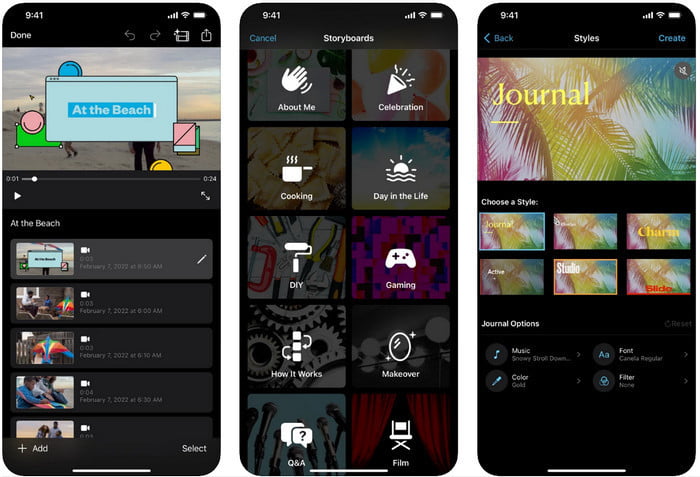
Langkah 1. Ketuk iMovie di layar untuk membuka aplikasinya, lalu ketuk ikon plus di layar. Jendela baru akan muncul dan menampilkan dua pilihan, tetapi ketuk Movie.
Langkah 2. Pilih video pada daftar yang muncul di layar dan klik Create Movie untuk lanjut. Setelah kamu mengunggahnya, klik ikon seperti jam untuk mengubah kecepatan video, lalu seret penggeser ke kiri untuk memperlambat video.
Langkah 3. Setelah selesai mengedit kecepatan video, klik Done, lalu Export untuk menyimpannya ke penyimpanan perangkatmu.
Editor Video Gerak Cepat Lambat
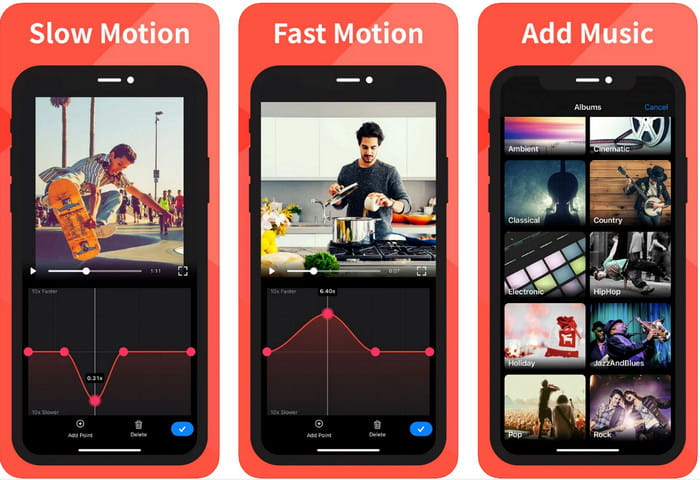
Slow Fast Motion Video Editor memang tidak sebaik iMovie dalam membuat tampilan video jadi menakjubkan, tetapi aplikasi ini dapat dengan mudah memperlambat video di iPhone. Berkat editor kecepatan multifungsinya, hampir tidak ada yang tidak bisa dilakukan aplikasi ini, terutama dalam urusan mempercepat video. Baik video dalam orientasi potret maupun lanskap, aplikasi ini bisa bekerja dengan dua cara. Jadi, mempelajari cara menggunakan aplikasi ini tidak terlalu kaku dibandingkan pengatur kecepatan lain yang bisa kamu unduh di perangkatmu. Namun, untuk bisa menggunakannya di iOS, kamu harus membayar biaya berlangganan, meski ada uji coba gratis selama 3 hari, tetapi dalam masa uji coba itu akan ada iklan di mana-mana. Untuk menggunakan aplikasinya, kamu bisa mengikuti langkah-langkah di bawah ini.
Langkah 1. Unduh aplikasinya, lalu buka di perangkat iOS-mu, ketuk Allow Access untuk memberi akses ke Foto pada perangkatmu.
Langkah 2. Pilih video di perangkatmu dan ketuk Show Selected; ketuk All Videos untuk melihat video yang kamu unggah lalu ketuk Select.
Opsional: Kamu bisa memangkas dan memotong video sesuai keinginan dan menyeret play-head ke durasi yang kamu mau. Namun, jika kamu tidak ingin memangkas atau memotong, kamu bisa mengetuk Skip, tetapi ketuk Next jika kamu mengeditnya.
Langkah 4. Ketuk tombol Speed, atur setiap kecepatan sesuai keinginanmu, lalu seret ke bawah untuk memperlambat video. Ingat, setiap titik yang kamu seret hanya akan memperlambat bagian tertentu, bukan seluruh video. Ketuk Check and Save untuk mengekspor video yang sudah kamu ubah kecepatannya.
Slo-Mo: Buat Video Gerakan Lambat
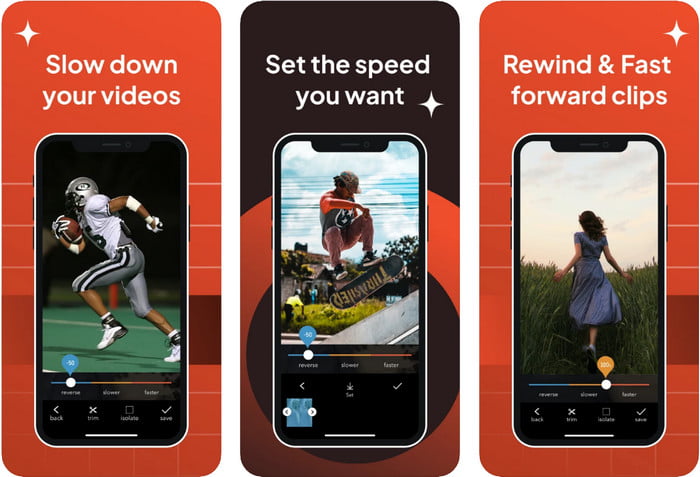
Slo-Mo: Make Slow Motion adalah aplikasi lain yang bisa kamu unduh di iOS secara gratis, tetapi menawarkan pembelian dalam aplikasi. Sama seperti Slow Fast Motion Video Editor, kamu perlu berlangganan sebelum dapat menggunakan semua fiturnya secara maksimal. Meski harus berlangganan, harganya sepadan dan tidak terlalu mahal. Dalam mengubah kecepatan pemutaran video, alat ini sangat tepat untuk tugas seperti ini. Untuk mengetahui lebih jauh tentang cara membuat video slow motion di iPhone, kamu bisa membaca tutorial di bawah ini.
Langkah 1. Untuk mengunduh aplikasi, kamu bisa mengaksesnya di App Store lalu mengunduhnya; setelah itu, buka aplikasi untuk mulai memperlambat video yang kamu miliki.
Langkah 2. Ketuk Library, pilih video yang ingin kamu ubah kecepatan pemutarannya, ketuk Choose untuk memulai.
Langkah 3. Seret slider ke kiri untuk memperlambat; klik Save jika kamu sudah puas dengan kecepatannya.
Bagian 2. Pengontrol Kecepatan Video Terbaik Tersedia di Windows dan Mac
FVC Video Converter Ultimate memiliki pengatur kecepatan terbaik yang wajib kamu gunakan pada video yang tersimpan di Windows dan Mac. Dengan fitur uniknya dalam mempercepat video, jika kita bandingkan dengan aplikasi lain yang disebutkan di sini, ada jarak besar antara pengatur kecepatan yang sekadar bagus dan yang benar-benar unggul. Karena dukungan sistem operasinya terbatas, kamu tidak bisa mengunduh perangkat lunak ini di iOS karena tidak didukung. Meski begitu, software ini tetap dianggap sebagai alat serbaguna yang dapat menyelesaikan masalah video dan audio. Jadi, untuk mempelajari cara membuat video menjadi gerak lambat di iPhone setelah merekamnya, kamu harus mengikuti dan membaca tutorial yang kami tambahkan pada bagian berikutnya.
Langkah 1. Untuk mendapatkan software pengatur kecepatan terbaik ini di desktop, kamu harus mengklik tombol unduh dan memilih apakah kamu menggunakan Windows atau Mac. Setelah itu, klik file yang kamu unduh untuk memasang dan menjalankannya.
Unduh GratisUntuk Windows 7 atau yang lebih baruUnduhan Aman
Unduh GratisUntuk MacOS 10.7 atau yang lebih baruUnduhan Aman
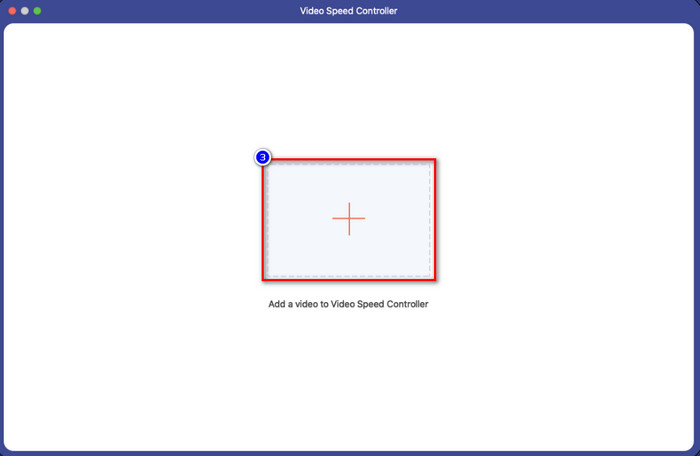
Langkah 2. Buka bagian Toolbox pada alat ini untuk mengakses Video Speed Controller di sana.
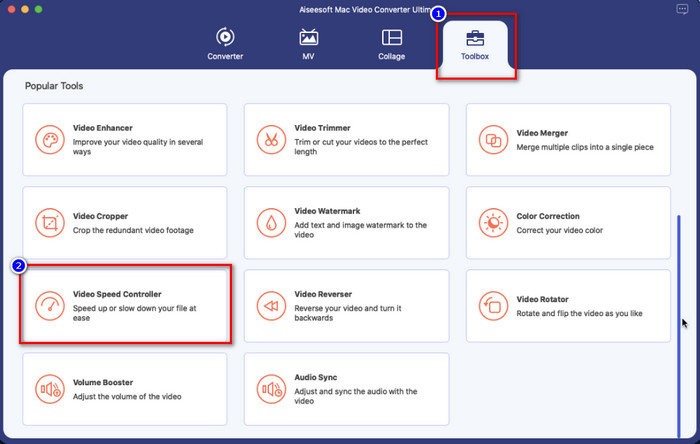
Langkah 3. Klik ikon plus, dan jendela folder akan muncul di layar. Cari video yang ingin kamu unggah, klik file tersebut, lalu tekan Open.
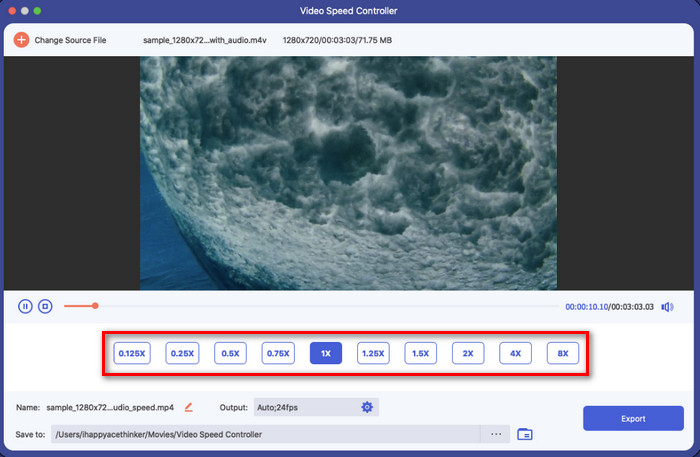
Langkah 4. Sekarang kamu bisa memilih efek gerak lambat yang ingin kamu terapkan pada videomu di area ini. Coba semuanya untuk melihat apakah itu kecepatan pemutaran yang kamu inginkan pada video yang tadi kamu pilih.
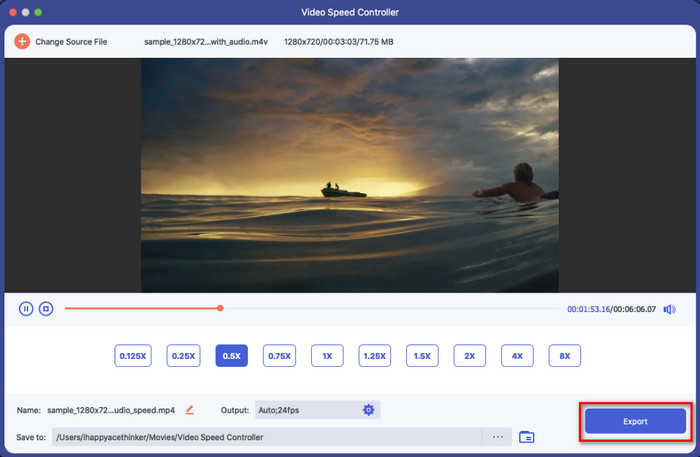
Langkah 5. Terakhir, kamu bisa menyimpan perubahan yang sudah kamu terapkan pada video dengan mengklik tombol Export. Setelah ekspor selesai, sebuah folder akan muncul di layar berisi video yang sudah diperlambat.
Bagian 3. FAQ tentang Cara Memperlambat Video di iPhone
Apakah memperlambat video akan memengaruhi kualitas?
Karena mengubah pemutaran video, beberapa perubahan mungkin terjadi pada video setelah Anda mengubah kecepatan sebenarnya menjadi efek slow-mo. Tetapi jika Anda menerapkan efek slow-mo pada video, kami dapat meyakinkan Anda bahwa kualitas video tidak akan berkurang, jadi pastikan untuk tidak menggunakannya secara berlebihan.
Mengapa video saya menjadi buram setelah saya menerapkan gerakan lambat?
Contoh seperti ini mungkin terjadi jika alat yang Anda pilih tidak mendukung ekspor video berkualitas tinggi. Tetapi beberapa alat gratis membantu menerapkan efek slow-mo tanpa batasan kualitas. Seperti yang bisa Anda dapatkan di FVC Video Converter Ultimate, setelah Anda memperlambat video Anda di sini, kualitas tinggi yang sama akan tetap ada pada video yang Anda unggah.
Mengapa ada tanda air setelah saya mengekspor video dalam gerakan lambat?
Jika Anda menggunakan versi gratis aplikasi untuk memperlambat video, maka ada kemungkinan saat Anda mengekspor video, itu akan meninggalkan tanda air di atasnya. Jadi, Anda harus membaca informasi tentang perangkat lunak yang Anda pilih dan melihat apakah itu akan meninggalkan tanda air pada video jika Anda akan mengekspornya.
Kesimpulan
Jika kamu ingin merekam seperti selebritas di ajang Grammy, menggunakan perangkat iOS bisa membantu, dan dengan tutorial yang kami buat, belajar cara memperlambat video di iPhone menjadi mungkin dan mudah. Dengan aplikasi yang kami pilih, siapa pun yang senang menambahkan efek slow motion kini bisa mengerjakannya selayaknya profesional. Meski aplikasinya sudah bagus, tetap saja FVC Video Converter Ultimate melampaui semua standar dalam memperlambat kecepatan video. Jika kamu ingin memiliki dan menggunakan alat ini, kamu bisa membaca petunjuk yang kami tambahkan di bagian 2 dan mengunduhnya.
-
 Memang: Praktik Terbaik untuk Memperlambat Video MP4
 Selain meningkatkan kecepatan video Anda, memperlambat adalah salah satu dari banyak praktik yang diperlukan untuk mencapai hasil terbaik dari video Anda. Bercita-citalah untuk menjadi editor terbaik dengan membaca artikel selanjutnya.
-
 Cara Mengubah Video Slow Motion ke Kecepatan Normal [Langkah Mudah]
 Ingin tahu cara mengembalikan video gerakan lambat yang Anda unduh dari internet atau secara tidak sengaja direkam dalam gerakan lambat? Pelajari cara mengonversi video gerak lambat ke kecepatan normal di Mac, Windows, iOS, dan Android.
-
 Yang Perlu Anda Ketahui Tentang Cara Membuat Video Gerakan Lambat
 Anda ingin membuat video slow-motion seperti editor profesional, tetapi tidak tahu software atau aplikasi apa yang ingin digunakan? Baca artikel ini untuk mempelajari semua detail yang Anda butuhkan.
