


 Video Converter Ultimate
 Perekam Layar
 Perbaikan Video
 Unduhan Aman
Cara Luar Biasa untuk Mengonversi File MOV ke M4V di Perangkat Anda
Jika Anda ingin mempelajari cara mengonversi MOV ke M4V, Anda berada di artikel yang tepat. Kami akan memperkenalkan kepada Anda konverter-konverter yang sangat baik dan bermanfaat untuk mengonversi berbagai jenis file, khususnya MOV ke M4V. Selain itu, Anda juga akan mempelajari perbedaan di antara kedua format ini. Jika Anda ingin tahu lebih banyak, luangkan waktu Anda untuk membaca artikel ini sampai selesai.

Bagian 1: Perbedaan Antara MOV ke M4V
| MOV | M4V | |
| Nama file | Film Apple QuickTime | File Video iTunes |
| Ekstensi File | .mov | .m4v |
| Keterangan | Wadah video MPEG-4 yang dikenal sebagai format multimedia .mov sering dihubungkan ke kerangka kerja QuickTime Apple. Dengan rilis awal QuickTime pada tahun 1991, format file film paling sering dikreditkan dengan memperkenalkan film berwarna berdurasi penuh ke Macintosh. Ini sebelum komputer pribadi dan sistem operasi Microsoft Windows memiliki sesuatu yang sebanding. Beberapa urutan data atau trek yang dibagi menjadi audio, video, efek, dan subtitle seperti teks didukung oleh format film ini. File sumber daya diakhiri dengan .mov. | Ekstensi file M4V sangat mirip dengan ekstensi file MP4 dan dibuat oleh Apple khusus untuk konten yang terlihat di toko iTunes. Produk Apple adalah satu-satunya yang mendukung M4V. Codec video MP4 dan MOV dapat dikonversi ke M4V untuk diputar di perangkat Apple. Perbedaan utama antara M4V dan MP4 adalah bahwa M4V memberikan Perlindungan Hak Cipta DRM, yang melarang hak cipta konten audiovisual. Komputer memerlukan izin untuk memutar file M4V yang dilindungi DRM, dan melakukannya dengan masuk ke akun iTunes yang digunakan untuk membeli file video. Untuk membuat file kompatibel dengan perangkat non-Apple, pengguna hanya perlu mengganti ekstensi file M4V menjadi MP4 jika file tersebut tidak dilindungi DRM. |
| Dikembangkan oleh | Perusahaan Apple. | Perusahaan Apple. |
| Kategori File | Video | Video |
| Program Terkait | DVD kekuasaan Pemutar QuickTime Apple Pencipta Roxio VLC Media Player | Pemutar Zoom Pemutar Media Klasik KMPlayer VLC Media Player |
| Jenis MIME | video/waktu cepat | video/x-m4v |
Bagian 2: Cara Terbaik untuk Mengonversi MOV ke M4V Menggunakan Mac
Bagaimana cara mengonversi MOV ke M4V di Mac? Jawaban terbaiknya adalah dengan menggunakan Video Converter Ultimate. Aplikasi ini merupakan salah satu konverter paling andal yang bisa Anda gunakan. Anda dapat menambahkan hampir semua format video karena aplikasi ini mendukung lebih dari 100 format video, termasuk MP4, FLV, AVI, M4V, MOV, VOB, MTS, SWF, dan banyak lagi. Prosedur untuk mengonversi file MOV juga mudah dipahami, sehingga cocok untuk pengguna non-profesional. Selain itu, konverter ini dapat diakses tidak hanya di Mac, tetapi juga di Windows. Dengan begitu, Anda bisa menilai bahwa konverter ini dapat diandalkan. Lebih jauh lagi, masih banyak hal lain yang bisa Anda lakukan pada file MOV selain mengonversinya. Anda dapat menggunakan aplikasi ini jika video MOV Anda memiliki watermark yang mengganggu. Dengan alat penghapus watermark, Anda dapat dengan cepat menghilangkan watermark dari video MOV Anda. Jika Anda berencana menambahkan filter pada video agar tampak lebih menarik di mata penonton, Anda juga dapat mengandalkan aplikasi ini. Artinya, Anda bisa melakukan banyak hal menggunakan FVC Video Converter Ultimate.
Fitur
◆ Konversi berbagai format video, seperti MP4, AVI, FLV, WMV, MKV, VOB, M4V, MOV, dll.
◆ Buat Kolase dengan filter dan templat yang tersedia.
◆ Buat Video Musik.
◆ Menawarkan alat pengeditan untuk menyempurnakan video, seperti pengontrol kecepatan video, penambah, pemangkas, pemangkas, rotator, dll.
◆ Konversi berbagai format gambar seperti BMP, JPG, PNG, dll.
◆ Menawarkan konversi batch.
Ikuti langkah-langkah dasar di bawah ini untuk mengonversi MOV ke M4V secara gratis menggunakan versi Video Converter Ultimate Mac.
Langkah 1: Klik tombol Download di bawah ini untuk mengunduh Video Converter Ultimate. Lalu, jalankan aplikasinya setelah proses instalasi selesai.
Unduh GratisUntuk Windows 7 atau yang lebih baruUnduhan Aman
Unduh GratisUntuk MacOS 10.7 atau yang lebih baruUnduhan Aman
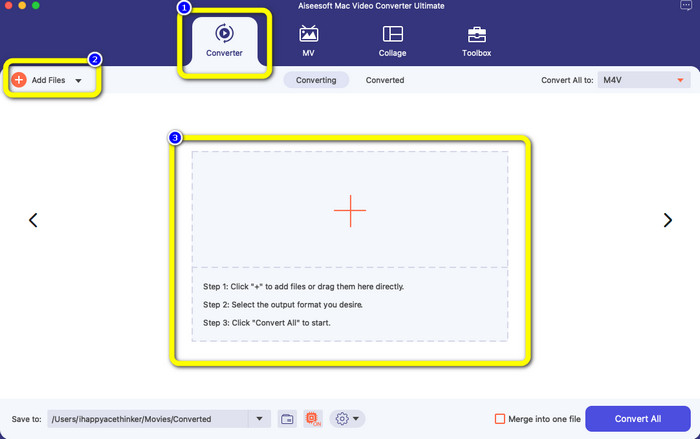
Langkah 2: Pada antarmuka bagian atas, pilih opsi Converter. Setelah itu, klik tombol Add File atau tanda + untuk menambahkan file MOV Anda. Anda juga dapat menjatuhkan (drag and drop) file video MOV ke dalam kotak.
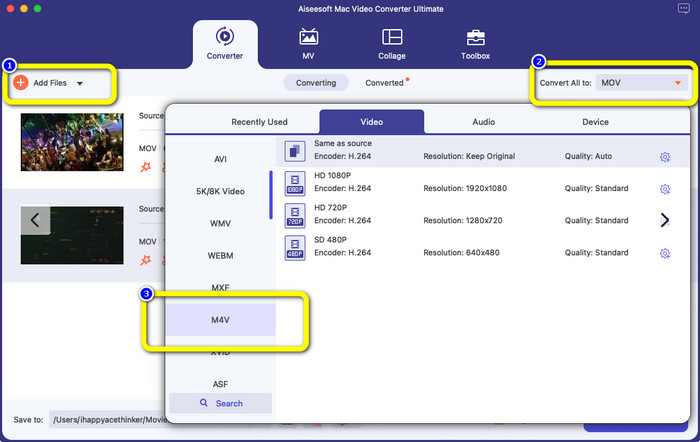
Langkah 3: Anda masih dapat menambahkan lebih banyak file, terutama jika ingin melakukan konversi batch. Klik tombol Add File. Lalu, untuk mengonversinya ke format file M4V, buka tombol Convert All to dan pilih format file M4V. Anda juga bisa memilih resolusi yang diinginkan.
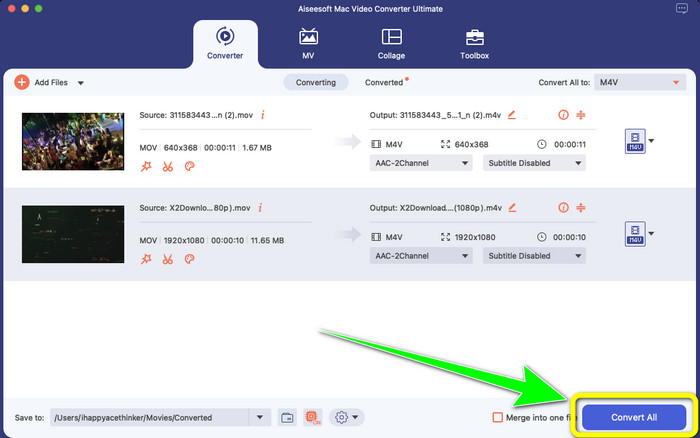
Langkah 4: Setelah itu, untuk menyimpan video Anda, klik tombol Convert All. Tunggu proses konversi selesai. Selesai! Video MOV Anda telah berhasil dikonversi menjadi file M4V.
Bagian 3: 2 Metode untuk Mengonversi MOV ke M4V di Mac
Menggunakan Quick Time
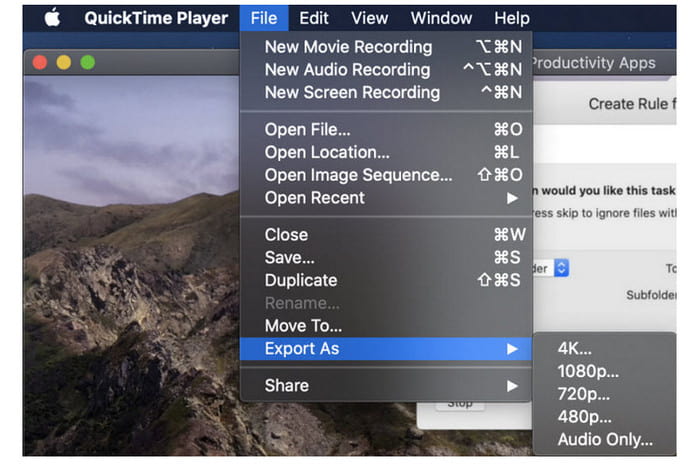
Pada mesin Mac sebelumnya, aplikasi bawaannya adalah QuickTime. Opsi Ekspor di QuickTime bagus untuk mengonversi file video MOV ke file M4V di Mac, yang merupakan alat yang berguna saat Anda perlu melakukannya untuk memutarnya di iPhone, iPad, atau Apple TV. Video .mov dapat dikompresi dan diubah menjadi 480p, 720p, atau 1080p menggunakan opsi Ekspor. Pada versi macOS yang lebih baru, QuickTime tidak didukung. Untuk kode registrasi untuk mengaktifkan kemampuan konversi, Anda harus membayar Apple. Ikuti langkah-langkah untuk mengonversi MOV ke M4V menggunakan QuickTime.
Langkah 1: Buka file MOV di QuickTime. Lalu, pilih menu File di bagian atas dan pilih Export.
Langkah 2: Terdapat berbagai opsi di bawah menu Export, termasuk 480p, 720p, 1080p, iPad, iPhone, iPod touch, Apple TV, iTunes, dan Audio Only. Pilih iPad, iPhone, iPod touch & Apple TV saat mengonversi MOV ke M4V untuk iPhone, Apple TV, atau perangkat Apple lainnya, dan sebuah jendela baru akan muncul yang memungkinkan Anda memilih ukuran berdasarkan di mana Anda akan menonton video Anda.
Langkah 3: Beri nama file video yang telah dikonversi. Ekstensi file videonya harus .m4v. Jika semuanya sudah siap, tekan tombol Save di bagian bawah. Tetapkan lokasi tempat Anda ingin menyimpan file tersebut.
Langkah 4: Terakhir, klik tombol Save sekali lagi untuk mengekspor file .m4v. Untuk menghentikan proses konversi kapan saja, klik tombol X pada bilah progres. Alat ini juga memungkinkan Anda untuk mengonversi AVI ke M4V.
Menggunakan iTunes
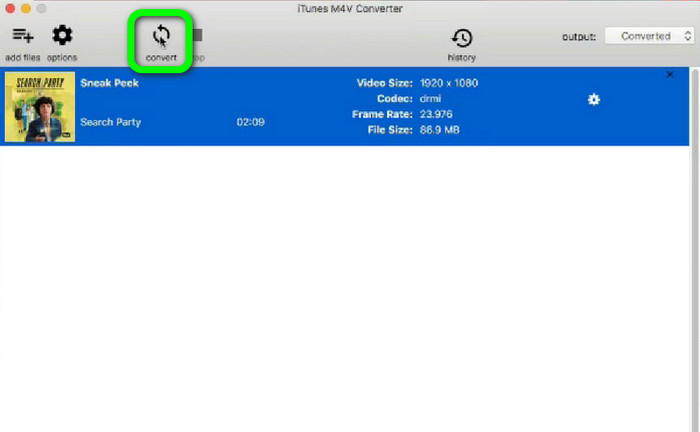
Apakah Anda ingin mengonversi MOV ke M4V menggunakan iTunes? Kemudian, Anda dapat mengikuti panduan terperinci di bawah ini. iTunes adalah pengonversi lain yang dapat Anda andalkan. Namun, prosesnya rumit, dan pilihannya terlalu membingungkan.
Langkah 1: Buka iTunes. Pilih Movies di pustaka (library) dan tambahkan file MOV.
Langkah 2: Buka menu Advanced, lalu pilih Convert Selection for Mac.
Langkah 3: Kemudian ubah ekstensi video menjadi M4V.
Langkah 4: Setelah itu buka File > Convert. Tunggu proses konversi dan simpan video Anda ke dalam pustaka.
Bagian 4: Cara Terbaik untuk Mengonversi MOV ke M4V Online
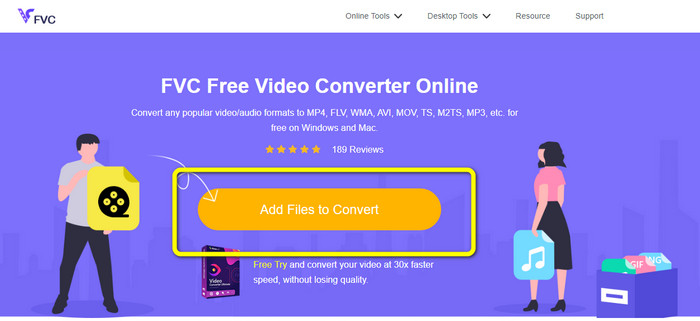
Untuk mengonversi MOV ke M4V secara online, Anda dapat menggunakan FVC Free Video Converter Online. Konverter ini dapat mengonversi file secara instan. Selain itu, perangkat lunak ini memungkinkan Anda mengonversi banyak file sekaligus. Ditambah lagi, ia mendukung berbagai format file video dan audio, seperti AVI, VOB, MP4, 3GP, AAC, AC3, MP3, FLAC, dan lainnya. Anda dapat mengikuti langkah-langkah sederhana di bawah ini untuk mengonversi MOV ke M4V dengan mudah.
Langkah 1: Kunjungi situs web FVC Free Video Converter Online. Lalu, klik Add Files to Convert untuk menambahkan file MOV Anda.
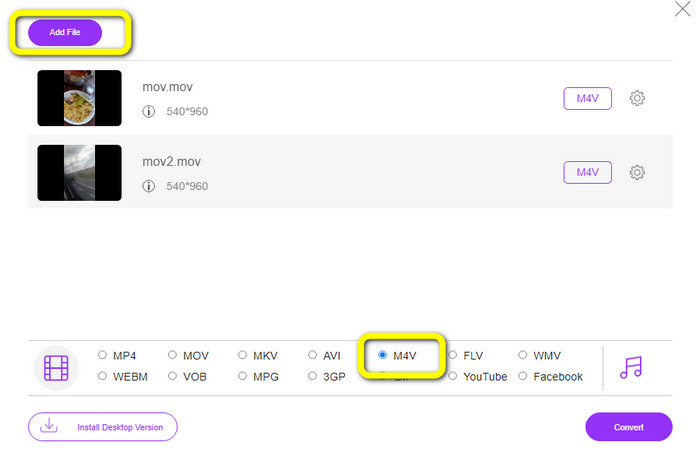
Langkah 2: Untuk menambahkan banyak file, klik tombol Add File. Lalu, buka opsi format dan pilih format file M4V.
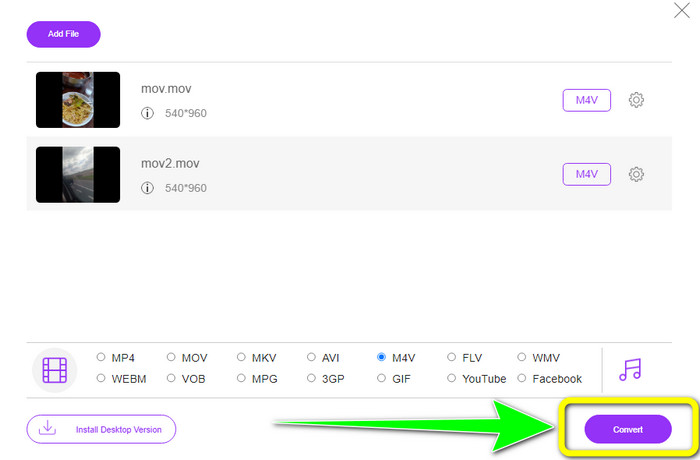
Langkah 3: Tekan tombol Convert untuk mengonversi MOV ke M4V. Setelah itu, simpan file Anda di lokasi yang diinginkan. Anda juga dapat menggunakan alat ini untuk mengonversi MOV ke MKV.
Bagian 5: FAQ tentang Mengonversi MOV ke M4V
Kualitas mana yang lebih baik, MOV atau M4V?
M4V lebih baik dalam kualitas. Format M4V lebih disukai jika Anda menonton film di perangkat seluler seperti iPhone, iPad, atau iPod karena hampir semua perangkat seluler dapat memutar format ini. File M4V seharusnya tidak memiliki kesulitan kompatibilitas dibandingkan dengan file MOV.
Apa keuntungan dari file MOV?
MOV merupakan format file yang praktis karena dapat menyimpan beberapa komponen media dalam satu ruang kecil, termasuk audio dan video. Ini menyimpan informasi, sehingga Anda dapat dengan cepat memodifikasi file jika perlu tanpa harus repot menulis ulang.
Mengapa MOV begitu besar?
Video yang Anda ambil dengan iPhone, iPad, atau Mac akan disimpan dalam format .mov. File MOV dibuat untuk menjaga detail yang direkam kamera; mereka lebih besar dan lebih cocok untuk diedit.
Kesimpulan
Berdasarkan informasi di atas, inilah cara-cara terbaik untuk mengubah MOV ke M4V. Beberapa di antaranya agak membingungkan untuk digunakan dan perlu mengaktifkan kode. Jika Anda menginginkan cara yang sederhana untuk mengonversi file, gunakan FVC Free Video Converter Online.
-
 Cara Mudah Konversi MTS ke M4V dengan Mudah
 Apakah Anda ingin mengonversi file MTS Anda ke M4V tanpa menemui masalah? Buka artikel ini. Kami telah menyediakan prosedur terperinci yang dapat Anda ikuti.
-
 Pelajari Cara Mengonversi VOB ke M4V [Offline dan Gratis]
 Apakah mungkin untuk mengkonversi VOB ke M4V? Ketahui jawabannya dengan membaca panduan ini, karena Anda akan mempelajari metode terbaik yang dapat Anda coba untuk mengonversi VOB ke M4V secara instan.
-
 Pelajari Cara Mengonversi WMV ke M4V di Windows dan Mac
 Kami tahu Anda ingin mengonversi WMV ke M4V hanya dengan konverter terbaik. Dalam hal ini, kami akan menunjukkan kepada Anda metode terbaik yang dapat Anda coba untuk mengonversi file Anda.
