


 Video Converter Ultimate
 Perekam Layar
 Perbaikan Video
 Unduhan Aman
Cara Mengonversi JPEG ke JPG Menggunakan Pengonversi Gambar yang Terbukti dan Teruji
Beberapa orang mengatakan bahwa JPEG dan JPG adalah format yang sama. Memang benar. Namun, beberapa program hanya menerima ekstensi tiga huruf. Jadi alih-alih menggunakan JPEG, jadinya JPG. Format JPG adalah format yang populer saat ini. Jadi, jika Anda juga ingin mengonversi file gambar JPEG Anda ke format JPG, Anda beruntung. Panduan ini akan memberi Anda solusi terbaik yang dapat Anda coba. Anda bisa langsung mengonversi JPEG ke JPG menggunakan konverter JPEG ke JPG. Konverter ini tersedia secara online dan di perangkat seluler. Jika Anda ingin mengetahui aplikasi-aplikasi ini, manfaatkan kesempatan untuk membaca artikel ini.

Bagian 1. Cara Berguna untuk Mengonversi JPEG ke JPG Online
Cara Mengonversi JPEG ke JPG di FVC Free Image Converter
Cara terbaik untuk mengubah JPEG ke JPG adalah menggunakan FVC Free Image Converter. Ini adalah pilihan yang tepat untuk mengonversi JPEG ke JPG atau format lain, seperti PNG dan GIF. Alat ini dapat menangani semua format gambar, termasuk JPG, JPEG, PNG, SVG, BMP, TIFF, dan GIF. Dengan begitu, Anda tidak perlu khawatir jika file gambar Anda tidak bisa dibuka di alat atau perangkat tertentu. Cara terbaik adalah mengonversinya menggunakan konverter gambar online ini. Selain itu, alat ini dapat mempertahankan kualitas unggul dari gambar asli. Anda juga tidak akan melihat perbedaan dari aslinya setelah proses konversi. Selain itu, konverter file gambar FVC mendukung proses konversi batch. Artinya, Anda dapat mengonversi banyak gambar sekaligus. Ini jauh lebih praktis dan efisien. Kinerjanya tak tertandingi dibandingkan konverter format gambar lain di pasaran.
FVC Free Image Converter dapat menangani hingga 40 gambar sekaligus. Jadi Anda bisa lebih menghemat waktu. Anda juga tidak perlu membayar sepeser pun untuk program ini. Ini adalah konverter gambar gratis untuk digunakan. Anda juga tidak perlu membuat akun untuk mengoperasikannya. Yang harus Anda lakukan adalah mengunjungi situs web dan mulai mengonversi. Kita semua tahu bahwa iklan itu mengganggu. Tetapi alat ini tidak memiliki iklan sehingga Anda dapat mengonversi dengan damai. Anda dapat mengakses perangkat lunak online ini di semua browser web, termasuk Chrome, Mozilla, Edge, Explorer, dan lainnya.
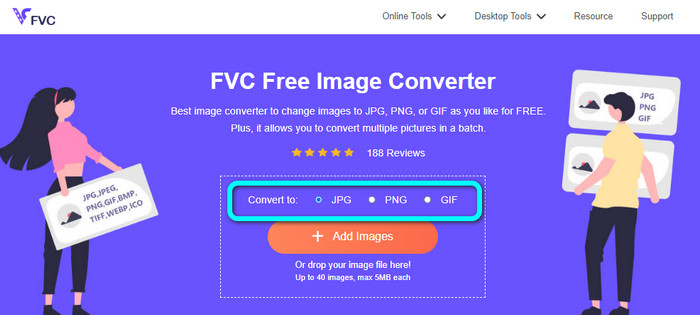
Langkah 1: Buka peramban Anda dan masuk ke situs utama FVC Free Image Converter. Pergi ke opsi Convert to dan pilih format JPG.
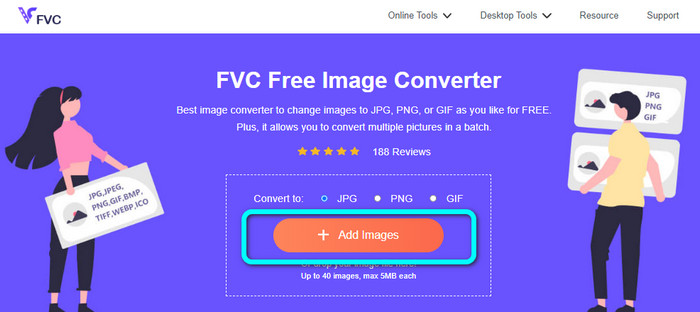
Langkah 2: Setelah Anda memilih format file JPG, klik tombol Add Images. Lalu, folder file Anda akan muncul di layar komputer. Tambahkan gambar JPEG yang ingin Anda konversi.
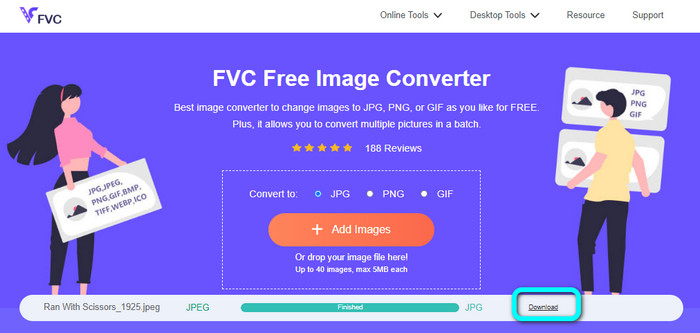
Langkah 3: Ketika Anda menambahkan gambar berformat JPEG, Anda akan melihat bahwa gambar tersebut akan dikonversi secara otomatis. Dari JPEG akan menjadi JPG. Setelah proses konversi selesai, klik tombol Download. Dengan begitu, Anda dapat menyimpan gambar JPG di komputer Anda.
Cara Mengonversi JPEG ke JPG di Convertio
Konverter JPEG ke JPG lain yang dapat Anda gunakan adalah Convertio. Konverter gambar ini dapat mengonversi JPEG Anda ke JPG dengan metode yang sangat sederhana. Alat ini juga menawarkan antarmuka yang ramah pengguna, sehingga mudah dipahami. Dengan demikian, pengguna profesional maupun nonprofesional dapat mengoperasikan konverter online ini. Selain itu, tersedia proses konversi batch pada program ini. Jadi Anda bisa mengonversi banyak format gambar secara bersamaan. Proses konversinya juga cepat. Anda dapat mengonversi gambar hanya dalam beberapa detik. Convertio tersedia di peramban populer seperti Google, Firefox, Explorer, dan lainnya. Selain itu, Convertio memiliki lebih banyak fitur yang ditawarkan. Selain mengonversi gambar, Anda juga dapat mengonversi video, audio, dokumen, dan lainnya.
Namun, versi yang dapat diakses dari program ini memiliki batasan. Anda hanya dapat mengunggah gambar hingga 100MB. Setelah itu, Anda tidak dapat mengonversi gambar lagi. Jadi, jika Anda ingin merasakan fitur lengkapnya, beli paket berlangganan. Juga, koneksi internet yang kuat diperlukan untuk melihat kinerja tingkat tinggi.
Langkah 1: Buka situs utama Convertio. Pilih tombol Choose files. Pilih file gambar JPEG di folder komputer Anda dan buka.

Langkah 2: Setelah Anda membuka file gambar JPEG, pilih format JPG dari opsi format.
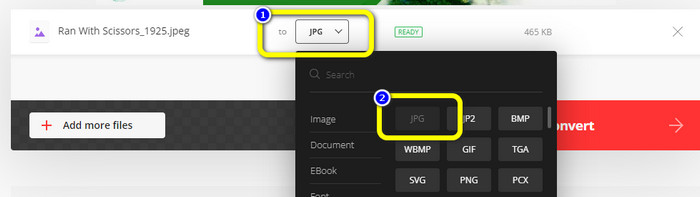
Langkah 3: Setelah Anda membuka file gambar JPEG, pilih format JPG dari opsi format. Anda juga dapat mengeklik tombol Add more files untuk melakukan proses konversi batch.
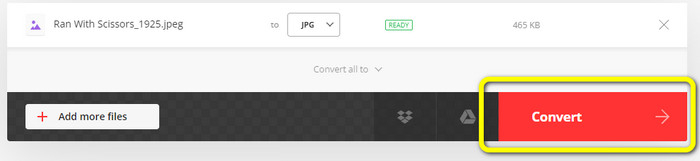
Langkah 4: Klik tombol Convert untuk memulai proses konversi. Lalu, setelah proses konversi selesai, klik tombol Download.
Cara Mengonversi JPEG ke JPG di CloudConvert
CloudConvert adalah alat berbasis web untuk mengonversi JPEG ke JPG. Dengan bantuan konverter ini, Anda dapat dengan cepat mengubah JPEG menjadi JPG. Selain itu, alat ini menawarkan antarmuka yang intuitif dengan instruksi dasar untuk konversi. Jadi mudah untuk mengonversi JPEG ke JPG, baik Anda pengguna berpengalaman maupun pemula. Lebih jauh lagi, CloudConvert tersedia di berbagai peramban. Ini termasuk Mozilla, Explorer, dan Firefox, sehingga makin mudah diakses. Bagian terbaik dari alat ini adalah Anda dapat melakukan penyesuaian pada gambar. Anda dapat menggunakan opsi untuk mengubah resolusi gambar, ukuran file, dan kualitas. Salah satu prioritas perangkat lunak ini, selain konversi, adalah privasi pengguna. CloudConvert memastikan informasi Anda aman. Mereka tidak akan membagikan data Anda kepada pihak lain. Setelah proses konversi, gambar Anda akan dihapus secara otomatis setelah 24 jam.
Namun, konverter gambar berbasis web ini memiliki kekurangan. Jika Anda hanya menggunakan versi gratis, Anda hanya dapat mengonversi 25 gambar setiap hari. Anda perlu membeli paket langganan untuk mengonversi lebih banyak gambar. Juga, salah satu persyaratan konverter ini adalah akses internet. Karena ini adalah alat online, koneksi internet diperlukan.
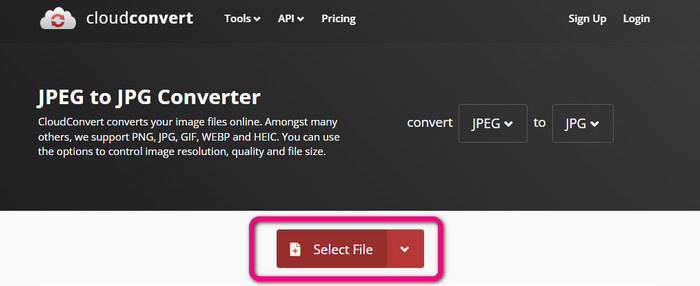
Langkah 1: Klik tombol Select File. Lalu, buka gambar JPEG dari file Anda.
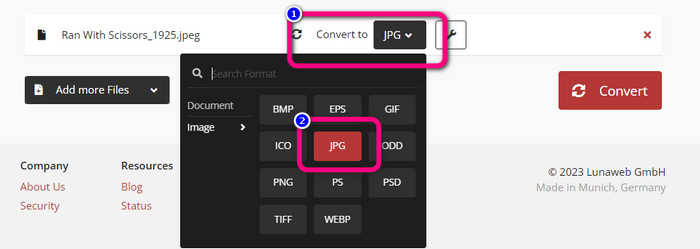
Langkah 2: Pergi ke opsi Convert to. Pilih format yang diinginkan, yaitu JPG.
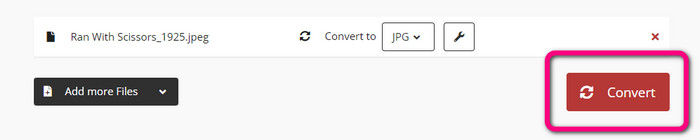
Langkah 3: Setelah Anda memilih file JPG, klik tombol Convert. Tunggu proses konversi dan simpan gambar akhir di desktop Anda. Anda juga dapat menggunakan alat ini untuk mengonversi JPG ke PNG.
Bagian 2. Cara Mengonversi JPEG ke JPG Menggunakan Android dan iPhone
Cara Mengonversi JPEG ke JPG di Pengonversi Gambar
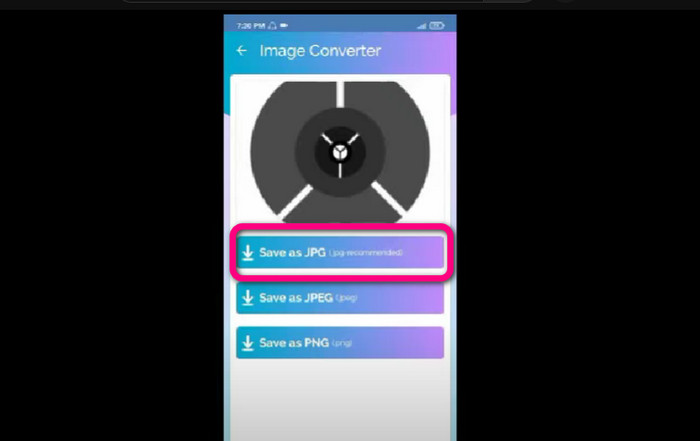
Jika Anda ingin mengonversi JPEG ke format JPG di Android, gunakan Image Converter. Aplikasi ini tersedia di perangkat Android. Prosedur konversi gambarnya mudah, sehingga cocok untuk pengguna nonprofesional. Selain itu, Anda dapat mengunduh aplikasi ini secara gratis. Aplikasi ini juga menawarkan antarmuka yang mudah dipahami. Dengan begitu, tidak ada yang akan bingung saat menggunakan konverter ini. Selain itu, Image Converter memiliki proses konversi yang lancar. Setelah memilih format, aplikasi akan mengonversi dan menyimpan gambar di ponsel Anda tanpa repot. Namun, aplikasi ini hanya mendukung format keluaran yang terbatas, seperti PNG, JPG, dan JPEG. Jadi, Anda tidak bisa menggunakan aplikasi ini jika ingin mengonversi gambar ke GIF, SVG, BMP, dan lainnya.
Langkah 1: Buka aplikasi Play Store dan unduh aplikasi Image Converter. Lalu, jalankan aplikasi setelah proses instalasi.
Langkah 2: Tekan tombol Select Photo untuk melampirkan foto JPEG dari galeri ponsel Anda.
Langkah 3: Klik opsi Save as JPG untuk langkah terakhir. Tunggu proses konversi. Setelah selesai, gambar akan disimpan secara otomatis ke galeri Anda.
Cara Mengonversi JPEG ke JPG di JPG Image Converter & Resizer
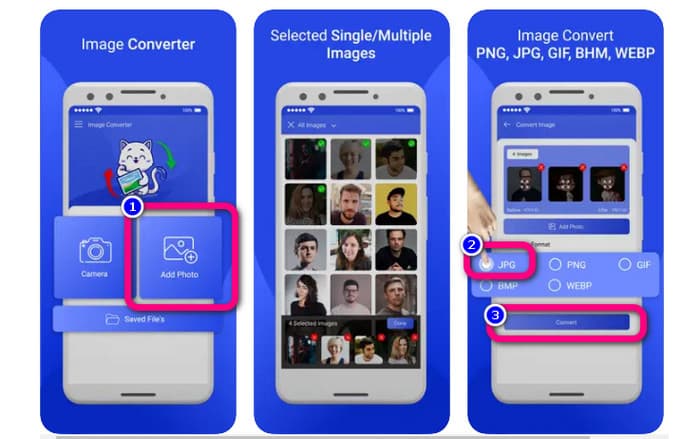
Jika Anda ingin mengonversi JPEG ke JPG menggunakan iPhone, gunakan JPG Image Converter & Resizer. Perangkat lunak ini tersedia di Apple Store. Anda dapat mengunduhnya secara gratis. Selain itu, proses konversinya mudah. Aplikasi ini memiliki antarmuka yang intuitif, sehingga tidak menyulitkan pengguna. Proses konversi batch tersedia di aplikasi ini. Dengan demikian, Anda dapat mengonversi banyak format gambar sekaligus. Aplikasi ini juga mendukung berbagai format gambar. Ini termasuk PNG, BMP, GIF, WebP, dan lain-lain. Namun, Anda hanya dapat menggunakan aplikasi ini jika iPhone Anda menggunakan iOS di atas 12.0. Anda bisa mengunduh aplikasi ini pada iOS 12.0 dan versi yang lebih baru.
Langkah 1: Buka Apple Store dan unduh JPG Image Converter & Resizer. Lalu, jalankan aplikasinya.
Langkah 2: Tekan ikon Add Photo untuk memasukkan gambar JPEG yang ingin Anda konversi. Anda dapat menambahkan banyak gambar jika diinginkan.
Langkah 3: Pilih format JPG dari opsi format. Setelah itu, pilih tombol Convert untuk memulai proses konversi.
Bagian 3. FAQ tentang Konversi JPEG ke JPG
1. Bagaimana cara mengonversi gambar dari PNG ke JPG?
Anda dapat menggunakan FVC Free Image Converter. Konverter gambar online ini mendukung format masukan seperti PNG. Dengan demikian, Anda dapat mengubah gambar PNG menjadi format JPEG. Cukup pergi ke opsi format dan pilih JPG. Lalu, klik tombol Add Images untuk menambahkan gambar PNG. Setelah itu, klik tombol download.
2. Mengapa file JPEG saya tidak berfungsi di Mac saya?
Ada dua kemungkinan alasan mengapa gambar JPEG Anda tidak berfungsi. Mungkin MacOS Anda belum diperbarui. Alasan lainnya adalah gambar JPEG mungkin rusak karena infeksi virus. Anda perlu memperbaiki gambar JPEG Anda atau memperbarui macOS Anda.
3. Bagaimana cara menyimpan foto yang dikirim melalui email dalam format .jpg?
Kotak dialog akan menanyakan di mana Anda ingin menyimpan gambar saat Anda mengunduh gambar. Pada saat itu, Anda dapat menyimpan gambar Anda dalam format yang Anda inginkan dari opsi format.
Kesimpulan
Sebagai penutup, pos ini telah memberikan cara paling efektif untuk mengonversi JPEG ke JPG menggunakan berbagai konverter gambar. Namun, sebagian besar pengguna lebih menyukai metode sederhana untuk mengonversi file gambar. Dalam hal ini, Anda dapat menggunakan FVC Free Image Converter, yang dapat mengonversi berbagai file dengan mudah dan instan.
-
 Apa itu File PNG: Bagaimana Cara Membuka dan Mengonversi? [Detail lengkap]
 Apakah Anda tahu apa itu format PNG? Anda dapat mempelajari semua detail penting dari file ini. Baca panduan ini dan serap semua informasi yang bisa Anda dapatkan.
-
 Detail Lengkap tentang Perbedaan JPEG vs JPG vs PNG
 Posting ini akan memberi Anda informasi yang cukup tentang perbedaan JPEG vs JPG vs PNG. Selain itu, Anda akan mempelajari cara mengonversi gambar ke file ini.
-
 Metode Cara Mengkonversi Gambar ke JPG Online dan Offline
 Apakah Anda ingin mengonversi file ke format JPG karena alasan tertentu? Maka artikel ini untuk Anda. Kami akan mengajari Anda metode terbaik untuk mengonversi gambar Anda ke JPG
