


 Video Converter Ultimate
 Perekam Layar
 Perbaikan Video
 Unduhan Aman
Konversi MP3 ke MOV Berkualitas Tinggi di Desktop, Online, dan Seluler
Ingin mengonversi file audio MP3 Anda ke format video MOV? Ada banyak alasan mengapa Anda mungkin ingin melakukannya, misalnya untuk membuat video dengan latar musik atau mengunggah audio ke media sosial yang hanya menerima format video. Untungnya, tersedia berbagai perangkat lunak konverter MP3 ke MOV secara online, offline, maupun di perangkat seluler untuk membuat proses ini mudah dan lancar. Dalam panduan ini, kami akan membahas beberapa opsi konverter MP3 ke MOV yang paling efektif, dengan meninjau fitur dan kelebihannya untuk membantu Anda memilih opsi terbaik sesuai kebutuhan.

Bagian 1. Perbandingan Format MP3 dan MOV
MP3 dan MOV adalah format file yang populer untuk menyimpan file audio dan video. Namun, mereka memiliki kekuatan dan kelemahan yang berbeda. MP3 adalah pilihan yang bagus untuk pemutaran musik, podcast, dan buku audio, karena menawarkan kualitas audio yang bagus dan ukuran file yang kecil. MOV adalah pilihan yang baik untuk pemutaran video dan pengeditan video, karena menawarkan kualitas video yang sangat baik. Pada akhirnya, format file terbaik untuk Anda akan bergantung pada kebutuhan khusus Anda untuk mengonversi MP3 ke MOV secara efisien.
| Fitur | MP3 | MOV |
| Ekstensi file | .mp3 | .mov |
| Kodek audio | Lapisan Audio MPEG-1 3 | MPEG-4 Bagian 2 |
| Kodek video | Tidak ada | H.264 |
| Kualitas audio | Baik | Luar biasa |
| Kualitas video | Adil | Luar biasa |
| Ukuran file | Kecil | Besar |
| Kesesuaian | Kompatibel secara luas | Kompatibel secara luas |
| Kasus penggunaan | Pemutaran musik, podcast, buku audio | Pemutaran video, pengeditan video |
Bagian 2. Cara Mengonversi MP3 ke MOV di Windows dan Mac
1. Video Converter Ultimate
Video Converter Ultimate adalah perangkat lunak konverter video terkenal yang dapat mengonversi video ke berbagai format, seperti MP4, MOV, MKV, AVI, dan FLV. Perangkat lunak ini juga mendukung konversi batch, sehingga Anda dapat mengonversi banyak video sekaligus. Fitur lainnya mencakup kemampuan mengedit video, menambahkan subtitle, dan menghapus watermark.
Fitur Utama:
◆ Kecepatan konversi cepat: FVC Video Converter Ultimate menggunakan teknologi konversi video terbaru untuk mengonversi video dengan cepat dan efisien. Artinya, Anda dapat mengonversi video dalam hitungan detik.
◆ Mudah digunakan: FVC Video Converter Ultimate mudah digunakan, bahkan untuk pemula. Antarmuka pengguna sederhana, dan perangkat lunak menawarkan tutorial yang bermanfaat.
◆ Fitur pengeditan yang kuat: FVC Video Converter Ultimate menawarkan kemampuan untuk memangkas, memotong, dan memutar video. Ini memungkinkan Anda untuk menyesuaikan video Anda sebelum mengonversinya.
Langkah 1. Instal dan jalankan program
Mulailah dengan menekan tombol Free Download untuk mendapatkan penginstal program. Selanjutnya, ikuti petunjuk di layar untuk menginstal dan menjalankannya di komputer Anda.
Free DownloadUntuk Windows 7 atau yang lebih baruUnduhan Aman
Free DownloadUntuk MacOS 10.7 atau yang lebih baruUnduhan Aman
Langkah 2. Tambahkan file
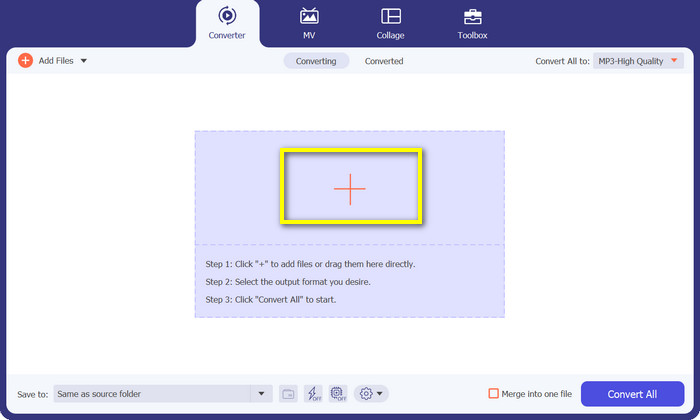
Untuk menambahkan file, tekan tombol bergambar Plus pada panel utama program atau klik Add Files di pojok kiri atas. Sebagai alternatif, seret file ke area antarmuka di tengah. File yang dimuat kemudian akan ditampilkan pada panel.
Langkah 3. Pilih format keluaran
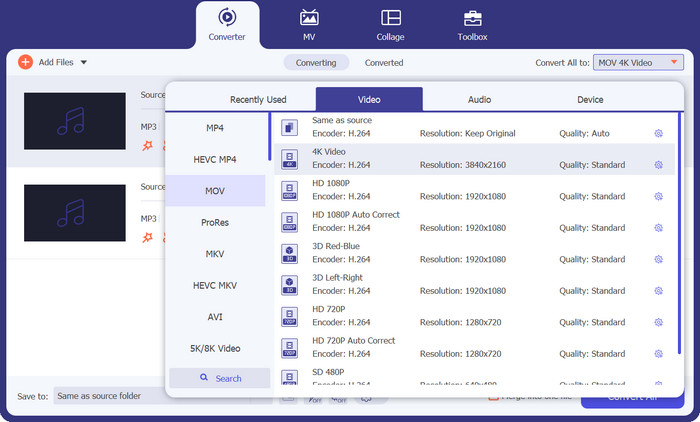
Untuk mengonversi MP3 ke MOV, klik bilah Profile untuk menampilkan daftar profil. Ada tiga kategori yang dapat dipilih. Pilih tab Video dan pilih MOV sebagai format keluarannya.
Langkah 4. Mulai mengonversi
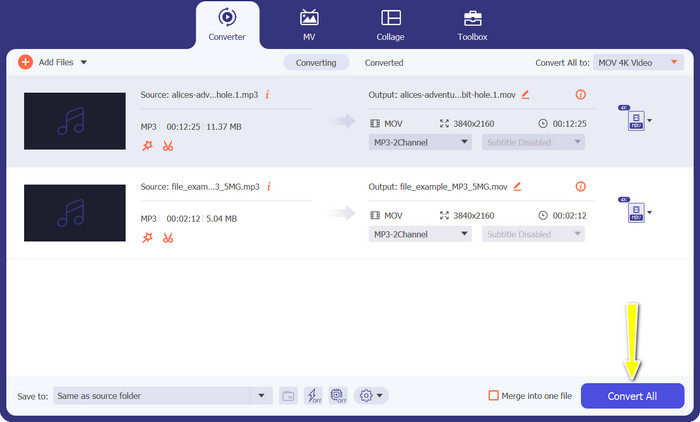
Setelah semuanya siap, tekan tombol Convert All untuk memulai proses konversi dari MP3 ke MOV.
2. Konverter MOV Gratis Online
Free MOV Converter Online adalah cara praktis untuk mengonversi MP3 ke MOV secara online dan gratis. Alat ini menawarkan kemampuan untuk mengubah hampir semua file ke format keluaran yang Anda inginkan tanpa mengorbankan kualitas. Selain itu, alat ini dirancang dengan antarmuka yang ramah pengguna, sehingga sederhana dan mudah dinavigasi. Terakhir, tidak seperti perangkat lunak tradisional, Anda tidak perlu terlalu bergantung pada daya pemrosesan dan sumber daya server untuk menyelesaikan proses konversi.
Fitur Utama:
◆ Konversi batch: FVC Free MOV Converter Online dapat mengonversi banyak video sekaligus. Ini adalah penghemat waktu yang bagus jika Anda perlu mengonversi banyak video.
◆ Tanpa tanda air: FVC Free MOV Converter Online tidak menambahkan tanda air apa pun ke file MP3 Anda. Ini berarti file MP3 Anda akan benar-benar bebas dari branding apa pun.
◆ Pengaturan output kustom: FVC Free MOV Converter Online memungkinkan Anda menyesuaikan pengaturan output untuk file MP3 Anda. Ini termasuk kecepatan bit, kecepatan sampel, dan saluran audio.
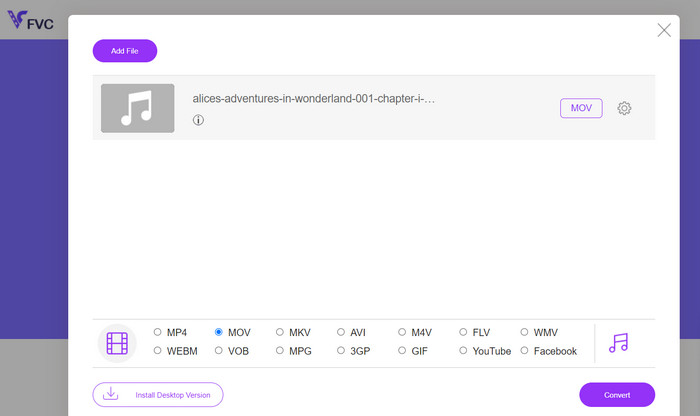
Langkah 1. Buka situs web FVC Free MOV Converter Online. Selanjutnya, klik tombol Add Files to Convert dan pilih file video yang ingin Anda konversi.
Langkah 2. Kali ini, pilih format keluaran. Dari opsi yang tersedia, pilih MOV sebagai format keluarannya.
Langkah 3. Klik tombol Convert. Proses konversi akan dimulai. Setelah konversi selesai, Anda dapat mengunduh file MP3.
Bagian 3. Cara Mengonversi MP3 ke MOV di iOS dan Android
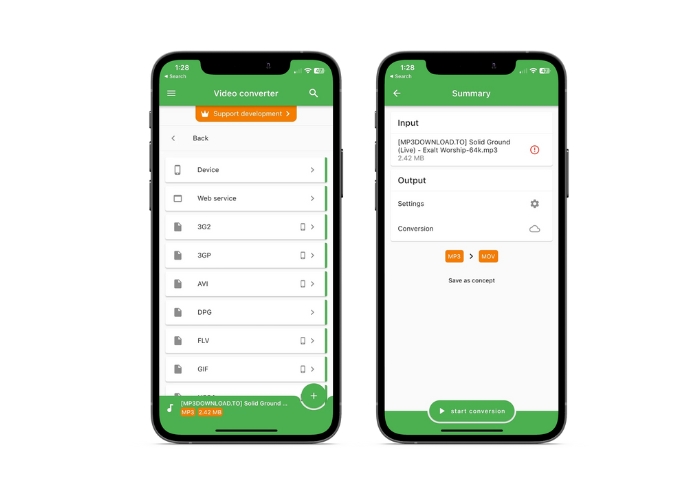
File Converter memungkinkan konversi banyak format file audio, termasuk AAC dan MP3, dan tersedia di perangkat iOS dan Android. Anda tidak perlu menjelajah lebih jauh jika Anda mencari pengonversi MP3 ke MOV Android atau iOS. Untuk memungkinkan konversi file yang cepat dan efisien, perangkat lunak ini memberikan pengalaman yang ramah pengguna dan menghadirkan antarmuka yang disederhanakan.
Fitur Utama:
◆ Preset dan profil: Pengaturan atau profil standar untuk platform perangkat keras atau perangkat lunak tertentu yang menjamin kompatibilitas dan keluaran terbaik di kelasnya.
◆ Pemilihan penyimpanan: Pengguna dapat memilih apakah mereka ingin menyimpan file keluaran di cloud atau di perangkat smartphone mereka.
Langkah 1. Pada perangkat smartphone Anda, instal aplikasi File Converter.
Langkah 2. Buka aplikasi, lalu pilih MOV sebagai format keluaran dari daftar pilihan yang ada.
Langkah 3. Anda dapat mengubah bitrate atau pengaturan konversi lainnya dengan mengetuk opsi Settings.
Langkah 4. Ketuk tombol start conversion untuk memulai proses konversi setelah memilih format keluaran dan pengaturan.
Bacaan Lanjutan:
Konversi MOV ke GIF dan Manfaatkan Kekuatan Konten Animasi
5 Pemotong MP3 untuk Memotong Audio Apa Pun dengan Mudah [Pembaruan 2023]
Bagian 4. FAQ tentang Konversi MP3 ke MOV
Apa pengaturan keluaran terbaik untuk mengonversi MP3 ke MOV?
Pengaturan keluaran MP3 ke MOV tergantung pada permintaan Anda. Tingkat bit dan sampel yang tinggi memberikan kualitas terbaik. Tingkat bit dan pengambilan sampel yang lebih rendah menghemat ruang.
Berapa lama untuk mengonversi MP3 ke MOV?
Waktu konversi MP3 ke MOV tergantung pada ukuran file dan pengaturan output. Mengonversi file kecil dengan parameter keluaran rendah membutuhkan waktu beberapa detik. Namun, mengonversi file besar dengan parameter keluaran tinggi dapat memakan waktu beberapa menit atau jam.
Bisakah saya mengonversi MP3 ke MOV tanpa kehilangan kualitas?
Konversi MP3-ke-MOV menurunkan kualitas. MP3, format lossy, kehilangan data selama kompresi. Pengaturan keluaran dapat mengurangi kehilangan kualitas.
Kesimpulan
Secara keseluruhan, konversi MP3 ke MOV adalah proses yang relatif sederhana. Tersedia banyak pilihan, sehingga Anda dapat memilih metode yang paling sesuai dengan kebutuhan Anda.
-
 MOV VS MP4 - Yang Mana Yang Anda Pilih?
 MOV VS MP4, Mana yang Lebih Baik? Posting ini menjelaskan perbedaan antara MP4 dan MOV, sehingga Anda bisa mendapatkan pilihan yang lebih baik untuk digunakan untuk file video Anda.
-
 FLAC vs. MP3: Format File Audio Yang Merajai Tertinggi
 Posting ini akan membandingkan perbedaan utama antara FLAC vs. MP3. Itu termasuk kualitas suaranya, ukuran file, kompatibilitas, dan banyak lagi.
-
 Cara Mengonversi MP3 ke M4A untuk Meningkatkan Kualitas Suara
 Tingkatkan kualitas file musik Anda dengan mengonversi MP3 ke M4A dengan tip dan trik ahli kami. Panduan kami menawarkan petunjuk langkah demi langkah dan perangkat lunak yang direkomendasikan.
