


 Video Converter Ultimate
 Perekam Layar
 Perbaikan Video
 Unduhan Aman
Konversi MP4 ke GIF Gratis & Online [Panduan Langkah demi Langkah]
Panduan ini berfokus pada mengonversi file video MP4 menjadi gambar animasi GIF. Format file GIF digunakan untuk menyimpan gambar animasi. Biasanya terdiri dari sekitar dua puluh frame untuk menyampaikan sebuah cerita atau sekadar hiburan. Saat ini, sangat banyak file gambar GIF yang dibuat dan dibagikan di media sosial. Sebenarnya, Anda tidak perlu iri kepada orang lain karena Anda dapat mempelajari berbagai cara untuk mengekstrak beberapa frame dari file video MP4 dan menyimpannya sebagai GIF animasi.

Bagian 1. Konversi Batch MP4 ke GIF dengan Tetap Mempertahankan Kualitas Tinggi
Cara Mengonversi MP4 ke GIF di Desktop
Ingin mengubah klip video MP4 favorit Anda menjadi GIF animasi yang berulang? Baik untuk membuat meme, membagikan reaksi, atau membuat konten lebih menarik, mengonversi MP4 ke GIF sangat mudah dengan FVC Video Converter Ultimate. Kotak peralatan video serba guna ini memungkinkan Anda mengonversi, mengompres, dan mengedit video tanpa kehilangan kualitas – dan membuat GIF hanya membutuhkan beberapa klik.
• Mengonversi MP4, MOV, AVI, MKV, dan lainnya ke GIF dan format media lainnya.
• Pangkas, potong, dan pratinjau video Anda sebelum mengubahnya menjadi GIF.
• Didukung oleh akselerasi perangkat keras untuk mengonversi file dalam hitungan detik.
• Sesuaikan kecepatan bingkai, resolusi, dan opsi perulangan untuk hasil yang sempurna.
• Ubah beberapa video menjadi GIF sekaligus untuk menghemat waktu.
Free DownloadUntuk Windows 7 atau yang lebih baruUnduhan Aman
Free DownloadUntuk MacOS 10.7 atau yang lebih baruUnduhan Aman
Berikut cara mengonversi MP4 ke GIF dengan FVC Video Converter Ultimate:
Langkah 1: Unduh, instal, dan jalankan FVC Video Converter Ultimate di komputer Anda.
Langkah 2: Klik Add Files atau seret dan jatuhkan video MP4 Anda ke antarmuka utama.

Langkah 3: Pilih GIF sebagai Format keluaran dan klik Convert All untuk mengonversi MP4 menjadi GIF animasi.

FVC Video Converter Ultimate membuat konversi MP4 ke GIF menjadi mudah, cepat, dan fleksibel. Baik Anda seorang kreator konten atau hanya ingin membuat animasi yang menyenangkan, alat ini menyediakan semua yang Anda butuhkan.
Bagian 2. Ubah MP4 menjadi GIF Animasi Gratis dengan Mudah
Cara Mengubah MP4 ke GIF Menggunakan FVC Free Video to GIF Maker
Seperti apa seharusnya konverter MP4 ke GIF yang terbaik? Pertama, harus mudah digunakan baik untuk pemula maupun pengguna berpengalaman. Selain itu, harus mampu menjaga kualitas gambar. Karena itu, kami merekomendasikan FVC Free Video to GIF Maker.
Video Gratis FVC ke Pembuat GIF
122.446+ Unduhan- Ubah MP4 menjadi GIF animasi secara gratis tanpa batasan apa pun.
- Ekstrak frame tertentu untuk membuat GIF baru.
- Menawarkan alat pengeditan ekstensif untuk gambar GIF.
- Proses batch beberapa file video MP4 dengan cepat.
Unduh GratisUntuk Windows 7 atau versi lebih baruUnduhan Aman
Unduh GratisUntuk MacOS 10.7 atau versi lebih baruUnduhan Aman
Secara singkat, ini adalah opsi terbaik untuk mengonversi MP4 ke GIF tanpa kehilangan kualitas.
Cara Mengonversi MP4 ke GIF di Desktop
Langkah 1: Impor file MP4
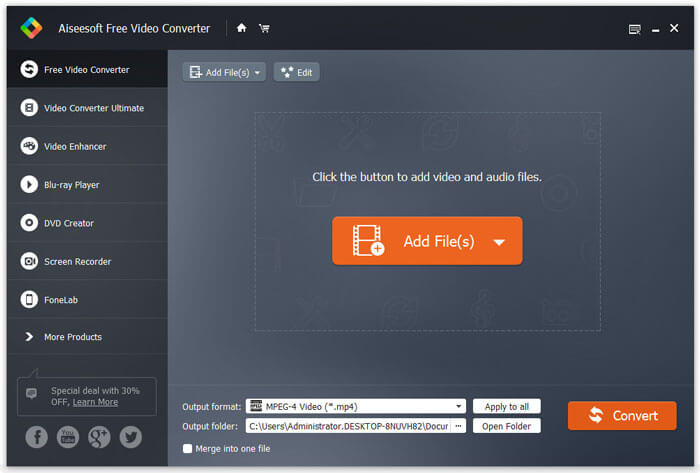
Luncurkan konverter MP4 ke GIF gratis terbaik ini setelah Anda menginstalnya di komputer. Lalu klik tombol besar Add Files untuk mengimpor semua video MP4 yang ingin Anda konversi. Atau, seret dan jatuhkan file MP4 ke kotak garis putus-putus untuk mengimpornya secara langsung.
Langkah 2: Pangkas dan edit video
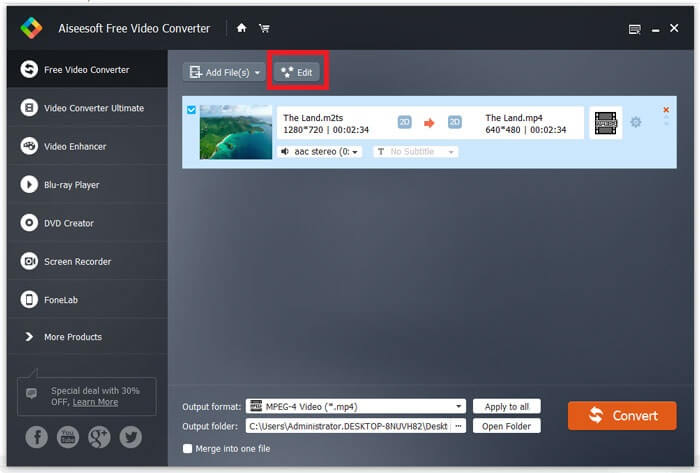
Setelah dimuat, klik menu Edit pada pita bagian atas untuk membuka jendela pengeditan video. Hapus frame yang tidak diinginkan dengan alat pemangkas (trim). Anda dapat mengatur ulang titik awal dan akhir. Lalu pangkas file MP4 lainnya.
Langkah 3: Konversi MP4 ke GIF
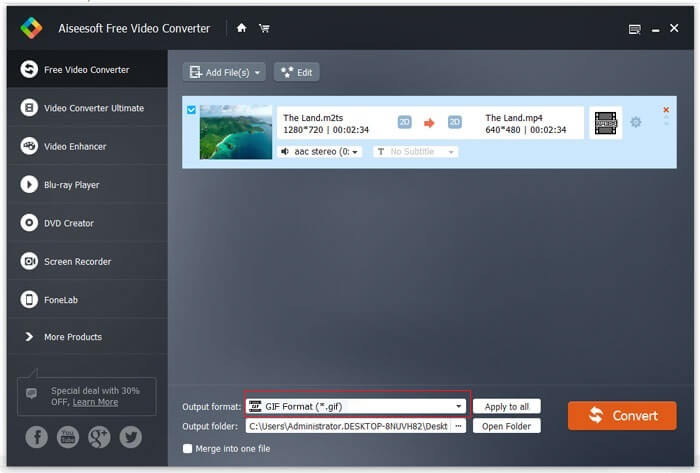
Setelah kembali ke antarmuka utama, klik dan buka daftar turun bawah Output format, cari gif dan pilih opsi yang sesuai. Tekan tombol Open Folder dan atur folder tertentu untuk menyimpan hasil keluaran. Terakhir, klik tombol Convert untuk mulai mengonversi MP4 ke GIF secara batch.
Ini adalah solusi gratis untuk mengonversi MP4 ke GIF. Namun, alat ini tidak memiliki alat penyuntingan video tingkat lanjut seperti menambahkan teks, filter, atau efek jika dibandingkan dengan FVC Video Converter Ultimate. Jadi, saya tetap menyarankan Anda mengunduh dan mencoba alat terbaik ini.
Free DownloadUntuk Windows 7 atau yang lebih baruUnduhan Aman
Free DownloadUntuk MacOS 10.7 atau yang lebih baruUnduhan Aman
Bagian 3. Cara Mengonversi MP4 ke GIF dengan Adobe Photoshop
Ubah MP4 menjadi GIF dengan Photoshop
Photoshop adalah editor gambar populer di seluruh dunia. Baik orang biasa maupun fotografer profesional memilikinya di mesin mereka. Anda mungkin bertanya-tanya apakah Photoshop dapat mengubah MP4 menjadi GIF. Jawabannya ya dan kami akan membagikan langkah-langkahnya di bawah ini.
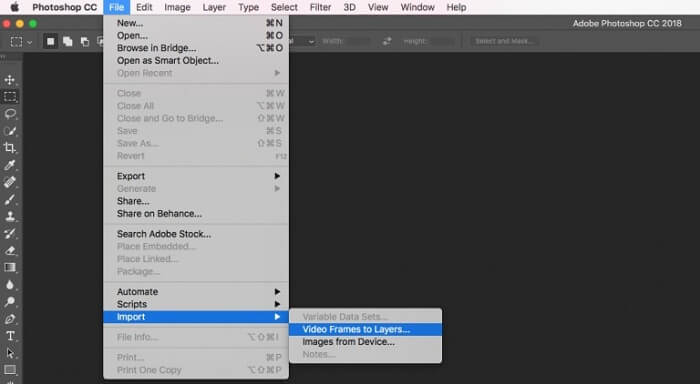
Langkah 1: Jalankan Photoshop Anda, buka menu File pada pita atas, pilih Import lalu pilih Video Frames to Layers. Sekarang, cari dan buka video MP4 sumber dari hard disk Anda.
Jika Photoshop tidak dapat membuka video Anda, Anda harus mengubahnya menjadi codec yang didukung terlebih dahulu.
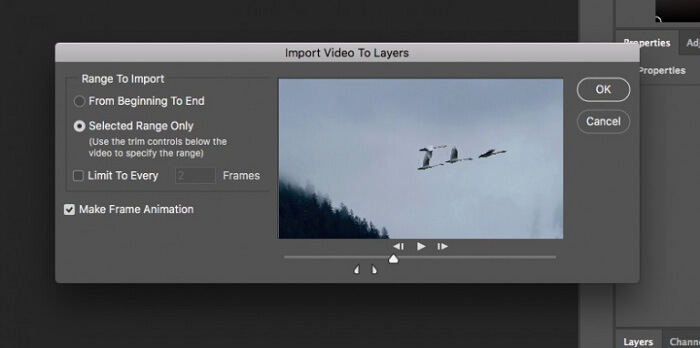
Langkah 2: Saat diminta, centang kotak di sebelah Make Frame Animation. Jika file video Anda sangat panjang, pangkas menggunakan penggeser di timeline. Lalu klik OK untuk mengonfirmasi.
Langkah 3: Setelah itu Photoshop akan mengimpor setiap frame klip video sebagai gambar. Anda dapat mengedit setiap gambar atau membiarkannya tetap seperti bawaan.
Langkah 4: Buka menu File, pilih Export lalu Save for Web. Setelah itu dialog save to web akan muncul. Sesuaikan opsi di panel kanan, seperti Image Size, Quality, dan lainnya. Untuk membuat GIF berulang, pilih opsi yang sesuai dari daftar turun bawah Looping Options.
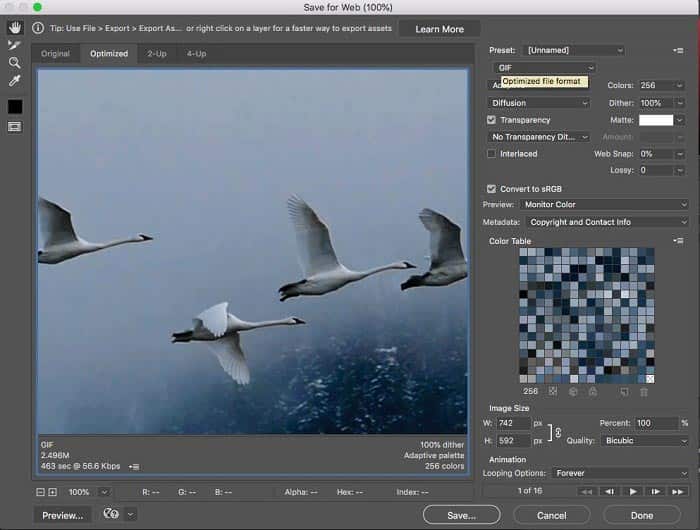
Langkah 5: Tekan ikon Play di sudut kanan bawah untuk mempratinjau efeknya. Jika sudah sesuai, klik tombol Save dan ikuti petunjuk di layar untuk mengubah MP4 menjadi GIF di Photoshop.
Jika Anda pernah membeli Photoshop sebelumnya, ini mungkin pilihan yang bagus. Namun jika belum, sebaiknya Anda menggunakan konverter MP4 ke GIF profesional seperti FVC Video Converter Ultimate. Secara keseluruhan, menggunakan Photoshop untuk mengonversi MP4 ke GIF bisa mahal karena biaya berlangganannya, dan antarmukanya yang rumit membuatnya kurang ramah bagi pemula. Proses ekspor sering kali menghasilkan ukuran file yang besar dengan pengoptimalan yang terbatas.
Bagian 4. Cara Mengubah MP4 ke GIF Online
Konversi MP4 ke GIF dengan FVC Free Online Video Converter
Jika Anda ingin menyimpan MP4 sebagai gambar GIF dengan Windows Movie Maker, Anda tetap memerlukan aplikasi konverter online. Secara jujur, akan lebih mudah mengonversi MP4 ke GIF langsung secara online jika Anda menggunakan alat yang tepat, seperti FVC Free Online Video Converter. Ini adalah perangkat lunak gratis berbasis web untuk konversi MP4 ke GIF.
Langkah 1: Buka halaman resmi FVC Free Online Video Converter di browser Anda untuk membuka freeware ini secara langsung.
Unduh Versi Desktop untuk mengonversi file secara batch.

Langkah 2: Klik tombol Add Files to Convert untuk memasang peluncur (launcher) dan mengimpor file MP4 dari komputer Anda.
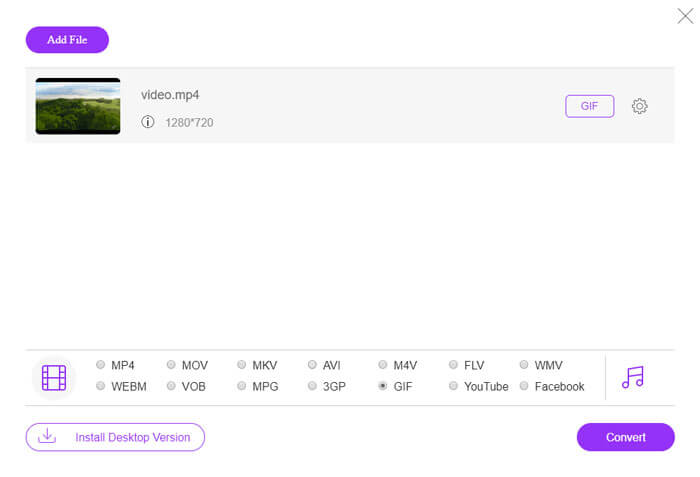
Langkah 3: Sekarang, pilih GIF sebagai format keluaran. Sesuaikan opsi lain, seperti Encoder, Frame rate, Resolution, Bitrate, dan parameter lainnya.

Langkah 4: Tekan tombol Convert untuk mulai mengubah MP4 ke GIF secara online. Setelah selesai, folder keluaran akan muncul secara otomatis.
Aplikasi online akan memampatkan gambar Anda secara otomatis saat mengonversi, sehingga kualitas keluarannya tidak terlalu bagus.
Cara Menggunakan Ezgif untuk Mengonversi MP4 ke GIF
Ezgif adalah alat daring gratis yang populer yang memungkinkan Anda mengonversi video MP4 menjadi GIF dengan mudah tanpa perlu mengunduh perangkat lunak apa pun. Alat ini mendukung berbagai fitur penyuntingan seperti pemangkasan, pengubahan ukuran, dan pengoptimalan GIF untuk kualitas yang lebih baik dan ukuran berkas yang lebih kecil.
Langkah 1. Buka situs Ezgif dan pilih alat konverter video ke GIF. Klik Choose File untuk memilih video MP4 dari perangkat Anda, lalu klik Upload video untuk mengunggahnya.
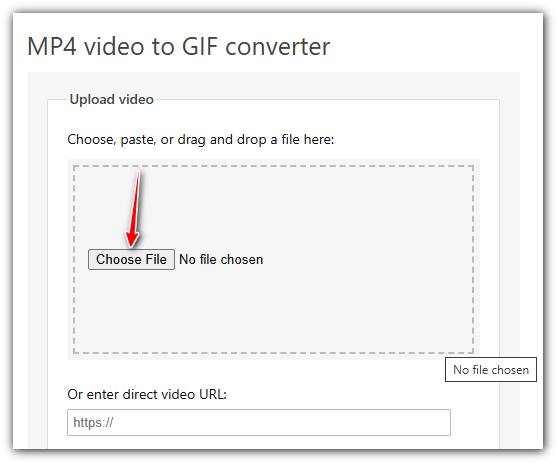
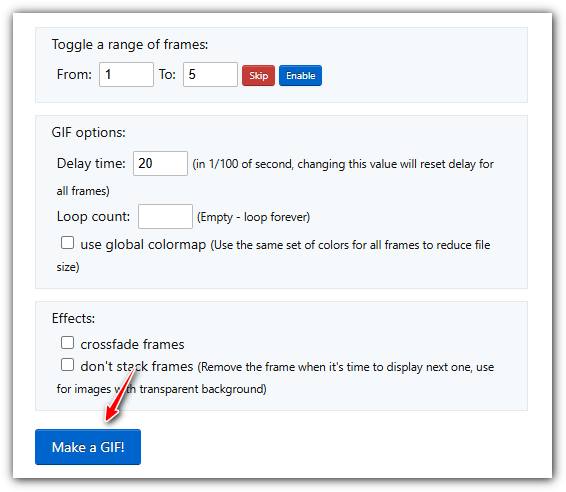
Langkah 2. Setelah terunggah, Anda dapat memangkas video dengan mengatur waktu mulai dan selesai, mengubah ukuran, atau mengubah frame rate untuk menyesuaikan kualitas dan ukuran GIF.
Langkah 3. Setelah Anda menetapkan preferensi, klik Make a GIF! untuk memproses video dan menghasilkan GIF.
MP4 vs. GIF
Dirilis oleh Moving Picture Experts Group (MPEG) pada tahun 2001, format MP4 dapat membantu Anda menyimpan data video, audio, subtitle, dan gambar dalam trek terpisah. Ini adalah kependekan dari MPEG-4 Part 14. Plus, ini adalah salah satu format paling populer yang digunakan untuk streaming dan berbagi video.
GIF adalah format gambar umum untuk grafik web. Selain menyimpan gambar kecil dan gambar yang berisi teks, GIF juga dapat berisi dan menampilkan animasi dasar di situs web. Ini adalah format lossless, dan kompresi GIF tidak menurunkan kejernihan gambar.
FVC Free Online Video Converter adalah alat gratis yang mudah digunakan untuk mengonversi video dengan cepat ke format populer seperti MP4, AVI, dan MOV tanpa perlu menginstal perangkat lunak. Alat ini tidak memerlukan registrasi dan memiliki antarmuka yang sederhana. Namun, alat ini bergantung pada kecepatan internet, membatasi ukuran file, dan tidak memiliki fitur lanjutan. Alat ini merupakan pilihan yang tepat untuk konversi video yang cepat dan kasual.
Bagian 5: Tanya Jawab tentang Mengonversi MP4 ke GIF
Bagaimana cara mengubah GIF menjadi MP4 gratis dengan FFmpeg?
Buka www.7-zip.org dan klik release builds untuk mengunduh ffmpeg-release-full.7z. Setelah mengekstrak file zip ini, Anda dapat membuka Command Prompt dan memasukkan baris perintah ffmpeg -f gif -i file.gif -c:v libx264 outfile.mp4. Lalu tekan Enter untuk mengonfirmasi perintah Anda.
Bagaimana cara melihat file GIF?
GIF adalah format gambar yang unik. Ini lebih seperti video tetapi bukan gambar diam. Namun, sebagian besar perangkat lunak pemutar media tidak dapat membuka GIF. Ditambah lagi, hanya beberapa aplikasi pengelola foto yang dapat memutar gambar animasi. Untungnya, Anda dapat melihat file GIF di browser web utama, seperti IE, Chrome, Firefox, dan lainnya.
Apakah legal untuk mengonversi MP4 ke GIF?
Dalam kebanyakan kasus, tidak masalah untuk mengonversi MP4 ke GIF untuk bersenang-senang. Namun, sebagian besar film MP4 dan file video pribadi dilindungi hak cipta. Jika Anda ingin mengubah video pribadi, Anda sebaiknya mendapatkan persetujuan penulis.
Kesimpulan
Artikel ini telah membagikan empat cara untuk mengonversi format MP4 ke GIF. Photoshop adalah editor foto profesional dan dapat mengekstrak beberapa bingkai dari MP4 untuk disimpan sebagai GIF. Namun, harganya cukup mahal. Windows Movie Maker harus bekerja dengan konverter ekstra untuk menyelesaikan pekerjaan. Konverter MP4 ke GIF online adalah cara mudah untuk mendapatkan apa yang Anda inginkan jika Anda tidak keberatan dengan kehilangan kualitas. FVC Free Video to GIF Maker, di sisi lain, adalah cara termudah untuk memenuhi kebutuhan Anda. Ada pertanyaan lain? Silakan tinggalkan pesan Anda di bawah ini.
-
 3 Cara Gratis Teratas untuk Mengonversi MTS ke MOV
 Tidak dapat memutar file MTS di komputer atau iPhone / ponsel Android Anda? Apa itu file MTS dan bagaimana cara memainkannya? Apa MTS Video Converter terbaik? Posting ini membagikan 3 cara sederhana dan gratis untuk membantu Anda mengonversi MTS ke MOV untuk pemutaran yang lebih baik.
-
 6 Perekam WAV Terbaik yang Tidak Boleh Anda Lewatkan di Desktop dan Online
 Perangkat lunak perekaman WAV terbaik yang kami bagikan dalam artikel ini memiliki berbagai fitur berguna, yang membantu Anda menangkap audio dan suara seperti profesional.
-
 Apa Perbedaan Antara MTS dan M2TS
 Apa itu file MTS atau M2TS? Apa perbedaan antara M2TS dan MTS? Bagaimana saya bisa menonton file MTS atau M2TS yang direkam dengan camcorder? Temukan semua jawabannya di posting ini.

