


 Video Converter Ultimate
 Perekam Layar
 Perbaikan Video
Berbagai Variasi Konverter Berbeda untuk MOV ke AVI Online dan Offline
MOV is a format developed by Apples Inc. to be played on their default media player and that is QuickTime player. In this case, if you transfer your MOV file into another desktop program like Windows or such. There is a big chance that it will come out unsupported because it is exclusive for Mac users only. So, if you are one of the users who are having difficulties on playing MOV files on your desktop. Then you must keep up the pace reading this article to determine which you should choose. As your personal converter that will teach to convert MOV to AVI without losing any quality and security as well.

Bagian 1. Konversi MOV ke AVI Online Tanpa Batas
Pengonversi Video Online Gratis FVC
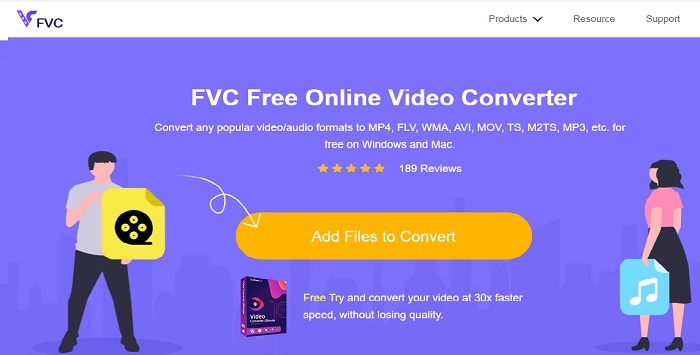
First of the best converters online is the FVC Free Video Converter. If you want to experience a new height of video or audio converting via online then this must be for you. It is one of the best free MOV to AVI converters. Moreover, the downside of this is that it doesn't provide premium features like on the paid version and the format options are limited. Although you can convert without limit, it can't do multiple conversions at one go. On being said the tool is free and better than VLC as a converter. Do you want to know how to use this online tool? Follow the steps below to know how to convert effortlessly.
Step 1. Click this link to go to the main website. No need to worry it is secured and safe to be accessed by you.
Step 2. Hit the Add Files to Convert to start the program.
Unduh Versi Desktop untuk mengonversi file secara batch.
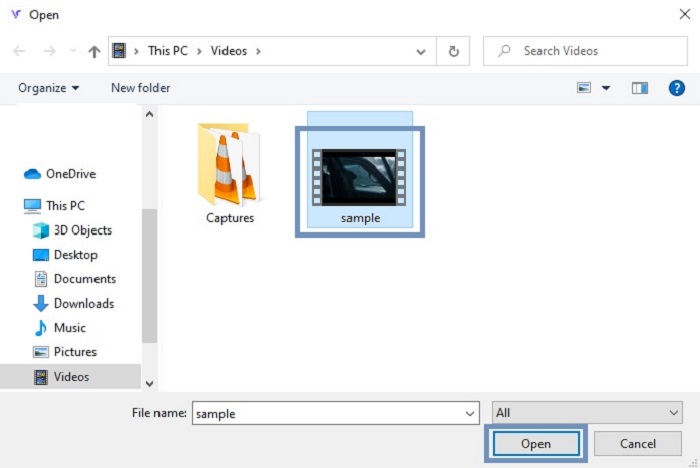
Step 3. Choose the MOV file you want to be converted and press OK to proceed.
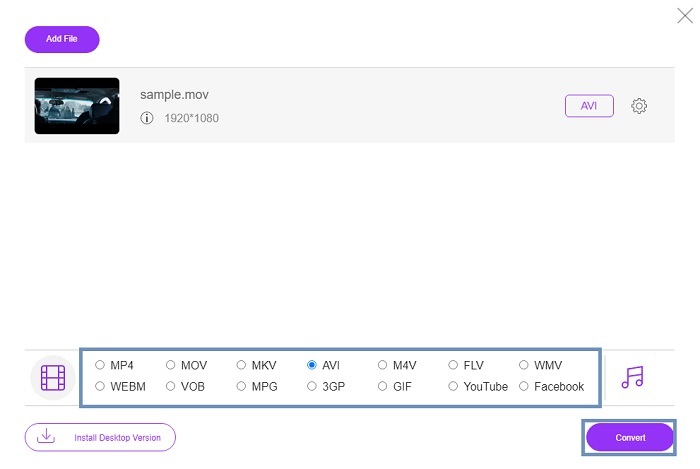
Step 4. After choosing the AVI format or what do you want it to be click the Convert to start the process.
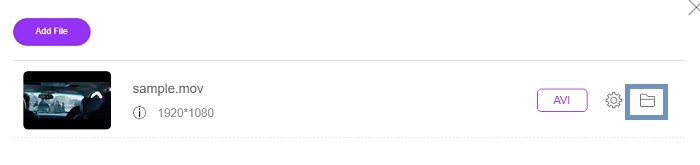
Step 5. Wait for a couple of minutes to be finished. Then click this folder to check out the final output there.
Bagian 2. Konversi MOV ke AVI Desktop App Offline
Jika mengkonversi online bukan keahlian Anda, maka Anda harus mempertimbangkan untuk menggunakan alat berbasis desktop yang luar biasa ini. Pilih konverter terbaik untuk melakukan pekerjaan itu.
1. FVC Video Converter Ultimate
If you want to experience the majestic converting, editing and enhancing of video and audio. Then this FVC Video Converter Ultimate must be your tool for the job. Convert your MOV to AVI format without breaking a sweat. Because of its user-friendly interface and lightweight as well. It became the first-choice converter by many other users over the internet. As of today the number of users who download this tool has grown greatly in population and skill wise. Unlike any other tools that are presented here and on the web. Just by acquiring this tool is like you have a Swiss army knife of your own. Although it provides full pact features this software is payment first policy. Which only means that if you want to use it, you'll need to buy it. But no need to worry because it is only cheap and the payment method is secured and supported by PayPal, wire transfer, Visa and more. If you're having trouble if this is the best choice then why don't you try to read the steps below to know if this is the best converter for you.
Step 1. Download the software to your desktop drive and choose the most suitable to your program. Then adjust the preferences if you want and click finish to install the software on your drive.
Unduh GratisUntuk Windows 7 atau yang lebih baruUnduhan Aman
Unduh GratisUntuk MacOS 10.7 atau yang lebih baruUnduhan Aman
Step 2. After the installation process it will automatically be opened as well. This is the sample interface of it.
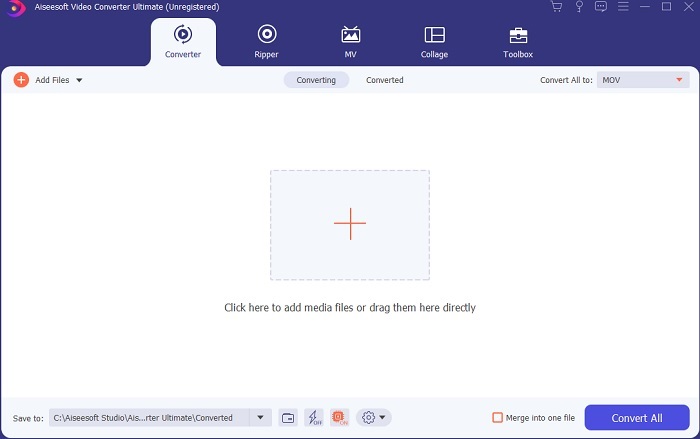
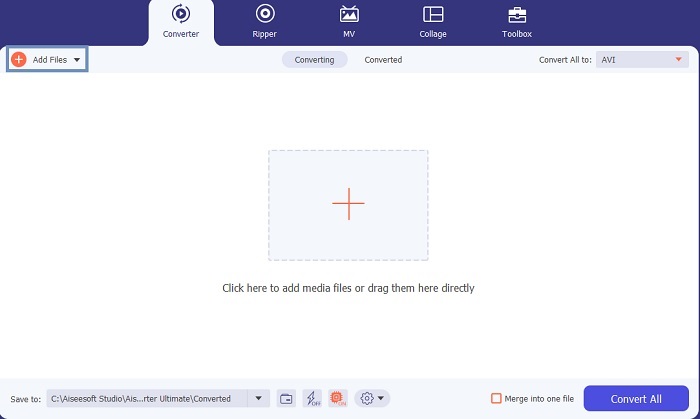
Step 3. Click the Add Files button and choose the MOV file you want to be converted. If you want to convert many MOV files you can drag-and-drop them to the interface of the tool.
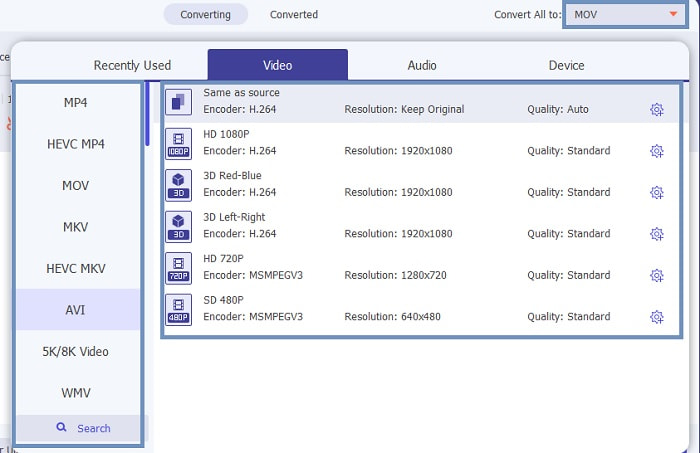
Step 4. Select the format you want in the list at the submenu of Convert All to. There are different variations you may choose from. And to start the action click the Convert All.
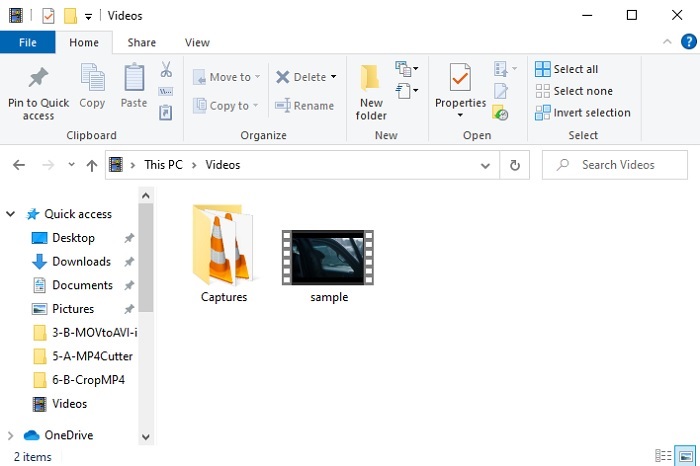
Step 5. This will only take a couple of seconds and if it is done. A file explorer will open into your screen and click the file you converted to watch it now on your computer. If you want to add, enhance or do something special to the video. You can go to the Toolbar section and check out the available features to upgrade your videos or audio.
2. VLC Media Player
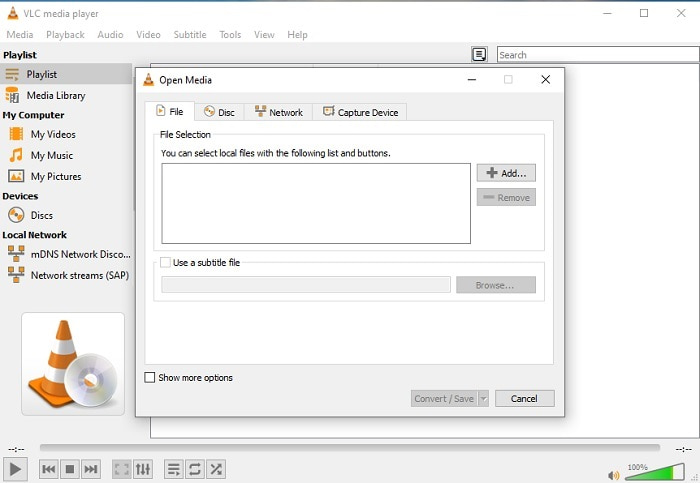
Did you know that you can convert MOV to AVI using VLC? Yes, you can use this media player as your converter. Although it can convert formats it is not the best choice to use as your converter. Because it is not user friendly, less instruction on the interface on how to use it, and much less format availability. Although this can be the best media player, the best converter is not its forte. But if you want to try it you can check it out for yourself and use it to convert your format.
3. Pazera
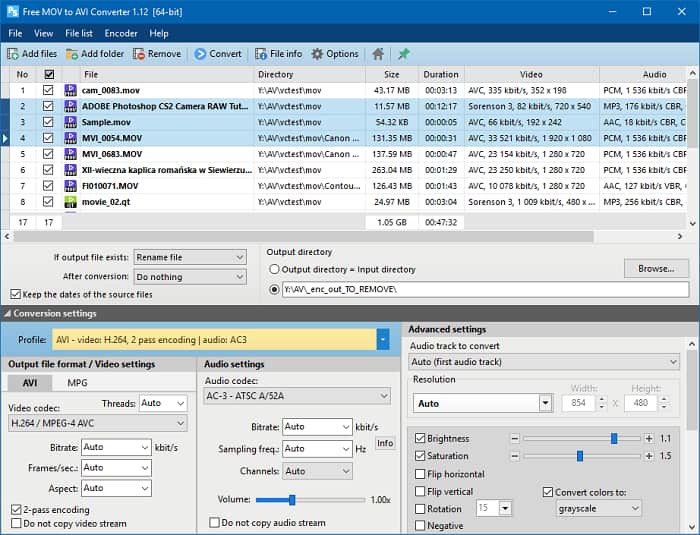
You can download Pazera MOV to AVI converter for free. This tool is easy to use and little to know it provides a good converting expertise. But the intimidating part of it is that it is not a multi-converter. Unlike in the upper part tools available. The converter only gives you the experience of a single pattern of conversion only. To be clear, if you download MP4 to AVI converter then that is the conversion you will get. So, if you're looking for an all-out converter this must be your last resort. In addition, if you try to access the webpage of the tool to download there are a lot of pop-up ads which are annoying. You must beware if you try to access this tool.
Bacaan Lebih Lanjut
MOV vs.AVI
Format MOV dapat digunakan untuk menyimpan film, acara TV, klip video pendek, atau film rumahan. Itu sebenarnya disimpan dalam QuickTime File Format (QTFF), yang diperkenalkan oleh Apple pada tahun 1991. File MOV sering digunakan ketika orang ingin menyimpan video dengan kualitas tinggi.
Berdasarkan Resource Interchange File Format (RIFF), format AVI diperkenalkan oleh Microsoft pada tahun 1992. Ini dapat menyimpan video/audio berkualitas tinggi karena menggunakan lebih sedikit kompresi. Tapi itu juga menyebabkan ukuran file yang besar dari file AVI, yang mungkin menjadi masalah ketika ada ruang terbatas.
Bagian 3. FAQ tentang MOV ke AVI
Bisakah QuickTime mengonversi MOV ke AVI?
Meskipun QuickTime terkenal sebagai pemutar media default Mac. Konversi melalui QuickTime dimungkinkan. Anda dapat memeriksa tautan ini jika Anda ingin tahu cara mengonversi MOV ke AVI dengan QuickTime.
Apa perbedaan antara MOV dan AVI?
Perbedaan utama pertama antara keduanya adalah pemiliknya. Seperti yang dikatakan di tempat pertama, MOV diproduksi oleh Apple Inc. sebagai format unik mereka untuk pemain QuickTime. MOV menjadi populer sebagai salah satu format terbaik yang dapat Anda gunakan karena menyimpan berbagai file audio, video, dan teks juga. AVI dikembangkan oleh Microsoft untuk bersaing dengan MOV. Meskipun format ini tidak terkompresi. Jadi, jika Anda merekam atau mengunduh file ke dalam format ini, harapkan ukuran file yang besar. Jadi, jika Anda ingin memperkecil ukuran file, Anda harus mengompresnya. Tetapi hal yang baik tentang itu adalah menghasilkan output video dan audio berkualitas tinggi.
Di mana saya dapat memutar MOV yang telah dikonversi ke AVI?
If you want to watch your newly converted AVI file or MOV file. You can check the FVC Free Video Player to watch it. So even if you don't convert a MOV file to AVI on Mac or PC you can still watch it later.
Kesimpulan
To end the adventure we take, it is clearer to us that converting is one the easiest jobs that anyone can partake in. Learning from this article is a big change for each and everyone of us because it provides details, steps, and alternatives as well. So, if you're still confused on what to use as your primary choice converter then this must state the case. FVC Video Converter Ultimate is an all-around converter that you ever longed for. The idea to convert, edit, enhance, and make is in this tool. So, what are you waiting for? No need to worry because the FVC Video Converter Ultimate is the unrivaled converter.
-
 4 Metode Terbaik untuk Mengonversi MOV ke MP3 di Windows dan Mac dengan Mudah
 Saat Anda ingin mengekstrak file audio MP3 dari file MOV, Anda dapat mempelajari lebih lanjut tentang 4 konverter MOV ke MP3 paling efisien untuk mendapatkan file yang diinginkan dari artikel.
-
 8 Pemain MOV Terbaik untuk Memutar File MOV QuickTime dengan Kualitas Asli
 Pelajari lebih lanjut tentang 8 pemutar MOV terbaik yang tersedia untuk Windows dan Mac. Anda dapat memilih yang diinginkan dan sesuai untuk memutar file MOV dengan kualitas asli.
-
 MKV ke MOV - Cara Mengonversi MKV ke MOV
 Bagaimana cara saya mengonversi MKV ke MOV di Mac? Bisakah iMovie membaca MKV? Apa artinya format MOV? Posting ini memberi tahu 2 cara sederhana untuk membantu Anda mengonversi MKV ke MOV dengan konverter video online dan profesional gratis.

