


 Video Converter Ultimate
 Perekam Layar
 Perbaikan Video
Perkuat Pengetahuan Anda Memanfaatkan Berbagai Praktik tentang Cara Memperlambat Video MP4
Montase adalah teknik penyuntingan film yang menggabungkan fragmen-fragmen film yang berkaitan secara tematis untuk menciptakan satu rangkaian gambar yang tampak mulus. Montase memungkinkan sutradara, editor film, serta teknisi visual dan suara untuk menyusun bagian-bagian film secara bertahap, memotong dan menyatukan setiap bagiannya. Beberapa montase menggunakan klip video gerak lambat (slow motion) untuk menjalankan proses pembuatan montase. Namun untuk mendapatkan adegan sinematik seperti ini, Anda perlu mempelajari cara memperlambat video MP4 atau format lain seperti MOV, AVI, dan sebagainya. Terkait masalah ini, artikel ini menyajikan berbagai topik untuk dibahas dan dipelajari lebih lanjut tentang cara membuat montase, singkatnya cara memperlambat sebuah video.

Bagian 1. Mengapa Anda Perlu Memperlambat Video?
Pernahkah Anda bertanya-tanya mengapa beberapa film yang Anda tonton memiliki beberapa gerakan lambat – tampilan aksi yang selalu disorot, terutama jika ada beberapa aksi dan transisi yang diterapkan dalam adegan film? Dan karena Anda adalah penggemar film aksi, Anda ingin menghidupkan kembali film aksi favorit Anda, tetapi untuk mencapai dampak aksi dari film tersebut, Anda perlu memperlambat kecepatan pemutaran beberapa adegan, tetapi Anda tidak tahu bagaimana melakukannya. tugas ini.
Bagian 2. Alat Terbaik untuk Memperlambat Video MP4
Banyak webtool dan perangkat lunak yang dapat mengedit video, termasuk memperlambat video MP4, tetapi berikut ini adalah web tool dan software terbaik yang perlu Anda gunakan untuk mencapai video kustom sesuai keinginan. Beberapa harus diunduh dan diinstal di desktop Anda, dan beberapa hanya memerlukan email Anda, dan Anda sudah bisa mengedit langsung di antarmuka web tool tersebut.
Metode 1. Gunakan Video Converter Ultimate
Video Converter Ultimate adalah software yang dapat diunduh secara gratis dan bisa memperlambat video secara permanen. Salah satu fitur yang ditawarkan software ini dapat membuat video menjadi lebih cepat atau lebih lambat dengan cara yang mudah. Selain fitur pengaturan kecepatan video, software ini juga memiliki fitur tambahan seperti pemangkasan (trim), pembalikan (reverse), penggabungan (merge), pengeditan, dan pembuatan kolase dari video untuk meningkatkan kualitas video yang Anda inginkan. Selain itu, semua alat yang tersedia di software ini dapat digunakan dengan mudah oleh semua pengguna. Berikut langkah-langkah yang perlu Anda ikuti untuk mencapai penyesuaian yang Anda inginkan.
Langkah 1: Silakan klik tombol Free Download untuk mulai mengunduh ke komputer Anda. Setelah itu, Anda dapat menyesuaikan sistem Anda dengan menginstal dan mengonfigurasi software tersebut.
Unduh GratisUntuk Windows 7 atau yang lebih baruUnduhan Aman
Unduh GratisUntuk MacOS 10.7 atau yang lebih baruUnduhan Aman
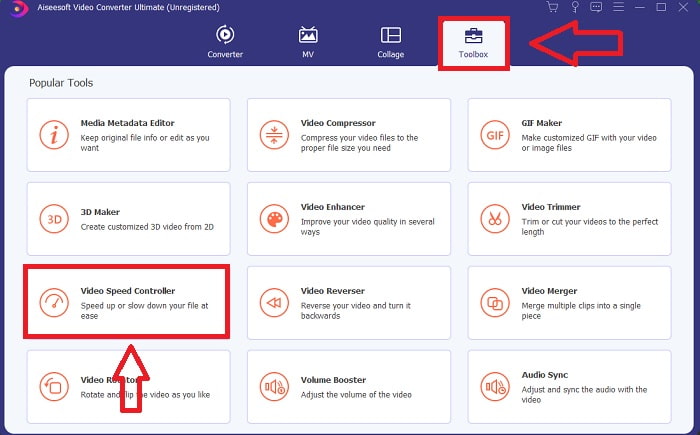
Langkah 2: Setelah perangkat lunak terinstal, jalankan dengan memilih opsi Toolbox dari bilah menu dan kemudian memilih Video Speed Controller dari daftar yang muncul.
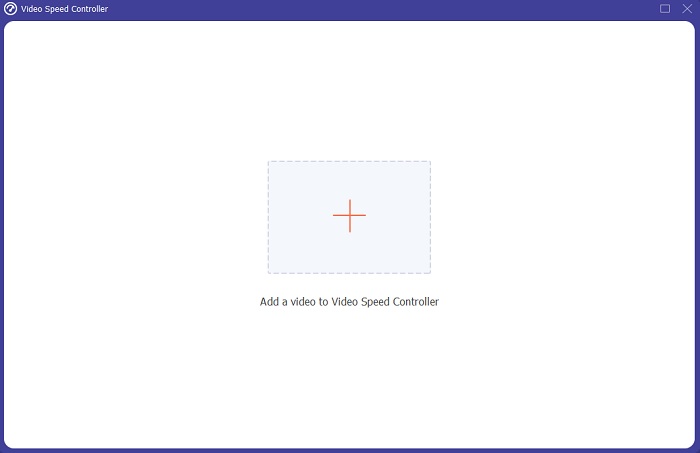
Langkah 3: Tambahkan file apa pun dengan mengklik tombol + dan modifikasi klip video tersebut.
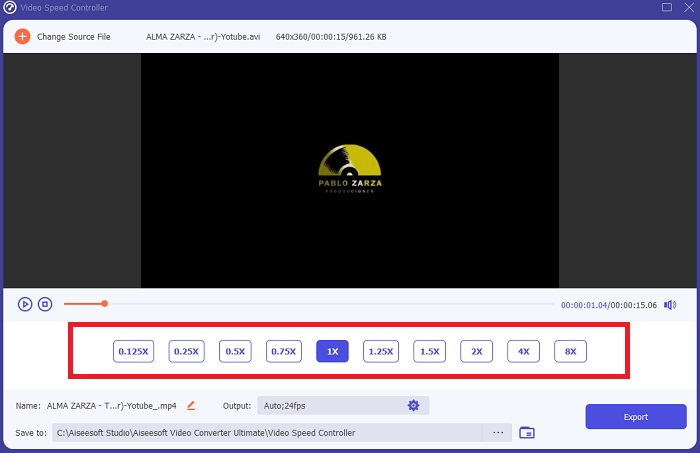
Langkah 4: Atur kecepatan pemutaran dengan menyesuaikan laju video.
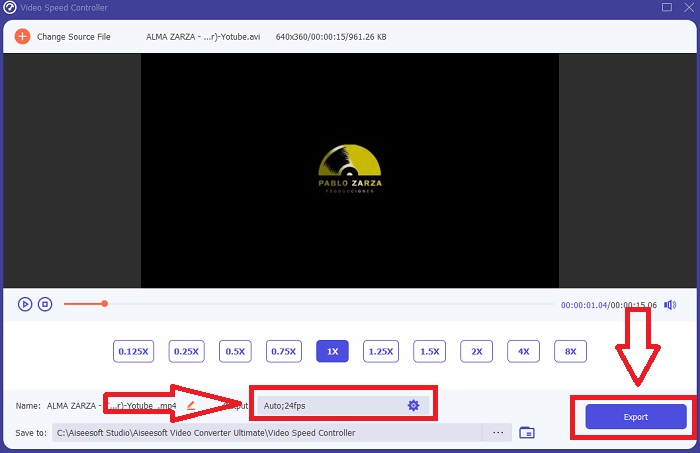
Langkah 5: Setelah mengubah kecepatan putar klip video Anda, Anda dapat memilih format ekspor, resolusi, kualitas, dan lain-lain. Setelah itu, klik Export dan pilih lokasi untuk menyimpan file Anda.
Metode 2. Gunakan DalamVideo
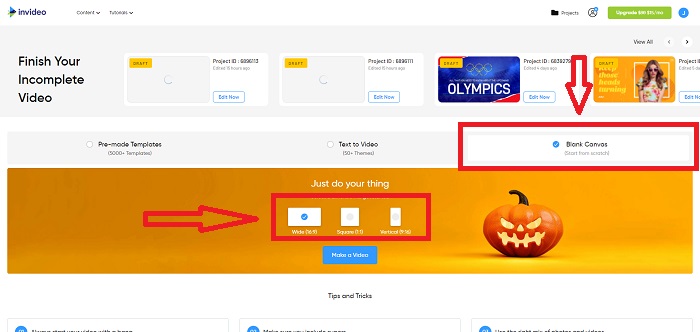
Ketika berbicara tentang membuat dan berbagi video untuk media sosial dan situs web, InVideo adalah alat penyuntingan video berbasis web yang ideal untuk bisnis dari berbagai ukuran. Aplikasi ini juga memiliki pustaka konten gambar dan video dari berbagai repositori online seperti Storyblocks dan Shutterstock yang dapat digunakan di dalam aplikasinya. Untuk menggunakan InVideo, Anda harus terlebih dahulu memasukkan alamat email Anda, berbeda dengan web tool sebelumnya yang dibahas dalam artikel ini. Web tool ini menawarkan beragam template untuk menyesuaikan video Anda. Dengan fitur-fiturnya yang mengesankan, aplikasi web ini dapat meningkatkan keterampilan editing Anda ke tingkat profesional. Salah satu fiturnya dapat memperlambat video MP4 dengan cara yang mudah; berikut langkah-langkahnya:
Langkah 1: Buat akun pada web tool tersebut untuk mendapatkan akses. Langkah berikutnya adalah memilih template yang ingin Anda gunakan. Klik tombol Upload di sudut kiri antarmuka untuk memulai proses unggah.
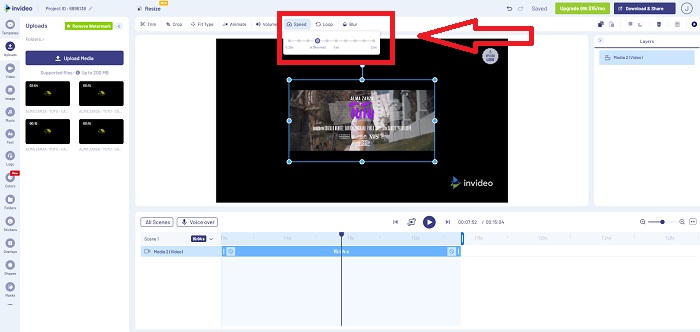
Langkah 2: Untuk mengedit kecepatan pemutaran klip video Anda, klik tab Speed di sudut kanan atas antarmuka dan seret ke track. Lalu seret Slider untuk menambah atau mengurangi kecepatan pemutaran klip video Anda.
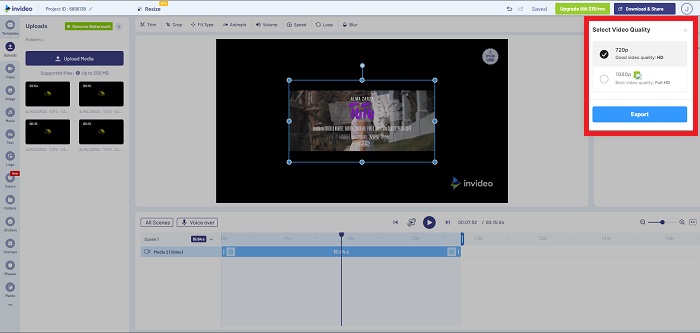
Langkah 3: Setelah selesai mengedit, klik Download & Share dan buka kunci Premium untuk mendapatkan hasil yang lebih baik.
Metode 3. Pemutar Media VLC
Karena gratis, VLC (Video Lan Client) adalah salah satu pemutar media yang paling banyak digunakan di Windows dan Mac. Memutar berbagai klip video seperti video 360 derajat atau format file terkompresi tetap memungkinkan bahkan untuk video berkualitas sangat tinggi karena pemutar ini fleksibel. Di sisi lain, pemutar media yang paling banyak digunakan ini sesekali juga bisa bermasalah. Selain itu, pemutar media ini dapat memperlambat file MP4 dengan cara yang mudah. Semua detail tentang fiturnya dijelaskan di bawah ini:
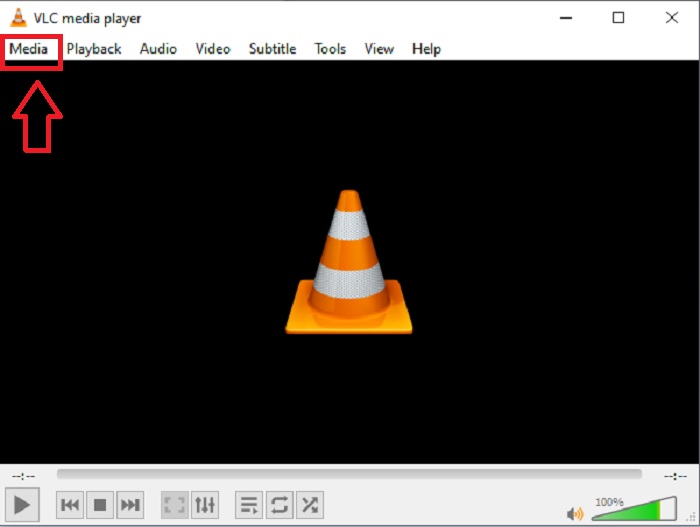
Langkah 1: Pertama, Anda perlu menambahkan file Anda di tab Media dan klik Open File.
Langkah 2: Lalu, pilih tab Playback dan lanjutkan dengan mengklik bagian Speed.
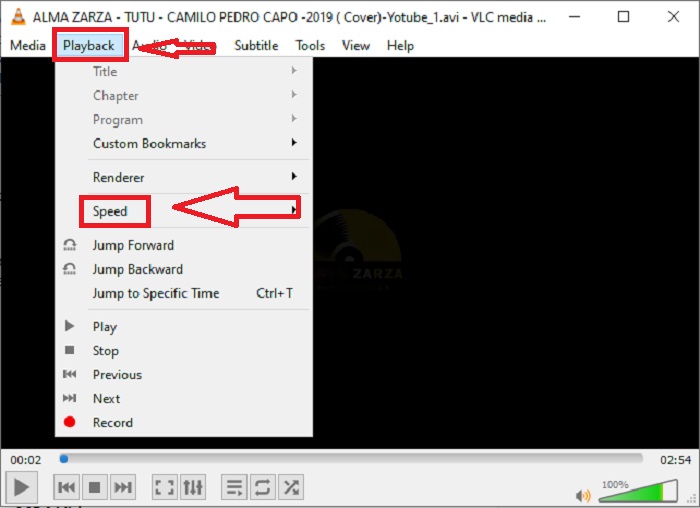
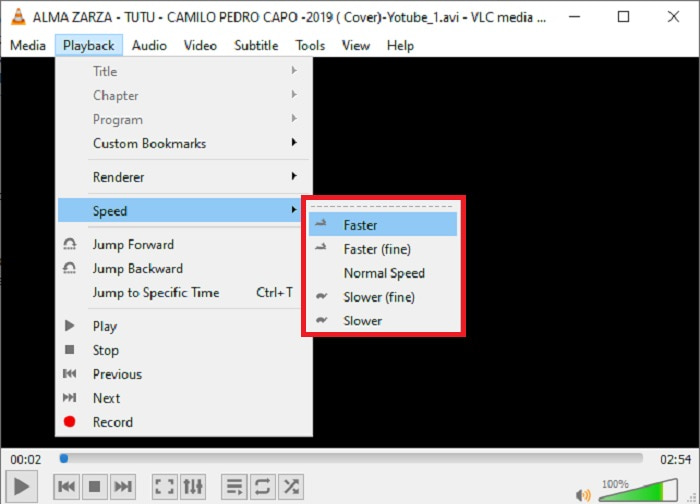
Langkah 3: Dengan ini, Anda akan diberi beberapa pilihan kecepatan pemutaran yang akan digunakan. Jika Anda ingin memperlambat kecepatan file video Anda, klik Slower (fine) dan Slower, dan jika Anda ingin meningkatkan kecepatannya, klik Faster (fine) dan Faster.
Terkait:
Cara Mengatasi VLC Tidak Bisa Memutar DVD
Bagian 3. FAQ tentang Memperlambat Video MP4
Apakah saya kehilangan kualitas video jika saya melambat?
Tidak, sama dengan meningkatkan kecepatan pemutaran video Anda; memperlambat video Anda tidak mengurangi kualitas video Anda. Untuk beberapa alasan mengapa beberapa video menjadi sedikit glitchy setelah mengurangi kecepatan pemutaran video adalah kualitas videonya sudah kusam dan rendah. Selain itu, jika Anda mengintensifkan untuk mengurangi kecepatan pemutaran klip video Anda, kecepatan bingkai akan dibagi dua, menyebabkan penundaan dan menurunkan kualitas.
Bisakah saya memperlambat video secara offline?
Ada perangkat lunak yang beroperasi sempurna dalam mengurangi kecepatan atau memperlambat video. Video Converter Ultimate adalah perangkat lunak yang dibuat untuk meningkatkan dan menyempurnakan video dari berbagai perspektif. Selain itu, dengan tujuannya, ini gratis untuk diunduh, dan dapat diakses oleh pengguna dari berbagai kalangan.
Apa yang lebih baik untuk memperlambat video? Offline atau online?
Beberapa langkah online dalam memperlambat video memiliki banyak proses yang harus diikuti yang membuatnya lebih rumit daripada menggunakannya secara offline. Sebagian besar perangkat lunak gratis untuk diunduh, jadi nyaman untuk memperlambat video secara offline.
Kesimpulan
Sebagai kesimpulan, sebagian besar pemutar media saat ini mendukung format MP4. Itulah sebabnya memperlambat video MP4 menjadi jauh lebih mudah dengan web tool dan software yang disajikan dalam artikel ini. Untuk mencapai potensi penuh video Anda, unduh Video Converter Ultimate. Bukan hanya untuk memperlambat video Anda, software ini dapat membawa video Anda ke tingkat yang lebih tinggi. Dengan semua fitur yang tersedia, Anda bisa menyebut diri Anda sebagai editor profesional saat menggunakannya.
-
 4 Konverter MP4 ke M4V Terbaik untuk Mengubah Video MP4 menjadi M4V dengan Mudah
 Saat Anda perlu mengubah file MP4 ke M4V, Anda harus mempelajari lebih detail tentang perbedaan antara kedua format, serta konverter MP4 ke M4V terbaik dari artikel.
-
 AMV Converter - 3 Metode Terbaik untuk Mengonversi MP4 ke AMV di Win / Mac
 Apa pengonversi MP4 ke AMV terbaik untuk mengubah video menjadi Video Musik Amine, Anda dapat mempelajari lebih lanjut tentang 3 metode paling efisien untuk mendapatkan video yang diinginkan dengan mudah dari artikel.
-
 WebM ke MP4 | Gratis Konversi WebM ke MP4 (Online dan Desktop)
 Bagaimana cara menonton file WebM tanpa browser web? Anda perlu mengonversi WebM ke MP4. Berikut adalah 10 konverter WebM ke MP4 gratis teratas untuk mengubah WebM ke MP4 online dan di komputer Mac dan Windows.
