


 Video Converter Ultimate
 Perekam Layar
 Perbaikan Video
 Unduhan Aman
Cara Memangkas Audio di iMovie: Tutorial untuk iPhone dan Mac
iMovie adalah perangkat lunak pengeditan video/audio gratis untuk iPhone dan Mac yang dikembangkan oleh Apple, yang memungkinkan pengguna mengedit dan memproduksi proyek media secara mulus. Saat pengguna Apple mencari cara untuk mengedit, memangkas, dan memotong bagian-bagian tertentu dari audio yang mereka miliki, sangat tepat bagi mereka untuk menggunakan perangkat lunak ini. Banyak yang belum tahu bahwa iMovie juga dapat digunakan untuk tugas memotong dan memangkas audio; karena itu, mengikuti panduan ini dapat membantu pengguna seperti Anda menavigasi proses memotong audio di iMovie dengan lancar.

Bagian 1. Cara Memotong Audio di iMovie
iPhone
Memangkas musik di iMovie menggunakan iPhone lebih mudah daripada menggunakan Mac. Versi seluler iMovie ringan dan mudah digunakan, sehingga memungkinkan proses yang lancar yang memungkinkan pengguna memangkas berkas audio mereka dalam beberapa ketukan di aplikasi seluler. Meskipun mudah digunakan dibandingkan dengan versi Mac, fitur pengeditan video dan audionya terbatas.
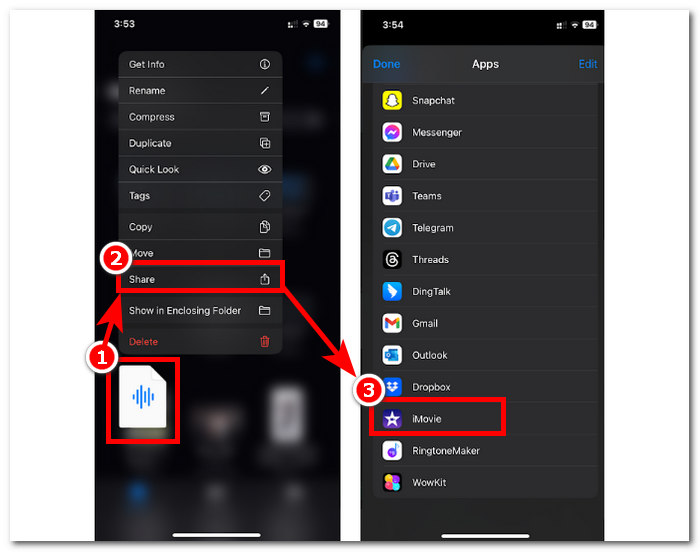
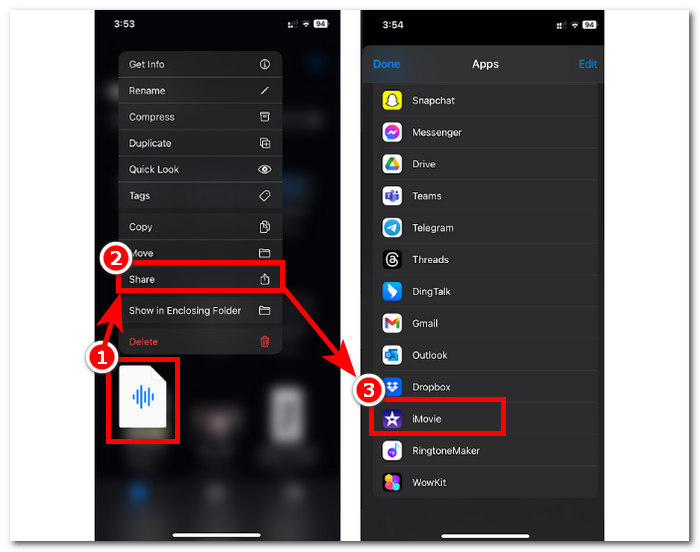
Langkah 1. Buka aplikasi Files, tekan lama pada file audio yang ingin Anda pangkas, ketuk Bagikan (Share), lalu buka dengan aplikasi iMovie. Jika Anda ingin memotong sebuah rekaman, rekam dulu file audio di iMovie.
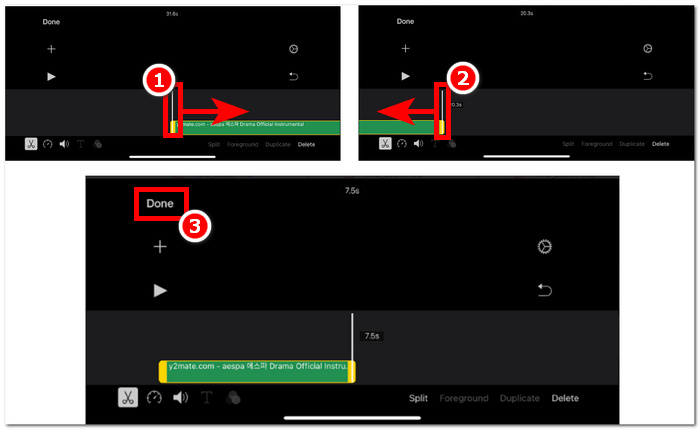
Langkah 2. Untuk memangkas file audio Anda, pergi ke bagian awal dan akhir file audio di timeline, dan Anda akan melihat bilah pemangkasan di kedua sisi. Cukup seret bilah pemangkasan ke kiri dan kanan sampai Anda puas dengan hasil pangkasannya. Setelah selesai, klik tombol Done di atas untuk melanjutkan.
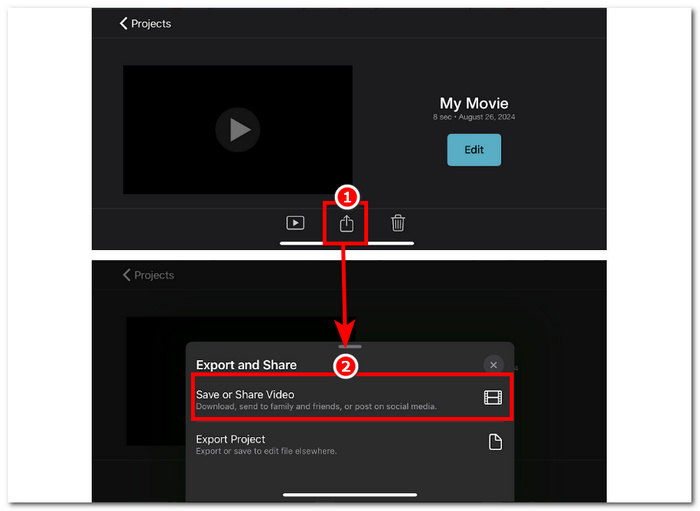
Langkah 3. Terakhir, klik ikon Share di bagian tengah bawah aplikasi dan lanjutkan untuk menyimpannya.
Mac
Bagaimana cara memangkas musik di iMovie? Pengguna memiliki opsi untuk memangkas klip audio menggunakan iMovie di perangkat Mac mereka. Menggunakan iMovie versi Mac untuk memangkas berkas audio memungkinkan pengguna mengakses berbagai fitur penyuntingan audio, dalam hal ini, penggunaan pemangkas klip, yang tidak tersedia pada versi selulernya. Pemangkas klip ini memungkinkan penggeseran bilah pemangkas dari kiri dan kanan secara mulus untuk membuat pemangkasan instan. Untuk melakukannya secara efektif, Anda harus mengikuti langkah-langkah di bawah ini.
Langkah 1. Buka perangkat lunak iMovie di Mac Anda dan tambahkan file audio Anda atau seret file tersebut ke timeline perangkat lunak.
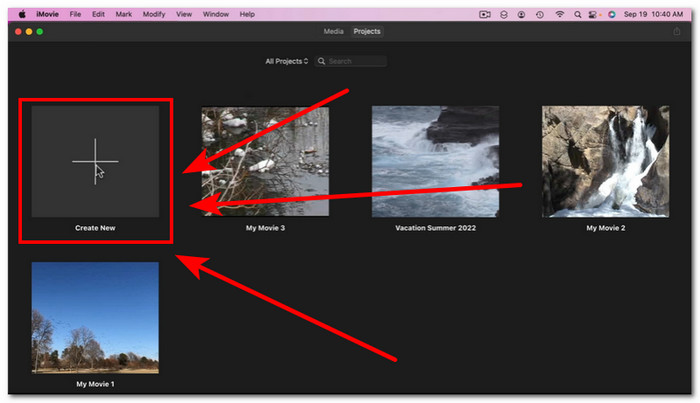
Langkah 2. Setelah file dimuat di dalam perangkat lunak, klik kanan pada file audio Anda lalu klik menu Show Clip Trimmer.
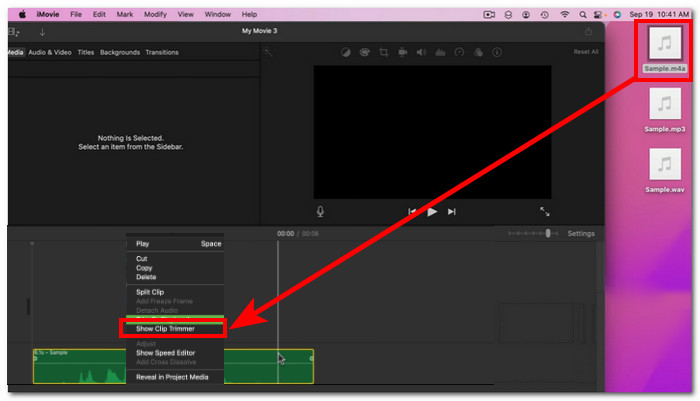
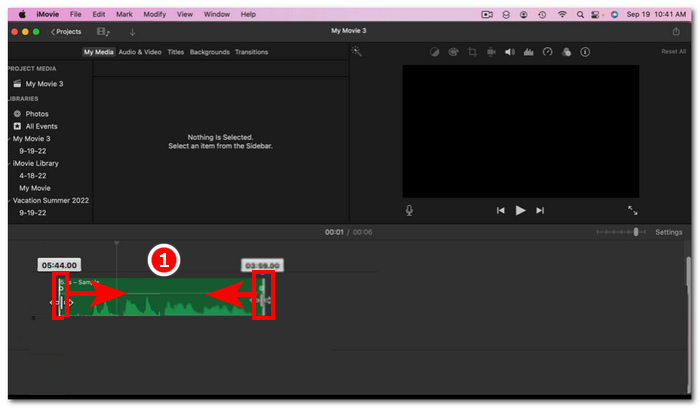
Langkah 3. Setelah Anda mengkliknya, seret bilah pemangkasan yang ada di kedua ujung file audio Anda untuk memangkas audio tersebut.
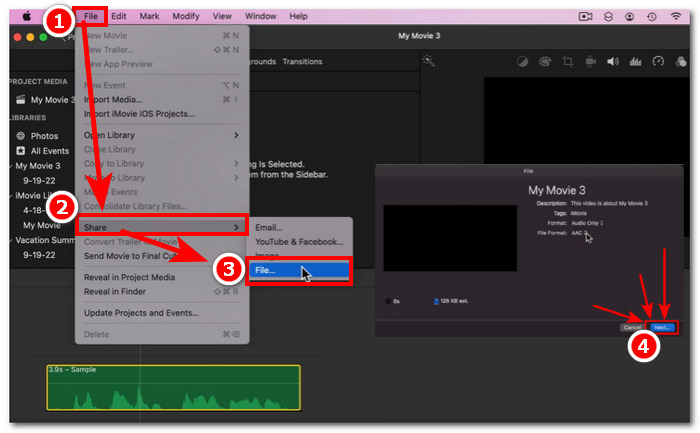
Langkah 4. Setelah selesai memangkas, Anda dapat menyimpan file dengan mengklik menu File di kiri atas perangkat lunak dan mengikuti navigasi berikut: File > Share > File > Next untuk menyimpannya ke Mac Anda. iMovie hanya tersedia untuk komputer Mac.
Jika Anda perlu menggunakan iMovie untuk Windows dengan fitur pemangkasan seperti ini, lihat di sini.
Bagian 2. Cara Memotong Bagian Audio di iMovie
iPhone
Bagaimana cara memotong musik di iMovie? Untuk memotong bagian tertentu dalam musik atau audio menggunakan iMovie di iPhone, Anda dapat melakukannya dengan membuka bagian tertentu di linimasa yang ingin dihapus atau dipotong. Kemudian, hapus bagian tersebut menggunakan tombol hapus khusus agar bagian-bagian di linimasa dapat dihapus dengan mudah.
Langkah 1. Untuk memangkas file audio, tekan lama pada file tersebut di aplikasi Files. Lalu, ketuk tombol Share dan pilih aplikasi iMovie untuk membukanya di sana.
Langkah 2. Pergi ke bagian yang ingin Anda potong dari file audio, lalu ketuk ikon gunting di bagian kiri bawah layar untuk membaginya menjadi dua bagian. Sekarang Anda akan memiliki dua bagian di timeline. Pilih bagian yang tidak Anda perlukan dan klik tombol Delete untuk memotongnya.
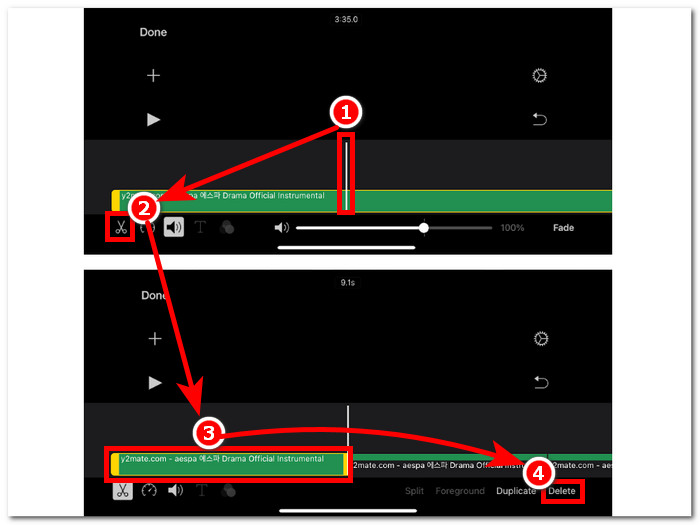
Langkah 3. Setelah Anda menghapus semua bagian yang tidak diperlukan dari file audio, klik tombol Done di pojok kiri atas layar.
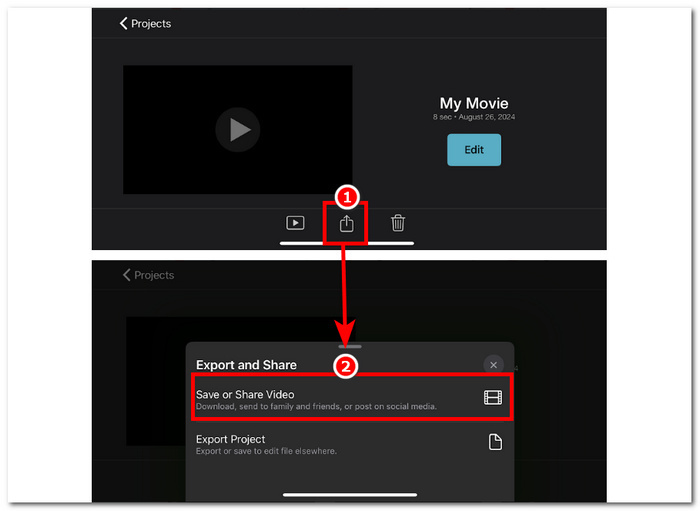
Langkah 4. Simpan file Anda dengan mengklik ikon Share, lalu ketuk Save or Share Video.
Mac
Memotong bagian tertentu dari berkas audio Anda menggunakan iMovie mudah dilakukan, karena mengandalkan fungsi dasar alat tersebut: menggabungkan fitur Split Clip dan menghapus. Berikut adalah cara termudah untuk melakukannya.
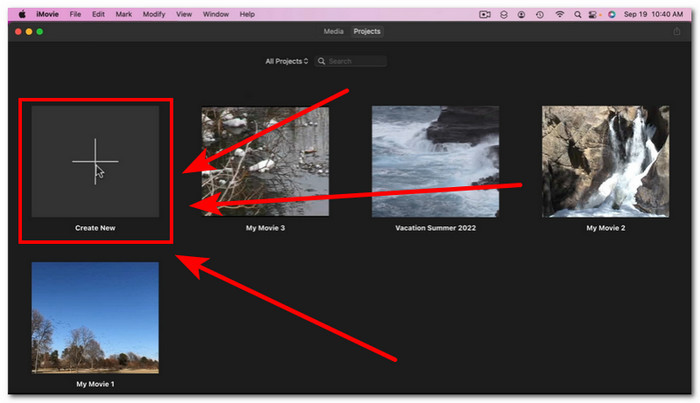
Langkah 1. Buka iMovie di Mac Anda dan klik tombol + untuk membuka file audio yang ingin Anda potong bagiannya.
Langkah 2. Setelah file audio berada di dalam perangkat lunak, pergi ke bagian audio yang ingin Anda potong, klik kanan, dan pilih Split Clip.
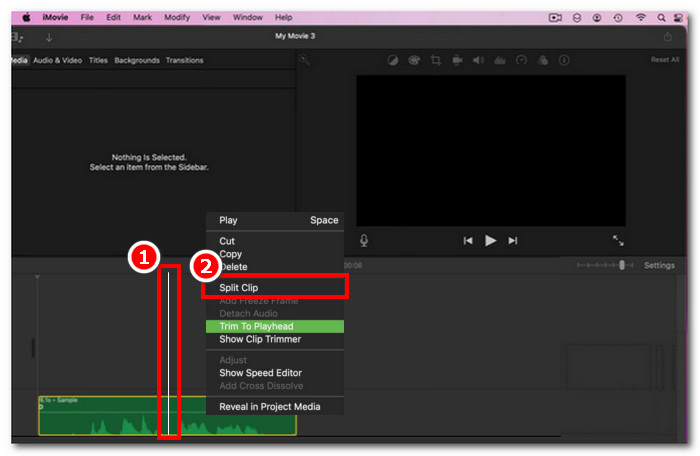
Langkah 3. Setelah file audio terpisah, hapus atau potong bagian-bagian yang tidak Anda perlukan lagi dengan mengklik kanan bagian tersebut lalu pilih Delete.
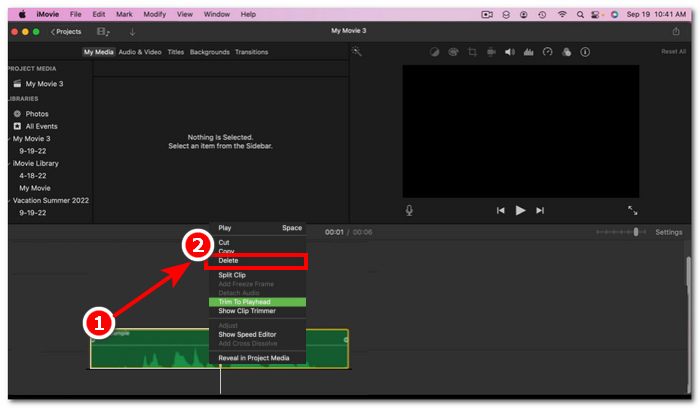
Langkah 4. Setelah Anda memotong bagian yang tidak Anda inginkan dari audio, simpan file Anda dengan mengklik File > Share > File, lalu klik Next untuk menyimpannya di Mac Anda.
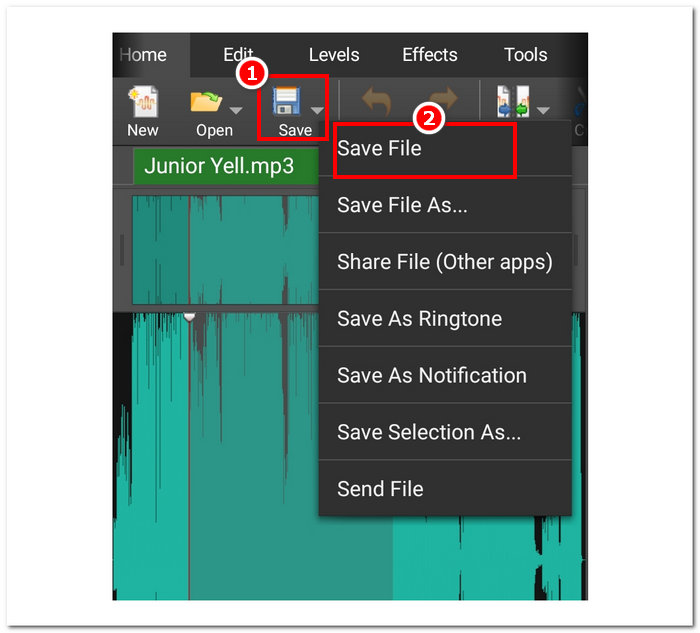
Bagian 3. Alternatif iMovie Terbaik untuk Memotong Audio
Meskipun iMovie sudah cukup baik untuk memotong atau memangkas file audio, kami menemukan perangkat lunak alternatif terbaik jika Anda mengalami bug atau iMovie berhenti berfungsi karena suatu alasan. FVC-picked Video Converter Ultimate adalah alat yang sempurna yang dapat digunakan bukan hanya sebagai pemotong atau pemangkas audio tetapi juga video, mirip dengan iMovie. Selain itu, ini dilengkapi alat pengeditan, memotong audio, dan memungkinkan pengaturan format keluaran. Jadi, perangkat ini melampaui fungsi dasar pemangkasan atau pemotongan audio seperti perangkat lunak lain pada umumnya, karena memiliki kecepatan pemrosesan yang tak tertandingi sekaligus memastikan kualitas audio tetap lossless.
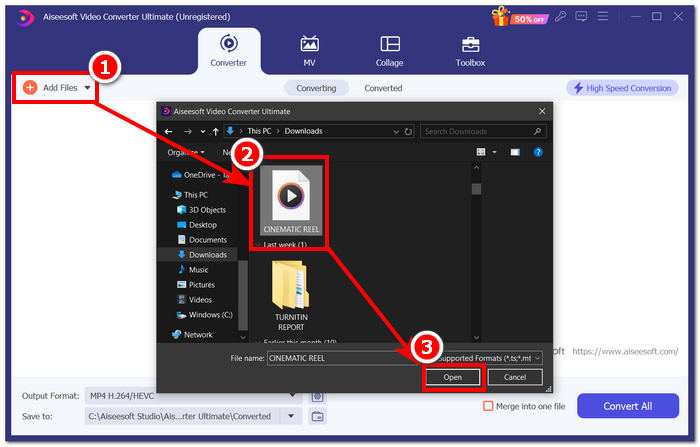
Langkah 1. Di komputer Anda, unduh dan buka perangkat lunak FVC-picked Video Converter Ultimate. Di antarmuka perangkat lunak, klik Add Files untuk memuat file audio yang ingin Anda pangkas atau potong bagian-bagian tertentu di dalamnya.
Unduh GratisUntuk Windows 7 atau yang lebih baruUnduhan Aman
Unduh GratisUntuk MacOS 10.7 atau yang lebih baruUnduhan Aman
Langkah 2. Klik ikon gunting untuk mengakses fitur potong dan pangkas milik perangkat lunak.
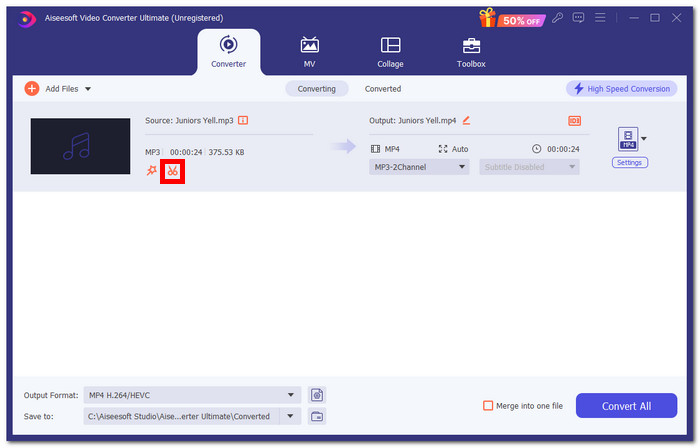
Langkah 3. Untuk memotong atau memangkas file audio menggunakan fitur perangkat lunak, cukup geser bilah pemangkasan ke bagian-bagian yang ingin Anda pertahankan.
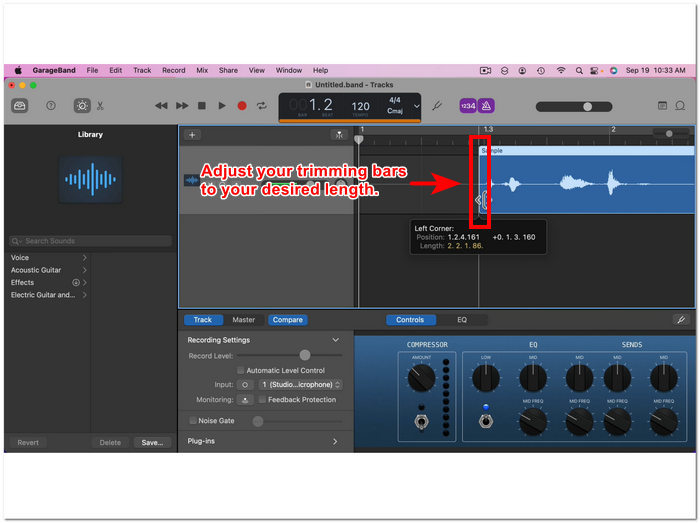
Bagian di luar bilah pemangkasan adalah bagian yang harus Anda hapus untuk memotong berkas audio Anda lebih pendek.
Langkah 4. Terakhir, untuk menyimpan file audio baru yang lebih pendek, klik tombol Convert All untuk menyimpan perubahan dan menyimpannya di folder khusus di komputer Anda.

Bagian 4. FAQ tentang Cara Memotong Audio di iMovie
Bagaimana Anda memilih bagian audio di iMovie?
Setelah Anda membagi berkas audio menjadi beberapa bagian, Anda dapat memilih satu bagian dengan mengetuk atau mengeklik bagian audio tertentu yang ada di linimasa Anda. Setelah bagian yang Anda pilih memiliki batas kuning di sekelilingnya, berarti Anda telah memilih bagian tersebut.
Mengapa iMovie memotong audio saya?
Jika iMovie tiba-tiba memotong sebagian video Anda, itu mungkin menunjukkan bahwa panjang audio Anda melebihi panjang audio maksimum iMovie. Saat panduan ini ditulis, panjang audio maksimum yang dapat diimpor pengguna dalam perangkat lunak iMovie adalah satu jam sepuluh menit.
Bisakah Anda memotong audio di Quicktime?
Ya, pengguna dapat memotong berkas audio menggunakan QuickTime dengan memuat berkas audio mereka ke dalam pemutar, mengeklik menu Edit di bagian atas antarmuka pemutar, dan melanjutkan ke bagian Pangkas.
Kesimpulan
Membuat trim dan pemotongan bagian tertentu dalam berkas audio menjadi mudah dan sederhana, berkat perangkat lunak iMovie milik Apple. Meskipun dikenal sebagai perangkat lunak penyunting video, perangkat lunak ini entah bagaimana dapat melakukan tugas penyuntingan audio seperti pemangkasan dan pemotongan tanpa masalah. Tentunya, pengguna iOS dan macOS dapat memaksimalkan fitur yang ditawarkan oleh iMovie dalam tugas penyuntingan audio; namun, perlu dicatat bahwa jika perangkat lunak tersebut tampaknya bermasalah di kemudian hari, pastikan untuk menggunakan Video Converter Ultimate yang lengkap.
-
 Cara Mengompres File MPEG-4 Secara Online - Tanpa Download, Tanpa Tanda Air
 Tidak memiliki penyimpanan file yang cukup untuk menyimpan semua file MPEG-4 Anda? Berikut adalah beberapa solusi yang dapat membantu Anda membuat file video Anda lebih kecil.
-
 Cara Kompres File VOB Online & Gratis [Tanpa Download]
 Apakah Anda mencari metode untuk mengompres file VOB? Pelajari cara terbaik untuk memperkecil ukuran file VOB di artikel ini.
-
 Cara Mengompres File OGV tanpa Kehilangan Kualitas
 Tidak dapat mengirim file OGV besar ke orang lain? Nah, artikel ini akan memperkenalkan Anda 2 cara mudah untuk membantu Anda mengompres file OGV dengan mudah.
