


 Video Converter Ultimate
 Perekam Layar
 Perbaikan Video
 Unduhan Aman
Panduan Lengkap Membuat Nada Dering dari Memo Suara
Namun, banyak pengembang telah membuat perangkat lunak pembuat nada dering. Ini berarti Anda bebas mengambil potongan lagu favorit atau merekam suara Anda sendiri sebagai nada dering. Dalam artikel ini, kami akan menjelaskan cara menjadikan memo suara sebagai nada dering. Kami harap Anda akan mendapatkan jawaban yang Anda cari.

Bagian 1. Cara Terbaik Membuat Memo Suara Menjadi Nada Dering
Jika Anda juga mencari pembuat nada dering dengan fitur lengkap, pilih FVC pilihan kami, Video Converter Ultimate, pemimpin bahkan di pasar perangkat lunak pengedit multimedia yang sangat kompetitif. Berbagai model ponsel pintar mungkin mendukung format nada dering yang berbeda, namun ini bukan masalah bagi Video Converter Ultimate. Seperti yang bisa Anda tebak dari namanya, fungsi intinya adalah mengonversi format file. Jadi, apa pun format memo suara yang Anda rekam atau unduh, Anda dapat mengonversinya agar sesuai dengan format ponsel Anda. Anda bahkan bisa menggunakannya untuk mengekstrak audio langsung dari video, yang membuka banyak kemungkinan nada dering. Anda juga dapat mengubah volume, trek, durasi, dan lain-lain dari audio tujuan. Dengan Video Converter Ultimate, menjadikan memo suara sebagai nada dering sesuka hati bukan lagi mimpi.
Unduh GratisUntuk Windows 7 atau yang lebih baruUnduhan Aman
Unduh GratisUntuk MacOS 10.7 atau yang lebih baruUnduhan Aman
Di sini, kami akan memberi tahu Anda cara mengedit memo suara yang direkam atau diunduh sehingga Anda dapat menggunakannya sebagai nada dering.
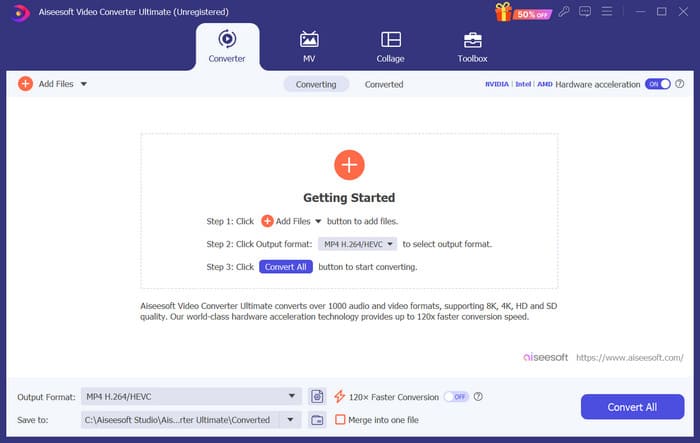
Langkah 1. Unduh dan instal Video Converter Ultimate di komputer Anda. Setelah itu, jalankan di desktop Anda.
Langkah 2. Klik Add Files untuk mengunggah audio yang ingin Anda edit.
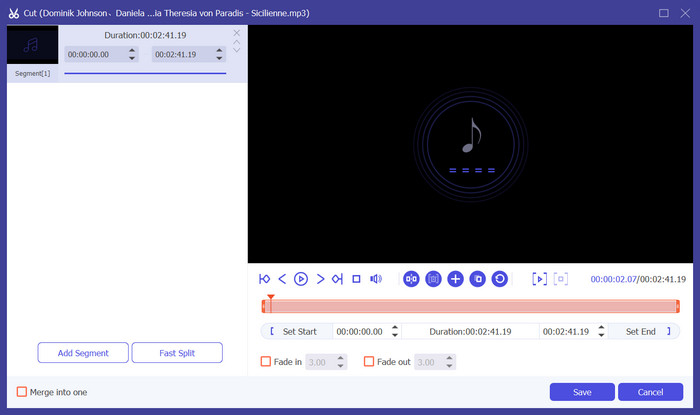
Langkah 3. Untuk memotong audio, klik Cut. Anda dapat menyesuaikan durasi file. Setelah selesai memotong, klik Save.
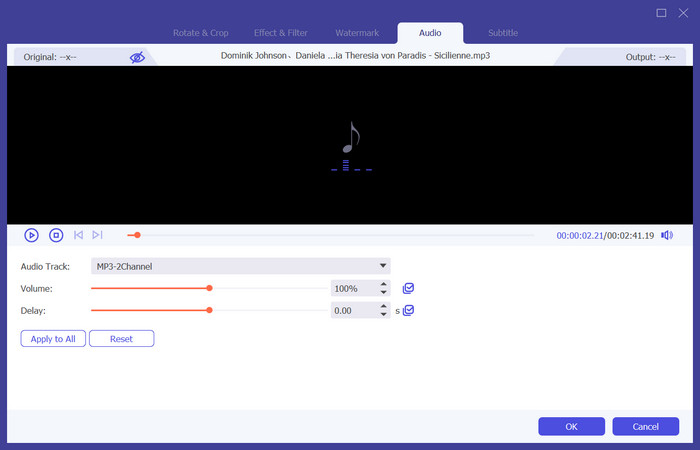
Langkah 4. Untuk mengedit volume dan trek audio dari memo suara Anda, klik Edit. Di jendela yang muncul, Anda dapat melakukan penyesuaian yang diinginkan. Setelah selesai mengedit, klik OK.
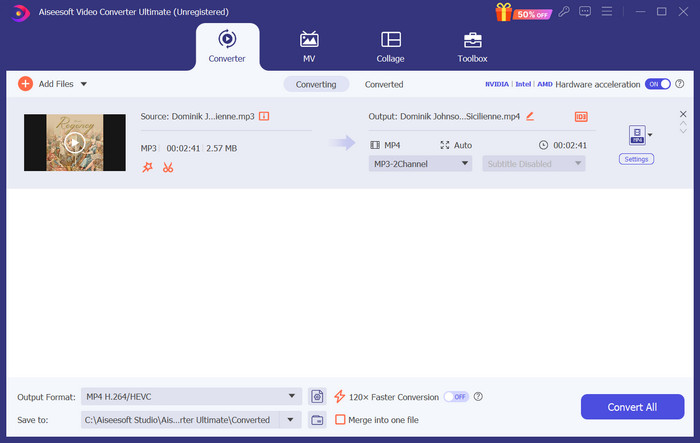
Langkah 5. Jika Anda perlu mengubah format file, buka menu tarik-turun di sebelah Output Format. Di sini, Anda dapat memilih format keluaran untuk audio Anda.
Langkah 6. Saat Anda ingin mengekspor nada dering yang telah diedit, klik Convert All.
Bagian 2. Cara Membuat Memo Suara Menjadi Nada Dering di iPhone
Kami merekomendasikan GarageBand jika Anda ingin membuat nada dering memo suara di iPhone Anda. Ini adalah aplikasi yang dikembangkan oleh Apple. Pengguna dapat menggunakannya untuk membuat musik di perangkat iOS mereka. Aplikasi ini memiliki banyak alat untuk produksi musik, perekaman, penyuntingan, dan pencampuran. GarageBand juga dapat diintegrasikan dengan perangkat lunak Apple lainnya. Itu berarti kita dapat dengan mudah mentransfer proyek antara GarageBand dan perangkat lunak lain untuk penyuntingan lebih lanjut. Aplikasi ini populer di kalangan pengguna profesional dan pemula karena antarmukanya yang ramah pengguna, fitur yang lengkap, dan aksesibilitasnya. Semua pengaturan dapat dilakukan di telepon tanpa bantuan perangkat lain.
Inilah yang perlu Anda lakukan untuk mengubah memo suara menjadi nada dering.
Langkah 1. Sebelum mengatur nada dering, Anda perlu membuka aplikasi Voice Memo di iPhone Anda untuk memilih sebuah memo suara.
Langkah 2. Setelah memilih memo suara yang diinginkan, tekan ikon tiga titik. Pilih Save to Files, lalu ketuk Save lagi untuk mengonfirmasi tindakan Anda.
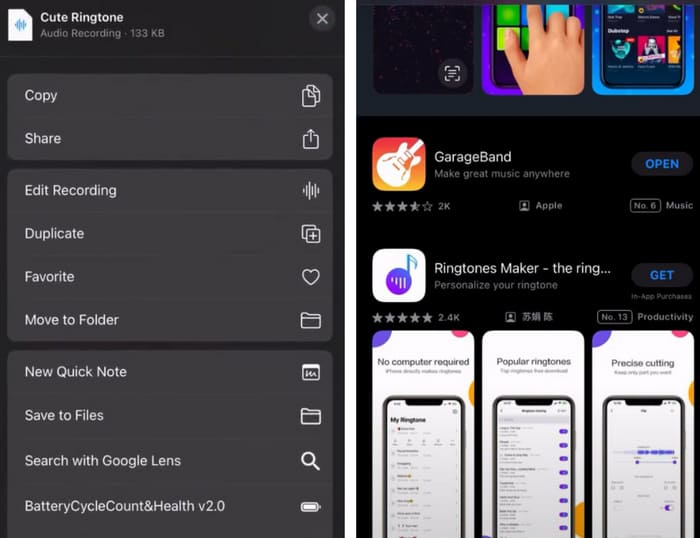
Langkah 3. Buka GarageBand di iPhone Anda, lalu ketuk Project.
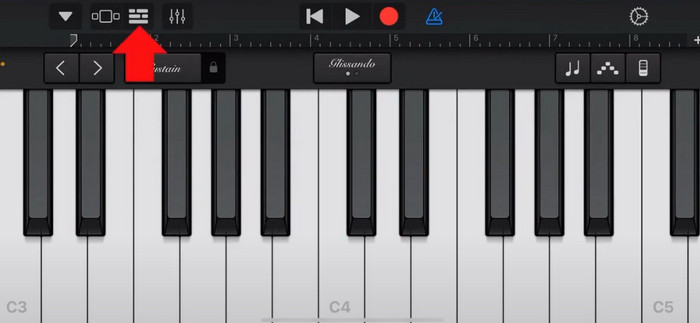
Langkah 4. Pilih Loop > Files. Setelah itu, ketuk Browse items from the Files app untuk memilih memo suara yang Anda inginkan.
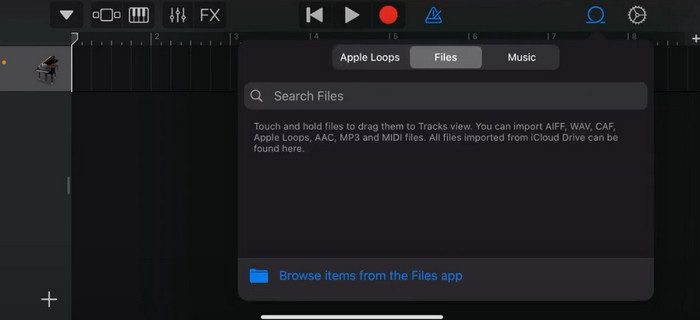
Langkah 5. Seret dan jatuhkan file tersebut ke timeline.
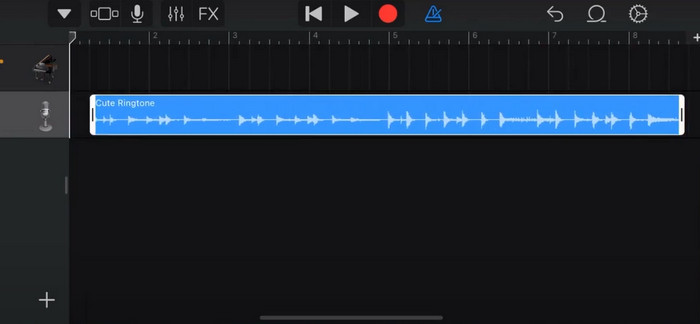
Langkah 6. Nonaktifkan Metronome, lalu ketuk ikon panah turun > My Songs.
Langkah 7. Ketuk dan tahan klip tersebut, lalu pilih Share.
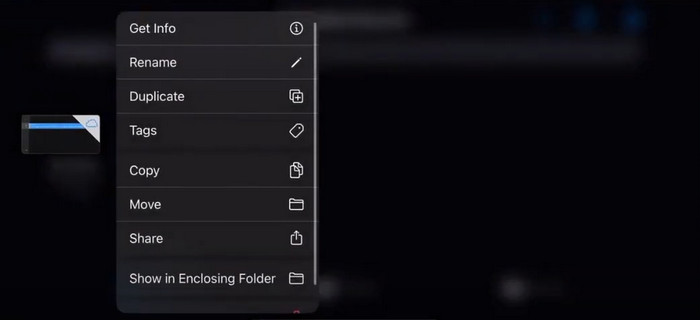
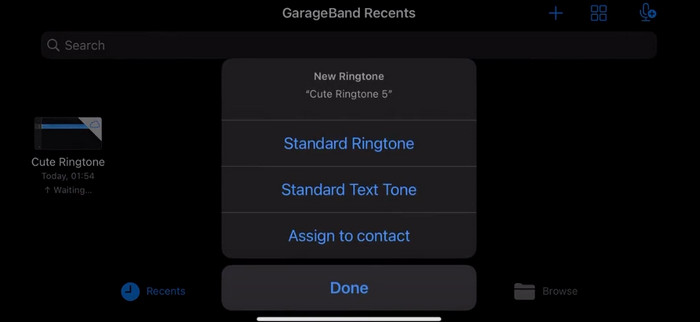
Langkah 8. Pilih Ringtone dari semua opsi, lalu tekan Export. Terakhir, ketuk Use sound as > Standard Ringtone. Dengan demikian, Anda telah berhasil membuat nada dering dari sebuah memo suara.
Bagian 3. Cara Membuat Rekaman Suara Menjadi Nada Dering di Android
Jika Anda menggunakan ponsel Android dan ingin mengubah rekaman musik menjadi nada dering, Anda dapat melakukannya langsung di aplikasi Setelan ponsel Anda. Prosedurnya sangat sederhana, dan tidak perlu mengunduh perangkat lunak apa pun untuk proses ini. Namun, jika Anda ingin mengubah rekaman audio Anda, Anda dapat memilih perangkat lunak penyuntingan audio dan video profesional seperti FVC-picked Video Converter Ultimate.
Selanjutnya, kami akan mengajarkan cara membuat nada dering dari rekaman suara di Android. Pada bagian ini, kami akan menggunakan ponsel Samsung sebagai contoh. Sebelum mulai, pastikan Anda telah menyimpan file rekaman di aplikasi voice recorder.
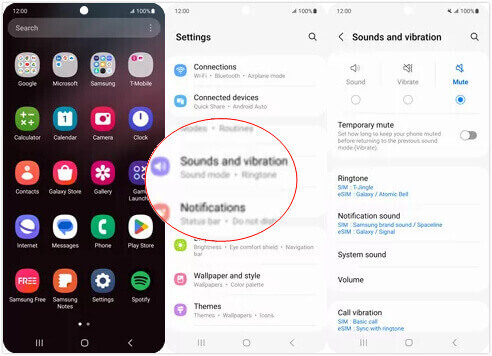
Langkah 1. Buka Settings di ponsel Anda, lalu pilih Sounds and vibration.
Langkah 2. Pastikan Sound dipilih di bawah Sound mode. Lalu, pilih Notification sound.
Langkah 3. Pilih file musik yang telah Anda rekam. Terakhir, kembali ke layar Utama untuk menerapkan pengaturan.
Bagian 4. FAQ untuk Membuat Memo Suara Menjadi Nada Dering
Apa format nada dering untuk Android?
Nada dering untuk perangkat Android dapat tersedia dalam berbagai format file audio, tetapi format yang paling umum didukung adalah MP3, AAC, M4A, OGG, dan WAV.
Bagaimana cara menyimpan memo suara sebagai lagu di iPhone saya?
Buka aplikasi Voice Memos di iPhone Anda dan cari memo suara yang ingin Anda simpan sebagai lagu. Ketuk memo suara untuk membukanya, lalu tekan ikon bagikan untuk melihat opsi berbagi yang tersedia. Anda dapat memilih untuk menyimpan memo suara ke aplikasi File. Setelah itu, Anda dapat membuka aplikasi musik di iPhone Anda yang mendukung pengimporan file audio. Aplikasi seperti GarageBand atau Music Memos cocok untuk digunakan.
Bagaimana cara merekam audio pada Android Samsung?
Untuk merekam audio di perangkat Samsung Android, gunakan aplikasi bawaan Voice Recorder. Bukalah dan ketuk Record untuk mulai merekam. Setelah selesai merekam, Anda dapat menyimpan file audio tersebut dan memberinya nama agar mudah ditemukan.
Kesimpulan
Dalam artikel ini, kami menjawab pertanyaan tentang cara mengubah memo suara menjadi nada dering. Kami menawarkan salah satu alat pengedit nada dering terbaik, FVC Video Converter Ultimate. Metode untuk mengubah memo suara menjadi nada dering di iPhone dan ponsel Android telah dicantumkan. Kami juga menyediakan panduan langkah demi langkah yang lengkap untuk setiap bagian jika Anda mengalami masalah.
-
 3 Solusi Teratas untuk Mengompres File WAV ke Ukuran yang Lebih Kecil
 Jika Anda juga mencari cara untuk mengompres ukuran file audio WAV, baca konten kami. Kami akan memperkenalkan Anda pada berbagai alat dari tiga aspek.
-
 Tutorial Kompresi Audio Mendalam pada tahun 2024 (Langkah demi Langkah)
 Apakah Anda perlu mengompresi audio tetapi memerlukan bantuan untuk mencari tahu harus mulai dari mana? Dalam postingan kali ini, kami akan menyajikan pilihan terbaik untuk memperkecil ukuran file trek Anda.
-
 Kompresor Audio yang Efektif untuk Pengguna Offline dan Online
 Punya masalah dengan file audio berukuran besar? Ada banyak kompresor file audio yang tersedia untuk pengguna offline dan online. Lihat di sini.
