


 Video Converter Ultimate
 Perekam Layar
 Perbaikan Video
Cara Memotong GIF dengan Bantuan Pemangkas GIF Terbaik
Memilih GIF yang tepat untuk pesan adalah hal yang wajib agar nada yang ingin Anda sampaikan sesuai dengan konteks. Namun, beberapa GIF perlu dipotong (crop) untuk menampilkan maksud sebenarnya dari GIF tersebut. Selain itu, jika Anda mencoba memotong GIF, kualitas GIF tidak boleh menurun dan harus tetap mempertahankan fps yang sama. Pada titik tertentu, memilih pemotong (cropper) yang tepat untuk GIF bisa sedikit sulit, karena tidak semua alat menyediakan fungsi crop. Dan beberapa alat yang sudah punya fitur crop justru menurunkan kualitas dan fps GIF. Dalam artikel ini Anda bisa memilih pemotong GIF terbaik, semua alat yang tercantum sudah kami uji untuk memberikan bukti yang akurat. Kami juga menyediakan pemotong GIF terbaik yang tersedia di semua platform dan cara menggunakannya. Lanjutkan membaca tulisan ini untuk mengetahui lebih lanjut.

Bagian 1. Pemotong GIF Terbaik yang Mendukung Sistem Operasi Windows & Mac
1. Video Gratis FVC ke Pembuat GIF
Alat ini tersedia di semua platform seperti Windows dan Mac. Ini adalah pemotong GIF animasi terbaik yang dikembangkan oleh FVC, yaitu FVC Free Video to GIF Maker. Perangkat lunak ini memungkinkan pengguna menjelajahi dan memperbaiki GIF yang sudah dimiliki atau membuat GIF baru. Jadi, jika Anda ingin memotong GIF, alat ini membantu Anda melakukannya bahkan tanpa koneksi internet. Potong GIF Anda agar lebih mudah dibedakan dengan cara yang praktis dan efektif. Untuk mengetahui cara memotong GIF, ikuti langkah-langkah di bawah ini.
Langkah 1. Instal alat ini ke drive Anda dan sesuaikan preferensi sesuai kebutuhan Anda.
Unduh GratisUntuk Windows 7 atau versi lebih baruUnduhan Aman
Unduh GratisUntuk MacOS 10.7 atau versi lebih baruUnduhan Aman
Langkah 2. Setelah meluncurkan alatnya, sebuah mini-antarmuka seperti ini akan muncul di layar Anda.
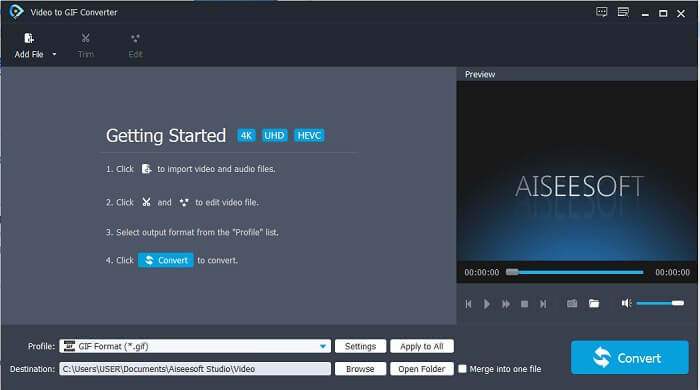
Langkah 3. Klik Add File atau Anda juga bisa drag and drop file video ke antarmuka alat.
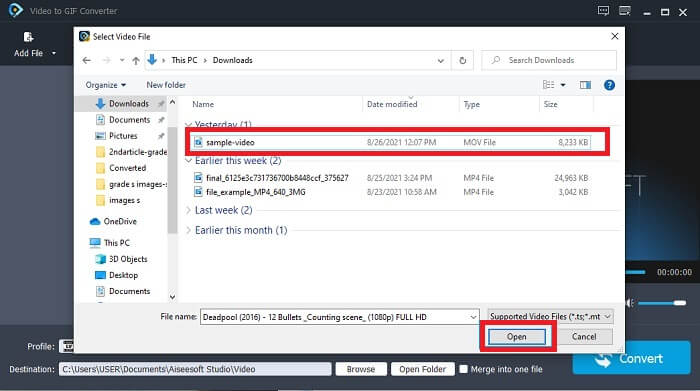
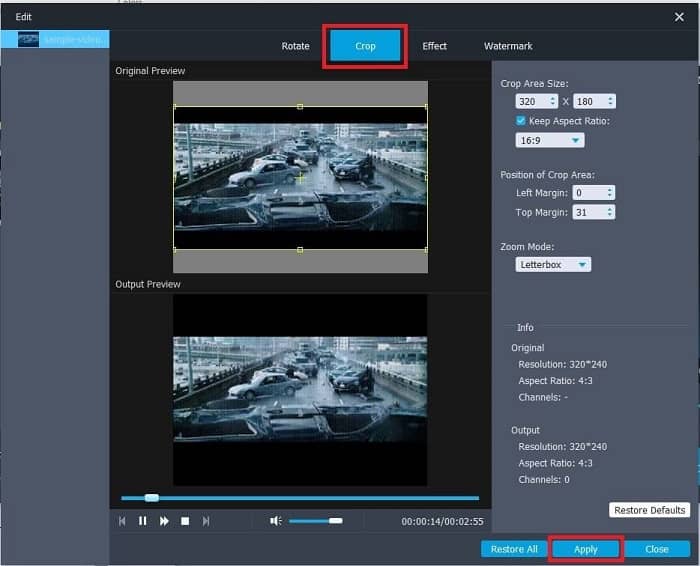
Langkah 4. Klik Edit untuk menyempurnakan GIF Anda. Buka bagian Crop dan atur ukuran GIF. Anda juga dapat mengubah Aspect Ratio dan Zoom Mode. Klik Apply untuk menyimpan penyesuaian yang telah Anda buat.
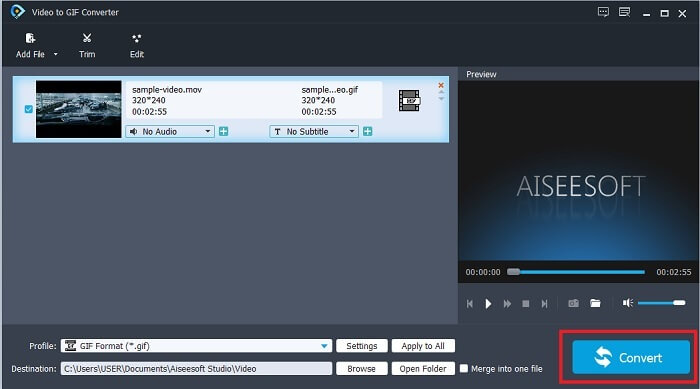
Langkah 5. Klik Convert untuk memulai konversi video ke GIF. Jika konversi selesai, Anda dapat mengecek hasil akhirnya di file explorer dengan mengetikkan nama video.
Pro
- Semua fitur minor tersedia di sini.
- Ini jauh lebih baik daripada alat online dan beberapa alat yang dapat diunduh juga.
- Buat GIF Anda dengan mudah dengan alat ini.
Kontra
- Anda tidak dapat menggunakan fitur utama yang disediakan oleh versi Ultimate.
- Ini mendukung video format yang lebih rendah daripada versi premium.
2. Video Converter Ultimate
Versi gratis dari alat ini dapat melakukan pekerjaan sederhana tetapi versi premiumnya adalah pemangkas GIF terbaik. Video Converter Ultimate tidak hanya dalam nama tetapi juga bahwa alat ini adalah yang terbaik dalam mengonversi video apa pun ke file GIF. Tidak seperti versi gratis dan alat di bawah ini, alat ini dapat membuat GIF sederhana Anda menjadi lebih indah. Ubah GIF Anda menjadi luar biasa dengan menambahkan efek yang hanya dapat diberikan oleh alat ini. Ini juga menyediakan konversi video ke GIF, seperti MP4 ke GIF, menggabungkan video menjadi satu, pembuat 3D, dan banyak lagi. Jadi, gunakan alat ini sebagai pemotong pribadi Anda dan itu tidak akan pernah mengecewakan Anda. Selain itu, lanjutkan membaca langkah-langkah di bawah ini untuk mengetahui cara memotong GIF Anda untuk menyampaikan pesan yang lebih spesifik ke penerima Anda.
Langkah 1. Sebelum menggunakan alat ini, Anda perlu mengunduhnya. Instal alat ke drive Anda, ubah preferensi sesuai kebutuhan, lalu klik finish untuk mulai menjalankan alat di layar Anda.
Unduh GratisUntuk Windows 7 atau yang lebih baruUnduhan Aman
Unduh GratisUntuk MacOS 10.7 atau yang lebih baruUnduhan Aman
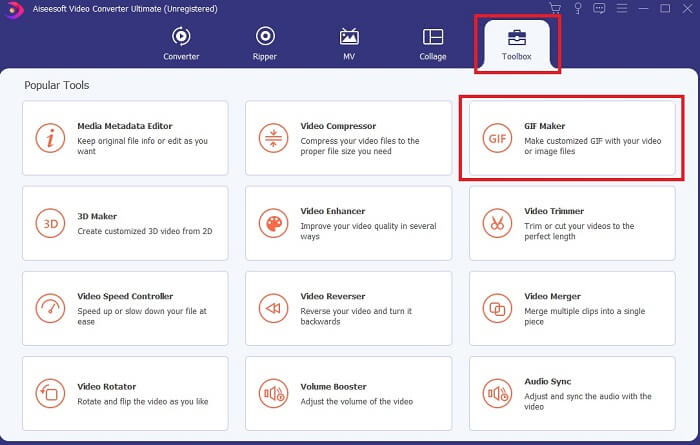
Langkah 2. Jika alat sudah sepenuhnya terunduh ke drive Anda, antarmuka yang mudah digunakan seperti ini akan muncul di layar. Klik Toolbar dan di toolbar klik GIF Maker.
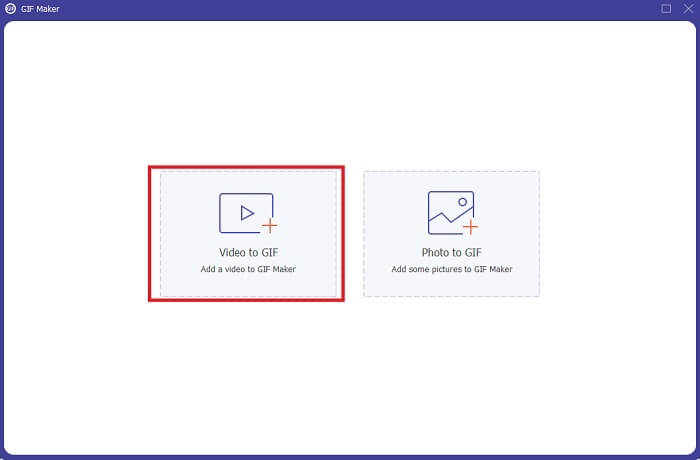
Langkah 3. Untuk menambahkan video, klik Video to GIF dan cari GIF yang ingin Anda potong atau sunting. Setelah memilih video, klik Open untuk memulai GIF Maker.
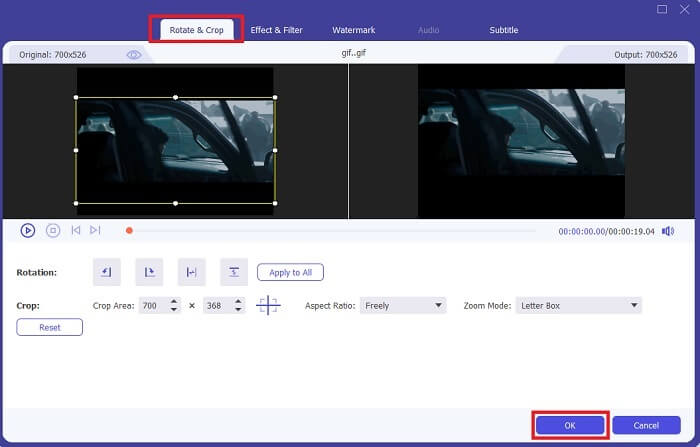
Langkah 4. Klik tombol bergambar bintang untuk mulai mengedit. Klik Rotate & Crop untuk mulai memotong GIF. Anda juga dapat menambahkan efek & filter, watermark, dan subtitle. Jika semua penyesuaian sudah selesai, tekan OK untuk menyimpan perubahan.
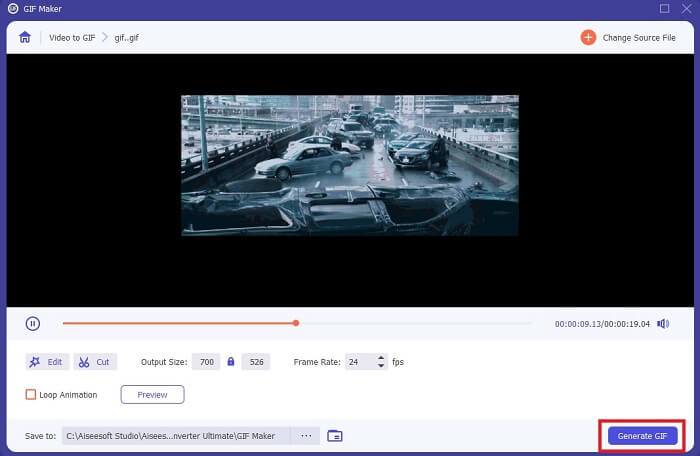
Langkah 5. Ganti lokasi penyimpanan hasil akhir agar lebih mudah ditemukan. Klik Generate GIF untuk memulai proses konversi. Jika konversi sudah 100% selesai, temukan hasil akhirnya di lokasi yang tadi Anda pilih atau di file manager.
Pro
- Alat yang Anda gunakan jika Anda ingin meningkatkan GIF Anda menjadi lebih interaktif. Gunakan imajinasi Anda untuk membumbui semuanya ke dalam GIF Anda.
- Itu dapat membuat GIF Anda menjadi output yang mengesankan dengan menggunakan fitur-fitur utama yang disediakannya yang tidak dapat disediakan oleh versi premium lainnya.
- Lebih dari satu juta pengguna memilih alat ini sebagai alat versi premium pilihan pertama mereka.
Kontra
- Untuk menggunakan alat ini, Anda harus memberikan pembayaran terlebih dahulu tetapi tidak begitu mahal pastinya. Jadi, Anda tidak perlu mengharapkan apa-apa lagi jika membeli alat ini.
- Unduh alat sebelum Anda meluncurkannya. Bahkan jika Anda tidak memiliki internet, Anda masih dapat menggunakan alat ini karena tidak bergantung pada internet.
Bagian 2. Top 5 GIF Cropper Terbaik yang Dapat Anda Akses Melalui Internet
1. iLoveIMG
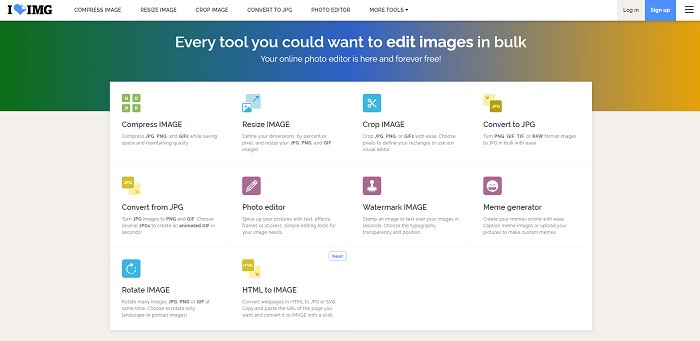
Potong GIF Anda dengan bantuan pemotong GIF online ini. iLoveIMG dikenal sebagai pemotong GIF, JPG, dan PNG online terbaik. Walaupun alat ini tidak dapat mengonversi video ke format GIF karena hanya berfokus pada peningkatan GIF, JPG, dan PNG saja. Namun, antarmuka situs web ini melebihi ekspektasi karena tidak hanya sederhana tetapi juga interaktif. Jadi, Anda tidak akan merasa bosan saat menggunakannya. Untuk penilaian, alat ini mendapat skor 7 dari 10 yang tergolong bagus untuk aplikasi berbasis web.
Pro
- Terbaik untuk meningkatkan GIF, JPG, dan PNG Anda.
- Antarmuka situs web ini luar biasa indah.
- Tidak perlu mengunduh.
Kontra
- Ada kemungkinan kehilangan data dapat terjadi jika koneksi terputus.
- Anda tidak dapat mengonversi format video menjadi format GIF.
2. Kecap Merah
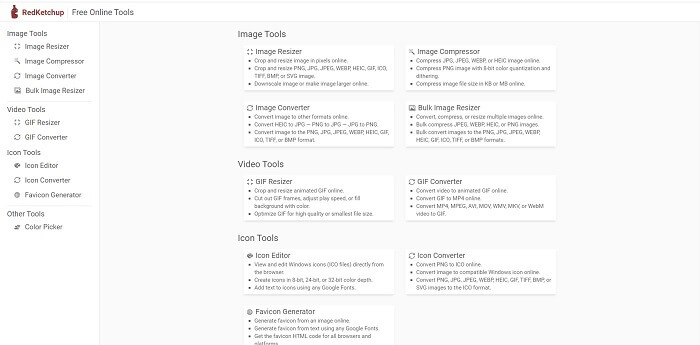
Jika iLoveIMG bukan pilihan Anda, maka Anda harus mencoba pemotong GIF online ini. RedKetchup sangat informatif karena memberikan deskripsi pada setiap alat pengeditan yang tersedia. Jadi, akan lebih mudah bagi Anda memahami cara kerja suatu fitur jika sebelumnya Anda belum mengetahuinya. Selain itu, Anda dapat mengonversi gambar menjadi GIF, PNG, JPG, WEBP, dan lainnya. Format yang didukung lebih banyak daripada iLoveIMG, tetapi kekurangan alat ini adalah tampilan antarmuka situsnya yang membosankan. Latar belakang situs seluruhnya berwarna putih dan satu-satunya hal yang berwarna hanyalah nama dan ikon RedKetchup.
Pro
- Ini mendukung lebih banyak format gambar daripada iLoveIMG.
- Setiap fitur alat memiliki deskripsi singkat sehingga pengguna dapat memahami fungsinya.
- Ini adalah alat online gratis.
Kontra
- Halaman web alat ini sangat membosankan untuk dilihat karena warnanya yang monoton.
- Ada kemungkinan file tersebut tidak akan tersimpan dengan baik jika internet Anda tidak stabil.
3. Kapwing
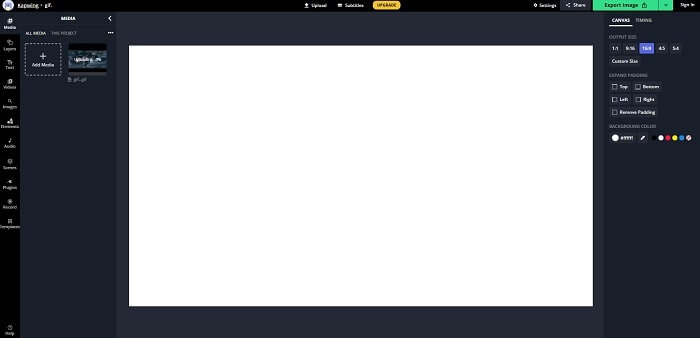
Alat ini memiliki fitur yang hampir sama dengan Photoshop, tetapi berbasis online. Ini merupakan pemotong frame GIF online terbaik. Kapwing dikenal sebagai platform untuk membuat GIF terbaik yang ingin Anda bagikan kepada teman-teman. Berbeda dengan dua alat pertama di atas, alat ini mendukung beberapa format video untuk dikonversi menjadi GIF. Meskipun belajar menggunakan alat ini akan memakan sedikit waktu, hasilnya akan sepadan. Namun, jika Anda ingin membuat GIF sederhana, alat ini sangat ahli dalam hal itu. Alat ini memiliki fitur yang hampir sama dengan Photoshop, tetapi berbasis online. Ini adalah pemotong frame GIF online terbaik. Kapwing dikenal untuk membuat GIF terbaik yang ingin Anda bagikan dengan teman-teman Anda. Berbeda dengan dua alat pertama di atas, alat ini mendukung beberapa format video untuk dikonversi menjadi GIF. Walaupun mempelajari cara menggunakannya akan memakan sedikit waktu, itu akan sepadan. Namun, jika Anda ingin membuat GIF sederhana, alat ini merupakan pilihan terbaik.
Pro
- Antarmuka situs web alat akan memberi Anda getaran yang hampir sama dengan Photoshop.
- Konversikan video Anda ke format GIF.
- Fitur pengeditan dasar disediakan.
Kontra
- Pemrosesan hasil akhir video akan selalu bergantung pada seberapa cepat internet Anda. Jadi memiliki banyak kesabaran diperlukan untuk menghasilkan hasil akhir.
- Anda harus mendaftar untuk menghapus tanda air dari output Anda. Jadi, harapkan email pada setiap pembaruan yang dikatakannya dan beberapa pengumuman yang mengganggu. Karena Anda membiarkan mereka mengakses akun Anda.
4. GIFGIF
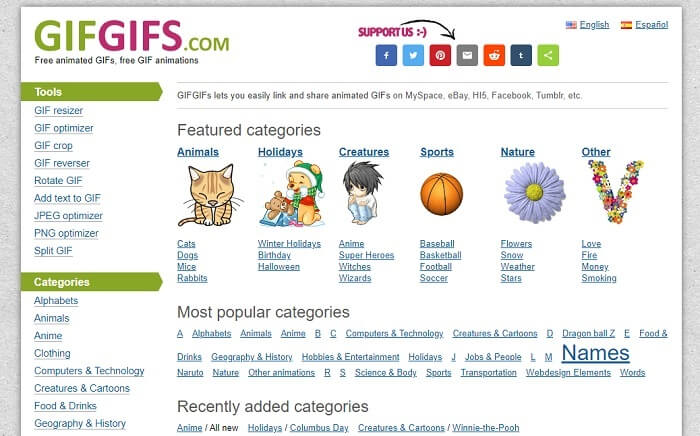
Anda dapat memotong GIF dengan pemotong GIF tanpa penurunan kualitas ini. GIFGIFs menyediakan koleksi GIF jadi terbaik secara online. Anda dapat memilih dari berbagai kategori yang tersedia seperti alfabet, olahraga, anime, pakaian, dan lain-lain. Selain itu, alat ini tidak hanya menyediakan fitur terbaik untuk menyempurnakan GIF Anda, tetapi Anda juga dapat mengoptimalkan JPG dan PNG.
Pro
- Ini adalah pilihan yang baik untuk meningkatkan GIF Anda menjadi lebih baik.
- Ini mendukung pengoptimalan JPEG, PNG dan GIF.
- Pilih GIF yang sudah selesai di bagian kategorinya.
Kontra
- Itu tidak menyediakan bilah pencarian sehingga sulit untuk menemukan GIF sempurna yang ingin Anda gunakan.
- Antarmukanya oke. Tidak ada yang istimewa atau harus kita katakan itu tidak baik tetapi tidak buruk.
5. VEED.IO
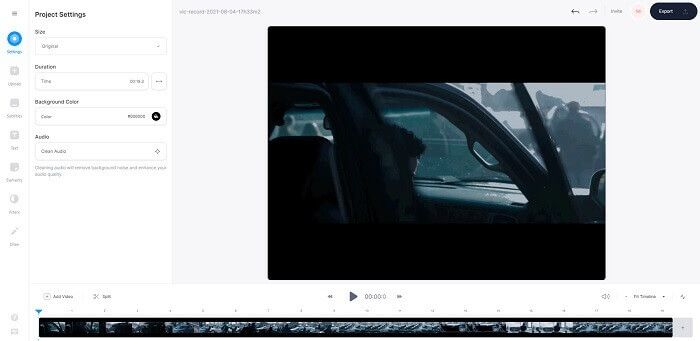
Pilih ini sebagai pemangkas GIF gratis pilihan pertama Anda secara online tetapi juga dapat ditingkatkan menjadi versi premium jika Anda mau. VEED.IO adalah salah satu alat online terbaik untuk meningkatkan GIF Anda menjadi lebih baik. Tetapi versi gratis alat ini hanya mendukung ukuran file GIF 50mb dan untuk menambahkan lebih banyak ukuran file, Anda harus membeli alat versi premium.
Pro
- Ini menyediakan fitur pengeditan yang hebat untuk membuat GIF Anda lebih baik.
- Antarmuka pengguna yang sederhana.
- Anda juga dapat menambahkan subtitle jika Anda mau.
Kontra
- Itu tidak menyediakan pembuat 3D untuk meningkatkan gambar 2D Anda.
- Pada beberapa kesempatan, perangkat lunak macet ketika Anda mencoba memperbesar garis waktu.
Bagian 3. FAQ Tentang GIF Cropper
Apakah ada format yang lebih baik dari format GIF?
Meskipun sangat terkenal bahwa GIF adalah format gambar bergerak terbaik di web. Tapi tahukah Anda bahwa ada format yang lebih baik daripada GIF? Ini APNG-nya. Format ini menyediakan palet warna yang lebih banyak daripada GIF dan juga lebih baik dalam kompresi. Tetapi Anda juga dapat menggunakan WEBP, MNG, FLIF, dan AVIF.
Apa alasan mengapa GIF dibuat?
Pada akhir tahun 1987, seorang bernama Steve Wilhite bertanya pada dirinya sendiri apakah ada kemungkinan untuk membuat file gambar berukuran kecil untuk tampilan di komputer, dan pada saat itulah GIF lahir. Untuk mengetahui lebih jauh tentang GIF, Anda dapat klik di sini.
Mana yang lebih baik? JPG atau GIF?
Format JPG memberi Anda gambar yang lebih detail karena mendukung rentang warna yang luas sehingga paling baik dalam mengambil foto. GIF menyediakan sedikit palet warna tetapi bagus dalam membuat gambar statis.
Kesimpulan
Sebagai penutup, Anda harus memilih pemotong GIF terbaik yang dapat memberikan kemampuan crop sesuai kebutuhan Anda tanpa memengaruhi kualitas GIF meskipun dipotong. Namun semakin jelas bahwa Anda sebaiknya memilih alat utama yang dikembangkan oleh FVC. Karena alat ini menyediakan fitur GIF terbaik yang ingin Anda tambahkan ke dalam GIF agar tampak lebih menonjol dibanding GIF lainnya. Jadi, memotong GIF menjadi lebih mudah dari sebelumnya jika Anda menggunakan Video Converter Ultimate.
-
 Tutorial untuk Mengompres GIF dan Mengurangi Ukuran File dengan Kualitas Tinggi
 Berikut 2 cara mudah untuk mengompres GIF di komputer atau ponsel Anda. Anda dapat menggunakan FVC Free Online Video Compressor dan Photoshop untuk mengurangi ukuran file GIF dalam berbagai aspek.
-
 GIF Player - 5 Pemain GIF Terbaik untuk PC Windows, Mac, Android dan iPhone
 Program apa yang membuka file GIF? Bagaimana cara melihat GIF di Android? Apakah iPhone memiliki pemutar GIF untuk membuka GIF? Posting ini membagikan 5 pemain GIF terbaik untuk Anda.
-
 Cara Mengonversi Video AVI ke File GIF Animasi di Windows/Mac
 Ingin memilih segmen AVI yang menarik untuk membuat meme GIF? Artikel ini akan memberi tahu Anda 2 metode terbaik untuk memotong video AVI dan mengonversi AVI ke file GIF animasi secara gratis.
