


 Video Converter Ultimate
 Perekam Layar
 Perbaikan Video
 Unduhan Aman
Cara Mengonversi File EPS ke JPG dan PNG [Tutorial Lengkap]
File vektor yang disebut file EPS diperlukan untuk pencetakan gambar yang profesional dan berkualitas tinggi. EPS juga dikenal sebagai Encapsulated PostScript. Akibatnya, format ini tidak sepopuler format seperti JPG, PNG, dan GIF yang banyak digunakan. Jika Anda ingin desain Anda dapat dilihat oleh publik secara online, Anda harus mengonversi EPS ke JPG. Selain itu, beberapa program tidak mendukung file EPS, sehingga menyulitkan pengguna. Jadi, mengonversinya ke format lain seperti JPG dan PNG adalah solusi terbaik untuk Anda. Panduan ini sangat cocok jika Anda berencana mengonversi format EPS ke format lain seperti JPG dan PNG. Baca artikel ini dan pelajari lebih lanjut tentang cara mengonversi EPS ke JPG dan PNG.

Bagian 1. Bandingkan EPS, JPG, dan PNG
| Format File | EPS | JPG / JPEG | PNG |
| Ekstensi File | .eps | .jpg | .png |
| Nama lengkap | Enkapsulasi PostScript | Kelompok Pakar Fotografi Bersama | Grafik Jaringan Portabel |
| Dikembangkan oleh | John Warnock dan Chuck Geschke | Kelompok Pakar Fotografi Bersama | Grup Pengembangan PNG |
| Keterangan | File PostScript yang dienkapsulasi memiliki ekstensi .eps dan dikenal sebagai EPS file. Selain itu, ini termasuk data bitmap yang mempertahankan pengkodean unik untuk warna dan ukuran. Ini menyiratkan file EPS sempurna untuk menskalakan gambar beresolusi tinggi. | Pengguna banyak digunakan JPG file. Mereka menggunakannya untuk gambar dan grafik web. Ini juga disebut sebagai file JPEG atau JPG. Format file gambar JPG adalah yang paling efektif untuk kompresi gambar. | Mulai tahun 1995, the PNG format gambar adalah singkatan dari Portable Network Graphics. Seorang profesional TI bernama Oliver Fromme menciptakan format PING. Namun, kemudian berubah menjadi PNG. |
| Kompresi | Lossless | Lossy | Lossless |
| Program/Browser Terkait | Adobe Illustrator, Adobe Photoshop, Penampil EPS, GIMP, Google Drive | IrfanView, Paint, Adobe Photoshop, GIMP, Microsoft, FastStone Image Viewer, Google Chrome, Internet Explorer | Penampil Gambar FastStone, Adobe Photoshop, GIMP, Microsoft, Paint, Google Chrome, Internet Explorer |
Bagian 2. Cara termudah untuk Mengonversi EPS ke JPG dan PNG Online
Cara Mengonversi EPS ke JPG/PNG di FVC Free Image Converter
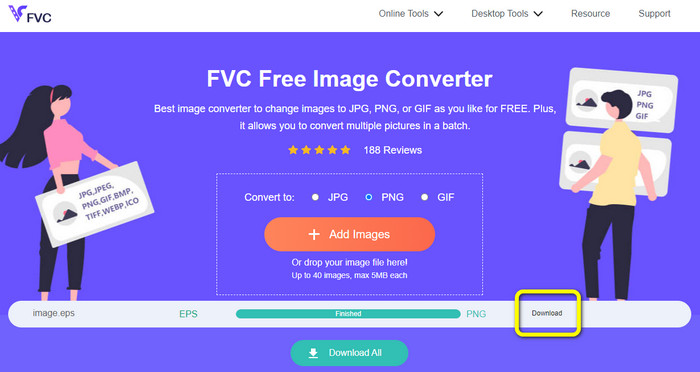
Format file EPS tidak populer di beberapa alat, sehingga cukup menantang untuk dikonversi. Untungnya, Anda dapat mengonversi EPS ke JPG atau PNG menggunakan FVC Free Image Converter. Alat online ini mendukung berbagai format input, termasuk EPS, JPG, PNG, GIF, BMP, dan banyak lagi. Dengan demikian, Anda dapat mengunggah gambar apa pun yang Anda inginkan. Selain itu, proses mengonversi EPS ke JPG/PNG sangat mudah. FVC Free Image Converter menawarkan metode sederhana untuk mengonversi gambar, sehingga cocok untuk pemula. Lebih jauh lagi, konverter ini memiliki fitur konversi batch. Anda dapat mengonversi hingga 40 gambar hanya dengan satu klik. Anda dapat mengakses konverter gambar ini di semua peramban web seperti Google, Firefox, Explorer, dan lainnya. Terakhir, setelah mengonversi gambar Anda, tidak akan ada elemen yang tidak diinginkan dari gambar tersebut, seperti watermark, logo, teks, dan sebagainya.
Konversi EPS ke JPG
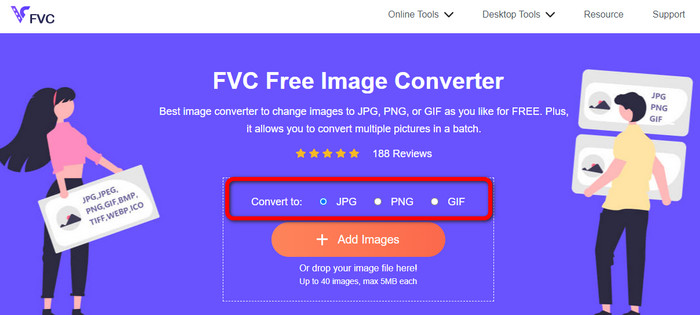
Langkah 1. Buka peramban Anda dan kunjungi FVC Free Image Converter. Pilih format JPG dari opsi Convert to.
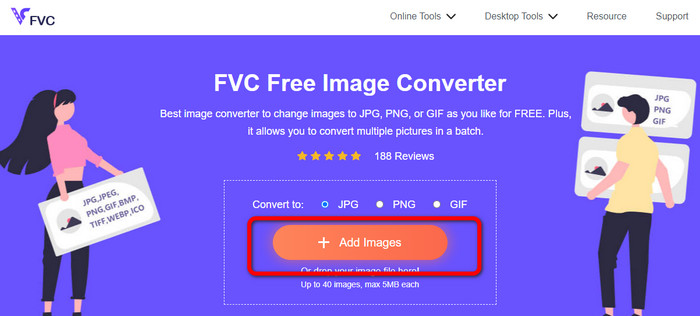
Langkah 2. Klik tombol Add Images untuk mengunggah file gambar EPS. Buka gambar dari folder komputer Anda. Anda dapat menambahkan beberapa file jika menginginkan proses konversi batch.
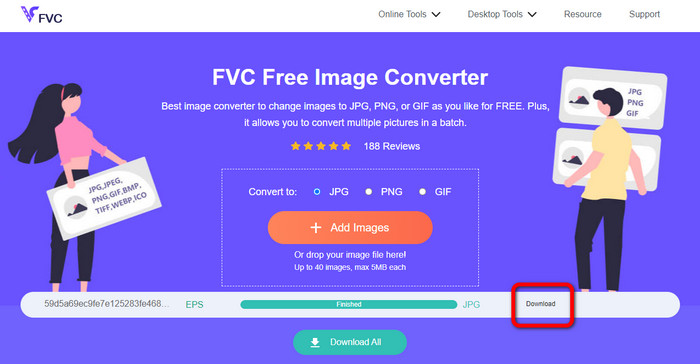
Langkah 3. Setelah proses konversi selesai, klik tombol Download. Dengan cara ini, Anda dapat menyimpan gambar yang telah dikonversi ke komputer Anda.
Konversi EPS ke PNG
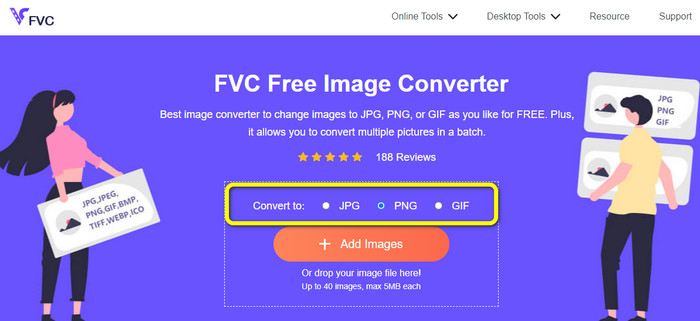
Langkah 1. Pilih format file PNG sebagai format keluaran Anda.
Langkah 2. Klik tombol Add Images untuk mengunggah file gambar EPS. Buka file EPS dari folder komputer Anda. Cara lain untuk mengunggah gambar adalah dengan menjatuhkan (drag and drop) file gambar ke dalam kotak.
Langkah 3. Simpan gambar yang telah dikonversi dengan mengklik tombol Download. Buka gambar yang telah dikonversi dari file di komputer Anda.
Cara Mengonversi EPS ke JPG/PNG di Aspose
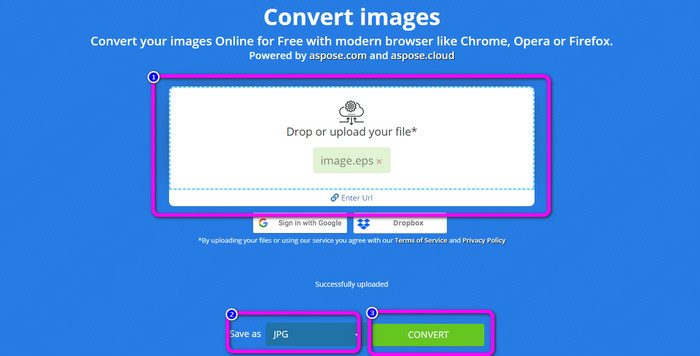
Aspose adalah alat online bermanfaat lainnya untuk mengonversi EPS ke JPG atau PNG. Alat ini tidak memerlukan pemasangan program desktop apa pun. Semua jenis file dapat dikonversi secara online dari sistem operasi apa pun, termasuk Windows, Linux, macOS, dan Android. Aspose tidak memerlukan pendaftaran. Proses konversi pun dapat langsung dimulai. Banyak gambar juga dapat dikonversi secara gratis. Dengan cara ini, Anda tidak perlu membayar biaya berlangganan. Selain JPG dan PNG, alat ini juga mendukung TIFF, BMP, DIB, GIF, SVG, WEBP, dan jenis file gambar lainnya. Fakta bahwa alat ini akan menghapus gambar Anda setelah 24 jam demi menjaga privasi juga membuatnya aman. Namun, karena ini adalah alat online, Anda harus mempertimbangkan ketersediaan koneksi internet. Selain itu, ada kalanya program tidak berfungsi dengan baik. Proses konversinya juga terlalu lambat dan tidak mendukung proses konversi batch.
Langkah 1. Kunjungi situs resmi Aspose. Klik tombol Drop or Upload your file. Dari file di komputer Anda, buka gambar EPS yang perlu Anda konversi. Anda juga bisa langsung menjatuhkan file EPS ke dalam kotak berwarna putih.
Langkah 2. Buka opsi Save as dan pilih file JPG atau PNG sebagai format keluaran Anda.
Langkah 3. Lanjutkan ke proses konversi dengan mengklik tombol Convert. Setelah itu, simpan gambar yang telah dikonversi.
Bagian 3. Metode Terbaik untuk Mengonversi EPS ke JPG dan PNG Offline
Cara Mengonversi EPS ke JPG/PNG di Video Converter Ultimate
Mencari cara offline untuk mengonversi EPS ke JPG/PNG memang sulit. Sampai akhirnya Anda menemukan Video Converter Ultimate. Program ini memungkinkan Anda mengonversi file gambar EPS ke JPG/PNG. Selain itu, Anda dapat mengonversi banyak gambar hanya dengan satu klik berkat fitur konversi batch. Konverter ini memiliki tata letak yang sederhana, sehingga mudah dipahami dan dioperasikan. Anda juga dapat mengunduhnya di sistem operasi Mac dan Windows. Dengan demikian, Anda dapat mengakses konverter dengan mudah. Selain itu, saat mengonversi gambar, Anda dapat mengubah kualitas gambar melalui pengaturan untuk memperbaiki hasil gambar Anda. Gunakan panduan sederhana di bawah ini untuk mempelajari cara mengonversi EPS ke JPG dan PNG.
Langkah 1. Unduh Video Converter Ultimate di komputer Windows atau Mac Anda. Untuk mendapatkan konverter dengan mudah, klik tombol Download di bawah ini. Terdapat dua tombol di bawah ini, satu untuk Windows dan satu lagi untuk versi Mac.
Unduh GratisUntuk Windows 7 atau yang lebih baruUnduhan Aman
Unduh GratisUntuk MacOS 10.7 atau yang lebih baruUnduhan Aman
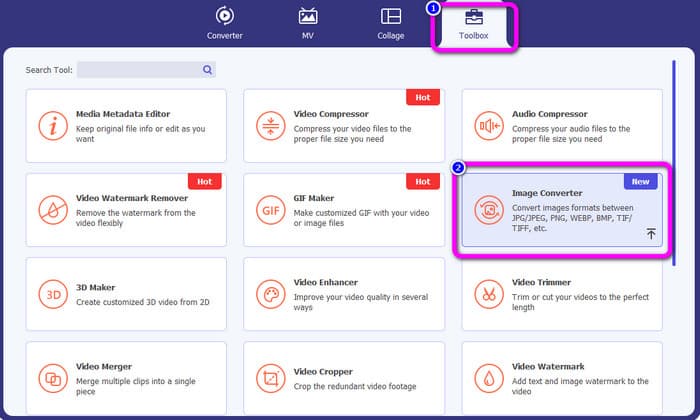
Langkah 2. Setelah meluncurkan program, buka panel Toolbox. Setelah itu, pilih alat Image Converter.
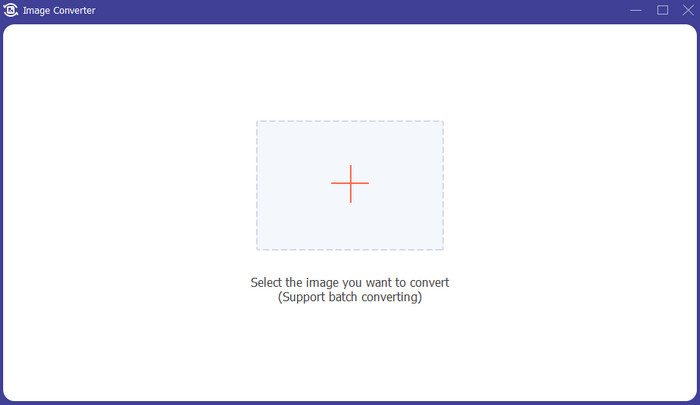
Langkah 3. Klik tombol Plus untuk memasukkan file gambar EPS. Anda juga dapat menjatuhkan file gambar ke dalam kotak. Selain itu, Anda dapat menambahkan banyak gambar untuk proses konversi batch.
Langkah 4. Buka opsi format lalu pilih format JPG/PNG.
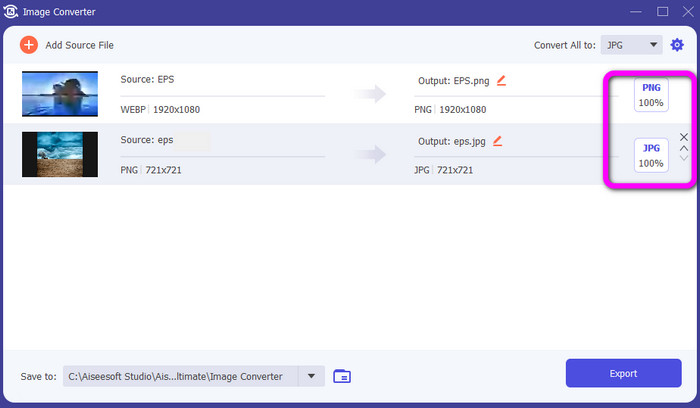
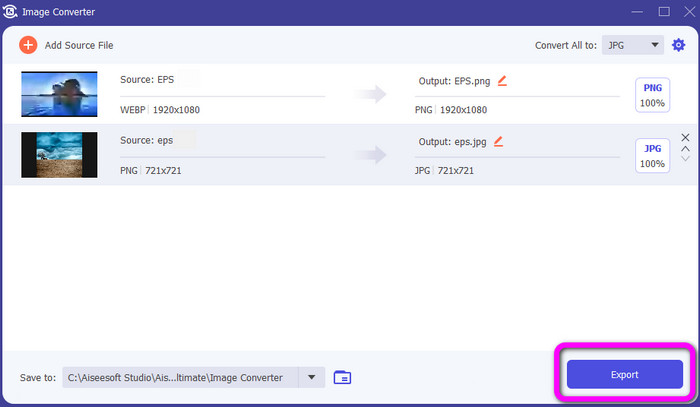
Langkah 5. Setelah memilih format keluaran yang Anda inginkan, klik tombol Export. Tunggu proses ekspor selesai, lalu Anda dapat membuka gambar yang telah dikonversi di desktop Anda.
Bagian 4. FAQ tentang Konversi EPS ke JPG dan PNG
1. Mengapa orang menggunakan file EPS?
Orang menggunakan format file gambar EPS karena dapat memperkecil dan memperbesar gambar tanpa kehilangan kualitas.
2. Bisakah saya membuka EPS di Photoshop?
Ya kamu bisa. Namun, gambar Anda akan di-raster. Artinya akan dikunci untuk pengeditan.
3. Apakah semua file EPS dapat diedit?
Iya itu mereka. Jika Anda ingin mengedit file gambar EPS Anda, Anda dapat menggunakan Illustrator.
Kesimpulan
Sekarang Anda sudah memiliki gambaran tentang apa itu EPS, JPG, dan PNG. Selain itu, artikel ini telah memberikan tiga metode sederhana untuk mengonversi EPS ke JPG dan PNG. Jika Anda ingin mengonversi file gambar, gunakan FVC Free Image Converter. Konverter online ini memungkinkan Anda mengonversi gambar dengan mudah dan cepat.
-
 Metode Berguna tentang Cara Mengonversi TIFF ke JPG/PNG dengan Mudah
 Jangan lewatkan cara luar biasa ini untuk mengubah format TIF ke JPG/PNG. Posting ini akan memberikan informasi yang perlu Anda ketahui. Termasuk perbedaan mereka.
-
 Metode termudah untuk Mengonversi Format BMP ke JPG dan PNG
 Pelajari metode terbaik untuk mengonversi BMP ke JPG atau PNG menggunakan konverter yang luar biasa. Anda juga akan menemukan perbedaan antara format file BMP, JPG, dan PNG.
-
 Detail Lengkap tentang Perbedaan JPEG vs JPG vs PNG
 Posting ini akan memberi Anda informasi yang cukup tentang perbedaan JPEG vs JPG vs PNG. Selain itu, Anda akan mempelajari cara mengonversi gambar ke file ini.
