


 Video Converter Ultimate
 Perekam Layar
 Perbaikan Video
 Unduhan Aman
Cara Utama untuk Mengonversi PNG ke JPG Menggunakan Pengonversi Luar Biasa
Format file PNG memiliki ukuran file yang lebih besar dibandingkan format lain. Salah satu kekurangannya adalah saat mengunggah, mengunduh, atau membagikan file di situs web. Proses pemuatan menjadi terlalu lambat sehingga memakan banyak waktu. Di sisi lain, file JPG memiliki ukuran yang lebih kecil dibandingkan PNG. Dengan begitu, menyimpan dan mengunggah gambar ke web menjadi lebih cepat. File juga akan lebih mudah dibuka di aplikasi dan perangkat lain. Untungnya, artikel ini akan memberi Anda informasi yang cukup tentang cara mengonversi PNG ke JPG. Untuk mengonversinya, Anda memerlukan bantuan pengonversi gambar yang andal. Selain itu, Anda akan mempelajari pengertian kedua format ini. Bacalah postingan ini jika Anda ingin mengubah gambar PNG menjadi format JPG.

Bagian 1. Pengantar PNG dan JPG
Apa itu PNG
PNG, atau Portable Network Graphics, adalah format raster tanpa kehilangan. Ini adalah variasi format GIF baru. Tersedia kedalaman warna yang lebih tinggi, menampilkan jutaan rona. Salah satu format gambar yang lazim saat ini adalah PNG. Menyimpan format gambar RGBA dan RGB berdasarkan palet adalah salah satu karakteristik PNG. Selain itu, ia mencoba mentransfer foto secara online. PNG juga sering digunakan untuk pencetakan. Kebanyakan orang menggunakan file khusus ini. Apalagi format gambar ini sudah umum digunakan oleh para ahli di bidang grafis web. Untuk latar belakang dengan warna transparan, mereka juga menggunakan format PNG. Ukuran file yang dikurangi dari format ini adalah keuntungan lain. Padahal, hampir tidak ada penurunan kualitas visual. Dapat menghasilkan kualitas yang sama dengan aslinya. PNG menawarkan banyak keuntungan. Karena kompresi, kualitas gambar yang sangat baik dipastikan.
Apa itu JPG
Kelompok Pakar Fotografi Bersama membuat format file JPEG. Ini adalah salah satu format file gambar standar di internet dan perangkat lain. 10:1 hingga 20,1 adalah rasio kompresi. Ekstensi lossy dilakukan dengan ekstensi. Tapi, rasio kompresinya bisa disesuaikan. Ini akan mencapai keseimbangan antara kualitas gambar dan ruang penyimpanan. Platform berbagi fotografi dan kamera digital keduanya menggunakan ekstensi JPEG. JPEG memiliki beberapa keunggulan. Anda dapat menggunakannya untuk karya seni dan foto. Itu karena kemampuan beradaptasi dalam pengeditan raster. Mencetak karya seni dan foto dengan resolusi tinggi dan kompresi rendah dimungkinkan.
Bagian 2. Cara Mengonversi PNG ke JPG Online
Konversi PNG ke JPG Menggunakan FVC Free Image Converter
FVC Free Image Converter adalah salah satu alat terbaik yang dapat Anda gunakan. Alat ini mampu mengonversi PNG ke JPG dengan mudah. Antarmuka dan langkah-langkahnya mudah dipahami, sehingga cocok untuk para pengguna. Selain itu, jika Anda ingin mengonversi banyak file PNG ke JPG sekaligus, hal itu juga bisa dilakukan. Pengonversi gambar ini mendukung proses konversi batch. Anda juga dapat menyimpan banyak file yang telah dikonversi hanya dengan satu klik. Di samping itu, alat ini mendukung berbagai format file input lain, termasuk PNG, BMP, TIFF, GIF, dan lainnya. Salah satu kelebihan alat ini adalah tidak adanya iklan yang mengganggu. Antarmukanya bersih sehingga Anda dapat fokus pada proses konversi file. Anda juga tidak perlu memasang alat ini. Anda bisa langsung mengoperasikannya di browser. Selain itu, kualitas gambar akan tetap sama dengan file asli setelah dikonversi. Dengan demikian, Anda dapat memastikan hasil akhirnya tetap nyaman dilihat dan digunakan. FVC Free Image Converter juga melindungi privasi Anda. Alat ini tidak akan menyimpan data Anda setelah proses konversi selesai.
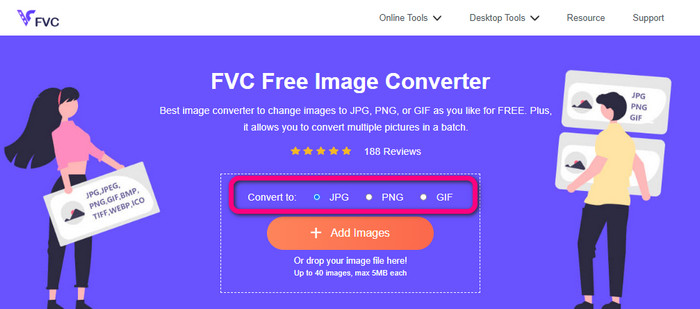
Langkah 1: Kunjungi situs web FVC Free Image Converter di browser Anda. Klik format file JPG dari pilihan format.
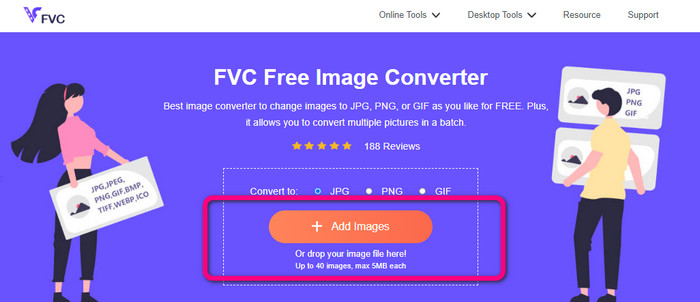
Langkah 2: Klik ikon Plus atau tombol Add Images untuk menambahkan gambar PNG. Anda juga dapat menjatuhkan file gambar ke dalam kotak. Setelah itu, gambar akan dikonversi secara otomatis.
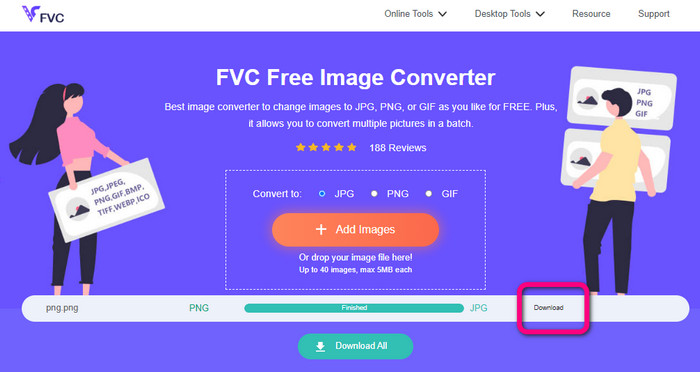
Langkah 3: Untuk langkah terakhir, klik tombol Download untuk menyimpan gambar akhir ke komputer Anda.
Konversi PNG ke JPG Menggunakan Canva
Metode online lain untuk mengonversi PNG ke JPG adalah dengan menggunakan Canva. Alat online ini memiliki antarmuka yang ramah pengguna sehingga mudah dipahami. Proses konversinya juga mudah diikuti, cocok untuk pemula. Canva dapat memberikan proses konversi yang cepat, dan dapat mengonversi banyak file sesuai kebutuhan Anda. Canva dapat diakses melalui semua browser, termasuk Google, Firefox, Edge, dan lainnya. Selain itu, sambil mengonversi gambar, ada banyak hal lain yang dapat Anda lakukan. Anda bisa memotong (crop) dan mengubah ukuran foto. Anda juga dapat menambahkan ikon, stiker, dan sebagainya. Dengan demikian, Anda bisa meningkatkan kualitas gambar sekaligus mengubah format file. Namun, meskipun Canva adalah alat yang hebat, tetap ada kekurangannya. Versi gratis memiliki banyak batasan. Fitur, penyimpanan cloud, alat pengeditan, dan lainnya terbatas. Anda harus membeli paket berlangganan untuk menikmati fitur tak terbatas dan yang lebih lengkap. Selain itu, karena Canva merupakan pengonversi gambar online, Anda membutuhkan koneksi internet.
Langkah 1: Buka Canva di browser web atau aplikasi Anda untuk mengakses pengonversi PNG ke JPG. Gunakan template siap pakai atau tata letak kosong untuk memulai proyek desain Anda.
Langkah 2: Seret dan jatuhkan file PNG yang ingin Anda gunakan ke halaman, atau pilih dari perangkat Anda.
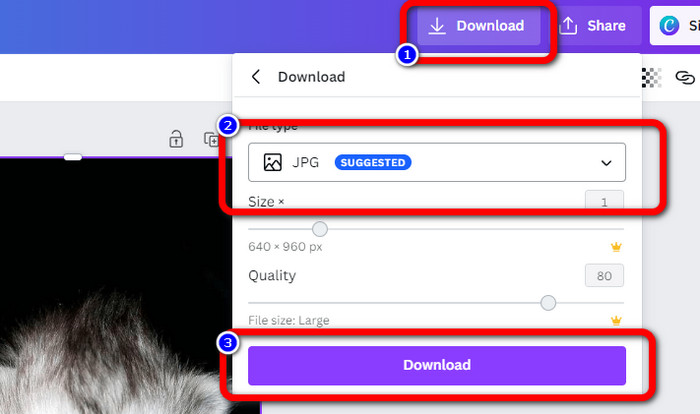
Langkah 3: Pergi ke sudut kanan atas dashboard dan klik tombol Download. Lalu, pilih format JPG sebagai format keluaran yang diinginkan. Kemudian klik lagi tombol Download untuk menyimpan gambar Anda ke desktop.
Konversi PNG ke JPG Menggunakan Convertio
Convertio juga mampu mengonversi PNG ke JPG. Dengan bantuan pengonversi gambar online ini, Anda dapat dengan cepat mengubah PNG menjadi JPG. Convertio menawarkan cara yang sederhana untuk mengonversi gambar. Antarmukanya yang ramah pengguna membuat alat ini mudah dipahami semua pengguna, terutama pemula. Selain itu, Convertio mendukung berbagai format gambar, seperti PNG, GIF, BMP, SVG, dan lainnya. Pengonversi gambar ini juga mendukung proses konversi batch. Berkat fitur hebat ini, Anda dapat langsung mengonversi banyak gambar secara bersamaan. Lebih jauh lagi, selain gambar, Anda juga dapat mengonversi file video, audio, dan dokumen. Dengan demikian, Anda tidak perlu mencari alat online lain. Namun, jika menggunakan versi gratis, Anda hanya dapat mengunggah hingga 100 MB. Anda perlu membeli paket berlangganan untuk menambah ukuran file maksimum. Anda juga dapat membeli paket yang lebih mahal untuk mendapatkan akses tanpa batas.
Langkah 1: Buka browser Anda dan cari Convertio. Saat berada di halaman utama, klik tombol Choose Files. Buka foto PNG dari file di komputer Anda untuk mengunggahnya.
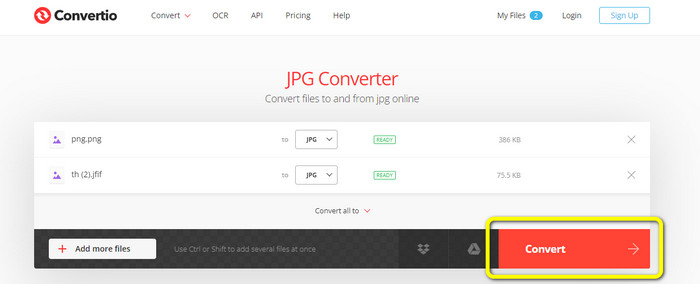
Langkah 2: Jika Anda ingin melakukan proses konversi batch, klik tombol Add more files. Tombol ini memungkinkan Anda mengunggah lebih banyak file gambar. Lalu, dari pilihan format, pilih file JPG sebagai format keluaran.
Langkah 3: Setelah mengunggah dan mengatur format keluaran, klik tombol Convert. Proses konversi akan dimulai segera. Setelah selesai, klik tombol Download untuk menyimpannya ke lokasi folder yang telah Anda tentukan.
Bagian 3. Cara Mengubah PNG ke JPG Offline
Konversi PNG ke JPG Menggunakan Video Converter Ultimate
Video Converter Ultimate adalah salah satu pengonversi gambar offline terbaik. Perangkat lunak yang dapat diunduh ini memungkinkan Anda mengonversi PNG ke JPG dengan cepat. Alat ini menawarkan kecepatan konversi tinggi sehingga Anda bisa mengonversi banyak file dalam waktu singkat. Selain itu, Anda dapat mengonversi banyak file sekaligus karena tersedia proses konversi batch. Video Converter Ultimate juga mendukung berbagai format gambar, termasuk PNG, BMP, WEBP, TIF, dan lainnya. Pengonversi gambar offline ini memiliki antarmuka yang intuitif dan langkah konversi yang sederhana. Dengan demikian, pengguna profesional maupun nonprofesional dapat mengonversi gambar dengan mudah. Lebih lanjut, Anda dapat mengakses pengonversi ini di komputer Mac maupun Windows. Ikuti langkah-langkah sederhana di bawah ini untuk mengonversi PNG ke JPG di Mac atau Windows menggunakan Video Converter Ultimate.
Langkah 1: Unduh Video Converter Ultimate di Windows atau Mac Anda. Jalankan program setelah proses instalasi. Anda dapat menekan tombol Download di bawah ini untuk mengakses pengonversi.
Unduh GratisUntuk Windows 7 atau yang lebih baruUnduhan Aman
Unduh GratisUntuk MacOS 10.7 atau yang lebih baruUnduhan Aman
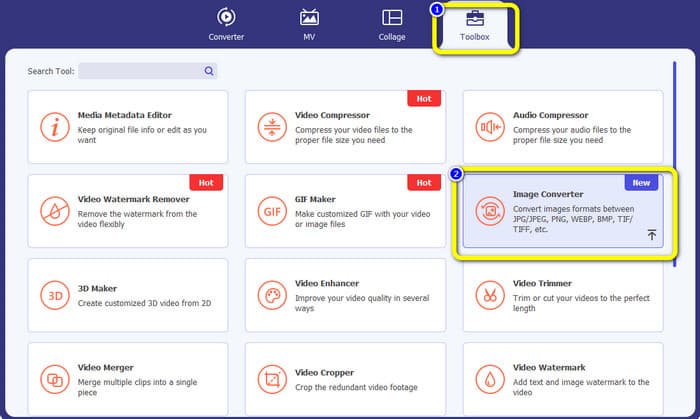
Langkah 2: Pilih panel Toolbox ketika antarmuka muncul di layar. Lalu, pilih alat Image Converter. Setelah mengkliknya, antarmuka lain akan muncul.
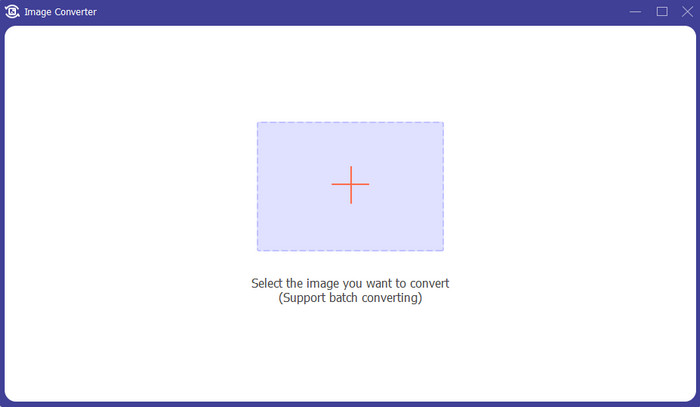
Langkah 3: Klik ikon +. Lalu, pilih gambar PNG ketika folder komputer Anda muncul di layar.
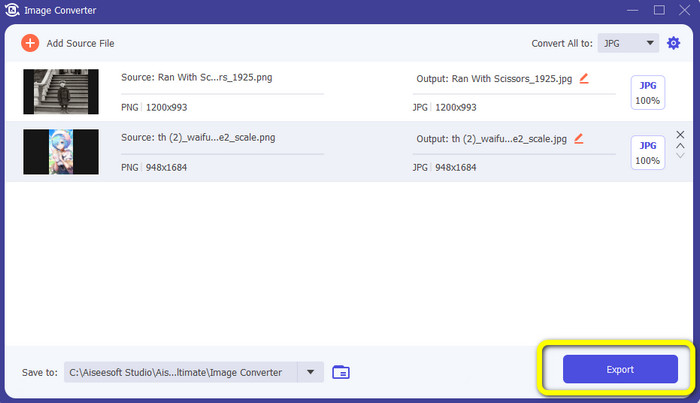
Langkah 4: Jika Anda ingin melakukan proses konversi batch, klik tombol Add Source File. Lalu, pergi ke opsi Convert All to dan pilih format file JPG.
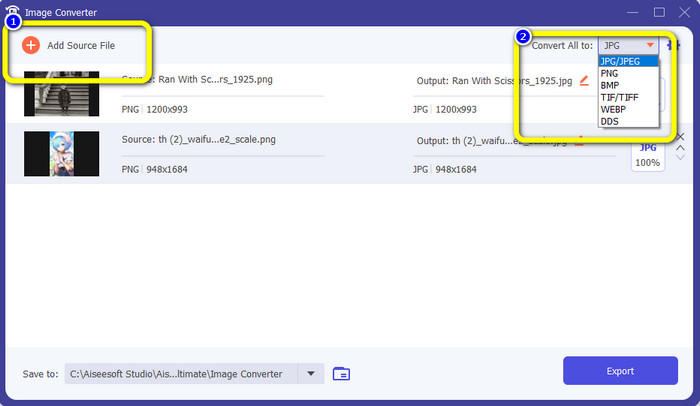
Langkah 5: Klik tombol Export untuk menyimpan foto akhir setelah dikonversi. Kemudian, Anda dapat membuka foto JPG dari folder file Anda.
Bagian 4. Konversi PNG ke JPG Menggunakan Perangkat Seluler
Konversi PNG ke JPG Menggunakan PNG ke JPG
Jika Anda ingin mempelajari cara mengonversi PNG ke JPG menggunakan iPhone dan Android, gunakan aplikasi PNGtoJPG. Ini adalah aplikasi unduhan gratis yang cocok untuk iPhone dan Android. Ini memungkinkan Anda untuk mengonversi file gambar Anda dengan mudah dan instan. Ini juga memiliki prosedur penting untuk mengonversi. Dengan demikian, semua pengguna dapat menggunakan aplikasi ini, terutama pengguna non-profesional. Selain itu, aplikasi PNGtoJPG menawarkan proses konversi yang cepat sehingga nyaman. Sayangnya, tidak seperti konverter gambar lainnya, ini tidak mendukung proses konversi batch. Jadi, Anda harus mengonversi gambar secara manual, yang memakan waktu.
Langkah 1: Pasang aplikasi PNGtoJPG dari Apple Store atau Play Store. Lalu, jalankan aplikasinya.
Langkah 2: Tekan opsi Load a photo di bagian tengah antarmuka setelah aplikasi dijalankan. Kemudian, foto-foto Anda akan muncul di layar. Pilih foto PNG yang ingin Anda konversi.
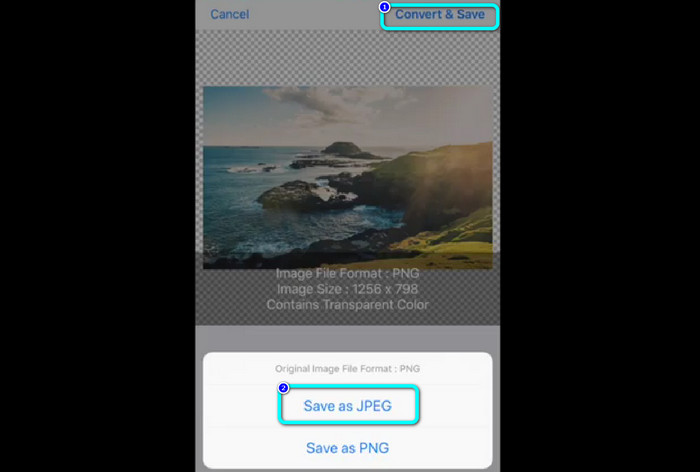
Langkah 3: Pergi ke sudut kanan atas layar dan klik tombol Convert & Save. Lalu, ketika opsi lain muncul di layar, pilih opsi Save as JPEG. Dengan cara ini, Anda dapat mengubah format file PNG menjadi JPG. Klik di sini untuk mempelajari cara mengonversi JPG ke PNG.
Bagian 5. FAQ tentang Konversi PNG ke JPG
1. Bagaimana cara mengubah PDF menjadi JPEG?
Metode terbaik untuk mengonversi PDF ke JPG adalah menggunakan perangkat lunak online PDF Simpli. Klik tombol Upload PDF to Upload. Lalu, pilih file PDF dari folder Anda. Pergi ke bagian kanan atas antarmuka dan klik tombol Convert. Terakhir, pilih format JPG dari pilihan format.
2. Bagaimana cara membuka file PNG di Windows 11/10?
Cara terbaik adalah membuka folder di komputer Anda. Pergi ke folder tempat gambar PNG berada. Lalu, klik kanan gambar tersebut dan pilih opsi Open.
3. Bagaimana cara mengonversi file JPG secara gratis?
Anda dapat menggunakan FVC Free Image Converter untuk mengonversi file JPG secara gratis. Berapa pun jumlah gambar yang perlu Anda konversi, Anda tidak akan dikenai biaya sepeser pun.
Kesimpulan
Berikut adalah cara terbaik untuk mengonversi PNG ke JPG menggunakan pengonversi gambar online dan offline. Namun, jika Anda lebih menyukai pengonversi gambar yang mudah diakses, gunakan FVC Free Image Converter.
-
 Konversi JPEG ke JPG Secara Efisien [Lima Metode Terdaftar]
 Datang dan dapatkan tutorial paling mudah tentang mengubah format file gambar JPEG ke JPG. Klik panduan ini dan mulailah mempelajari metode pilihan Anda.
-
 Detail Lengkap tentang Perbedaan JPEG vs JPG vs PNG
 Posting ini akan memberi Anda informasi yang cukup tentang perbedaan JPEG vs JPG vs PNG. Selain itu, Anda akan mempelajari cara mengonversi gambar ke file ini.
-
 8 Pengonversi Gambar yang Mengagumkan [Informasi Lengkap]
 Ulasan ini akan memberi tahu Anda tentang pengonversi file gambar terbaik yang dapat Anda gunakan untuk mengonversi file gambar. Baca posting ini untuk mengetahui pengonversi gambar terbaik untuk Anda
