


 Video Converter Ultimate
 Perekam Layar
 Perbaikan Video
 Unduhan Aman
Cara Terbaik untuk Mengonversi HEIC ke JPG di Android Menggunakan Aplikasi & Online dengan Mudah
Karena Apple mulai menggunakan format gambar baru, HEIC, perangkat Android tidak dapat mendukung format ini secara native karena tidak memiliki codec yang mendukung HEIC. Meskipun Anda menggunakan versi terbaru ponsel Android, format HEIC tetap tidak dapat dilihat di perangkat ini. Karena format ini tidak kompatibel dengan Android, cara terbaik yang bisa Anda lakukan adalah mengonversinya ke format gambar yang kompatibel dengan semua perangkat, yaitu JPEG. Jadi, misalkan Anda menerima dan ingin mengonversi HEIC ke JPG di Android agar bisa melihatnya. Maka Anda harus membaca penjelasan berikut yang kami tambahkan dalam tulisan ini, karena kami sudah melakukan riset untuk Anda agar prosesnya menjadi lebih mudah dan lebih efisien dari sebelumnya.

Bagian 1. Cara Mengonversi File HEIC ke JPG di Android Menggunakan Aplikasi Seluler
Dropbox
Dropbox menawarkan cara terbaik untuk mendistribusikan dan mengunggah file ke penyimpanan cloud alih-alih penyimpanan lokal, sehingga Anda dapat membagikannya kepada siapa saja. Dengan konverter HEIC ke JPG di Android seperti ini, mengonversi format HEIC ke JPEG menjadi mudah dan praktis. Meskipun dapat mengonversi format gambar ke JPEG, biasanya aplikasi ini tidak mengalami masalah seperti konverter lain yang memerlukan banyak proses untuk menyelesaikannya.
Karena secara otomatis mengubah format menjadi format yang kompatibel setelah dibagikan. Ingin tahu cara mengonversi format ke JPEG? Kemudian ikuti langkah-langkah di bawah ini untuk mengetahui cara melakukannya.
Langkah 1. Unduh dan buka aplikasi Dropbox di perangkat Android Anda. Lalu lakukan pendaftaran sebelum menggunakannya, tetapi jika Anda sudah memiliki akun Dropbox, Anda hanya perlu masuk.
Langkah 2. Ketuk Camera Uploads dan pilih file HEIC yang Anda miliki di ponsel Anda.
Langkah 3. Ketuk Save HEIC Photos dan pilih format JPG untuk menyimpannya dengan jenis ekstensi ini. Tunggu prosesnya, dan Anda dapat mengecek gambar di Galeri untuk memastikan bahwa gambar tersebut sudah dalam format ini.
Konverter Gratis HEIC ke JPG – Konversikan HEIC ke JPEG
HEIC to JPG Free Converter adalah salah satu aplikasi konverter HEIC ke JPG terbaik di Android yang dapat membantu Anda mengonversi format HEIC yang Anda miliki ke format yang kompatibel. Dengan aplikasi ini, Anda dapat mengubah file HEIC menjadi JPEG tanpa khawatir kehilangan kualitas dan metadata yang melekat di dalamnya. Berbeda dengan Dropbox yang mengharuskan Anda masuk terlebih dahulu, pada aplikasi ini Anda tidak perlu login, sehingga lebih praktis karena Anda bisa langsung mengonversi file HEIC tanpa proses masuk akun.
Meskipun Anda tidak perlu masuk saat menggunakan aplikasi, Anda akan melihat bahwa iklan pop-up akan muncul di ponsel Anda jika Anda menggunakannya. Jika ini bukan masalah bagi Anda, ikuti langkah-langkah di bawah ini untuk mengetahui cara menggunakannya.
Langkah 1. Cari HEIC to JPG Free Converter di Play Store lalu instal, kemudian buka aplikasinya untuk mulai menggunakannya.
Langkah 2. Ketuk Open File dan cari gambar HEIC di perangkat seluler Anda, lalu ketuk Select to untuk mengunggahnya ke konverter.
Langkah 3. Pada bagian Convert to, pilih format JPG dalam daftar dan klik Convert untuk mulai mengonversi file HEIC.
Bagian 2. Cara Paling Profesional untuk Mengonversi HEIC ke JPG Android Online
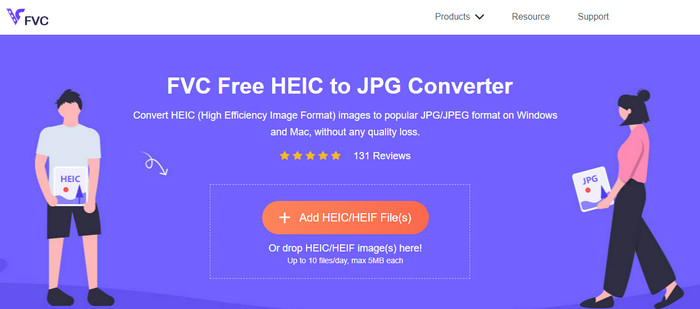
Perlu tahu cara mengonversi file HEIC ke JPG di Android tanpa bantuan aplikasi yang harus diunduh? Maka tanpa ragu, FVC Free HEIC to JPG Converter adalah alat web yang Anda butuhkan. Untuk tugas seperti ini, Anda memerlukan alat profesional, terutama jika Anda ingin mengonversi banyak file HEIC sekaligus ke JPEG tanpa kehilangan kualitas, dan itulah yang ditawarkan oleh alat web ini.
Tidak seperti aplikasi yang kami sebutkan di atas, dengan ini, Anda tidak perlu mengunduh data tambahan sebelum dapat menggunakannya, dan Anda bahkan tidak perlu masuk. Alih-alih mengunduh aplikasi di Android Anda dan menunggu proses instalasi , mengapa Anda tidak langsung mencoba menggunakan alat web ini? Jika alat online ini menarik perhatian Anda, Anda harus membaca detail berikut di bawah ini. Untuk mengetahui bagaimana alat web profesional mengonversi HEIC ke JPG di Android Anda secara online dan gratis.
Langkah 1. Untuk membuka alat web profesional ini, Anda harus mengklik tautan ini, dan sebuah tab baru di browser Anda akan terbuka.
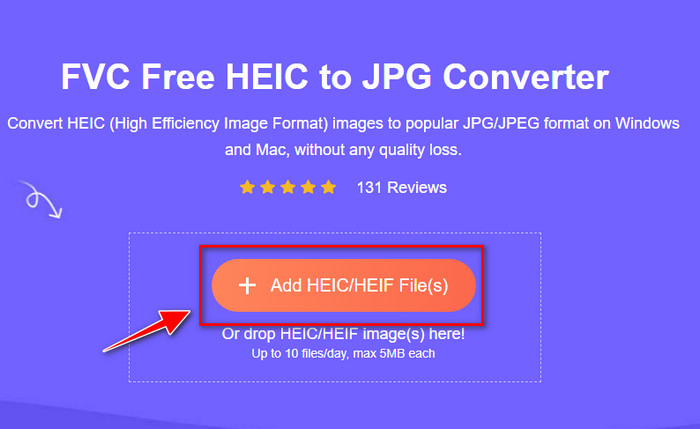
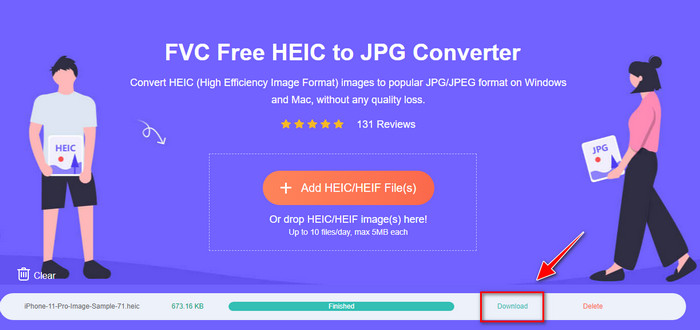
Langkah 2. Saat berada di alat web, ketuk Add HEIC/HEIF File dan unggah file HEIC di sini. Anda juga dapat mengunggah lebih banyak file HEIC di sini dan mengonversinya ke JPEG secara bersamaan.
Langkah 3. Tunggu hingga proses konversi selesai, dan jika bilah progres sudah penuh, Anda dapat menyimpan file HEIC yang telah Anda unggah dengan mengklik tombol Download. File akan otomatis tersimpan di folder unduhan; Anda dapat mengeceknya untuk melihat gambar dalam format JPEG.
Bagian 3. FAQ tentang Mengonversi HEIC ke JPG di Android
Bisakah Google Android Pie melihat file HEIC?
Ya, Anda dapat dengan mudah melihat gambar HEIC di sini. Android versi ke-16 ini secara resmi memiliki codec HEIC untuk melihat gambar tanpa mengubahnya menjadi JPEG atau PNG. Jadi, jika Android Anda dalam versi ini, Anda tidak perlu mengonversi format menjadi JPEG atau PNG untuk melihatnya, dan siap menerima gambar HEIC.
Mengapa saya tidak dapat mengonversi HEIC ke JPG di Android?
Pertama, Anda harus memeriksa konverter yang Anda gunakan di Android apakah mendukung konversi HEIC menjadi JPG. Meskipun beberapa aplikasi mengatakan mereka mendukung konversi HEIC, kebanyakan dari mereka adalah clickbait. Untuk menghindari hal ini terjadi, Anda harus membaca ulasan tentang mereka untuk melihat apakah mereka mendukung HEIC dan apakah itu dapat mengubah format gambar ke JPG.
Mengapa HEIC menjadi populer di perangkat iOS?
HEIC menjadi populer di perangkat iOS karena kemampuan kompresinya terhadap gambar dan kombinasi warnanya yang sangat detail, yang jauh lebih baik daripada JPEG. Jika foto Anda menggunakan format ini, akan terlihat bahwa ukuran filenya lebih kecil dan kualitasnya lebih baik dibandingkan format JPEG. Itulah salah satu alasan mengapa format ini menjadi populer di perangkat iOS.
Kesimpulan
Artikel ini memperkenalkan konverter HEIC ke JPG terbaik untuk Android; semuanya dapat diakses di perangkat seluler Anda. Meskipun semuanya dapat membantu Anda mengonversi format tersebut di Android, kelebihan dan kekurangan masing-masing aplikasi inilah yang membedakannya. Jika Anda ingin menggunakan konverter profesional di Android untuk mengonversi file HEIC ke JPG, kami menyarankan menggunakan FVC Free HEIC to JPG Converter. Meskipun berbasis web, alat ini tetap jauh lebih baik daripada aplikasi-aplikasi yang telah disebutkan sebelumnya. Jika Anda ingin mencoba alat web ini di perangkat Android, langkah-langkahnya sudah disertakan di atas; Anda dapat mengikutinya dengan saksama agar prosesnya berjalan efektif.
-
 Konversi HEIC ke PDF Menggunakan 4 Cara Peningkatan Teratas pada 2022
 Untuk mengetahui informasi lebih lanjut tentang pengonversi HEIC ke PDF terbaik, Anda dapat mengunduh ini 2022. Anda dapat membaca artikel ini karena kami memberikan ulasan tentangnya.
-
 Konverter HEIC Gratis & Berbayar Terbaik yang Harus Anda Ketahui [Diperbarui 2022]
 Ingin tahu apa itu konverter HEIC? Jika demikian, kami menyertakan 5 pengonversi HEIC gratis dan berbayar teratas yang dapat Anda gunakan untuk mengubah format HEIC.
-
 HEIC vs. JPG |Mana Format Gambar yang Lebih Baik untuk Digunakan
 Pertarungan antara HEIC vs. JPG menjadi lebih mendalam, tetapi format gambar mana yang lebih baik di antara keduanya? Untuk menjawab pertanyaan Anda, baca artikel ini.
