


 Video Converter Ultimate
 Perekam Layar
 Perbaikan Video
Cara Mengonversi DivX ke MOV di Online atau Offline: Metode Berbeda yang Harus Anda Ketahui
Video digital telah berkembang pesat sejak pertama kali diperkenalkan secara komersial pada tahun 1986 dengan format Sony D1. Seiring peningkatan teknologi selama bertahun-tahun, berbagai format video pun diperkenalkan. Setiap klip video yang Anda lihat di ponsel pintar, komputer, televisi, atau tablet memiliki format file yang unik. Anda harus memahami cara kerja setiap format video jika ingin video Anda berfungsi dengan baik di platform apa pun. Misalnya, format video untuk pengembangan web akan berbeda dengan yang Anda gunakan untuk media sosial. Dua di antara format tersebut adalah DivX dan MOV, yang memiliki perbedaan yang membedakannya dari berbagai format lainnya. Jadi, dalam artikel ini, kami berfokus secara khusus pada kedua format ini – perbandingan di antara keduanya dan langkah-langkah paling sederhana untuk mengonversi DivX ke MOV demi kenyamanan Anda.
Bagian 1. DivX VS. MOV
Jika Anda penggemar berat menonton video, kemungkinan besar Anda pernah menemui berbagai format video. Beberapa di antaranya, seperti MP4, AVI, dan MKV, mungkin sudah Anda kenal, sementara yang lainnya mungkin terasa asing. Meskipun bukan hal yang sepenuhnya baru, DivX sudah ada sejak lama; hanya saja tidak banyak orang yang menggunakannya. Singkatan dari Digital Video Express, DivX adalah program kompresi video lossy yang dapat mengecilkan ukuran file video menjadi sebagian kecil dari ukuran aslinya dengan kehilangan kualitas yang minimal. Di sisi lain, MOV adalah format video yang dikembangkan oleh Apple. Ini adalah jenis wadah file yang dapat memuat berbagai jenis video dan multimedia. Karena dibuat oleh Apple, format ini hanya dapat digunakan pada perangkat Apple atau pemutar video seperti QuickTime.
File MOV sering kali berisi video dengan bitrate tinggi dan sedikit atau tanpa kompresi. Kualitasnya sangat baik, namun ukurannya cukup besar. File MOV memakan jauh lebih banyak RAM di komputer karena merupakan format video berkualitas tinggi.
Bagian 2. Cara Terbaik untuk Mengonversi DivX ke MOV Offline
Mengonversi video dari satu format ke format lain cukup membingungkan bagi pemula, terutama jika hampir tidak ada perangkat lunak atau program yang dikenal dan tidak ada pemahaman tentang format video. Ada banyak cara untuk melakukannya, baik secara offline maupun online. Namun jika kita berbicara tentang cara yang paling praktis untuk semua orang, FVC Video Converter Ultimate adalah pilihan yang tepat. Bukan hanya bisa diunduh secara gratis, tetapi juga memiliki banyak fitur yang dapat memenuhi kebutuhan pengeditan Anda. Perangkat lunak ini cepat dan mendukung berbagai format, sehingga mengonversi video DivX ke MOV menjadi mudah. Untuk menggunakan perangkat lunak ini, ikuti langkah-langkah sederhana berikut:
Langkah 1: Untuk memulai prosesnya, klik tombol Free Download untuk Windows atau Mac, sesuai dengan sistem operasi Anda. Sebuah file .exe akan diunduh ke desktop Anda. Setelah selesai, buka file tersebut dan mulai memasang perangkat lunak.
Unduh GratisUntuk Windows 7 atau yang lebih baruUnduhan Aman
Unduh GratisUntuk MacOS 10.7 atau yang lebih baruUnduhan Aman
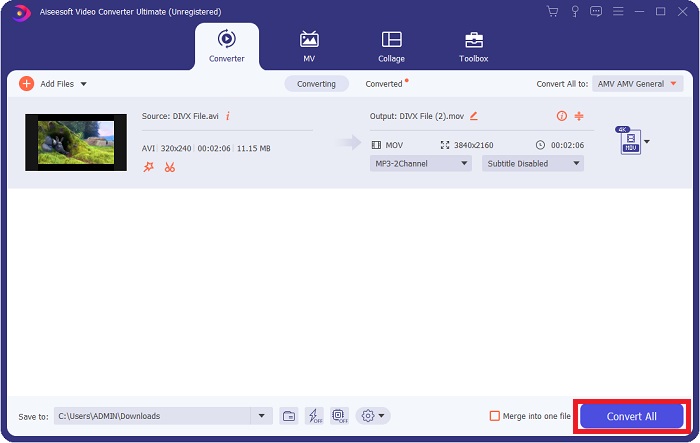
Langkah 2: Setelah terpasang, jalankan perangkat lunak, dan sebuah antarmuka akan muncul serta akan mengarahkan Anda ke tab default yaitu fitur Converter.
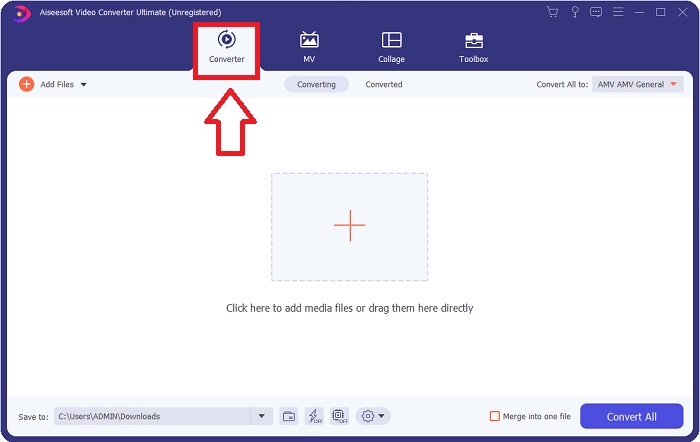
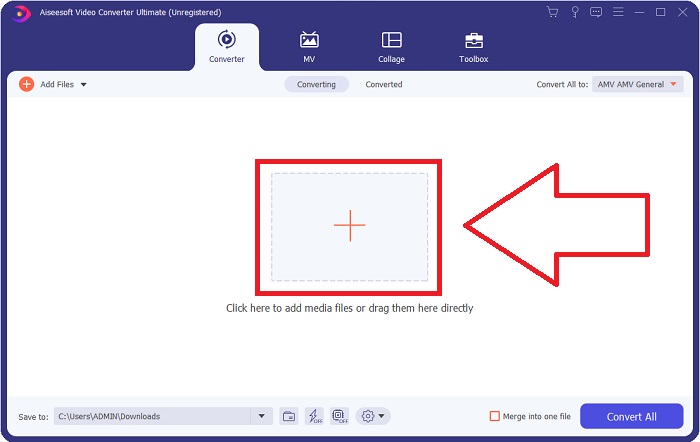
Langkah 3: Dari sana, sebuah tombol + akan muncul di tengah. Klik tombol tersebut untuk mengimpor video yang ingin Anda konversi. Anda juga dapat menyeret dan menjatuhkan (drag and drop) video ke sana.
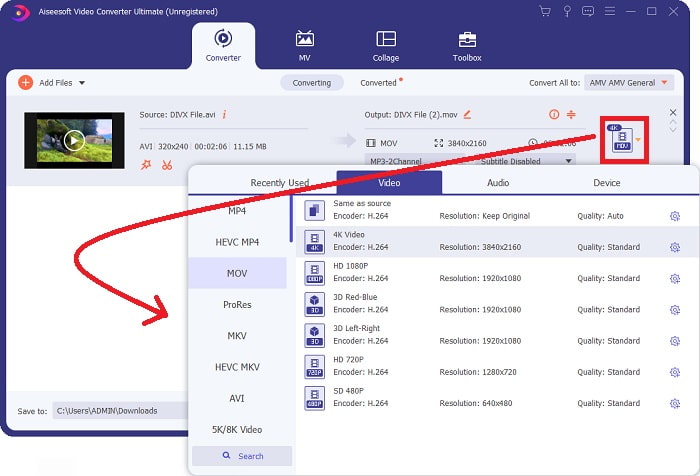
Langkah 4: Setelah video Anda berhasil diimpor, sebuah ikon di sebelah kanan akan menampilkan format video Anda saat ini. Di sebelahnya terdapat panah drop-down yang dapat Anda klik untuk menampilkan semua format yang tersedia untuk dijadikan format baru video Anda. Dalam hal ini, pilih MOV. Ada beberapa tab di menu pop-up. Anda bisa memilih untuk mengedit video lebih lanjut. Anda dapat memilih resolusi dan kualitas audio yang paling sesuai dengan kebutuhan Anda. Untuk lebih banyak opsi, klik ikon roda gigi di sebelah kanan resolusi atau kualitas yang dipilih. Klik Create New untuk menyimpan perubahan Anda.
Langkah 5: Jika Anda sudah puas dengan semua perubahan yang dibuat, klik Convert All di pojok kanan bawah jendela untuk mulai mengekspor video Anda.
Bagian 3. Bagaimana Mengkonversi DivX ke MOV Online
Metode 1: freeconvert.com/video-converter
Cara ini merupakan alternatif yang bisa Anda gunakan jika tidak ingin menginstall software export. Ini tidak merepotkan karena satu-satunya hal yang harus dilakukan adalah membuka situs web ini dan mulai mengedit video Anda. Alat web ini juga dapat mendukung berbagai format untuk dikonversi ke format lain.
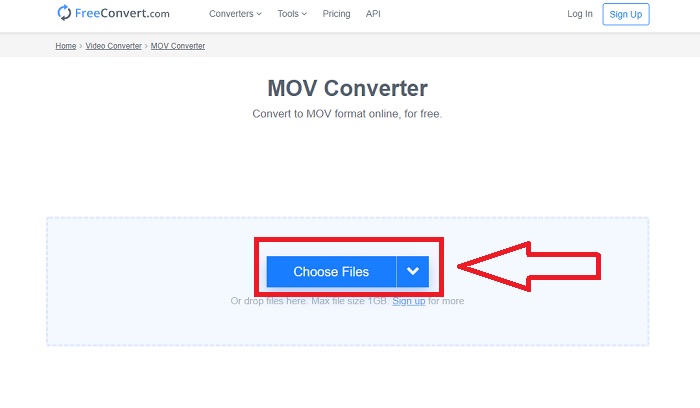
Langkah 1: Untuk memulai, klik Choose Files di tengah halaman. Dari sana, Anda dapat mengimpor video yang ingin Anda konversi.
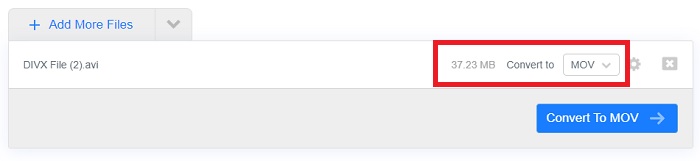
Langkah 2: Jika file berhasil diimpor, Anda dapat memilih format video yang diinginkan dengan mengklik panah drop-down. Selain itu, tersedia lebih banyak opsi pengeditan dengan mengklik ikon roda gigi di samping format file. Untuk menyimpan perubahan, klik Apply Settings di pojok kanan bawah.
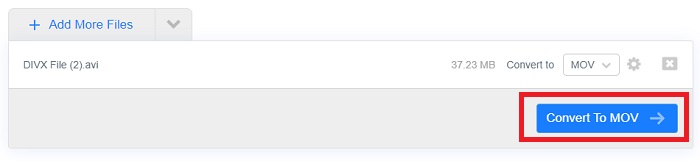
Langkah 3: Setelah Anda puas dengan semua perubahan yang dibuat, Anda dapat mengklik Convert to MOV untuk mulai mengonversi dan menunggu proses selesai. Setelah selesai, klik Download MOV untuk mengekspor video yang telah dikonversi secara penuh.
Metode 2: onlinefreeconvert.com/divx-to-mov.html
Gunakan alat web gratis ini jika Anda tidak ingin ada komplikasi saat mengonversi video Anda. Alat ini hanya memberi Anda pilihan untuk format dan resolusi file agar tetap sederhana dan mudah digunakan. Untuk menggunakan konverter online ini, lanjutkan dengan langkah-langkah yang disediakan:
Langkah 1: Klik tombol + di tengah halaman untuk memilih file dari komputer Anda, atau Anda dapat menyeret dan menjatuhkan video yang ingin Anda konversi.
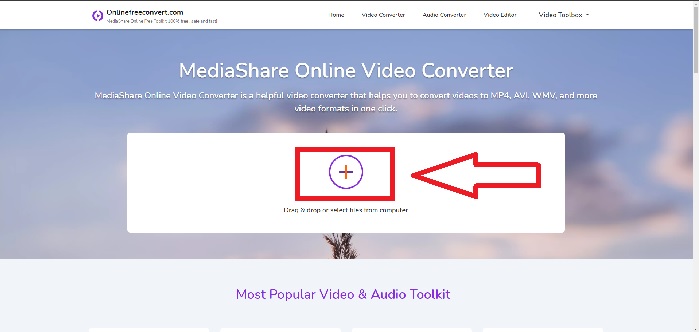
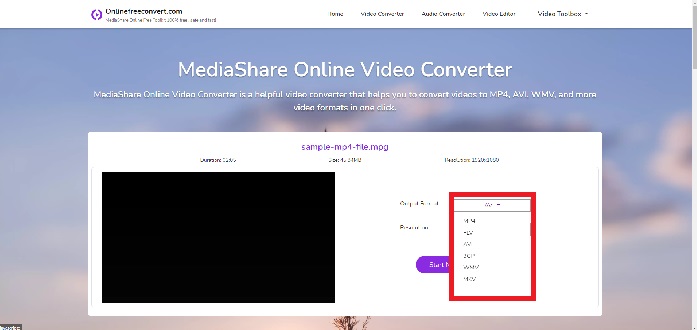
Langkah 2: Dari sana, Anda kini dapat memilih format file dan resolusi yang Anda inginkan untuk video Anda. Terdapat dua panah drop-down di sebelah kanan file Anda untuk melakukannya.
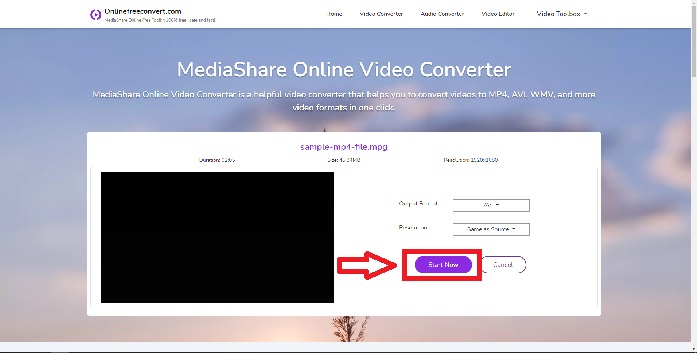
Langkah 3: Setelah selesai, Anda dapat mengklik tombol Start Now di bawahnya untuk memulai proses konversi, lalu klik Download Now untuk mengekspor ke desktop Anda.
Metode 3: convertio.co/divx-mov/
Alat web ini menawarkan lebih banyak format file, khususnya yang unik untuk dipilih. Gunakan ini untuk mengonversi sambil juga mengedit profil video, kecepatan bingkai, orientasi, dan banyak lagi. Untuk mengetahui lebih lanjut tentang alat online ini, berikut adalah langkah-langkah untuk membantu Anda menavigasi:
Langkah 1: Impor video Anda dengan mengklik Choose Files pada antarmuka utama halaman, atau Anda dapat menyeret & menjatuhkan file Anda. Tombol ini ditandai dengan warna merah sehingga mudah ditemukan.
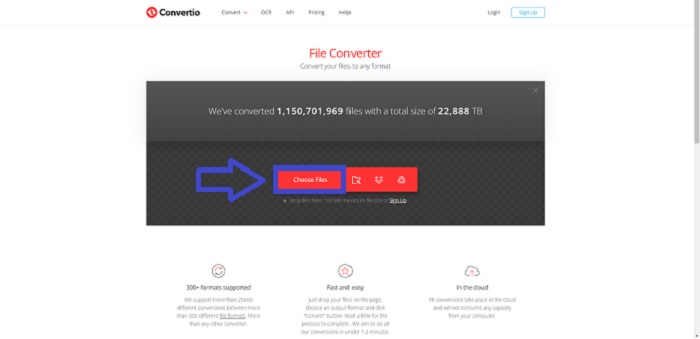
Langkah 2: Pilih format yang Anda inginkan untuk hasil konversi video dari daftar format file yang tersedia di panah drop-down. Dari sana, Anda juga dapat mencari format yang diinginkan untuk menghemat waktu. Sebuah ikon roda gigi akan muncul di samping untuk mengedit video Anda lebih lanjut. Di dalamnya terdapat banyak opsi untuk video maupun audio. Klik Okay untuk menyimpan perubahan yang telah dibuat.
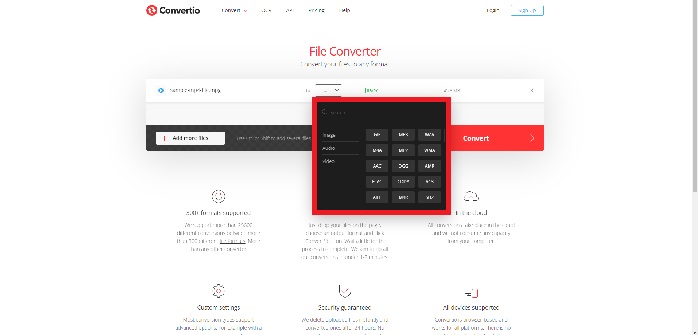
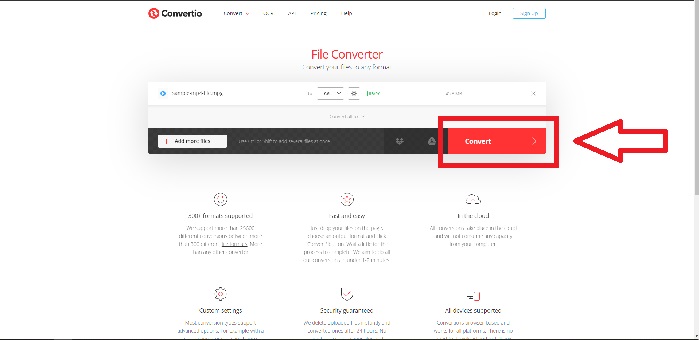
Langkah 3: Anda dapat menambahkan lebih banyak file untuk dikonversi secara bersamaan dengan mengklik Add More Files dan mengulangi langkah 2. Setelah puas, mulai proses konversi dengan mengklik tombol Convert yang ditandai dengan warna merah dan tunggu hingga selesai. Klik Download untuk mengekspor video yang telah dikonversi.
Bagian 4. Perbandingan DivX dan MOV
| Fitur | DIVX | MOV |
| Dirilis untuk Penggunaan Umum Pada | 1986 | 1998 |
| Perangkat Dukungan | Hanya dukungan untuk DivX Codec | Hanya dukungan untuk Apple |
| Perpanjangan | .divx | .mov |
| Kekurangan | Kualitas tidak sebagus format lain | Tidak sangat kompresibel |
| Ukuran file | Ukuran sangat kecil | Lebih besar dan membutuhkan lebih banyak ruang |
| Codec | Video | Video |
Bagian 5. FAQ tentang Konversi DivX ke MOV
Mengapa format penting?
Format video penting untuk pengeditan video karena berbagai alasan. Anda dapat menentukan berapa banyak ruang penyimpanan yang Anda perlukan untuk video yang ingin Anda rekam jika Anda tahu format apa yang diambil kamera. Anda harus mengetahui format rekaman untuk menentukan apakah alat pengeditan atau koreksi warna dapat menanganinya secara langsung atau apakah itu perlu ditranskode.
Kapan saya harus menggunakan MOV?
Pemutaran video sangat berkualitas tinggi dengan file MOV. MOV adalah pilihan terbaik jika Anda mengedit dalam pengaturan profesional untuk bioskop dan televisi. Editor profesional menyukai codec (kompresi/dekompresi) yang didukung MOV. MOV bermanfaat karena dapat menampung materi campuran seperti gambar, video, dan animasi 360 derajat. Ini juga berisi semua informasi video dan audio. Ini membuat pengeditan file jauh lebih sederhana.
Apakah DivX berkualitas baik?
DivX adalah format enkode video yang bekerja dengan jenis file MPEG-4 tertentu dan sering digunakan untuk menyalin (rip) DVD sebelum munculnya video berdefinisi tinggi. Sebenarnya, sejak tahun 2009, DivX Plus telah mendukung pembuatan video HD berkualitas tertinggi, H.264, dalam wadah (container) paling umum, MKV, dengan menggunakan versi perangkat lunak yang paling baru. Untuk memutar file DivX Anda, klik di sini untuk mendapatkan pemutar DivX yang andal yang tersedia.
Kesimpulan
Konversi video, secara umum, memberi Anda banyak opsi untuk dipilih. Itu bisa online melalui alat web atau perangkat lunak yang perlu Anda instal untuk mengonversi offline. Meskipun ada banyak dari ini yang dapat Anda temukan di internet, itu masih dapat membingungkan mereka yang tidak melek teknologi. Itulah sebabnya artikel ini memberikan semua opsi terbaik untuk Anda coba baik online maupun offline tanpa kerumitan. Tetapi untuk kenyamanan terbanyak, Video Converter Ultimate adalah cara yang harus dilakukan karena ini adalah konverter dan editor lengkap yang mungkin sudah lama Anda cari.
-
 Cara Mengonversi AVI ke MOV dengan Langkah dan Alat Mudah
 Apakah Anda ingin tahu cara mengubah AVI menjadi MOV yang dapat dimainkan? Anda harus mengikuti artikel ini untuk mengetahui cara melakukannya dan tips agar konversi berhasil.
-
 6 Konverter MP4 ke DivX Teratas untuk Mentranskode MP4 ke DivX dengan Mudah
 Saat Anda perlu mencadangkan file MP4 ke DVD, atau memutarnya di smart TV dengan kualitas tinggi, Anda dapat mempelajari lebih lanjut tentang 6 konverter MP4 ke DivX gratis terbaik dari artikel.
-
 3 Cara termudah untuk Mengonversi FLV ke DivX di Desktop atau Online
 Bisakah Anda mengonversi FLV ke DivX secara gratis? Jawabannya adalah ya dan sederhana. Panduan ini akan menunjukkan kepada Anda tiga metode gratis untuk melakukan pekerjaan di Windows dan Mac dengan mudah.
