


 Video Converter Ultimate
 Perekam Layar
 Perbaikan Video
Konverter Terbaik dan Mudah Digunakan yang Mengonversi MOV ke WMV Anda Harus Coba!
Apple created MOV files, and it is one of the most common file formats along with WMV, MP4, and AVI. MOV files can run through Windows through the use of Quicktime. Therefore, if you want to convert your MOV file, we suggest converting it to a WMV file. Because Windows System usually plays this file format. Therefore, if you want to know how to convert MOV to WMV, this is the perfect article for you to read.

Bagian 1. Konversi MOV Anda ke WMV Menggunakan Pengonversi Offline Terbaik
When it comes to converting files, there is no doubt that FVC Video Converter Ultimate can do it best. This converter is an offline tool that allows you to convert your MOV file to WMV, AVI, MP4, M4V, WebM, and more. It also has fantastic features that allow you to edit, enhance, merge, and compress your MOV file. Moreover, this file converter has a feature to enable ultra-fast conversion and convert your MOV to WMV quickly.
Cara Mengonversi MOV ke WMV Menggunakan FVC Video Converter Ultimate:
Step 1. Install FVC Video Converter Ultimate by clicking the Free Download icon below. You can download this converter in both Windows and MacOS. Then follow the installation process, then run the app.
Unduh GratisUntuk Windows 7 atau yang lebih baruUnduhan Aman
Unduh GratisUntuk MacOS 10.7 atau yang lebih baruUnduhan Aman
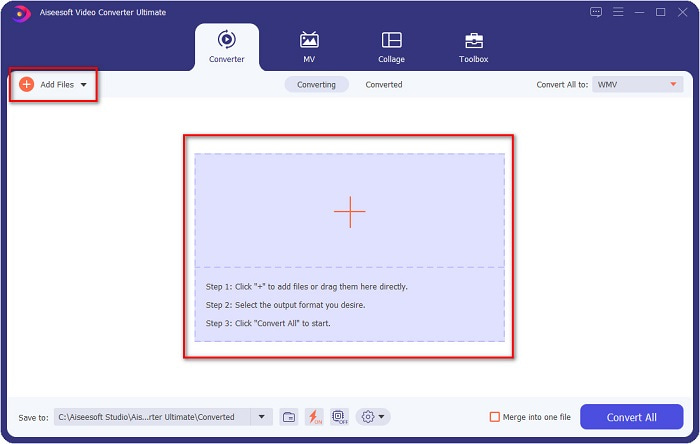
Step 2. After running the program, you will see the first interface of the converter. Click Add Files, or you can drag and drop your MOV file to the + sign to begin the conversion of your MOV file to the WMV file.
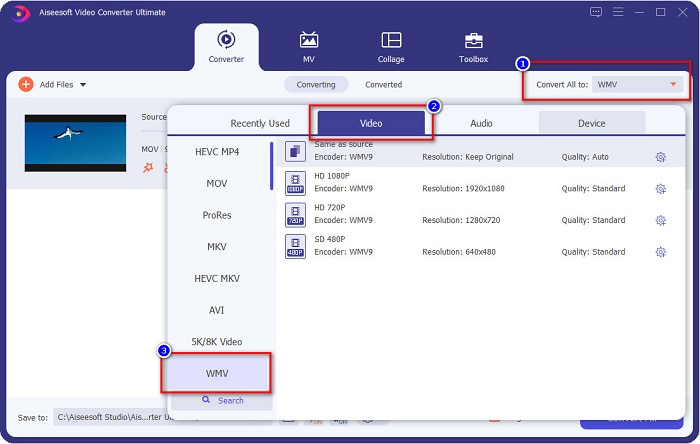
Step 3. Then click the Convert All to button. A list of file formats will appear where you can select your desired file format. And then click the WMV file format.
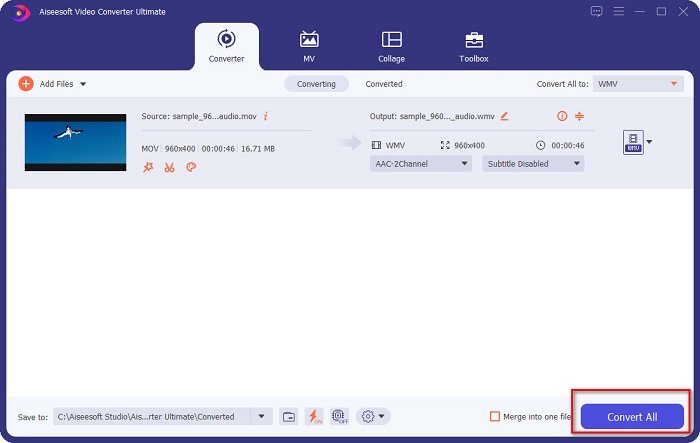
Step 4. After you select the WMV format, tick the Convert All button at the bottom right corner to begin your conversion. Then your MOV to WMV file will start to convert. Lastly, just wait for a few seconds, and that is it! With those simple steps, you can convert MOV to WMV files easily.
Pro
- Memiliki opsi di mana Anda dapat melakukan konversi ultra-cepat.
- Memungkinkan Anda mengedit, menyempurnakan, dan mengompres file Anda.
- Dapat mengkonversi berbagai format file termasuk MOV, WMV, AVI, MP4, M4V, VOB, MPG, dan banyak lagi.
Kontra
- Untuk mengakses fitur khususnya, Anda harus membeli aplikasinya terlebih dahulu.
Bagian 2. Mengkonversi MOC ke WMV Menggunakan Freeware
Saat mengonversi file MOV Anda ke WMV, Anda juga dapat menggunakan freeware yang sudah ada di desktop Anda. Salah satu konverter freeware terkenal yang tersedia saat ini adalah menggunakan pemutar media VLC sebagai konverter Anda. Pemutar media VLC adalah pemutar multimedia yang memungkinkan Anda memainkan berbagai format media. Selain itu, freeware ini juga dapat mengonversi file. Oleh karena itu, baca langkah-langkah di bawah ini jika Anda ingin mengonversi MOV ke WMV dengan freeware menggunakan VLC.
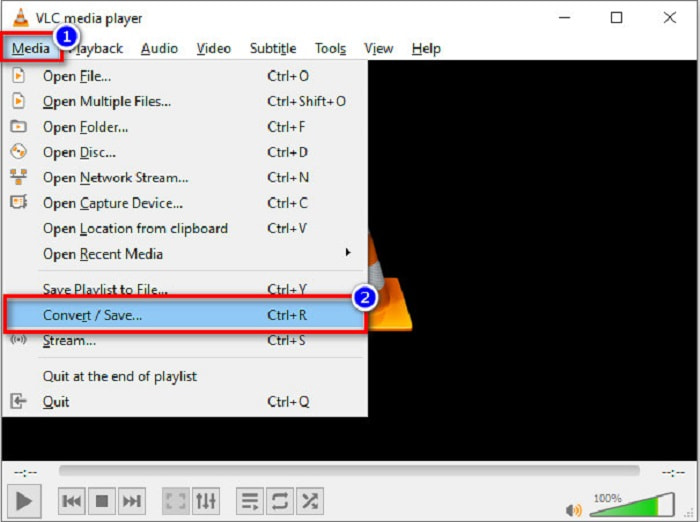
Step 1. Open the VLC Media Player, click the Media option located above the software's interface, and select Convert/Save.
Step 2. After, click the Add button to select your MOV format. The file format will appear in the list. Then click the Convert/Save button to proceed to the next step.
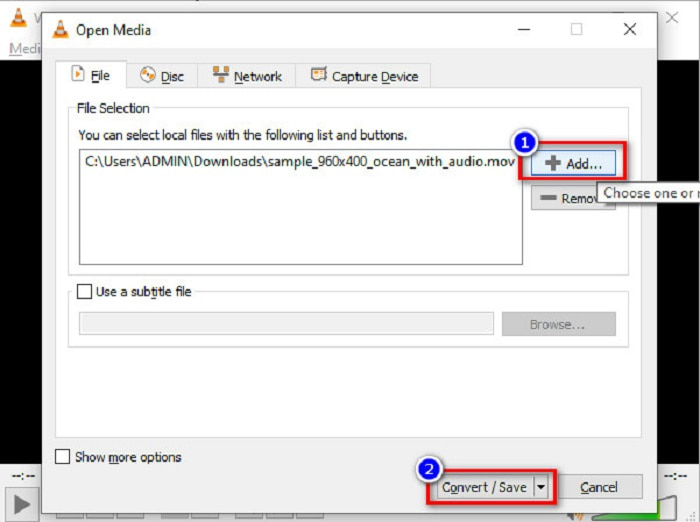
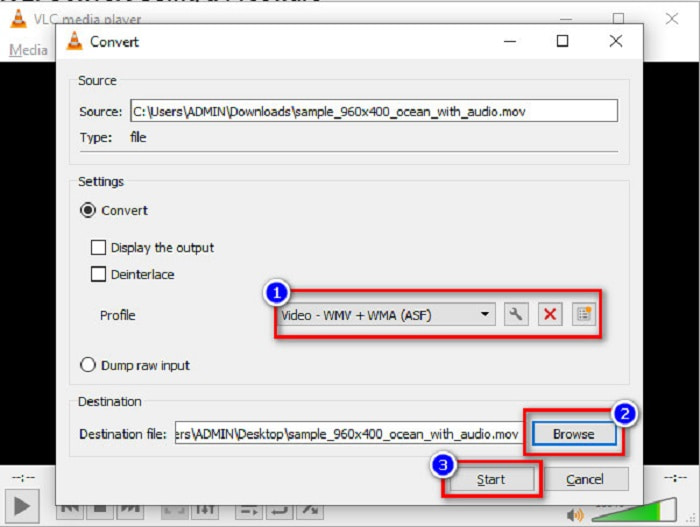
Step 3. Lastly, select WMV and choose your destination files by clicking Browse, then click the Start button to start the conversion.
Bagian 3. Konversi MOV ke WMV Menggunakan Konverter Online
If you wonder how you can convert MOV files to WMV files online, we have an online tool just for you. FVC Free Video Converter Online is an online converter that allows you to convert your MOV files to WMV, MP4, AVI, MPG, and more. This converter is easy-to-use, so you will not have difficulty converting files. However, you may encounter slow conversion because this converter is web-based. Nevertheless, it is an efficient converter to convert videos from MOV to WMV online, and many people use it.
Berikut adalah langkah-langkah tentang bagaimana Anda dapat mengonversi menggunakan konverter online ini:
Step 1. First, open your browser, then search FVC Free Video Converter Online.
Step 2. After opening the converter in the browser, click Add Files to Convert. Then the converter will start to launch. And then you will be directed to your computer files, where you will choose your MOV file, to be converted.
Unduh Versi Desktop untuk mengonversi file secara batch.
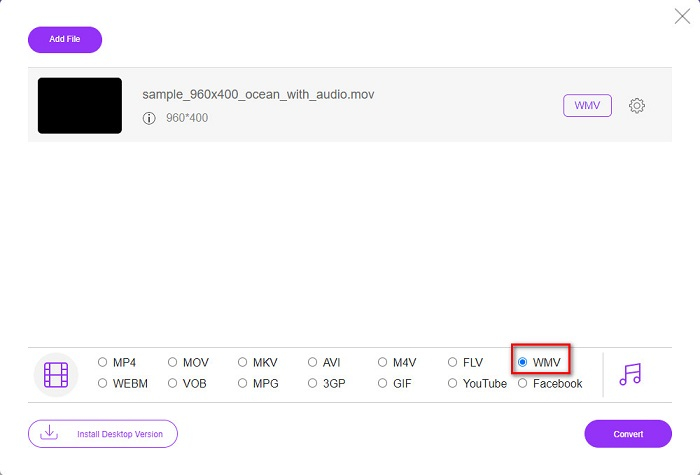
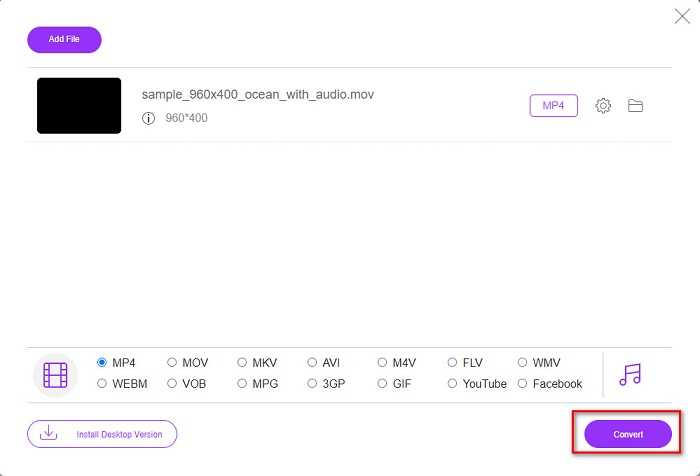
Step 3. In the second interface of the software, below, you will see the list of file formats where you can choose the WMV file format that you want.
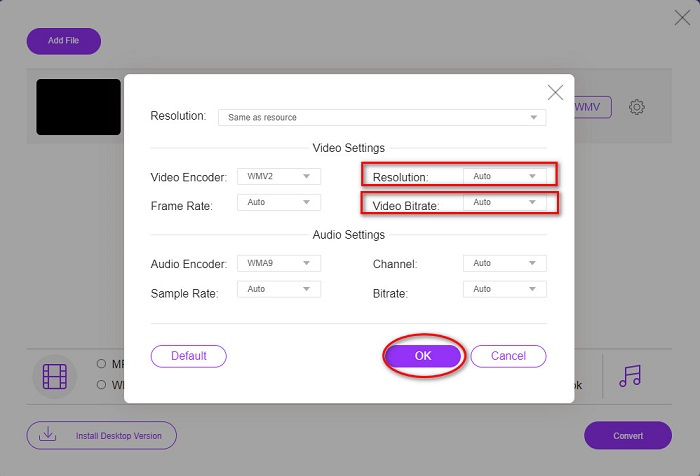
Optional. By clicking the setting button, you can change the resolution and the video bitrate of your file. Then click OK to set your adjustments.
Step 4. After selecting WMV format, tick the Convert button to convert your MOV file to a WMV file. Lastly, wait for your conversion to be completed. And there you go! As simple as that, you can convert MOV to WMV.
Bagian 4. Pengetahuan yang Diperluas tentang File MOV dan File WMV
MOV is a file format that MacOS widely supports. Although you can play MOV files in Windows, you still need the support of Quicktime. In addition, the MOV file is saved in the Quicktime File Format. Since it is mainly supported by Quicktime and Mac platforms, it has grown to be one of the most common file formats present today. In comparison, WMV or Windows Media Video is supported by many devices, primarily the Windows System. Moreover, this file format uses a compressor, which allows you to make your file size smaller, without the quality being affected.
MOV vs. WMV
Format MOV dapat digunakan untuk menyimpan film, acara TV, klip video pendek, atau film rumahan. Itu sebenarnya disimpan dalam QuickTime File Format (QTFF), yang diperkenalkan oleh Apple pada tahun 1991. File MOV sering digunakan ketika orang ingin menyimpan video dengan kualitas tinggi.
Diproduksi oleh Microsoft, WMV adalah salah satu format video paling umum di tahun 2000-an. Itu dapat dilihat melalui web dan dimainkan oleh berbagai pemutar media di Windows. Dan itu juga format file video default Windows Media Player. Tapi itu telah diambil alih oleh format lain baru-baru ini.
Bagian 5. FAQ Tentang Bagaimana Mengonversi MOV ke WMV
Apakah mengonversi MOV ke WMV memengaruhi kualitas file saya?
Ada beberapa contoh bahwa kualitas file Anda akan terpengaruh, tergantung pada konverter yang akan Anda gunakan. Ada konverter yang tidak dapat mendukung video piksel berkualitas tinggi.
Apakah QuickTime mendukung file WMV?
QuickTime players cannot support WMV files. However, you can convert your WMV files to file formats that are supported by Quicktime, including MOV, MP4, M4V, and more. For more information on converting WMV to MOV, click this link.
Bisakah Anda mengompres file MOV?
Using a ZIP file can compress MOV files and other files. However, compressing MOV files using ZIP will only reduce a small percentage of it. Therefore, we recommend converting your file to a smaller size file format using the converters presented above.
Kesimpulan
As presented above, there are varieties of converters to choose from. You can choose if you want an online, offline, or freeware converter. These converters have different distinctions and features that you can try. However, we recommend using FVC Video Converter Ultimate because it has more features than other converters. Also, it can convert ultra-fast and efficiently. Download it now to experience these fantastic features that his converter offers.
-
 [Gratis & Daring] 4 Metode untuk Mengonversi MOV ke MP4
 Ingin mengonversi file MOV (Apple QuickTime Movie) ke MP4? Posting ini membagikan 4 metode gratis untuk mengonversi file video MOV Anda ke format MP4 di Windows 10/8/7 / XP dan Mac OS X.
-
 4 Metode Terbaik untuk Mengonversi MOV ke MP3 di Windows dan Mac dengan Mudah
 Saat Anda ingin mengekstrak file audio MP3 dari file MOV, Anda dapat mempelajari lebih lanjut tentang 4 konverter MOV ke MP3 paling efisien untuk mendapatkan file yang diinginkan dari artikel.
-
 2 Cara Mudah Mengonversi File MOV ke FLV di Windows/Mac
 Bagaimana cara mengubah MOV ke FLV secara gratis? Berikut adalah konverter video terbaik di desktop dan online untuk mengonversi file MOV Anda ke FLV dalam hitungan detik tanpa membayar sepeser pun.

