


 Video Converter Ultimate
 Perekam Layar
 Perbaikan Video
3 Cara Berbeda untuk Mengubah File MPG ke MOV di Desktop atau Online Anda
Converting a format is essential, especially if we were going to talk about compatibility and the purpose of the format. Like MPG, this format stores data from DVDs such as metadata interleave, audio, and video. But ripping this format from DVDs and playing it on Quicktime or editing it on iMovie can't be uploaded because the format is unsupported. However, you can convert your .mpg into a supported format like MOV format. This article will suggest some of the best converter software you can use to convert MPG to MOV on Mac for free and without adjusting its quality.

Bagian 1. Bagaimana Mengkonversi MPG ke MOV di Mac dan Windows
First on the list is the crème-de-la-crème of all the converters you can use and learn how to convert MPG to MOV on Mac or PC. FVC Video Converter Ultimate provides the highest quality and fastest conversion that you can make in less than a minute. Moreover, download this if you don't have any experience converting files and don't want to be disappointed on the first try. But, if you are the type of user who wants to add special effects, crop, merge, and do more, check out the Toolbox of this converter. Other than that, if you're looking for trustworthy and easy-to-use software and achieve phenomenal output instantly, then follow the instructions below.
Step 1. Download the MPG to MOV converter for free on your Mac or PC. After that, install the File and do the quick set-up.
Unduh GratisUntuk Windows 7 atau yang lebih baruUnduhan Aman
Unduh GratisUntuk MacOS 10.7 atau yang lebih baruUnduhan Aman
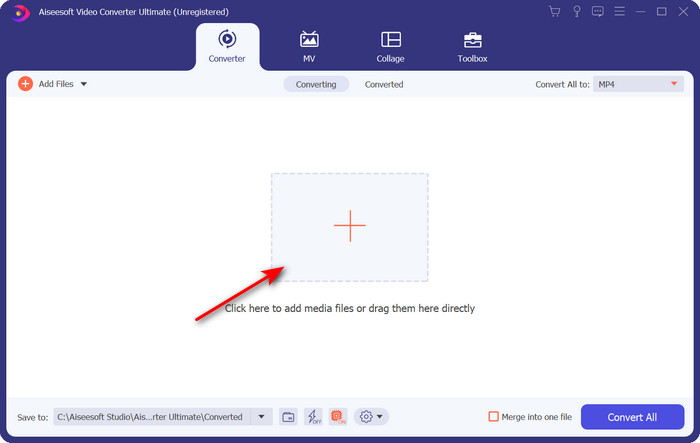
Step 2. To insert the file, click + sign located at the middle part of the interface. Find the .mpg File on the folder that will show next, then click Open and proceed.
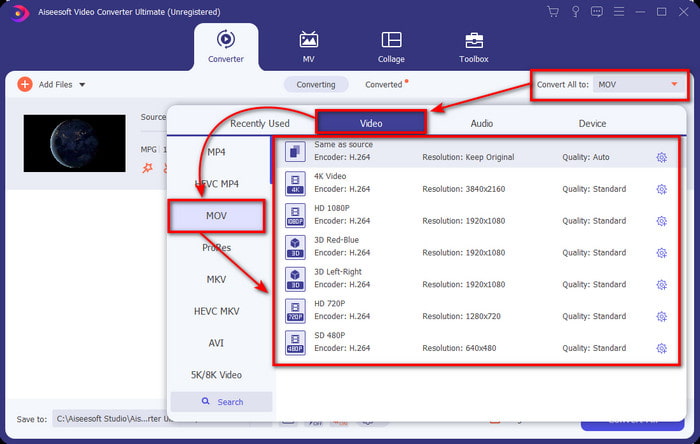
Step 3. Hit the drop-down button and choose the MOV format or any format available on the list.
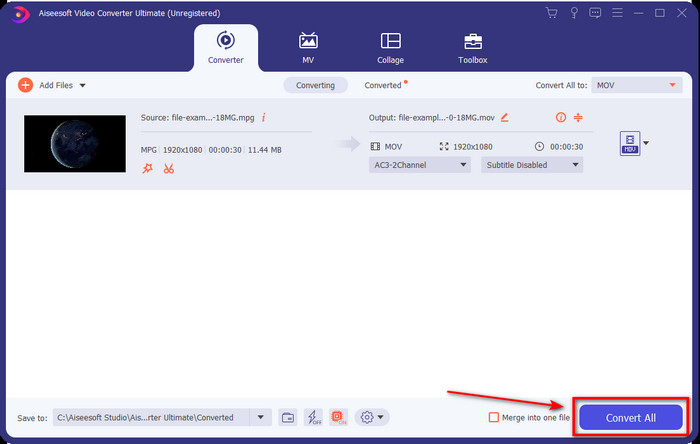
Step 4. Once you are ready to start the converting process, click Convert All.
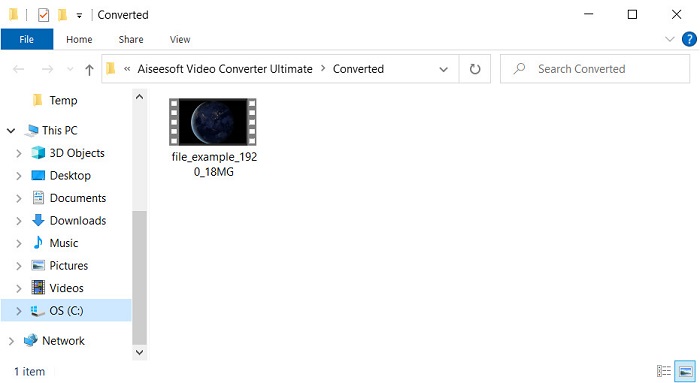
Step 5. Your .mov will be ready after a few seconds, and if the folder opens on your display, click the first file to watch or edit on your Apple device.
Bagian 2. Konversi MPG ke MOV Menggunakan Quicktime
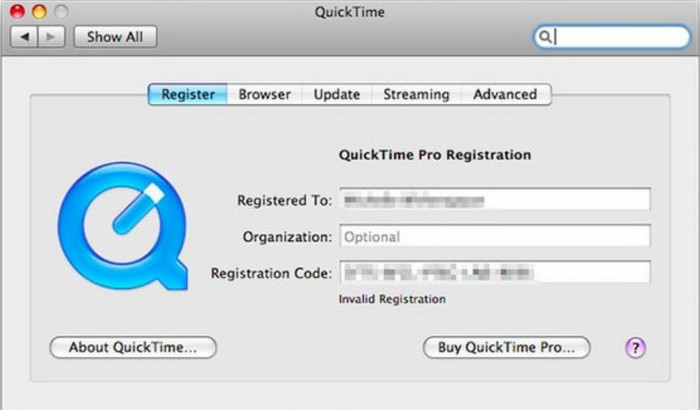
Quicktime Player is a native media player made for Apple devices to play almost any video and audio format. But did you know that you can also use this as a converter? But the converter this tool provides is not as detailed as the first converter mentioned above. Yet, if you have an Apple device and want to convert MPG to MOV with the Quicktime Player, then follow the steps below.
Step 1. Open the Quicktime Player on your Mac, click File under it, click Open File, locate the .mkv file on the folder, and press Open.
Step 2. Re-click File, but now click the Export As choose the available pixels on the list.
Step 3. To start converting the file on Quicktime, click Save.
Bagian 3. Konversi MPG ke MOV Menggunakan Konverter MPG ke MOV Online Gratis
Want to know the best MPG to MOV converter free online if you don't want to risk downloading software? Then FVC Free Video Converter Online is the one. It is simple, available in all browsers, malware-free, and a reliable online tool. All of the things a simple converter should have are available here. Furthermore, this software supports numerous media formats and does convert without logging your account. Want to use this tool? Then follow the simple steps.
Step 1. Tick this link to go to the official website of FVC Free Video Converter Online.
Step 2. Once you are now on the web interface, click the Add Files to Convert. Find the .mpg file you want to convert on the folder, then press Open.
Unduh Versi Desktop untuk mengonversi file secara batch.
Step 3. After uploading the file, choose the MOV format in the sub menu.
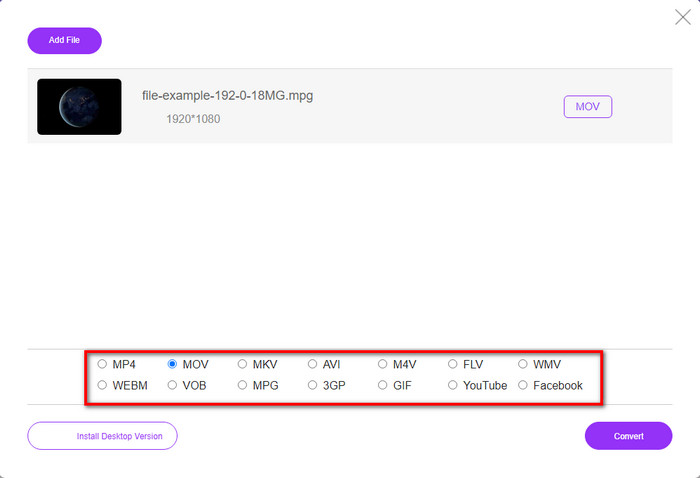
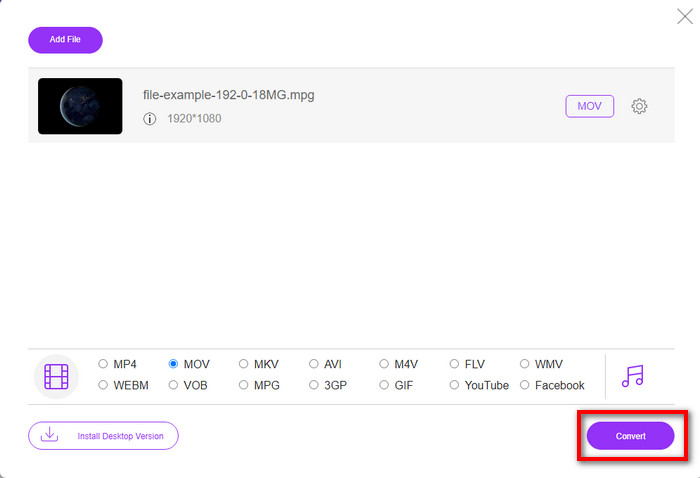
Step 4. Since you already clicked the MOV, let's download it now by hitting the Convert.
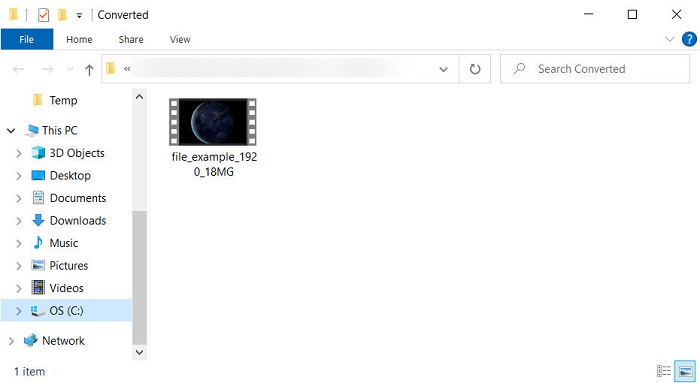
Step 5. After converting, a folder will show with a .mov file.
Bagian 4. Pengetahuan Luas tentang MPG ke MOV dan Mengapa Kita Perlu Mengonversinya
MPG adalah format media terkenal yang menggunakan MPEG sebagai format video standar digital. Jenis file ini biasanya menggunakan MPEG-1 dan MPEG-2 sebagai media file encoder. Menggunakan dua kompresor ini untuk mendukung setiap kekurangan kompresor, terutama untuk menyimpan video dengan resolusi lebih tinggi. Seperti yang dikatakan sebelumnya, format ini dapat berisi tiga elemen: audio, video, dan metadata dalam satu aliran untuk distribusi film yang lebih cepat di web.
Namun MOV dapat menyimpan video berkualitas tinggi dan audio yang jernih yang biasa digunakan untuk mengedit video. Tidak seperti MPG, format media multipleks ini dapat melacak data media yang berbeda seperti video, audio, dan subtitle. Namun format encoder dan decoder yang biasa digunakan adalah MPEG-4.
Akan lebih baik untuk mengubah MPG Anda ke MOV karena ketika Anda mentransfer file ke perangkat Apple, itu tidak akan diputar di Quicktime atau diedit di iMovie. Meskipun Quicktime Player dan iMovie mendukung MPEG-1 dan MPEG-4, MPEG lain, seperti MPEG-2 yang digunakan .mpg, tidak didukung. Untuk membuatnya kompatibel di perangkat Apple adalah alasan mengapa Anda perlu mengonversi file menjadi MOV.
MPG vs. MOV
Dibuat oleh Moving Picture Experts Group (MPEG), MPG adalah format video digital umum untuk menyimpan info video, audio, dan metadata. Ini sangat berguna saat membuat film untuk dibagikan di Internet. File-file dalam MPG biasanya berisi kompresi video/audio MPEG-1 atau MPEG-2.
Format MOV dapat digunakan untuk menyimpan film, acara TV, klip video pendek, atau film rumahan. Itu sebenarnya disimpan dalam QuickTime File Format (QTFF), yang diperkenalkan oleh Apple pada tahun 1991. File MOV sering digunakan ketika orang ingin menyimpan video dengan kualitas tinggi.
Bagian 5. FAQ tentang Konversi MPG dan MOV
Berapa lama waktu yang dibutuhkan untuk mengonversi MPG?
Ada dua faktor yang dapat mempengaruhi proses konversi Anda. Pertama, jika Anda menggunakan konverter online, itu akan tergantung pada seberapa cepat internet Anda. Proses ini akan memakan waktu lebih lama dibandingkan dengan konverter non-basis lainnya. Dan yang terakhir, semakin besar ukuran file, semakin lama waktu yang dibutuhkan untuk mengonversinya. Jadi, jika ukuran file .mpg Anda besar maka Anda biasanya akan menunggu sampai selesai.
Bisakah saya memutar file .mpg di VLC?
VLC adalah salah satu pemutar media utama yang dapat Anda unduh di semua perangkat untuk memutar video dalam format yang tidak dapat diputar di pemutar media asli Anda. Anda juga dapat bermain di sini, semua format MPEG-1, MPEG-2, MPEG-3, dan MPEG-4.
Apakah mengompresi MPG memengaruhi kualitas?
Compressing a file shouldn't affect the quality because what you did was making it small. But when you compress your .mpg too much the quality of it will change a bit. So, to avoid this you will need to read this top 7 video compressors you can use.
Kesimpulan
Untuk merangkum semua informasi terperinci yang disebutkan di atas, Anda dapat mengonversi MPG ke MOV jika Anda ingin menggunakan video di perangkat Apple. Meskipun perangkat lunak seperti Quicktime dan iMovie mendukung MPEG-1 dan MPEG-4 tetap saja MPEG-2 dan MPEG-3 tidak didukung. Jadi, untuk membuatnya kompatibel di perangkat Apple Anda, sangat ideal untuk mengonversinya. Semua alat yang disebutkan di sini sangat efektif dan mudah digunakan jika Anda mengonversi file.
-
 FLV ke MPG - Bagaimana mengkonversi FLV ke MPG di Mac, PC dan Online Gratis
 Bagaimana cara mengubah FLV ke MPEG? Bisakah saya mengonversi FLV ke MPG secara gratis? Posting ini membagikan 3 konverter video gratis untuk membantu Anda mengonversi FLV ke MPG tanpa kehilangan kualitas.
-
 Cara Mengonversi Format MPG ke GIF [Online & Offline]
 Ingin mengekspresikan emosi yang jauh lebih baik? Maka Anda harus menggunakan GIF sebagai gantinya. Artikel ini akan mengajari Anda cara mengonversi file MPG ke GIF untuk mengekspresikan perasaan Anda dengan lebih baik.
-
 [2022] Pilihan Populer Konverter MPG ke AVI untuk Membantu Anda Mengonversi MPG ke AVI
 Pernahkah Anda bertanya-tanya tentang mengonversi MPG Anda ke file video AVI hanya untuk memutarnya di pemutar video Anda? Berikut adalah artikel terbaik yang dapat Anda temukan yang membahas masalah di atas.

