


 Video Converter Ultimate
 Perekam Layar
 Perbaikan Video
Proses Konversi File WebM ke MOV: Metode Bebas Rumit yang Harus Anda Ketahui
Dalam hal produksi dan streaming, tidak semua format video kompatibel dengan setiap platform digital. Saat mencoba memasukkan, memproduksi, mengunggah, atau mengunduh file yang relevan, ini dapat menyebabkan masalah besar. Apple, misalnya, tidak menggunakan peramban tradisional yang telah kami kembangkan di masa lalu – ia memiliki platform sendiri yang disebut Safari. Itulah sebabnya format video yang hanya didukung oleh Google Chrome, Mozilla Firefox, Opera, dan Microsoft Edge tidak selalu dapat diakses oleh pengguna Mac dari segi browser.
Salah satunya adalah video WebM, yang merupakan format yang menyediakan kompresi video terbuka untuk HTML5. Jika Anda pengguna Mac, Anda memerlukan pemutar media pihak ketiga untuk menontonnya. Namun, format file MOV adalah yang Anda butuhkan jika Anda ingin memutar video tanpa repot karena ini adalah pengembangan Apple sendiri untuk Apple QuickTime Player. Jadi, yang Anda inginkan adalah mengonversi WebM ke MOV di Mac Anda, dan dalam artikel ini kami menyediakan cara terbaik untuk melakukannya.
Bagian 1. Ikhtisar: WebM dan MOV
Jika Anda telah terpapar konsumsi dan streaming video cukup lama sekarang, Anda pasti telah menonton banyak video dengan format berbeda menggunakan platform yang berbeda. Anda mungkin pernah bertanya-tanya apa yang diwakili oleh ekstensi file ini atau bagaimana mereka berbeda satu sama lain. Tentunya Anda telah mencoba memutar video tertentu di browser Anda tetapi tidak bisa, dengan mengatakan itu tidak didukung. WebM misalnya hanya didukung oleh beberapa browser modern seperti Chrome, Firefox, dan edge karena biasanya disematkan di halaman web menggunakan HTML5
Bagian 2. Konverter Terbaik yang Membantu Mengonversi WebM ke MOV
Mengonversi file video tidak sesulit yang Anda bayangkan. Meskipun ada banyak perangkat lunak dan program yang dapat membantu Anda, tetap ada satu yang dapat menyelesaikan pekerjaan dengan cepat dan mudah. FVC Video Converter Ultimate adalah perangkat lunak yang dapat diunduh secara gratis yang menghemat waktu Anda dari harus mencari di internet untuk menemukan konverter terbaik secara online. Kami memang ingin menghadirkan yang terbaik untuk Anda. Anda tidak perlu khawatir tentang format video yang ingin Anda konversi karena perangkat lunak ini mendukung berbagai format dan, selain itu, menyediakan banyak opsi untuk mengedit video Anda selama proses konversi. Jadi, berikut adalah langkah-langkah yang perlu Anda ikuti untuk menggunakan perangkat lunak ini:
Langkah 1: Sebelum proses konversi, pertama-tama Anda perlu mengunduh perangkat lunaknya dan Anda dapat melakukannya dengan mengklik tombol Free Download. Anda bisa memilih untuk Windows atau Mac. Dalam kasus ini, pilih For Mac OS. Tunggu hingga file .exe selesai diunduh dan buka setelah selesai untuk mulai memasangnya.
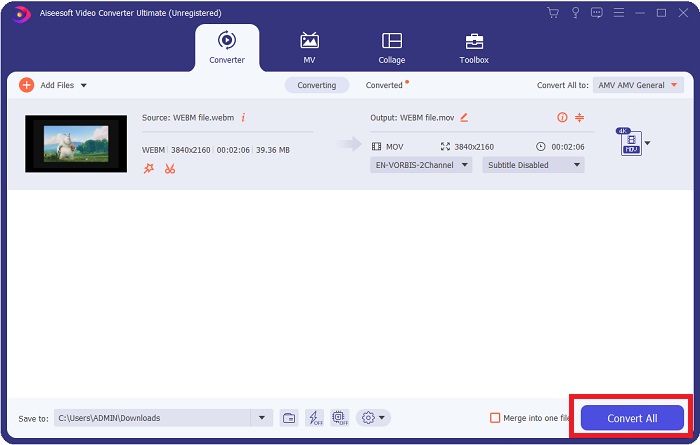
Langkah 2: Jika perangkat lunak sudah selesai dipasang, jalankan dan akan muncul sebuah antarmuka. Secara otomatis setelah perangkat lunak dijalankan, Anda akan berada pada tab Converter. Jika belum, klik tab tersebut.
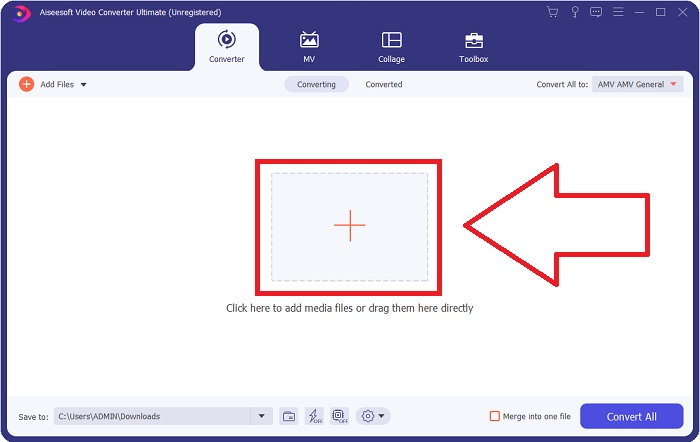
Langkah 3: Akan ada tombol + di tengah antarmuka yang dapat Anda klik untuk mengimpor file video yang ingin Anda konversi. Anda juga bisa menyeret dan melepaskan (drag and drop) video Anda dengan mudah.
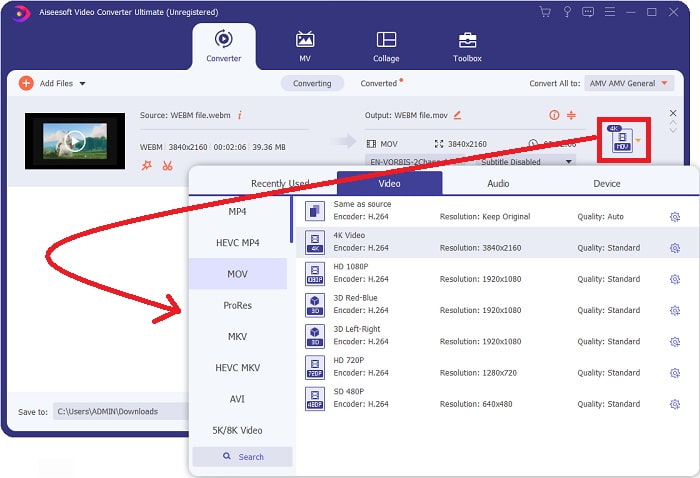
Langkah 4: Antarmuka lain akan muncul setelah video Anda berhasil diimpor. Dari sana, Anda dapat melihat format saat ini dari video Anda di bagian paling kanan. Ada panah drop-down di sebelahnya, klik panah tersebut dan berbagai opsi akan muncul. Anda dapat memilih format apa pun yang Anda inginkan untuk hasil konversi video Anda, tetapi dalam kasus ini, pilih MOV. Ada opsi untuk memilih resolusi dan kualitas audio. Untuk lebih banyak pengaturan, klik ikon roda gigi di sebelah kualitas atau resolusi yang Anda pilih dan Anda dapat mengedit video lebih lanjut sesuai kebutuhan. Untuk menyimpan perubahan yang dibuat, klik Create New.
Langkah 5: Setelah Anda selesai dan puas dengan perubahan tersebut, Anda dapat menemukan Convert All di pojok kanan bawah antarmuka dan klik untuk mengekspor video yang sudah dikonversi.
Bagian 3. Kiat Bonus: Pengonversi Daring Lain yang Mengonversi WebM ke MOV
Metode 1: Gunakan Konversi Gratis
Jika Anda tidak ingin mengunduh perangkat lunak lagi dan langsung melanjutkan proses konversi, kami dapat menunjukkan kepada Anda alternatif untuk yang satu ini. Ini dilakukan murni online saat masih menawarkan fitur yang Anda butuhkan untuk kebutuhan pengeditan Anda. Jika Anda menginginkan metode yang tidak merepotkan, alat web ini adalah salah satu caranya.
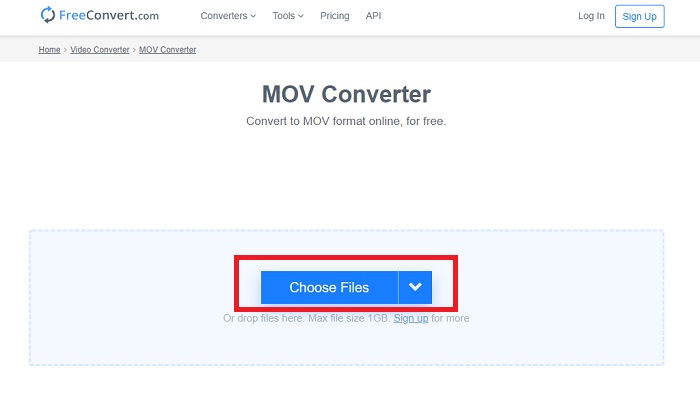
Langkah 1: Buka situs yang dimaksud dan Anda akan berada pada antarmuka di mana tombol Choose Files berada di tengah halaman. Klik tombol tersebut untuk mengimpor file video yang ingin Anda konversi.
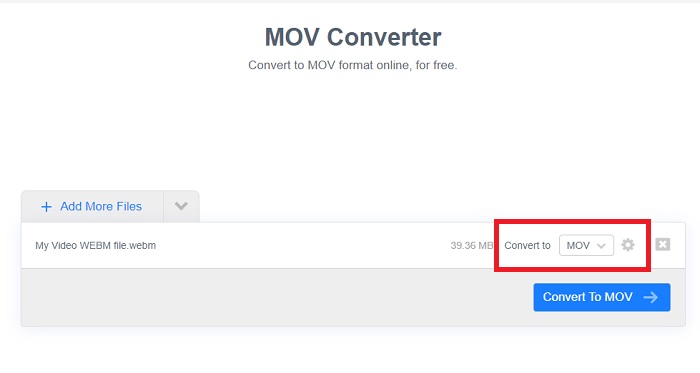
Langkah 2: Sama seperti pada perangkat lunaknya, Anda dapat melihat format saat ini dari video Anda di sebelah kanan dan di sebelahnya ada panah drop-down. Klik panah tersebut dan pilih format yang Anda inginkan untuk hasil konversi video Anda. Untuk lebih banyak opsi, klik ikon roda gigi untuk mengedit video Anda lebih lanjut. Klik tombol Apply Settings untuk menyimpan perubahan yang telah Anda buat.
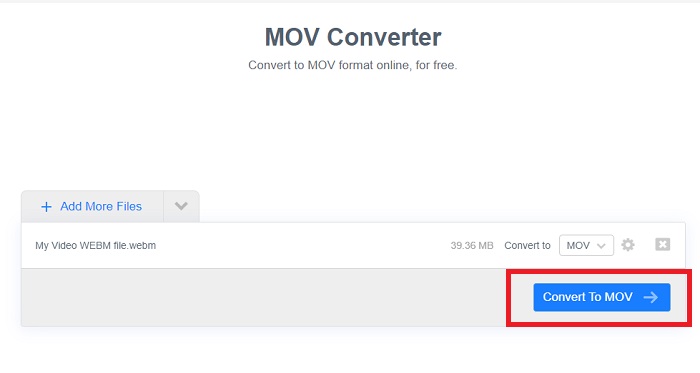
Langkah 3: Jika Anda sudah selesai dengan semua perubahan, Anda dapat memulai proses konversi dengan mengklik tombol Convert to MOV di bawahnya dan tunggu hingga selesai. Lalu, Anda dapat mengekspor video yang sudah dikonversi dengan mengklik Download MOV.
Metode 2: Gunakan Cloud Convert
Alat web ini menawarkan beberapa opsi lagi untuk Anda saat Anda mengonversi file WebM ke MOV online. Anda tidak hanya dapat mengedit resolusi atau kualitas audio tetapi juga fps, subtitle, dan banyak lagi. Ikuti langkah-langkah mudah ini untuk menggunakan konverter online ini:
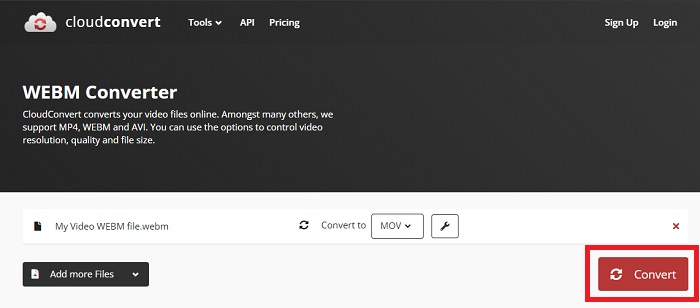
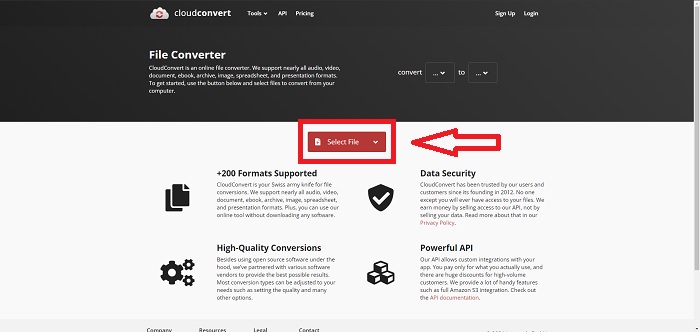
Langkah 1: Pertama, Anda harus mengimpor file video yang ingin Anda konversi dengan mengklik tombol Select File di tengah halaman. Jika Anda ingin mengonversi beberapa file sekaligus, klik Add more Files.
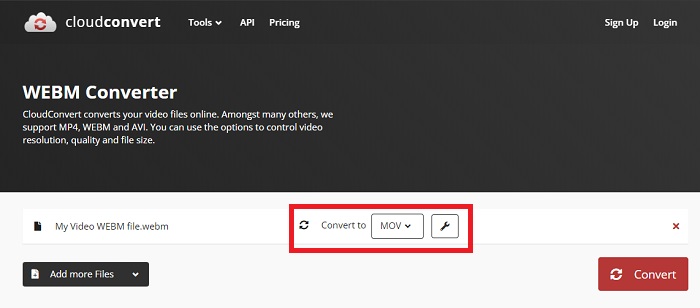
Langkah 2: Di samping file, Anda dapat memilih format video dengan mengklik panah drop-down. Juga, klik ikon kunci inggris (wrench) untuk lebih banyak opsi. Dari sana, Anda dapat mengedit aspek-aspek tertentu dari video dan audionya. Lalu, klik OK untuk menyimpan perubahan.
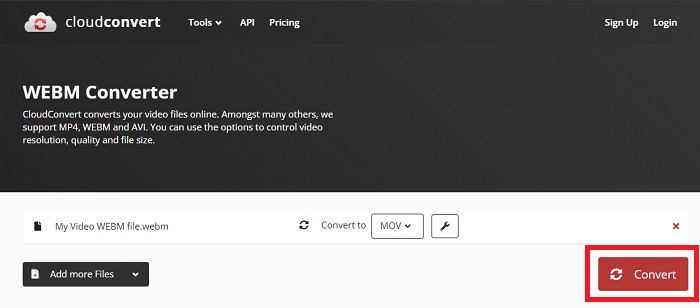
Langkah 3: Setelah Anda selesai dengan semua pengeditan, klik tombol Convert yang ditandai dengan warna merah dan tunggu hingga selesai. Terakhir, klik Download yang ditandai dengan warna hijau untuk mengekspor video yang sudah sepenuhnya dikonversi.
Metode 3: Gunakan Konversi ZamZar
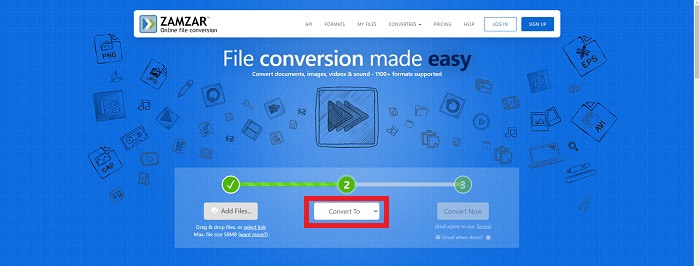
Alat web ini menawarkan lebih sedikit opsi untuk video Anda karena hanya mengubah format video dan audio. Namun, itu menyelesaikan pekerjaan lebih cepat daripada metode lain yang disebutkan. Untuk menggunakan konverter online ini, ikuti langkah-langkah yang disediakan:
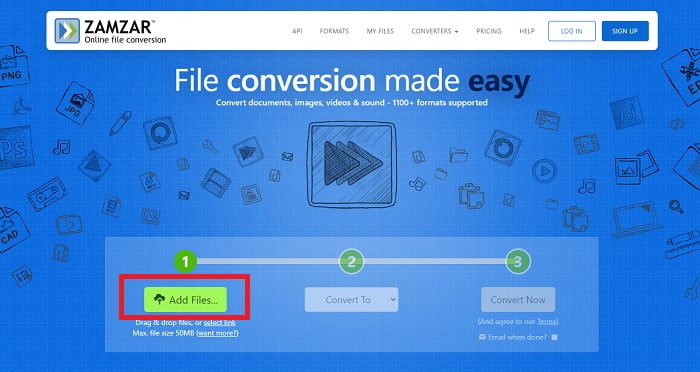
Langkah 1: Di tengah halaman, hanya ada tiga tombol yang perlu diklik agar video Anda dapat dikonversi. Pertama, klik Add files untuk mengimpor file video Anda.
Langkah 2: Pada tombol kedua, Anda dapat memilih format video dan audio yang Anda inginkan untuk video Anda. Dalam hal ini, pilih format MOV.
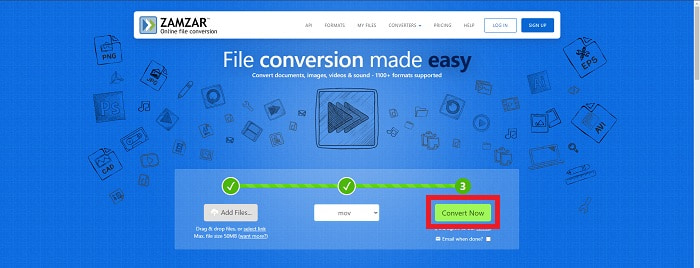
Langkah 3: Terakhir, klik tombol ketiga sekaligus terakhir, Convert Now, untuk memulai proses konversi dan tunggu hingga selesai. Setelah selesai, klik Download untuk akhirnya mengekspor video Anda ke desktop.
Bagian 4. FAQ tentang Mengonversi WebM ke MOV
Apa sebenarnya format WebM?
WebM adalah format file media terbuka khusus web yang mencakup aliran video yang dikompresi dengan codec video VP8 atau VP9, aliran audio yang dikompresi dengan codec audio Vorbis atau Opus, dan teks WebVTT. Struktur file WebM didasarkan pada wadah media Matroska. Sebagian besar browser web menerima file WebM karena terkadang digunakan di situs web HTML5 untuk memutar film online. Misalnya, YouTube menggunakan format file Video WebM untuk semua video di halaman mereka, mulai dari 360p hingga kualitas sangat tinggi lainnya. Wikimedia dan Skype adalah sama.
Pemutar media apa yang saya perlukan untuk memutar video WebM jika saya tidak ingin mengonversinya ke MOV?
Ada alternatif jika Anda tidak ingin melalui seluruh proses konversi untuk memutar video WebM Anda. Anda dapat menggunakan aplikasi pihak ketiga atau yang disebut lintas platform (cross-platform). Beberapa pemutar media pihak ketiga tersebut adalah VLC, KM Player, Media Player Classic, Winamp, jetAudio Basic, Moovidia, Persian, dan XBMC yang dapat Anda unduh dari situs masing-masing untuk memutar file WebM Anda.
Apakah MOV berkualitas tinggi atau rendah?
Pemutaran video cukup berkualitas tinggi dengan file MOV. MOV sangat berguna karena dapat menampung media campuran seperti gambar, video, dan animasi 360 derajat. Ini juga berisi semua informasi video dan audio. Ini membuat pengeditan file jauh lebih sederhana.
Kesimpulan
Memang ada banyak alat yang dapat Anda gunakan untuk mengonversi video Anda dari satu format ke format lain, baik melalui penggunaan perangkat lunak atau melalui alat web yang dapat Anda temukan secara online. Namun, mereka masih berjalan beriringan dalam hal pilihan atau kenyamanan yang mereka tawarkan. Beberapa hanya menyelesaikan pekerjaan dan beberapa menyediakan berbagai opsi untuk Anda pilih. Artikel ini berfokus pada hal ini untuk membantu Anda mengetahui mana yang harus Anda gunakan tergantung pada kebutuhan Anda. Itulah mengapa kami paling merekomendasikan Video Converter Ultimate karena menawarkan semua opsi tambahan yang mungkin tidak pernah Anda ketahui kapan Anda akan membutuhkannya. Lebih baik untuk memiliki perangkat lunak ini di sisi Anda sepanjang waktu untuk menyelamatkan Anda dari semua kesulitan menemukan konverter online setiap kali Anda membutuhkannya.
-
 Cara Mengubah Format GIF ke WebM tanpa Kehilangan Kualitas File
 Konversikan Gif Anda ke format video WebM untuk memiliki tag video HTML5. Andalkan alat di bawah ini untuk mengetahui mana yang terbaik untuk pekerjaan itu.
-
 3 Cara Mengonversi WebM ke MP3 tanpa Kehilangan Kualitas Suara
 Mengalami masalah karena file WebM tidak dapat digunakan untuk memutar audio yang Anda simpan? Kemudian baca artikel ini karena kami memberikan bantuan yang efektif dengan mengonversi WebM ke MP3.
-
 3 Perangkat Lunak Menakjubkan yang Digunakan untuk Mengonversi File WebM ke Format AVI
 Tidak tahu cara mengubah WebM menjadi AVI? Kalau begitu mari kita mulai membaca artikel ini. Saat kami menentukan semua detail di WebM dan tiga konverter yang dapat Anda gunakan untuk mengonversi.
