


 Video Converter Ultimate
 Perekam Layar
 Perbaikan Video
 Unduhan Aman
MOV ke MP3 - 4 Metode Terbaik untuk Mengekstrak File MP3 dari MOV dengan Mudah
Jika Anda ingin mengekstrak file musik latar dari sebuah video, bagaimana cara mengkonversi MOV ke MP3 dengan kualitas aslinya? MOV adalah format video yang sering digunakan untuk sebagian besar perangkat, Anda dapat mempelajari lebih lanjut tentang 4 cara paling efisien untuk mengekstrak file MP3 dari MOV dengan mudah. Pilih saja metode yang diinginkan sesuai dengan kebutuhan Anda sekarang.

Bagian 1: 5 Metode Terbaik untuk Mengonversi MOV ke MP3 dengan Mudah
Metode 1: Cara Mengonversi MOV ke MP3 Online
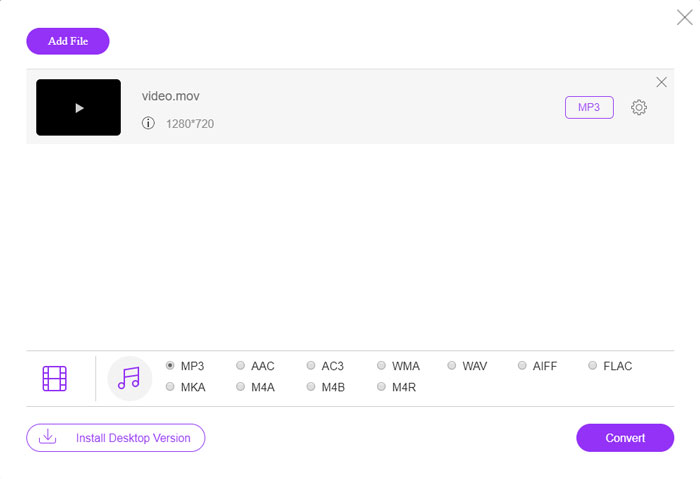
FVC Free Online Video Converter adalah konverter MOV ke MP3 online serbaguna yang memungkinkan Anda mengonversi sebagian besar file video/audio, menyesuaikan pengaturan audio dan video, serta melakukan konversi yang stabil dan aman tanpa tanda air maupun batasan ukuran.
Langkah 1. Buka konverter video online di peramban apa pun, Anda dapat mengklik tombol Add Files to Convert untuk memuat file MOV yang ingin Anda konversi. Anda perlu menginstal program PKG terlebih dahulu.

Langkah 2. Setelah Anda mengimpor file MOV, Anda dapat memilih MP3 dari menu Audio di dalam antarmuka pengguna. Selain itu, Anda juga dapat menyesuaikan pengaturan, seperti laju sampel, saluran audio, dan lainnya.

Langkah 3. Setelah itu, Anda dapat mengklik tombol Convert untuk mengonversi MOV ke MP3. Hanya butuh beberapa detik untuk mendapatkan video yang diinginkan. Lalu Anda dapat mengunduh file MP3 ke komputer atau membagikannya ke situs media sosial.
Metode 2: Cara Mengaktifkan MOV ke MP3 di Windows
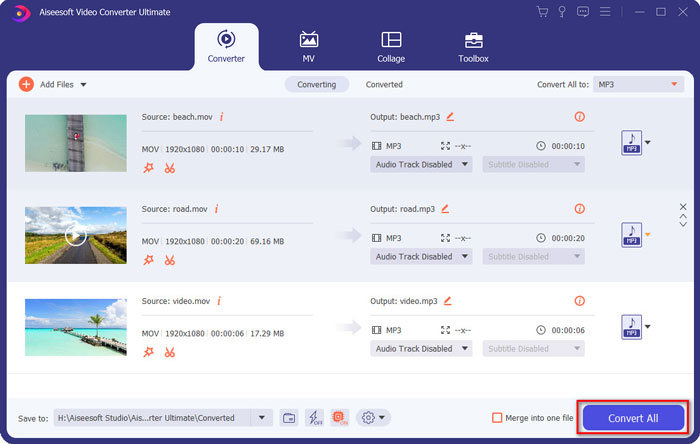
Bila Anda ingin mengubah MOV menjadi MP3 dengan kualitas asli pada Windows dan Mac, FVC Video Converter Ultimate adalah konverter MOV ke MP3 yang diinginkan untuk mentranskode sebagian besar format video, mengubah pengaturan audio / video, mengedit file keluaran atau bahkan menerapkan beberapa filter video dengan mudah.
- 1. Convert MOV ke MP3, WAV, WMA dan lainnya dengan kualitas asli.
- 2. Sesuaikan codec video, kecepatan sampel, bitrate audio, dan pengaturan audio lainnya.
- 3. Menyediakan fitur pengeditan video, seperti klip, trim, gabungkan MOV dan terapkan filter.
- 4. Akselerasi perangkat keras canggih untuk mengkonversi file video dengan kecepatan cepat 70x.
Langkah 1. Unduh dan instal konverter MOV ke MP3, lalu luncurkan program di komputer Anda. Klik opsi Add Files untuk memuat file MP4 atau seret videonya langsung ke dalam program.
Unduh GratisUntuk Windows 7 atau yang lebih baruUnduhan Aman
Unduh GratisUntuk MacOS 10.7 atau yang lebih baruUnduhan Aman

Langkah 2. Setelah Anda mengimpor video MP4, Anda dapat memilih menu Audio dan memilih MP3 sebagai format keluaran. Setelah itu, Anda dapat menyesuaikan pengaturan profil, seperti bitrate, laju sampel, dan lainnya.

Langkah 3. Pilih folder tujuan untuk file yang telah dikonversi. Kemudian Anda dapat mengklik tombol Convert All pada antarmuka utama untuk mulai mengubah MOV ke MP3 di komputer sesuai kebutuhan Anda.
Metode 3: Cara Mengonversi MOV ke MP3 di Android
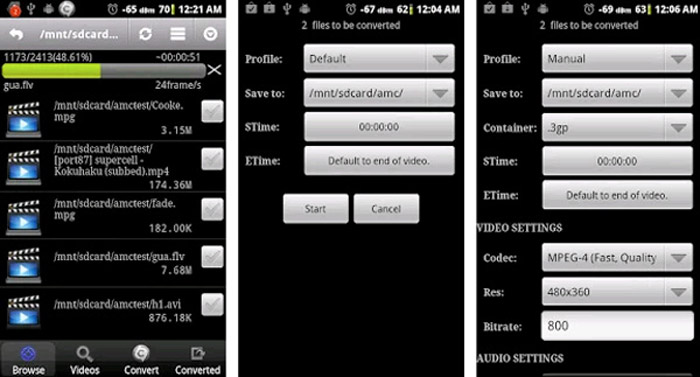
Jika Anda memiliki beberapa file MOV di perangkat Android Anda, Anda tidak perlu mentransfer video ke komputer, Video Converter Android adalah aplikasi pengonversi MOV ke MP3 sederhana yang direkomendasikan yang mengubah video MOV menjadi audio yang diinginkan dalam beberapa klik.
Langkah 1. Setelah Anda menginstal konverter MP3, Anda dapat membuka aplikasi untuk menelusuri dan menambahkan file MOV dari Galeri Android Anda. Lalu Anda dapat mengetuk ikon Refresh di bagian atas.
Langkah 2. Kemudian Anda dapat memilih STime dan ETime untuk memotong musik latar dari file MOV serta menyesuaikan laju sampel dan pengaturan lain sebelum konversi.
Langkah 3. Setelah itu, Anda dapat beralih ke tab Convert dan memilih MP3 sebagai format keluaran dari daftar codec. Klik tombol Start untuk melanjutkan proses konversi MOV ke MP3.
Metode 4: Cara Mengonversi MOV ke MP3 di iOS
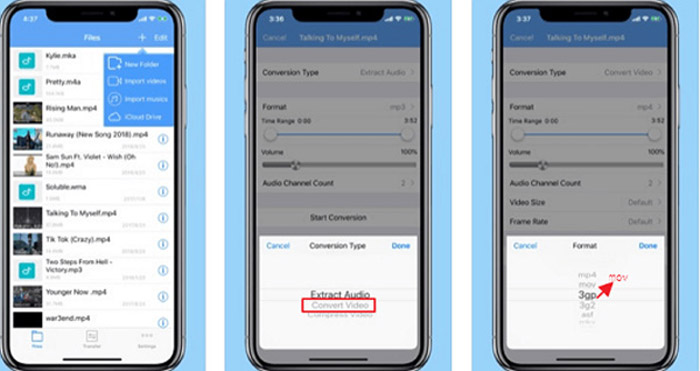
Media Converter adalah aplikasi konverter MOV ke MP3 untuk iPhone dan iPad Anda. Ini memiliki pemutar media built-in yang memungkinkan Anda untuk memutar sebagian besar format video dan audio. Selain itu, Anda juga dapat mengompres file audio dengan zip dan RAR dengan mudah.
Langkah 1. Jika Anda sudah menginstal konverter MOV ke MP3, Anda dapat meluncurkan program di perangkat iOS Anda. Setelah Anda memuat file MOV, Anda dapat mengetuk opsi Extract Audio.
Langkah 2. Pilih MOV sebagai format masukan dan file MP3 sebagai format keluaran. Kemudian Anda dapat menyesuaikan pengaturan audio, seperti laju sampel dan lainnya sesuai kebutuhan Anda.
Langkah 3. Setelah itu, Anda dapat mengklik tombol Convert untuk mulai mengonversi MOV ke MP3. Setelah mendapatkan file yang diinginkan, Anda dapat mengekspor file MP3 yang telah dikonversi ke perangkat Anda dari Photos.
Bagian 2: Tanya Jawab tentang Mengubah MOV ke MP3 di Win / Mac
1. Apakah Ada Metode Serbaguna untuk Mengubah MOV ke MP3 untuk Semua Perangkat?
VLC Media Player lebih dari sekadar pemutar media. Anda juga dapat mengonversi MOV ke MP3 di komputer dan ponsel cerdas Anda. Selain itu, Anda juga dapat mengubah pengaturan yang berbeda dan mengedit video dengan beberapa fitur pengeditan dasar. Tetapi Anda harus menggunakan konverter video profesional untuk mendapatkan hasil yang memuaskan.
2. Manakah Format Output Terbaik, MP3 atau WAV untuk Mengubah MOV?
Saat Anda mengonversi MOV ke MP3, Anda dapat menggunakan format audio untuk sebagian besar perangkat. Untuk mengekstrak file audio dari komputer Anda atau pemutar media lain yang kompatibel, Anda dapat memilih audio WAV sebagai format output sebagai kebutuhan Anda.
3. Bagaimana Cara Memilih Konverter MOV ke MP3 Online yang Diinginkan?
Jika Anda hanya perlu memilih konverter MOV ke MP3 online, Anda harus memberi perhatian khusus pada batasan ukuran, tanda air, pendaftaran akun, dan lainnya sebelum konversi. FVC Free Online Video Converter adalah salah satu yang serbaguna yang mengekstrak file audio tanpa batasan apa pun.
Kesimpulan
Untuk mengekstrak MP3 dari video MOV, Anda dapat mempelajari lebih lanjut tentang 4 konverter MOV ke MP3 terbaik dari artikel. Apakah Anda perlu mentranskode video ke MP3 di komputer, atau mengubah file MOV dengan mudah di perangkat iOS / Android Anda, Anda dapat memilih solusi yang diinginkan sesuai dengan kebutuhan Anda dari artikel.
-
 Cara Mengonversi File Musik OGG Anda ke MP3 di Desktop dan Online
 Bagaimana cara mengonversi file OGG Anda menjadi format MP3 untuk didengarkan di komputer atau perangkat seluler? Di sini kami membagikan 5 cara termudah untuk melakukannya di desktop atau online.
-
 Bagaimana mengkonversi MP4 ke MP3 pada Windows / Mac / iPhone / Android / Online
 Jika Anda ingin mengekstrak audio MP3 dari video MP4, Anda dapat memeriksa artikel ini dan mendapatkan 8 solusi. Ada cara online dan offline untuk mengonversi MP4 ke MP3 di ponsel atau komputer Anda dengan mudah.
-
 Cara Mengompres File MOV di Windows, Mac, iPhone dan Android
 Artikel ini menunjukkan cara mengompres video QuickTime MOV di ponsel atau komputer Anda secara detail. Jika video MOV Anda terlalu besar untuk dikirim, dibagikan, atau disimpan, Anda bisa mendapatkan 4 solusi yang bisa diterapkan di sini.
