


 Video Converter Ultimate
 Perekam Layar
 Perbaikan Video
Cara Paling Nyaman tentang Cara Mengonversi MP3 ke M4R untuk Perangkat Apple
Pernah terpikir untuk mengubah musik favorit Anda menjadi nada dering di iPhone? Apakah itu mungkin? Tentu saja bisa. Anda hanya perlu mengonversi filenya terlebih dahulu. Mengapa kita perlu mengonversinya dulu? Karena baru setelah itu kita bisa mengaturnya sebagai nada dering. Utamanya, untuk menjadikan sebuah file sebagai nada dering lagu, formatnya harus M4R. Artinya, Anda perlu mencari konverter MP3 ke M4R iTunes terbaik yang sesuai dengan kebutuhan Anda. Artikel ini menawarkan berbagai metode untuk mengonversi file MP3 Anda, termasuk cara melakukan konversi batch untuk mengonversi MP3 ke M4R dengan membaca panduan di bawah ini.

Bagian 1. Cara Paling Layak untuk Mengkonversi MP3 ke M4R
Video Converter Ultimate sejauh ini merupakan alat paling meyakinkan yang dapat Anda gunakan untuk mengonversi MP3 ke M4R. Tidak hanya satu file tetapi juga dapat melakukan konversi batch dari MP3 ke MP4 Ini adalah konverter yang dapat menghasilkan video HD dan audio lossless. Bahkan, sangat ideal dan direkomendasikan untuk mengonversi file tanpa kehilangan kualitas aslinya. Kecepatannya 30x lebih cepat dari konverter normal di luar sana. Plus, jika Anda mengonversi daftar putar untuk disimpan di ponsel Anda, pasti alat ini dapat melakukan pekerjaan untuk Anda. Tanpa ribet dan tanpa keringat. Sementara itu, berikut adalah beberapa fitur lain yang juga dapat Anda nikmati selain mengonversi audio. Juga, panduan langkah demi langkah ditulis di bawah ini untuk referensi Anda jika Anda memutuskan untuk menggunakannya.
Mengedit metadata.
Akselerasi GPU Berkecepatan Tinggi.
Dukungan teknis waktu nyata.
Mengompresi video didukung.
Langkah 1. Untuk menggunakannya, unduh aplikasinya dengan mengklik tombol unduh di bawah ini. Setelah aplikasi terunduh di Windows atau Mac Anda, jalankan aplikasinya.
Unduh GratisUntuk Windows 7 atau yang lebih baruUnduhan Aman
Unduh GratisUntuk MacOS 10.7 atau yang lebih baruUnduhan Aman
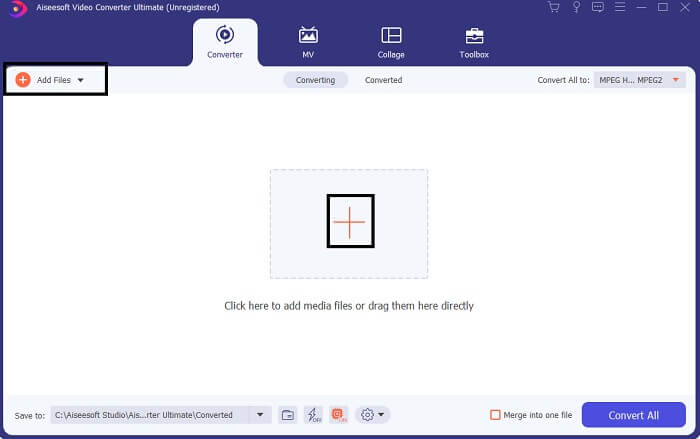
Langkah 2. Dari antarmuka utama alat ini, Anda akan melihat dua opsi untuk mengunggah file. Anda bisa mengklik ikon Tanda Plus di bagian tengah atau mengklik tombol Add Files di sisi kiri atas. Pilih file yang diinginkan dan unggah.
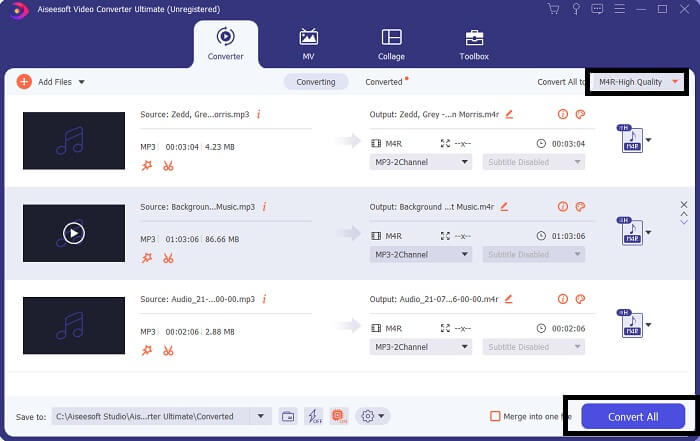
Langkah 3. Untuk mendapatkan output yang Anda inginkan, ubah format dengan mengklik menu drop-down yang terletak di sisi kanan atas antarmuka.
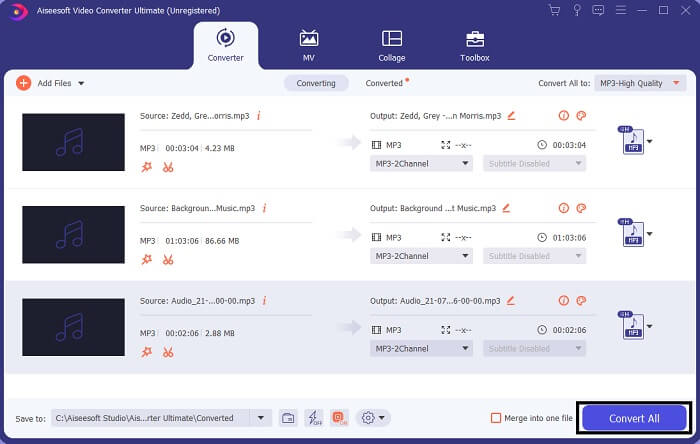
Langkah 4. Terakhir, klik tombol Convert All di sisi kanan bawah antarmuka utama. Lalu tunggu hingga proses konversi selesai.
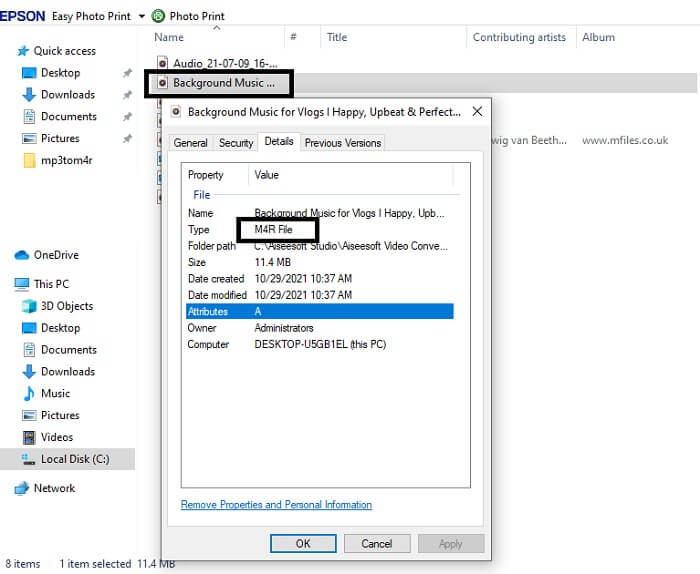
Langkah 5. Terakhir, buka folder tempat audio keluaran disimpan dan transfer ke iPhone Anda. Anda bisa menggunakan alat atau aplikasi transfer untuk melakukannya. Anda dapat menemukan rekomendasi di internet. Anda hanya perlu mencarinya dan mengikuti proses untuk menjadikannya nada dering di iPhone Anda.
Bagian 2. Beberapa Alat Terbaik untuk Mengonversi MP3 ke M4R Online
Konverter Audio Online Gratis FVC
Alat premium untuk konversi memang bagus, tetapi tidak ada yang mengalahkan alat yang praktis. Dengan mempertimbangkan kebutuhan Anda, FVC membuat versi gratis dari alat ini. FVC Free Audio Converter adalah alat gratis yang dapat Anda akses kapan saja dan di mana saja. Anda hanya memerlukan koneksi internet yang berfungsi dan browser yang didukung. Konverter MP3 ke M4R nada dering iPhone ini mampu menghasilkan audio berkualitas tinggi tanpa kehilangan kualitas. Hasilnya memuaskan tanpa perlu mengeluarkan biaya. Bukan hanya itu, tahukah Anda bahwa alat ini juga dapat melakukan konversi batch? Ya, bisa! Berikut juga beberapa fitur penting lain yang akan Anda dapatkan jika menggunakannya. Selain itu, panduan penggunaan juga sudah dituliskan demi kenyamanan Anda.
File yang dikonversi memiliki kualitas yang mirip dengan aslinya.
100% gratis dan aman digunakan.
Tidak ada batasan ukuran saat konversi.
Konversi batch didukung.
Langkah 1. Untuk mengakses alat ini, kunjungi situs resmi FVC Free Audio Converter.
Langkah 2. Dari sana, klik Add Files to Convert. Bagi pengguna baru, Anda harus memberikan izin dengan mengklik Open FVC Launcher. Lalu sebuah jendela akan muncul di layar Anda, memungkinkan Anda mencari file yang ingin dikonversi.
Unduh Versi Desktop untuk mengonversi file secara batch.
Langkah 3. Setelah mengunggah file, Anda akan melihat jendela lain muncul. Di bagian bawah, ubah format file keluaran dengan mencentang M4R.
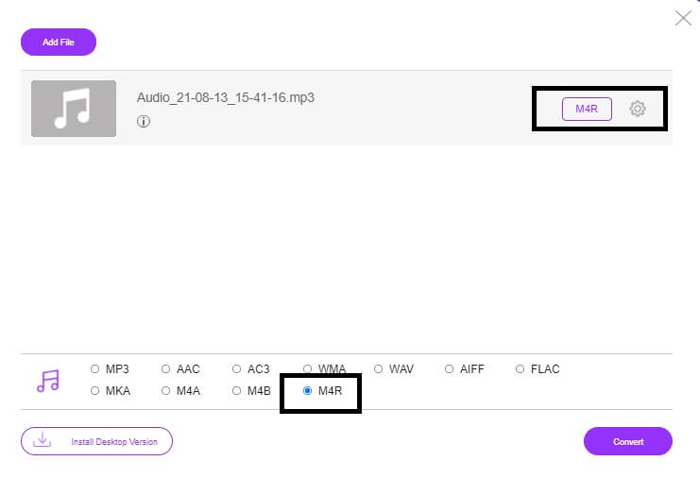
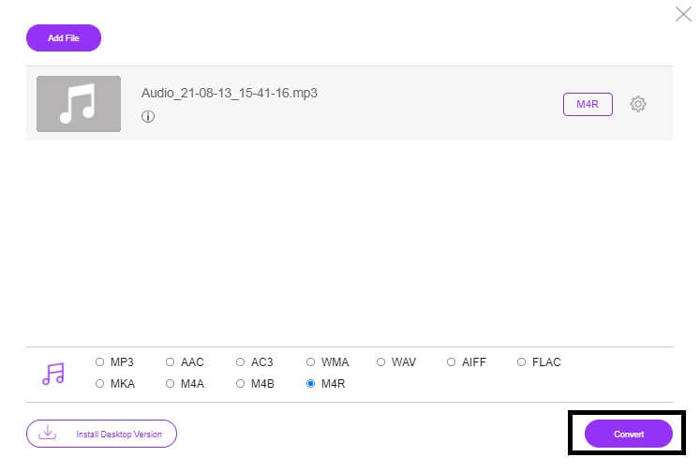
Langkah 4. Lalu klik tombol Convert untuk memulai proses konversi.
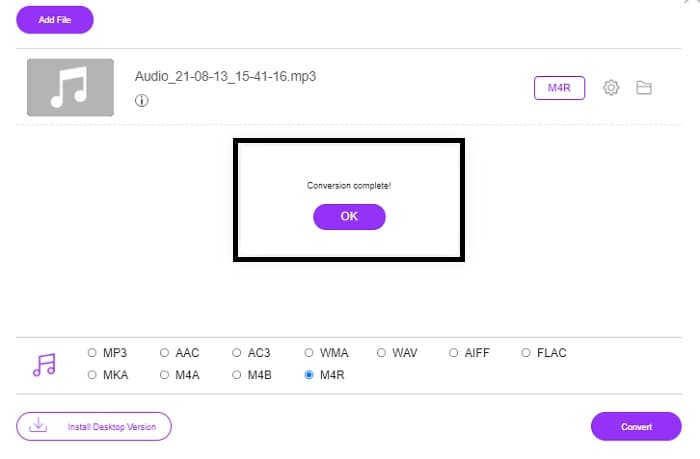
Langkah 5. Terakhir, pilih folder tempat Anda ingin menyimpan file, dan file akan tersimpan secara otomatis. Setelah itu transfer ke iPhone Anda. Perlu diketahui, Anda bisa melakukan konversi batch, jadi jangan membatasi diri.
Terkait:
M4Ronline oleh Konverter File
Sederhana namun andal, begitulah para penggunanya menggambarkan alat online ini. Secara default, alat ini dibuat khusus untuk mengonversi Mp3 ke M4R. Seperti yang tersirat dari namanya, memang itulah fungsi alat ini. Alat ini berfungsi di berbagai browser web sehingga Anda tidak perlu mengunduh atau membelinya. Jika Anda mengunjungi situsnya, Anda akan melihat tampilan antarmuka yang sangat sederhana. Penggunaannya sangat mudah: Anda hanya perlu mengklik tombol Browse untuk memulai proses unggah dan konversi. Jika Anda ingin mencobanya, disarankan untuk mengunjungi situs resminya dan mencobanya sendiri. Dengan demikian, alat ini merupakan alternatif yang baik. Anda juga bisa melihat langkah-langkah di bawah ini untuk memahami proses penggunaannya.
Langkah 1. Hal pertama yang harus Anda lakukan adalah pergi ke halaman resmi M4R Online lalu klik Browse.
Langkah 2. Pilih file dari folder Anda dan klik tombol Upload File.
Langkah 3. Setelah Anda melihat pesan bahwa proses telah selesai, klik filenya untuk mengunduh.
Online-convert.com
Ini adalah alat layanan konversi yang sudah tersedia cukup lama. Bisa dibilang banyak orang menganggap alat online ini sangat membantu untuk kebutuhan konversi mereka. Kalau tidak, alat ini tidak akan tetap ada sampai sekarang jika tidak terbukti bermanfaat. Saat mengunjungi halaman utama situs ini, Anda akan melihat semua alat yang tersedia untuk digunakan. Mulai dari konverter audio, konverter video, konverter gambar, konverter dokumen, hingga konverter Ebook, semuanya ada di halaman utama. Pengelompokan ini memudahkan pengguna menemukan alat yang mereka butuhkan. Karena itu, alat ini layak dimasukkan dalam daftar konverter MP3 ke M4R iTunes. Di sisi lain, berikut cara menggunakan alat ini sebagai referensi Anda.
Langkah 1. Kunjungi situs resmi alat ini dan pilih Audio Converter.
Langkah 2. Klik Drop down lalu pilih format output dan klik GO.
Langkah 3. Sebuah jendela baru akan muncul. Dari sana klik tombol Choose Files dan unggah file Anda. Untuk memulai proses konversi, klik Start Conversion. Setelah file siap, file akan otomatis diunduh ke PC Anda.
MP3 vs.M4R
Format MP3 dirilis pada tahun 1993 oleh Moving Picture Experts Group (MPEG). Itu adalah standar untuk menyimpan musik karena dapat memampatkan audio ke ukuran yang jauh lebih kecil daripada format tidak terkompresi lainnya. Ini masih banyak digunakan saat ini, terutama untuk mendistribusikan audio online.
File M4R digunakan untuk menyimpan nada dering iPhone khusus yang dibuat dengan Apple iTunes. Biasanya, Anda dapat melihat format ini saat mentransfer nada dering dari komputer ke perangkat iOS. File M4R yang dibuat dengan iTunes biasanya menyertakan perlindungan hak cipta.
Bagian 3. FAQ tentang Mengonversi MP3 ke M4R
Apa itu M4R?
Ini adalah ekstensi file yang khusus dibuat oleh Apple dan digunakan secara ketat sebagai nada dering untuk iPhone dan perangkat Apple lainnya. Ini sebagus M4A dan MP4 dalam hal kualitas.
Apakah ada konverter MP3 ke M4R selain iTunes?
Pasti, ada. Anda dapat memilih dari alat di atas atau mempertimbangkan untuk menggunakan Windows Media Player dengan melakukan ripping. Jika Anda tidak ingin melalui semua proses, Anda dapat menggunakan alat gratis yang tersedia secara online. Mereka secara langsung mengonversi audio ke format yang Anda inginkan alih-alih melalui proses ripping yang panjang.
Mengapa saya perlu mengonversi file saya dari MP3 ke M4R untuk menggunakannya sebagai nada dering?
Ini adalah suatu keharusan. Untuk dianggap sebagai sebuah file sebagai nada dering, file tersebut harus secara default dalam format M4R untuk dimainkan sebagai nada dering Anda.
Kesimpulan
Dengan semua itu, pasti Anda bisa mengandalkan alat-alat yang tercantum di atas. Anda hanya perlu mengakses alat mana yang dapat membantu Anda tergantung pada kebutuhan Anda. Jika Anda seorang pelajar dan warga biasa yang ingin mengonversi dan ingin mengonversi MP3 ke M4R di Mac secara gratis atau perangkat apa pun yang Anda gunakan, Anda dapat merujuk ke alat gratis. Untuk penggunaan profesional, disarankan untuk menggunakan Video Converter Ultimate. Anda selalu dapat kembali ke halaman ini jika Anda ingin tahu lebih banyak tentang lebih banyak alat untuk mengonversi.
-
 [Gratis & Online] 3 Metode untuk Mengonversi MP3 ke MP4 dengan Gambar
 Bagaimana cara mengonversi MP3 ke MP4 dalam kualitas tinggi? Posting ini menunjukkan 3 metode efisien dan gratis untuk mengubah MP3 ke MP4 dengan gambar di Windows dan Mac.
-
 Cari tahu tentang Cara Mengonversi MP3 ke Format WAV
 Apakah Anda ingin tahu cara mengubah MP3 ke WAV? Tentukan alat mana yang menghasilkan konversi kualitas terbaik yang bisa Anda dapatkan.
-
 Panduan Cara Mengonversi M4A ke WAV [PC dan Mac]
 Kenali lebih banyak tentang cara mengonversi M4A ke WAV dengan langkah-langkah terperinci dan berbagai alat yang dapat Anda pilih.

