


 Video Converter Ultimate
 Perekam Layar
 Perbaikan Video
 Unduhan Aman
Ubah PPT Anda ke MP4 dengan 3 Metode Efektif
PPT merupakan alat yang hebat untuk menyampaikan presentasi, baik di sekolah, kantor, dan lain sebagainya. Terkadang, setelah presentasi, ada yang meminta salinan materi PPT sebagai referensi.
Namun, perlu diketahui bahwa beberapa orang tidak dapat mengakses berkas tersebut karena mereka tidak memiliki aplikasi atau perangkat lunak yang terpasang di perangkat mereka. Dengan demikian, sebagian besar presenter memiliki versi MP4 yang dikonversi dari presentasi tersebut agar mudah membagikan materi tersebut kepada semua orang.
Jadi, jika Anda sedang mencari cara untuk mengonversi PPT ke MP4 agar materi file lebih mudah dibagikan dan diakses, Anda berada di halaman yang tepat. Maka dari itu, lanjutkan membaca artikel ini dan pelajari 3 metode berbeda tentang bagaimana Anda dapat mengubah file PPT Anda menjadi video.

Bagian 1: Cara Mengonversi PowerPoint ke MP4 Dalam PPT
Dengan menggunakan presentasi PowerPoint, pengguna dapat dengan mudah mengonversi PPT mereka ke MP4. Ini adalah fitur bawaan yang hebat untuk kenyamanan dan fleksibilitas.
Langkah 1. Buka presentasi Anda menggunakan perangkat lunak PowerPoint di perangkat Anda.
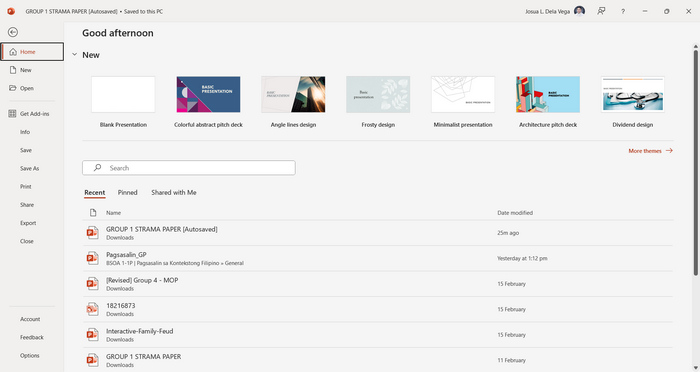
Langkah 2. Masuk ke tab File, cari tombol Export, lalu klik.
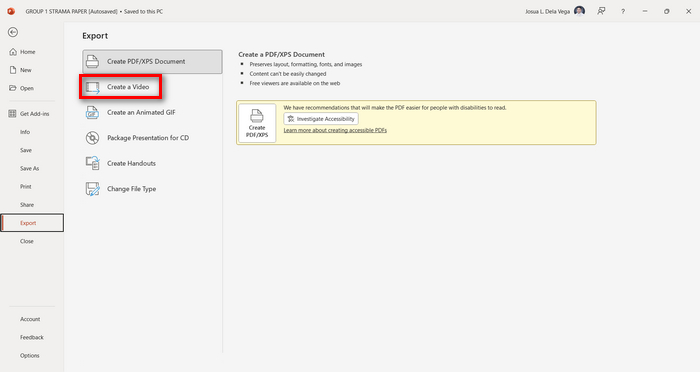
Langkah 3. Setelah Anda berada di tab Export, klik opsi Create a Video.
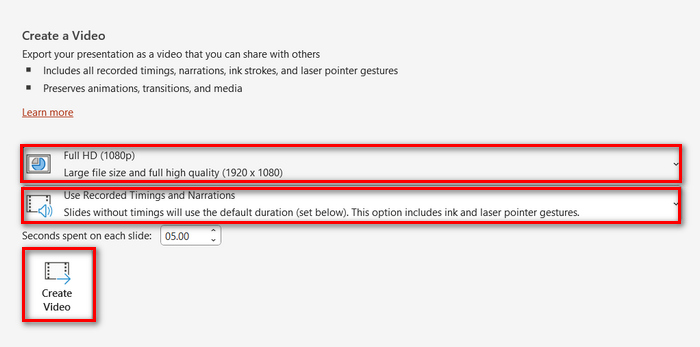
Langkah 4. Sekarang, atur resolusi video sesuai keinginan Anda. Anda dapat memilih antara 480p hingga 4K. Selain itu, pada opsi Use Recorded Timings and Narrations, Anda dapat mengatur waktu perpindahan slide secara manual. Setelah itu, klik tombol Create Video.
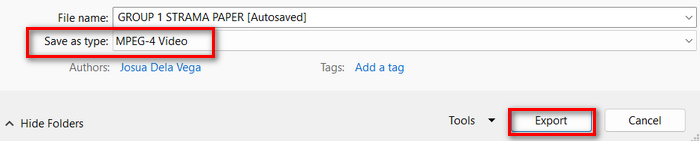
Langkah 5. Setelah mengklik tombol Create a Video, akan muncul jendela baru tempat Anda dapat mengecek format keluaran file dan lokasi penyimpanannya. Jika sudah diatur, cukup klik tombol Export dan tunggu hingga proses selesai.
Memang praktis mengonversi PowerPoint ke MP4 menggunakan fitur bawaan. Namun, fitur ini kurang mendukung kustomisasi jika Anda ingin menambahkan musik latar. Meskipun begitu, jika tujuan Anda hanya untuk keperluan berbagi, hal ini tidak akan menjadi masalah.
Bagian 2: Konversi PPT ke MP4 dengan Audio Online Gratis
Jika Anda memiliki berkas PPT dan ingin mengonversinya secara daring karena Anda tidak memiliki aplikasi atau alat perangkat lunak presentasi PowerPoint di perangkat Anda, Anda dapat menggunakan MagicSlides. Alat konversi daring ini memungkinkan Anda mengonversi PowerPoint ke MP4 dengan mudah hanya dengan mengimpor berkas ke sistem mereka.
Langkah 1. Unggah file PPT yang ingin Anda konversi ke MP4 dengan mengklik tombol Upload your source file.
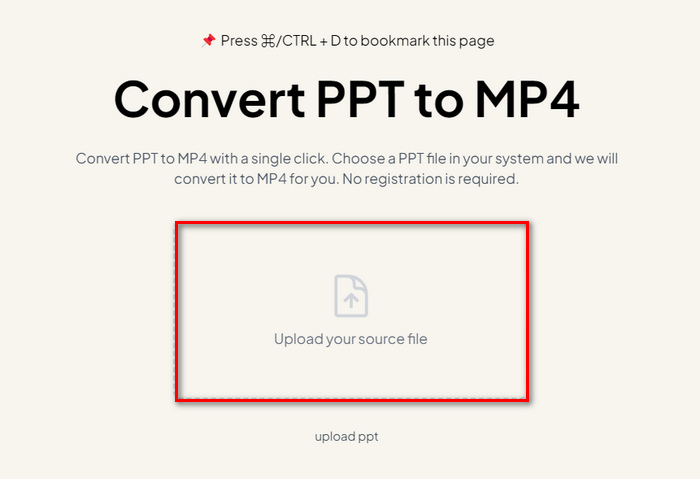
Langkah 2. Setelah file berhasil diimpor, klik tombol Create MP4 untuk memulai proses konversi.
Langkah 3. Jika sudah selesai, Anda dapat terlebih dahulu mempratinjau file PPT yang telah dikonversi, dan jika Anda sudah puas dengan hasilnya, cukup klik tombol Download untuk menyimpannya langsung ke perangkat Anda.
Meskipun alat ini menawarkan langkah-langkah yang sangat mudah untuk mengonversi PPT ke MP4, mengimpor file PPT membutuhkan banyak waktu, yang dapat membuat Anda gelisah, terutama saat Anda sedang terburu-buru. Selain itu, alat ini tidak memiliki opsi penyesuaian apa pun. Alat ini hanya mengubah file PPT menjadi video.
Bagian 3: Cara Mengonversi PPT ke MP4 dengan Efek dan Audio
Jika Anda ingin mengonversi PPT ke MP4, tetapi kali ini dengan efek dan audio, maka ini sangat cocok untuk Anda. Dengan FVC Screen Recorder, Anda dapat mengubah presentasi PowerPoint menjadi file MP4 yang kreatif dan interaktif menggunakan fitur pengeditannya. Selain itu, Anda tidak perlu khawatir tentang kualitas keluaran karena alat ini mendukung resolusi video hingga 4K. Jadi, untuk menggunakannya, ikuti panduan di bawah ini:
Langkah 1. Pertama, unduh alat perangkat lunak tersebut dan instal di komputer Anda.
Unduh GratisUntuk Windows 7 atau yang lebih baruUnduhan Aman
Unduh GratisUntuk MacOS 10.7 atau yang lebih baruUnduhan Aman
Langkah 2. Buka presentasi PowerPoint Anda, dan pastikan tampil dalam mode layar penuh.
Langkah 3. Sekarang, pada alat perekam layar, pilih fitur Video Recorder dan atur area perekaman menjadi Full.
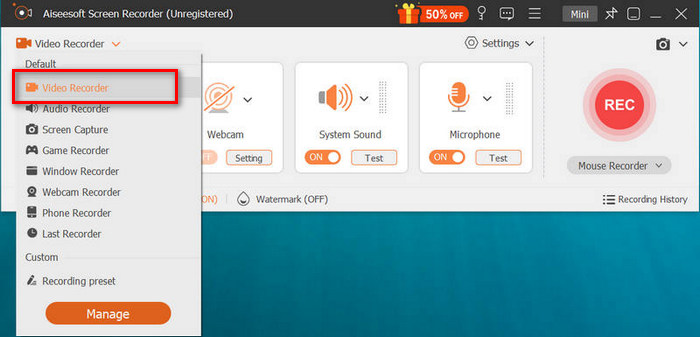
Langkah 4. Setelah itu, mulai jalankan slideshow PowerPoint. Lalu, klik tombol REC untuk mulai merekam PowerPoint.
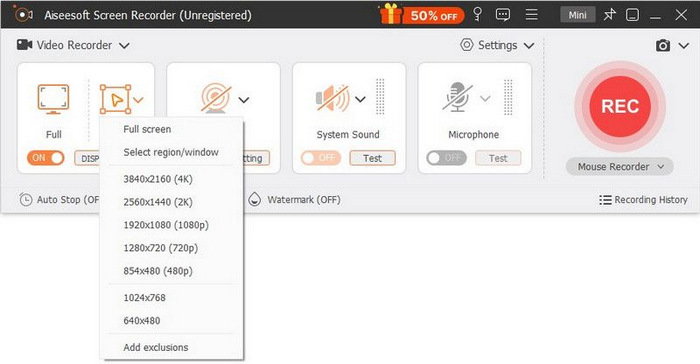
Langkah 5. Jika sudah selesai, cukup klik tombol Stop, dan Anda akan diarahkan ke jendela pratinjau. Dari sana, Anda dapat menemukan di sudut bawah berbagai fitur pengeditan yang bisa Anda gunakan untuk mengedit audio dan efek saat mengonversi PPT ke MP4.

Langkah 6. Terakhir, Anda dapat mengakses file Anda dengan mengklik tombol Open Folder.
Hal yang baik tentang penggunaan FVC Screen Recorder dalam mengubah PowerPoint ke MP4 adalah Anda dapat mengendalikan pengaturan waktu dan kecepatan slide. Selain itu, tidak seperti alat lain yang hanya menawarkan konversi dasar, alat ini memiliki fitur penyuntingan yang dapat digunakan untuk menyempurnakan berkas MP4 yang dikonversi lebih lanjut.
Bagian 4: FAQ tentang Konversi PPT ke MP4
Berapa lama waktu yang dibutuhkan untuk mengubah PPT ke MP4?
Waktu proses konversi bergantung pada ukuran file yang dikonversi. Namun, biasanya presentasi sederhana tidak memerlukan waktu lama selama proses konversi.
Dapatkah saya mempertahankan animasi dan transisi saat mengonversi PPT ke MP4 di PPT?
Ya. Fitur bawaan memungkinkan pengguna untuk mempertahankan animasi dan transisi selama proses konversi. Hal ini untuk memastikan bahwa elemen visual dalam presentasi, seperti transisi dan animasi, dipertahankan saat dikonversi ke format MP4. Namun, penting untuk dicatat bahwa kompatibilitas animasi dan transisi dapat bervariasi tergantung pada versi PowerPoint yang digunakan dan kompleksitas efek yang diterapkan.
Apakah kualitas presentasi PowerPoint saya akan tetap terjaga saat dikonversi ke MP4?
Ya. Presentasi PowerPoint mendukung resolusi video hingga 4K. Oleh karena itu, memilih resolusi yang lebih tinggi akan membantu menjaga kualitas presentasi. Selain itu, saat Anda memilih untuk mengonversi PPT ke MP4 menggunakan beberapa alat konverter canggih yang menawarkan opsi untuk menyesuaikan pengaturan bitrate dan kompresi guna mengoptimalkan kualitas video lebih lanjut, Anda dapat menjamin hasil yang berkualitas.
Kesimpulan
Mengonversi format PPT ke MP4 memang memberikan kemudahan dan aksesibilitas untuk membagikan file di berbagai platform dan perangkat. Sekarang setelah Anda mengetahui cara mengonversinya, saatnya menerapkan pengetahuan ini. Mulailah mengonversi hari ini dan tingkatkan jangkauan serta dampak presentasi Anda!
-
 Cara Mengubah Ukuran Gambar di PowerPoint [Cara Tercepat untuk Mengubah Ukuran]
 Mempelajari cara mengubah ukuran gambar di PowerPoint sangat penting terutama jika Anda ingin menggunakannya dalam presentasi Anda. Baca artikel ini untuk mengetahui cara melakukannya.
-
 Ulasan Penghapus Tanda Air Apowersoft – Fitur, Pro & Kontra, dan Harga
 Apowersoft Watermark Remover adalah salah satu penghilang watermark terbaik yang mendukung online dan offline, klik ini untuk mengetahui lebih lanjut!
-
 Cara Memperbaiki Video Tidak Dapat Diputar di PowerPoint | Panduan Cepat
 Apakah video PowerPoint Anda tidak dapat diputar? Atasi rasa frustrasi karena video tersemat yang tidak dapat diputar sekarang dengan lima solusi terbaik kami untuk mengatasinya dengan mudah.
