


 Video Converter Ultimate
 Perekam Layar
 Perbaikan Video
 Unduhan Aman
4 Cara Teratas untuk Mengonversi MP4 ke MOV secara Gratis
MP4 adalah salah satu format video paling populer yang didukung dengan baik oleh sebagian besar pemutar, editor, dan perangkat. Namun dalam beberapa kasus, Anda tetap perlu mengonversi MP4 ke MOV. Apakah Anda tahu cara mengubah MP4 ke MOV?

Saat Anda mencari di Google cara mengonversi MP4 ke MOV di internet, Anda akan melihat banyak konverter video yang dapat membantu Anda melakukan konversi video, termasuk beberapa alat konversi online gratis. Di sini dalam posting ini, kami akan memberi tahu Anda 4 cara gratis untuk membantu Anda mengonversi MP4 ke MOV dengan mudah.
Bagian 1. Cara Gratis Mengkonversi MP4 ke MOV di Mac / PC Tanpa Kehilangan Kualitas
Meskipun ada banyak perangkat lunak konversi MP4 ke MOV yang ditawarkan di pasaran, banyak di antaranya akan kehilangan sebagian kualitas gambar dan suara selama proses konversi. Jika Anda ingin mengonversi MP4 ke MOV tanpa kehilangan kualitas, Anda harus memilih Free Video Converter.
Gratis Video Converter dirancang khusus untuk menangani semua jenis konversi video dan audio. Ini sangat mendukung hampir semua format video / audio termasuk MP4, MOV, MKV, FLV, AVI, WMV, MP3, AAC, FLAC, dan banyak lagi. Ini memungkinkan Anda untuk mengonversi MP4 ke MOV secara gratis di Mac atau Windows PC dengan tetap menjaga kualitas aslinya.
Unduh GratisUntuk Windows 7 atau versi lebih baruUnduhan Aman
Unduh GratisUntuk MacOS 10.7 atau versi lebih baruUnduhan Aman
Langkah 1. Klik ganda tombol unduh di atas lalu ikuti petunjuk untuk memasang dan menjalankan konverter MP4 ke MOV gratis ini di Mac/PC Anda. Pastikan Anda mengunduh versi yang tepat sesuai dengan sistem Anda.
Langkah 2. Saat Anda masuk ke jendela utama, Anda dapat mengklik Add File(s) untuk mengimpor file MP4 yang ingin Anda konversi. Konverter MP4 ke MOV gratis ini dilengkapi dengan fitur konversi batch yang memungkinkan Anda mengonversi satu atau beberapa file MP4 sekaligus.
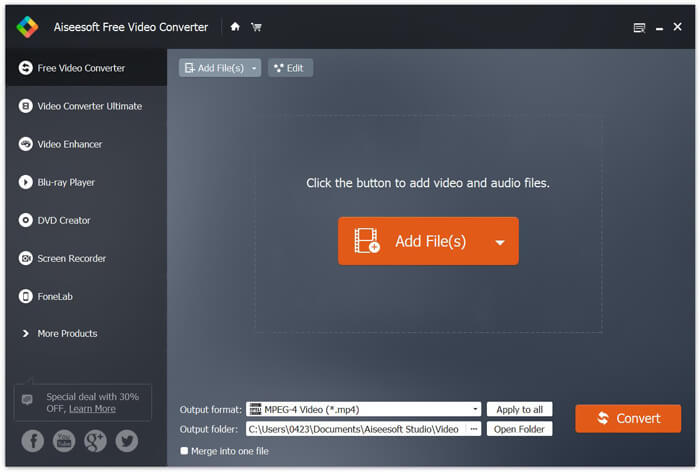
Langkah 3. Klik Output format dan pilih MOV sebagai format target Anda dari daftar turun-bawah. Sekarang Anda cukup mengklik tombol Convert untuk mulai mengonversi dari MP4 ke MOV.
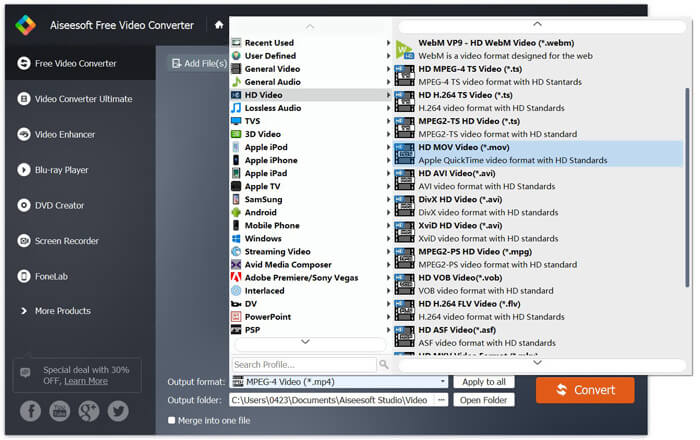
Beberapa detik kemudian, MP4 asli akan diubah ke format MOV. Selain MOV, Anda juga dapat mengkonversi MP4 ke MKV, FLV, AVI, dll. Dengan kualitas tinggi. Pengonversi video gratis ini juga membawa beberapa fitur pengeditan dasar. Sebelum MP4 final untuk mengonversi MOV, Anda dapat menggunakannya untuk mengedit video MP4 Anda.
Bagian 2. Bagaimana Mengubah MP4 ke MOV Gratis dengan Online Video Converter
Seperti yang disebutkan di atas, ada banyak konverter video online gratis yang ditawarkan di pasaran yang dapat membantu Anda mengubah MP4 menjadi MOV. Di sini, di posting ini, kami akan memperkenalkan 2 metode tentang cara mengubah MP4 menjadi MOV online.
1. Pengonversi Video Online Gratis FVC
Jika Anda ingin mengonversi MP4 ke MOV secara online secara gratis, FVC Free Online Video Converter akan menjadi pilihan terbaik Anda. Hanya dengan 3 langkah sederhana, Anda dapat menyelesaikan konversi dan mendapatkan file hasil konversi tanpa kehilangan kualitas dalam hitungan detik.
Langkah 1. Klik tautan di atas dan buka FVC Free Online Video Converter. Lalu klik Add Files to Convert di tengah banner. Setelah itu, unduh dan pasang FVC launcher ke komputer Anda.
Unduh Versi Desktop untuk mengonversi file secara batch.

Langkah 2. Setelah memilih dan mengunggah video yang ingin Anda konversi, Anda perlu memilih MOV sebagai format keluaran untuk file video hasil konversi.
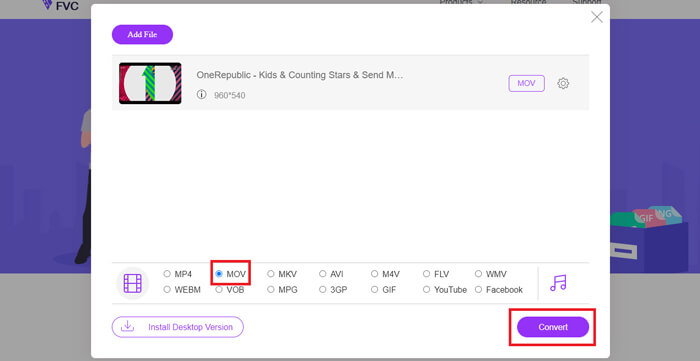
Langkah 3. Klik Convert. Dan Anda dapat memilih untuk menyimpan file hasil konversi ke desktop Anda. Setelah itu, tunggu sebentar sampai Anda mendapatkan video MOV Anda.
2. CloudConvert
CloudConvert adalah alat konversi video online yang sangat populer dan mudah digunakan. Ia memiliki kemampuan untuk mengkonversi lebih dari 200 format, termasuk audio, video, dokumen, ebook, arsip, gambar, spreadsheet atau format presentasi. Selain itu, konverter online terpercaya ini akan melindungi data dan privasi Anda.
Langkah 1. Buka browser Anda dan kunjungi situs resmi CloudConvert. Situs ini dirancang dengan antarmuka yang ringkas yang dapat memberikan Anda pengalaman konversi yang nyaman.
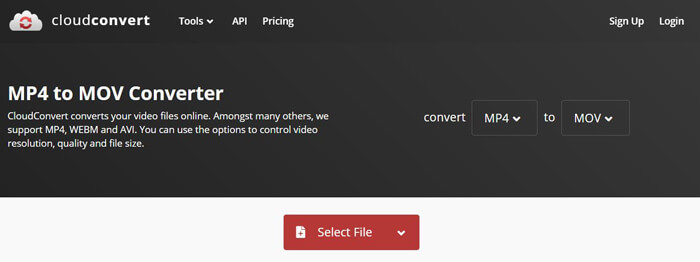
Langkah 2. Klik tombol Select File untuk mengunggah file MP4 yang ingin Anda konversi. Di sini Anda dapat menambahkan file dari komputer, URL, Google Drive, OneDrive, atau Dropbox. Pada langkah ini, Anda diperbolehkan menambahkan lebih banyak file untuk dikonversi.
Satu hal yang harus Anda perhatikan adalah, pengonversi MP4 ke MOV gratis ini hanya memungkinkan Anda mengonversi video kurang dari 1GB. Anda perlu membeli paket untuk mengonversi file yang lebih besar.
Langkah 3. Klik tombol Convert untuk mulai mengunggah dan mengonversi file MP4 Anda. Lalu Anda dapat mengklik tombol Download untuk menyimpan video MOV hasil konversi ke komputer Anda.

Menggunakan CloudConvert untuk mengonversi MP4 ke MOV secara online, Anda perlu menghabiskan lebih banyak waktu pada proses pengunggahan, pengubahan, dan pengunduhan video, terutama saat Anda mengonversi file besar.
Bagian 3. Bagaimana mengkonversi MP4 ke MOV dengan VLC Media Player
VLC Media Player adalah pemutar multimedia yang populer dan bersifat open-source. Bukan hanya sekadar pemutar media, VLC juga dapat berfungsi sebagai alat konversi video untuk membantu Anda melakukan berbagai konversi video. Jika VLC sudah terpasang di komputer Anda, Anda dapat mengandalkannya untuk mengonversi file MP4 Anda ke video MOV.
Langkah 1. Buka VLC Media Player di komputer Anda. Jika Anda belum memiliki VLC, Anda dapat mengunjungi situs resminya untuk mengunduhnya secara gratis.
Langkah 2. Klik tombol Media pada bilah menu lalu pilih opsi Convert/Save dari daftar turun-bawah.
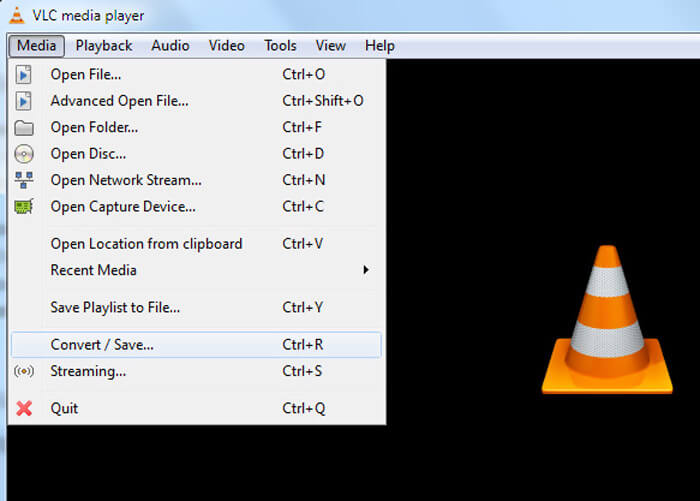
Langkah 3. Sebuah jendela Open Media baru akan muncul. Di sini Anda dapat mengklik File > Add untuk mengimpor file MP4 yang ingin Anda konversi.
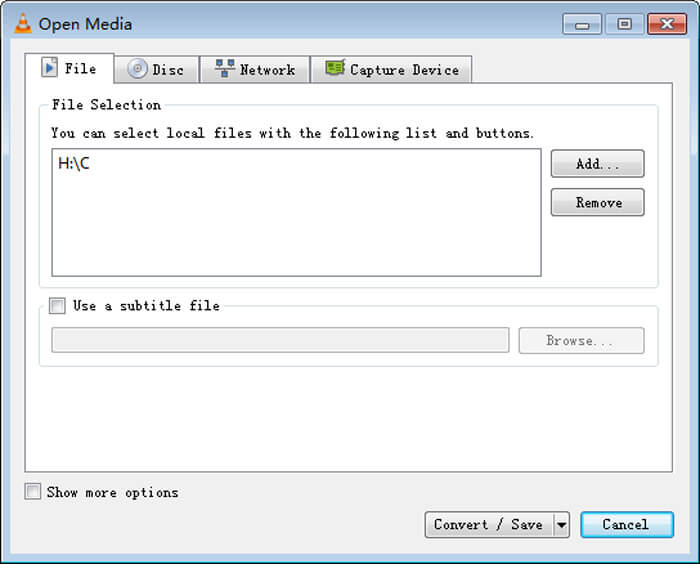
Langkah 4. Klik tombol Convert/Save di bagian bawah untuk mengonfirmasi operasi. Lalu Anda akan diarahkan ke jendela Convert di mana Anda dapat memilih folder tujuan file dan format keluaran untuk video hasil konversi.
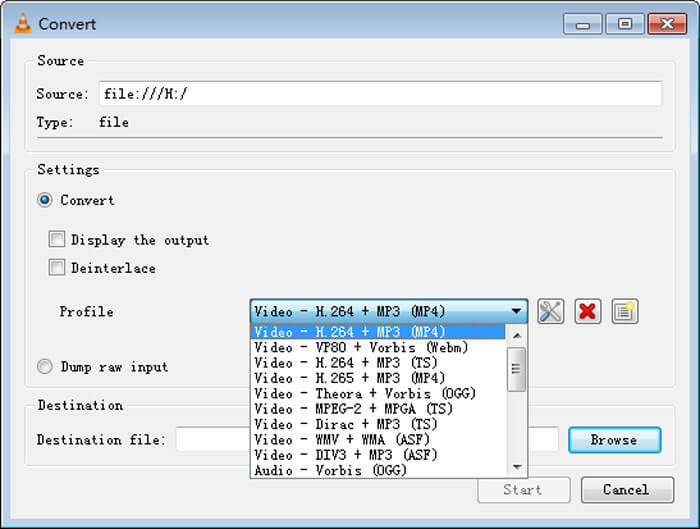
Langkah 5. Pilih MOV sebagai format keluaran dari daftar turun-bawah Profile. Lalu klik Start untuk melakukan konversi video dari MP4 ke MOV di VLC.
MP4 vs. MOV
Dirilis oleh Moving Picture Experts Group (MPEG) pada tahun 2001, format MP4 dapat membantu Anda menyimpan data video, audio, subtitle, dan gambar dalam trek terpisah. Ini adalah kependekan dari MPEG-4 Part 14. Plus, ini adalah salah satu format paling populer yang digunakan untuk streaming dan berbagi video.
Format MOV dapat digunakan untuk menyimpan film, acara TV, klip video pendek, atau film rumahan. Itu sebenarnya disimpan dalam QuickTime File Format (QTFF), yang diperkenalkan oleh Apple pada tahun 1991. File MOV sering digunakan ketika orang ingin menyimpan video dengan kualitas tinggi.
Bagian 4. Tanya Jawab tentang Mengubah MP4 ke MOV
Pertanyaan 1. Apakah QuickTime dapat mengonversi MP4 ke MOV?
Saat Anda memiliki kebutuhan untuk mengonversi MP4 ke MOV di Mac, Anda dapat mencoba QuickTime. Anda dapat membuka video MP4 dengan QuickTime Player. Kemudian klik tombol Ekspor dan pilih format MOV. Anda dapat mengganti nama file, memilih lokasi dan resolusi video. Kemudian Anda dapat mengklik tombol Ekspor untuk mengonversi MP4 ke MOV secara gratis di Mac.
Pertanyaan 2. Mana yang lebih baik, MOV atau MP4?
MP4 adalah salah satu format penyimpanan berkas multimedia yang paling populer. Ini adalah berkas kontainer digital, hanya pembungkus untuk video, bukan videonya sendiri. Mirip dengan MP4, MOV juga merupakan berkas kontainer digital. MOV dikodekan dengan codec MPEG-4.Perbedaan utama antara MOV dan MP4 adalah MOV biasanya digunakan di lingkungan Mac. MOV secara khusus dirancang untuk QuickTime. MP4 adalah standar internasional yang dapat didukung oleh sebagian besar pemutar media dan sistem. Secara umum, video MOV sering kali memiliki kualitas yang lebih tinggi dan ukuran yang lebih besar. Berkas MP4 biasanya lebih terkompresi dan berukuran lebih kecil. Jadi Anda tidak bisa begitu saja mengatakan MOV lebih baik daripada MP4, atau MP4 yang lebih baik.
Pertanyaan 3. Apakah mengonversi MOV ke MP4 menurunkan kualitas?
Saat Anda ingin mengonversi MOV ke MP4, atau mengubah MP4 ke MOV, Anda harus memilih beberapa pengonversi video profesional. Dalam kebanyakan kasus, Anda tidak akan melihat kehilangan kualitas setelah konversi.
Pertanyaan 4. Apakah ada konverter MP4 ke MOV gratis?
Ada banyak konverter video gratis yang ditawarkan di internet yang dapat membantu Anda mengonversi MP4 ke MOV. Selain CloudConvert yang direkomendasikan, Anda juga dapat mengandalkan FFmpeg, HandBrake, ZAMZAR, Convert Files, dan lainnya untuk membuat versi konversi.
-
 Cara Mengonversi File Video MP4 Anda ke Gambar GIF Animasi tanpa Penurunan Kualitas
 Mencari cara terbaik untuk mengonversi video MP4 Anda menjadi GIF animasi? Berikut adalah panduan terperinci untuk melakukannya di Photoshop, Windows Movie Maker, konverter video online, dan banyak lagi.
-
 MOV VS MP4 - Mana Yang Lebih Baik
 MOV VS MP4, Mana yang Lebih Baik? Posting ini menjelaskan perbedaan antara MP4 dan MOV, sehingga Anda bisa mendapatkan pilihan yang lebih baik untuk digunakan untuk file video Anda.
-
 Cara Mengonversi MOV ke MP4 tanpa Kehilangan Kualitas
 Ingin mengonversi file MOV (Apple QuickTime Movie) ke MP4? Posting ini membagikan 4 metode gratis untuk mengonversi file video MOV Anda ke format MP4 di Windows 10/8/7 / XP dan Mac OS X.

