


 Video Converter Ultimate
 Perekam Layar
 Perbaikan Video
 Unduhan Aman
2 Cara Mudah Memutar File MKV di iPad
Bisakah saya memutar file MKV di iPad?
Anda tidak dapat langsung memutar MKV di iPad, baik Anda menggunakan iPad Pro, iPad Air, iPad mini, maupun iPad 2/4/6/8. MKV adalah salah satu format kontainer multimedia yang populer. Namun format ini tidak didukung oleh semua produk Apple termasuk iPad, iPhone, iPod, dan Mac. Lalu bagaimana cara memutar MKV di iPad?

Anda dapat menggunakan aplikasi pihak ketiga untuk memutar file MKV di iPad. Selain itu, Anda juga dapat memilih untuk mengonversi MKV ke format yang didukung iPad seperti MP4 atau MOV. Dalam artikel ini, kami akan membagikan 2 cara efektif untuk membantu Anda memutar file MKV di iPad Pro, Air, mini, dan model lain.
Bagian 1. Cara Langsung Memutar File MKV di iPad dengan VLC
Seperti disebutkan di atas, Anda tidak bisa langsung memutar file MKV di iPad Pro, Air, mini, atau iPad 8/6/4/2. Namun ada beberapa aplikasi pemutar MKV pihak ketiga yang tersedia di App Store yang dapat membantu Anda memutar MKV di iPad, iPhone, atau iPod touch. Anda dapat mengandalkan pemutar media populer, VLC untuk memutar berbagai video termasuk file MKV di perangkat iOS Anda.
VLC Media Player adalah alat pemutar file media yang sangat populer dan mendukung berbagai format video yang sering digunakan termasuk MKV, MOV, MP4, AVI, FLV, dan lainnya. Aplikasi ini memungkinkan Anda memutar file media di komputer Windows, Mac, dan Linux. Selain itu, VLC juga menyediakan aplikasi iOS yang memungkinkan Anda memutar file MKV di iPad dan iPhone.
Langkah 1. Buka App Store di iPad Anda dan cari VLC. Hasil pencarian pertama biasanya adalah VLC for Mobile. Ketuk aplikasi tersebut lalu ketuk Get untuk menginstalnya secara gratis di iPad Anda. Aplikasi VLC ini kompatibel dengan iPad, iPhone, iPod touch, dan Apple TV.
Langkah 2. Ketuk ikon VLC untuk membukanya. Sekarang Anda dapat menyinkronkan file MKV melalui iTunes, berbagi melalui Wi-Fi, atau layanan cloud. Setelah itu, Anda bisa melihatnya di menu Video. Di sini Anda juga dapat memeriksa file MKV di aplikasi Files. Pilih file MKV yang ingin Anda putar di iPad lalu ketuk tombol Share.
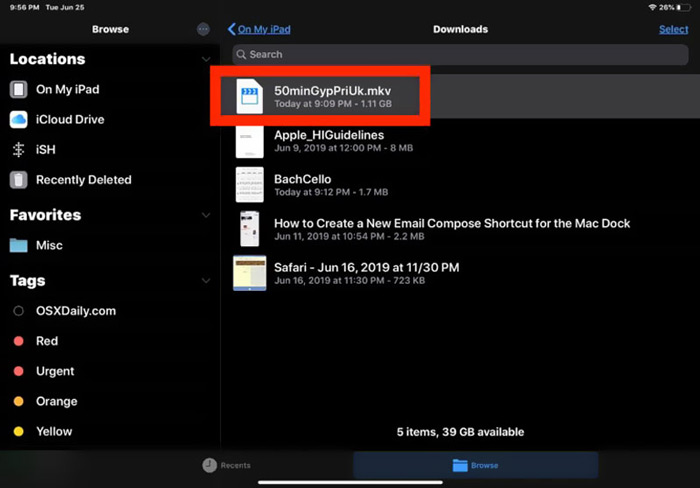
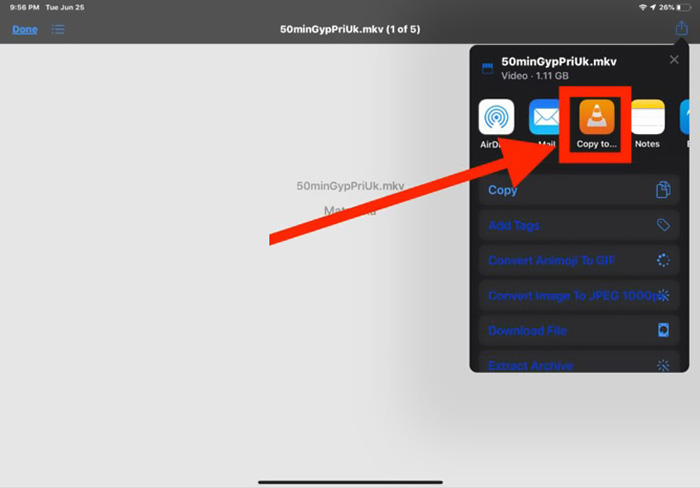
Langkah 3. Pilih opsi Open in VLC atau Copy to VLC dari daftar yang muncul. Setelah itu Anda dapat memutar file MKV di iPad dengan aplikasi VLC ini.
Selain file MKV, Anda juga dapat mengandalkan VLC untuk memutar file media lain dengan mudah. Tentu saja masih ada beberapa pemutar MKV lain seperti KMPlayer dan sebagainya yang dapat membantu Anda menonton file MKV di iPad.
Bagian 2. Bagaimana Mengkonversi MKV ke MP4 untuk Pemutaran di iPad
Saat ingin memutar file MKV di iPad, Anda juga bisa memilih untuk mengonversi MKV ke format video yang didukung iPad seperti MP4 atau MOV. Untuk melakukannya, Anda dapat mengandalkan perangkat lunak konversi MKV profesional, Free Online Video Converter.
Konverter MKV ke iPad ini sangat mendukung format video dan audio yang sering digunakan. Ini memungkinkan Anda untuk mengonversi MKV ke format yang didukung iPad termasuk MOV dan MP4 tanpa kehilangan kualitas. Panduan berikut akan menunjukkan cara menggunakannya untuk mengonversi MKV ke iPad.
Langkah 1. Buka browser seperti Chrome, IE, Firefox, atau Safari, lalu kunjungi situs Free Online Video Converter ini. Setelah masuk ke situs, klik Add Files to Convert dan kemudian tombol download untuk dengan cepat memasang Launcher berukuran kecil untuk proses konversi MKV.

Langkah 2. Akan muncul jendela munculan Open File di layar untuk membantu Anda menelusuri dan mengimpor file MKV. Setelah itu Anda akan diarahkan ke jendela konversi utama. Di sana Anda bisa melihat banyak format video populer seperti MP4, MKV, MOV, AVI, FLV, WMV, VOB, WEBM, dan lainnya. Di sini Anda perlu memilih MP4 atau MOV sebagai format keluaran.
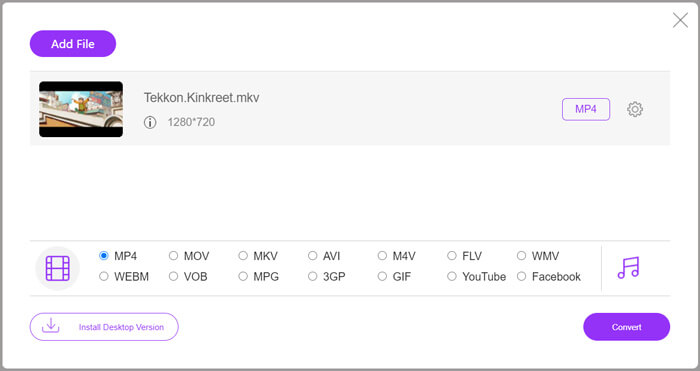
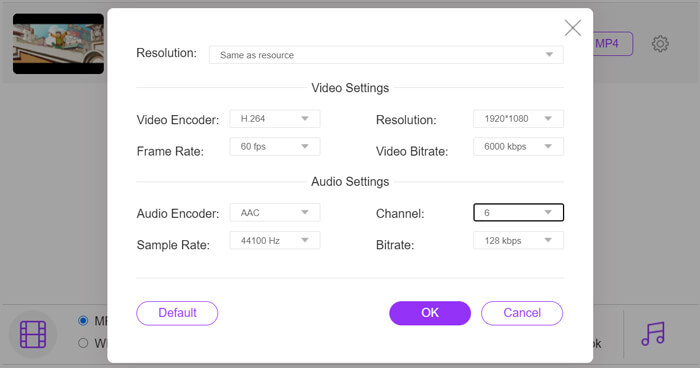
Langkah 3. Sebelum mengonversi, Anda dapat mengklik ikon Settings di sebelah format keluaran untuk menyesuaikan berbagai pengaturan video dan audio. Di sini Anda diperbolehkan mengatur resolusi video, encoder, frame rate, bitrate, kanal audio, sample rate, dan lainnya. Klik tombol OK untuk menyimpan perubahan Anda.
Langkah 4. Setelah semua pengaturan selesai, klik tombol Convert untuk mulai mengonversi MKV ke MP4. File keluaran akan mempertahankan kualitas gambar dan suara yang sama persis dengan aslinya. Setelah itu Anda dapat mentransfernya ke iPad untuk diputar.
Bagian 3. FAQ Memutar File MKV di iPad
Pertanyaan 1. Dapatkah iMovie mengedit file MKV?
Tidak. Seperti yang kami sebutkan di atas, semua perangkat Apple dan perangkat lunak terkait tidak dapat mendukung format MKV. Sebagai editor default untuk iPad, iPhone, dan Mac, iMovie tidak dapat membuka dan mengedit file MKV.
Pertanyaan 2. Bisakah VLC mengonversi MKV ke MP4?
Iya. VLC Media Player memiliki kemampuan untuk mengonversi file MKV. Anda dapat membuka VLC, klik menu Media dan gunakan fitur Convert/Save. Di jendela Open Media, Anda dapat mengklik tombol Add untuk memuat file MKV Anda. Klik tombol Convert dan kemudian pilih MP4 sebagai format target. Setelah itu, Anda dapat memilih folder tujuan yang sesuai dan mengganti nama file output. Kemudian Anda dapat mengklik tombol Start untuk melakukan konversi video dari MKV ke MP4 dengan VLC.
Pertanyaan 3. Bisakah Windows 10 memutar file MKV?
Anda tidak dapat mengandalkan pemutar default, Windows Media Player untuk memutar file MKV di PC Windows 10. Saat Anda ingin membuka file MKV, Anda harus mengandalkan beberapa pemutar media pihak ketiga seperti VLC, PotPlayer, dan lainnya.
Kesimpulan
Setelah membaca artikel ini, Anda mendapatkan 2 tips berguna untuk memutar file MKV di iPad. Baik Anda ingin langsung menonton MKV di iPad, maupun mengonversi MKV ke format yang didukung iPad, Anda dapat menemukan alat yang tepat. Untuk pertanyaan lebih lanjut tentang memutar MKV di iPad, Anda bisa meninggalkan pesan kepada kami.
-
 M2TS ke iPad - Cara Gratis untuk Memutar File Video M2TS di iPad Anda
 Baca dan dapatkan cara terbaik untuk mengonversi M2TS ke iPad. Berikut adalah konverter file M2TS online dan offline untuk pemutaran iPad M2TS. Cukup baca dan pilih solusi yang Anda suka.
-
 MKV ke MOV - Cara Mengonversi MKV ke MOV
 Bagaimana cara saya mengonversi MKV ke MOV di Mac? Bisakah iMovie membaca MKV? Apa artinya format MOV? Posting ini memberi tahu 2 cara sederhana untuk membantu Anda mengonversi MKV ke MOV dengan konverter video online dan profesional gratis.
-
 Tutorial - 4 Cara Gratis untuk Menggabungkan Video di iPhone menjadi Video Baru
 Baca dan dapatkan 4 cara mudah untuk menggabungkan video di iPhone. Semua model iPhone dan versi iOS didukung. Anda dapat menggabungkan 2 video dan lebih di iPhone menjadi video baru dengan cepat.
