


 Video Converter Ultimate
 Perekam Layar
 Perbaikan Video
 Unduhan Aman
3 Tips untuk MP4 Tidak Memutar di Google Drive
Google Drive adalah layanan kolaborasi berbasis cloud yang memungkinkan Anda mencadangkan dan mengakses semua file dari perangkat apa pun dan di mana saja. Layanan ini memberi Anda penyimpanan gratis 15GB yang digunakan bersama untuk Google Drive, Gmail, dan Google Foto untuk menyimpan semua jenis data. Anda dapat mengunggah file MP4 ke Google Drive dan kemudian memutarnya langsung di sana.
Secara umum, Anda dapat dengan mudah memutar MP4 di Google Drive dengan mengklik dua kali file tersebut. Namun, ada beberapa error MP4 tidak bisa diputar di Google Drive, seperti pesan Video ini tidak dapat diputar atau Ups! Terjadi masalah saat memutar video ini.

Jika Anda tidak dapat memutar file MP4 di Google Drive dengan cara biasa, Anda bisa mengandalkan 3 metode lain di bawah ini untuk memutar video Google Drive Anda.
Bagian 1. Putar MP4 di Google Drive dengan Jendela Baru
Saat Anda ingin memutar MP4 di Google Drive, Anda dapat mengklik dua kali untuk mulai memutar, dengan pemutar video bawaannya. Namun, jika Anda gagal memutar file MP4 dengan metode ini, Anda dapat memilih untuk memutar video Google Drive di jendela baru.
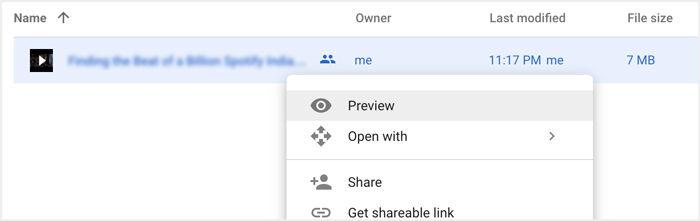
Langkah 1. Buka Google Drive dan temukan video MP4 yang ingin Anda tonton. Klik kanan pada video tersebut dan pilih Pratinjau.
Langkah 2. Sekarang Anda dapat memunculkan menu dengan mengklik ikon tiga titik di sudut kanan atas. Dari daftar turun bawah, pilih opsi Buka di jendela baru.
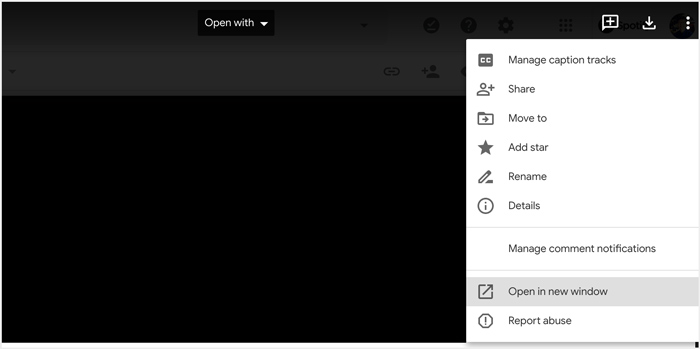
Setelah semua operasi Anda, file MP4 di Google Drive akan diputar di jendela baru. Anda dapat memeriksa apakah video ini dapat diputar secara normal.
Bagian 2. Hapus Akun untuk Memutar File MP4 di Google Drive
Dalam beberapa kasus, file MP4 tidak dapat diputar di kesalahan Google Drive disebabkan oleh beberapa akun Google. Jadi, Anda dapat mencoba menghapus beberapa akun yang tidak diinginkan untuk memperbaikinya.
Langkah 1. Untuk keluar dari akun yang tidak diinginkan, Anda dapat membuka Akun Google Anda di situs Google. Anda dapat menemukannya di sudut kanan atas. Klik profil Anda dan periksa semua akun Google yang ada di sana.
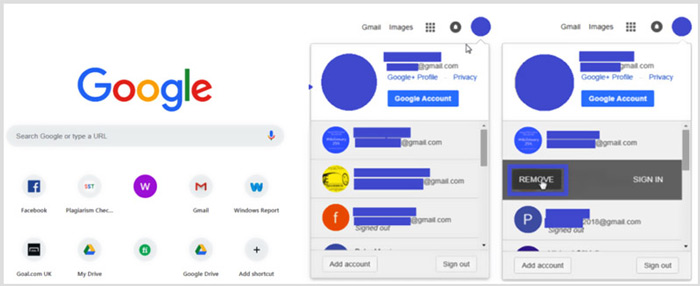
Langkah 2. Temukan akun yang tidak diinginkan lalu pilih tombol Hapus. Di sini Anda hanya dapat menyisakan satu akun yang benar-benar ingin tetap masuk. Setelah itu, Anda bisa menyegarkan halaman Google dan kemudian kembali ke Google Drive. Temukan file MP4 yang ingin Anda tonton dan putar.
Bagian 3. Konversi Video untuk Memutar MP4 di Google Drive
Meskipun Google Drive mendukung format MP4, ketika file MP4 Anda tidak dapat diputar di Google Drive, Anda sebaiknya memeriksa ukuran file video, resolusi, dan elemen terkait lainnya. Untuk mengonversi video Anda ke file yang didukung Google Drive, Anda dapat mengandalkan Video Converter Ultimate profesional. Perangkat ini mampu mengonversi semua file video dan audio tanpa penurunan kualitas.
- 1. Konversikan video apa pun termasuk MP4 ke file yang didukung Google Drive dengan kualitas tinggi.
- 2. Konversi video HD dan SD 8K / 5K / 4K, 1080p / 720p ke lebih dari 500 format seperti MP4, MOV, AVI, FLV, MP3, FLAC, AAC, dan lainnya.
- 3. Edit video, sesuaikan efek, tingkatkan kualitas, kompres video, edit info ID3, dan buat GIF dengan penuh percaya diri.
- 4. Teknologi akselerasi perangkat keras yang belum pernah terjadi sebelumnya menawarkan kecepatan konversi super cepat.
Unduh GratisUntuk Windows 7 atau yang lebih baruUnduhan Aman
Unduh GratisUntuk MacOS 10.7 atau yang lebih baruUnduhan Aman
Langkah 1. Untuk mengonversi video ke file yang didukung Google Drive, pertama-tama Anda harus menginstal konverter ini secara gratis di komputer. Anda dapat mengklik dua kali tombol unduhnya lalu mengikuti petunjuk yang ada.
Langkah 2. Buka alat pengonversi video Google Drive ini dan gunakan fitur Converter-nya. Klik tanda + besar atau Add Files untuk memuat file MP4 Anda.
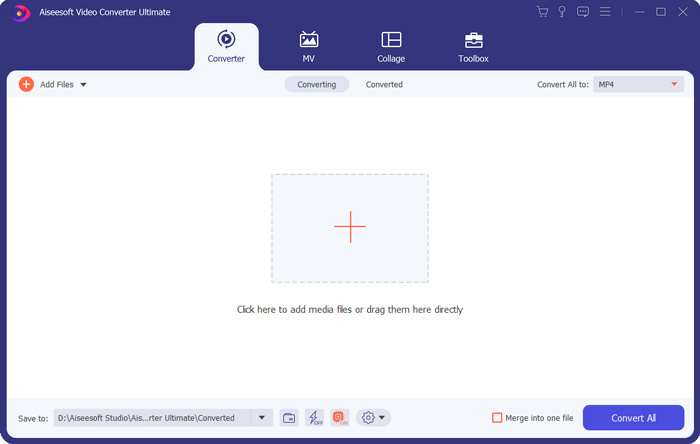
Langkah 3. Format keluaran akan diatur sebagai MP4 secara default. Anda dapat mengkliknya untuk memilih format lain yang sesuai.
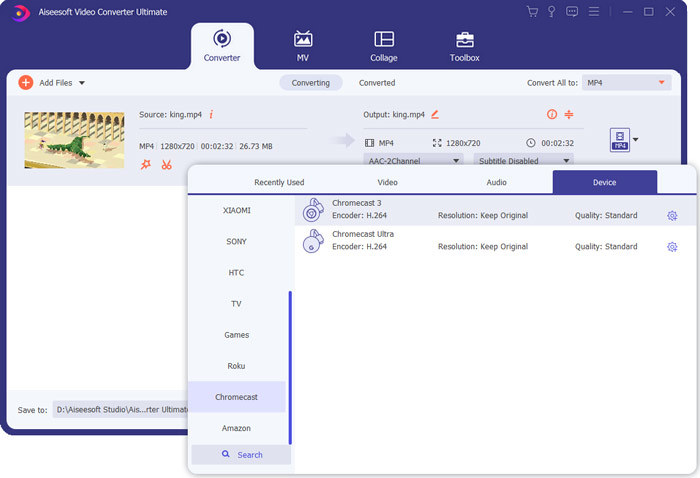
Pada langkah ini, Anda diperbolehkan untuk mengklik ikon Custom Profile untuk menyesuaikan lebih banyak pengaturan.
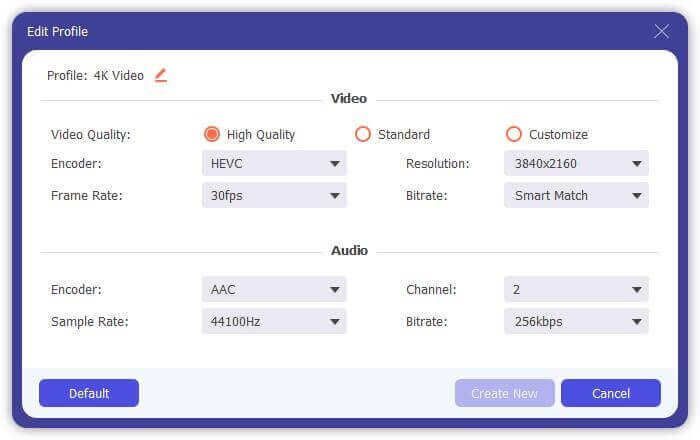
Langkah 4. Setelah semua operasi ini, Anda dapat mengklik tombol Convert All untuk memulai proses konversi video. Sebelum mengonversi, Anda dapat mengganti nama file keluaran, memilih folder tujuan yang tepat, mengedit video dan menyesuaikan efek gambar serta suara.
Bagian 4. FAQ Memutar File MP4 di Google Drive
Resolusi video apa yang didukung Google Drive?
Anda diizinkan untuk menyimpan dan memutar video di Google Drive. Anda dapat dengan mudah mencadangkan video dengan resolusi apa pun ke dalamnya. Tetapi Anda harus tahu bahwa, resolusi pemutaran maksimum Google Drive adalah 1920x1080.
Mengapa saya tidak dapat memutar video di Google Drive?
Banyak alasan berbeda yang akan menyebabkan video tidak diputar di Google Drive Anda. Salah satu alasan utamanya adalah format video yang tidak didukung. Selain itu, beberapa faktor lain seperti browser yang kedaluwarsa, kecepatan internet yang buruk, resolusi video yang lebih tinggi, ukuran file yang lebih besar, pengaturan keamanan router, dan plug-in pihak ketiga dan sebagainya akan menyebabkan masalah pemutaran video Google Drive.
Di mana mengelola akun Google saya?
Google mengizinkan Anda untuk menambah dan menggunakan satu atau beberapa akun. Saat Anda ingin mengelola akun Google Anda, Anda dapat membuka browser Chrome dan mengklik ikon Akun Google Anda di kanan atas. Dari menu tarik-turun, klik tombol Kelola Akun Google Anda.
Bagaimana cara mengunggah MP4 ke Google Drive?
Untuk mengupload file termasuk video MP4 ke Google Drive, Anda cukup mengklik ikon Baru di kiri atas, lalu pilih Upload File atau Upload Folder untuk menambahkan file Anda ke dalamnya.
Kesimpulan
Google Drive menawarkan cara yang praktis untuk mencadangkan, mengelola, dan melihat semua jenis file. Artikel ini terutama membahas 3 tips untuk mengatasi beberapa error pemutaran video di Google Drive. Semoga setelah membaca halaman ini Anda dapat memutar MP4 di Google Drive dengan lebih baik.
-
 Cara Gratis Mengkonversi Cisco WebEx ARF ke MP4 di PC dan Mac
 Dapatkan file ARF, tetapi tidak tahu cara membukanya? Posting ini dapat membantu Anda dengan tepat. Berikut adalah 2 cara gratis untuk mengonversi ARF ke MP4 di Mac dan PC secara detail.
-
 5 Pemutar Video Terbaik untuk iPhone yang Tidak Boleh Anda Lewatkan di tahun 2021
 Untuk memutar video dalam semua format dan mendapatkan pengalaman menonton yang lebih baik di iPhone, Anda harus membaca artikel ini dan mempelajari tentang 5 pemutar video terbaik untuk iPhone 12/11/X/8/7/6.
-
 5 Pemain WAV Gratis Terbaik untuk Android, iOS dan Komputer
 Bagaimana cara memainkan file WAV di ponsel Android? Pemain apa yang bisa memainkan WAV? Posting ini membagikan 5 pemain WAV gratis terbaik untuk Android, iPhone, Mac dan PC.
