


 Video Converter Ultimate
 Perekam Layar
 Perbaikan Video
 Unduhan Aman
4 Tips Berguna untuk Memperbaiki VLC Player Tidak Dapat Memutar MKV
MKV (Matroska Video file) adalah format file multimedia gratis dan terbuka. Namun, format ini tidak didukung oleh banyak pemutar yang sering digunakan, termasuk Windows Media Player dan QuickTime Player. Jadi, Anda dapat beralih ke VLC Media Player yang populer untuk memutar MKV. Namun, banyak pengguna mengalami masalah VLC player tidak bisa memutar MKV.

Masalah pemutaran MKV bisa beragam, misalnya trek audio pada file MKV Anda tertunda, pemutaran tersendat-sendat, gambar buram, antarmuka yang bermasalah, dan sebagainya. Di artikel ini, kami ingin membagikan 4 tips berguna untuk membantu Anda mengatasi masalah file MKV tidak bisa diputar di VLC.
Bagian 1. Atur Preferensi untuk Memperbaiki VLC Player yang Tidak Memutar MKV
VLC adalah alat pemutar file media yang sangat populer yang dapat mendukung sebagian besar format video dan audio digital termasuk MKV, MP4, AVI, FLV, MP3, AAC, M4A, FLAC, dll. dan VCD, CD Audio, dan DVD.
VLC Media Player menarik jutaan pengguna karena dapat memutar file media apa pun yang Anda miliki. Tetapi pemutar VLC tidak akan memutar file MKV masalah terjadi dari waktu ke waktu. Jika pemutar VLC hanya melewatkan file MKV atau HD MKV Anda, Anda dapat menyesuaikan preferensi untuk memperbaikinya.
Langkah 1. Buka VLC Media Player dan pilih menu Tools. Dari daftar turun bawah, pilih opsi Preferences.
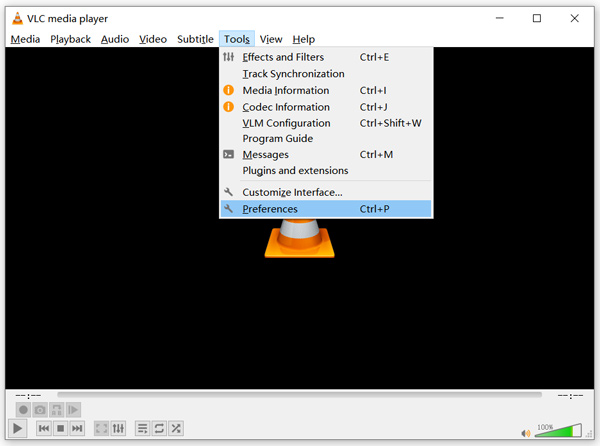
Langkah 2. Centang All di bawah Show settings di kiri bawah jendela dialog. Dengan begitu, Anda dapat menampilkan jendela Advanced Preferences.
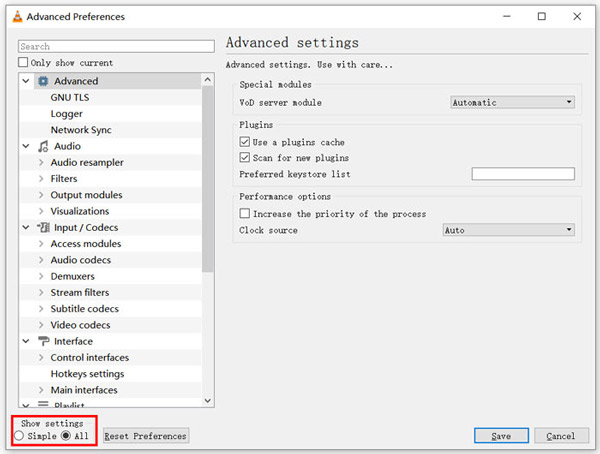
Langkah 3. Pilih bagian Input/Codecs di sebelah kiri, lalu temukan opsi File Caching(ms) di sebelah kanan. Anda mungkin perlu menggulir ke bawah untuk menemukannya.
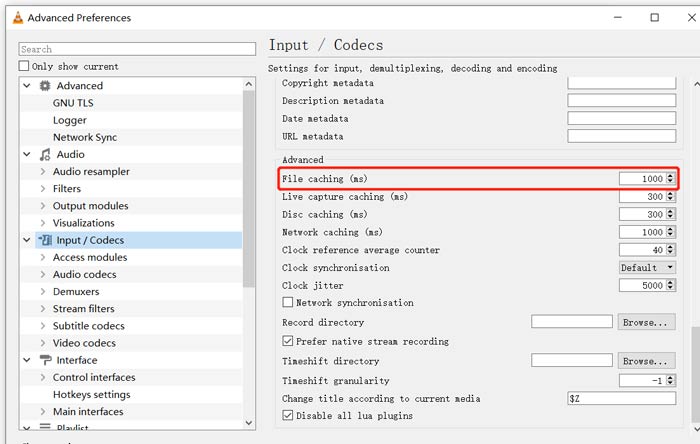
Langkah 4. Atur File Caching ke 1000 lalu klik tombol Save untuk mengonfirmasi pengaturan Anda. Setelah itu, Anda dapat memulai ulang VLC dan memutar ulang file MKV Anda.
Bagian 2. Perbarui atau Instal Ulang VLC untuk Memperbaiki Pemain Tidak Memutar MKV
Jika pemutar VLC tidak dapat memutar masalah MKV masih ada, Anda dapat memilih untuk meningkatkannya ke versi terbaru. Anda harus tahu bahwa, versi baru akan selalu memperbaiki banyak bug dari versi lama. Anda dapat mengikuti langkah-langkah di bawah ini untuk memperbarui VLC Media Player Anda.
Buka VLC dan klik menu Help. Pilih opsi Check for Updates dari daftar turun bawah. VLC akan mulai memeriksa apakah ada versi pembaruan yang tersedia. Lalu Anda dapat mengikuti petunjuk untuk meningkatkan VLC ke versi terbaru.
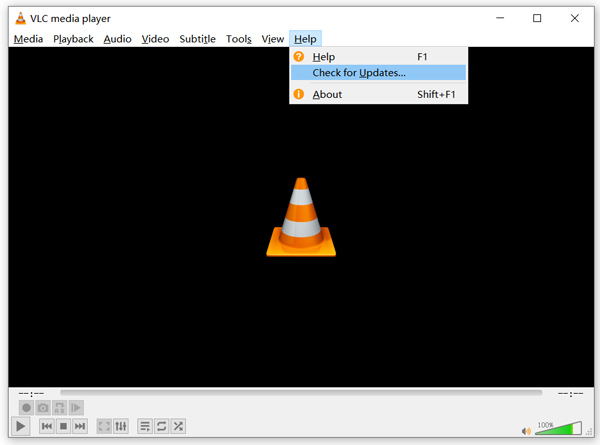
Anda juga dapat langsung menghapus VLC dari komputer, lalu masuk ke situs resminya, VideoLAN untuk memasang versi yang sesuai. Setelah Anda memasang VLC Media Player yang baru, Anda dapat memutar file MKV dan memeriksa apakah file tersebut dapat diputar dengan normal.
Bagian 3. Aktifkan Audio untuk Memperbaiki VLC Player Tidak Ada Suara Saat Memutar MKV
Jika VLC Media Player Anda dapat memutar file MKV tetapi tidak ada suara, Anda harus memeriksa apakah pengaturan audionya sudah benar.
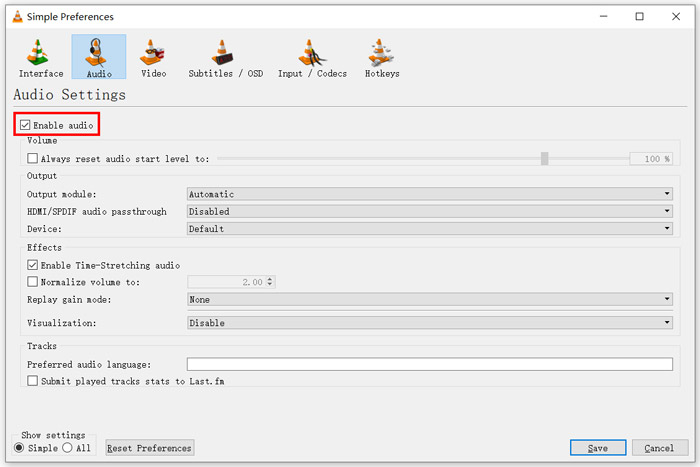
Langkah 1. Pilih opsi Tools pada bilah menu VLC. Dari menu turun bawah, pilih Preferences. Kemudian Anda akan diarahkan ke jendela Simple Preferences.
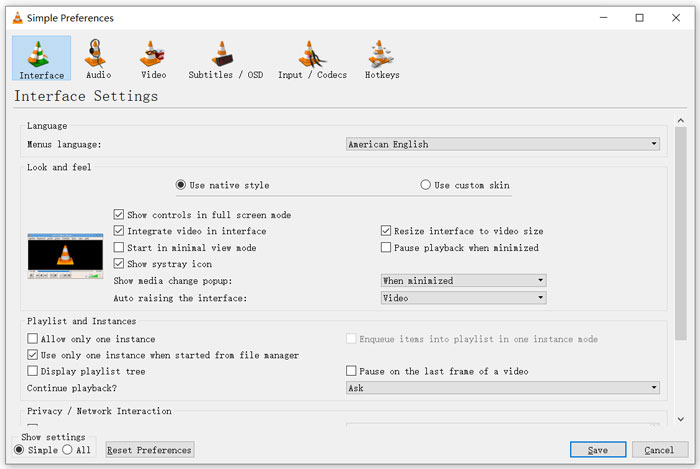
Langkah 2. Klik tab Audio, lalu centang opsi Enable Audio. Pada langkah ini, Anda juga diizinkan untuk menyesuaikan Output Module, HDMI/SPDIF audio passthrough dan Device sesuai kebutuhan. Klik tombol Save untuk menyimpan perubahan.
Sekarang Anda akan kembali ke antarmuka utama VLC, Anda dapat mengklik Media lalu Open File untuk memutar file MKV Anda.
Bagian 4. Pilih Alternatif VLC Player untuk Memutar File MKV
Saat ingin menonton film MKV, Anda juga dapat memilih pemutar lain sebagai pengganti VLC. Anda bisa mencoba Free Online Video Player yang populer. Baik Anda menggunakan PC Windows 10/8/7 atau Mac, Anda dapat mengandalkannya untuk memutar file MKV apa pun dengan kualitas tinggi.
Pemutar online gratis ini memiliki kemampuan untuk memutar 4K, 1080p/720p HD, video SD, video 3D, dan file audio dengan lancar. Selain MKV, ia juga mendukung banyak format lain termasuk MP4, MOV, FLV, AVI, MPEG, WMV, WMA, AAC, MP3, dan banyak lagi.
Langkah 1. Ketika ingin menonton file MKV, Anda bisa masuk ke situs Free Online Video Player ini. Pemutar ini kompatibel dengan berbagai browser seperti Chrome, IE, Firefox, dan Safari. Klik tombol Play Now untuk dengan cepat memasang peluncur kecil guna memutar MKV.
Langkah 2. Setelah pemasangan selesai, pemutar file MKV online gratis ini akan dijalankan secara otomatis. Klik tombol Open File untuk mengimpor file MKV Anda. Di sini Anda juga dapat mengklik Open Disc untuk menonton film DVD.
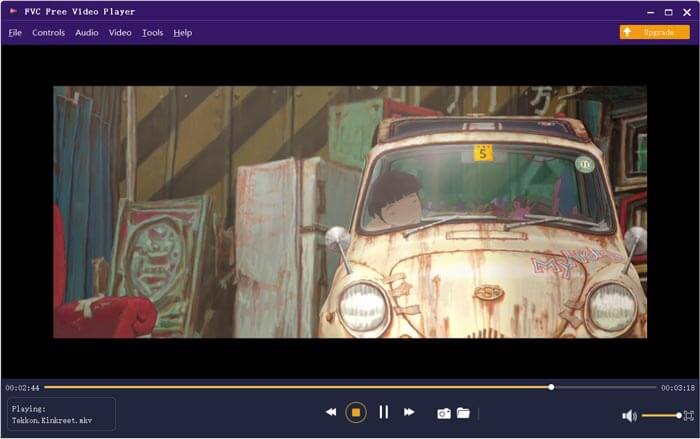
Video MKV Anda akan diputar secara otomatis setelah itu. Anda memiliki kontrol penuh atas pemutaran MKV. Dibandingkan dengan VLC Media Player, pemutar ini memberikan cara yang lebih mudah untuk menikmati file MKV. Pemutar MKV online gratis ini mendukung DTS-HD dan Dolby TrueHD untuk memastikan Anda mendapatkan pengalaman suara yang sangat baik.
Bagian 5. FAQ VLC Player Tidak Memutar MKV
Apakah TV pintar memutar file MKV?
Iya. Banyak smart TV seperti Sony dan Samsung yang dapat mendukung file MKV. Anda dapat memutar MKV Anda melalui hard drive eksternal atau perangkat UBS
Bagaimana cara memutar DVD dengan VLC Media Player?
Saat Anda ingin memutar film DVD dengan VLC, Anda harus terlebih dahulu memasukkan disk DVD ke dalam drive disk komputer Anda. Buka VLC, klik Media pada bilah menu dan kemudian pilih Buka Disk. Jelajahi dan muat film DVD ini ke VLC dan mainkan.
Bagaimana cara menonaktifkan decoding akselerasi perangkat keras pada VLC?
Untuk menonaktifkan decoding akselerasi perangkat keras pada VLC Media Player, Anda harus membuka Preferensi dari menu Alat. Pilih kategori Input/Codec dan kemudian Codec. Temukan opsi decoding yang dipercepat Perangkat Keras dan nonaktifkan di sana.
Kesimpulan
Saat Anda menghadapi masalah VLC player tidak bisa memutar MKV, Anda dapat langsung menggunakan pemutar lain seperti Free Online Video Player yang direkomendasikan untuk menonton file MKV Anda. Selain itu, Anda dapat memilih untuk memperbarui VLC Media Player atau menyesuaikan berbagai pengaturan untuk mengatasinya.
-
 Cara Gratis dan Profesional untuk Mengonversi MKV ke MOV
 Bagaimana cara saya mengonversi MKV ke MOV di Mac? Bisakah iMovie membaca MKV? Apa artinya format MOV? Posting ini memberi tahu 2 cara sederhana untuk membantu Anda mengonversi MKV ke MOV dengan konverter video online dan profesional gratis.
-
 Cara Mengkonversi M2TS ke MKV tanpa Kehilangan Kualitas
 Ingin mengonversi M2TS ke MKV dengan tetap menjaga kualitas aslinya? Posting ini menunjukkan kepada Anda metode gratis dan online untuk mengubah M2TS menjadi MKV tanpa kerugian.
-
 VLC Media Player - Ulasan Singkat Video Player dan Alternatif Terbaik di Windows dan Mac
 Mengapa audio tidak berfungsi di VLC Media Player? Jika Anda ingin mempelajari lebih lanjut tentang pemutar media populer, Anda dapat mempelajari lebih lanjut tentang ulasan dan alternatif terbaik dari artikel.
