


 Video Converter Ultimate
 Perekam Layar
 Perbaikan Video
 Unduhan Aman
Perekam Layar AMV Teratas untuk Komputer Windows dan Mac
Tindakan Media Video juga dikenal sebagai AMV. Ini adalah format file video yang secara khusus diproduksi untuk menggantikan MP4 sebagai format universal yang dapat dimainkan oleh sebagian besar pemutar media. Jika Anda terbiasa dengan format AVI, ini adalah versi yang dimodifikasi dan ditingkatkan. Format file ini berisi video terkompresi. Format AMV dibuat untuk memungkinkan pemutar dan perangkat ekonomis untuk memutar video. Namun, file awal yang dirender rendah karena kecepatan bingkai rendah. Meskipun demikian, Anda masih dapat menganggapnya sebagai format alternatif yang baik saat merender video keluaran Anda.
Secara relatif, Anda juga dapat mempertimbangkan untuk menggunakan perekam layar yang dapat membantu Anda membuat video dalam file AMV dengan mudah. Sebenarnya ada banyak sekali alat yang dapat melakukan hal tersebut untuk Anda. Selain itu, tidak harus selalu berupa file AMV. Hanya saja, ada baiknya Anda mengetahui bahwa jenis file seperti itu sekarang sudah ada. Karena itu, kami mencantumkan beberapa perekam video .amv untuk platform Android dan komputer. Anda dapat melihat daftar di bawah ini untuk mengetahui lebih lanjut.

Bagian 1. Perekam AMV Online Teratas
1. Perekam Layar Gratis FVC
Ketika kita membicarakan alat gratis yang dapat diakses secara online, Anda mungkin langsung terpikir tentang keterbatasan, watermark, dan masalah keamanan. Meskipun demikian, tidak semua perekam layar gratis itu sama. Ada beberapa yang mematahkan anggapan tersebut dan menyediakan solusi atas masalah-masalah ini. FVC Free Screen Recorder adalah salah satunya. Alat ini pasti memberikan Anda kebebasan lebih untuk kebutuhan perekaman layar. Dengan ukuran bingkai yang dapat diatur, Anda bisa memilih rasio aspek yang diinginkan dan mempersonalisasi rekaman Anda. Selain itu, Bitrate juga dapat diatur. Bitrate penting karena dapat membantu Anda menyesuaikan kualitas video yang Anda hasilkan. Masih banyak lagi yang bisa dipelajari tentang alat yang luar biasa ini.
Langkah 1. Jalankan aplikasi dengan mengunjungi halaman resmi https://www.free-videoconverter.net/free-screen-recorder/. Klik tombol Start Recording untuk meluncurkan aplikasi.
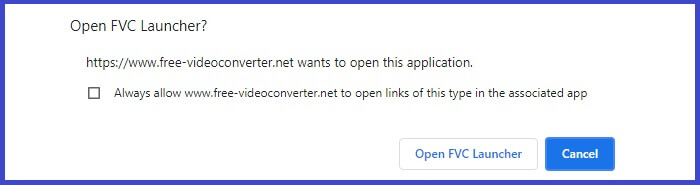
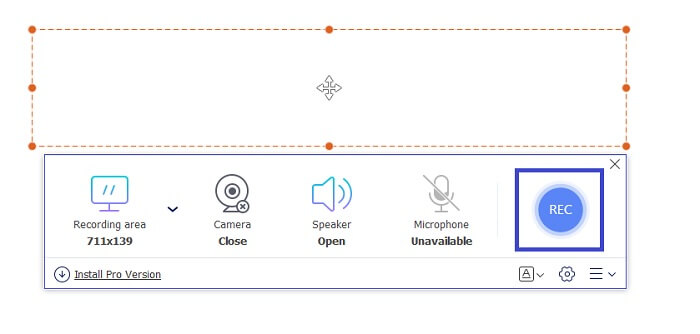
Langkah 2. Setelah alat diluncurkan, sesuaikan rasio aspek rekaman dengan menggeser bingkai garis putus-putus hingga Anda mendapatkan ukuran video yang diinginkan. Lalu klik REC untuk mulai merekam.
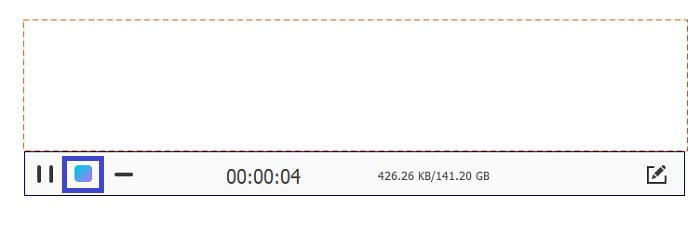
Langkah 3. Saat merekam, klik ikon Pensil untuk mengaktifkan anotasi waktu nyata sehingga Anda dapat menambahkan bentuk, garis, dan teks. Jika sudah selesai merekam, klik tombol kotak biru untuk menghentikan rekaman.
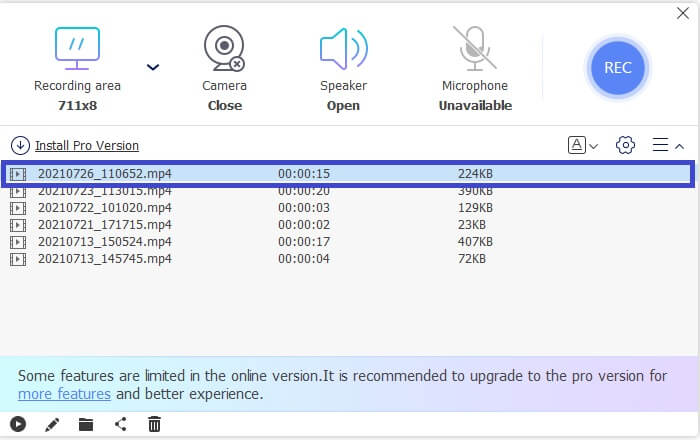
Langkah 4. Untuk melihat file yang Anda rekam, klik nama file di bagian bawah antarmuka utama. Klik dua kali untuk memutarnya.
Pro
- Perekaman Tanpa Batas.
- Tidak ada Batas durasi.
- Kecepatan Bit yang Dapat Disesuaikan untuk output video berkualitas tinggi.
- Pemangkasan video didukung.
Kontra
- Ini tidak memiliki subtitle yang dibuat secara otomatis.
2. Screencast-O-Matic
Personalisasi rekaman Anda dengan Screencast-O-Matic dan rasakan pencampuran dan pencocokan layar perekaman video yang diimpor dan video yang direkam. Belum lagi, ini adalah alat online yang dapat mengambil tangkapan layar, memungkinkan Anda menggambar di layar, dengan teks otomatis, dan dapat merekam audio secara bersamaan. Anda dapat memilih untuk menambahkan narasi atau subtitle saat merekam video Anda. Ini sangat membantu terutama untuk pembuat tutorial video dan mereka yang menghemat uang. Satu-satunya downside dari aplikasi gratis ini adalah proses pendaftaran. Ini panjang. Sementara itu, inilah cara Anda dapat menggunakannya.
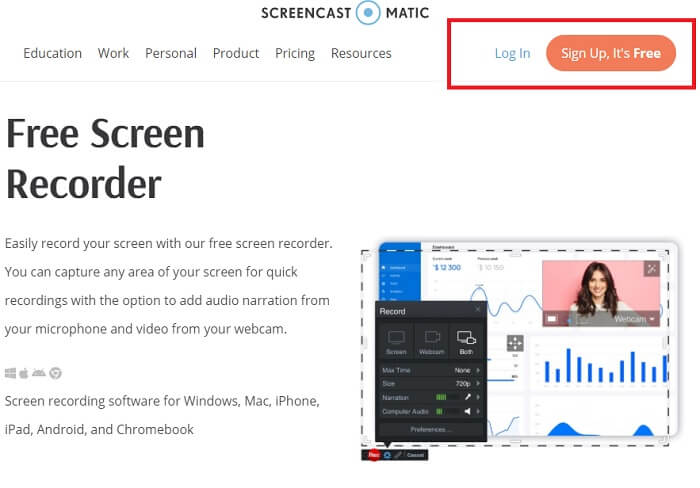
Langkah 1. Kunjungi halaman utama dan daftarkan sebuah akun.
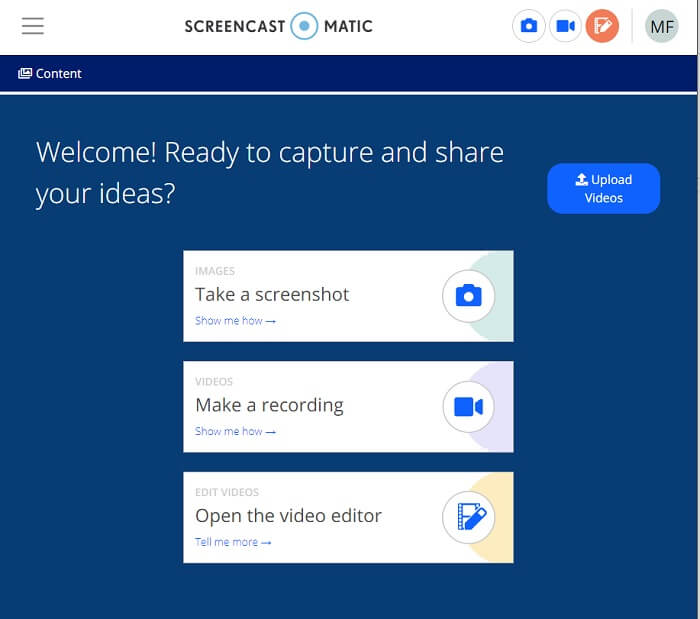
Langkah 2. Setelah mendaftar, Anda akan diarahkan ke halaman di mana Anda diminta memilih tindakan yang akan dilakukan. Pilih Make a Recording.
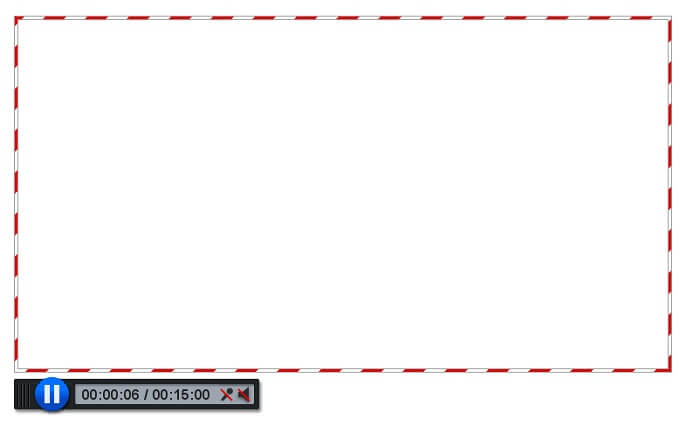
Langkah 3. Alat kemudian akan muncul. Untuk mulai merekam, klik tombol REC berwarna merah. Anda akan mengklik tombol yang sama untuk menghentikan rekaman.
Jika Anda tidak puas dengan fitur yang dapat diberikan oleh dua aplikasi gratis yang luar biasa ini, Anda dapat melanjutkan membaca alat berikutnya yang ditawarkan untuk Anda. Kali ini kita akan membahas tentang alat premium yang dapat Anda unduh di PC Anda.
Bagian 2. Perekam AMV Desktop Teratas
1. Perekam Layar FVC
Alat desktop pertama adalah FVC Screen Recorder. Ini memiliki kemampuan untuk merekam layar komputer Anda, audio sistem, dan menangkap streaming online tanpa kebisingan latar belakang. Alat ini merekam suara sistem komputer, ini berarti kualitas audionya sangat memuaskan. Selain format yang sangat didukung, alat ini mendukung teknologi akselerasi untuk streaming game online. TANPA tanda air, hanya rekaman berkualitas. Anda hanya mendapatkan yang terbaik jika Anda menggunakan alat ini. Kualitas HD, audio lossless, perekaman halus selama streaming langsung, dan akselerasi. Semua yang Anda butuhkan untuk kebutuhan rekaman Anda ada di sini. Lebih dari itu, terdapat fitur Window Lock yang memungkinkan Anda merekam jendela tertentu saja. Plus alat ini mudah digunakan, mulailah dengan mengklik tombol di bawah ini.
Unduh GratisUntuk Windows 7 atau yang lebih baruUnduhan Aman
Unduh GratisUntuk MacOS 10.7 atau yang lebih baruUnduhan Aman
Langkah 1. Klik tombol Video Recorder untuk mulai merekam.
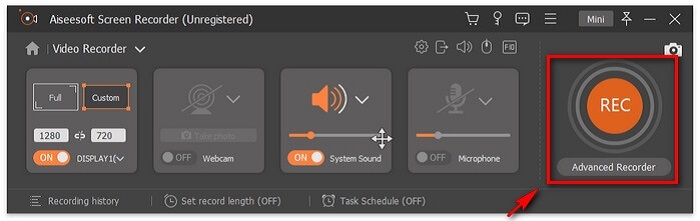
Langkah 2. Mulailah merekam dan tambahkan anotasi pada layar saat perekaman berlangsung.
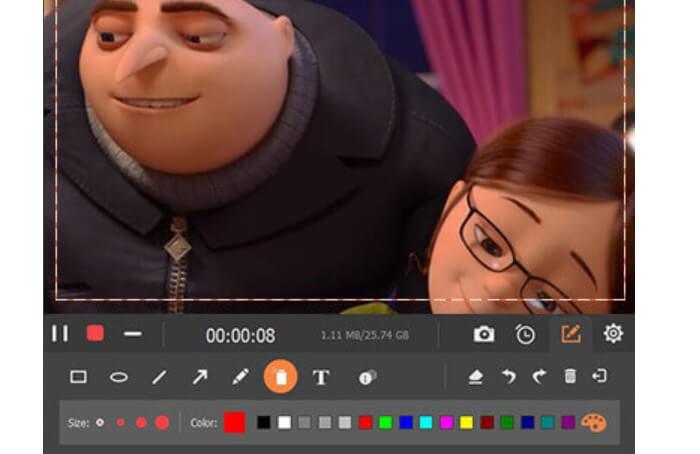
Langkah 3. Jika sudah selesai, hentikan rekaman dengan mengklik tombol kotak merah.

Langkah 4. Sekarang akan muncul layar lain. Pilih antara Re-Record dan Save.
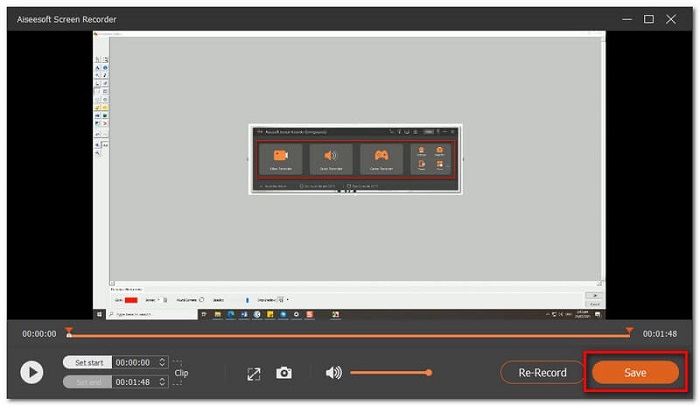
Langkah 5. Temukan file yang direkam pada jendela berikutnya yang akan muncul.
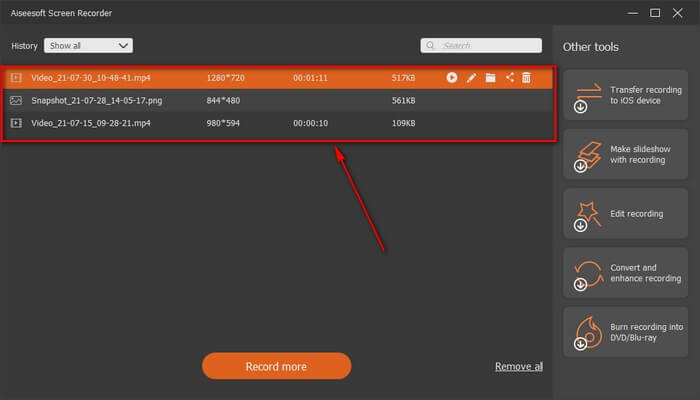
2. Bandika
Akhirnya kami memiliki Bandicam. Ini adalah salah satu alat paling andal dalam hal perekaman layar. Salah satunya adalah karena alat ini memiliki antarmuka yang sangat sederhana. Semua pengaturan yang perlu Anda periksa dan fitur diberikan pada satu layar. Saat Anda meluncurkan alat, Anda dapat langsung melihat semua pengaturan dan fitur. Memang definisi sebenarnya dari antarmuka yang user-friendly. Bahkan seorang pemula untuk teknologi semacam ini dapat dengan mudah mengatasinya. Untuk menunjukkan kepada Anda apa yang dikatakan, inilah cara Anda menggunakannya.
Langkah 1. Buka situs resmi alat tersebut untuk mengunduh dan memasang aplikasi.
Langkah 2. Klik tombol REC di sisi kanan atas antarmuka. Lalu alat akan meminta Anda menyesuaikan ukuran bingkai.
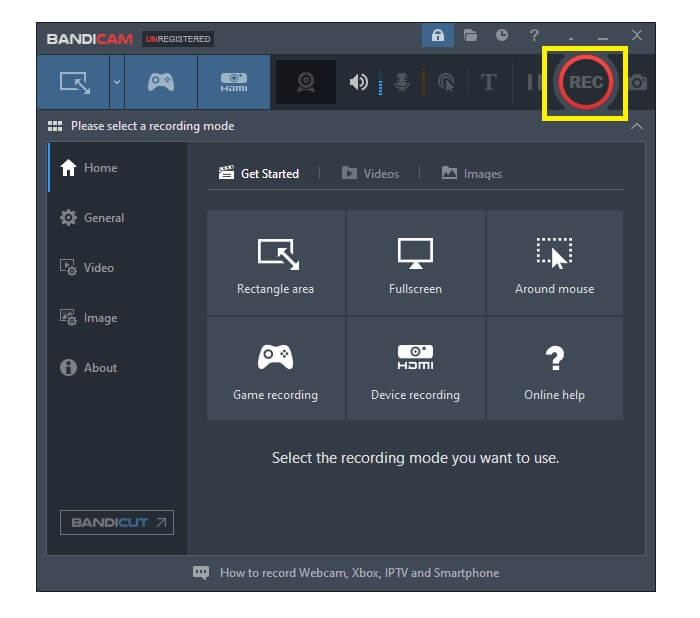
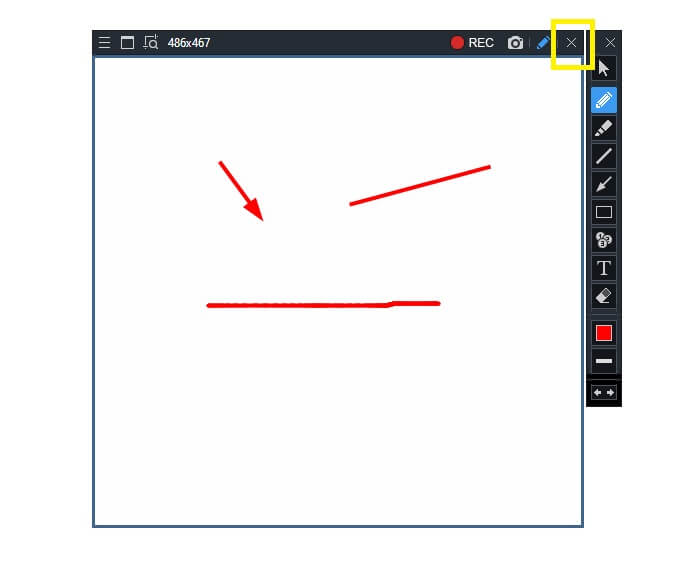
Langkah 3. Dari sana, mulailah memberi anotasi sambil merekam. Klik tombol X di sudut kanan untuk mengakhiri perekaman.
Semua alat yang ditulis memang membantu. Bandicam mewakili kesederhanaan dan kegunaan. Sementara itu, Screencast-O-Matic serbaguna. Di sisi lain, Perekam Layar FVC dapat menyediakan alat Gratis dan Premium yang melampaui alat-alat yang terdaftar sama sekali. Fitur Lock Window terutama merupakan keuntungan karena memungkinkan multitasking dan efisiensi. Tidak ada perekam layar lain yang dapat melakukan kemampuan ini, hanya dengan Perekam Layar FVC.
Baca selengkapnya:
1. Cara Mengonversi MP4 ke AMV
2. Cara Mengompres File AMV Berukuran Besar
Bagian 3. FAQ tentang Perekam AMV
Mengapa saya tidak bisa membuka file AMV di PC saya?
Ada beberapa alasan mengapa. Namun yang paling umum adalah, file tersebut tidak memiliki perangkat lunak yang sesuai di komputer Anda. Unduh satu online.
MP4 Player tidak memutar Kesalahan Format, dan bagaimana cara memperbaikinya?
Ini sederhana. Ubah file .amv ke versi terbaru. Konversikan. Jika Anda ingin mengonversinya, ikuti panduan di bawah ini:
1. Kunjungi tautan ini https://www.free-videoconverter.net/free-online-video-converter/.
2. Buka peluncur kemudian unggah file Anda.
3. Pilih format yang Anda inginkan. Setelah selesai, file akan segera diproses.
4. Klik tombol unduh untuk mendapatkan file yang telah dikonversi.
Bagaimana cara mengaitkan file dengan perangkat lunak?
Ada dua cara untuk melakukannya. Pertama dengan memilih file AMV lalu pilih Choose default program, kemudian Browse. Cara lainnya adalah dengan mendaftarkan file ke Windows Registry.
Kesimpulan
Sebagai kesimpulan, AMV baik untuk mengetahui format yang dapat Anda pertimbangkan untuk digunakan, tetapi tidak disarankan bagi mereka yang mencari video berkualitas baik. Juga, daftar perekam layar AMV tidak hanya terbatas pada AMV tetapi dapat menghasilkan lebih banyak format seperti MP4, MOV, dan banyak lagi.
-
 5 Perekam Mouse dan Keyboard Terbaik untuk Windows dan Mac
 Berikut adalah lima program perekam mouse dan keyboard terbaik yang dapat menyimpan gerakan mouse dan klik keyboard Anda, dan mengulangi kejadiannya.
-
 4 Perekam Layar AVI Gratis Teratas untuk Menangkap Video Layar sebagai File AVI
 Untuk merekam layar dalam file AVI berkualitas tinggi, artikel mengidentifikasi dan membagikan 4 perekam layar AVI gratis teratas di posting ini. Pelajari lebih lanjut untuk menemukan yang sesuai.
-
 6 Perekam WAV Gratis Teratas Tersedia untuk Windows dan Mac
 Perangkat lunak perekaman WAV terbaik yang kami bagikan dalam artikel ini memiliki berbagai fitur berguna, yang membantu Anda menangkap audio dan suara seperti profesional.
