


 Video Converter Ultimate
 Perekam Layar
 Perbaikan Video
Ulasan Lengkap untuk Perangkat Lunak Perekaman Audio untuk Merekam Audio Secara Efektif
Jika Anda seorang ahli maupun pemula, Anda harus memiliki perangkat lunak perekam audio untuk mengatur dan memoles audio agar sesuai dengan penggunaan tertentu. Selain itu, memilih perekam audio yang tepat di perangkat Anda bisa menjadi tantangan karena banyaknya pilihan yang tersedia di pasaran. Alih-alih mencoba berbagai program perekaman audio, kami menghadirkan empat perekam yang kami anggap sesuai dengan kebutuhan Anda untuk menghindari mengunduh atau mengakses perangkat lunak berbahaya. Daftar perekam audio di bawah ini telah diseleksi dengan cermat agar Anda hanya mendapatkan yang terbaik dan bukan perekam audio berkinerja buruk.

Bagian 1. 4 Perangkat Lunak Perekaman Audio Terbaik di Windows & macOS
1. Perekam Layar FVC
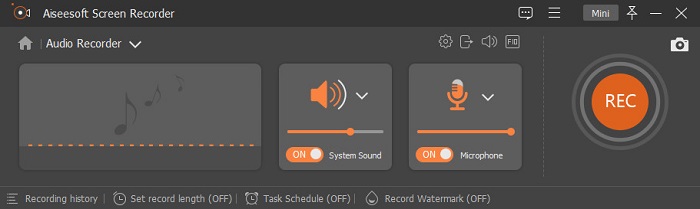
Perlu merekam audio dari komputer tetapi tidak tahu harus menggunakan apa? Jika demikian, kami menghadirkan perekam terbaik dan sejauh ini paling banyak dipilih di pasaran, yaitu FVC Screen Recorder. Perangkat ini memiliki antarmuka pengguna yang sangat baik sehingga pengguna bisa berinteraksi dengan perangkat lunak tanpa perlu melakukan hal-hal rumit. Selain itu, pengguna sering bermasalah dengan kebisingan latar belakang, sehingga dengan bantuan fitur tambahan peredam bising yang baru, Anda dapat merekam tanpa terganggu oleh suara-suara kecil di latar belakang. Lebih dari itu, alat ini memiliki banyak fitur yang akan membantu Anda merekam secara efektif. Ingin tahu apa saja? Kalau begitu, mari kita telusuri fitur-fitur utama dari FVC Screen Recorder.

Perekam Layar
4.988.518+ Unduhan- Ini merekam suara dengan kualitas audio ultra-tinggi.
- Rekam audio 24/7 selama Anda memiliki cukup penyimpanan di drive komputer Anda..
- Anda dapat merekam suara sistem dengan mikrofon secara bersamaan.
- Peningkatan mikrofon tersedia untuk pengalaman merekam suara Anda yang jauh lebih baik.
- Anda dapat memeriksa audio mikrofon jika perlu.
Free DownloadUntuk Windows 7 atau yang lebih baruSecure Download
Free DownloadUntuk MacOS 10.7 atau yang lebih baruSecure Download
Pro
- Program ini memungkinkan pengguna mengalami pengalaman mendebarkan yang tinggi untuk merekam audio di Mac atau Windows.
- Tersedia fitur pengeditan dasar, seperti memotong atau memangkas audio.
- Ini memiliki riwayat perekaman bawaan untuk menemukan audio yang direkam dengan mudah.
Kontra
- Itu tidak mendukung penambahan efek pada audio saat merekam.
- Beli sebelum digunakan.
2. Keberanian
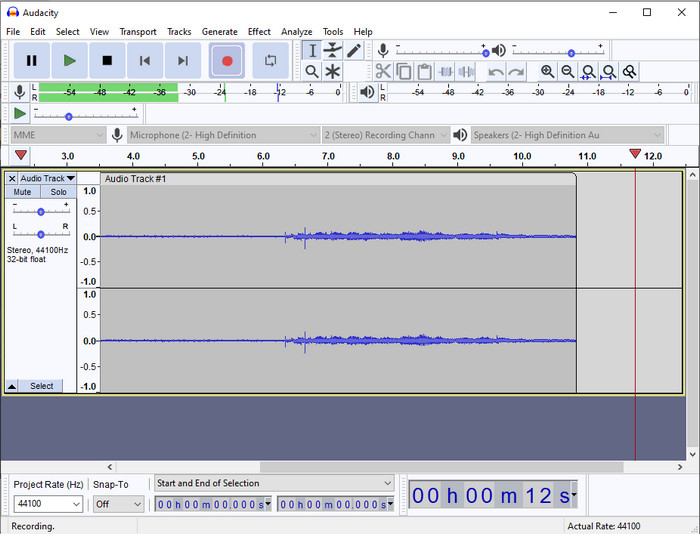
Jika Anda membutuhkan alat profesional untuk menangani perekaman audio, maka Audacity sangat membantu. Perekam audio profesional ini telah membantu jutaan podcaster dalam perjalanan mereka merekam audio. Jika Anda membutuhkan perekam tingkat lanjut secara gratis, perekam audio ini adalah salah satunya. Meskipun memiliki beberapa kemampuan perekaman profesional, tetap saja sulit untuk membiasakan diri dengan alat ini karena antarmuka penggunanya kurang baik. Walaupun mampu melakukan perekaman profesional, beberapa fiturnya tetap perlu ditingkatkan, seperti peredam bising. Meski demikian, Audacity merekam audio komputer secara profesional dengan cara yang tidak dapat diberikan oleh semua perekam lainnya.
Pro
- Gratis untuk diunduh di semua platform desktop.
- Ini menawarkan fitur pengeditan ahli untuk pro.
- Ini memiliki beberapa fitur canggih yang Anda perlukan untuk membuat podcast.
Kontra
- GUI perangkat lunak sudah usang.
- Upgrade perlu beberapa fitur-fiturnya.
- Bukan pilihan terbaik untuk amatir dan mereka yang tidak tahu cara merekam.
3. Pemutar Waktu Cepat
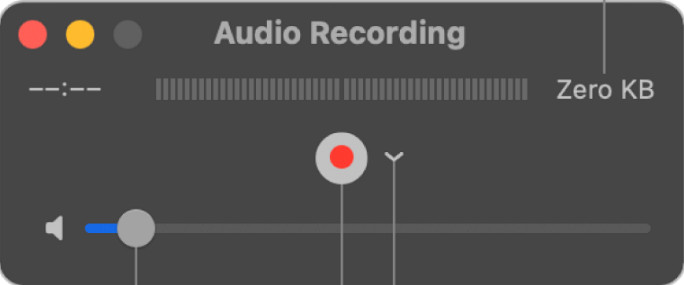
QuickTime Player juga dapat digunakan sebagai perekam audio di Mac jika Anda membutuhkannya. Meskipun pemutar ini kurang memadai dan kurang efektif untuk perekaman, Anda akan mengalami keterlambatan dan kualitas keluaran audio yang lebih rendah. Namun, jika Anda membutuhkan perekaman audio secara cepat di Mac, ini bisa menjadi pilihan karena Anda tidak perlu mengunduh apa pun dan sudah pasti aman digunakan. Tetapi jika Anda seorang profesional yang mencari perangkat lunak perekam audio terbaik, ini bukan alat yang tepat.
Pro
- Ini sudah tersedia di setiap macOS.
- Gratis, aman, dan mudah digunakan.
Kontra
- Ini tidak seefektif perekam audio lain dalam daftar ini.
- Kualitas output akhir audio rendah.
- Bukan pilihan terbaik untuk perekaman dan pengeditan pro.
Terkait:
Cara Merekam Layar dengan Audio di Mac Menggunakan QuickTime
Cara Mengonversi QuickTime ke MP4
4. Oceanaudio
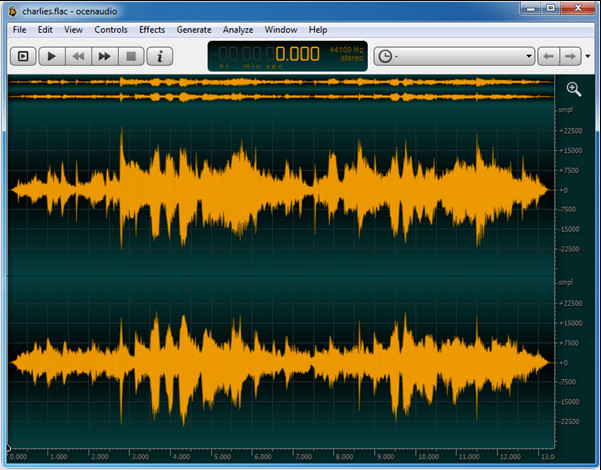
Jika Anda membutuhkan perekam multipelks untuk merekam audio di Windows 10 atau yang lebih baru, maka Oceanaudio akan membantu Anda. Alat ini memiliki antarmuka yang hampir mirip dengan Audacity, tetapi antarmuka pengguna (GUI) alat ini lebih mudah dipahami. Lebih jauh lagi, perekam ini menyediakan kerumitan dan beberapa fitur yang Anda perlukan dalam perekaman audio. Meskipun sedikit sulit digunakan dan Anda perlu menonton tutorial cara pemakaiannya, hasil akhirnya tetap sepadan. Jadi, jika Anda membutuhkan editor dengan antarmuka yang lebih baik daripada Audacity, ini harus menjadi pilihan Anda.
Pro
- Ini menggunakan teknologi canggih untuk merekam.
- Ini adalah pilihan ahli untuk melakukan perekaman audio.
- Anda dapat mendengarkan suara Anda saat merekam.
Kontra
- Ini tidak ramah pengguna.
- Pemula mungkin akan bingung saat menggunakan alat ini.
Bagian 2. Bagan Perbandingan tentang Perangkat Lunak Perekam Audio
| Fitur | Perekam Layar FVC | Kenekatan | QuickTime Player | Oceanaudio |
| Sistem Rekam Suara dan Mikrofon |  | | | |
| Edit rekamannya | | |  | |
| Akselerasi perangkat keras | | | | |
| Pra-dengar waktu nyata | | | | |
| Simpan Kualitas Asli | | | | |
| Antarmuka Pengguna Terbaik | | | | |
Bagian 3. FAQ tentang Perangkat Lunak Perekam Audio
Apakah Cinch Audio Recorder adalah perekam audio terbaik?
Kami baru saja membuat ulasan tentang Cinch Audio Recorder. Jadi, jika Anda ingin mengetahui lebih banyak tentang perekam audio tersebut, Anda bisa mengklik tautan ini dan mempelajari informasi yang lebih mendetail mengenai perekam itu.
Apa kualitas perekam audio yang bagus?
Anda perlu mengetahui standar dasar sebelum memilih perekam audio yang bagus. Pertama, itu harus dapat menangkap audio di mikrofon Anda dengan mudah. Kedua, aman dan bebas malware. Ketiga, jika Anda perlu membeli alat tersebut, alat itu sendiri harus memberikan keunggulan kepada pengguna. Keempat, tingkat efikasi berarti alat tersebut harus sangat efektif dalam suatu pencatatan. Kelima, fitur dasar atau lanjutan harus tersedia untuk membantu pengguna merekam. Sebelum memilih perekam audio untuk membantu Anda, Anda dapat bergantung pada standar ini.
Bagaimana cara merekam audio di Windows 10?
Sebelum merekam di Windows 10, Anda harus memilih perekam terbaik seperti FVC Video Recorder dengan mengunduhnya ke desktop, segera menginstal alat tersebut, lalu meluncurkannya. Selanjutnya, pilih opsi Audio Recorder dan klik. Anda kini dapat dengan mudah menambahkan suara sistem pada rekaman Anda atau mikrofon dengan menyalakannya di toolbar mengambang. Setelah siap merekam, klik tombol merah bulat untuk mulai. Jika Anda perlu mengakhiri perekaman, klik tombol persegi untuk berhenti; setelah itu, antarmuka baru akan menampilkan daftar rekaman audio yang telah Anda buat.
Kesimpulan
Sekarang, kita sudah mengetahui perangkat lunak perekam audio yang tersedia di desktop Anda. Semua alat yang disajikan di sini akan membantu kebutuhan perekaman Anda. Namun, jika Anda mencari perekam yang mengungguli perekam lainnya, FVC Screen Recorder adalah pilihan yang tepat untuk Anda. Masih ragu dengan perekam audio ini? Kalau begitu, mengunduhnya adalah satu-satunya cara untuk mencobanya dan mengetahui apakah alat ini bekerja seperti yang kami jelaskan dalam artikel ini.
-
 4 Perekam Suara AIFF Gratis Terbaik yang Menghasilkan Audio Berkualitas Tinggi
 Artikel ini membahas tentang AIFF dan beberapa alat paling populer yang dapat Anda gunakan untuk menghasilkan format AIFF berkualitas tinggi.
-
 3 Teknik Terbaik tentang Cara Merekam Audio di iPhone
 Mengalami kesulitan karena Anda tidak dapat melakukan perekaman audio dengan baik di iPhone? Kemudian baca artikel ini untuk mengetahui cara merekam audio di iPhone dan alat apa saja yang tersedia.
-
 7 Perekam Suara Luar Biasa yang Dapat Diakses di Semua Platform
 Apakah Anda ingin belajar bagaimana melakukan perekaman audio? Kemudian buka artikel ini saat kami berbicara tentang perekam audio terbaik yang sesuai dengan kebutuhan Anda.
