


 Video Converter Ultimate
 Perekam Layar
 Perbaikan Video
 Unduhan Aman
Cara Merekam Gameplay di PS5 Tanpa Batas [Panduan Lengkap]
In just a matter of three years, the PlayStation 5 has flown off the shelves. It has hit over 50 million units sold ever since it was released, as it is a cool hardware and 4K gaming-giving console. Now, If you're keen to show off your gaming skills or share your epic gameplay moments with your fans, recording on a PlayStation 5 is a great option. If you are wondering how to record on PS5, it comes with this cool feature that you can use to capture, tweak, and share your gaming adventures on various platforms. But how exactly do you do all of this? Stick around to discover how to record and snap screenshots on your PS5, even how to do it using a limitless recording technique.

Bagian 1. Cara Merekam Gameplay di PS5
Tentu saja, PS5 dilengkapi dengan perekam internal yang akan membantu Anda merekam permainan yang memukau. Akan tetapi, perlu diperhatikan bahwa perekam konsol Anda memiliki keterbatasan dan efektivitas. Jika berbicara tentang kemanjurannya, dapat dikatakan bahwa perekam tersebut sangat efektif dalam menghasilkan rekaman video berkualitas tinggi. Di sisi lain, jika berbicara tentang keterbatasannya, Anda harus ingat bahwa konsol ini hanya dapat merekam waktu permainan selama maksimal 60 menit. Selain itu, perekam tersebut hanya dapat menghasilkan video dalam format MP4 dan WebM sebagai format keluaran yang didukungnya.
Sementara itu, untuk pertanyaan tentang cara merekam layar pada perekam permainan bawaan PS5, biarkan langkah-langkah di bawah ini memberikan jawabannya bagi Anda.
Merekam Gameplay
Step 1. Grab your DualSense controller and press the button above the arrow buttons. This represents the Create function and can be pressed when you are about to record your gameplay.
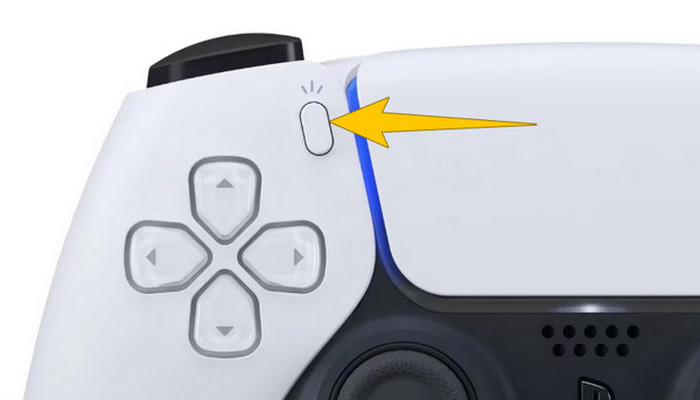
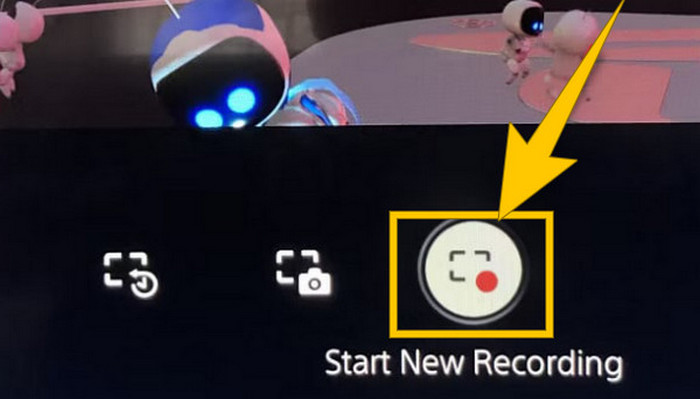
Step 2. After pressing the button, look at your screen and click the Start New Recording option. You will see this option at the bottom part. Immediately, the recording will start so you may begin your gameplay.
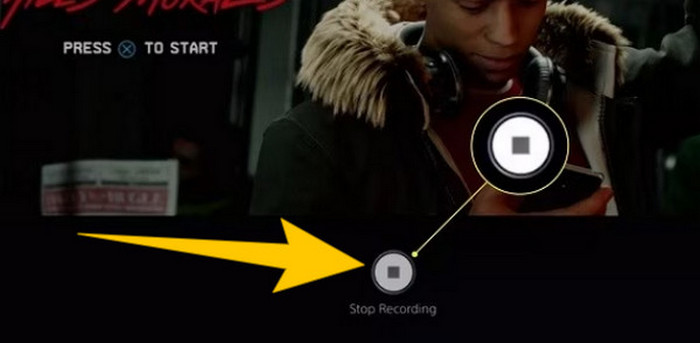
Step 3. Suppose you are done with your game, so here’s how to turn off gameplay recording on PS5. You just need to press the Create button again, and this time, click Stop Recording, which you will see on the screen.
Unduh Rekamannya
Setelah merekam, PS5 akan secara otomatis menyimpan output di Galeri Media Anda, tempat semua file disimpan. Sekarang, jika Anda ingin menyimpan salinan untuk perangkat Anda yang terpisah, sangat disayangkan galeri tersebut tidak memiliki opsi unduhan. Namun, masih ada cara untuk menyimpan file tersebut.
Step 1. Connect your external SD or USB drive to your console. Then, go to your Media Gallery and open it.
Step 2. Select the screen recording that you recently saved. Then, click the Ellypsis or the three-dot button at the bottom part of the screen, along with the other options given.
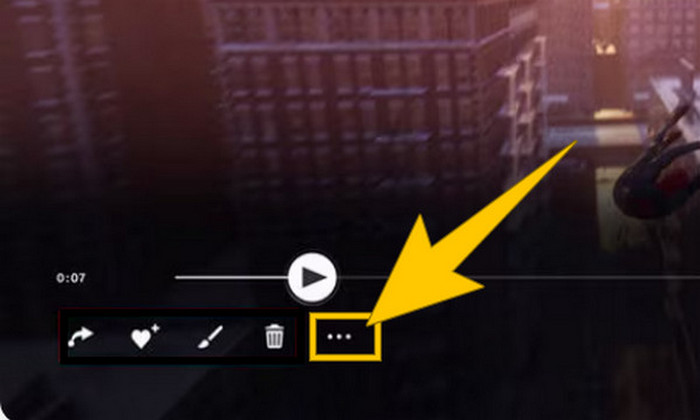
Step 3. Once clicked, select the Copy to USB Drive option to start copying the recorded video to your USB. Once done, transfer the video to the device where you want to keep the recorded file.
Bagian 2. Cara Merekam Layar di PS5 dengan Kualitas 4K Tanpa Batas
Do not fret if PlayStation 5 only lets you capture up to an hour of gameplay in good quality. We know how frustrating it is for most gamers, and not all games support this. So, for your unlimited recording with 4K quality on all PS5 games, you might want to check out FVC Screen Recorder. Yes, this screen recorder doesn't limit your recording time, just your computer's storage. Plus, it won't slow down your gameplay. With this amazing game recorder, you can also tweak your recordings before saving them. In fact, you can trim, merge, compress, convert, edit metadata, enhance the recording, and share it to your selected platforms breezily.
Perlu dicatat juga bahwa FVC Screen Recorder menawarkan berbagai alat perekam untuk memenuhi tugas perekaman Anda. Dengan alat ini, Anda dapat merekam video, audio, windows, webcam, telepon, dll. Hebatnya, Anda dapat menikmati rekaman Anda tanpa watermark yang tertanam di dalamnya! Jadi, untuk mempelajari lebih lanjut tentang FVC Screen Recorder, ikuti langkah-langkah di bawah ini untuk melihat cara merekam layar di PS5.
Step 1. Get the FVC Screen Recorder by downloading it onto your computer. To do so, just click the Free Download button, then follow the instructions to install and open it.
Unduh GratisUntuk Windows 7 atau yang lebih baruUnduhan Aman
Unduh GratisUntuk MacOS 10.7 atau yang lebih baruUnduhan Aman
Step 2. Upon reaching the interface of FVC, find and click on the Game Recorder tool. It is located on the right-center side of the screen. From there, click the little arrow beside Select the Game to choose which window where your PS5 is screened.
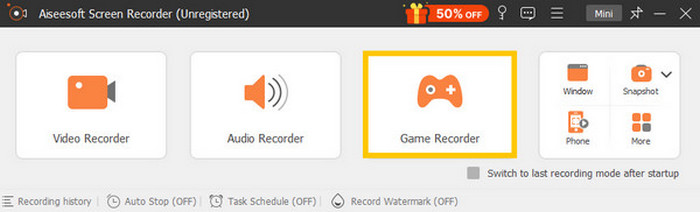
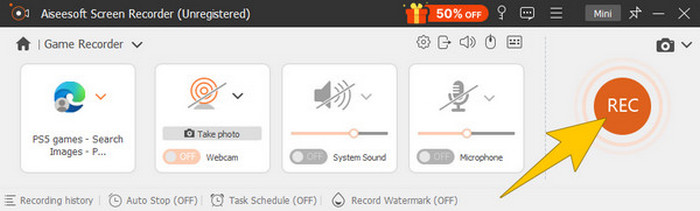
Step 3. Once you have selected the window, you will notice that the recorder will focus on it. Remarkably, you can also decide if you want to include your webcam for picture-in-picture recording, system sound, and microphone audio in your recording. When things are set, click the REC button to begin the game and recording.
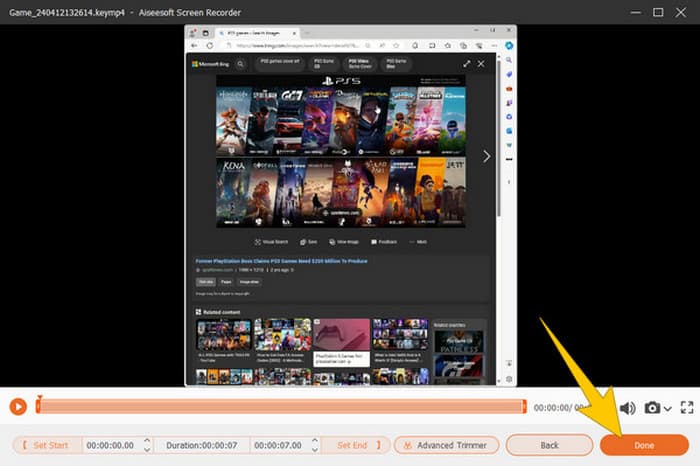
Step 4. When you are done recording, click the Stop button from the floating bar. Then, you can tweak the video using the editing tools provided from the new window. After that, click the Done button to save the recorded file on your gallery.
Step 5. This is an optional step. But if you want to share your recording to your social media accounts, you may right-click your most recent gameplay recording and then select the Share option. Also, you can use additional advanced editing tools to enhance your recordings.
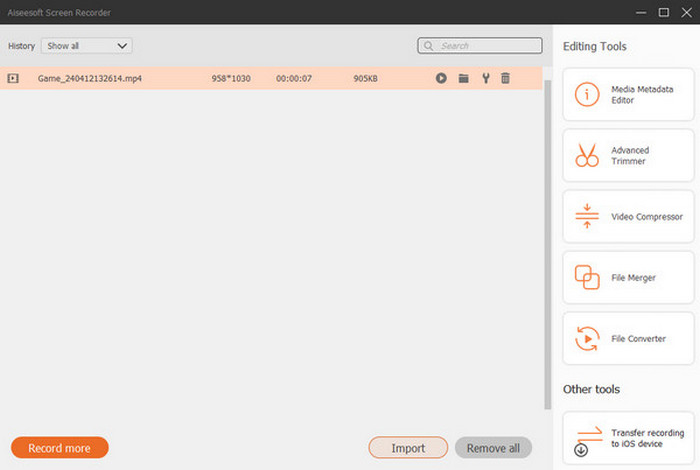
Jika Anda ingin mengetahui lebih banyak tentang perekam ini, berikut beberapa tips untuk dipelajari.
Bacaan Lebih Lanjut
5 Efficient Ways How to Record Screen to GIF on Mac & Windows
How to Record the Epic Stunts, Clutches, or Tutorials on Minecraft
Bagian 3. FAQ tentang Merekam Gameplay di PS5
Bagaimana cara mematikan rekaman permainan di PS5?
Untuk mematikan atau menghentikan rekaman permainan di PS5, Anda hanya perlu menekan tombol Buat dari kontroler permainan. Kemudian, di layar, klik opsi Hentikan Perekaman.
Di mana saya dapat melihat klip permainan yang direkam pada PS5 saya?
Klip permainan yang direkam disimpan di bagian Capture dari Galeri Utama. Anda dapat mengakses galeri ini dari layar Beranda. Dengan galeri ini, Anda dapat melihat, mengedit, dan membagikan klip sesuai dengan yang diizinkan galeri.
Bagaimana cara membagikan rekaman saya di PS5?
Anda dapat membagikan klip setelah merekam di PS5 langsung dari Galeri Pengambilan Gambar. Anda hanya perlu memilih klip yang ingin dibagikan, klik tombol Opsi pada kontroler, lalu pilih opsi Bagikan.
Kesimpulan
No more asking how to record on PS5, as this article provided you with the default and best ways. Thus, have qualitative and lengthy gameplay recordings of your desired. Then, share the solutions with your co-gamers for them to have the same exciting recording experience on their PS5!
-
 5 Software Perekam Game Terkemuka yang Wajib Diketahui Gamer [2024]
 Apakah Anda seorang gamer yang ingin melakukan perekaman game? Maka artikel ini akan memberi Anda perekam permainan terbaik yang dapat Anda gunakan untuk mengalami ketinggian permainan baru.
-
 5 Aplikasi Perekam Layar Android Teratas yang Wajib Anda Dapatkan di Tahun 2024
 Mengalami masalah karena tidak bisa melakukan screen recording di Android? Jika demikian, artikel ini mengulas tentang perekam layar Android yang dapat Anda unduh.
-
 5 Perekam Rapat Zoom Teratas untuk Merekam Rapat di Zoom [2024]
 Perlu merekam rapat zoom agar tidak ketinggalan detail penting rapat Anda? Jika demikian, artikel ini menyediakan perekam zoom terbaik yang harus Anda ketahui.
