


 Video Converter Ultimate
 Perekam Layar
 Perbaikan Video
 Unduhan Aman
5 Perekam WebM Teratas untuk Merekam Video WebM dalam Kualitas Tinggi
Ekstensi file WEBM biasanya digunakan oleh peramban web. Sebagian besar di antaranya adalah peramban modern seperti Google Chrome, Opera, Firefox, Safari, dan Edge. Umumnya peramban ini adalah situs web berbasis HTML5 yang mendukung siaran langsung video. Contoh yang baik adalah YouTube, Twitch, dan platform media lainnya. Format ini mendukung resolusi video dari 360p hingga resolusi tertinggi. Jika kita membandingkan format ini, WEBM adalah format terkompresi yang mirip dengan MKV, MOV, dan MP4. Perbedaannya terletak pada konten file dari format tersebut. Baik Windows maupun Mac dapat memutar file khusus ini asalkan pemutar videonya memiliki codec dan plug-in yang tepat. Sementara itu, jika Anda mencari cara yang lebih baik untuk merekam atau memperoleh file WebM, lihat daftar perekam WebM terbaik di bawah ini.

Bagian 1. Perekam WebM Terbaik: Perekam Layar FVC
Dapatkan cara termudah untuk mengambil snapshot, merekam layar Anda, dan merekam file video WebM dalam tiga langkah mudah dengan FVC Screen Recorder. Perekam layar .webm untuk Windows dan Mac ini dapat merekam situs WebM seperti YouTube, panggilan Skype, dan streaming langsung, dan situs lain mendukung format WebM. Tangkap streaming langsung Gameplay Anda tanpa mengurangi kualitas video. Plus bisa merekam video, audio, dan microphone. Dijamin tidak ada kebisingan latar belakang karena merekam suara sistem. Jadi, nikmati perekaman tanpa batas dan fitur pengeditan luar biasa untuk tutorial video Anda dengan Perekaman Layar FVC. Di sisi lain, inilah cara Anda menggunakan alat ini.
Langkah 1. Unduh FVC Screen Recorder menggunakan tombol unduh di bawah ini.
Unduh GratisUntuk Windows 7 atau yang lebih baruUnduhan Aman
Unduh GratisUntuk MacOS 10.7 atau yang lebih baruUnduhan Aman
Langkah 2. Instal dan luncurkan aplikasinya setelah mengikuti panduan pemasangan.
Langkah 3. Setelah bilah mengambang muncul, klik Video Recorder.
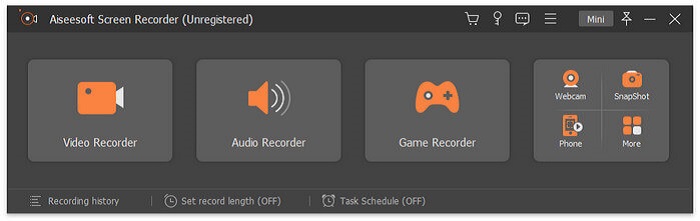
Dari sana akan muncul jendela lain. Kali ini klik Custom atau Full Screen. Jika Anda memilih custom, sesuaikan ukuran bingkai ke ukuran yang Anda inginkan.
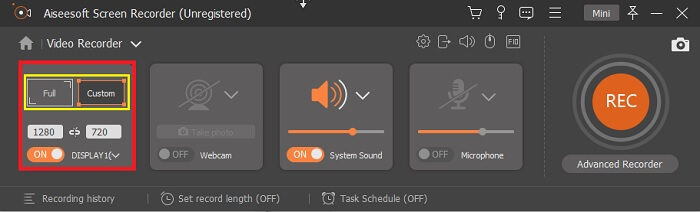
Langkah 4. Untuk mulai merekam, klik tombol REC dan lakukan saja aktivitas seperti biasa.
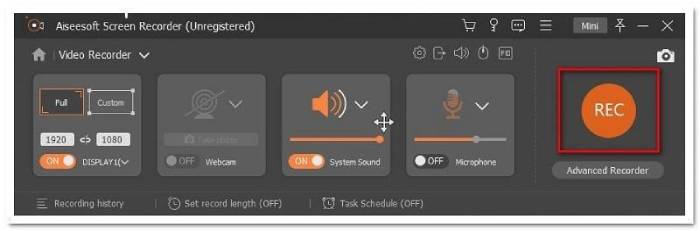
Anda kemudian dapat membubuhi keterangan, menambahkan panah dan teks rekaman.
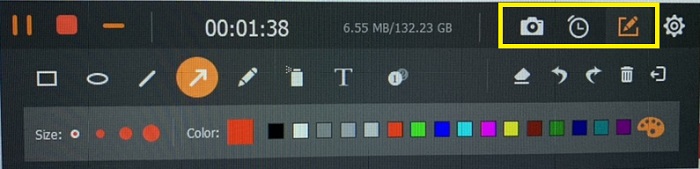
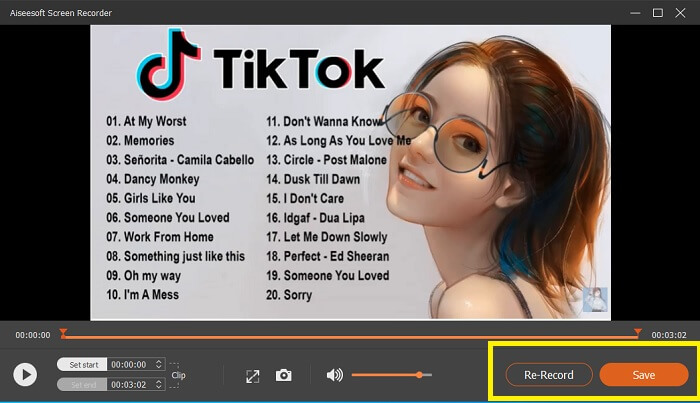
Langkah 5. Lalu, klik tombol kotak merah untuk menghentikan rekaman. Sebuah jendela baru akan muncul yang memungkinkan Anda memilih antara menyimpan atau merekam ulang. Untuk memeriksa rekaman, lihat daftar di bagian bawah bilah mengambang.
Bagian 2. Perekam WEBM Populer Lainnya untuk Komputer Anda
1. Perekam Layar Gratis FVC
Fitur Khas: Bebas Malware. 100% aman
Jika alat pertama belum memuaskan Anda, mungkin Anda sedang mencari yang lebih praktis. FVC Free Screen Recorder adalah alat andalan Anda jika ingin memaksimalkan fitur hebat tanpa mengeluarkan biaya. Meskipun alat gratis biasanya dikenal menghasilkan kualitas yang lebih rendah dibandingkan versi premium, alat ini menaikkan standar sedikit lebih tinggi. Alat ini dapat menghasilkan video berkualitas tinggi dengan audio yang tetap jernih meski gratis. Selain itu, alat ini mudah digunakan. Ikuti langkah-langkah di bawah ini untuk mempelajarinya lebih lanjut.
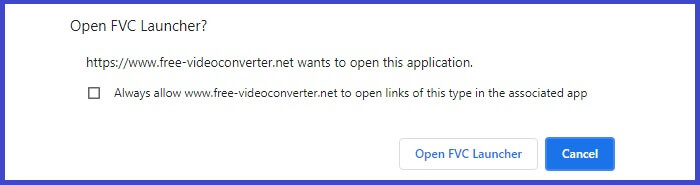
Langkah 1. Luncurkan aplikasi di PC Anda menggunakan peramban web. Tidak masalah peramban apa yang Anda gunakan, alat ini cukup fleksibel untuk diakses dari mana saja. Klik tautan untuk langsung menuju halaman resmi.
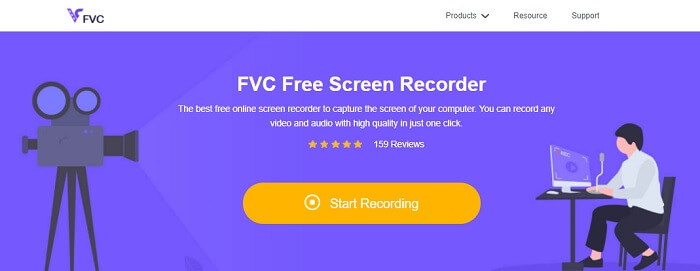
Langkah 2. Jalankan alat dengan mengklik tombol Start Recording.
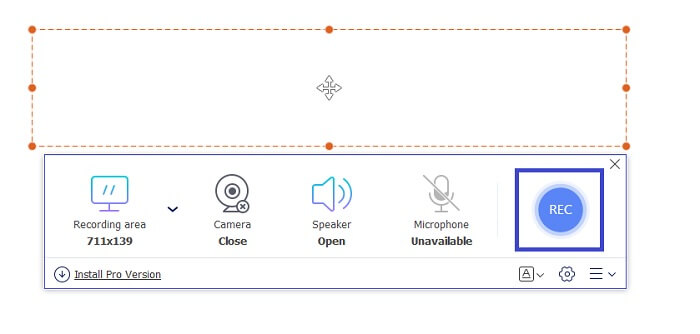
Langkah 3. Setelah menjalankan alat, Anda akan melihat bilah mengambang muncul. Sesuaikan bingkai untuk mengubah rasio aspek lalu mulai merekam dengan mengklik tombol REC.
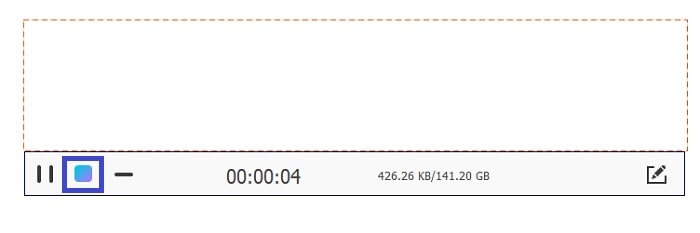
Langkah 4. Sementara itu, untuk menghentikan rekaman klik tombol kotak yang ditunjukkan pada gambar di bawah.
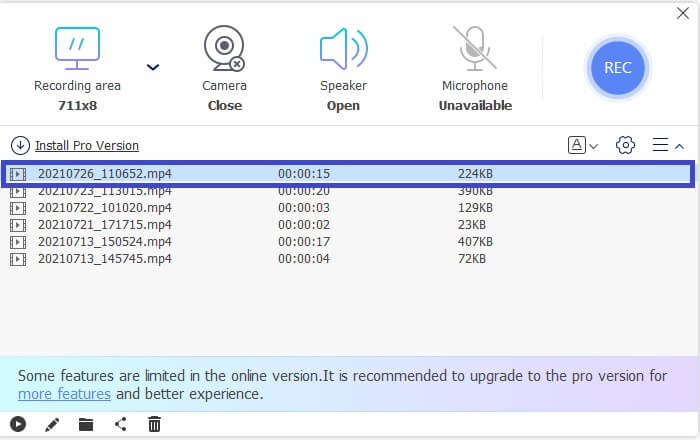
Langkah 5. Untuk melihat file yang Anda rekam, periksa daftar di bawah bilah alat mengambang.
Pro
- 100% aman dari Malware.
- Ini fleksibel dalam menyesuaikan rasio aspek, bitrate, dan Frame rate.
- Gambar dalam Gambar didukung.
Kontra
- Itu tidak mendukung akselerasi perangkat keras.
2. Ambil Kecil
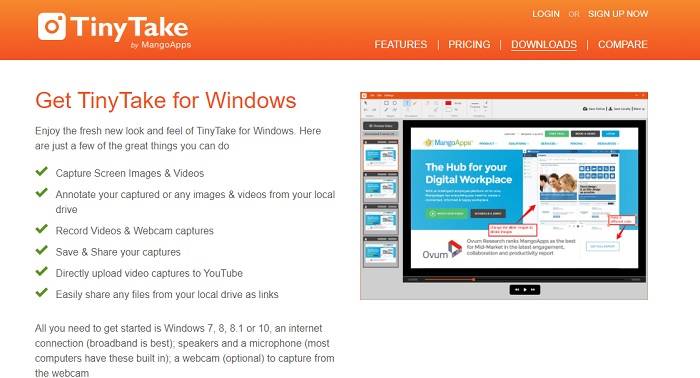
Fitur Khas: Mendukung kolaborasi atau kerja jarak jauh.
TinyTake adalah alat perekam video dan penangkap layar gratis yang dikembangkan oleh Mango Apps. Tiny Take menawarkan solusi hebat untuk menangkap layar sederhana atau merekam rapat profesional atau pribadi. Yang membuat alat ini populer adalah fitur kolaborasi di mana Anda dapat bekerja dari jarak jauh, berbagi file secara massal, menggunakan fitur anotasi dan penyimpanan jangka panjang, serta Galeri (Online).
Pro
- Itu dapat menangkap gambar dan video dari drive lokal Anda.
- Bagikan langsung di YouTube.
- Anotasi saat merekam.
Kontra
- Tidak ada fitur jendela penguncian.
3. Screencast-O-Matic
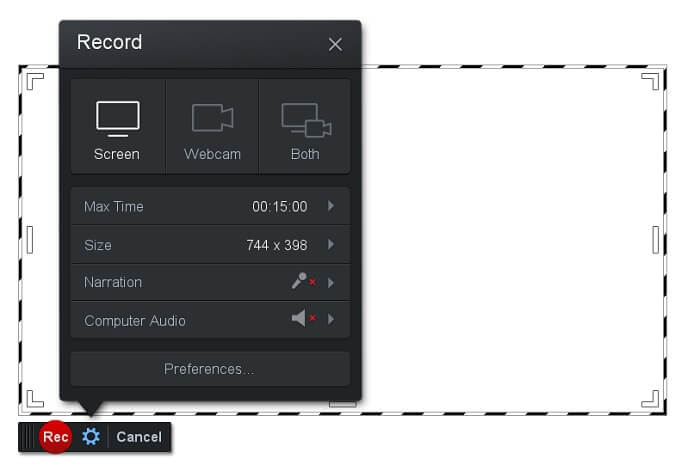
Fitur Khas: Alat ini memiliki antarmuka yang mudah digunakan dan dinavigasi. Sangat sederhana.
Screencast-O-Matic adalah salah satu perangkat lunak yang paling umum digunakan oleh banyak orang. Fungsinya adalah merekam layar komputer secara gratis setelah pendaftaran. Disarankan untuk membuat akun agar dapat menggunakan alat gratis ini. Selain itu, pengembang menyertakan fitur di mana Anda dapat mengedit video langsung sebelum mengekspornya. Anda dapat memanfaatkan pustaka stok bawaan alat ini untuk mendapatkan inspirasi dan terus meningkatkan video Anda. Anda juga dapat mengambil tangkapan layar dan membagikan semua konten ke akun media sosial Anda.
Pro
- Ini memiliki fitur Cloud Hosting.
- Unggah video untuk diedit.
- Konten Tuan Rumah.
Kontra
- Pendaftaran diperlukan.
4. Screencastify
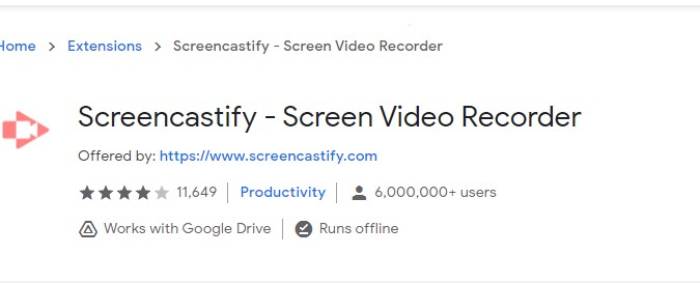
Fitur Khas: Ekstensi peramban web
Mari kita berikan sedikit keragaman pada daftarnya. Screencastify adalah alat yang bergantung pada web khusus ekstensi untuk Browser Chrome. Ini banyak digunakan oleh pendidik dan siswa. Terutama karena kesederhanaan alat dan kemampuan anotasi yang membuat pendidik dan siswa tetap fokus di kelas. Kebanyakan orang yang belajar melalui Udemy dan situs Pembelajaran semacam itu menggunakan perekam layar ini. Jika Anda melakukan hal yang sama, Anda dapat mempertimbangkan untuk menggunakannya. Sementara itu, berikut adalah informasi lebih detail tentang alat tersebut.
Pro
- Kompatibel dengan semua platform media.
- Konten Tuan Rumah.
- Unggah video untuk diedit.
Kontra
- Meskipun aksesnya mudah karena bergantung pada browser, ini juga bisa merugikan.
- Perlu banyak izin untuk menggunakannya.
Bagian 3. FAQ tentang Perekam WebM
Mengapa file WebM saya tidak dapat dibuka?
Saya mengerti kebingungan Anda, Anda mungkin merasa sudah menggunakan peramban modern namun tetap tidak bisa memutar video. Apakah Anda sudah memeriksa apakah sedang menjalankan versi terbaru peramban? Jika belum, silakan perbarui. Ini adalah salah satu alasan paling umum mengapa video tidak dapat diputar. Namun perlu dicatat, berikut beberapa versi yang didukung oleh file WebM: Chrome 6, Firefox 4, dan Internet Explorer 9 ke atas. Atau Anda bisa mencoba menggunakan pemutar WebM untuk membantu Anda membukanya.
Mengapa saya tidak dapat memutar video WebM di Mac saya?
Saya sangat merekomendasikan mengunduh VLC player atau VLC untuk plugin Mac OS X. Itu harus memiliki prosesor Intel 64-bit.
Bagian 4. Bagan Perbandingan
| Fitur | Perekam layar FVC (Premium) | Perekam Layar FVC Gratis | TinyTake | ScreenCast-O-matic | LayarCastify |
| Rekaman Audio dan Video |  | | | | |
| Fitur Pengeditan Video | | |  | | |
| Fitur Jendela Terkunci | | | | | |
| Fitur Anotasi | | | | | |
| Didukung WebM | | | | | |
| Aman dari Malware | | | | | |
| Bitrate dan rasio aspek yang dapat disesuaikan | | | | | |
Kesimpulan
Semua alat perekaman WebM yang diulas dalam artikel ini dapat diandalkan dan efisien. Anda hanya perlu melihat alat mana yang sesuai dengan kebutuhan PC dan sistem operasi Anda. Kebanyakan orang akan pergi ke tempat yang aman dengan menggunakan aplikasi berbasis web. Tapi itu masih panggilan Anda untuk memutuskan.
-
 Review Rekam Audio Cinch yang Tidak Memihak dan Alternatif Terbaik
 Cinch Audio Recorder adalah cara terbaik untuk mendownload musik dari situs streaming. Pelajari lebih lanjut tentang ulasan yang tidak bias dan alternatif terbaik dari artikel.
-
 5 Perekam Mouse dan Keyboard Terbaik untuk Windows dan Mac
 Berikut adalah lima program perekam mouse dan keyboard terbaik yang dapat menyimpan gerakan mouse dan klik keyboard Anda, dan mengulangi kejadiannya.
-
 4 Perekam Layar AVI Gratis Teratas untuk Menangkap Video Layar sebagai File AVI
 Untuk merekam layar dalam file AVI berkualitas tinggi, artikel mengidentifikasi dan membagikan 4 perekam layar AVI gratis teratas di posting ini. Pelajari lebih lanjut untuk menemukan yang sesuai.
