


 Video Converter Ultimate
 Perekam Layar
 Perbaikan Video
 Unduhan Aman
Apa itu JPG/JPEG dan Cara Mengonversi Gambar ke JPG
Format file JPG, PNG, dan GIF adalah format yang paling populer saat ini. Saat menggunakan gambar di situs web atau postingan media sosial Anda, inilah jenis file yang biasanya Anda temui. Penting untuk diingat bahwa masing-masing memiliki kemampuan yang berbeda. Artinya, setiap format memiliki fitur yang unik. Namun, dalam artikel ini, kami akan berfokus pada format file JPG/JPEG. Anda akan mempelajari pengertiannya, kemampuannya, dan cara membuka file JPG/JPEG. Selain itu, Anda juga akan mempelajari cara terbaik mengonversi gambar ke format JPG/JPEG menggunakan alat daring.

Bagian 1. Informasi tentang JPG atau JPEG
Apa format JPG/JPEG
Format file gambar JPG adalah file terbaik saat mengompresi gambar. JPG adalah file yang populer bagi pengguna. Mereka menggunakannya untuk foto dan grafik internet. Juga, ini dikenal sebagai file JPEG atau JPG. Nama lengkap JPEG adalah Joint Experts Group. Grup ini membuat file gambar populer ini. Selain itu, sebagian besar gambar bitmap memiliki ekstensi file .jpg. Alasan utamanya adalah untuk mengurangi ukuran file. JPG adalah format lossy, yang memengaruhi kualitas gambar saat Anda terlalu banyak mengompresnya. Format ini dapat diakses di semua program. Dengan cara ini, Anda tidak perlu memikirkan cara membuka file ini di berbagai program atau perangkat. Algoritme kompresinya mengurangi ukuran file. Ini adalah salah satu alasan mengapa itu menjadi populer akhir-akhir ini. Dengan cara ini, membuat cerita, berbagi, dan memposting foto di situs web menjadi lebih santai. Sebagai informasi tambahan, Anda dapat menemukan contoh ketika situs web tidak mengenali file JPEG. Misalnya, beberapa penampil dan editor foto hanya akan membuka gambar dengan file .JPG. Solusi terbaik yang dapat Anda lakukan adalah mengganti nama ekstensi file. Anda dapat mengubah file JPEG menjadi file JPG. Dengan cara ini, situs web dapat mengenali gambar tersebut.
Selanjutnya, file JPG memiliki kelebihan yang perlu Anda ketahui. JPG adalah gambar beresolusi tinggi. Definisi tingginya adalah salah satu keuntungan besar dari file gambar ini. Ini mendukung warna 24-bit dengan hingga 16 juta warna. Resolusi akan tetap luar biasa, bahkan setelah menerapkan pengeditan tingkat tinggi menggunakan beberapa alat. Juga, JPG berukuran lebih kecil. Dibandingkan dengan format file gambar lainnya, ini memiliki ukuran file yang ideal. Walaupun memiliki ukuran yang lebih kecil, namun tidak mempengaruhi kualitas dan resolusi sebuah gambar. Setelah mengetahui kelebihannya, Anda perlu mengetahui kekurangannya agar lebih waspada. Saat memotret di JPG, Anda harus membatasi prosesor kamera dan variasi warna. File ini juga tidak mendukung gambar berlapis. Jika Anda berencana mengedit gambar dan memerlukan lapisan ekstra, JPG bukanlah format yang sempurna untuk ini.
Bagian 2. Cara Membuka File JPG/JPEG
Jika Anda kesulitan membuka file JPG di perangkat Anda, bagian ini akan membantu Anda. Ingin tahu cara membuka file JPG di Windows 11, Android, dan iPhone? Anda dapat mengikuti petunjuk yang diberikan di bawah ini.
Untuk Pengguna Windows
Langkah 1: Tekan Ctrl + E pada keyboard Anda untuk membuka File Explorer. Ikonnya mirip folder dengan klip biru.
Langkah 2: Arahkan ke panel folder Quick access. Lalu, buka opsi Download untuk melihat foto JPG yang Anda simpan.
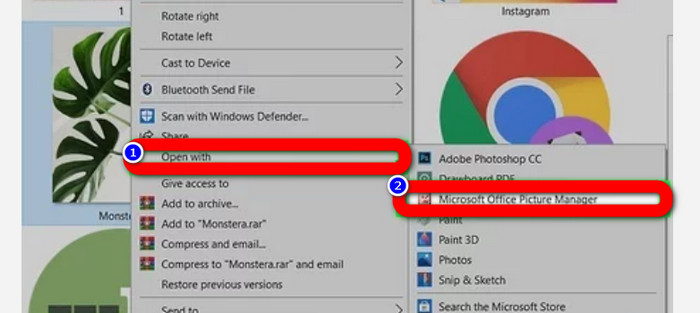
Langkah 3: Ketika Anda sudah melihat file JPG/JPEG, bukalah menggunakan program lain selain Photos. Untuk membukanya, klik kanan foto, klik opsi Open with lalu pilih programnya.
Untuk Pengguna Android
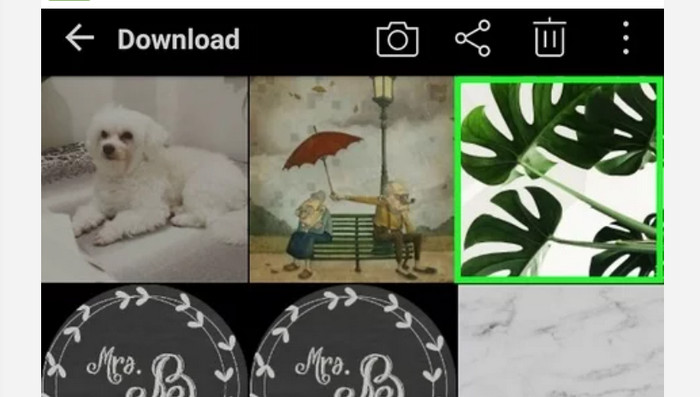
Langkah 1: Buka aplikasi Galeri di perangkat Android Anda.
Langkah 2: Buka album kamera untuk melihat foto yang Anda ambil dengan kamera ponsel. Di ponsel Anda juga terdapat berbagai album lainnya.
Langkah 3: Jika Anda melihat banyak foto, ketuk satu foto untuk membukanya dalam mode layar penuh. Dengan cara ini, Anda dapat melihat gambar JPG/JPEG dengan jelas.
Untuk Pengguna iPhone
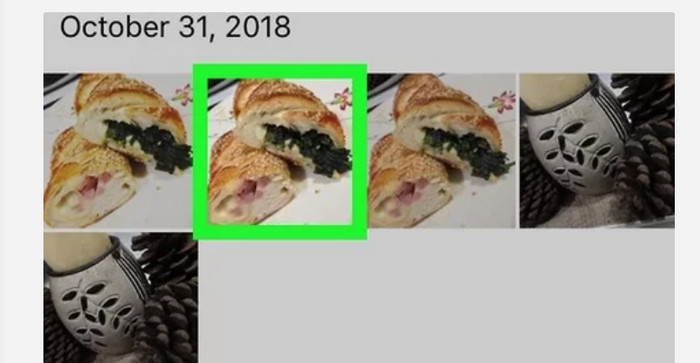
Langkah 1: Ketuk Photos di iPhone Anda. Aplikasi ini berisi semua gambar yang Anda miliki dari kamera dan internet. Tampilan ikon aplikasi ini menyerupai bunga berwarna-warni.
Langkah 2: Setelah Anda membuka aplikasi Photos, Anda dapat melihat semua foto di sana. Sama seperti di ponsel Android, Anda juga akan menemukan berbagai album di dalam aplikasi.
Langkah 3: Klik gambar untuk membukanya dalam tampilan layar penuh. Dengan begitu, Anda dapat melihat gambar dengan lebih jelas. Selain membuka gambar, Anda juga dapat mengedit foto di aplikasi Photos. Terdapat ikon-ikon yang bisa Anda gunakan untuk membuat gambar Anda menjadi lebih baik.
Bagian 3. Metode Luar Biasa untuk Mengonversi Gambar ke JPG
FVC Free Image Converter adalah alat daring yang dapat Anda gunakan untuk mengonversi gambar ke JPG. Alat ini dapat membantu Anda mengonversi gambar hanya dengan beberapa klik. Selain itu, alat ini mendukung berbagai format input seperti JPG, PNG, GIF, TIFF, dan lainnya. Jadi, Anda tidak perlu khawatir lagi jika alat atau perangkat tertentu tidak bisa membuka gambar Anda. Gunakan pengonversi gambar online ini untuk mengonversinya. Alat ini juga dapat mempertahankan kualitas asli foto dengan baik. Setelah proses selesai, Anda hampir tidak akan melihat perbedaan antara file asli dan file yang sudah dikonversi. Selain itu, pengonversi gambar ini mudah dioperasikan. Proses konversinya mudah dipahami, sehingga cocok untuk pemula. Alat ini juga mampu mengonversi gambar secara batch. Dengan demikian, Anda bisa mengonversi banyak file sekaligus. Anda juga dapat mengakses aplikasi ini melalui berbagai browser seperti Google, Safari, Mozilla, Explorer, dan lain-lain. Terakhir, aplikasi ini menjamin privasi setiap pengguna. Setelah Anda mengunduh dan mengonversi gambar, pengonversi ini akan menghapus foto Anda secara otomatis.
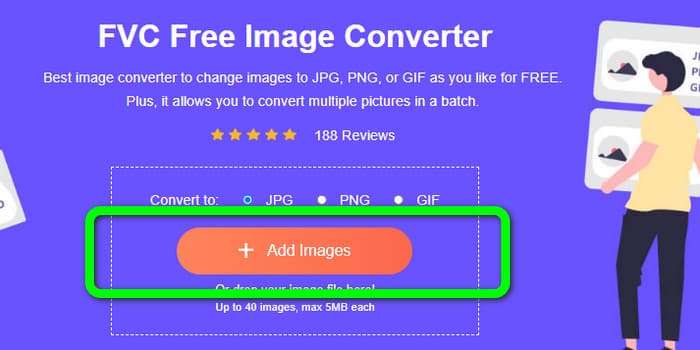
Langkah 1: Pertama, kunjungi situs web FVC Free Image Converter. Pergi ke opsi format dan pilih format file JPG.
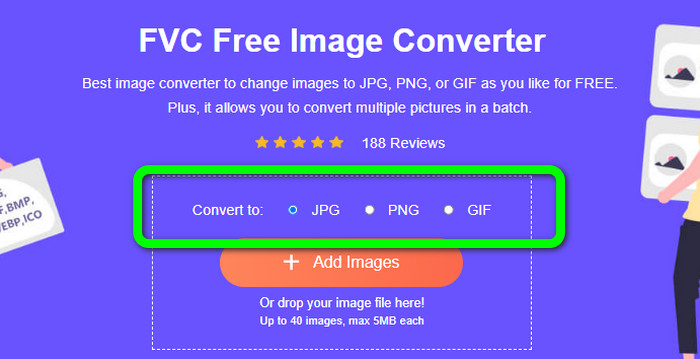
Langkah 2: Untuk mengunggah foto yang ingin Anda konversi, klik tombol Add Images. Jika Anda menginginkan proses konversi batch, klik Add Images lagi.
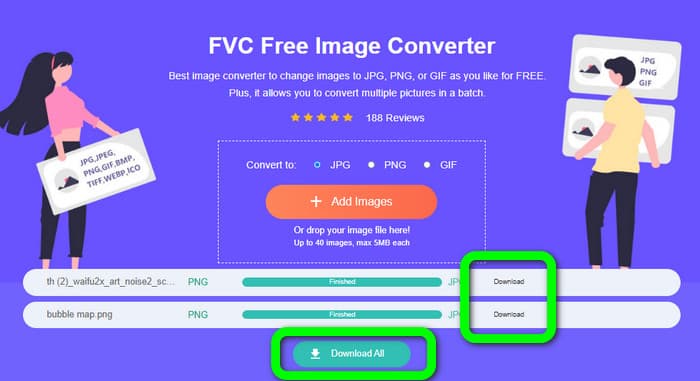
Langkah 3: Ketika proses konversi selesai, klik tombol Download untuk menyimpannya satu per satu. Jika Anda ingin menyimpannya sekaligus, klik tombol Download All.
Berhubungan dengan:
Detail Lengkap Perbedaan JPEG vs. JPG vs. PNG
8 Pengonversi Gambar yang Menakjubkan [Informasi Lengkap]
Bagian 4. FAQ tentang File JPG/JPEG
1. Bagaimana saya tahu jika foto saya adalah file JPG?
Anda dapat mengklik kanan foto di folder file Anda. Kemudian, pergi ke opsi Properties. Arahkan ke menu Umum dan lihat jenis file gambar Anda.
2. Seberapa baik JPEG mengompres gambar?
Sangat baik. Data yang tidak terkompresi untuk foto penuh warna adalah 24 bit/piksel. Metode kompresi lossless yang paling populer dapat memampatkan data tersebut dengan rata-rata 2:1. JPEG dapat mencapai kompresi 10:1 hingga 20:1 tanpa kehilangan yang terlihat. Ini mengurangi jumlah penyimpanan yang diperlukan menjadi 1–2 bit per piksel. Dengan data yang sangat kecil, kompresi 30:1 hingga 50:1 dapat digunakan untuk mengurangi kekurangan. Sementara penggunaan berkualitas rendah seperti indeks Arsip dapat memampatkan 100:1 dengan relatif mudah. Rasio 100:1 gambar terkompresi JPEG menggunakan jumlah ruang yang sama dengan gambar penuh warna, skala sepersepuluh. Meskipun memiliki detail yang jauh lebih banyak daripada gambar kecil, itu benar.
3. Bagaimana cara membuka file JPG di Photoshop?
Luncurkan Photoshop di komputer Anda. Buka opsi File > Buka. File folder akan muncul di layar Anda. Pilih file JPG dan klik OK. Setelah itu, Anda akan melihat file gambar JPG di Photoshop.
Kesimpulan
Artikel ini menjelaskan kepada Anda apa kepanjangan dari JPG/JPEG, termasuk pengertian dan fiturnya. Sebagai bonus, kami juga memperkenalkan metode termudah untuk mengonversi gambar ke format JPG menggunakan FVC Free Image Converter. Jadi, tunggu apa lagi? Gunakan alat ini untuk mengonversi gambar Anda ke format JPG dengan mudah.
-
 Metode Cara Mengkonversi Gambar ke JPG Online dan Offline
 Apakah Anda ingin mengonversi file ke format JPG karena alasan tertentu? Maka artikel ini untuk Anda. Kami akan mengajari Anda metode terbaik untuk mengonversi gambar Anda ke JPG
-
 Metode yang Berguna untuk Mengonversi Gambar ke Format PNG dengan Mudah
 Apakah Anda mencari cara terbaik untuk menyimpan gambar Anda sebagai PNG? Panduan ini menawarkan solusi terbaik bagi Anda untuk mengonversi gambar ke PNG secara online dan offline
-
 Konversi HEIC ke JPG dengan 6 Cara Offline & Online yang Efektif
 Ingin tahu cara mengonversi HEIC ke JPG? Dalam hal ini, kami menambahkan 6 cara online dan offline yang dapat Anda gunakan untuk menyelesaikan dan menangani tugas ini sepenuhnya.
