


 Video Converter Ultimate
 Perekam Layar
 Perbaikan Video
Cara Menambahkan Filter ke GIF di Windows/Mac/iPhone/Android dengan Langkah
Want to know how to spice your GIF by adding a filter on it? No need to worry because this article will provide the most picked GIF editor you can use on your desktop and phone to have filters. The information we include here will provide credible evidence on adding filters to a GIF. Let's investigate further what GIF filter software you can use on your operating system without further ado.

Bagian 1. Mengapa Saya Perlu Menambahkan Filter ke GIF
Jika Anda membagikan GIF di web, Anda harus terlebih dahulu menambahkan filter ke GIF untuk menyempurnakan warna, bergantung pada penyesuaian Anda. Menurut penelitian, GIF yang difilter menarik lebih banyak penonton daripada GIF yang tidak memilikinya. Jadi jika Anda ingin menarik banyak audiens, Anda harus mulai menambahkan filter pada setiap GIF yang Anda buat dengan editor GIF yang Anda miliki. Sekarang, jika Anda tidak tahu cara menambahkan filter ke GIF Anda, kami sangat menyarankan Anda membaca seluruh artikel.
Bagian 2. Tambahkan Filter ke GIF dengan Editor GIF Fenomenal di Windows & Mac [Cara Termudah]
Video Converter Ultimate is the best GIF editor we've seen and pick-out on the market. It is known for being your one-stop GIF editor as it offers multiple editing features like adding filters on a video or GIF. With this tool, you won't need to be a pro to use it, but you know what's great? You will have a pro output within a few touches. So now, if you want to add a filter to the GIF, you can follow the tutorial without breaking a sweat.
Step 1. To use the GIF editor, you must push the download button below and choose which operating system you are using. After downloading it, install the software by following the installation process, then open it to begin adding a filter to the GIF.
Unduh GratisUntuk Windows 7 atau yang lebih baruUnduhan Aman
Unduh GratisUntuk MacOS 10.7 atau yang lebih baruUnduhan Aman
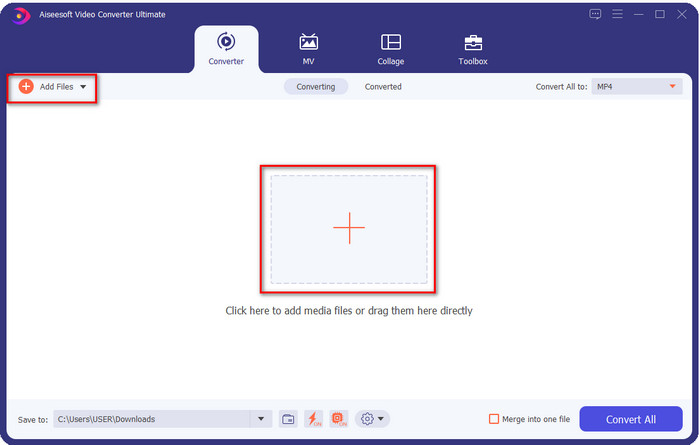
Step 2. Upload the GIF you want by clicking the + icon on the center of the main interface, but you can also click Add Files if you want; whether of the two you choose, they do function the same. Search the .gif on the desktop folder that will show on your screen, and click Open to upload it.
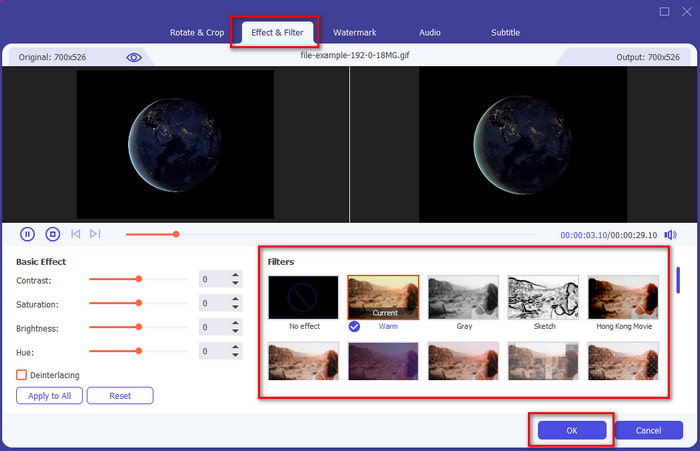
Step 3. Click the wand button to open a new window to add a filter to the GIF. Go to the Effect & Filters under it, and you will see a different set of filters you can use to make your GIF look better than the other GIFs on the web. You can try out all the filters by clicking them individually; if you are happy with the filter, you must click OK to successfully apply the filter on the GIF.
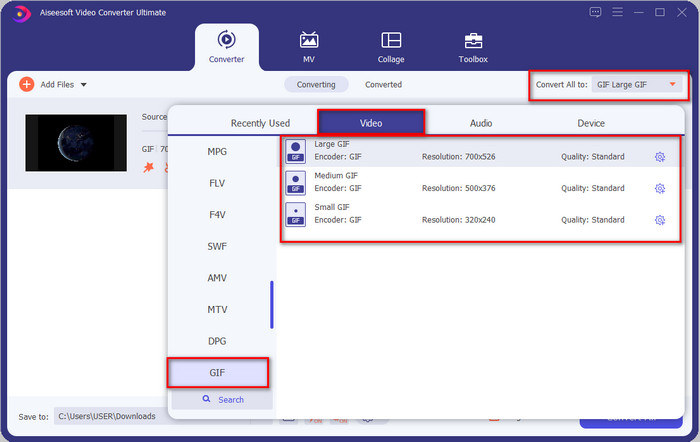
If you want to keep the format of your GIF, click the Convert All to and look for the GIF format. Select the GIF format you want to have and click it.
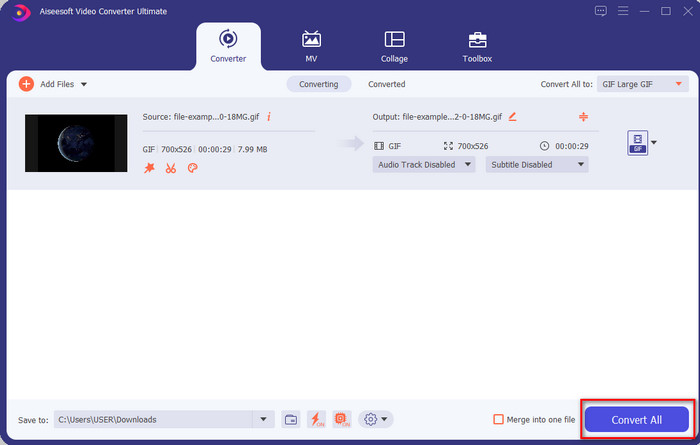
Step 4. And to download the GIF with the filter on it, click the Convert All button. Easy isn't it? With the Video Converter Ultimate, you can almost do everything regarding the GIF without breaking any sweat at all.
Bagian 3. Bagaimana Menambahkan Filter pada GIF dengan GIF Maker- Editor Tersedia di Perangkat Android
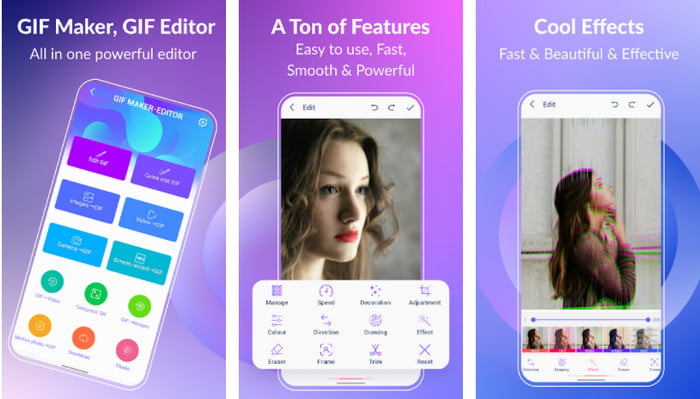
GIF Maker-Editor is an all-in-one tool you can download on your Android. This tool supports different filters to help you create a beautiful GIF. Although the tool is excellent, the ads on this tool are coming out of nowhere; you must be careful not to click them. So now, here are the steps on how to add a GIF color filter to your GIFs.
Step 1. Download the tool on your Play Store and open it.
Step 2. Click Edit GIF and choose the GIF that is on your image library.
Step 3. Look for the effects by sliding the options, then click it. Choose the filter you want, click the check icon, and OK to save the GIF.
Bagian 4. Bagaimana Menerapkan Filter pada GIF dengan GIF Maker Tersedia di Perangkat iPhone
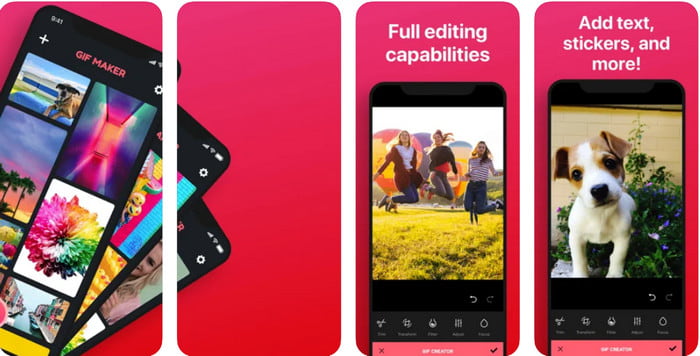
GIF Maker is the one-stop GIF editor you can download on your iPhone. With this tool, you create your custom GIFs within a few clicks. However, you can't directly use a GIF because the format isn't supported, but you can click this link and learn how to convert GIFs into a live wallpaper. After converting the GIF into a live wallpaper, you can follow the next steps to add a filter to the GIFs.
versi gratis alat ini akan meninggalkan tanda air ke GIF yang Anda ekspor.
Step 1. You can download the app for free on your App Store.
Step 2. Open the tool, click the + icon, click Choose Live Photo From Library, and choose the live photo to upload it.
Step 3. After uploading the live photo, click Filter, and choose which filter you want to add to your GIF. Click check to apply the video, and click the check again to export the file.
Bagian 5. FAQ tentang Menambahkan Filter ke GIF
Apakah filter memengaruhi warna GIF?
Kombinasi warna akan memengaruhi GIF atau media apa pun jika Anda menambahkan filter. Filter ini digunakan untuk mengoreksi kombinasi warna yang Anda inginkan, jadi jangan heran jika warnanya akan jauh lebih dalam atau lebih terang daripada visual mentah GIF.
Apa saja efek yang tersedia di Instagram?
There are numerous video filters you can use on Instagram, and if you wonder what these are, you can click this link and know the top 10 picks filters on Instagram.
Bisakah saya membuat video berkualitas tinggi melalui filter?
You can highlight the colors of the video to make it look high quality. However, filters can only enhance the colors of the video and not the overall quality. But if you want to extend the video quality of your video, you can read this and learn how to improve video quality.
Kesimpulan
Dan sekarang kami memiliki ide tentang cara menambahkan filter ke GIF, Anda harus mencoba alat yang kami sediakan di atas. Meskipun alat ini memiliki kekuatan yang berbeda dalam memfilter GIF Anda, kami masih percaya bahwa Video Converter Ultimate akan menawarkan filter terbaik yang dapat Anda gunakan untuk membuat GIF yang difilter dengan baik. Tidak hanya itu, dengan alat ini, Anda dapat memotong, menggabungkan, memangkas, membuat GIF pribadi, dan melakukan lebih banyak lagi. Apakah Anda tidak yakin dengan informasi yang kami berikan? Kami pikir ada satu cara untuk membuktikan kepada Anda bahwa alat ini adalah pilihan terbaik untuk mengedit GIF, dan itu adalah dengan mengklik tombol unduh di atas dan mengikuti tutorial yang kami sajikan dan nikmati!
-
 Cara Menambahkan Audio dan Musik ke Video secara Gratis di Komputer / Telepon Anda
 Artikel ini menunjukkan 4 cara mudah untuk menambahkan audio ke video secara gratis. Tidak peduli trek audio mana yang ingin Anda tambahkan ke video Anda, Anda bisa mendapatkan hasil yang memuaskan di sini.
-
 Ubah GIF menjadi Format Video: Ubah Meme GIF menjadi Video [2021]
 Tentukan cara mengubah GIF menjadi format video dengan bantuan alat yang tercantum di bawah ini. Pilih yang mana dan pelajari cara melakukannya, saat kami mengumpulkan cukup banyak bukti tentangnya.
-
 Aplikasi GIF ke Video yang Luar Biasa untuk Perangkat Android & iOS
 Tahukah Anda bahwa Anda dapat mengonversi GIF ke format video apa pun yang Anda suka menggunakan ponsel? Pilih aplikasi terbaik di Android atau iOS Anda.
