


 Video Converter Ultimate
 Perekam Layar
 Perbaikan Video
 Unduhan Aman
100% Cara Gratis untuk Mengompresi Ukuran File M4V dari GB ke MB
Format file M4V, mirip dengan MP4, adalah wadah video hebat yang diproduksi oleh Apple. Anda dapat memutar file M4V di hampir semua pemain populer, seperti iTunes, QuickTime, VLC Media Player, RealPlayer, dan lainnya. Namun terkadang, Anda mungkin menemukan video M4V Anda terlalu besar untuk disimpan atau dibagikan. Dalam situasi ini, Anda perlu mengurangi ukuran file.
Jika Anda belum tahu cara mengompres M4V, Anda dapat mencoba opsi berikut ini.

Bagian 1. Cara Mengompres M4V Online Gratis
Seperti yang kami sebutkan, mungkin agak sulit untuk mengedit dan membagikan file video besar di YouTube, Facebook, Instagram, atau situs streaming lainnya. Karena biasanya situs-situs tersebut memiliki batasan ukuran yang ketat pada video yang Anda upload. Selain itu, file besar dapat menghabiskan banyak ruang di komputer, disk drive, ponsel, flash drive, kartu memori, dll.
Karena itu, ketika Anda memiliki file M4V yang berukuran besar, sebaiknya Anda mengecilkan ukurannya dengan kompresor video profesional. Jika Anda mencari program gratis, mengapa tidak mencoba FVC Free Video Compressor? Alat ini sepenuhnya gratis digunakan. Selain itu, ini adalah alat kompresi online, yang berarti Anda dapat mengompres video apa pun ke ukuran yang diinginkan tanpa harus menginstal perangkat lunak berukuran besar di komputer Anda.
Anda dapat menggunakannya di browser utama apa pun seperti Google Chrome, Mozilla Firefox, dan Microsoft Edge. Dan tidak akan ada tanda air yang ditambahkan ke video terkompresi. Anda bahkan bisa menikmati video dengan kualitas gambar yang tinggi.
Berikut langkah-langkah cara mengompres file M4V besar secara online.
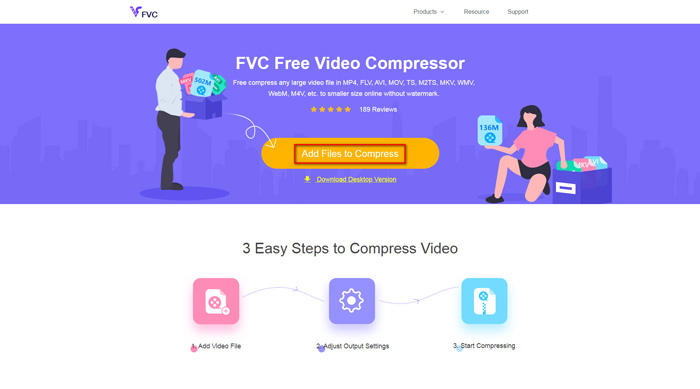
Langkah 1. Buka situs web FVC Free Video Compressor di browser Anda. Anda akan melihat tombol Add Files to Compress di banner. Klik tombol tersebut dan ikuti petunjuk untuk mengunduh serta memasang peluncur FVC di komputer Anda.
Langkah 2. Setelah itu, Anda perlu memilih file M4V yang ingin Anda kompres. Lalu Anda dapat menggeser slider di belakang kotak Size untuk menyesuaikan dan menemukan ukuran file yang tepat yang Anda inginkan dengan mudah. Anda juga bisa mengubah resolusi dan bitrate secara terpisah sesuai kebutuhan.
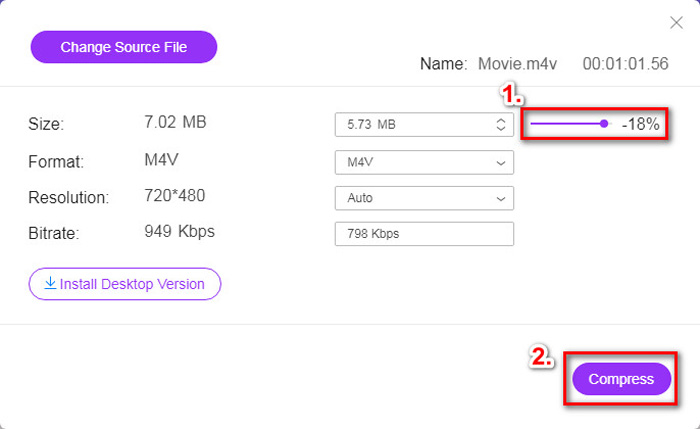
Langkah 3. Jika Anda ingin mengompres M4V ke MP4, maka Anda perlu memilih MP4 sebagai format keluaran di sini. Jika tidak, Anda bisa langsung mengklik Compress di sudut kanan. Pilih folder untuk menyimpan video terkompresi dan tunggu beberapa detik hingga video yang diinginkan selesai diproses.
Bagian 2. Bagaimana Mengurangi Ukuran File M4V di Mac / Windows
Karena M4V adalah format yang dikembangkan oleh Apple, Anda juga dapat menggunakan pemutar bawaan Apple, QuickTime Player, untuk mengompres file M4V di Mac. QuickTime Player juga menyediakan versi Windows untuk pengguna PC. Namun perlu diperhatikan bahwa versi terbaru untuk Windows adalah QuickTime 7.7.9 yang dirilis pada tahun 2016. Jadi, jika yang Anda inginkan adalah program yang baru dan mutakhir, Anda bisa mencoba FVC Free Video Compressor yang bahkan dapat menangani video 4K.
Bagaimanapun, silakan ikuti langkah-langkah di bawah ini untuk mengurangi ukuran file M4V di QuickTime.
Langkah 1. Buka file M4V yang akan dikompres dengan QuickTime.
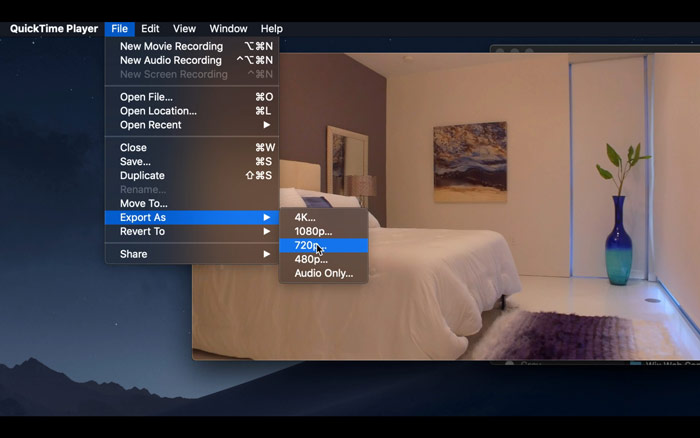
Langkah 2. Cari menu File di pojok kiri atas. Klik menu itu dan temukan opsi Export As dari daftar. Lalu pilih resolusi yang lebih rendah daripada video asli untuk mengompres video. Bagaimanapun juga, kita tidak ingin menambah ukuran file di sini.
Langkah 3. Jika Anda tidak ingin mengubah lokasi penyimpanan, Anda bisa langsung mengklik Save. Harap tunggu dengan sabar hingga proses ekspor video selesai.
Bagian 3. Tanya Jawab tentang Mengompresi M4V
1. Bisakah saya mengganti nama M4V menjadi MP4?
Tidak, jika yang Anda maksud adalah mengonversi M4V ke MP4 hanya dengan mengganti akhiran menjadi .mp4. Karena pengkodean keduanya tidak sama. Anda perlu menggunakan alat yang lebih profesional untuk mengonversi M4V ke MP4.
2. Apakah YouTube menerima format M4V?
Sayangnya, YouTube hanya mendukung sejumlah format file yang tidak menyertakan M4V. Jadi, jika Anda ingin mengupload video M4V ke YouTube, Anda harus mengonversinya ke format yang didukung YouTube seperti MP4.
3. Bagaimana cara menggabungkan beberapa video M4V menjadi satu?
Jika Anda memiliki beberapa file video M4V yang perlu digabung menjadi satu, Anda dapat mencoba FVC Free Online Video Merger untuk menggabungkan berbagai file video.
Kesimpulan
Sekarang Anda memiliki 2 cara yang sederhana dan gratis untuk mengompres file M4V. Jika Anda pengguna Mac, Anda dapat menggunakan QuickTime Player untuk mengurangi ukuran video. Namun jika Anda tidak puas dengan pilihan resolusi tetap yang disediakan QuickTime atau Anda menggunakan PC Windows, Anda bisa mencoba FVC Free Video Compressor.
-
 M4V ke MP3 Converter - 4 Metode Terbaik untuk Mengekstrak MP3 dari File M4V
 Saat Anda ingin mengekstrak audio MP3 dari video M4V dengan mudah, Anda dapat mempelajari lebih lanjut tentang 4 konverter M4V ke MP3 terbaik untuk mendapatkan file audio yang diinginkan dari artikel.
-
 4 Cara untuk Mengonversi Film QuickTime ke MP4 secara Gratis di Ponsel / Komputer
 Baca dan dapatkan 4 cara untuk mengonversi video QuickTime ke MP4 secara gratis di ponsel atau komputer Anda. Anda dapat mengubah format file dari MOV ke MP4 di Windows / Mac / iPhone / Android / online dengan mudah.
-
 4 Konverter MP4 ke M4V Terbaik untuk Mengubah Video MP4 menjadi M4V dengan Mudah
 Saat Anda perlu mengubah file MP4 ke M4V, Anda harus mempelajari lebih detail tentang perbedaan antara kedua format, serta konverter MP4 ke M4V terbaik dari artikel.
