


 Video Converter Ultimate
 Perekam Layar
 Perbaikan Video
 Unduhan Aman
Kompres MPEG-4 | Cara Memperkecil File MPEG-4 Tanpa Kehilangan Kualitas
Have you ever tried sending a large MPEG-4 file to others? You might have needed a file compressor to reduce the size of the files. If you have no experience in file compression, you could want to know which video compression tool suits your needs best. Read on to learn more about how to compress MPEG-4 files without losing quality.

Bagian 1. Cara Terbaik untuk Mengompresi File MPEG-4 Online Gratis
Penting untuk diketahui bahwa ada batasan ukuran file MPEG-4. Jika file Anda terlalu besar, sulit untuk mengirimnya dalam ukuran besar melalui email tanpa kompresi. Mengurangi ukuran file tersebut ke ukuran minimal, tanpa harus merusak kualitasnya, menjadi semakin penting dalam kehidupan kita sehari-hari. Untungnya, ada banyak alat online yang tersedia untuk mengompresi berbagai format file video.
Here we’d like to recommend Free Video Compressor to help you downsize large MPEG-4 files without destroying quality. It has got to be the easiest and quickest solution to MPEG-4 file compression today. The online tool works perfectly with every MPEG-4 file. Users are also allowed to save the compressed files in any format, including MOV, AVI, VOB and more. Here are the 4 simple steps involved in enjoying this super fast video compressor.
Step 1. Go to the online video compressor website
Tautan di bawah ini akan membawa Anda ke tempat yang tepat:
Head to the online video compressor website
Step 2. Upload your files
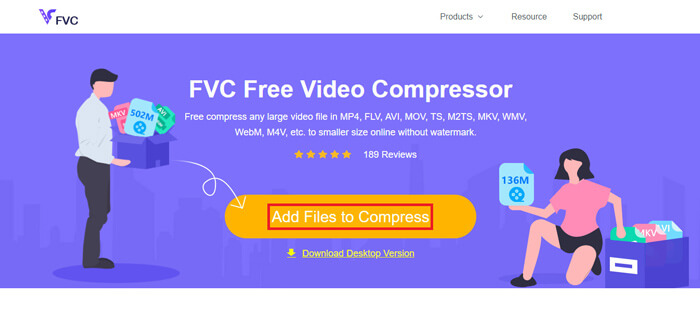
Click Add Files to Compress button. If you use this tool for the first time, you need to install its launcher first. After that, find your MPEG-4 video file and hit Open in the window that appears.
Step 3. Define the compression properties
Sekarang, Anda perlu mengkonfigurasi pengaturan kompresi, seperti ukuran, format, resolusi, dan bitrate. Misalnya, Anda dapat menurunkan resolusi file MPEG-4 untuk membuat file lebih kecil.
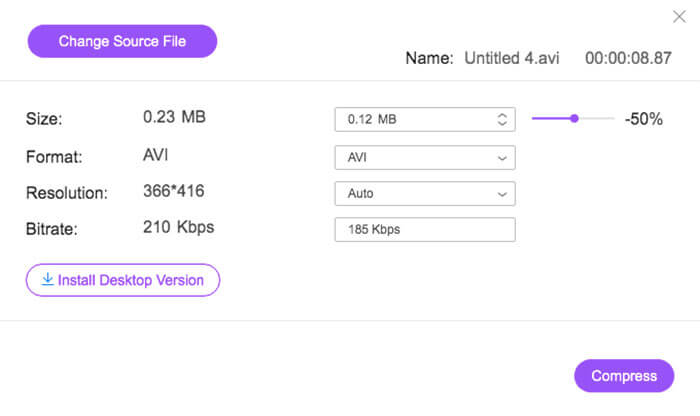
Step 4. Finally, hit Compress to start the compression process. After it’s complete, the reduced file will be downloaded to your computer automatically with no watermark.
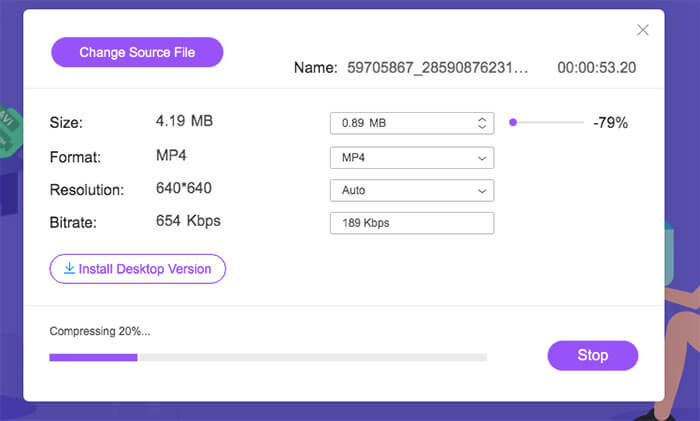
Apart from compressing MPEG-4 files, the tool also allows you to compress MXF, make WebM smaller, and downsize other common video files easily.
Bagian 2. Cara Memperkecil File MPEG-4 dengan MP4Compress
Anda juga dapat melihat MP4Compress - alat sederhana dan efektif untuk mengompresi File MPEG-4. MP4Compress adalah alat online gratis yang memungkinkan Anda mengompresi file MPEG-4 langsung dari browser web Anda.
Step 1. Visit its official website by entering https://www.mp4compress.com.
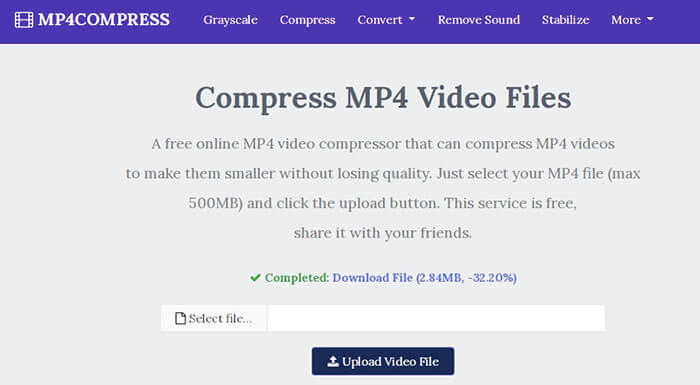
Click on the Select File... button to select the MPEG-4 file and then click Upload Video File to start uploading the file.
Step 2. Once the file is uploaded successfully, this tool will compress the file. As for the compression speed, it depends on your Internet bandwidth.
Step 3. Once the compression is complete, you will see a Download File link and then you can save the reduced file to your computer.
Bagian 3. FAQ Kompresi File MPEG-4
Apa itu file MPEG-4?
MPEG-4 adalah format wadah media digital yang ditetapkan oleh Moving Picture Experts Group (MPEG). Ini mendukung beberapa jenis codec video dan audio yang berbeda dan mungkin juga berisi objek 3D, sprite, teks, dan jenis media lainnya. Dengan pengembangan MPEG-4, ini dibagi menjadi beberapa bagian (setiap bagian mencakup aspek tertentu dari keseluruhan spesifikasi) termasuk MPEG-4 bagian 2 (misalnya codec video XviD), MPEG-4 bagian 3 (misalnya codec audio AAC) , MPEG-4 bagian 10 (codec video H.264), MPEG-4 bagian 14 (wadah media MP4) dan lainnya.
Apa itu kompresor video?
Kompresor video adalah alat yang membantu Anda mengecilkan ukuran berkas video. Tingkat kompresi tergantung pada codec video dan bitrate. Karena format video yang berbeda mungkin menggunakan codec yang berbeda, Anda dapat memilih untuk mengubah format file untuk menurunkan ukuran file.
Bagaimana cara mengompres file MPEG-4 di Mac?
Layanan online yang dijelaskan di atas berfungsi pada sistem operasi apa pun, sehingga Anda dapat menggunakan salah satunya untuk mengurangi ukuran file MPEG-4 di Mac Anda.
Kesimpulan
Artikel ini membahas dua alat online utama yang efisien untuk membantu Anda menyelesaikan kompresi MPEG-4. Sekarang Anda tahu cara mengompres file MPEG-4 ke ukuran yang lebih kecil secara online secara gratis. Pergi dan uji alat untuk menemukan yang paling sesuai dengan kebutuhan Anda.
-
 Cara Mengompres File Video AVCHD secara Gratis di Windows dan Mac
 Baca dan dapatkan 2 cara mudah untuk mengompres file video AVCHD. Anda dapat menggunakan kompresor video online dan offline untuk mengurangi ukuran video AVCHD secara gratis di komputer Anda.
-
 2 Cara Cepat Mengecilkan File OGV Besar [ Gratis & Online ]
 Tidak dapat mengirim file OGV besar ke orang lain? Nah, artikel ini akan memperkenalkan Anda 2 cara mudah untuk membantu Anda mengompres file OGV dengan mudah.
-
 100% Cara Gratis untuk Mengompresi Ukuran File M4V dari GB ke MB
 Jika Anda mencari cara sederhana untuk mengurangi ukuran file M4V Anda, Anda harus datang dan membaca artikel ini. Di sini kami akan membagikan cara termudah untuk mengompres file M4V dengan Anda.
