


 Video Converter Ultimate
 Perekam Layar
 Perbaikan Video
 Unduhan Aman
Panduan tentang Cara Mengedit Metadata WebM untuk Windows & Mac
Kebutuhan untuk menyertakan tag guna menambahkan informasi tambahan tentang konten WebM adalah salah satu alasan mengapa kita perlu mengedit metadata format tersebut. Terkadang metadata harus segera diperbaiki agar dapat terlihat oleh pengguna, sistem, dan aplikasi. Salah satu tujuannya adalah untuk mengetahui dengan tepat konten apa saja yang dimiliki file tersebut. Jadi, sebelum mentransfer data secara online, sangat penting untuk mengetahui cara mengedit metadata WebM. Dapatkan informasi dan pelajari caranya dengan membaca artikel di bawah ini.

Bagian 1. Cara Tercepat untuk Mengedit Metadata WebM di Windows & Mac [Versi Mudah]
FVC Video Converter Ultimate menyediakan pengeditan metadata tanpa ribet untuk memudahkan proses bagi para pengguna dan pelanggan yang memakainya. Dengan editor metadata ini, Anda dapat dengan cepat menyesuaikan atau menghapus tag pada WebM, MOV, TS, RMVB, dan lebih dari 1000 format lain yang didukung alat ini layaknya seorang profesional. Alat ini sesuai dengan namanya dan harapan pengguna, jadi jika Anda menginginkan perangkat lunak yang sempurna untuk pemula maupun pengguna berpengalaman, Anda harus memilih alat ini. Tidak seperti perangkat lunak lain, Anda dapat memperbarui metadata pada WebM dengan informasi yang akurat dengan menambahkannya secara manual.
Ingin lebih? Alat ini unggul dalam mengedit metadata dan bidang lain untuk memecahkan masalah video dan audio. Seperti memotong, memangkas, mengedit, membuat GIF, mempercepat video, dan melakukan lebih banyak hal dengan alat ini dalam waktu kurang dari satu menit. Dan untuk membuktikan kepada Anda bahwa perangkat lunak tersebut adalah yang terbaik dalam hal nama dan kinerja. Demonstrasi tertulis di bawah ini akan mengajari Anda cara mengedit metadata WebM tanpa mengerahkan terlalu banyak usaha untuk masalah ini.
Langkah-langkah Cara Mengedit Tag WebM dengan FVC Video Converter Ultimate:
Langkah 1. Untuk mendapatkan perangkat lunak ultimate ini, Anda dapat mengklik tombol unduh di bawah dan memilih sistem operasi yang saat ini Anda gunakan. Ikuti proses instalasi setelah mengklik file yang telah diunduh, lalu buka alatnya dengan mengklik Start Now.
Unduh GratisUntuk Windows 7 atau yang lebih baruUnduhan Aman
Unduh GratisUntuk MacOS 10.7 atau yang lebih baruUnduhan Aman
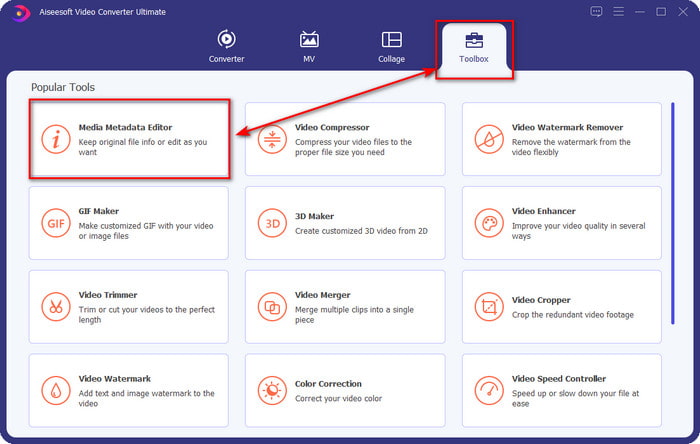
Langkah 2. Buka bagian Toolbox dan temukan Media Metadata Editor pada daftar set yang akan muncul di bawah.
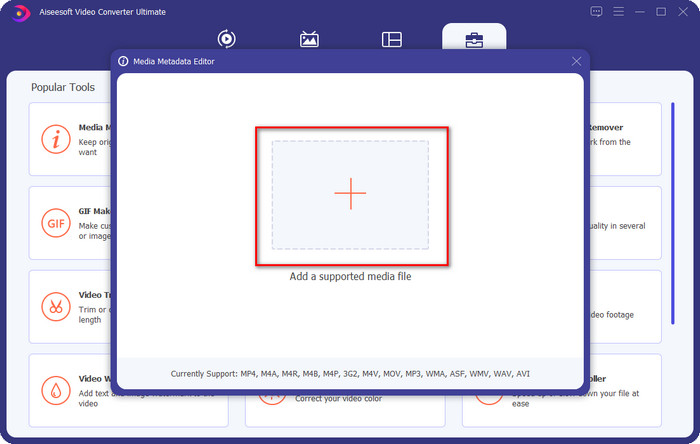
Langkah 3. Tambahkan file WebM dengan mengklik tombol +, cari di pengelola folder Anda, lalu klik Open untuk melanjutkan.
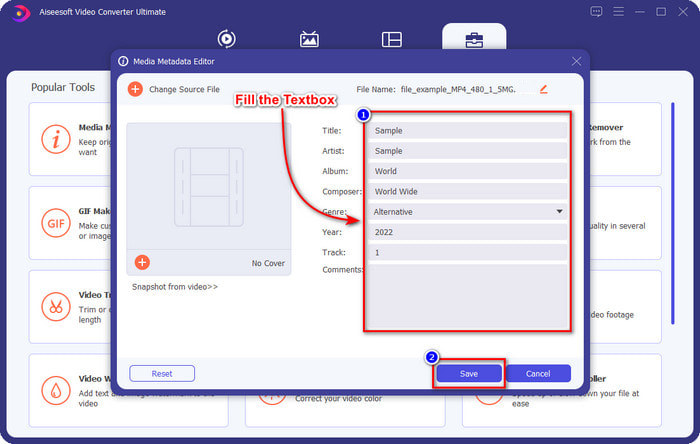
Langkah 4. Ketik semua informasi yang ingin Anda tambahkan sebagai tag pada WebM Anda di setiap textbox. Setelah selesai menambahkan semua informasi sebagai tag, klik Save. Mudah bukan? Begitulah cara menambahkan metadata pada WebM dengan bantuan solusi ultimate yang bisa Anda gunakan di Windows dan Mac.
Bagian 2. Cara Mengedit Metadata WEBM Menggunakan Perangkat Lunak Baris Perintah di Desktop
FFmpeg.dll
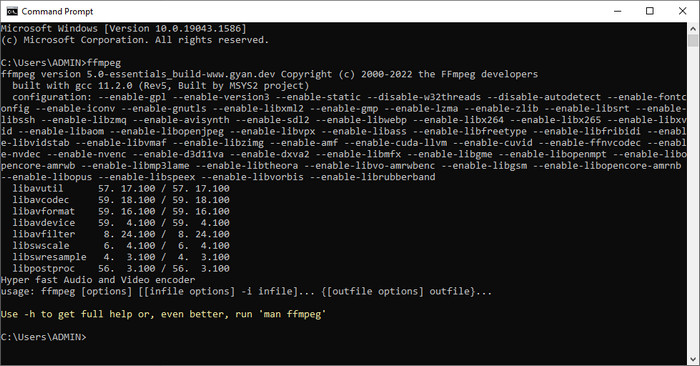
FFmpeg adalah solusi yang dikenal untuk berbagai masalah terkait media, seperti memperbaiki metadata. Berbeda dengan alat pertama, Anda perlu menggunakan kode tertentu sebagai perintah untuk melakukan tugas tertentu, misalnya memerintahkannya mengedit metadata file tersebut secara manual. Meskipun perangkat lunak open-source ini menggunakan hal-hal teknis yang tidak dapat dipahami sebagian pengguna, kemampuan editor ini tetap patut dikagumi. Teruskan membaca untuk mengetahui cara mengedit metadata WebM menggunakan salah satu perangkat lunak berbasis command-line dalam daftar.
Langkah-langkah Cara Mengedit Tag WebM dengan Ffmpeg:
Langkah 1. Unduh dan instal perangkat lunak di desktop Anda. Cari lokasi file WebM, lalu salin nama filenya.
Langkah 2. Klik tombol Windows, ketik command prompt di kolom pencarian, lalu klik untuk membukanya. Selanjutnya salin kode ini ffmpeg -i fileexample.webm -metadata title='samplemetadata' -c copy fileexample.webm dan tempelkan di prompt.
Catatan: Fileexample.webm adalah nama file webm yang kami gunakan untuk tugas ini. Tambahkan nama file itu sesuai dengan nama file Anda.
Langkah 3. Tekan Enter untuk memulai proses dan biarkan perangkat lunak menimpa file asli.
Alat EXIF
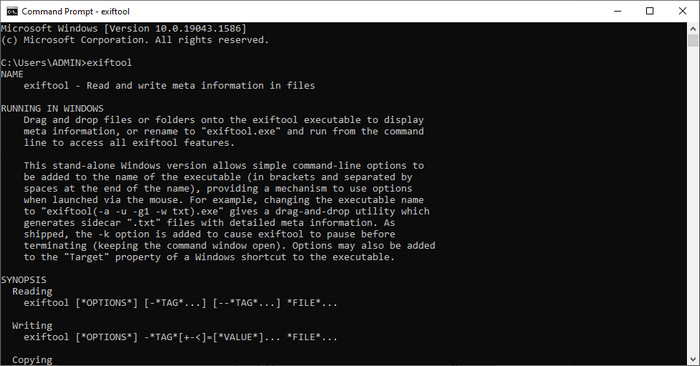
Sama seperti FFmpeg, EXIF Tool adalah perangkat lunak gratis berbasis command-line yang dapat Anda unduh di hampir semua OS desktop. Dengan perangkat lunak ini, Anda dapat membaca, mengedit, dan membuat metadata pada file yang sudah ada, sesuatu yang tidak sepenuhnya dapat diberikan oleh berkas media lainnya. Perangkat lunak ini dapat mengedit tag pada file video, audio, gambar, dan PDF agar menjadi benar-benar akurat. Tadi disebutkan bahwa alat ini sama dengan FFmpeg, dan itu benar, tetapi kode yang digunakan berbeda, jadi jika Anda ingin menggunakan alat ini, Anda perlu mempelajari serangkaian kode lain yang tidak terkait dengan FFmpeg. Sulitkah? Untungnya, kami menambahkan langkah-langkah yang mudah dipahami untuk mengedit metadata WebM dengan bantuan alat ini.
Langkah-langkah Cara Mengedit Tag WebM dengan EXIF Tool:
Langkah 1. Unduh perangkat lunak dari situs resminya, lalu instal untuk melanjutkan ke langkah berikutnya.
Langkah 2. Silakan buka file manager, pilih filenya, dan salin namanya. Lalu buka CMD, dan ketik kode ini exiftool –common fileexample.webm untuk melihat informasi dasar tentang file WebM Anda.
Catatan: CMD sama dengan command prompt; Anda dapat menemukannya di windows dan ketik CDM.
Langkah 3. Tambahkan kode ini ke prompt untuk mengubah file exiftool -filename='metadtasample' fileexample.mkv dan tekan Enter untuk memulai proses penambahan metadata.
Bagian 3. FAQ tentang Editor Metadata WebM
Mengapa format WebM populer di situs web HTML 5?
Format WebM adalah salah satu format royalti alternatif yang tumbuh paling cepat yang mengandung elemen video dan audio HTML 5. Format ini menggunakan dua codec berbeda, VP8 dan VP9, yang dikembangkan oleh Proyek WebM.
Bisakah saya menggabungkan file WebM?
Anda dapat menggabungkan beberapa file WebM sebelum menambahkan metadata ke dalamnya. Jadi, jika Anda ingin tahu cara menggabungkan beberapa file WebM dengan mudah, klik tautan ini untuk mengetahui lebih lanjut.
Mana yang lebih baik? WebM atau MP4?
Kedua format ini sama-sama unggul dalam menyimpan file video dengan caranya masing-masing, tetapi tujuan keduanya berbeda. Meskipun WebM adalah salah satu format terbaik untuk berbagi secara online, masih ada kekhawatiran tentang kompatibilitasnya dengan perangkat lain. Jika Anda memiliki masalah yang sama dengan file WebM, kami menyarankan untuk mengonversi format tersebut ke MP4. Agar alatnya mudah dijangkau, Anda dapat membaca konten dalam artikel ini dengan mengklik tautan ini.
Kesimpulan
Sekarang setelah kita memiliki semua informasi yang diperlukan dan telah mempelajari cara mengedit metadata WebM, saatnya memilih cara yang paling sesuai. Jika Anda ingin mencoba alat berbasis command-line, maka FFmpeg dan EXIF Tool adalah solusi terbaik untuk memperbaiki metadata file WebM Anda. Dengan mengikuti tutorial yang kami sediakan, Anda dapat menyelesaikan tugas dengan cepat. Namun jika Anda menginginkan cara yang lebih sederhana untuk mengedit metadata pada WebM, maka FVC Video Converter Ultimate adalah alat yang wajib dimiliki. Jika Anda masih ragu, kami sarankan Anda mengunduh perangkat lunak ini ke desktop dan segera mencobanya!
-
 4 Pengubah Tanggal File Teratas untuk PC Windows dan Mac [Diperbarui 2022]
 Punya masalah dengan mengubah tag waktu dan tanggal pada file Anda? Jika Anda ingin tahu bagaimana melakukannya, Anda dapat terus membaca artikel ini untuk mengetahuinya.
-
 Tip & Trik Sederhana tentang Cara Menambahkan Tag ke File dengan Mudah
 Ingin menambahkan tag pada file dengan mudah? Maka artikel ini memberi Anda cara terbaik dan paling sederhana yang dapat Anda andalkan pada tugas ini dengan cepat.
-
 3 Editor Metadata FLAC Teratas di Mac dan Windows [Diperbarui 2022]
 Apakah Anda ingin mengubah metadata FLAC? Dalam hal ini, Anda harus membaca artikel ini karena kami memberikan pengetahuan yang cukup tentang editor metadata FLAC terbaru untuk dapat digunakan.
