


 Video Converter Ultimate
 Perekam Layar
 Perbaikan Video
Kiat Bermanfaat untuk Membuat Video Gerakan Lambat di iMovie
iMovie adalah editor video hebat yang tersedia di setiap sistem operasi iOS dan Mac. Aplikasi ini dapat diunduh secara gratis dan menyediakan berbagai alat yang sangat membantu untuk melakukan perubahan signifikan pada video Anda, khususnya dalam mengatur kecepatan pemutaran video atau membuat video gerak lambat (slow motion). Karena aplikasi ini ramah pengguna, sebenarnya tidak sulit untuk dipahami dan digunakan untuk menerapkan efek gerak lambat yang Anda inginkan pada video. Namun, untuk benar-benar memahami setiap detail cara membuat video gerak lambat di iMovie, bacalah artikel ini dan ikuti langkah-langkahnya dengan cermat.

Bagian 1. Cara Membuat Video Gerakan Lambat di iMovie Menggunakan iPhone
Seperti pernyataan yang diberikan di atas, iMovie hanya beroperasi di sistem iOS seperti iPhone. Untuk membuat video gerak lambat terbaik menggunakan aplikasi ini, berikut adalah prosedur yang disediakan yang akan memandu Anda tentang cara menggunakan aplikasi ini juga.
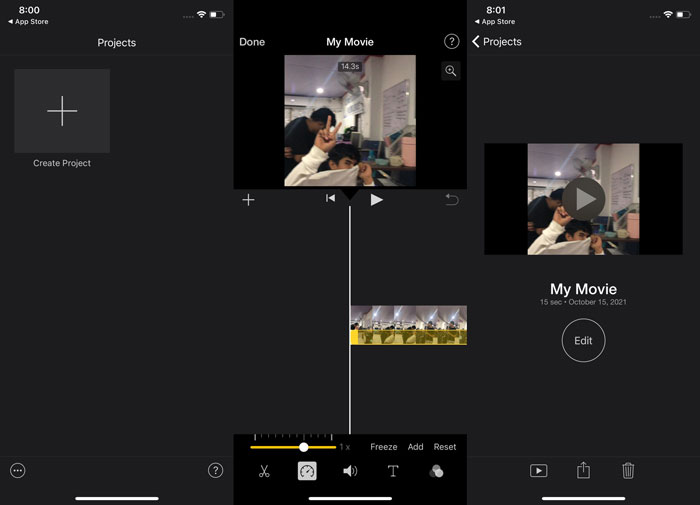
Langkah 1. Gunakan iPhone atau iPad Anda, lalu buka aplikasi iMovie. Tombol Continue akan muncul jika tampilan antarmuka pengguna (UI) ditampilkan. Pilih ikon tanda + di tab Projects untuk mengedit klip video baru. Untuk melanjutkan, buka jendela New Projects dan pilih Movie.
Langkah 2. Setelah memilih video dari rol kamera Anda dan menekan tombol Create Movie di bagian bawah layar. Alat kecepatan, yang terlihat seperti speedometer, dapat ditemukan dengan mengetuk klip video di timeline lalu menunggu hingga alat pengeditan muncul sebelum memilih salah satu opsinya. Untuk mempercepat atau memperlambat klip video Anda, cukup geser Slider berwarna kuning di bagian bawah ke kanan atau kiri. Anda dapat mempercepat hingga dua kali kecepatan aslinya atau memperlambat hingga seperdelapan dari kecepatan aslinya.
Langkah 3. Di pojok kiri atas layar ponsel Anda, ketuk Done ketika semuanya sudah selesai. Untuk menyimpan film yang telah selesai, klik ikon Share di bagian bawah halaman dan pilih lokasi penyimpanan.
Bagian 2. Cara Membuat Video Gerakan Lambat di iMovie Menggunakan Mac
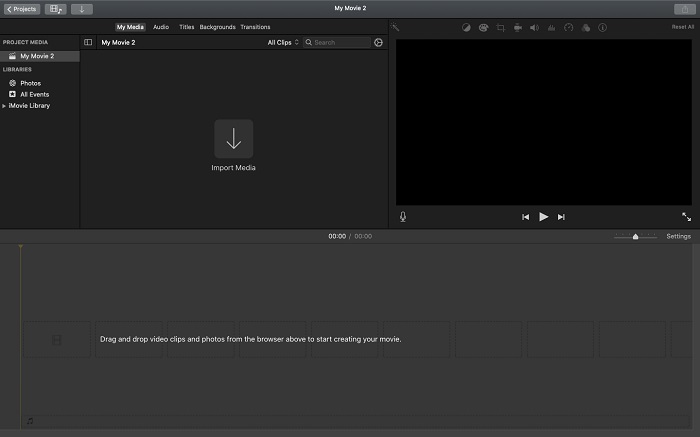
iMovie juga tersedia di Mac, membuat video gerak lambat terbaik dengan cara termudah. Untuk mengetahui bagaimana mencapai jenis video yang Anda inginkan, berikut adalah langkah-langkah yang disediakan untuk Anda ikuti:
Langkah 1. Ubah kecepatan klip di program iMovie di Mac Anda dengan memilih klip tersebut di timeline lalu menyesuaikan kecepatan klip.
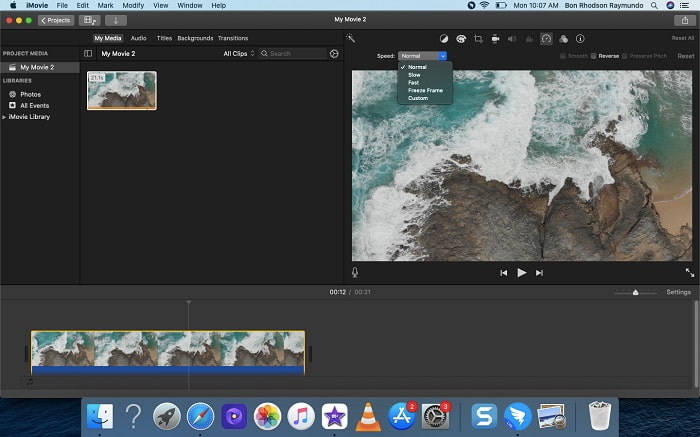
Langkah 2. Pengaturan kecepatan dapat diakses dengan mengklik tombol Speed yang terletak di pojok kanan atas layar. Untuk menyetel kecepatan secara lebih rinci, cukup pilih antara kecepatan Slow atau Fast dari tombol kecepatan di desktop komputer Anda.
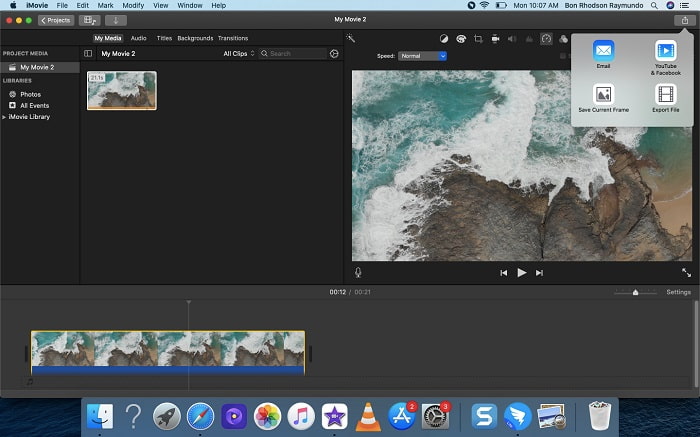
Langkah 3. Untuk menyimpan file ke hard drive komputer Anda, klik ikon Upload di pojok kanan atas layar.
Bagian 3. Alternatif Terbaik dalam Membuat Video Gerakan Lambat
Selain menggunakan iMovie untuk membuat video gerak lambat, ada alternatif terbaik yang menguntungkan semua pengguna desktop/laptop. Video Converter Ultimate adalah perangkat lunak yang dapat diunduh gratis dan tersedia di sistem operasi Windows dan Mac. Perangkat lunak ini mudah digunakan dan memiliki antarmuka yang ramah pengguna sehingga Anda tidak akan kesulitan memahami alat yang diperlukan untuk membuat video gerak lambat. Perangkat lunak ini memiliki salah satu alat terbaik, yaitu Video Speed Controller, yang dapat Anda gunakan untuk mengatur kecepatan pemutaran video. Dengan ini, Anda dapat membuat video gerak lambat dari video berkecepatan normal yang Anda miliki. Untuk mengetahui lebih banyak detail tentang cara menggunakan perangkat lunak ini guna mendapatkan efek gerak lambat yang Anda inginkan, berikut adalah langkah-langkah yang perlu Anda ketahui:
Langkah 1. Sebelum menggunakan perangkat lunak, Anda harus terlebih dahulu mengunduhnya dengan mengklik downlink di bawah ini, sesuai dengan sistem operasi Anda. Menginstalnya semudah mengunduhnya ke desktop lalu mengklik Start Now untuk memulai.
Unduh GratisUntuk Windows 7 atau yang lebih baruUnduhan Aman
Unduh GratisUntuk MacOS 10.7 atau yang lebih baruUnduhan Aman
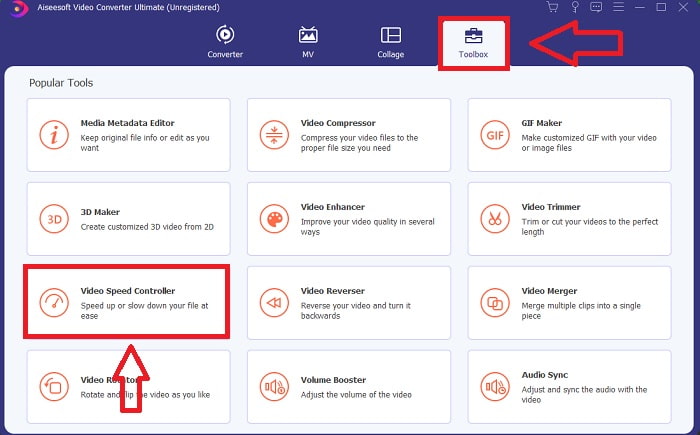
Langkah 2. Fitur Converter akan terlihat di antarmuka utama perangkat lunak ketika Anda selesai meluncurkan program. Selanjutnya, gunakan fitur Toolbox untuk menemukan apa yang Anda perlukan dalam membuat video gerak lambat. Jika Anda ingin mengubah kecepatan video atau sekadar membuat video gerak lambat, pilih Video Speed Controller dari daftar alat yang tersedia.
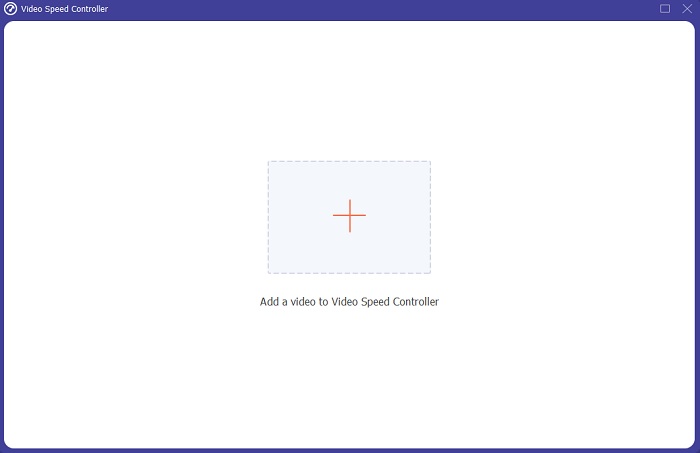
Langkah 3. Jendela lain akan terbuka di layar komputer Anda setelah Anda melanjutkan. Untuk mulai mengedit, klik tanda plus +.
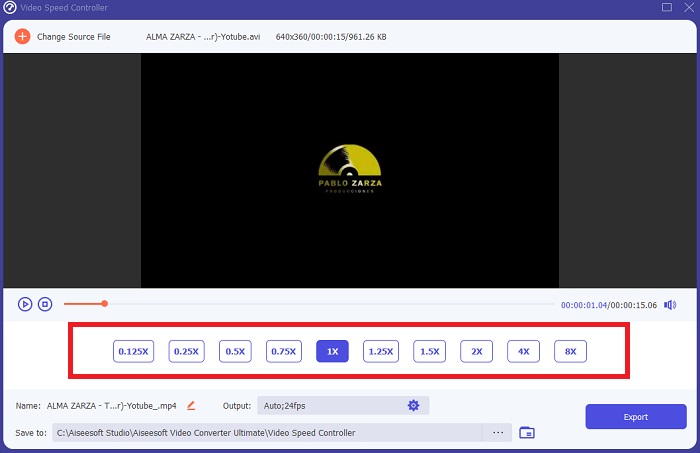
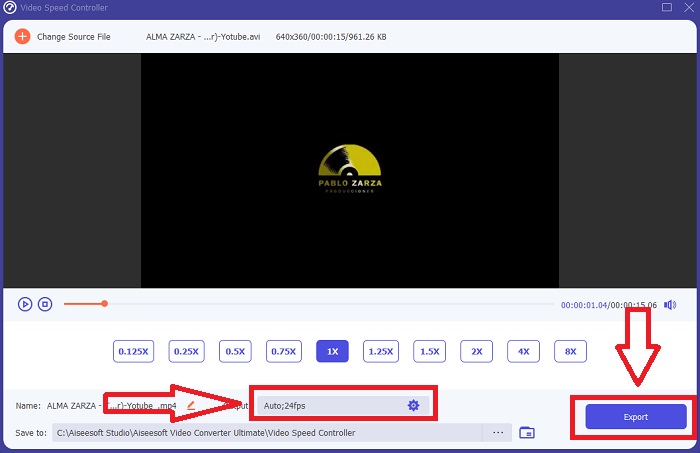
Langkah 4. Untuk mulai mengedit, pilih berapa kali kecepatan frame video akan ditingkatkan atau diturunkan selama pemutaran untuk melihat seberapa cepat atau lambat videonya; hal ini akan menentukan efek gerak lambat yang akan Anda terapkan pada video. Karena Anda membuat video gerak lambat, Anda akan menurunkan kecepatan dengan memilih kecepatan video di bawah kecepatan normal. Jika Anda sudah puas dengan kecepatan video, Anda bisa menyempurnakan kualitasnya dengan mengubah format, resolusi, frame rate, dan sebagainya. Anda juga memiliki opsi untuk mengganti nama file keluaran video Anda.
Langkah 5. Klik Export dan pilih lokasi di sistem file komputer Anda untuk menyimpan hasilnya.
Terkait:
Bagian 4. FAQ tentang Membuat Video Gerakan Lambat di iMovie
Bagaimana jika iMovie tidak berfungsi?
Kecuali jika opsi tersedia, klip video tidak cukup panjang untuk mendukung pemutaran yang dipercepat. Mungkin juga Anda harus mengonversi video Anda. Jenis video tertentu, seperti yang direkam pada iPhone atau di H.264 pada camcorder Flip, harus dikonversi sebelum kecepatan diubah. Di browser Proyek, klik dan klik dua kali file video untuk membukanya. Jika Anda melihat tombol Convert Entire Clip di inspektur yang terbuka, pilih itu. Ulangi Klip, lalu lanjutkan dengan proses Slow Motion / Fast Forward.
Bisakah Anda memperlambat video selang waktu di iMovie?
Video selang waktu Anda akan mulai diputar segera setelah Anda melepaskan tombol rana untuk mengakhiri perekaman. Penggeser kecepatan selang waktu dapat ditemukan di bagian paling bawah layar. Saat Anda berhenti merekam dengan menekan tombol rana, video selang waktu Anda akan mulai diputar secara otomatis. Penggeser kecepatan selang waktu dapat ditemukan di bagian paling bawah layar.
Bagaimana cara memperlambat video Youtube?
Putar video di aplikasi Youtube, cari ikon roda gigi, atau disebut sebagai ikon pengaturan. Klik Kecepatan Pemutaran dan pilih pilihan di atas kecepatan normal untuk mulai memperlambat video yang Anda putar.
Kesimpulan
Sebagai penutup, iMovie adalah editor video hebat yang hanya tersedia di sistem operasi iOS dan Mac. Namun bagaimana jika Anda menggunakan Windows untuk membuat video gerak lambat? Kami menyarankan menggunakan Video Converter Ultimate untuk mendapatkan video gerak lambat yang Anda inginkan. Perangkat lunak ini tersedia di Windows dan Mac. Selain itu, perangkat ini gratis dan memiliki beragam alat untuk mengedit video. Perangkat lunak ini juga memiliki alat khusus yang terutama digunakan untuk menyesuaikan kecepatan pemutaran sehingga menghasilkan video gerak lambat. Di luar alat-alat unggulannya, perangkat lunak ini juga mendukung berbagai format video sehingga Anda tidak akan kesulitan saat harus mengonversi video Anda.
-
 [Gratis & Berbayar] GIF Speed Changer: Pilihan Populer tahun 2021
 Apakah Anda tidak puas dengan GIF yang Anda buat secara online karena membosankan dan lambat? Ini akan menjadi hari keberuntungan Anda karena kami menyajikan artikel tentang pengubah kecepatan GIF dan detail yang membantu Anda menggunakan dan menguasainya.
-
 4 Pemutar Video Teratas dengan Pengontrol Kecepatan di tahun 2021
 Pernahkah Anda memperhatikan kecepatan pemutaran setiap pemutar media setiap kali Anda memutar video? Artikel ini cocok bagi Anda untuk mempelajari semua tentang pemutar video dengan kontrol kecepatan.
-
 3 Cara Mempercepat Video di iPhone [Terbukti&93;
 Mengalami kesulitan menyesuaikan kecepatan pemutaran video Anda karena Anda menggunakan iPhone? Ini adalah artikel yang bagus untuk membantu Anda dengan masalah Anda.
