


 Video Converter Ultimate
 Perekam Layar
 Perbaikan Video
 Unduhan Aman
Cara Bergabung dengan File MOV (QuickTime) Gratis
Setelah mengumpulkan banyak materi video MOV, Anda mungkin ingin menyusun materi dan menggabungkannya menjadi satu file lengkap. Namun, untuk pemula atau produser video amatir, menggunakan alat teknis seperti Adobe Premiere Pro mungkin terlalu rumit. Mungkin Anda akan menghabiskan berhari-hari atau bahkan berbulan-bulan untuk mempelajari bagaimana menjalankan program tersebut.
Sebenarnya, jika Anda hanya ingin menggabungkan klip video, Anda bisa menggunakan penggabung video yang sederhana dan efektif untuk menyelesaikan masalah Anda, yang hanya membutuhkan beberapa menit untuk menggabungkan dua atau lebih file MOV menjadi satu.
Dengan langkah-langkah berikut, Anda dapat dengan mudah menggabungkan file MOV di Mac maupun Windows. Jadi, silakan lanjut membaca dan coba sendiri metode-metode berikut.

Bagian 1. Bagaimana Menggabungkan Video MOV di QuickTime
MOV, juga dikenal sebagai QuickTime File Format (QTFF), adalah wadah video digital dengan codec MPEG-4. Format ini diperkenalkan oleh Apple pada tahun 1998 untuk mendukung QuickTime Player. Karena itu, jika Anda menggunakan Mac, Anda sebenarnya bisa menggunakan QuickTime Player untuk menggabungkan file MOV dengan mudah.
Anehnya, QuickTime bukan hanya pemutar media, tetapi juga editor video yang memungkinkan Anda menggabungkan video terpisah, mengedit klip video, dan bahkan merekam audio atau video di Mac Anda. Selain itu, mudah digunakan dan menjaga kualitas video asli.
Berikut langkah-langkah tentang cara menggabungkan klip video di QuickTime.
Langkah 1. Temukan video yang ingin Anda gabungkan dan buka salah satunya dengan QuickTime Player. (Anda bisa memindahkannya ke satu folder atau ke desktop terlebih dahulu supaya lebih mudah.)
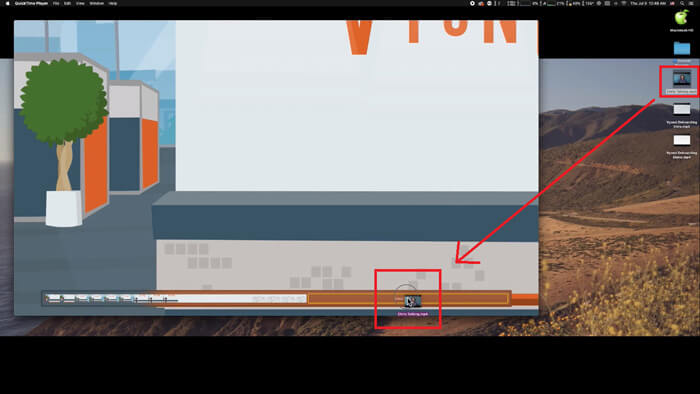
Langkah 2. Setelah membuka file, jendela pemutar akan muncul di layar. Sekarang seret klip video lainnya ke dalam QuickTime Player. Anda dapat menahan dan menyeret klip video ke urutan yang benar. Saat Anda melepaskan mouse, akan muncul tombol Done di samping klip-klip video Anda. Klik tombol tersebut.
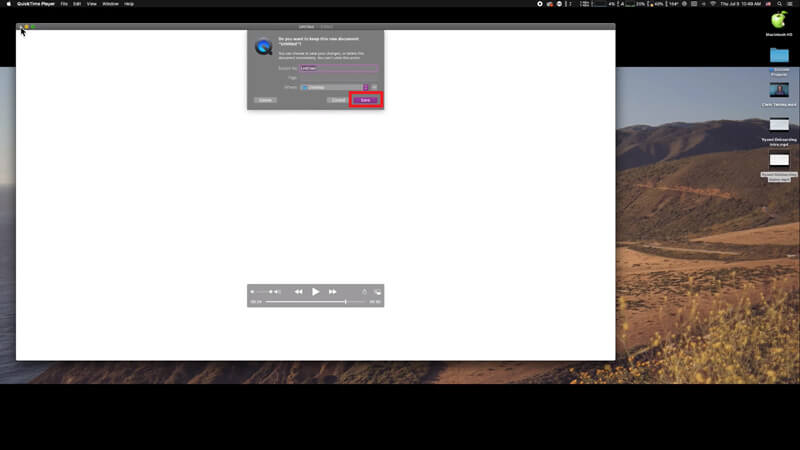
Langkah 3. Keluar dari QuickTime dan Anda akan segera mendapat jendela pengingat untuk menyimpan video yang telah digabungkan. Cukup masukkan nama baru dan pilih lokasi penyimpanan sebelum mengklik tombol Save.
Bagian 2. Bagaimana Menggabungkan File MOV Online & Gratis
Namun, QuickTime tidak dapat membantu Anda menggabungkan berbagai file video dengan format yang berbeda, seperti MP4, MOV, AVI, WMV, FLV, dan lain-lain, menjadi satu file MOV. Dalam kasus ini, Anda perlu menggunakan penggabung video yang lebih profesional dan mendukung banyak format video.
Karena itu, kenalkan FVC Free Online Video Merger, penggabung video gratis terbaik untuk menggabungkan video. Dengan alat ini, Anda bisa mengunggah sebanyak mungkin video tanpa batasan. Selain MOV, Anda juga dapat mengekspor ke format video populer lainnya, yang sangat memudahkan Anda untuk membagikan video ke situs streaming seperti YouTube.
Alih-alih menginstal program yang serius dan mahal ke PC Anda, Anda dapat bergabung dengan video apa pun untuk menghasilkan satu video yang luar biasa secara online dengan penggabung video yang mudah digunakan ini, yang juga memungkinkan Anda membuat video tanpa tanda air. Tidak peduli sistem apa yang Anda gunakan, Windows, Mac atau Linux, itu dapat bekerja dengan baik. Yang Anda butuhkan hanyalah browser dan jaringan yang stabil.
Langkah-langkah berikut akan memandu Anda tentang cara mengoperasikan alat penggabungan video ini.
Langkah 1. Klik tautan di atas untuk membuka situs web FVC Free Online Video Merger di browser Anda.
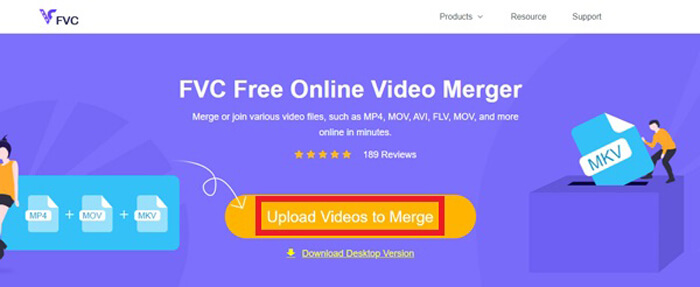
Langkah 2. Klik tombol Upload Videos to Merge pada banner terlebih dahulu. Lalu ikuti petunjuk di layar untuk mengunduh dan memasang peluncur (launcher) ke komputer Anda.
Langkah 3. Setelah proses instalasi selesai, jendela akan langsung muncul. Sekarang Anda bisa memilih dan menambahkan semua file MOV yang ingin Anda gabungkan ke penggabung video.
Langkah 4. Setelah mengunggah, silakan periksa apakah urutan klip video sudah benar. Lalu ubah Resolution sesuai kebutuhan Anda dan Format ke MOV atau format lain yang Anda inginkan.
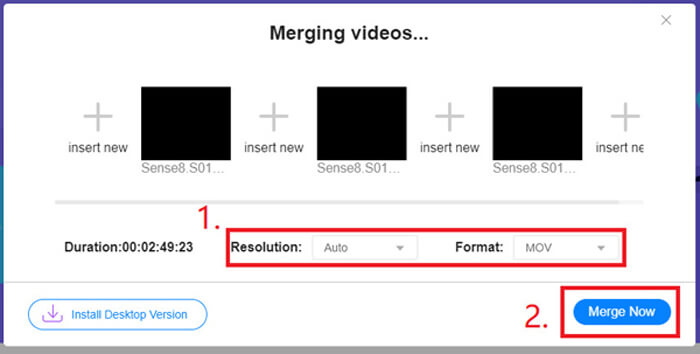
Langkah 5. Klik Merge Now untuk mulai menggabungkan.
Bagian 3. Bagaimana Menggabungkan File MOV di Windows 10
Jika Anda tidak memiliki Mac tetapi memiliki PC dengan Windows 10, Anda dapat mencoba langkah-langkah berikut untuk menggabungkan file MOV.
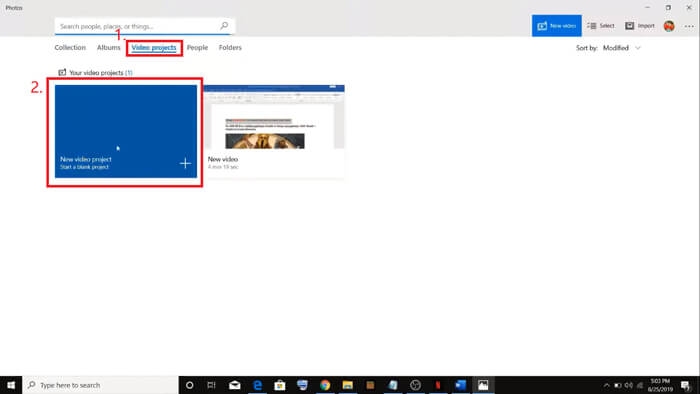
Langkah 1. Buka aplikasi Photos di PC Anda. Anda bisa menemukannya dengan mencarinya di bilah Search. Lalu pilih tab Video projects di atas dan klik New video project. Beri nama proyek video tersebut.
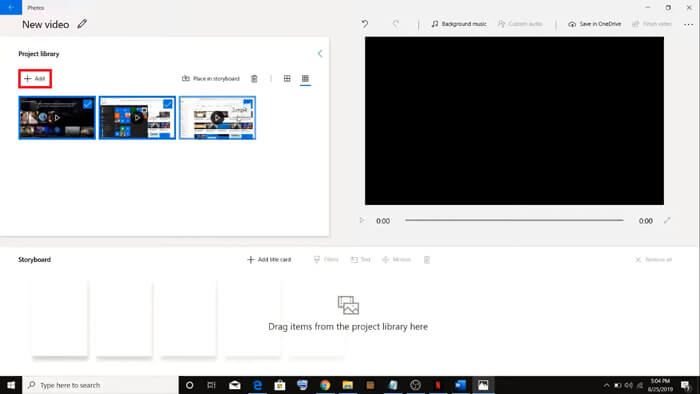
Langkah 2. Klik tombol Add di pojok kiri atas dan pilih semua video yang ingin Anda konversi dari PC Anda.
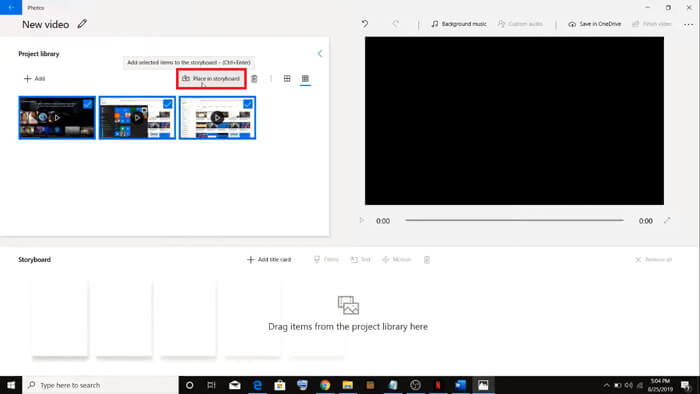
Langkah 3. Lalu klik tombol Place in storyboard untuk menggabungkan semua file MOV Anda.
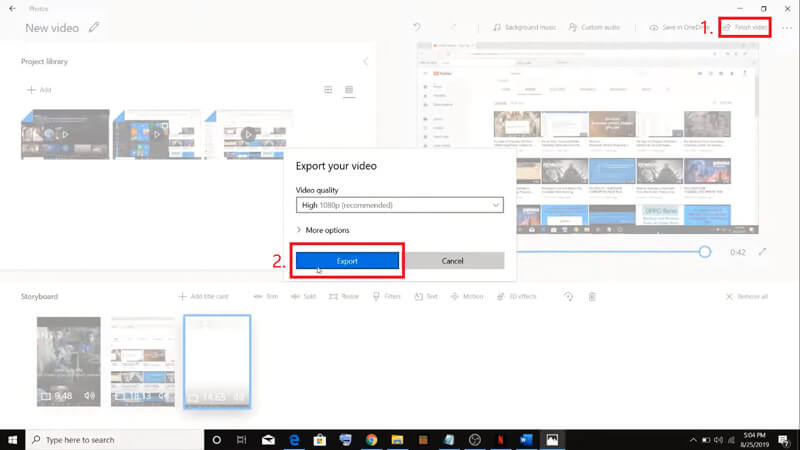
Langkah 4. Setelah menyesuaikan urutan video, klik Finish video di pojok kanan atas. Kemudian ekspor video gabungan tersebut ke PC Anda.
Bagian 4. Tanya Jawab tentang Penggabungan MOV
1. Dapatkah saya menggunakan QuickTime Player di Windows?
Meskipun Apple tidak lagi mendukung QuickTime untuk Windows, Anda masih dapat menemukan paket instalasi QuickTime di Internet. Namun, perlu diperhatikan bahwa Anda hanya bisa menggunakannya untuk memutar video. Jadi, pada dasarnya ini hanyalah pemutar biasa yang tidak banyak membantu Anda.
Jika Anda pengguna Windows yang ingin menggabungkan file MOV, Anda bisa langsung menggunakan FVC Free Online Video Merger yang sangat kuat ini.
2. Mana yang lebih baik untuk YouTube, MOV atau MP4?
Setelah membuat video yang memukau dengan menggabungkan semua materi video Anda, Anda mungkin ingin mengunggahnya ke YouTube, Facebook, Instagram, atau platform lainnya. Jika demikian, MP4 akan menjadi pilihan yang lebih baik, karena ukurannya lebih kecil dan lebih mudah dibagikan melalui Internet.
Mungkin Anda ingin mengetahui lebih banyak perbedaan antara MOV dan MP4.
3. Bisakah QuickTime Player mengekspor video MP4?
Tidak dan ya. Karena QuickTime sendiri tidak mendukung pengguna untuk mengekspor file MP4. Namun, jika Anda telah berbayar dan meng-upgrade QuickTime ke QuickTime Pro, maka Anda dapat menikmati fitur penggabungan file MOV dan secara otomatis memperoleh file MP4 hasil konversi. Jika Anda tidak ingin mengeluarkan biaya sepeser pun tetapi tetap ingin mengonversi MOV ke MP4 di Mac, Anda dapat mencoba konverter online gratis bernama FVC Free Online Video Converter yang kompatibel dengan Mac dan Windows.
Kesimpulan
Jadi, inilah metode yang dapat Anda gunakan ketika perlu menggabungkan file MOV menjadi satu. Jika Anda menggunakan Mac, Anda bisa memakai perangkat lunak bawaan, QuickTime Player, secara langsung untuk mendapatkan file MOV gabungan. Pengguna Windows 10 dapat mencoba Photos. Untuk komputer Windows lainnya, pengguna bisa memilih FVC Free Online Video Merger dan merasakan pengalaman menggabungkan video yang fantastis tanpa batasan, tanpa iklan, dan tanpa virus.
Jika Anda menyukai posting ini dan merasa praktis, Anda dapat membagikannya dengan teman-teman Anda. Dan jangan ragu untuk meninggalkan komentar Anda. Sekarang giliran Anda untuk mencoba metode dan menggabungkan file Anda.
-
 Cara Mengonversi QuickTime ke MP4 di Windows / Mac / Online / iOS / Android
 Baca dan dapatkan 4 cara untuk mengonversi video QuickTime ke MP4 secara gratis di ponsel atau komputer Anda. Anda dapat mengubah format file dari MOV ke MP4 di Windows / Mac / iPhone / Android / online dengan mudah.
-
 4 Cara Teratas untuk Mengonversi MP4 ke MOV secara Gratis
 Bagaimana cara mengubah MP4 ke MOV di Mac? Apakah ada cara gratis untuk mengonversi MP4 ke MOV tanpa kehilangan kualitas? Posting ini membagikan 4 cara sederhana untuk membantu Anda melakukan konversi video dari MP4 ke MOV di Mac, Windows PC, dan online.
-
 Bagaimana mengkonversi M2TS ke MOV pada Windows / Mac (Online / Offline)
 Perlu mengonversi M2TS ke MOV untuk memutar file video di sejumlah pemain dan platform? Artikel ini akan membantu Anda menemukan metode Online / Offline terbaik untuk mengonversi M2TS ke MOV di Windows / Mac.
