


 Video Converter Ultimate
 Perekam Layar
 Perbaikan Video
 Unduhan Aman
Cara Terbaik Cara Menghapus Tanda Air dari Video di After Effects
Menghapus watermark dari foto sangat mudah menggunakan Adobe Photoshop. Namun, apakah Anda tahu cara menghapus watermark dari video di Adobe After Effects? Beberapa orang mengatakan bahwa hal ini menantang karena hanya ada sedikit aplikasi yang bisa Anda gunakan untuk menghapus watermark dari video. Anda beruntung. Dengan menggunakan Adobe After Effects, artikel ini akan menawarkan metode-metode hebat untuk menghapus objek yang tidak diperlukan dari video atau film Anda, seperti watermark, logo, teks, stiker, dan lain-lain. Selain itu, Anda akan menemukan berbagai alternatif terbaik yang wajib Anda coba, sehingga Anda memiliki banyak pilihan aplikasi sesuai preferensi. Baca artikel ini untuk detail lebih lanjut.

Bagian 1: Cara Menghapus Tanda Air dari Video di After Effects
Adobe After Effects dapat dengan mudah menghapus tanda air dan elemen frustasi lainnya dari video Anda. Selain itu, Anda dapat melakukan lebih banyak hal dengan berbagai alatnya. Salah satu program pengeditan video paling disukai dan mutakhir dari Adobe, After Effects meningkatkan pekerjaan Anda ke tingkat yang baru. Alat ini digunakan untuk proses pasca produksi pembuatan film, produksi televisi, dan video game. Selain itu, Anda dapat mengandalkan aplikasi ini untuk animasi, pengomposan, pelacakan, dan penguncian.
Selanjutnya, desainer visual, animator, biro iklan, editor video, desainer grafis gerak, spesialis media sosial, produser video, editor video, spesialis UX, dan animator semuanya menggunakan After Effects. Namun, Adobe After Effects tidak sempurna untuk pengguna non-profesional. Ini memiliki banyak alat, proses rumit, dan fitur-fitur canggih, yang membingungkan. Selain itu, Anda hanya dapat menggunakan uji coba gratis hingga tujuh hari. Anda harus membeli perangkat lunak untuk menggunakan perangkat lunak ini secara terus menerus. Ikuti langkah-langkah sederhana di bawah ini untuk menghapus tanda air dari video.
Langkah 1: Unduh Adobe After Effects dan instal di perangkat Anda. Luncurkan aplikasinya, lalu pergi ke File > Open untuk memasukkan video yang memiliki watermark.
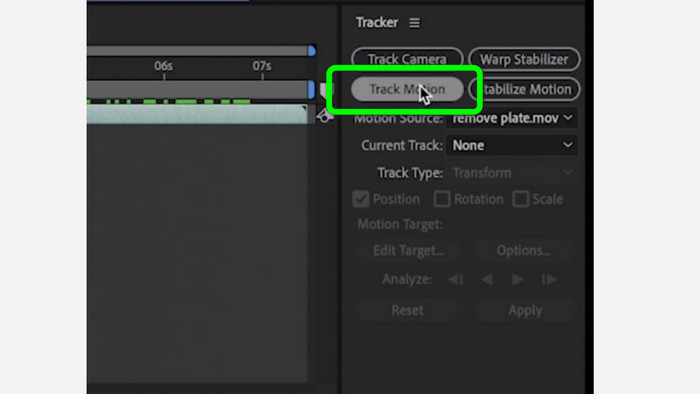
Langkah 2: Buka tab Tracker dan klik Tracker motion. Tempatkan kotak pelacakan pada area watermark lalu tekan panah track forward.
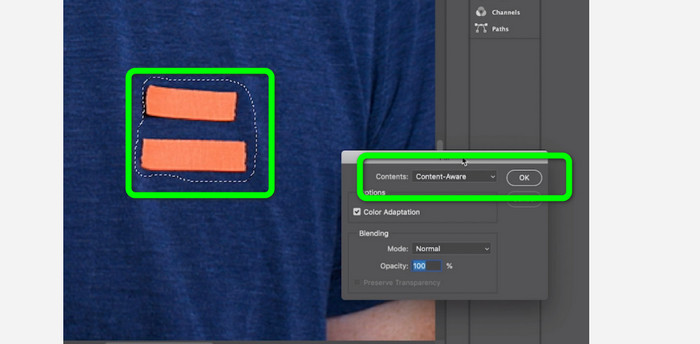
Langkah 3: Pilih watermark menggunakan alat Marquee dan pilih Edit > Fill. Ketika kotak dialog muncul, pilih Content-aware dan tekan OK.
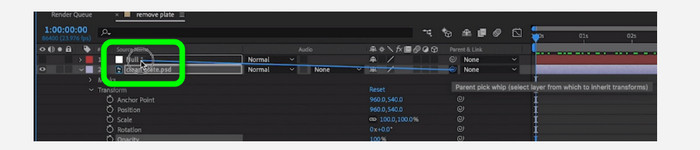
Langkah 4: Hubungkan objek Null yang telah dilacak ke frame diam yang sudah diberi mask menggunakan pick whip. Objek tersebut kemudian akan terasosiasi dengan objek Null yang bergerak. Sekarang video Anda seharusnya memiliki watermark yang tidak terdeteksi saat diputar.
Bagian 2: Metode termudah untuk Menghapus Tanda Air dari Video
Menggunakan Video Converter Ultimate
Seperti yang kita ketahui, Adobe After Effects sulit digunakan, terutama bagi pemula. Dalam hal ini, aplikasi yang paling efektif dan termudah untuk menghapus watermark dari video Anda adalah Video Converter Ultimate. Aplikasi ini memiliki antarmuka yang sederhana dan cara penggunaan yang mudah dipahami, sehingga cocok untuk semua orang. Selain watermark, Anda juga dapat menghapus elemen mengganggu lainnya, seperti logo, stiker, emoji, teks, dan banyak lagi. Proses penghapusan dengan alat ini cepat, jadi Anda tidak perlu menunggu lama.
Selain itu, ia memiliki lebih banyak fitur daripada yang Anda bayangkan. Jika perangkat lain tidak mendukung video Anda, Anda dapat mengonversinya ke format file lain. Alat ini dapat mengonversi format file video dan audio. Juga, jika video Anda terlalu cepat dan Anda ingin memperlambatnya, Anda masih dapat mengandalkan aplikasi ini karena menawarkan fitur Pengontrol Kecepatan Video di mana Anda dapat mengatur kecepatan video Anda dari 0,125x hingga 8x lebih cepat.
Untuk menghapus tanda air dari video Anda, gunakan panduan mendetail di bawah ini.
Menggunakan Penghapus Tanda Air Video
Langkah 1: Anda dapat mengunduh Video Converter Ultimate di Windows dan Mac dengan mengklik tombol Unduh di bawah ini. Setelah proses instalasi, Anda dapat langsung meluncurkannya.
Unduh GratisUntuk Windows 7 atau yang lebih baruUnduhan Aman
Unduh GratisUntuk MacOS 10.7 atau yang lebih baruUnduhan Aman
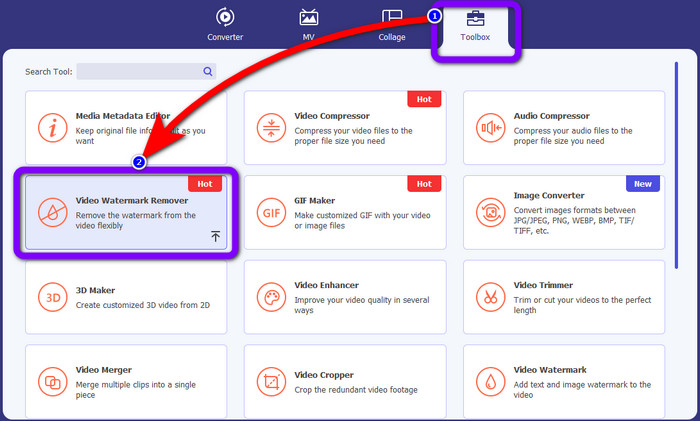
Langkah 2: Pilih panel Toolbox dari empat opsi di bagian atas, lalu klik Video Watermark Remover. Nantikan tampilan antarmuka lain yang akan muncul.klik tombol Unduh di bawah ini. Setelah proses instalasi, Anda dapat langsung meluncurkannya.
Langkah 3: Klik ikon Plus. Folder Anda akan muncul, lalu pilih video yang memiliki watermark yang ingin Anda hilangkan.
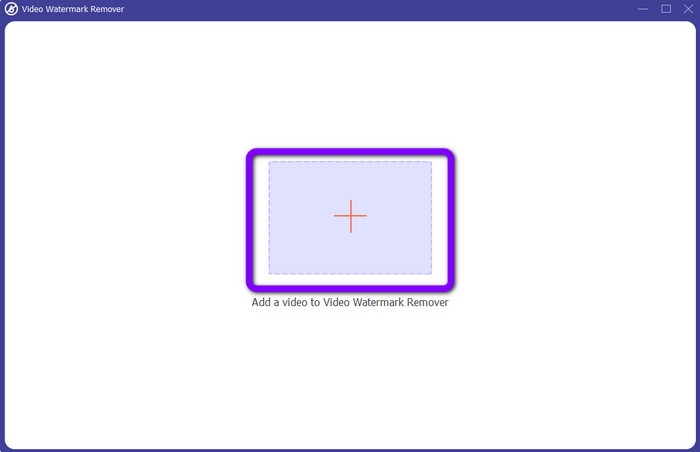
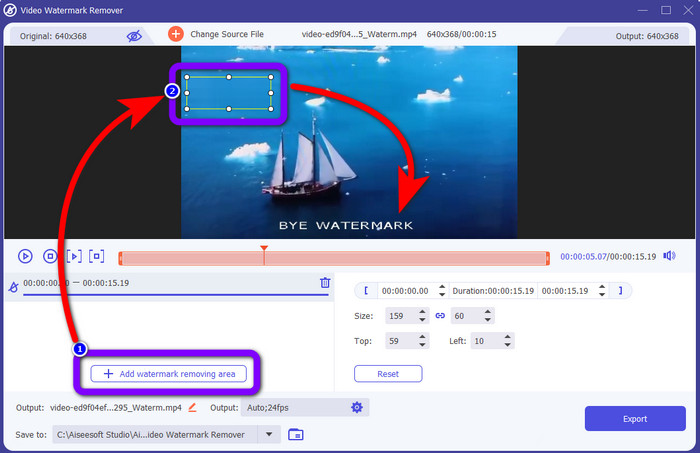
Langkah 4: Tekan tombol Add Watermark Removing Area setelah menambahkan video yang memiliki watermark. Sebuah kotak kecil akan muncul di video Anda. Gunakan kotak ini untuk menutupi watermark.
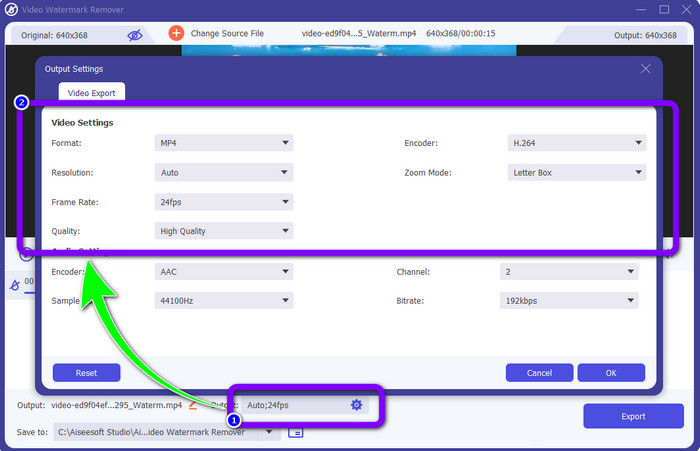
Langkah 5: Setelah menutupi watermark, Anda juga dapat mengubah format, kualitas, frame rate, dan resolusi video Anda dengan mengklik opsi Output di bagian bawah antarmuka.
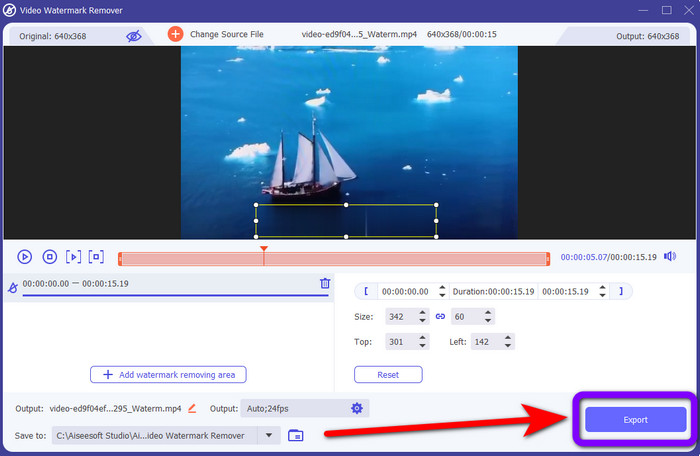
Langkah 6: Untuk langkah terakhir, klik tombol Export dan simpan video yang sudah diedit.
Menggunakan Pemotong Video
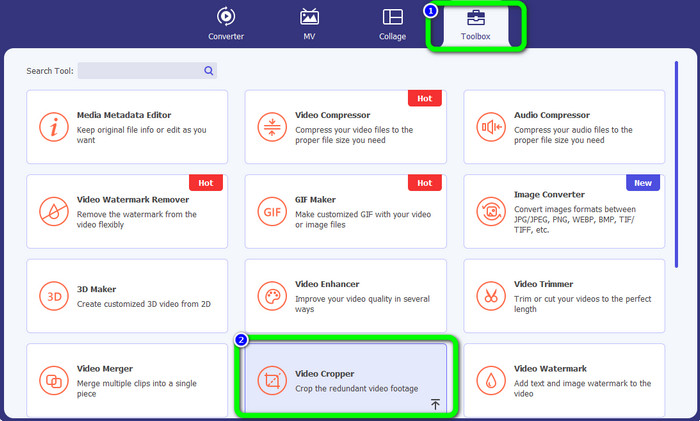
Langkah 1: Buka panel Toolbox dan pilih alat Video Cropper.
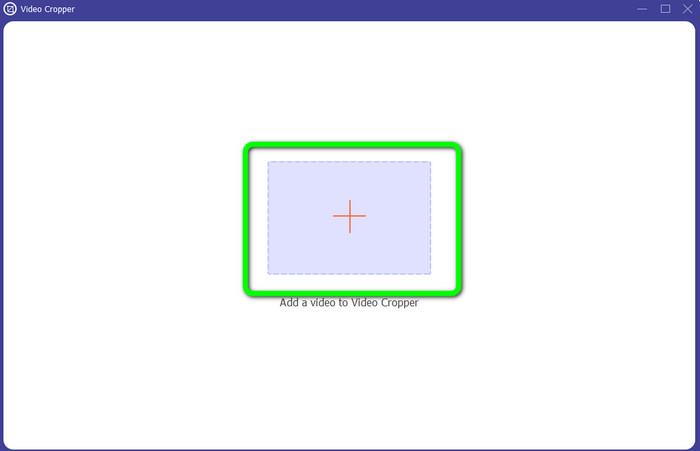
Langkah 2: Tekan ikon + untuk menambahkan video yang memiliki watermark.
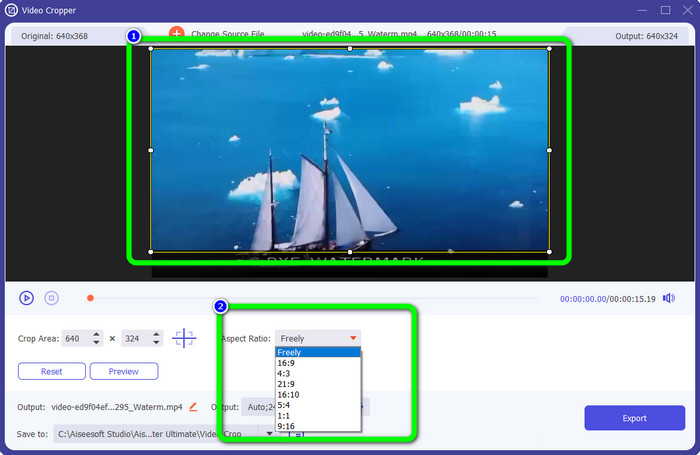
Langkah 3: Pada bagian ini Anda dapat memotong video untuk menghilangkan watermark. Anda juga dapat pergi ke kotak kedua untuk memilih pola pemotongan yang Anda inginkan.
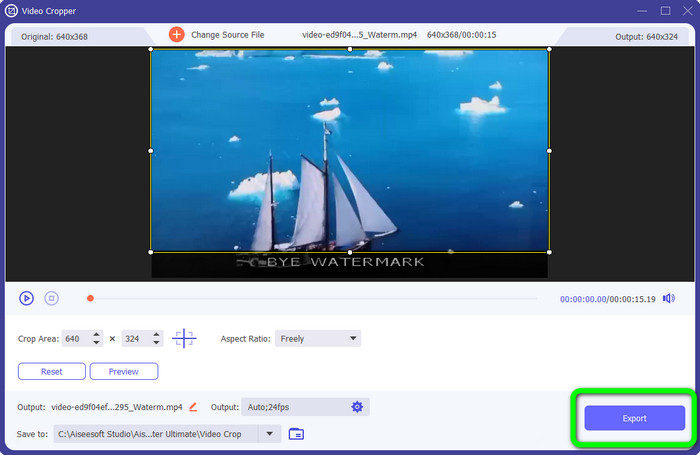
Langkah 4: Jika Anda sudah selesai memotong video, klik tombol Export untuk menyimpan video tanpa watermark.
Menggunakan Penghapus Tanda Air Video Online
Setelah mengetahui cara termudah menggunakan alat offline, kami akan menunjukkan penghapus watermark lain yang bisa Anda coba secara online. Aplikasi ini adalah Video Watermark Remover Online. Ini adalah penghapus watermark video baru yang sepenuhnya otomatis dan akan membuat hidup Anda lebih mudah. Selain itu, Anda dapat menghapus berbagai elemen dari video, seperti logo, tanda tangan, cap tanggal, watermark, teks, dan lainnya. Perangkat lunak ini mirip dengan penghapus lain, tetapi yang membuatnya unik adalah kemampuannya menghapus watermark secara otomatis. Aplikasi ini dibuat untuk mendeteksi objek dan menggantinya dengan warna yang sesuai sehingga merender dan mengisi semuanya agar tampak seperti file aslinya.
Namun, Anda hanya dapat mengunggah lima video saat menggunakan versi gratis. Ini juga memiliki proses penyandian yang lambat, dan Anda tidak dapat mengekspornya ke format file lain. Anda harus membeli langganan untuk merasakan lebih banyak fitur hebat dari alat ini. Ikuti langkah-langkah di bawah ini untuk menghapus tanda air dari video Anda menggunakan Penghilang Tanda Air Video Online.
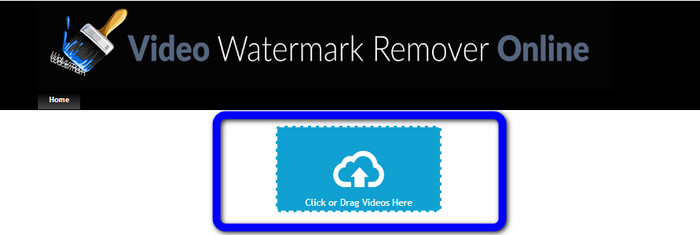
Langkah 1: Kunjungi Video Watermark Remover Online. Klik kotak Biru untuk menambahkan video Anda. Anda juga dapat menyeret video Anda.
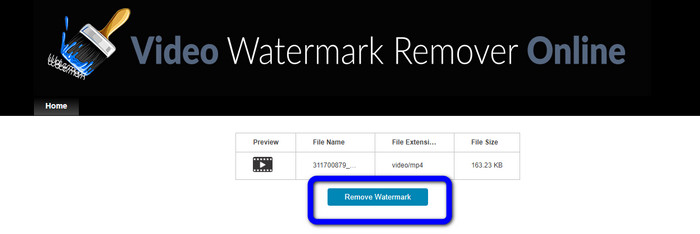
Langkah 2: Setelah proses file selesai, klik tombol Remove Watermark. Tunggu proses penghapusan. Simpan video Anda tanpa watermark.
Bagian 3: FAQ tentang Menghapus Tanda Air dari Video
1. Apa penghapus watermark video terbaik untuk Windows dan Mac?
Video Converter Ultimate adalah penghapus tanda air terbaik. Itu dapat dengan mudah menghilangkan objek yang tidak diinginkan dari video Anda, seperti tanda air, logo, stiker, teks, dll.
2. Apakah penghapus tanda air video online aman?
Tidak semua aman. Setelah menghapus tanda air menggunakan alat online, mereka dapat segera menghapus file Anda sehingga tidak ada yang dapat melihat dan menggunakan file video Anda. Namun, beberapa aplikasi tidak aman, jadi Anda harus memeriksa terlebih dahulu aplikasi yang Anda gunakan.
3. Apakah kualitas video saya akan berubah setelah menghapus tanda air?
Itu tergantung pada aplikasi yang Anda gunakan. Jika Anda tidak ingin mempengaruhi kualitas video Anda, Anda dapat menggunakan Video Converter Ultimate
Kesimpulan
Anda telah mendapatkan gambaran dan mempelajari cara menghapus watermark dari video di Adobe After Effects. Selain itu, postingan ini telah memberikan alternatif terbaik untuk menghapus watermark dengan metode yang paling sederhana. Dan jika Anda ingin menghapus elemen yang tidak diinginkan dari video secara efisien tanpa menurunkan kualitas, Anda dapat mencoba menggunakan Video Converter Ultimate.
-
 Bukti Kuat untuk Melakukan Video Gerakan Lambat Menggunakan After Effects
 Pikiran atau perasaan apa pun dapat menjadi Bukti yang Kuat untuk Melakukan Video Gerakan Lambat Menggunakan After Effects, yang dibuat atau ditingkatkan dengan menonton sesuatu dalam gerakan lambat. Baca artikel ini untuk mengetahui cara membuat gerakan lambat di After Effects.
-
 Cara Mempercepat Video di After Effects [Alat Percepat Terbaik]
 Percepat atau perlambat video Anda menggunakan alat video percepat terbaik. Pelajari cara mempercepat video di after effect dengan membaca artikel ini.
-
 Panduan Langkah demi Langkah tentang Cara Menghapus Emoji dari Video
 Merasa kesal dengan emoji di video Anda? Posting ini akan memberi Anda prosedur terbaik untuk menghapus emoji secara instan dari video Anda menggunakan alat yang hebat
