


 Video Converter Ultimate
 Perekam Layar
 Perbaikan Video
 Unduhan Aman
Prosedur Cara Memotong Bagian Video di iPhone
Anda mungkin telah merekam sebuah video yang indah dengan iPhone atau iPad pada waktu luang dan ingin membagikannya dengan teman atau mengunggahnya ke media sosial. Namun akan lebih baik jika Anda terlebih dahulu mengedit bagian-bagian video yang tidak ingin Anda sertakan. Dalam situasi ini, Anda dapat dengan cepat mengedit video dengan alat bawaan dengan memendekkan atau memotongnya. Jadi, bagaimana cara memendekkan video di iPhone? Anda akan melihat cara-cara terbaiknya dalam artikel ini. Jika Anda ingin mempelajari semua langkahnya, baca seluruh informasi di bawah ini.

Bagian 1. Prosedur Efektif untuk Memotong Video di iPhone
Menggunakan Aplikasi Foto
Jika Anda adalah pengguna iPhone dan ingin mempersingkat durasi video Anda, aplikasi Foto mungkin bisa membantu Anda. Aplikasi Foto tidak hanya bagus untuk menampilkan gambar dan video. Dengan bantuan aplikasi bawaan ini, Anda juga dapat memotong atau memotong video Anda. Karena ini adalah aplikasi sederhana di iPhone, Anda dapat mempersingkat video hanya dengan beberapa sentuhan. Dengan demikian, semua pengguna, terutama pemula, dapat menggunakan aplikasi tersebut. Selain itu, karena ini adalah aplikasi pre-built, instalasi tidak diperlukan. Namun, meskipun merupakan aplikasi praktis untuk memotong video, aplikasi Foto memiliki beberapa keterbatasan. Aplikasi ini tidak cocok jika Anda menginginkan alat pengeditan lanjutan untuk menyempurnakan video selain memperpendek durasi video. Aplikasi foto hanya dapat menawarkan fungsi pengeditan dasar seperti memotong, menambahkan filter, dan lainnya. Jika Anda ingin mengetahui cara memangkas video di iPhone, ikuti langkah-langkah di bawah ini.
Langkah 1. Buka iPhone Anda dan jalankan aplikasi Foto.
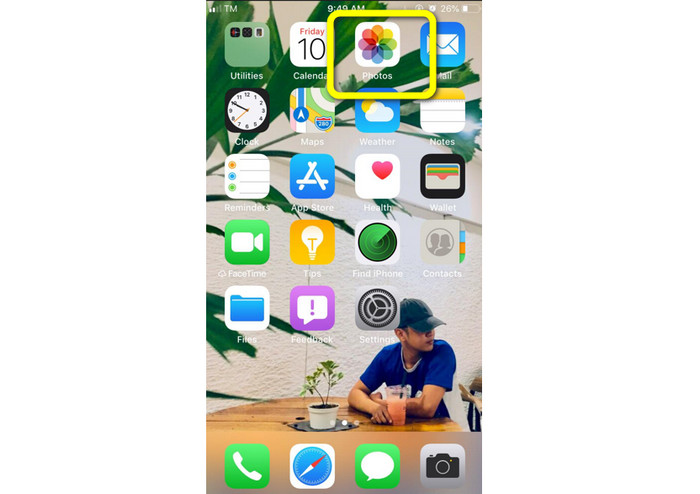
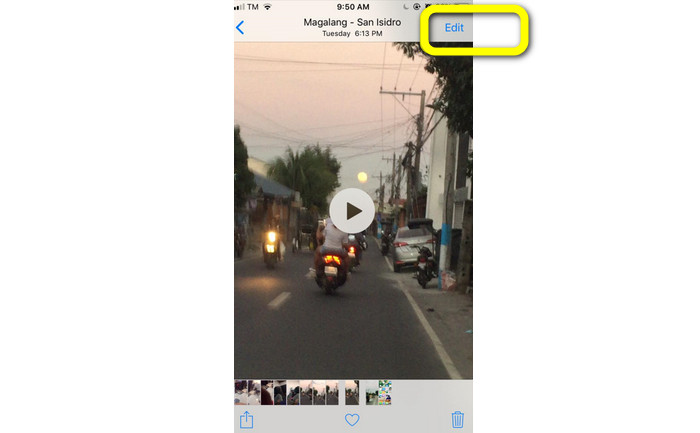
Langkah 2. Setelah itu, ketuk video yang ingin Anda pendekkan. Lalu tekan tombol Edit di pojok kanan layar.
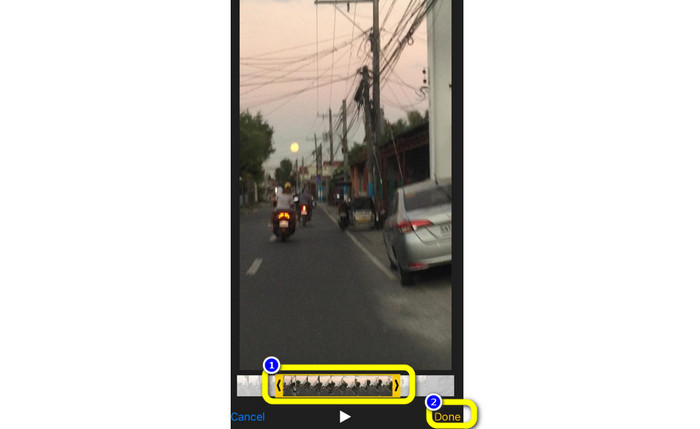
Langkah 3. Sekarang Anda sudah bisa memendekkan video dengan menyeret ujung klip video. Anda dapat menyeret tepi kiri dan kanan video. Setelah memotong video, ketuk tombol Selesai untuk menyimpannya di ponsel Anda.
Menggunakan iMovie
Apakah Anda ingin mengedit beberapa video yang Anda rekam dengan iPhone, misalnya untuk menghapus bagian yang tidak perlu, memendekkannya, atau membuatnya lebih menarik secara visual? Ini adalah proses yang mudah dan sederhana saat menggunakan program iMovie, yang tersedia untuk perangkat iOS. Editor video bawaan di aplikasi Foto sudah cukup bagi sebagian besar pengguna. Namun, Anda tidak dapat menggunakannya untuk mengakses fitur yang lebih canggih seperti memantau lini masa (timeline), menerapkan transisi, menggabungkan banyak video, dan sebagainya. Dalam situasi ini, program pengeditan video khusus seperti iMovie sangat bermanfaat. iMovie buatan Apple lebih unggul dibandingkan alat pengeditan video lain di App Store. Anda juga dapat menyinkronkan audio dan video menggunakan iMovie. Namun, iMovie memiliki beberapa kekurangan. iMovie hanya tersedia di perangkat iPhone. Artinya, jika Anda pengguna Android, Anda harus menggunakan aplikasi lain untuk memotong video.
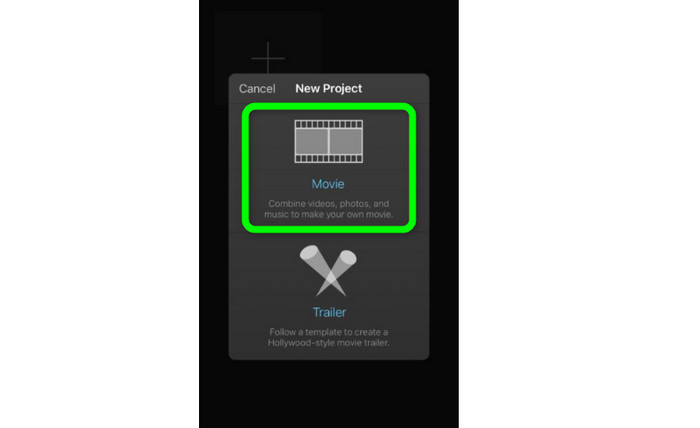
Langkah 1. Unduh dan pasang aplikasi iMovie di perangkat iPhone Anda. Lalu, jalankan aplikasinya. Setelah itu, ketika antarmuka sudah muncul di layar, ketuk opsi Create Project > Movie dan tambahkan video.
Langkah 2. Timeline iMovie sekarang akan memuat video yang Anda pilih. Secara default, penunjuk akan berada di akhir klip, tetapi Anda dapat menyeretnya secara perlahan ke kanan dan berhenti di posisi yang diinginkan jika Anda ingin memotong video.
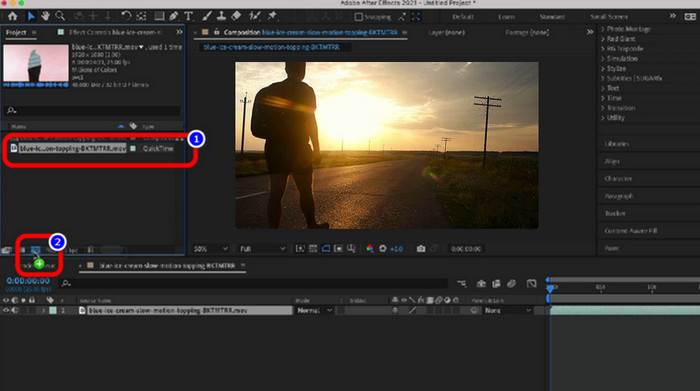
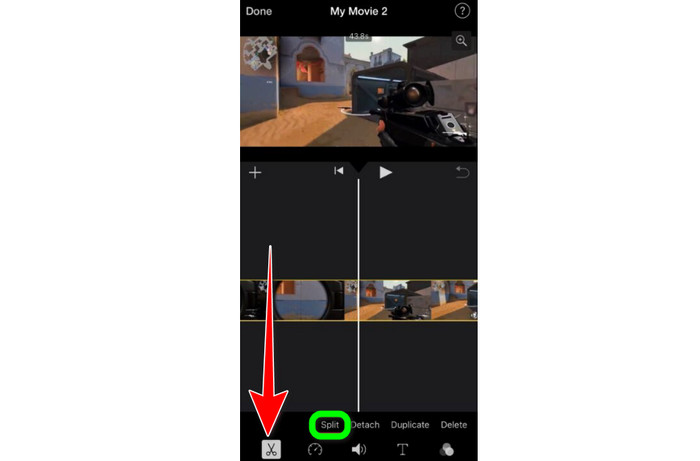
Langkah 3. Sekarang Anda dapat menggunakan berbagai fitur yang ditawarkan iMovie. Seperti yang ditunjukkan di bawah ini, ikon Gunting menandakan pemilihan alat potong. Pilih alat Split dari menu untuk memangkas klip video tepat di tempat yang sudah Anda tandai.
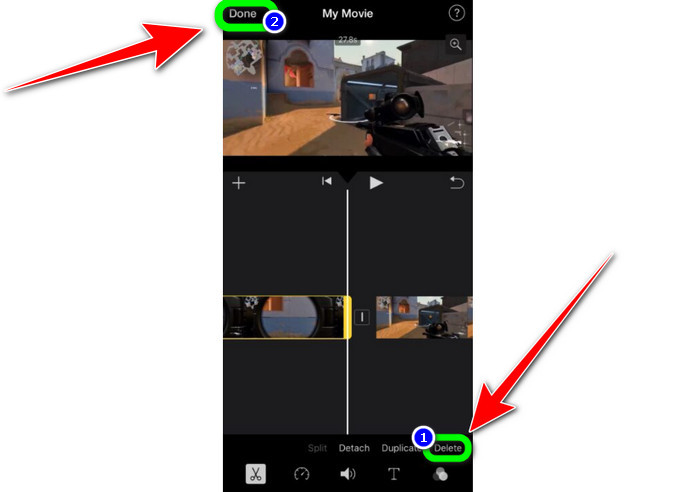
Langkah 4. Lalu, ketuk opsi Delete untuk menghapus bagian video yang tidak diperlukan. Setelah selesai memangkas video, ketuk tombol Selesai.
Bagian 2. Cara Memangkas Video di iPad
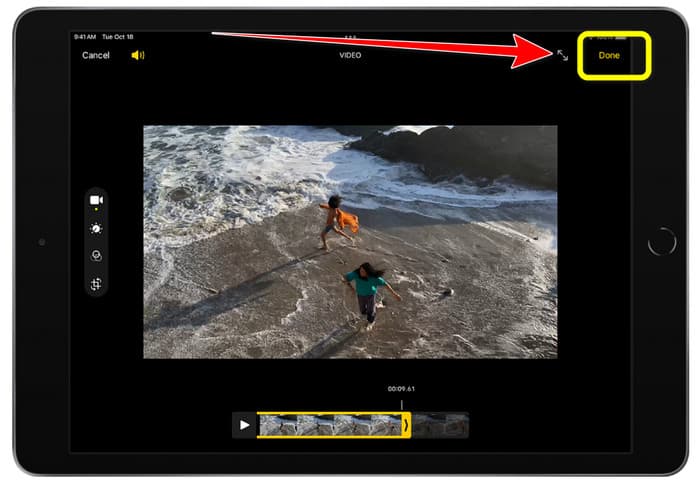
Jika Anda ingin memotong atau memangkas video menggunakan iPad, Anda tidak perlu lagi mencari aplikasi yang harus diunduh. Seperti di iPhone, Anda dapat memangkas atau memotong video menggunakan aplikasi Foto. Aplikasi Foto tetap memiliki beberapa keterbatasan saat digunakan di iPad. Jika tujuan Anda hanya untuk memotong video, aplikasi ini sudah memadai. Namun Anda tidak bisa menggunakannya jika ingin memakai alat pengeditan tingkat lanjut. Ikuti langkah-langkah di bawah ini untuk memotong atau memangkas video menggunakan iPad.
Langkah 1. Jalankan aplikasi Foto di iPad Anda, ketuk klip video yang ingin Anda edit, lalu ketuk opsi Edit.
Langkah 2. Seret tepi penampil frame untuk memendekkan durasi video guna mulai memangkas.
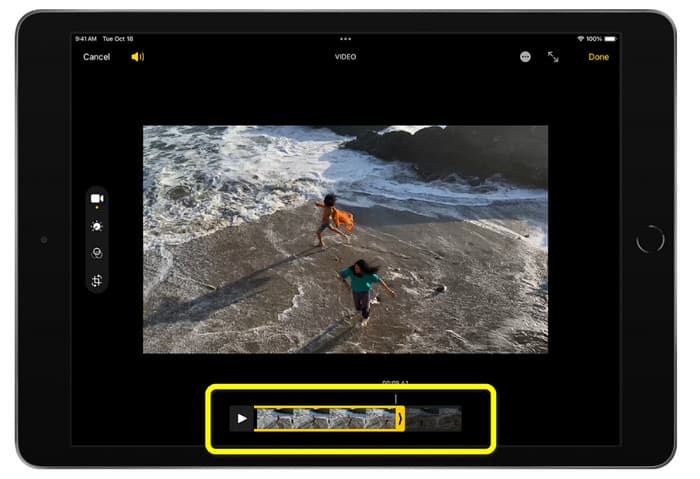
Langkah 3. Setelah selesai memangkas video, ketuk tombol Selesai.
Bagian 3. Cara Memotong Video iPhone di PC
Apakah Anda mencari cara terbaik untuk memotong video iPhone di PC? Jika ya, gunakan Video Converter Ultimate. Anda dapat dengan mudah memotong video iPhone dengan bantuan perangkat lunak offline ini. Program ini juga menyediakan antarmuka yang mudah digunakan dengan langkah-langkah yang sederhana. Jadi, ini ideal untuk semua pengguna, terutama pemula. Anda juga dapat menyesuaikan berbagai hal dengan membuka pengaturan Output. Resolusi, kejernihan, dan frame rate video dapat diubah. Anda juga bisa mengubah bitrate audio, sampling rate, dan aspek lainnya. Anda juga dapat menyimpan hasil akhir dalam berbagai format, seperti MP4, MOV, AVI, MKV, dan lain-lain. Ini menguntungkan pengguna karena Video Converter Ultimate tersedia dan dapat digunakan di komputer Windows dan Mac. Selain itu, aplikasi ini tidak akan menambahkan watermark pada video yang diedit. Jadi Anda tetap bisa menonton video tanpa merasa terganggu.
Unduh GratisUntuk Windows 7 atau yang lebih baruUnduhan Aman
Unduh GratisUntuk MacOS 10.7 atau yang lebih baruUnduhan Aman
Langkah 1. Unduh Video Converter Ultimate di PC Anda. Klik tombol Download di bawah untuk dengan mudah mengakses program tersebut.
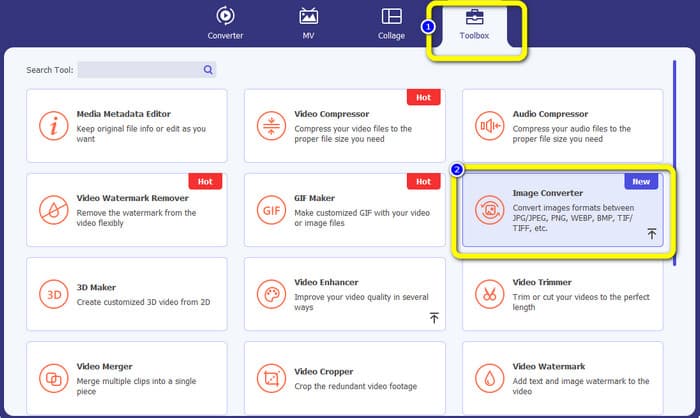
Langkah 2. Setelah mengunduh, jalankan program untuk melihat antarmuka utama. Pastikan video iPhone sudah dipindahkan ke komputer. Setelah itu, klik Toolbox > Video Trimmer Tool ketika antarmuka sudah muncul.
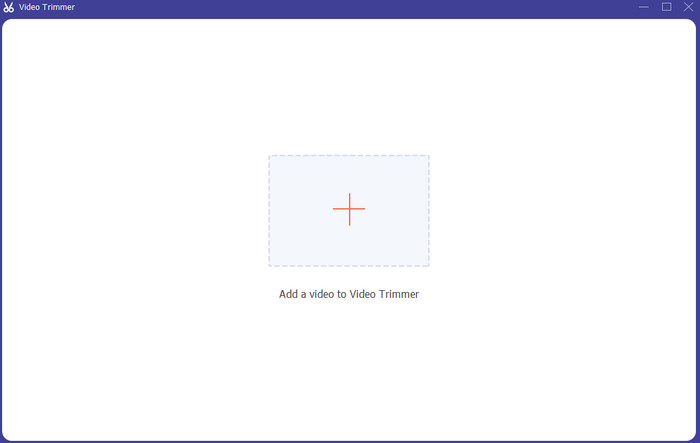
Langkah 3. Saat antarmuka baru muncul di layar, klik tanda + untuk menambahkan video iPhone.
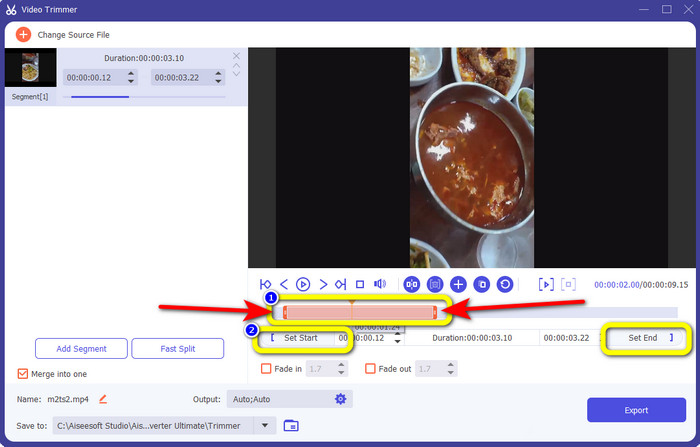
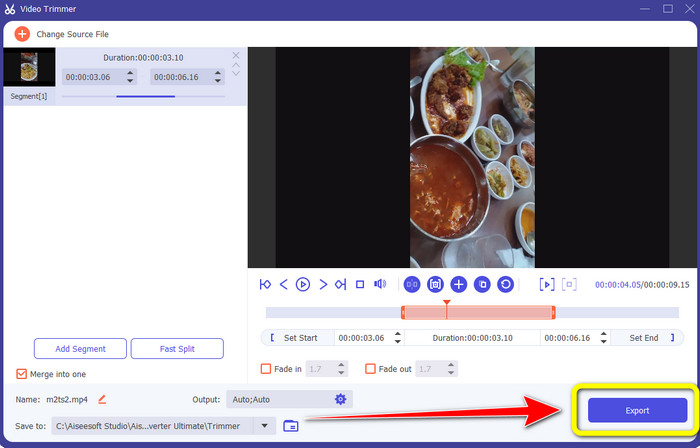
Langkah 4. Lalu, Anda sudah bisa menyesuaikan tepi video untuk memangkasnya. Selain itu, Anda dapat menggunakan opsi Set Start and Set End untuk memangkas video secara manual.
Langkah 5. Terakhir, klik tombol Export untuk menyimpan video setelah dipangkas.
Bagian 4. FAQ tentang Cara Mempersingkat Video di iPhone
Bagaimana cara memangkas bagian tengah video di iPhone?
Jika Anda ingin memangkas bagian tengah video menggunakan iPhone, Anda masih bisa menggunakan cara-cara di atas. Aplikasi Foto dan iMovie juga dapat memangkas bagian tengah video.
Bagaimana cara memangkas video di Ponsel Android?
Anda dapat pergi ke aplikasi Galeri Anda. Kemudian buka videonya, dan klik opsi Edit. Setelah itu, Anda sudah dapat memotong video dengan menyeret bagian tepi video.
Bagaimana cara mentransfer video ke iPhone dari komputer?
Anda dapat menggunakan banyak alat untuk mentransfer video dari komputer ke iPhone. Anda dapat menggunakan iPhone Transfer Pro, Dropbox, AirDrop, dan lainnya.
Kesimpulan
Memangkas video sangat efektif ketika Anda ingin membagikan atau mengunggah sebuah klip video. Dalam kasus ini, artikel informatif ini membahas tentang cara memendekkan video di iPhone. Selain itu, jika Anda ingin memperpendek durasi video iPhone menggunakan komputer, Anda dapat menggunakan Video Converter Ultimate. Dengan bantuan program offline ini, Anda dapat memotong video iPhone dengan mudah dan cepat menggunakan PC.
-
 [4 Solusi] Cara Memperlambat Video di iPhone seperti Pro
 Mengalami kesulitan memperlambat video di iPhone? Jika Anda mengalami masalah ini, jangan khawatir lagi, karena kami akan membantu Anda memecahkan masalah dengan membaca artikel ini.
-
 Cara Mempercepat Video di iPhone – Sesuaikan Kecepatan Video
 Bagaimana cara mempercepat video di iPhone saya? Bagaimana cara mempercepat video di iPhone menggunakan iMovie? Pelajari 3 cara untuk mempercepat video di perangkat iPhone dan iPad.
-
 Tutorial - 4 Cara Gratis untuk Menggabungkan Video di iPhone menjadi Video Baru
 Baca dan dapatkan 4 cara mudah untuk menggabungkan video di iPhone. Semua model iPhone dan versi iOS didukung. Anda dapat menggabungkan 2 video dan lebih di iPhone menjadi video baru dengan cepat.
