


 Video Converter Ultimate
 Screen Recorder
 Riparazione video
Come aggiungere rapidamente immagini a un video in meno di un minuto
Ci sono molte ragioni per cui è necessario aggiungere immagini al video. Ad esempio, alcuni editori hanno scoperto che l'aggiunta di immagini ai propri video crea una nuova interazione per gli altri utenti. In questo modo, puoi usarlo per rappresentare il tuo marchio o fare un'eccellente presentazione visiva e aiutare il tuo video a trasmettere il messaggio giusto agli utenti. Ma lo sapevi che molti strumenti svolgono lo stesso lavoro? Sappiamo che è difficile scegliere quale strumento si adatta meglio a te. Quindi oggi abbiamo già setacciato i tre strumenti che abbiamo riscontrato che funzionano bene. Dopo aver letto questo articolo, imparerai ad aggiungere immagini ai tuoi video.

Parte 1. Guida dettagliata sull'aggiunta di immagini al video con Video Converter Ultimate
Vuoi aggiungere un’immagine al video con lo strumento definitivo? In tal caso, usa Video Converter Ultimate. Con l’aiuto di questo strumento avanzato, puoi sovrapporre facilmente un’immagine al video anche se non sei un professionista nel montaggio. Oltre alla funzione di sovrapposizione di immagini sui video, puoi usarlo con facilità per aggiungere musica di sottofondo, inserire sottotitoli e molto altro. È conosciuto come una soluzione completa per la maggior parte dei problemi legati ai video. Vuoi sapere quali sono i vantaggi del suo utilizzo? Se è così, puoi leggere i dettagli forniti qui sotto.

FVC Video Converter Ultimate
5.689.200+ download- Fornisce prestazioni eccezionali sulla conversione e l'editing.
- Modifica e crea un video fantastico in pochi clic.
- Supporta oltre 200 formati, come MP4, MOV, FLV, WMV, AVI, MTV, ecc.
- Disponibile in tutte le piattaforme multipiattaforma da scaricare, come Windows e Mac.
Download gratuitoPer Windows 7 o versioni successiveDownload sicuro
Download gratuitoPer MacOS 10.7 o versioni successiveDownload sicuro
Non è sorprendente quali sono le cose che puoi fare con lo strumento? Sì, sappiamo che lo strumento è impressionante in molti modi. Se questo strumento ha attirato la tua attenzione e vuoi imparare come aggiungere un'immagine a un video con questo strumento, puoi leggere il tutorial qui sotto.
Passaggio 1. Fai clic sul pulsante di download qui sotto per scaricarlo direttamente sul tuo disco, segui rapidamente la procedura di installazione e avvialo. Prima di tutto, ti saremo grati se ti familiarizzerai con l’interfaccia dello strumento, così potrai riconoscere facilmente i passaggi successivi.
Download gratuitoPer Windows 7 o versioni successiveDownload sicuro
Download gratuitoPer MacOS 10.7 o versioni successiveDownload sicuro
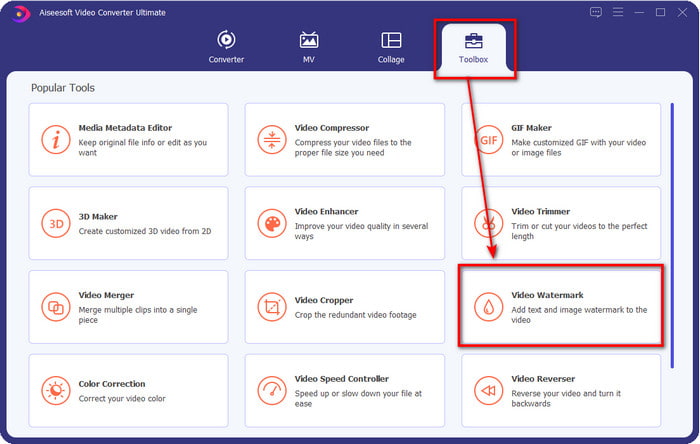
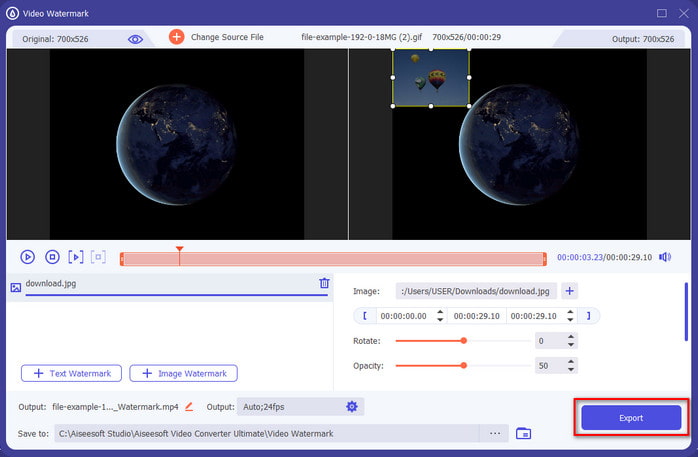
Passaggio 2. Una volta che lo strumento è in esecuzione sul sistema, fai clic su Toolbox; sotto questa sezione trova Video Watermark e aprilo.
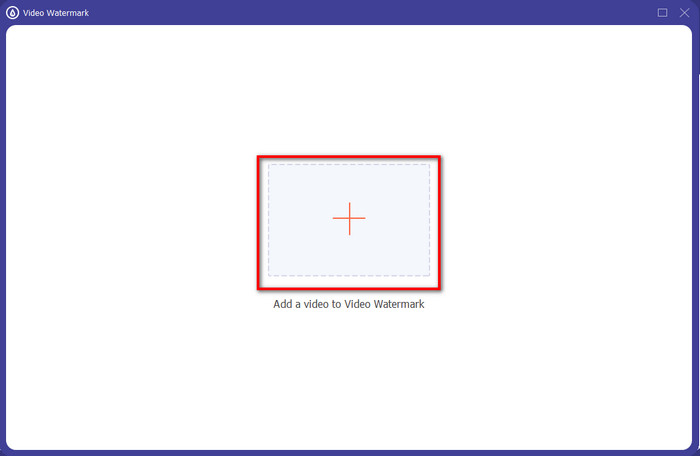
Passaggio 3. Dopo aver cliccato sul pulsante +, sullo schermo verrà visualizzata una cartella; trova il file e premi Open se si tratta del file video.
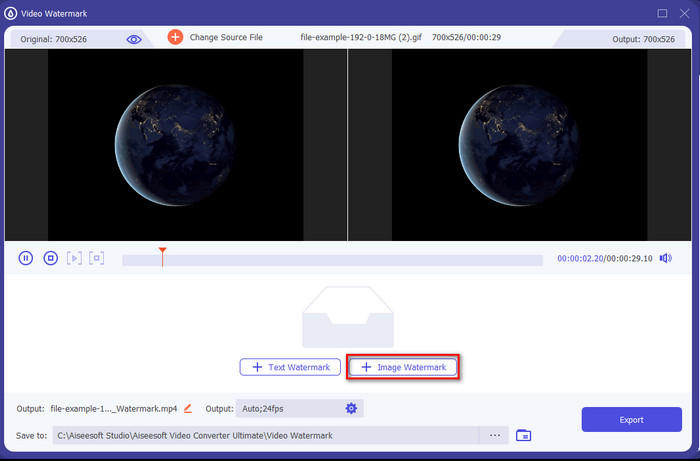
Passaggio 4. Verrà visualizzata una nuova finestra, fai clic su Image Watermark, quindi apparirà di nuovo una cartella, ma questa volta inserirai l’immagine che vuoi aggiungere al tuo video e premerai Open.
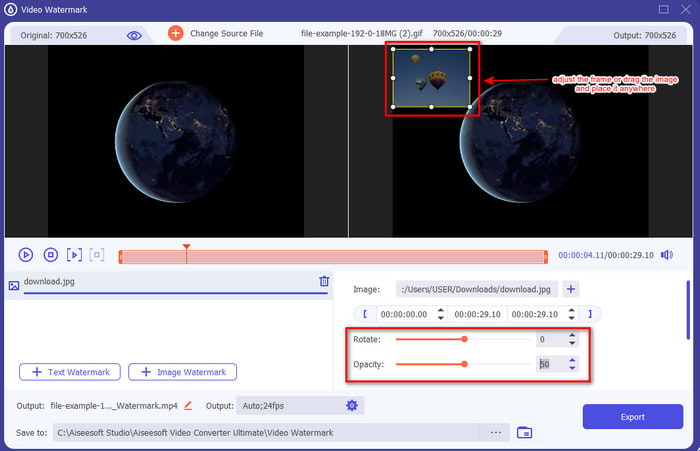
Passaggio 5. Regola la dimensione dell’immagine che hai inserito nel video e la sua posizione trascinando la cornice della foto. Puoi posizionarla ovunque desideri tenendo premuta e trascinando l’immagine. Inoltre, puoi regolare la visibilità dell’immagine modificando l’Opacity. Puoi anche ruotare l’immagine trascinando il cursore di Rotate.
Passaggio 6. Dopo aver modificato l’immagine, è il momento di fare clic su Export.
Correlato:
Come aggiungere audio a un video
Come aggiungere sottotitoli a un video
Parte 2. Come sovrapporre immagini a video su Internet gratuitamente
Taglierina video online: aggiungi un'immagine a un video
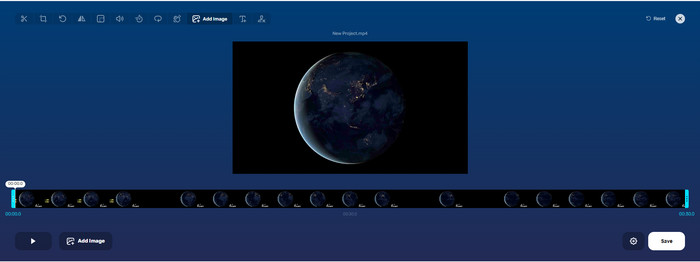
Se vuoi sovrapporre immagini online, puoi usare Online Video Cutter – Add Image to a Video. Questo strumento web offre un modo semplice ma efficace per aggiungere foto a qualsiasi video. Anche se lo strumento è ottimo da usare, caricare il video può essere un po’ scomodo perché dipende dalla tua connessione internet. Inoltre, non puoi aggiungere due immagini perché questa funzione non è supportata. Ma se vuoi usare lo strumento, puoi seguire i passaggi qui sotto.
Passaggio 1. Apri il browser, cerca lo strumento web nella barra di ricerca e aprilo.
Passaggio 2. Fai clic su Open File per caricare il video, poi fai clic su Add Image per caricare l’immagine che vuoi inserire.
Passaggio 3. Trascina l’immagine per cambiarne la posizione, fai clic su Save per codificare il video e salvarlo sul computer.
Professionisti
- Gratuito da usare e non sarà necessario scaricarlo.
- Supporta le funzionalità di modifica di base per gli utenti.
- Non ha una filigrana sull'output finale.
Contro
- Non è possibile aggiungere fino a 2 o più immagini sul video.
- Il caricamento dell'immagine e del video richiede tempo per caricarsi.
Flixier
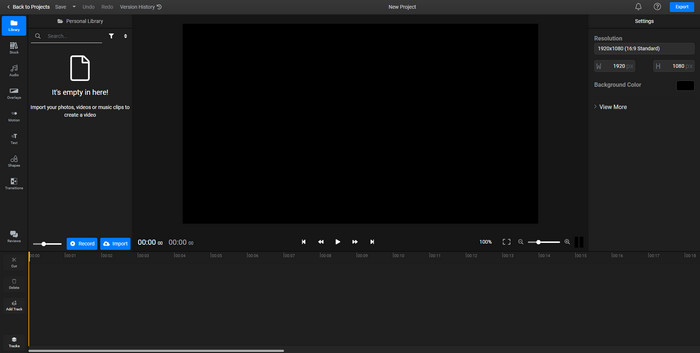
Puoi usare Flixier per aggiungere un’immagine a un video online gratuitamente. Inoltre, con questo strumento online puoi modificare il modello del tuo video, compreso l’inserimento di immagini. Lo strumento offre funzioni di montaggio integrate eccezionali, che puoi utilizzare per migliorare l’aspetto del tuo video. Tuttavia, anche se il servizio web offre queste funzioni avanzate, al momento dell’esportazione sull’output finale verrà applicata una filigrana, poiché la versione è gratuita. Puoi però acquistare la versione premium per rimuovere questa filigrana.
Passaggio 1. Apri il motore di ricerca, cerca il nome dello strumento e fai clic su Choose File.
Passaggio 2. Fai clic su Import per caricare il video e le immagini, trascina il video e l’immagine nella Timeline, assicurandoti che l’immagine sia sopra il video. Cambia la posizione dell’immagine trascinandola all’interno del video.
Passaggio 3. Fai clic su Export, quindi su Export and Download per salvarlo sull’unità del tuo computer.
Professionisti
- Gratuito e accessibile sul web.
- Fornisce più funzioni di modifica rispetto al primo strumento online.
- Supporta l'aggiunta di più immagini al tuo video.
Contro
- L'output finale ha una filigrana alla fine perché è gratuito.
- È necessario acquistare la versione VIP per rimuovere la filigrana sull'uscita video.
Parte 3. Domande frequenti sull'aggiunta di immagini al video
L'aggiunta di immagini a un video influisce sulla qualità?
La qualità del video non influirà sull'immagine aggiunta. Per semplificare, l'aggiunta di immagini non ha una qualità video significativa, anche se aggiungi molte foto. Tuttavia, se esporti il video sull'editor che hai utilizzato e lo imposti su una bassa qualità, aspettati l'output video di seguito.
Perché le immagini che aggiungo al video diventano sfocate?
Il motivo principale è che l'immagine è già sfocata dall'inizio. Per evitare questo problema, devi prima controllare l'immagine e assicurarti che non sia sfocata prima di usarla sul tuo video.
Posso aggiungere una transizione all'immagine nel video?
Con alcuni editor è possibile aggiungere una transizione alla tua immagine. Sebbene ci siano molte transizioni animate diverse, taglia, dissolvenza, cancella e dissolve sono le più comunemente disponibili. Anche se questi sono i più comuni, è comunque l'ideale per aggiungere una transizione all'immagine per rendere il video più professionale ed emozionante.
Conclusione
Dopo aver letto questo articolo, imparare come aggiungere foto in un video sarà più semplice, se ne segui l’intero contenuto con i diversi strumenti online e offline. Anche se presentiamo diversi set di strumenti, consigliamo comunque a tutti gli utenti di usare lo strumento definitivo per svolgere questo compito. Video Converter Ultimate offre un’interfaccia facile da capire che aiuta gli utenti a svolgere il lavoro in modo efficiente. Non sei ancora sicuro che faccia al caso tuo? Beh, scaricare lo strumento è l’unico modo per verificare se è adatto alle tue esigenze.
-
 5 utili convertitori da OGV a WMV per convertire i tuoi file OGV
 Esistono 5 diversi convertitori da OGV a WMV che puoi utilizzare per convertire i file OGV. Questo articolo fornisce informazioni dettagliate sui 5 convertitori ogv disponibili.
-
 Procedura dettagliata per i 2 migliori software di conversione da AMV a WMV [2022]
 Vuoi convertire AMV in WMV? In tal caso, devi leggere questo articolo per avere un'idea di cosa sia AMV e come convertire il file in un formato WMV.
-
 Strumenti più utili per convertire SWF in WMV (online e offline)
 Hai difficoltà a trovare un lettore per i tuoi file SWF? Non devi preoccuparti perché puoi semplicemente convertirlo in formato WMV per una migliore esperienza di consumo di video. Leggi questo articolo per saperne di più su questo processo di conversione.
