


 Video Converter Ultimate
 Screen Recorder
 Riparazione video
La migliore guida su come aggiungere testo a un video con i passaggi dettagliati ciascuno
Vuoi creare un video tutorial? In teoria, gli utenti tendono ad annoiarsi, soprattutto se guardano un filmato didattico difficile da seguire. Anche se hai contenuti eccellenti, un utente potrebbe trovare il tuo video un po' meno attraente e il coinvolgimento potrebbe calare nel giro di pochi minuti. Ma sapevi che puoi aggiungere del testo per rendere il tuo video più coinvolgente per gli utenti? Allora, perché non provi? E per aiutarti ad aggiungere del testo a un video, devi restare sul pezzo e leggere l’intero contenuto di questo articolo.

Parte 1. Il modo più professionale per aggiungere testo al video utilizzando lo strumento definitivo
La maggior parte dei blogger e dei content creator ama realizzare ottimi video con il testo e, con Video Converter Ultimate, puoi creare un video eccellente. Questo strumento supporta funzioni di editing che amerai utilizzare dopo aver aggiunto il testo al tuo video. Inoltre, può aiutarti a rendere il tuo video più coinvolgente, in modo da farlo diventare incredibilmente bello in pochi clic. Non ti stupisce questo strumento? Anche noi ne siamo colpiti. Per aggiungere rapidamente il testo, segui i passaggi su come aggiungere testo al video e riuscirci in pochi clic.
Passaggio: come aggiungere testo a un video come filigrana con lo strumento Ultimate
Passaggio 1. Scarica il programma sull’unità del tuo Windows o Mac, quindi installa rapidamente lo strumento e avvialo. La guida che abbiamo scritto qui sotto è facile da seguire e da capire.
Download gratuitoPer Windows 7 o versioni successiveDownload sicuro
Download gratuitoPer MacOS 10.7 o versioni successiveDownload sicuro
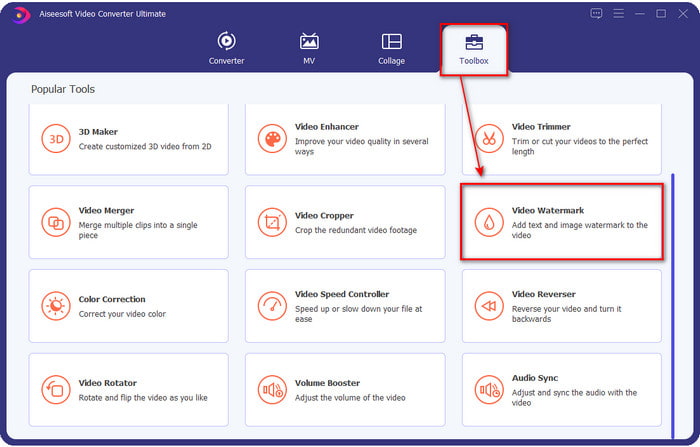
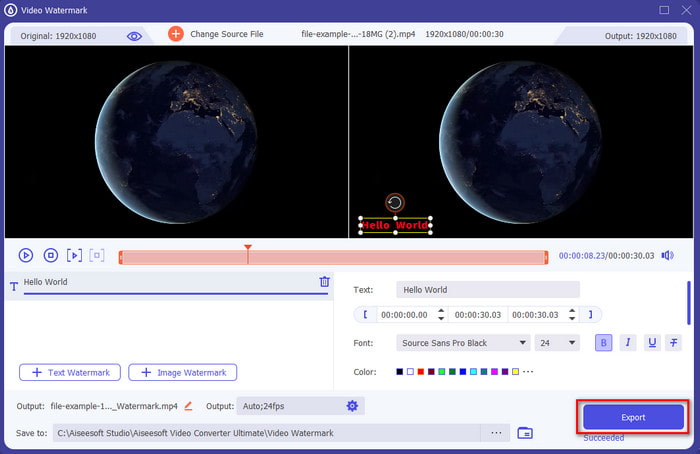
Passaggio 2. Nella sezione Toolbox, individua Video Watermark e aprilo subito.
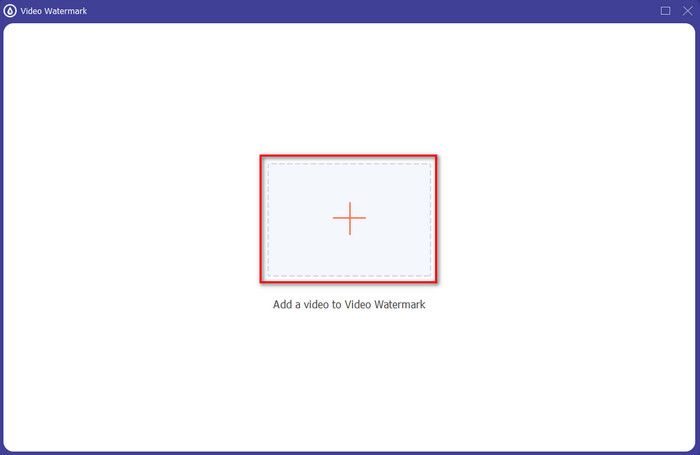
Passaggio 3. Premi il pulsante + e si aprirà la cartella dei file dell’unità. Cerca il file nella cartella, fai clic su Open per aggiungerlo alla coda di applicazione della filigrana.
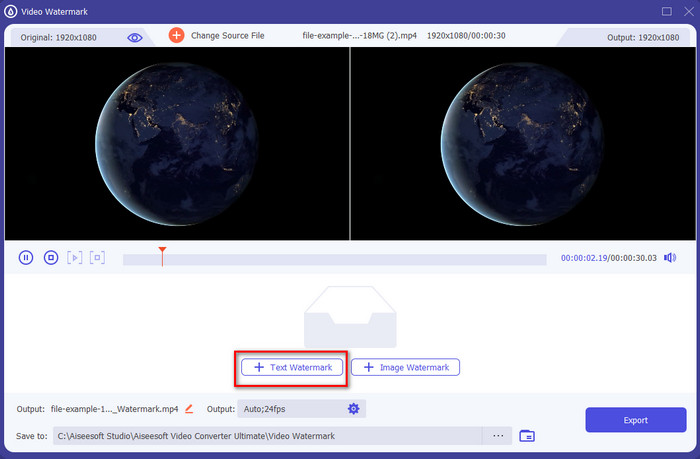
Passaggio 4. Nella parte centrale inferiore della nuova finestra che si aprirà, fai clic su Text Watermark per eseguire un overlay di testo sul video.
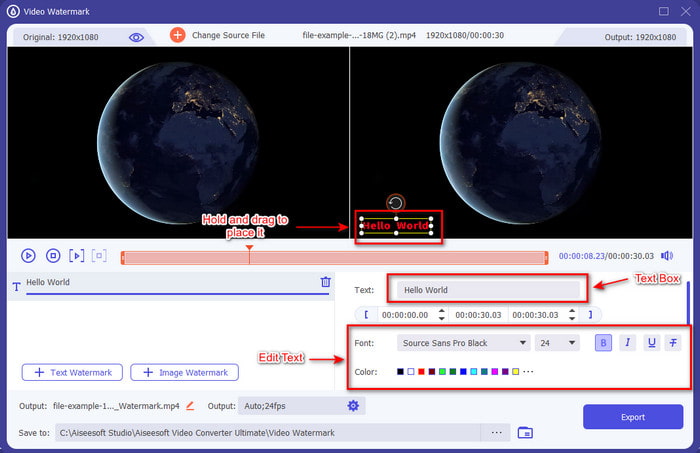
Passaggio 5. Dopo averci cliccato, aggiungi il testo nella text box, poi modifica stile del font, colore e dimensione secondo le tue preferenze. Tieni premuto e trascina la filigrana di testo e posizionala in qualsiasi punto all’interno del video.
Passaggio 6. Per scaricare correttamente il file sull’unità, premi il pulsante Export. L’esportazione richiederà meno di un minuto grazie al processo ultra‑rapido supportato da questo strumento, ed ecco fatto! Hai appena aggiunto una filigrana di testo al tuo video con grande facilità.
Professionisti
- Supporta funzionalità di editing avanzate per rendere il tuo video e aggiungere testo migliore di quello che gli altri strumenti possono offrire.
- Adattabile in ogni situazione e su una piattaforma, come Windows e Mac.
- Supporta oltre 200 formati video che puoi caricare ed esportare in MP4, AVI, MOV, MKV, WMV, FLV e altri.
Contro
- È necessario acquistare lo strumento.
Correlato:
Aggiungere sottotitoli al video
Parte 2. Modo conveniente per aggiungere o inserire testo su video in dispositivi iOS
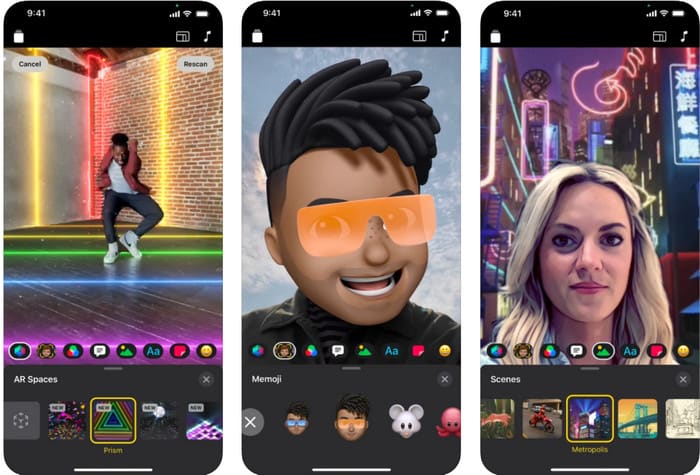
Puoi usare Clips per aggiungere testo a un video su iPhone o iPad. Questo strumento offre un pacchetto completo per registrare e modificare un video. Inoltre, è gratuito da scaricare sull’App Store se ne hai bisogno. Anche se lo strumento è gratuito, non puoi usarlo su Android perché non è supportato. Quindi i passaggi seguenti non sono destinati agli utenti Android.
Passaggio 1. Scarica Clips sul tuo dispositivo iOS e aprilo.
Passaggio 2. Clicca l’icona multi-image, poi Foto, trova il video nella tua galleria, clicca sul file, quindi su Add e, infine, premi Add to Project.
Passaggio 3. Tocca il video e clicca su Effects; sotto questa voce, clicca su Aa per selezionare il testo animato che vuoi aggiungere, quindi digita il testo che desideri inserire. Clicca sul pulsante Export, poi su Save Video.
Professionisti
- Supporta funzionalità di modifica semi-avanzate.
- Scaricabile gratuitamente su qualsiasi dispositivo iOS.
- Supporta non solo l'editing ma anche la registrazione.
Contro
- Alcune funzionalità di modifica che fornisce presentano bug e problemi tecnici ancora in corso.
- La nuova versione del è diventata più peggiore della precedente.
Parte 3. Modo gratuito per aggiungere testo a un video sul Web
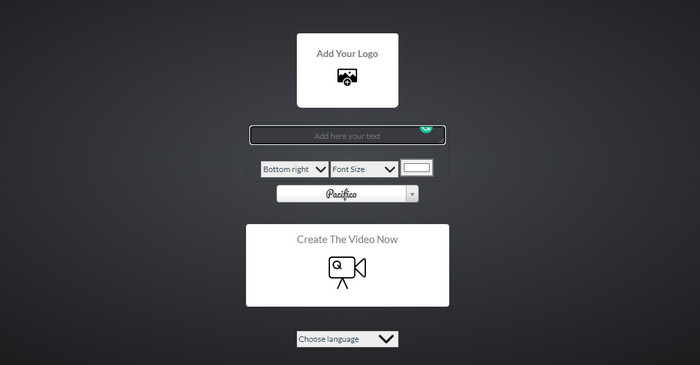
Vuoi aggiungere testo al video online? Bene, puoi usarlo gratuitamente per voice2v.com. Questo strumento Web supporta facilmente una filigrana di testo aggiunta gratuita su qualsiasi video MP4. Sebbene lo strumento supporti una filigrana di aggiunta gratuita, non è possibile posizionare liberamente la filigrana in un punto diverso dalle opzioni presentate. Ma se vuoi, puoi comunque seguire i passaggi sotto.
Passaggio 1. Apri il browser e cerca il sito ufficiale di voice2v.com.
Passaggio 2. Clicca su Upload Your Video per inserire il video a cui vuoi aggiungere una filigrana.
Passaggio 3. Nella text box, digita la filigrana che desideri e clicca sui menu a discesa per cambiare posizione della filigrana, stile del font, dimensione e colore. Clicca su Create The Video Now, quindi sulla linea three-dotted per scaricarlo.
Professionisti
- Non è necessario scaricare l'app o il software.
- Accesso gratuito in tutti i browser.
- Funzionalità di modifica semplici ma efficaci.
Contro
- Non ha un riquadro di anteprima per vedere dove si trova la filigrana.
- Non puoi posizionare liberamente la filigrana dove vuoi.
Parte 4. Domande frequenti sull'aggiunta di testo a un video
Posso aggiungere animazioni sulla filigrana del testo?
Sì, puoi, ma non tutti gli editor supportano l'animazione sulla filigrana di testo. Quindi, se desideri aggiungere una filigrana di testo di animazione, utilizza lo strumento che fornisce un set professionale di funzionalità che supporta la filigrana di animazione.
Qual è il posto migliore per la filigrana del testo?
Se desideri piccoli disturbi, puoi posizionare la filigrana sui bordi del video. Ma se hai intenzione di aggiungere ulteriore sicurezza al tuo lavoro, puoi aggiungere una filigrana nella parte centrale del video. Funziona bene a seconda delle tue esigenze.
La filigrana di testo aumenta la dimensione del file originale del video?
Prima di tutto, la dimensione del file del video originale dal video della filigrana cambierà. La dimensione del file aumenterà perché aggiungi un altro elemento al video. Ma questa aggiunta non influirà sulla dimensione del file del video in modo da raddoppiarne le dimensioni. E se dovessi mai riscontrare che la dimensione del file del tuo video raddoppia, significa che lo strumento che hai utilizzato per aggiungere la filigrana di testo lo fa e non tu.
Conclusione
Per riassumere, questi strumenti che scegliamo sono selezioni manuali, il che significa che selezioniamo solo il meglio dei migliori strumenti che puoi utilizzare per aggiungere filigrana di testo. Con le differenze, lo strumento ha un impatto notevole sull'aggiunta del testo come filigrana al tuo video.
Sebbene questi strumenti abbiano diversi set di funzionalità, continuiamo a pensare che Video Converter Ultimate ci abbia dato la possibilità di diventare più di un semplice editor. Poiché questo strumento crea una solida connessione con gli utenti e lo strumento stesso, osservando i passaggi, possiamo dire che lo strumento coinvolge i suoi utenti in meno seccature aggiungendo testo come filigrana ma divertente. Cattura la tua attenzione? Bene, se lo fosse, scarica lo strumento sul tuo desktop e divertiti a usarlo!
-
 Come aggiungere gratuitamente audio e musica al video sul tuo computer / telefono
 Questo articolo mostra 4 semplici modi per aggiungere gratuitamente l'audio al video. Indipendentemente dalla traccia audio che desideri aggiungere al tuo video, puoi ottenere risultati soddisfacenti qui.
-
 Trasforma GIF in formato video: converti meme GIF in video [2021]
 Determina come trasformare GIF in formato video con l'aiuto degli strumenti elencati di seguito. Scegli quale e impara come farlo, mentre raccogliamo prove sufficienti su di loro.
-
 Meravigliose app da GIF a video per dispositivi Android e iOS
 Sapevi che puoi convertire le GIF in qualsiasi formato video che ti piacerà usando il tuo telefono? Scegli le migliori app sul tuo Android o iOS.
