


 Video Converter Ultimate
 Screen Recorder
 Riparazione video
 Download sicuro
Come rallentare un video su iPhone facilmente e rapidamente con le migliori soluzioni
Hai mai guardato i Grammy del tuo artista preferito e l’hai visto mettersi davanti a un GlamBot? Molti di noi hanno già visto quanto possa essere spettacolare questa macchina, che in meno di un secondo cattura pochi movimenti e li trasforma in uno slow motion. Purtroppo, non tutti possono permettersi di andare ai Grammy e girare un video in slow‑mo con il GlamBot, ma se sei una celebrità quello è un modo per provarlo. Non essere triste se non puoi usare il GlamBot, perché anche tu puoi girare e creare uno slow motion con il tuo iPhone in alta qualità. Allora, sei pronto a girare e imparare come rallentare un video su iPhone in modo che sembri spettacolare come con la macchina di cui abbiamo parlato? Allora questo articolo fa per te.

Parte 1. Come rallentare un video su iPhone con le 3 migliori app per il controllo della velocità
iMovie
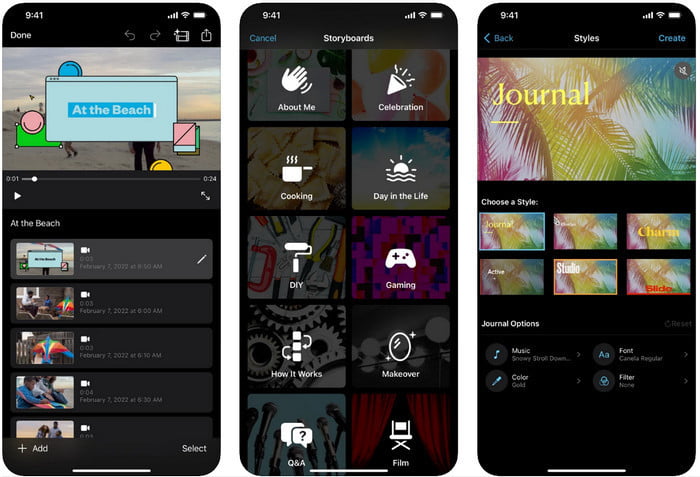
Passaggio 1. Tocca iMovie sullo schermo per aprire l’app, poi tocca l’icona con il simbolo più. Sullo schermo comparirà una nuova finestra con due opzioni; fai clic su Filmato.
Passaggio 2. Scegli il video dall’elenco che compare sullo schermo e fai clic su Crea filmato per procedere. Dopo averlo caricato, fai clic sull’icona a forma di orologio per cambiare la velocità del video e trascina il cursore verso sinistra per rallentarlo.
Passaggio 3. Una volta finita la modifica della velocità del video, fai clic su Fine, quindi su Esporta per salvarlo sull’unità del tuo dispositivo.
Editor video al rallentatore
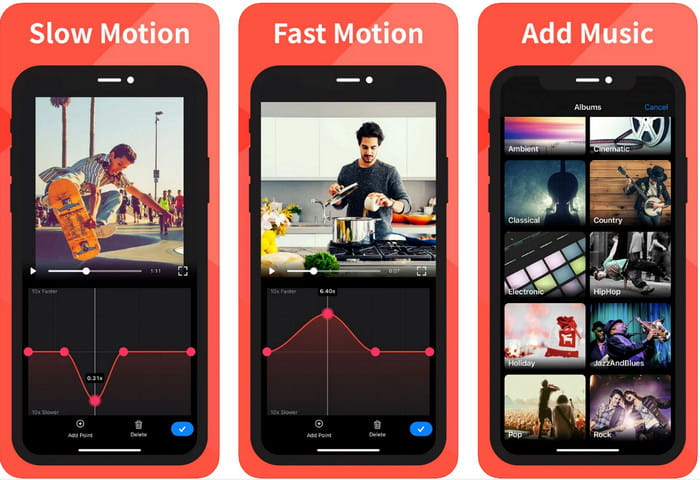
Slow Fast Motion Video Editor non è efficace quanto iMovie nel rendere il video spettacolare, ma con questa app puoi rallentare facilmente un video su iPhone. Grazie al suo editor di velocità multifunzione, c’è ben poco che quest’app non possa fare, soprattutto per accelerare. Anche se il video è in verticale o orizzontale, può funzionare in entrambi i modi. Dunque, imparare a usare l’app non è complicato rispetto ad altri controller di velocità che puoi scaricare sul tuo dispositivo. Tuttavia, per poter utilizzare l’app su iOS devi pagare un abbonamento; è previsto però un periodo di prova gratuito di 3 giorni, durante il quale saranno presenti pubblicità ovunque. Per usare l’app, puoi seguire i passaggi indicati di seguito.
Passaggio 1. Scarica l’app e aprila sul tuo dispositivo iOS, poi tocca Consenti accesso per dare all’app il permesso di accedere alle tue Foto.
Passaggio 2. Seleziona il video sul tuo dispositivo e tocca Mostra selezionati; tocca Tutti i video per vedere il video che hai caricato e poi tocca Seleziona.
Opzionale: Puoi rifilare e tagliare il video in base alle tue preferenze e trascinare le testine di riproduzione fino alla lunghezza desiderata. Ma se non vuoi effettuare tagli o rifilature, puoi toccare Salta; se invece lo modifichi, tocca Avanti.
Passaggio 4. Tocca il pulsante Velocità, regola ogni velocità come preferisci e trascina verso il basso per rallentare il video. Ricorda che, a ogni punto che trascini, rallenterai solo una parte specifica del video e non l’intera clip. Tocca Verifica e salva per esportare il video a cui hai cambiato velocità.
Slo-Mo: crea video al rallentatore
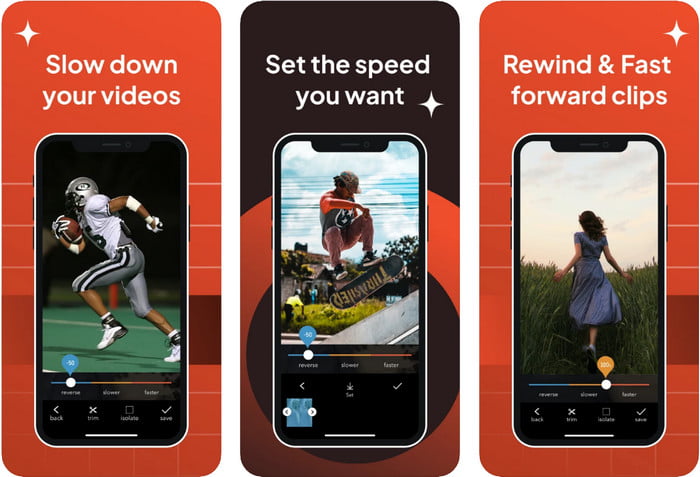
Slo-Mo: Make Slow Motion è un’altra app specifica che puoi scaricare gratuitamente sul tuo iOS, ma offre acquisti in‑app. Proprio come Slow Fast Motion Video Editor, dovrai abbonarti prima di poterne sfruttare appieno il potenziale. Sebbene richieda comunque un abbonamento, ne vale la pena e non costa troppo. Per quanto riguarda il cambio della velocità di riproduzione di un video, questo strumento è davvero preciso in questo tipo di attività. Per sapere di più su come fare uno slow‑mo su iPhone, puoi leggere il tutorial qui sotto.
Passaggio 1. Per scaricare l’app, accedi all’App Store e scaricala; poi apri l’app per iniziare a rallentare il video che hai.
Passaggio 2. Tocca Libreria, scegli il video di cui vuoi cambiare la velocità di riproduzione e tocca Scegli per iniziare.
Passaggio 3. Trascina il cursore verso sinistra per rallentare; fai clic su Salva se sei soddisfatto della velocità.
Parte 2. Controller di velocità video top di gamma disponibile su Windows e Mac
FVC Video Converter Ultimate ha il miglior controller di velocità che puoi usare per i video archiviati su Windows e Mac. Grazie alle sue funzioni avanzate per accelerare i video, se lo confrontiamo con le altre applicazioni menzionate qui, c’è un grande divario tra un buon controller di velocità e un controller “ultimate”. A causa del supporto limitato del sistema operativo, non puoi scaricare il software sul tuo iOS, perché non è compatibile. Tuttavia, è ancora considerato un software tutto‑in‑uno che può risolvere i tuoi problemi video e audio. Quindi, per imparare come mettere un video in slow motion su iPhone dopo averlo registrato, devi seguire e leggere il tutorial che abbiamo aggiunto nella parte successiva.
Passaggio 1. Per ottenere questo software “ultimate” per controllare la velocità sul tuo desktop, devi fare clic sul pulsante di download e scegliere se stai usando Windows o Mac. Dopodiché fai clic sul file scaricato per installarlo e avviarlo.
Download gratuitoPer Windows 7 o versioni successiveDownload sicuro
Download gratuitoPer MacOS 10.7 o versioni successiveDownload sicuro
Passaggio 2. Vai ad aprire la Casella degli strumenti di questo programma per accedere al Controllo velocità video.
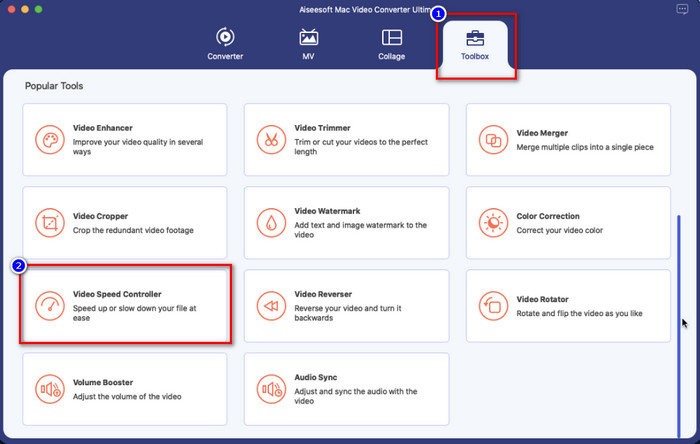
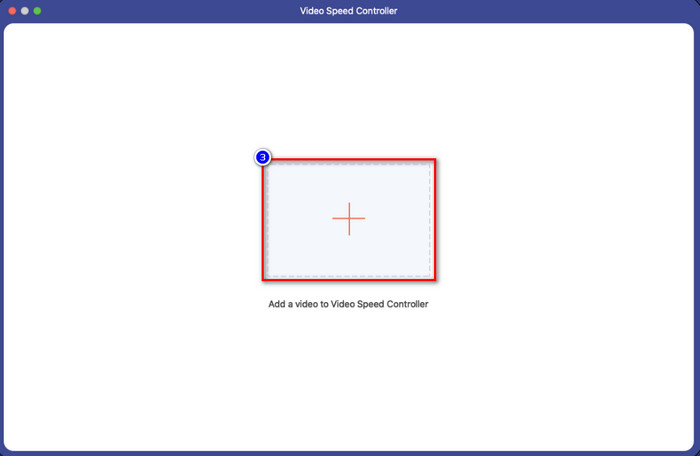
Passaggio 3. Fai clic sull’icona con il segno più e sullo schermo si aprirà una cartella. Cerca il video che vuoi caricare, fai clic sul file e premi Apri.
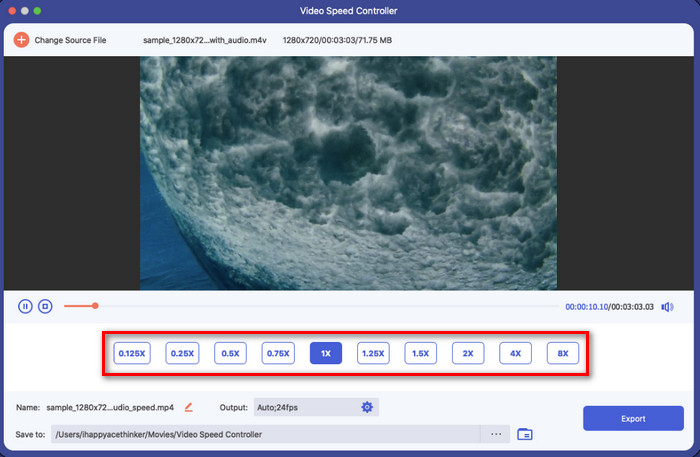
Passaggio 4. Ora puoi scegliere qui lo slow motion che vuoi applicare al tuo video. Provali tutti per vedere quale velocità di riproduzione preferisci per il video che hai selezionato in precedenza.
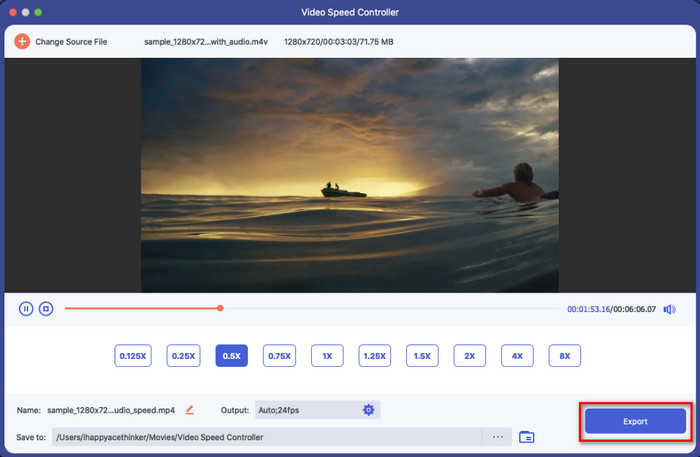
Passaggio 5. Infine, puoi salvare le modifiche applicate al video facendo clic sul pulsante Esporta. Dopo l’esportazione, sullo schermo comparirà una cartella contenente il video rallentato che hai esportato.
Parte 3. Domande frequenti su come rallentare un video su iPhone
Il rallentamento di un video influirà sulla qualità?
A causa della modifica della riproduzione del video, potrebbero verificarsi alcune modifiche al video una volta modificata la velocità effettiva in un effetto slow-motion. Ma se applichi un impatto al rallentatore sul video, possiamo assicurarti che il video non diminuirà la qualità, quindi assicurati di non esagerare nell'usarlo.
Perché il mio video è diventato sfocato dopo aver applicato il rallentatore?
È probabile che si verifichino casi come questo se lo strumento scelto non supporta l'esportazione di un video di alta qualità. Ma alcuni strumenti gratuiti aiutano ad applicare un effetto slow-motion senza alcuna limitazione sulla qualità. Come quello che puoi ottenere su FVC Video Converter Ultimate, una volta che rallenti il tuo video qui, la stessa alta qualità rimarrà sul video che carichi.
Perché ci sono filigrane dopo aver esportato il video al rallentatore?
Se utilizzi la versione gratuita dell'app per rallentare un video, è possibile che quando esporti il video, lascerà una filigrana su di esso. Quindi, è d'obbligo leggere le informazioni sul software che hai scelto e vedere se lascerà una filigrana sul video se intendi esportarlo.
Conclusione
Se vuoi girare come una celebrità ai Grammy, usare i tuoi dispositivi iOS può aiutarti, e con il tutorial che abbiamo preparato imparare come rallentare un video su iPhone è diventato possibile e semplice. Con le app che abbiamo selezionato, la possibilità di svolgere questo compito in modo professionale è alla portata di chiunque ami aggiungere effetti in slow‑mo. Anche se le app sono ottime, non possiamo nascondere che FVC Video Converter Ultimate supera tutti gli standard per rallentare la velocità di un video. Se vuoi avere e usare questo strumento, puoi leggere le istruzioni che abbiamo aggiunto nella parte 2 e scaricarlo.
-
 Infatti: best practice per rallentare i video MP4
 Oltre ad aumentare la velocità del tuo video's, il rallentamento è una delle tante pratiche necessarie per ottenere il miglior risultato dal tuo video. Aspira ad essere il miglior editore possibile leggendo il resto dell'articolo.
-
 Come cambiare il video al rallentatore a velocità normale [semplici passaggi]
 Vuoi sapere come ripristinare un video al rallentatore scaricato da Internet o registrato accidentalmente al rallentatore? Scopri come convertire video al rallentatore a velocità normale su Mac, Windows, iOS e Android.
-
 Tutto quello che devi sapere su come realizzare video al rallentatore
 Vuoi realizzare video al rallentatore come un editor professionale, ma non sai quale software o applicazioni vuoi utilizzare? Leggi questo articolo per conoscere tutti i dettagli di cui hai bisogno.
