


 Video Converter Ultimate
 Screen Recorder
 Riparazione video
 Download sicuro
Le migliori tecniche per rimuovere definitivamente la filigrana Animoto sui video
Animoto è un creatore di video basato su cloud che chiunque può utilizzare per creare un video eccellente per impressionare il pubblico che vedrà il video. Con milioni di utenti, Animoto è diventata famosa per l'editing e la creazione di video senza avere una vasta conoscenza della post-produzione. A causa dell'utilizzo quotidiano del sito Web, molti utenti si divertono a usarlo e creano più brevi video sorprendenti per le loro presentazioni.
Tuttavia, la versione gratuita dello strumento lascia il logo del tool alla fine del video. Può risultare fastidioso per alcuni e, certamente, è necessario rimuoverlo per presentare il video in modo ordinato, senza alcuna filigrana. Per fornirti lo strumento di cui hai bisogno per rimuovere la filigrana di Animoto gratuitamente, continua a leggere questo articolo: riassumeremo tutti gli strumenti da usare che possono aiutarti.

Parte 1. Come rimuovere la filigrana dal video Animoto [Rimozione filigrana più utilizzato nel 2022]
FVC Video Converter Ultimate – Ultimate Watermark Remover su Windows e Mac
Se vuoi rimuovere la filigrana di Animotica, puoi sfruttare le funzioni e le caratteristiche offerte da FVC Video Converter Ultimate. Questo strumento fornisce il modo più efficace per eliminare la filigrana dal tuo video, ovvero rimuovendola. Con questo tool, puoi coprire il logo di Animoto con il logo personalizzato che hai creato, in modo che il logo dello strumento non compaia nel video che hai realizzato. Per quanto riguarda le prestazioni complessive nella rimozione della filigrana, possiamo dire con facilità che è il migliore che abbiamo trovato sul mercato.
Inoltre, oltre a rimuovere e aggiungere la filigrana, puoi anche sfruttare le altre caratteristiche e funzioni come la modifica, la conversione, la creazione di MV e altro ancora. In tutte le sue caratteristiche e funzioni, possiamo ammettere che serve il piatto giusto sulla tavola per uno scopo ultimo. Quindi, se vuoi sapere come rimuovere una filigrana da un video Animoto, puoi leggere le informazioni di seguito.
Passaggio 1. Premi il pulsante di download qui sotto per installarlo su Windows o Mac. Scegli il pulsante appropriato per scaricare la versione corretta per il tuo sistema operativo. Dopodiché fai clic sul file scaricato per avviare l’installazione, segui la procedura guidata e poi apri il programma.
Download gratuitoPer Windows 7 o versioni successiveDownload sicuro
Download gratuitoPer MacOS 10.7 o versioni successiveDownload sicuro
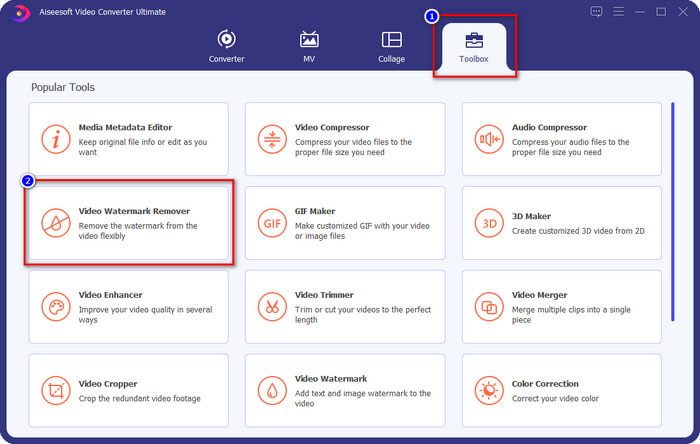
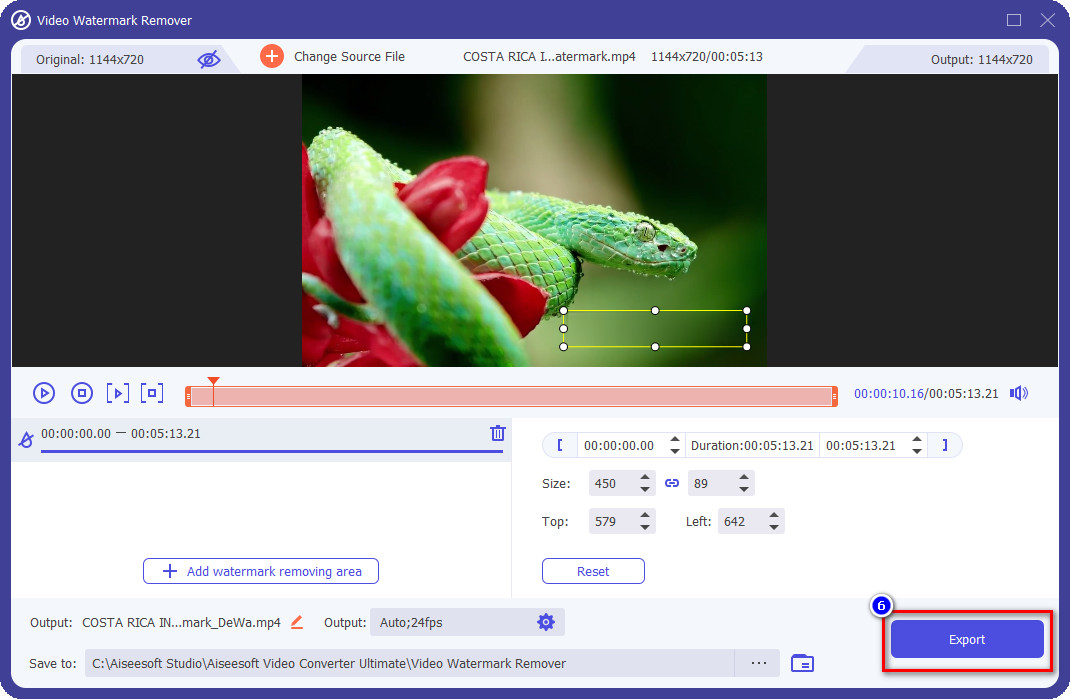
Passaggio 2. Vai alla sezione Toolbox per aprire la funzione Video Watermark Remover inclusa nello strumento.
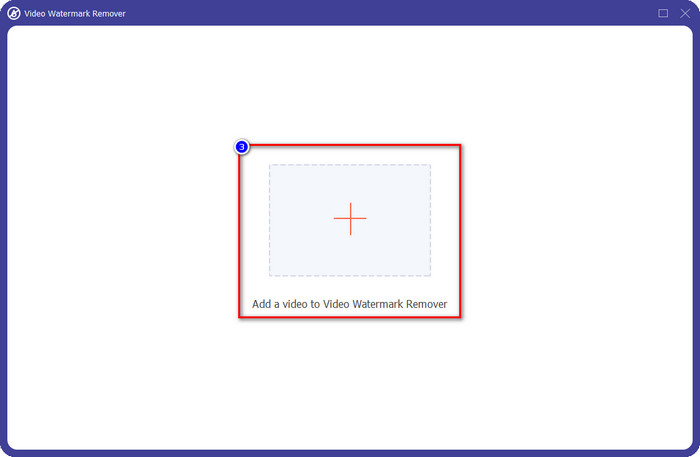
Passaggio 3. Quindi fai clic sul pulsante + che apparirà sullo schermo per caricare il video che hai montato con Animoto e che contiene la filigrana.
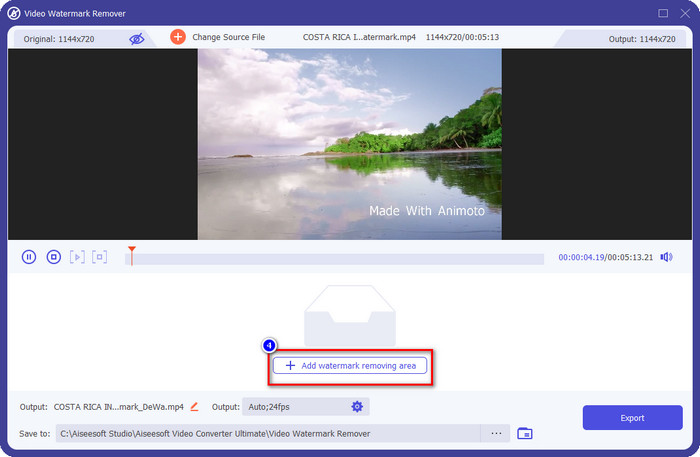
Passaggio 4. Una nuova finestra come questa apparirà sullo schermo non appena carichi il video. Clicca su Add Watermark Removing Area nella parte centrale inferiore dell’interfaccia.
Passaggio 5. Regola l’area di selezione in modo che combaci con la filigrana e posizionala correttamente.
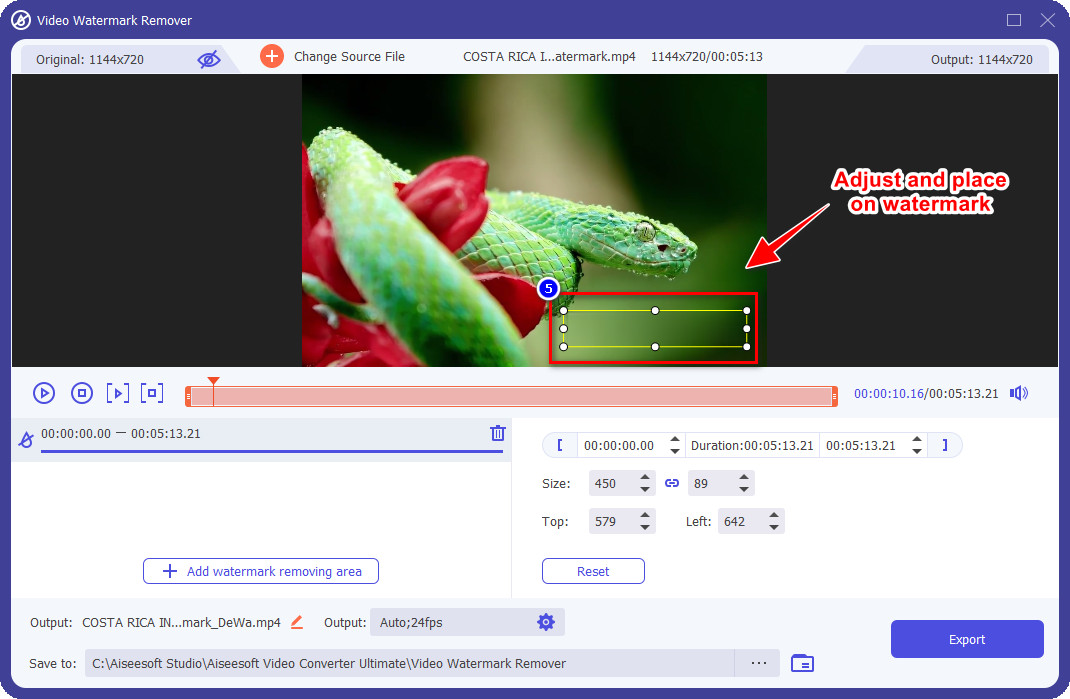
Passaggio 6. Dopo aver posizionato l’area di selezione sulla filigrana, puoi fare clic sul pulsante Export per salvare il risultato finale del video senza la filigrana.
iMovie su Mac
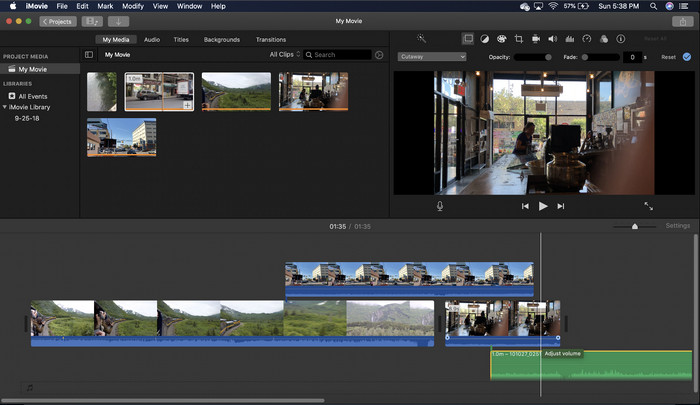
iMovie è un popolare editor video che puoi utilizzare per rimuovere la filigrana sul tuo video ritagliandolo. Ogni utente Mac può sfruttare il suo potenziale senza scaricare il software sul proprio dispositivo perché è già preinstallato, risparmiando tempo nel download e nell'installazione, anche nello spazio di archiviazione. Sebbene lo strumento sia eccellente per l'editing video, la funzione di rimozione della filigrana che supporta non è come quella fornita dal primo strumento. Ritaglia il fotogramma del video per rimuovere la filigrana nel video, quindi se la filigrana è posizionata nel mezzo, dovrai ritagliare quasi la metà della presentazione visiva del video.
Non è sempre la scelta migliore per rimuovere la filigrana, ma se il logo si trova sul lato finale del video, puoi seguire i passaggi seguenti per sapere come rimuovere la filigrana Animoto dal video ritagliandola.
Passaggio 1. Apri l’editor video sul tuo Mac andando in Finder, poi Applicazioni; all’interno, cerca iMovie e fai doppio clic per aprirlo.
Passaggio 2. Carica il video che desideri cliccando il pulsante import e cercando il file video nell’unità locale.
Passaggio 3. Ora che il video è stato caricato, devi trascinare il video importato sulla timeline.
Passaggio 4. Nella parte destra dell’interfaccia dello strumento vedrai molte icone delle funzioni di editing disponibili; fai clic sull’icona di crop nell’elenco.
Passaggio 5. Modifica il frame in modo da escludere la filigrana di Animoto dal tuo video.
Passaggio 6. Fai clic sul pulsante share in alto a sinistra, quindi su Export as a Video per avviare il download del video.
Parte 2. Modo aggiuntivo per salvare video Animoto senza filigrana
Posso salvare video modificati su Animoto senza filigrana? Puoi. Invece di utilizzare il software che abbiamo menzionato sopra, acquisti la quota di abbonamento su questo strumento web per salvare il video che hai modificato qui, ma questa volta senza la filigrana. Per aiutarti a farlo, puoi seguire i seguenti passaggi.
Passaggio 1. Apri il browser, cerca Animoto Video Editor e poi apri il sito ufficiale.
Passaggio 2. Sul sito ufficiale, fai clic su Pricing.
Passaggio 3. In questa sezione vedrai che puoi scegliere tra due tipi di abbonamento, mensile e annuale. Non lasciarti ingannare dal prezzo annuale apparentemente più basso, perché nel complesso ti costerà di più dell’abbonamento mensile, dato che l’annuale si intende per un intero anno.
Passaggio 4. Crea un account, aggiungi l’indirizzo di fatturazione e il metodo di pagamento che desideri utilizzare. Dopo di ciò, potrai usare la versione Pro di questo strumento online.
Relazionato:
Come rimuovere le filigrane di Photobucket
Come rimuovere la filigrana dalle GIF
Parte 3. Domande frequenti su come rimuovere la filigrana Animoto
Animoto e Animotica sono la stessa cosa?
Questi due editor video non sono correlati tra loro, ma gli articoli su di loro parlano spesso del confronto di ciascuno strumento. E sono entrambi la migliore alternativa l'uno per l'altro di per sé.
Quale è meglio, sfocare o ritagliare la filigrana Animoto?
La sfocatura può avere un effetto positivo o negativo sul tuo video; il lato positivo della sfocatura della filigrana è che può essere impercettibile ai nostri occhi nudi, soprattutto se si mescola o si fonde bene con il colore. Ma il lato negativo è che vedi un segno tracciabile dopo averlo esportato se non è andato bene. Sul ritaglio, è lo stesso; quando ritagli il video, non ci saranno effetti di sfocatura sul video, ma le dimensioni del fotogramma si restringono.
Animoto ha un pagamento una tantum?
Sfortunatamente, non supporta i pagamenti una tantum. Ma se vuoi risparmiare e utilizzarlo a lungo, ti suggeriamo di scegliere l'abbonamento annuale per utilizzare lo strumento web per un anno, quindi abbonarti nuovamente per l'anno successivo e avanti.
Conclusione
Quindi, quale modo pensi che utilizzerai per rimuovere la filigrana Animoto? Qualunque sia la tua decisione, speriamo di averti aiutato a risolvere il problema della rimozione della filigrana sul video che hai modificato su Animoto.
-
 4 modi migliori su come aggiungere rapidamente filigrana a qualsiasi video
 Impariamo come aggiungere filigrana a qualsiasi video su Windows, Mac, Online, iOS e Android con passaggi dettagliati se leggi questo articolo.
-
 4 modi efficaci per rimuovere le filigrane di Tiktok dai video di Tiktok
 Hai bisogno di rimuovere la filigrana Tiktok dai tuoi video Tiktok esportati? Puoi farlo qui con l'aiuto degli strumenti che presentiamo; puoi farlo facilmente.
-
 Come aggiungere filigrana a un video in iMovie su Mac [All Embracing]
 Vuoi conoscere i segreti per aggiungere una filigrana a un video in iMovie? Non versare il tè su nessuno e imparalo leggendo questo articolo.
