


 Video Converter Ultimate
 Screen Recorder
 Riparazione video
 Download sicuro
Le migliori soluzioni da utilizzare per aumentare la saturazione nei video
La saturazione video si riferisce all'intensità dei colori in un video. Misura il grado in cui i colori sono vividi e pronunciati. Il livello di saturazione di un video può essere regolato per creare un aspetto o un tono specifico. Ad esempio, l'aumento della saturazione può far apparire i colori più vibranti e vivaci, spesso utilizzati nei video musicali o negli spot pubblicitari per creare un effetto visivamente emozionante e che attira l'attenzione.
D’altra parte, livelli di saturazione più bassi possono creare un’atmosfera più sobria o nostalgica, spesso utilizzata in film o serie TV per trasmettere un particolare stato d’animo o emozione. In generale, la saturazione del video è uno strumento essenziale per registi e videomaker per creare uno stile visivo specifico e valorizzare l’aspetto narrativo del loro lavoro. Quindi, se sei un appassionato di video, devi imparare i diversi modi su come aumentare la saturazione in un video.

Parte 1. Modifica la saturazione video sul computer
1. Convertitore video definitivo
Quando regoli la saturazione del video del tuo progetto, Video Converter Ultimate è il tuo alleato. La maggior parte degli appassionati di video preferisce questa applicazione per le sue funzioni di editing avanzate, come il miglioramento dell’aspetto del video e la modifica dei parametri di saturazione. Il software integra funzioni accelerate che possono offrire una migliore qualità di uscita. Utilizza una tecnologia di correzione del colore per regolare luminosità, contrasto, tonalità e saturazione. Ciò che rende unico questo strumento è la varietà di opzioni di montaggio video. Puoi anche migliorare il video, creare animazioni 3D, inserire loghi e diversi elementi per valorizzare il tuo file video. Consulta le linee guida qui sotto per imparare il modo corretto di modificare la saturazione di un video con questa app.
Passaggio 1. Scarica Video Converter Ultimate
Puoi ottenere il firmware dell’app sul tuo computer cliccando sull’opzione Download gratuito qui sotto. Vai alla cartella dei download del tuo PC ed esegui il file per installarlo sul dispositivo. Poi completa le procedure guidate di installazione e avvia l’app per impararne le funzioni essenziali.
Download gratuitoPer Windows 7 o versioni successiveDownload sicuro
Download gratuitoPer macOS 10.7 o versioni successiveDownload sicuro
Passaggio 2. Importa il file video
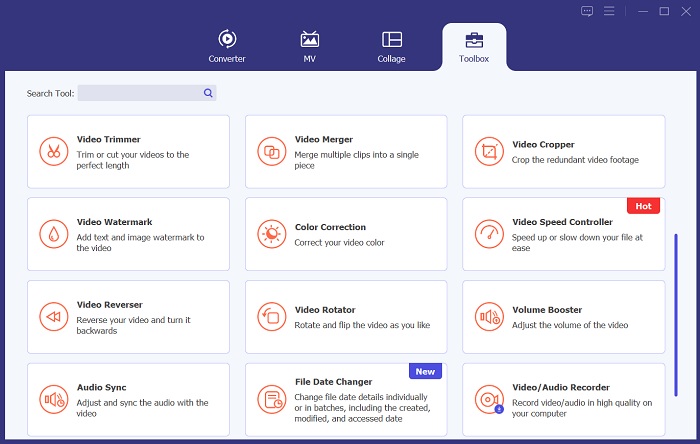
La procedura successiva consiste nell’importare il file video nello strumento. Vai all’opzione Toolbox e scorri in basso fino all’opzione Correzione colore. Tocca la funzione di editing per aprire una nuova finestra di dialogo. Premi l’icona + per accedere al tuo video di progetto e importarlo.
Passaggio 3. Modifica la saturazione
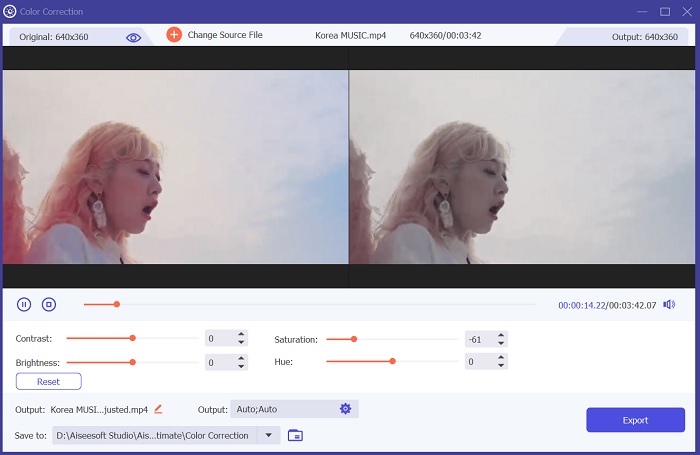
Infine, utilizza il cursore per modificare la saturazione del video del tuo progetto. Regola il cursore in base al risultato che preferisci. Poi fai clic sull’icona Esporta per salvare le modifiche. Vai nella cartella di output e guarda l’anteprima del video modificato.
2. Clideo
Quando si tratta di modificare video, Clideo offre una varietà di componenti che possono aiutarti a ottenere i risultati desiderati. Una di queste funzionalità è la possibilità di regolare la saturazione del tuo video. La saturazione è una misura di quanto appaiono intensi o vibranti i colori nel tuo video e modificarla può alterare drasticamente l'aspetto generale del tuo filmato. Con Clideo puoi regolare facilmente la saturazione del tuo video utilizzando un semplice strumento di scorrimento. Questo dispositivo di scorrimento ti consente di aumentare o diminuire i livelli di saturazione del tuo video, rendendolo più vibrante o disattivato, a seconda delle tue preferenze. Puoi anche utilizzare questo strumento per regolare la tonalità e la luminosità del tuo video, personalizzando ulteriormente l'aspetto del tuo filmato. Consulta la guida qui sotto per sapere come utilizzare questa app.
Passaggio 1. La guida iniziale per modificare la saturazione con Clideo consiste nell’accedere allo strumento online dal tuo browser. Puoi cercare l’app e aprirne l’interfaccia. Quindi, studiane le funzioni di editing essenziali per avere un’esperienza di montaggio migliore.
Passaggio 2. Successivamente, fai clic sull’opzione Scegli file per importare il tuo video. Cerca il video di progetto salvato sul tuo computer. Premi l’opzione o l’icona Apri per aggiungere il video allo strumento online.
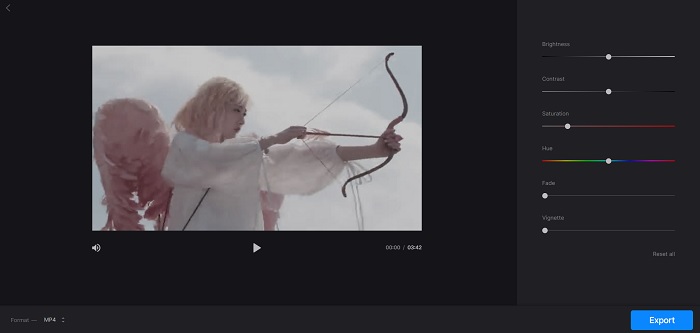
Passaggio 3. Infine, appariranno una funzione di editing video e il tuo video di progetto. Utilizza il cursore Saturazione per scorrere e regolare la saturazione del tuo video. Fai clic sull’opzione Esporta per salvare le modifiche apportate all’interno dell’app online. Vai nella cartella di output e guarda l’anteprima del video.
Parte 2. Modifica la saturazione video sul telefono
PowerDirector è un'app mobile adatta per modificare la saturazione del tuo video. Sono disponibili diverse funzionalità per migliorare le tue riprese all'interno di questa app. Innanzitutto, il software ti consente di regolare i livelli di saturazione dei singoli colori, offrendoti un maggiore controllo sull'aspetto generale del tuo video. Puoi anche utilizzare la funzione di corrispondenza dei colori per abbinare i colori di clip diversi, garantendo coerenza in tutto il progetto. Un'altra caratteristica preziosa di PowerDirector è la possibilità di applicare preimpostazioni di colore, ovvero filtri predefiniti progettati per migliorare l'aspetto delle tue riprese. Queste preimpostazioni possono essere personalizzate per soddisfare le tue esigenze, offrendoti un controllo ancora maggiore sul prodotto finale.
Passaggio 1. Per regolare la saturazione in PowerDirector, procurati prima l’app. Puoi scaricare l’app mobile da Google Play Store e App Store. Avvia l’app e impara le sue funzioni e navigazioni di base.
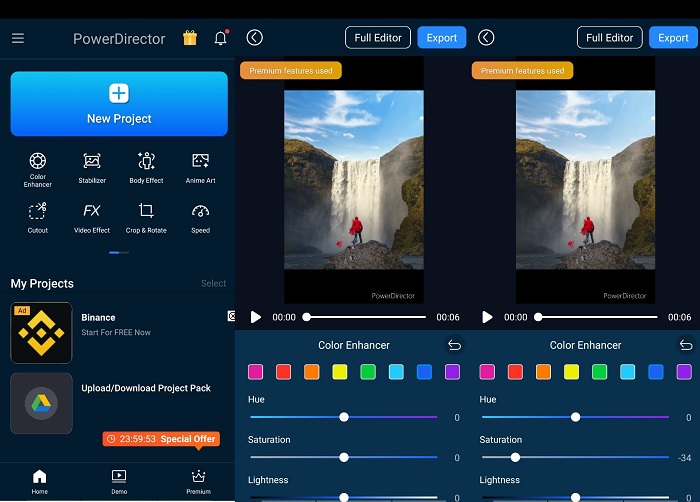
Passaggio 2. Poi importa il video selezionando la clip che vuoi utilizzare dalla galleria video. Quindi vai alle opzioni di editing e trova il menu Color Enhancer. Da lì puoi regolare la saturazione della clip muovendo il cursore verso sinistra o destra.
Passaggio 3. Quando sei soddisfatto del livello di saturazione, puoi salvare le modifiche e premere Esporta per salvare il video. Con questi semplici passaggi puoi regolare facilmente la saturazione delle tue clip video in PowerDirector. Fai attenzione a non saturare eccessivamente la clip, poiché i colori potrebbero risultare innaturali.
Ulteriori letture:
Come sistemare un video troppo luminoso? Ecco i 5 metodi migliori
Come cambiare la tonalità (Hue) di un video? Esplorare le possibilità creative
Parte 3. Domande frequenti sulla modifica della saturazione video
Come correggi la saturazione in iMovie?
Per correggere la saturazione in iMovie, vai alla scheda Correzione colore e regola il cursore della saturazione fino a raggiungere il livello di saturazione desiderato. Puoi anche modificare i singoli canali di colore per ottimizzare i livelli di saturazione per colori specifici. Un'altra opzione è aggiungere un filtro di correzione del colore e regolare le impostazioni di saturazione all'interno del filtro. Ricordati di visualizzare in anteprima le modifiche prima di esportare il video finale.
Come si aumenta la saturazione?
Per aumentare la saturazione, puoi regolare le impostazioni del colore sul tuo dispositivo o sul software di editing. Prova a utilizzare uno strumento o un filtro di saturazione per migliorare i colori dell'immagine o del video. Ricorda di usare moderazione quando aumenti la saturazione, poiché i colori eccessivamente saturi possono apparire irrealistici e poco attraenti. Sperimenta diversi livelli di saturazione finché non trovi l'equilibrio perfetto per il tuo progetto.
Qual è l'editor video gratuito per l'effetto fumo?
Diversi strumenti di editing video possono migliorare l'effetto fumo del video del tuo progetto. In questo caso, puoi utilizzare Video Converter Ultimate, poiché contiene una funzione di correzione del colore che può migliorare, modificare e modificare l'aspetto del video del tuo progetto in base alle tue preferenze.
Conclusione
Nel complesso, modificare un video per ottenere il livello di saturazione desiderato è semplice e gratificante. Con le giuste competenze nella regolazione della saturazione del tuo video di progetto puoi creare diversi effetti ed emozioni. Video Converter Ultimate, Clideo e PowerDirector sono alcuni degli strumenti che ti aiutano ad ottenere quei filtri ed edit cinematografici. Se sei soddisfatto delle soluzioni per aumentare la saturazione di un video presentate in questo articolo, unisciti alla discussione commentando nel thread qui sotto. Ti preghiamo di inviarci suggerimenti e idee.
-
 Come aggiungere e creare un filtro Instagram prima di pubblicare immagini e video
 Quali sono i filtri su Instagram? Come applicarlo? Come realizzarne uno? Queste domande avranno risposte dirette in questo post, quindi leggile.
-
 La migliore tecnica su come modificare rapidamente i metadati WebM
 Leggi tutti i dettagli che abbiamo fornito di seguito mentre inseriamo un tutorial su come modificare i metadati WebM. Fare clic su questo collegamento per saperne di più.
-
 Come ritagliare video online facilmente con programmi straordinari
 Ridimensiona facilmente i video online con vari strumenti di editing video disponibili su Internet. Prova le popolari piattaforme di editing video online.
