


 Video Converter Ultimate
 Screen Recorder
 Riparazione video
Come cambiare lo sfondo dell'immagine - Guida per principianti
Oggi non è più una novità vedere foto in cui l’immagine principale ha sfondi diversi. È un modo per dare un tocco di originalità alla propria creatività. Anche se è sicuramente un’attività divertente da fare con le nostre foto, sostituire lo sfondo a volte può risultare complicato e richiedere molto tempo. Ebbene, da oggi niente più problemi: in questo articolo imparerai come cambiare lo sfondo della foto in modo rapido e capirai perché giocare con gli sfondi, modificandoli e personalizzandoli, è utile per chiunque. Inoltre scoprirai altri strumenti e altri modi per modificare lo sfondo dell’immagine, così da trovare la soluzione più adatta a te. Vuoi dare una marcia in più alla tua creatività? Leggi subito l’articolo completo!

Parte 1. Il modo più semplice per cambiare lo sfondo dell'immagine
Imparare a modificare gli sfondi delle immagini è importante perché rende le immagini migliori e più interessanti. Che tu stia scattando foto professionali o creando contenuti per i social media, la possibilità di personalizzare gli sfondi aggiunge un tocco creativo. Aiuta a mantenere un aspetto coerente nei tuoi progetti e nel tuo marchio, facendo sì che tutto si abbini e abbia un aspetto raffinato. Ecco lo strumento che puoi utilizzare per cambiare rapidamente lo sfondo dell'immagine.
FVC Free Background Remover è uno strumento che semplifica il processo di modifica degli sfondi delle immagini. Questo tool intuitivo ti permette di rimuovere automaticamente lo sfondo dalle tue foto o di creare con facilità uno sfondo trasparente. Inoltre, non si limita a eliminare lo sfondo: ti consente anche di sostituirlo con un colore uniforme a tua scelta o addirittura con un’altra foto presente sul tuo computer. Lo strumento supporta i formati di immagine più comuni come PNG, JPG e JPEG, risultando quindi molto pratico per diversi utilizzi.
Caratteristiche principali
◆ Rimozione automatica dello sfondo.
◆ Modifica le immagini utilizzando ritaglia, capovolgi e altre funzionalità.
◆ Supporta i formati immagine più diffusi: PNG, JPG e JPEG.
◆ Garantisce la privacy degli utenti e la sicurezza dei dati.
◆ Interfaccia intuitiva con anteprima in tempo reale.
◆ Strumento completamente gratuito senza abbonamenti o iscrizioni.
◆ Conserva la qualità dell'immagine originale dopo la rimozione dello sfondo.
Guida passo passo
Step 1. Inizia visitando il sito ufficiale e selezionando il pulsante Upload Image.

Step 2. Attendi qualche istante per l’elaborazione. Una volta completata, potrai personalizzare la tua immagine cambiandone lo sfondo.
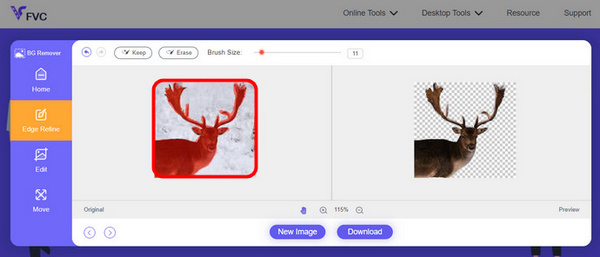
Step 3. Per salvare il risultato modificato, ti basta fare clic sul pulsante di download.
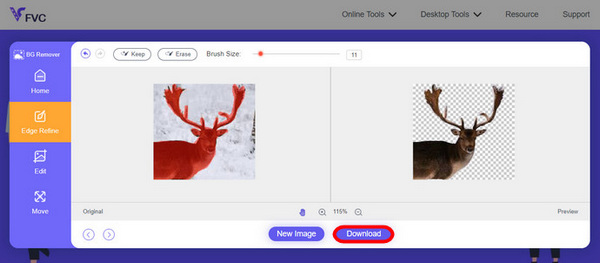
FVC Online Image Background Remover è davvero uno strumento versatile. Non cambia solo lo sfondo della foto, ma consente anche agli utenti di personalizzare le proprie foto dopo aver rimosso lo sfondo. Con le sue funzionalità intuitive, chiunque può utilizzarlo rapidamente e facilmente.
Parte 2. Altri modi per cambiare lo sfondo della foto
Esistono vari modi per modificare gli sfondi delle immagini e, se stai cercando opzioni oltre a FVC Rimozione sfondo gratuito, ecco alcuni altri strumenti e modi da esplorare:
Photoshop
Adobe Photoshop è una potenza nel campo della modifica dello sfondo delle immagini. Con le sue ampie funzionalità, Photoshop è la scelta ideale sia per i professionisti che per gli appassionati. Le sue funzionalità avanzate, inclusi strumenti di selezione precisi e regolazioni dei livelli, lo rendono ideale per modifiche complesse dello sfondo. Sebbene sia dotato di una curva di apprendimento, Photoshop offre flessibilità e controllo creativo senza precedenti.
Guida rapida:
Step 1. In Photoshop, fai clic sulla scheda File per aprire la tua immagine.
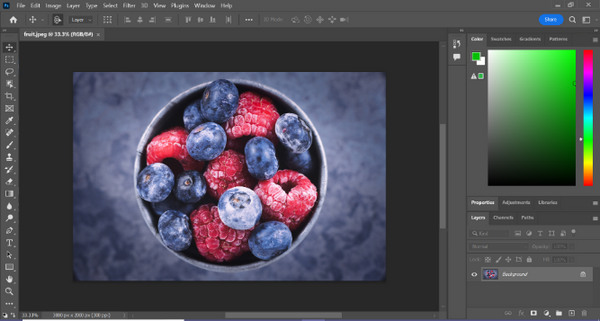
Step 2. Usa lo strumento Object Selection e trascina il mouse sull’oggetto che vuoi ritagliare.
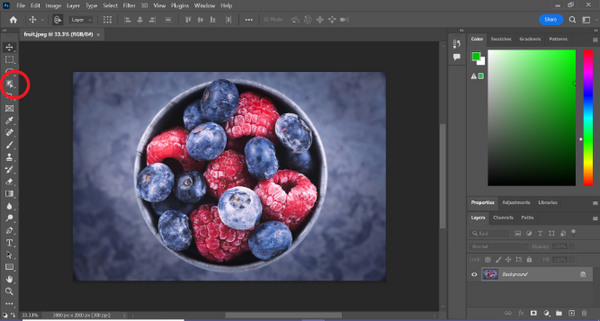
Step 3. Fai clic su Select and Mask.
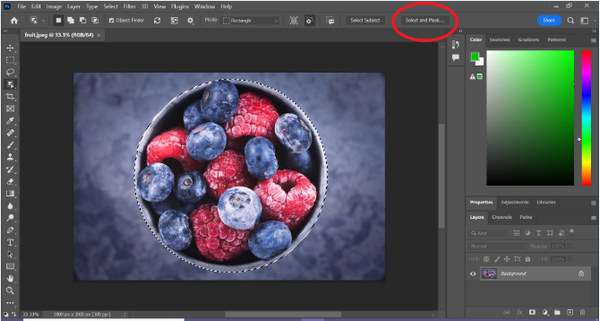
Step 4. Regola, se necessario, le impostazioni della selezione, come la sfumatura dei bordi (feathering).
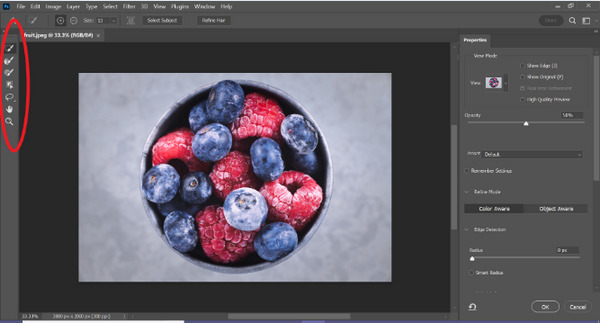
Step 5. Fai clic sull’icona Mask per ritagliare la tua immagine e salva il file modificato.
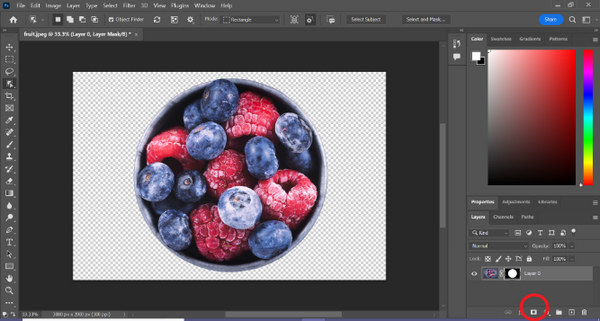
Step 6. Infine, per sostituire lo sfondo, trascina l’icona della nuova immagine di sfondo sulla foto mascherata. Poi apri il pannello Layers e trascina il nuovo livello di sfondo al di sotto del livello con la maschera.
Photoshop è davvero un altro buon modo per sostituire lo sfondo dell'immagine, l'unica cosa di questo strumento è che richiede competenze poiché l'interfaccia dello strumento è complessa per essere facilmente navigabile dai nuovi utenti. Tuttavia, Photoshop è una potenza quando si tratta di sostituire gli sfondi delle immagini.
Canva
Canva è una nota piattaforma di progettazione grafica creata per semplificare il processo di creazione di contenuti visivamente accattivanti. Anche se potrebbe non eguagliare la complessità di Photoshop, la forza di Canva risiede nella sua semplicità e accessibilità. Fornisce una semplice interfaccia drag-and-drop, che lo rende perfetto per coloro che cercano semplici modifiche allo sfondo, in particolare per la grafica dei social media. Canva è un'ottima opzione per modifiche rapide ed efficaci senza la necessità di competenze di progettazione approfondite.
Guida rapida:
Step 1. Apri Canva.
Step 2. Per caricare la tua immagine, fai clic sul pulsante Upload.

Step 3. Dopo aver caricato l’immagine, fai clic su Use in a New Design e scegli Customize size.
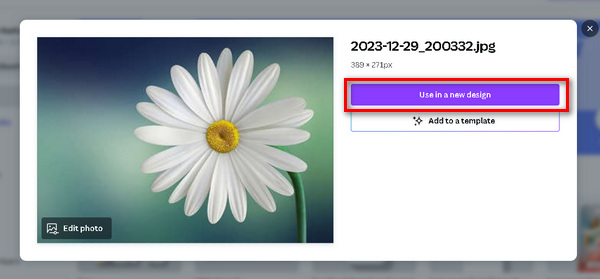
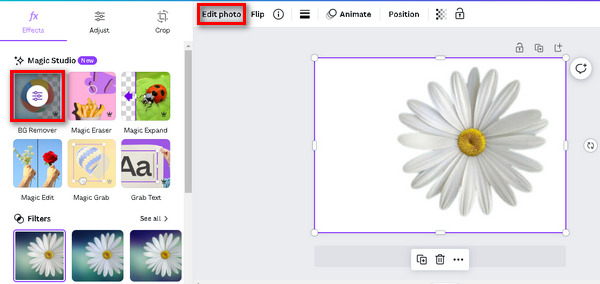
Step 4. Seleziona l’immagine, fai clic su Edit Image e scegli BG Remover.
Step 5. Per salvare l’immagine, fai clic sul pulsante Share in alto a destra sullo schermo e poi su Download.
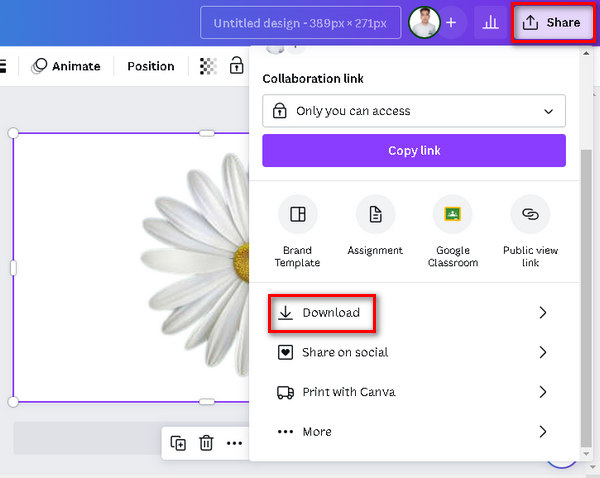
Non dimenticare di salvare il file in formato PNG o JPEG e uno sfondo trasparente. Successivamente, incollalo nello sfondo desiderato.
Foto
Fotor è un versatile strumento di fotoritocco online in cui gli utenti possono facilmente manipolare gli sfondi delle immagini attraverso funzionalità come la rimozione e la sostituzione dello sfondo. Offre vari filtri, effetti e strumenti di editing di base, rendendolo ideale sia per i principianti che per gli utenti che cercano un'esperienza di editing semplificata. L'interfaccia intuitiva di Fotor e la serie diversificata di funzionalità contribuiscono alla sua popolarità per i cambiamenti di sfondo rapidi ed efficaci.
Guida rapida:
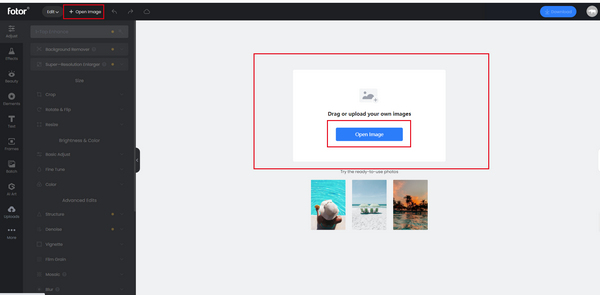
Step 1. Inizia caricando la tua immagine sulla tela. Fai clic su Open Image al centro dell’area di lavoro, quindi seleziona e carica l’immagine dal tuo computer.
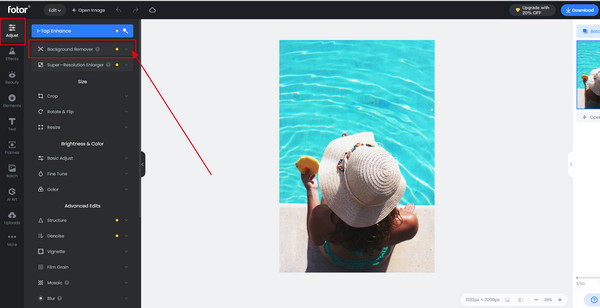
Step 2. Fai clic sulla funzione Adjust e scegli Background Remover. Il sistema rimuoverà automaticamente lo sfondo della tua immagine.
Step 3. Utilizza lo strumento Retain/Erase per ripristinare eventuali parti rimosse, se necessario. Puoi anche fare clic su Change Background per cambiare lo sfondo dell’immagine.
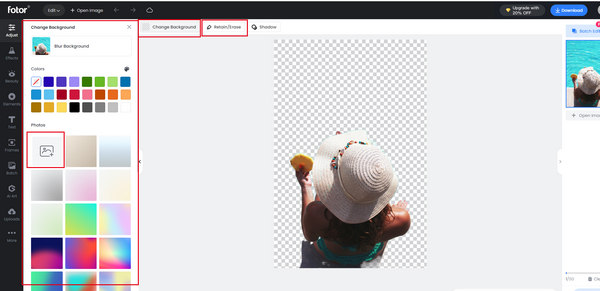
Step 4. Quando hai terminato tutte le modifiche, fai clic sul pulsante Save per applicare le modifiche. Durante l’esportazione dell’immagine puoi anche ridimensionare la foto tramite la funzione di esportazione.
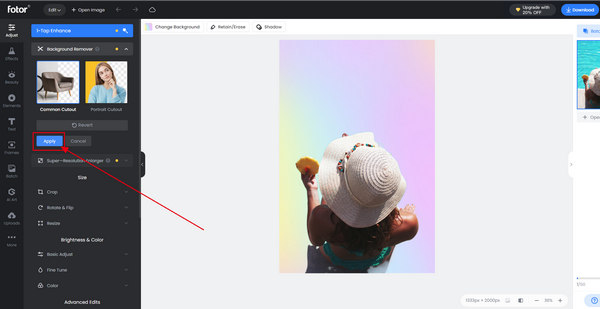
Fotor è davvero un ottimo strumento per cambiare lo sfondo dell'immagine in modo rapido e semplice. A parte questo, ha un piano gratuito di cui gli utenti possono usufruire.
Parte 3. Domande frequenti sulla modifica dello sfondo dell'immagine
ChatGPT AI può cambiare lo sfondo dell'immagine con istruzioni?
Sebbene ChatGPT AI eccelle nella generazione di contenuti basati su testo, non può manipolare le immagini, inclusa la modifica diretta degli sfondi. Per le attività relative alle immagini, prendi in considerazione l'utilizzo di strumenti o software dedicati per la modifica delle immagini.
Puoi cambiare l'immagine di sfondo su iPhone?
Sì, puoi modificare lo sfondo dell'immagine su iPhone utilizzando varie app disponibili sull'App Store. App come Remove.bg o Adobe Photoshop Express consentono agli utenti di rimuovere o sostituire gli sfondi sulle proprie foto direttamente dai propri iPhone. Installa semplicemente l'app preferita, segui le istruzioni specifiche dell'app e goditi le modifiche in background mentre sei in movimento.
Come faccio a mettere un'immagine dietro lo sfondo in Photoshop?
Per inserire un’immagine dietro lo sfondo in Photoshop, segui questi passaggi:
Step 1. Apri in Photoshop l’immagine che userai come sfondo.
Step 2. Trascina sulla tela l’immagine che desideri posizionare dietro lo sfondo.
Step 3. Regola dimensioni e posizione della nuova immagine secondo le tue esigenze.
Step 4. Nel pannello Livelli (Layers), assicurati che il livello della nuova immagine sia posizionato al di sotto del livello di sfondo.
Step 5. Se necessario, utilizza maschere di livello o altri strumenti per perfezionare il posizionamento e la fusione delle due immagini.
Step 6. Salva l’immagine modificata.
Posso utilizzare FVC Rimozione sfondo online su un Mac?
Sì, FVC Rimozione sfondo gratuita è compatibile con macOS. Puoi accedere e utilizzare questo strumento sul tuo Mac visitando il sito Web ufficiale e seguendo le istruzioni fornite.
La modifica dello sfondo dell'immagine influisce sulla qualità dell'immagine?
Quando utilizzi strumenti affidabili come FVC Free Background Remover o software professionali come Photoshop, la modifica dello sfondo non incide in modo significativo sulla qualità dell’immagine. Questi strumenti sono progettati per mantenere la risoluzione e la nitidezza originali, garantendo un elevato livello di resa visiva.
Conclusione
Oggi, cambiare lo sfondo di un’immagine è davvero un gioco da ragazzi. Esistono diversi strumenti che possono farlo per te. Con FVC Online Background Remover puoi modificare rapidamente e gratuitamente lo sfondo delle foto, così come con gli altri strumenti citati in questo articolo. Ti basta scegliere quello che fa più al caso tuo.
-
 Guida completa per rendere trasparente un'immagine in Presentazioni Google
 Scopri come rendere trasparente un'immagine in Presentazioni Google in pochi semplici passaggi. Rendi le tue diapositive di presentazione ancora più professionali con effetti di trasparenza!
-
 In che modo PPT rimuove l'immagine di sfondo? Guida completa
 Pronto a portare la tua presentazione al livello successivo? In questo articolo, scopri come PPT rimuove le immagini di sfondo e crea facilmente presentazioni PowerPoint eccezionali.
-
 Aggiungi lo sfondo alla foto su iPhone, Android, Computer, Online
 Posso aggiungere uno sfondo bianco alla foto? Come farlo? Scopri 3 modi per aggiungere sfondo alle foto online, sul computer, iPhone o Android.
