


 Video Converter Ultimate
 Screen Recorder
 Riparazione video
 Download sicuro
Una guida completa su come tagliare i video con VLC su Win e Mac
VLC Player è davvero un ottimo strumento per gestire varie attività di montaggio video e audio: è gratuito, open‑source e compatibile con Windows, Mac e Linux. È incredibilmente versatile: può riprodurre file multimediali, convertire formati, tagliare e modificare video e audio e persino copiare DVD. Funziona davvero come un editor video professionale.
Questa guida si concentrerà sul taglio dei video con VLC, fornendo passaggi dettagliati sia per dispositivi Windows che Mac e presentandoti al contempo le migliori alternative a VLC in grado di svolgere lo stesso compito.

Parte 1. Come tagliare un video in VLC su Windows e Mac
Innanzitutto, iniziamo con una conferma teorica: VLC Player gestisce senza dubbio il ritaglio video con facilità, sia su Windows che su Mac. Tuttavia, è principalmente un lettore multimediale, quindi la sua interfaccia di editing è diversa da quella dei software di editing video convenzionali. Considerando che gli utenti alle prime armi potrebbero avere difficoltà a trovare la funzione di ritaglio sull'interfaccia, questa guida fornirà istruzioni dettagliate su come ritagliare un video con VLC Media Player.
Cominciamo prima con Windows:
Tagliare video con VLC su Windows
Prima di iniziare, assicurati di avere quanto segue:
• Una connessione Internet stabile
• VLC Media Player compatibile con il tuo computer Windows, preferibilmente l'ultima versione
Ecco una guida su come tagliare un video con VLC.
Passaggio 1. Scarica e installa la versione appropriata di VLC Media Player sul tuo computer Windows dal sito ufficiale di VideoLan.
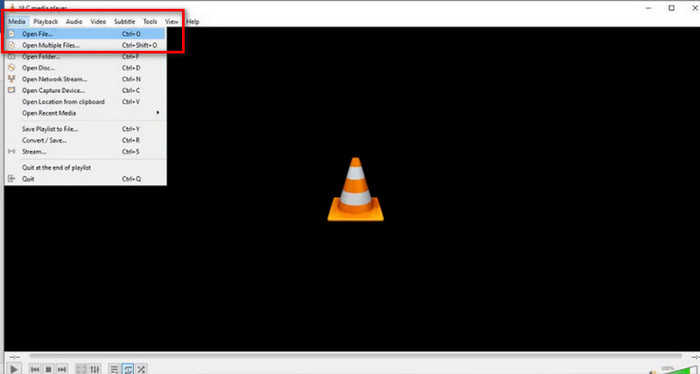
Passaggio 2. Avvia VLC Media Player. Vai nell’angolo in alto a sinistra e fai clic su Media > Apri file. Seleziona il video che vuoi tagliare e fai clic su Apri.
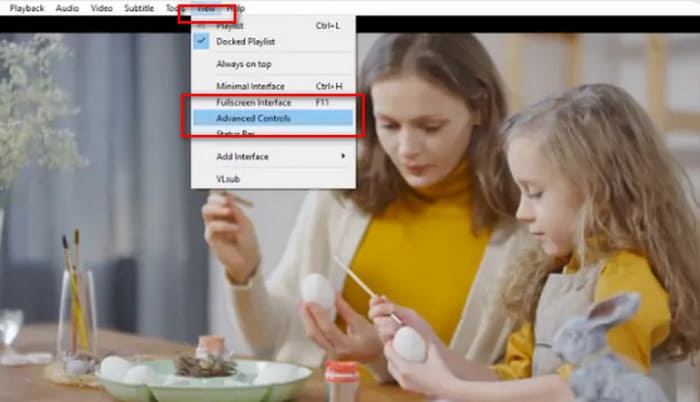
Passaggio 3. Vai al menu in alto e fai clic su Visualizza > Controlli avanzati. Vedrai così le funzioni di modifica visualizzate sotto l’area di riproduzione.
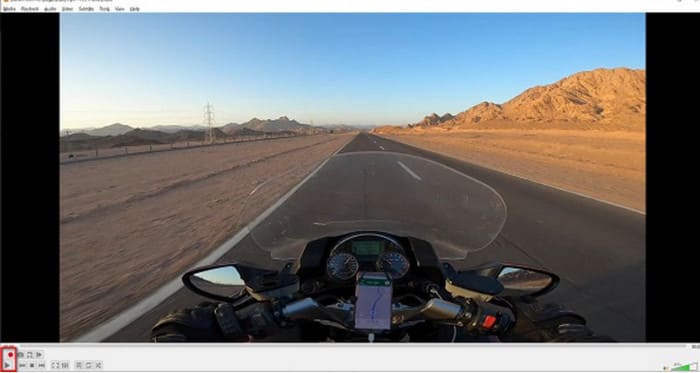
Passaggio 4. Individua la parte del video che desideri tagliare e fai clic sul pulsante Riproduci nel punto di inizio. Premi il pulsante rosso Registra.
Passaggio 5. Riproduci il video fino al punto in cui vuoi che la clip si interrompa, quindi fai di nuovo clic sul pulsante Registra.
Ora hai ritagliato con successo un video in VLC. Se vuoi trovare la posizione in cui è stato salvato il video ritagliato, consulta:
Passaggio 6. Una volta terminata la clip, VLC salverà automaticamente il file nella cartella Video del tuo computer Windows. Puoi trovarlo nel percorso C:UsersUsersnameideo.
Tagliare video con VLC su Mac
I passaggi per tagliare un video con VLC su Mac sono altrettanto semplici.
Ricorda ancora una volta di assicurarti che il tuo Mac disponga di una connessione di rete stabile e che il sistema e il video trimmer VLC siano compatibili.
Ora impariamo come ritagliare un video in VLC su un computer Mac.
Passaggio 1. Scarica e installa VLC Media Player sul tuo computer.
Passaggio 2. Avvia VLC Media Player. Apri il file che vuoi tagliare e trascinalo nella playlist di VLC. Il video inizierà a essere riprodotto automaticamente. Se non dovesse partire, fai doppio clic per avviarlo manualmente.
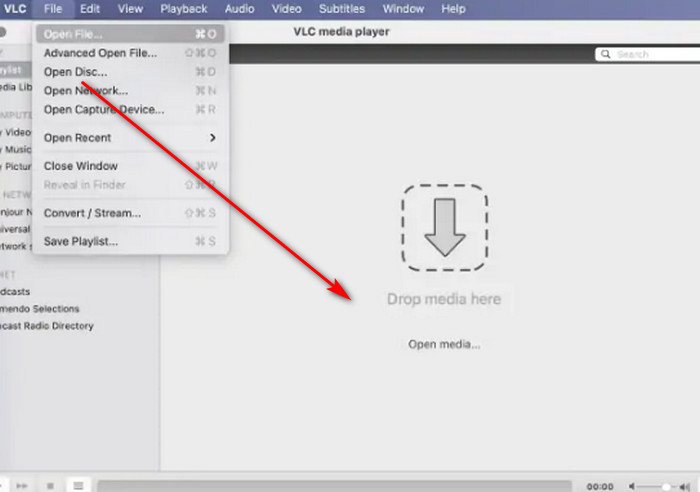
Passaggio 3. Riproduci o scorri fino al punto di inizio del segmento che vuoi mantenere. Vai al menu in alto e fai clic su Riproduzione > Registra.
Passaggio 4. Lascia che il video proceda fino al punto finale del segmento. Fai di nuovo clic sul pulsante Registra per interrompere la registrazione.
Il video tagliato verrà salvato automaticamente nella cartella Filmati. Il nome del file potrebbe iniziare con vlc-record. Puoi provare a trovarlo.
Parte 2. La migliore alternativa a VLC per tagliare i video
È possibile tagliare i video con VLC Player?
Sì, in base alle linee guida riportate nelle due sezioni precedenti, tagliare un video con VLC è piuttosto semplice sia sui computer Windows che su quelli Mac.
Tuttavia, ci sono alcuni aspetti che non puoi trascurare:
• Il modulo per la selezione della sezione di modifica in VLC non è molto flessibile e può eseguire solo la selezione di sezioni continue più elementare.
• VLC non può dividere un video in più segmenti più piccoli, in particolare più segmenti di uguale lunghezza.
• VLC non può elaborare in batch il ritaglio dei video; ogni processo può modificare solo un file alla volta.
Attualmente, la funzione di taglio di VLC Media Player è adatta solo per svolgere le operazioni di montaggio video più basilari. Se, dopo averla provata, ritieni che non sia sufficientemente flessibile per gestire modifiche di segmenti più complesse, ti consigliamo vivamente di prendere in considerazione alcune alternative a VLC.
Tra tutti i prodotti simili, consigliamo vivamente di provare FVC Video Converter Ultimate. Questo software integra più funzioni, come conversione video, taglio, unione, compressione e miglioramento, offrendoti una soluzione unica per servizi di taglio e modifica non solo di audio e video ma anche di immagini. Inoltre è compatibile sia con Windows che con Mac, non presenta barriere d’uso e offre un’interfaccia pulita e intuitiva. Non devi neppure preoccuparti dei problemi di compatibilità: FVC Video Converter Ultimate supporta oltre mille formati multimediali, coprendo efficacemente qualsiasi formato video che potresti incontrare nella vita quotidiana.
Download gratuitoPer Windows 7 o versioni successiveDownload sicuro
Download gratuitoPer MacOS 10.7 o versioni successiveDownload sicuro
• Supporta oltre 1000 formati video, audio e immagini.
• Offre funzioni di ritaglio, taglio e divisione. Non solo è possibile modificare la lunghezza del video, ma è anche possibile dividerlo in più segmenti di uguale lunghezza.
• Supporta il caricamento in batch di file video per la modifica.
• Fornisce impostazioni complete per la regolazione della riproduzione video, tra cui la regolazione del volume, la regolazione della velocità di riproduzione e così via.
Ecco come tagliare un video con FVC Video Converter Ultimate.
Passaggio 1. Scarica e installa FVC Video Converter Ultimate sul tuo computer. Fai clic su Aggiungi file per caricare il video che desideri tagliare.
Passaggio 2. Fai clic sull’icona Taglia per aprire l’interfaccia di rifilatura. Trascina la barra temporale per impostare i punti di inizio e fine.
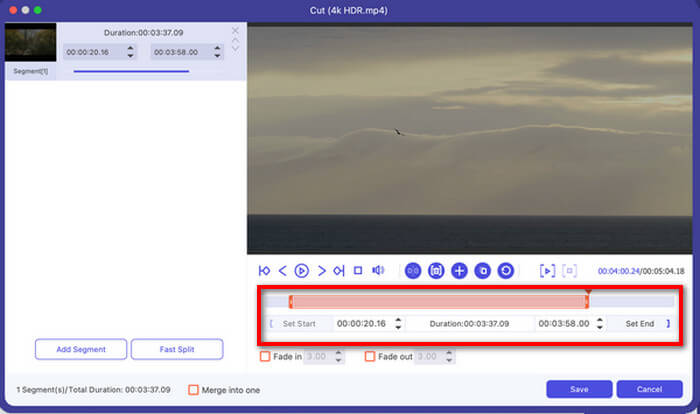
Puoi anche usare i pulsanti Imposta inizio e Imposta fine.
Al termine del taglio, fai clic su Salva.
Passaggio 3. Torna all’interfaccia principale. Fai clic su Converti tutto per esportare il tuo video.

Parte 3. Domande frequenti su come tagliare un video con VLC
Posso tagliare un video con VLC?
Sì, è possibile tagliare i video su VLC. Questo lettore video ha una funzione di editing video compatibile sia con Windows che con Mac. Puoi trovare istruzioni dettagliate nel testo qui sopra.
È possibile convertire i file video in VLC?
Sì. VLC Media Player supporta un'ampia gamma di formati video e può aiutarti a completare le operazioni di conversione. Tuttavia, il processo di conversione può essere piuttosto complesso, a differenza dei convertitori video tradizionali.
C'è qualcosa di meglio di VLC?
Dopo aver utilizzato VLC per accorciare un video, potresti trovarlo meno intuitivo. FVC Video Converter Ultimate offre prestazioni migliori in questo senso. Non solo i passaggi sono più semplici, ma supporta anche l'elaborazione in batch.
Conclusione
Possiamo ora confermare con certezza che VLC Player supporta il taglio dei video. Per aiutarti a comprendere meglio il processo, abbiamo preparato una guida completa su come tagliare i video con VLC, che copre sia la piattaforma Windows sia quella Mac. Tuttavia, VLC Player non supporta l’elaborazione in batch e la funzione di taglio è piuttosto basilare.
Se stai cercando uno strumento più semplice ma con più opzioni di rifilatura, ad esempio per dividere i video in più segmenti, ti consigliamo di usare FVC Video Converter Ultimate come alternativa a VLC per tagliare i video.
-
 Come utilizzare VLC per riparare video | La tua guida definitiva
 Hai video rotti bloccati nei tuoi file? Esplora la guida definitiva alla riparazione video VLC per riparare i tuoi video e riprodurli di nuovo facilmente.
-
 Come registrare audio con VLC Media Player: una guida completa
 In questo articolo imparerai come registrare audio con VLC Media Player. L'articolo illustra i passaggi dettagliati e ti consiglierà una delle migliori alternative a VLC.
-
 Screenshot in VLC - Come scattare un'istantanea in VLC Media Player
 Come scattare istantanee in VLC Media Player e dove salvarle? Consulta la funzione snapshot VLC e la sua alternativa dall'articolo.
