


 Video Converter Ultimate
 Screen Recorder
 Riparazione video
 Download sicuro
Come comprimere i file audio WAV senza perdere qualità
Quando le persone desiderano salvare i propri file musicali in una forma di alta qualità, spesso scelgono il formato WAV per l’audio. Tuttavia, in generale, più alta è la qualità, maggiore sarà lo spazio di archiviazione occupato dal file. Rispetto all’MP3, il WAV può offrire un suono di alta qualità, ma le dimensioni del file saranno più grandi. Pertanto, se vuoi condividere un file WAV con i tuoi amici o caricarlo su piattaforme social, è meglio ridurne prima le dimensioni. Ti presenteremo tre diversi strumenti per comprimere i file WAV. Ti mostreremo anche i loro vantaggi, svantaggi e le istruzioni d’uso dettagliate. Continua a leggere per saperne di più.

Parte 1. Il modo migliore per comprimere un file WAV
Iniziamo consigliando uno strumento di montaggio audio e video abbastanza completo, FVC-picked Video Converter Ultimate. È dotato di strumenti di analisi all’avanguardia che possono iniziare a elaborare i tuoi file non appena li carichi. Se stai cercando uno strumento che ti permetta di regolare liberamente la percentuale di compressione dell’audio WAV, sarà il tuo miglior assistente. Puoi persino modificare la durata dell’audio, regolare il canale audio e cambiare il volume dell’audio prima di esportare il file. Dopo aver aperto il compressore audio integrato, si apre una nuova finestra. Lì puoi vedere molte impostazioni tra cui scegliere. Offre un elevato livello di personalizzazione e ti consente di avere un controllo preciso sui parametri audio. Se ritieni che le dimensioni di un file WAV siano ancora troppo grandi, puoi utilizzare il convertitore fornito da FVC per convertire l’audio in un formato più facile da distribuire, come l’MP3.
Download gratuitoPer Windows 7 o versioni successiveDownload sicuro
Download gratuitoPer MacOS 10.7 o versioni successiveDownload sicuro
Qui ti insegneremo come comprimere i file WAV con FVC Video Converter Ultimate.
Passaggio 1. Scarica e installa FVC Video Converter Ultimate sul tuo computer.
Passaggio 2. Entra nell’interfaccia principale di questo software e scegli Toolbox > Audio Compressor.
Passaggio 3. Dopo essere entrato nella finestra Audio Compressor, fai clic sul grande pulsante con il segno più per caricare il file WAV desiderato.
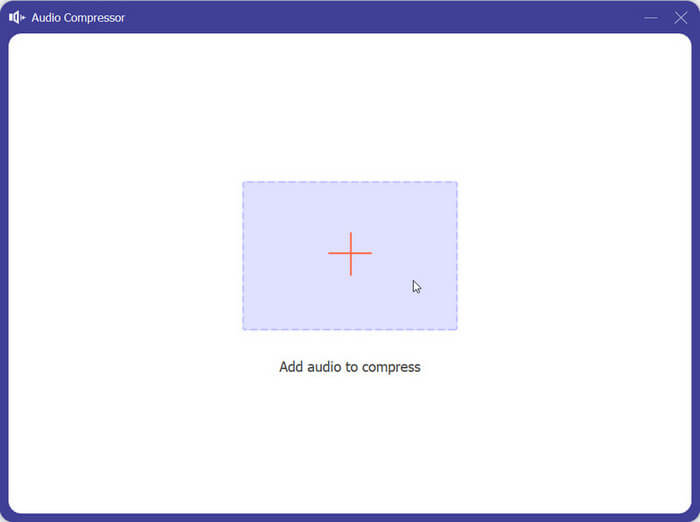
Passaggio 4. Puoi impostare le dimensioni del file dopo la compressione modificando il valore di Size. Dopo la regolazione, puoi vedere la percentuale di file che viene compressa.
Qui puoi anche impostare il nome del file, il formato, il canale audio, la frequenza di campionamento e il bitrate dell'audio.
Passaggio 5. Per controllare l’audio in uscita, fai clic su Preview. Se sei soddisfatto dell’effetto, fai clic su Compress.
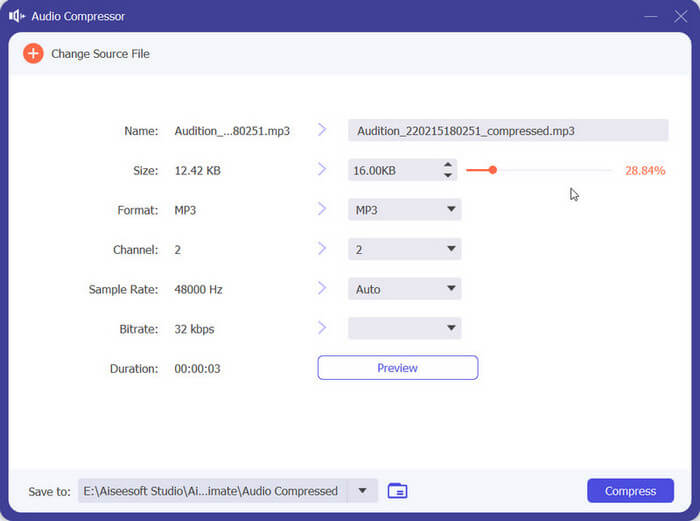
Attualmente, può comprimere l'audio WAV fino a 50% della dimensione del file sorgente. La sua velocità di compressione è così rapida che non abbiamo quasi bisogno di aspettare per esportare il file compresso. Non c'è quasi nessuna perdita di qualità. Tuttavia, abbiamo solo 5 possibilità gratuite e se ne vogliamo di più, dobbiamo pagare.
Parte 2. Comprimi file WAV online
Il software desktop offre più funzioni di modifica, ma richiede di scaricarle e installarle sul computer. Ciò occupa anche parte della memoria del computer e richiede un po' di tempo per avviare il software. Se vuoi provare una compressione più rapida dei file audio WAV, prova gli strumenti online. Tra i tanti prodotti disponibili, ti consigliamo di provare FreeConvert WAV Compressor, un compressore di dimensioni gratuite con un'interfaccia molto intuitiva. Tutto quello che devi fare è andare sul suo sito Web ufficiale e troverai immediatamente il pulsante di destinazione. Anche se non l'hai mai usato prima, sarai in grado di iniziare in pochissimo tempo.
Qui ti insegneremo come ridurre le dimensioni del file WAV con FreeConvert WAV Compressor.
Passaggio 1. Apri FreeConvert WAV Compressor con il tuo browser.
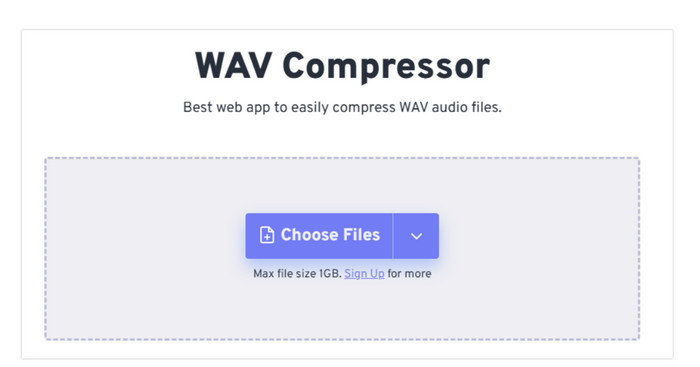
Passaggio 2. Fai clic su Choose Files per caricare l’audio che vuoi comprimere.
.
Passaggio 3. Per regolare il livello di compressione, fai clic su Advanced settings (optional). Puoi scegliere tra Low, Medium e Strong. Poi scegli Apply Settings.
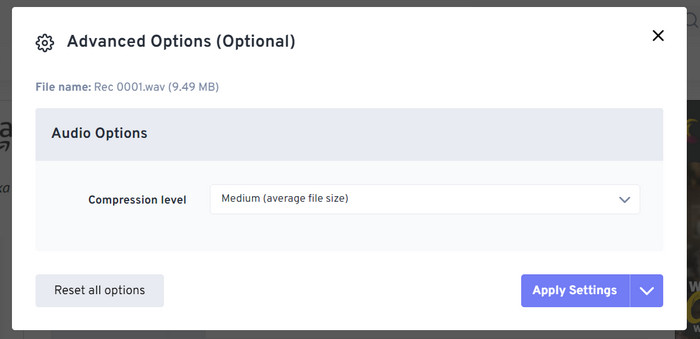
Passaggio 4. Infine, fai clic su Compress Now. Il programma eseguirà la compressione del tuo file WAV online.
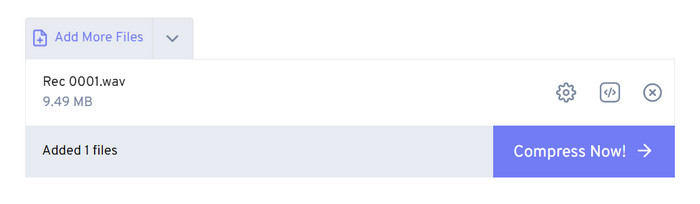
Dopo i nostri tentativi, abbiamo scoperto che funziona in modo abbastanza efficiente e la qualità audio del file di output non è molto diversa da quella del file sorgente. Tuttavia, ci sono solo tre tassi di compressione che puoi scegliere e non puoi visualizzare la percentuale di compressione e la dimensione del file compresso. Attualmente, gli utenti possono usarlo solo per comprimere file fino a 1 GB.
Parte 3. Comprimi file WAV in Audacity
Oltre al software multimediale tutto-in-uno, esistono molti strumenti progettati specificamente per l’audio. In questo ambito di montaggio musicale mostrano maggiore professionalità e raffinatezza. Se utilizzi uno strumento professionale per ridurre le dimensioni di un file WAV, la qualità del suono può essere preservata al massimo. Come uno dei migliori, Audacity rimane imbattibile tutto l’anno. Gli utenti possono usarlo per completare un processo di registrazione audio e modifica tutto in uno. Le operazioni di editing che può realizzare includono la regolazione della durata del brano, la compressione delle dimensioni del file, la conversione del formato audio e l’aggiunta di effetti sonori speciali. Per lui, sono tutte operazioni semplicissime.
Successivamente ti guideremo nella compressione dei file WAV con Audacity.
Passaggio 1. Scarica e installa Audacity sul tuo dispositivo.
Passaggio 2. Aprilo e premi File > Open.
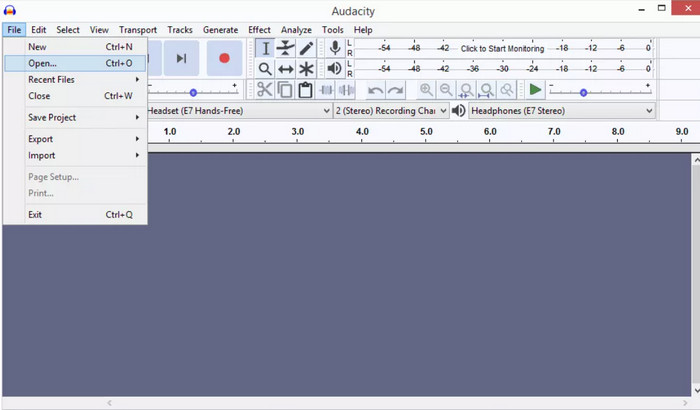
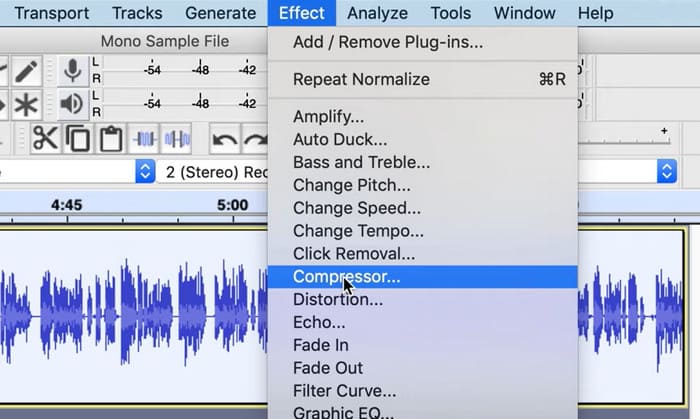
Passaggio 3. Carica il file che vuoi comprimere e premi Ctrl + A sulla tastiera per selezionare la traccia audio. Poi fai clic su Effect > Compressor.
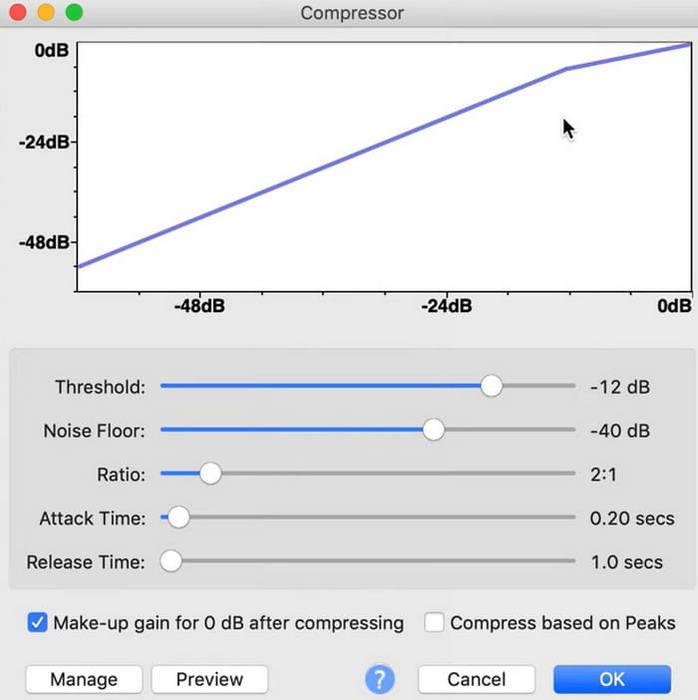
Passaggio 4. Ora puoi modificare i parametri del tuo file WAV, inclusi soglia (threshold), rumore di fondo (noise floor), rapporto (ratio), attacco (attack) e tempo di rilascio (release time).
Passaggio 5. Infine, fai di nuovo clic su File e scegli Export.
Ti consente di comprimere file WAV gratuitamente e senza limitazioni di dimensione file. Puoi controllare con precisione la velocità di compressione ed esportare il prodotto finito non appena applichi le impostazioni. La sua interfaccia è piuttosto complessa e gli utenti inesperti avranno difficoltà a trovare le funzionalità di cui hanno bisogno. Ci vorrà del tempo per imparare a usarlo abilmente.
Parte 4. Domande frequenti sulla compressione dei file WAV
Perché il mio file WAV è così grande?
I file WAV sono in genere file audio non compressi che archiviano i dati audio in un formato grezzo senza alcuna perdita di qualità. Inoltre, i file WAV hanno spesso una maggiore profondità di bit e una frequenza di campionamento più elevata rispetto ai formati audio compressi. Se hai bisogno di ridurre le dimensioni del tuo file WAV, puoi valutare di comprimerlo o di convertire WAV in MP3.
La compressione di un file WAV ne riduce la qualità?
Quando si comprime un file WAV in un formato audio lossy come MP3, AAC o OGG, in genere si verifica una riduzione della qualità audio. Tuttavia, la scelta di un buon strumento di compressione può compensare questo problema in una certa misura. È importante considerare l'equilibrio tra dimensione del file e qualità audio.
È possibile tagliare un file WAV in Windows Media Player?
Windows Media Player non ha capacità integrate per la modifica diretta o il ritaglio di file audio come i file WAV. Per ritagliare un file WAV in Windows, puoi usare altre applicazioni software che offrono funzionalità di modifica audio, come FVC Video Converter Ultimate e Audacity.
Conclusione
Questo articolo è pensato per aiutarti a risolvere il problema della compressione dei file WAV. Ti abbiamo fornito tre strumenti tra cui scegliere. Se vuoi usufruire di un servizio di editing audio più completo, usa FVC-picked Video Converter Ultimate. Se non vuoi scaricare ulteriore software sul computer, puoi prendere in considerazione FreeConvert WAV Compressor. Se desideri il software di elaborazione audio più professionale per comprimere i tuoi file, Audacity soddisferà le tue esigenze.
-
 WAV Player - Le 5 migliori app per lettori WAV per Android, iPhone, PC e Mac
 Come riprodurre file WAV sul telefono Android? Quale giocatore può riprodurre WAV? Questo post condivide i 5 migliori lettori WAV gratuiti per Android, iPhone, Mac e PC.
-
 Tutorial approfondito sulla compressione audio nel 2024 (passo dopo passo)
 Hai bisogno di comprimere l'audio ma hai bisogno di aiuto per capire da dove iniziare? In questo post presenteremo le scelte migliori per ridurre la dimensione del file delle tue tracce.
-
 Compressori audio efficaci per utenti offline e online
 Hai qualche problema con file audio di grandi dimensioni? Sono disponibili molti compressori di file audio per gli utenti offline e online. Controllali qui.
