


 Video Converter Ultimate
 Screen Recorder
 Riparazione video
 Download sicuro
Come tagliare l'audio in iMovie: tutorial per iPhone e Mac
iMovie è un software gratuito per il montaggio di video e audio per iPhone e Mac sviluppato da Apple, che consente agli utenti di modificare e produrre progetti multimediali in modo fluido. Quando gli utenti Apple cercano un modo per modificare, rifilare e tagliare parti specifiche dell’audio che possiedono, è perfetto per loro usare un software dedicato. Molti non sanno che iMovie può essere utilizzato anche per operazioni di taglio e rifilatura dell’audio; quindi, seguire questa guida può aiutare utenti come te a orientarti in modo efficace nel processo di taglio dell’audio in iMovie.

Parte 1. Come tagliare l'audio in iMovie
i phone
Ritagliare la musica in iMovie usando un iPhone è più facile che usare un Mac. La versione mobile di iMovie è leggera e semplice, consentendo un processo fluido che consente agli utenti di tagliare i propri file audio con pochi tocchi nell'app mobile. Per quanto sia semplice rispetto alla sua versione Mac, ha funzionalità limitate nell'editing video e audio.
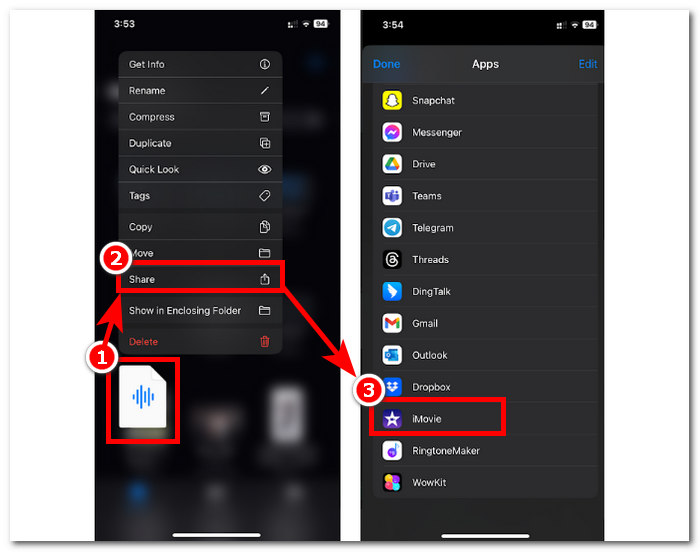
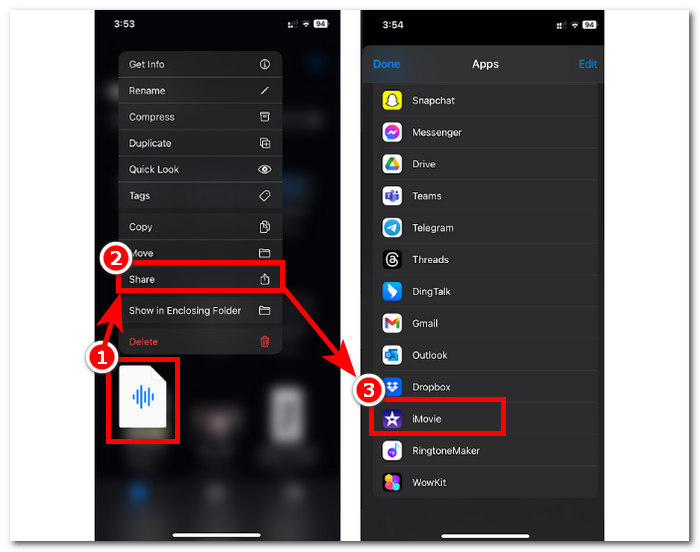
Passaggio 1. Vai all’app File, tieni premuto a lungo sul file audio che desideri rifilare, tocca Condividi e aprilo nell’app iMovie. Se vuoi tagliare una registrazione, per prima cosa registra il file audio in iMovie.
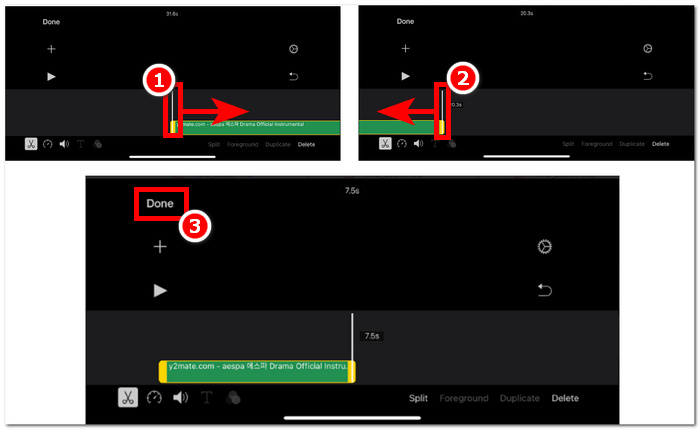
Passaggio 2. Per rifilare il tuo file audio, vai all’inizio e alla fine del file audio nella timeline e vedrai le barre di rifilatura su entrambi i lati. Trascina semplicemente le barre di rifilatura da sinistra e da destra finché non sei soddisfatto del risultato. Quando hai finito, fai clic sul pulsante Fine in alto per procedere.
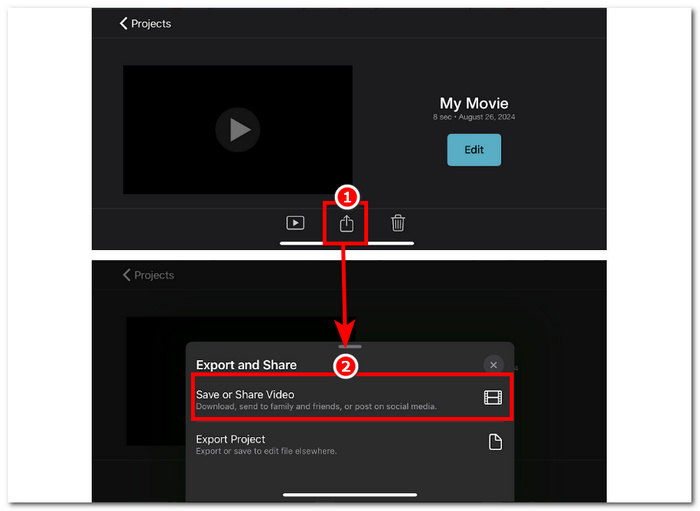
Passaggio 3. Infine, fai clic sull’icona Condividi nella parte inferiore centrale dell’app e procedi al salvataggio.
Mac
Come tagliare la musica in iMovie? Gli utenti hanno la possibilità di tagliare le clip audio usando iMovie sul loro dispositivo Mac. Usare la versione Mac di iMovie per tagliare un file audio consente agli utenti di accedere a una varietà di funzioni di modifica audio, in questo caso, l'uso di un trimmer di clip, che non è disponibile nella sua versione mobile. Questo trimmer di clip consente il trascinamento senza soluzione di continuità delle barre di taglio da sinistra e da destra per creare un taglio istantaneo. Per farlo in modo efficace, devi seguire i passaggi sottostanti.
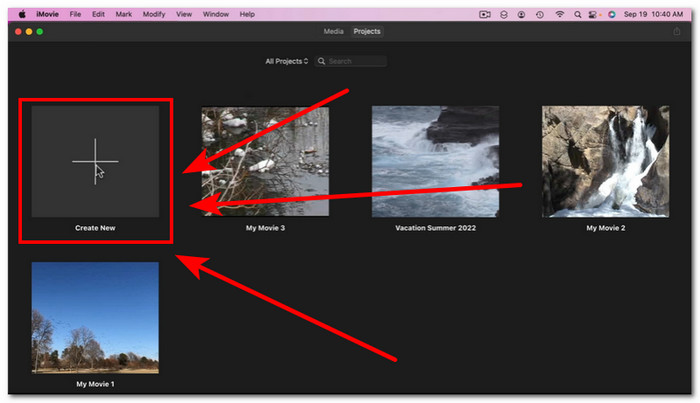
Passaggio 1. Apri il software iMovie sul tuo Mac e aggiungi il tuo file audio oppure trascinalo sulla timeline del programma.
Passaggio 2. Una volta che il file è stato caricato nel software, fai clic con il tasto destro sul tuo file audio e quindi fai clic sul menu Mostra rifinitore clip.
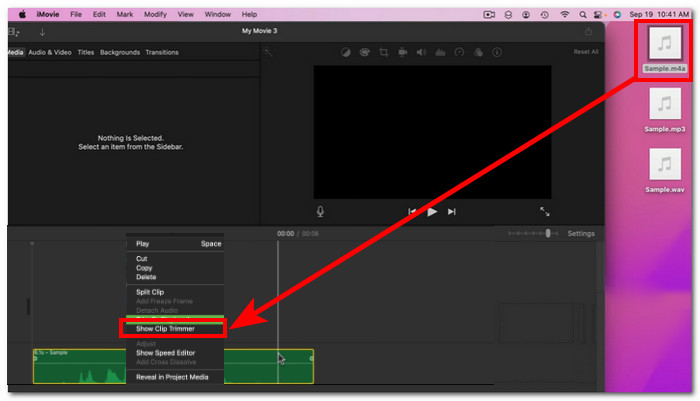
Passaggio 3. Dopo averlo selezionato, trascina le barre di rifilatura che si trovano alle due estremità del file audio per rifilare l’audio.
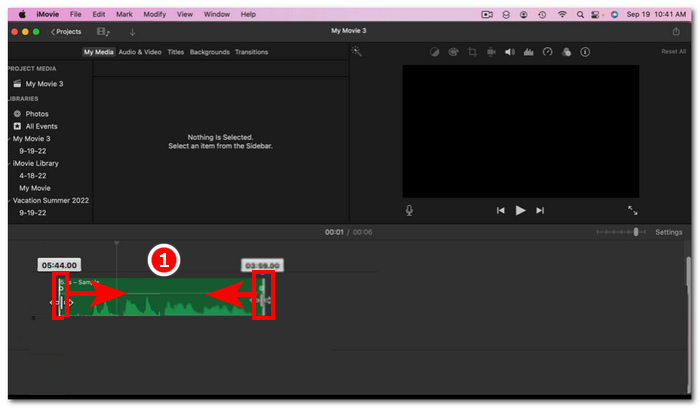
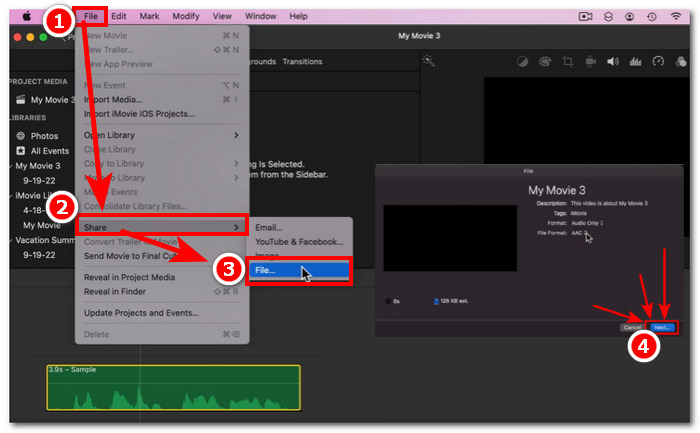
Passaggio 4. Quando hai terminato la rifilatura, puoi salvare il file facendo clic sul menu File in alto a sinistra del software e seguendo questo percorso: File > Condividi > File > Avanti per salvarlo sul tuo Mac. iMovie è disponibile solo per computer Mac.
Se hai bisogno di usare iMovie per Windows con una funzione di rifilatura simile, dai un’occhiata qui.
Parte 2. Come tagliare parti dell'audio in iMovie
i phone
Come si taglia la musica su un iMovie? Per tagliare determinate parti di musica o audio usando iMovie su iPhone, bisogna andare alle parti specifiche nella timeline che si desidera rimuovere o tagliare. Quindi eliminarle usando il pulsante di eliminazione dedicato per una facile rimozione delle parti nella timeline.
Passaggio 1. Per rifilare un file audio, tienilo premuto a lungo nell’app File. Poi tocca il pulsante Condividi e seleziona l’app iMovie per aprirvi il file.
Passaggio 2. Vai alla parte del file audio che vuoi tagliare, quindi tocca l’icona delle forbici nella parte inferiore sinistra dello schermo per dividerlo in due parti. Ora avrai due parti nella timeline. Seleziona la parte che non ti serve e fai clic sul pulsante Elimina per rimuoverla.
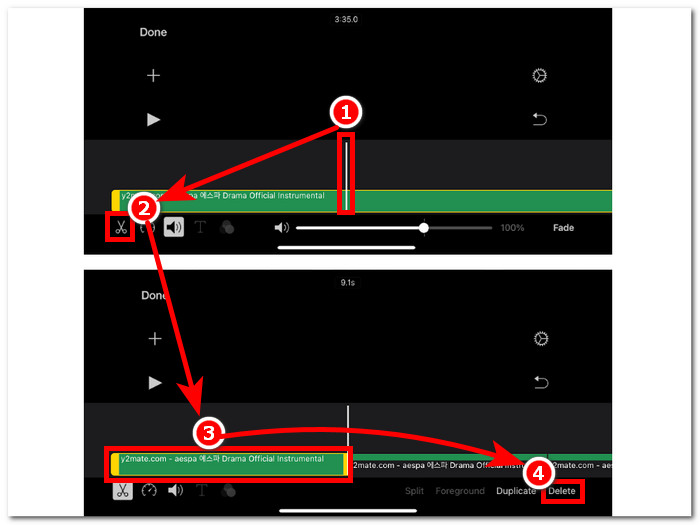
Passaggio 3. Una volta rimosse tutte le parti non necessarie dal file audio, fai clic sul pulsante Fine nell’angolo in alto a sinistra dello schermo.
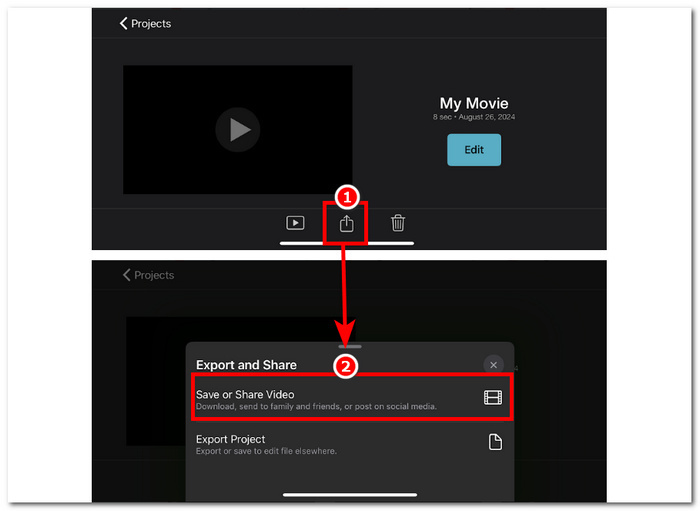
Passaggio 4. Salva il file facendo clic sull’icona Condividi, quindi tocca Salva o condividi video.
Mac
Tagliare alcune parti del tuo file audio usando iMovie è facile, poiché si basa sulle funzioni di base dello strumento: combinare la funzione Split Clip ed eliminare. Di seguito sono riportati i modi più semplici per farlo.
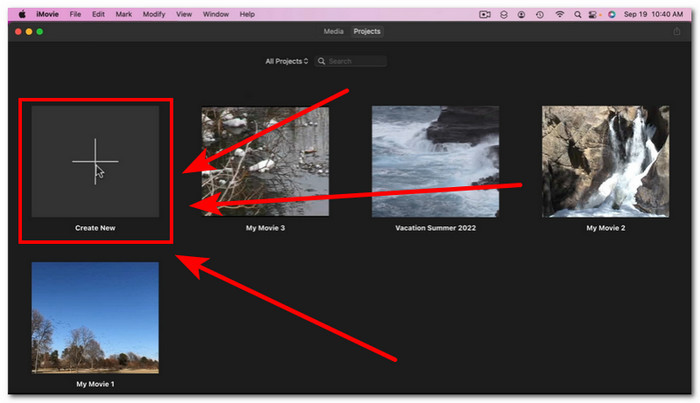
Passaggio 1. Apri iMovie sul tuo Mac e fai clic sul pulsante + per aprire il file audio dal quale vuoi tagliare alcune parti.
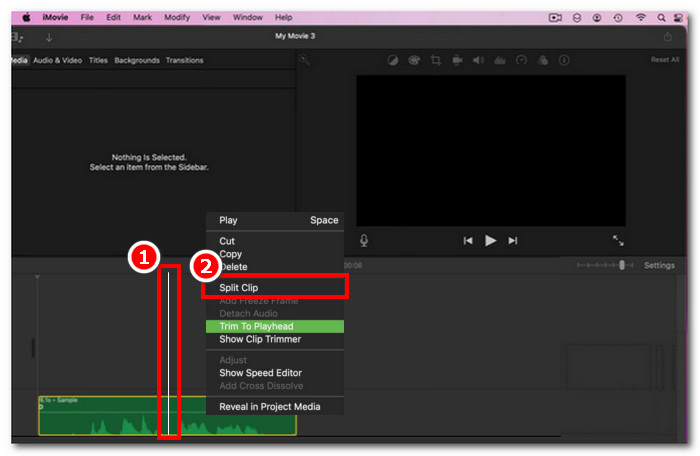
Passaggio 2. Una volta che il file audio è nel software, vai alla parte dell’audio che vuoi tagliare, fai clic con il tasto destro e scegli Dividi clip.
Passaggio 3. Una volta che il file audio è stato separato, elimina o taglia le parti di cui non hai più bisogno facendo clic con il tasto destro su di esse e poi su Elimina.
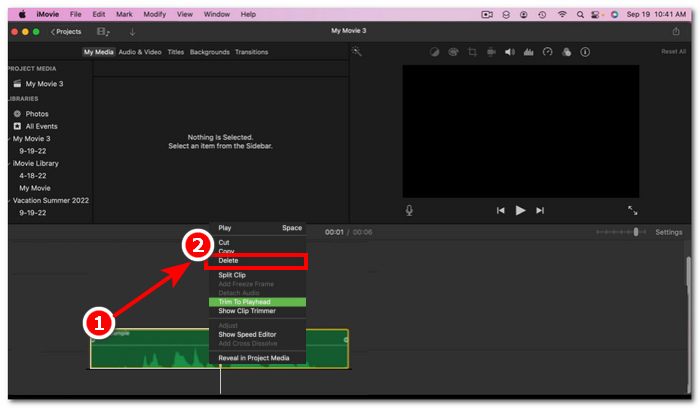
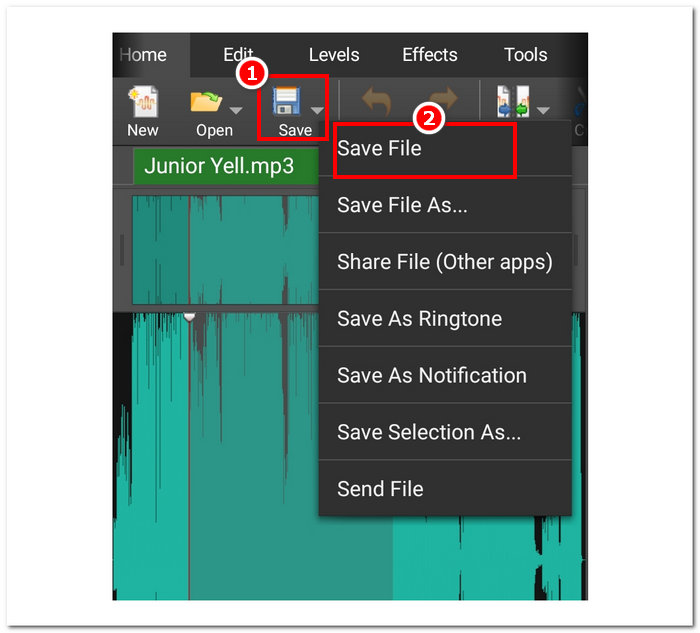
Passaggio 4. Dopo aver tagliato la parte che non vuoi nel tuo audio, salva il file facendo clic su File > Condividi > File, quindi fai clic su Avanti per salvarlo sul tuo Mac.
Parte 3. La migliore alternativa a iMovie per tagliare l'audio
Anche se iMovie funziona bene per tagliare o rifilare file audio, abbiamo trovato il miglior software alternativo nel caso tu riscontri bug o iMovie smetta di funzionare per qualche motivo. Video Converter Ultimate, selezionato da FVC, è lo strumento perfetto che può essere utilizzato non solo come taglierina o rifinitore audio, ma anche per i video, in modo simile a iMovie. Inoltre, offre uno strumento di montaggio, consente il taglio dell’audio e la modifica del formato di output. Va quindi oltre il semplice taglio o rifilatura dell’audio come qualsiasi altro software, grazie a una velocità di elaborazione imbattibile garantendo al contempo una qualità audio senza perdita.
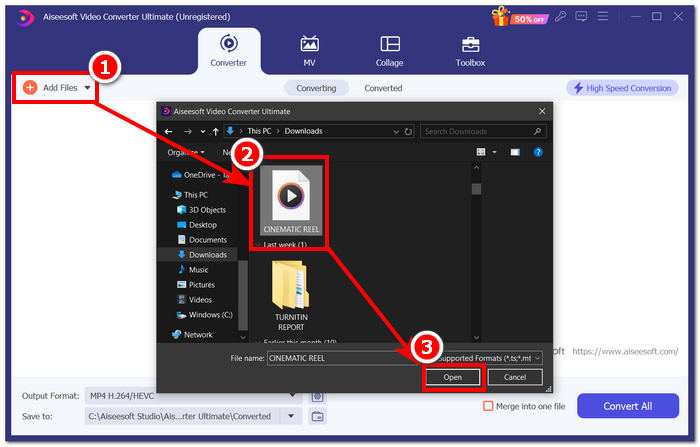
Passaggio 1. Sul tuo computer, scarica e apri il software Video Converter Ultimate selezionato da FVC. Nell’interfaccia del programma, fai clic su Aggiungi file per caricare il file audio di cui vuoi rifilare o tagliare alcune parti.
Download gratuitoPer Windows 7 o versioni successiveDownload sicuro
Download gratuitoPer MacOS 10.7 o versioni successiveDownload sicuro
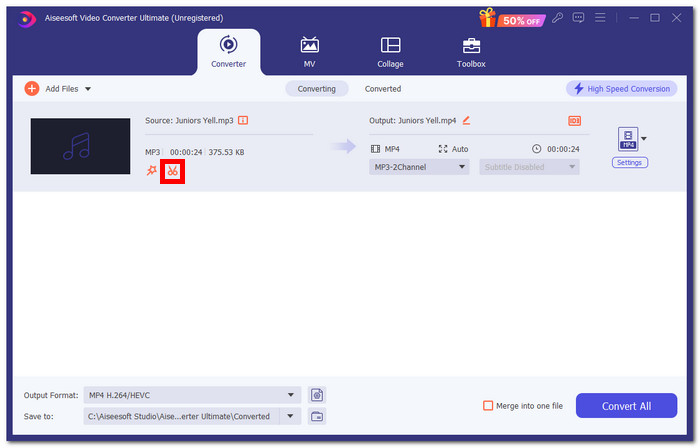
Passaggio 2. Fai clic sull’icona delle forbici per accedere alle funzioni di taglio e rifilatura del software.
Passaggio 3. Per tagliare o rifilare il file audio usando le funzioni del programma, sposta semplicemente le barre di rifilatura sulle parti che vuoi mantenere.
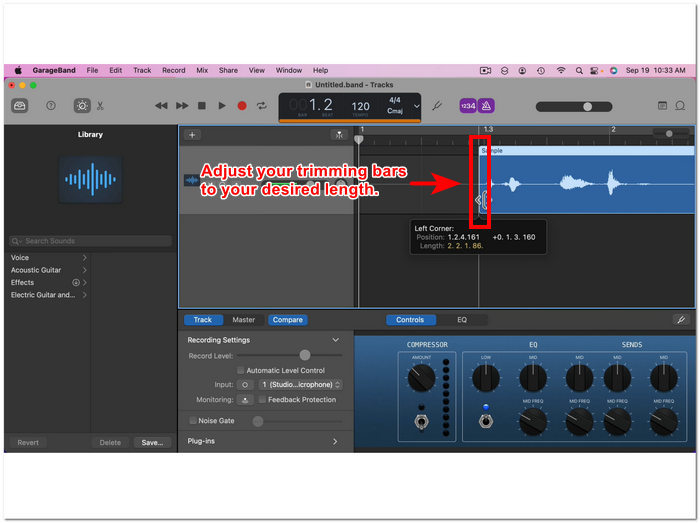
Le parti esterne alle barre di ritaglio sono quelle che dovrai rimuovere per accorciare il tuo file audio.
Passaggio 4. Infine, per salvare il tuo nuovo file audio più corto, fai clic sul pulsante Converti tutto per salvare le modifiche e memorizzarlo nella cartella dedicata sul tuo computer.

Parte 4. Domande frequenti su come tagliare l'audio in iMovie
Come si seleziona una parte dell'audio in iMovie?
Una volta diviso il file audio in più parti, puoi selezionare una parte semplicemente toccando o cliccando sulle parti specifiche dell'audio che si trovano nella tua timeline. Una volta che la parte che hai selezionato ha un bordo giallo tutt'intorno, significa che hai selezionato quella parte.
Perché iMovie taglia l'audio?
Se iMovie taglia bruscamente una parte del tuo video, potrebbe indicare che la lunghezza dell'audio supera la lunghezza audio massima di iMovie. Al momento in cui scrivo questa guida, la lunghezza massima dell'audio che un utente può importare nel software iMovie è di un'ora e dieci minuti.
È possibile tagliare l'audio in Quicktime?
Sì, gli utenti possono tagliare i file audio utilizzando QuickTime caricando il file audio nel lettore, cliccando sul menu Modifica nella parte superiore dell'interfaccia del lettore e procedendo con la sezione Taglia.
Conclusione
Creare tagli e tagliare alcune parti in un file audio è semplice e facile, grazie al software iMovie di Apple. Sebbene sia noto per il software di editing video, riesce in qualche modo a svolgere attività di editing audio come il taglio e la rifinitura senza problemi. Sicuramente, gli utenti iOS e macOS possono sapere come massimizzare le funzionalità offerte da iMovie nelle attività di editing audio; tuttavia, vale la pena notare che quando il software sembra avere un problema in futuro, assicurati di utilizzare il Video Converter Ultimate all-in-on scelto da FVC.
-
 Come comprimere file MPEG-4 online - Nessun download, nessuna filigrana
 Non hai abbastanza spazio di archiviazione per conservare tutti i tuoi file MPEG-4? Ecco alcune soluzioni che potrebbero aiutarti a ridurre le dimensioni dei tuoi file video.
-
 Come comprimere file VOB online e gratuitamente [Nessun download]
 Stai cercando metodi per comprimere i file VOB? Scopri il modo migliore per ridurre le dimensioni dei file VOB in questo articolo.
-
 Come comprimere un file OGV senza perdere la qualità
 Non riesci a inviare file OGV di grandi dimensioni ad altri? Bene, questo articolo ti introdurrà 2 semplici modi per aiutarti a comprimere facilmente i file OGV.
