


 Video Converter Ultimate
 Screen Recorder
 Riparazione video
 Download sicuro
Una guida completa per creare una suoneria da un promemoria vocale
Tuttavia, molti sviluppatori hanno creato software per creare suonerie. Questo significa che sei libero di prendere spezzoni delle tue canzoni preferite o registrare la tua voce come suoneria. In questo articolo ti spiegheremo come trasformare un memo vocale in suoneria. Speriamo che tu possa trovare la risposta che stai cercando.

Parte 1. Il modo migliore per trasformare un promemoria vocale in una suoneria
Se stai anche cercando un creatore di suonerie completo, scegli FVC consigliato Video Converter Ultimate, il leader anche nell’agguerrito mercato dei software di editing multimediale. I diversi modelli di smartphone possono supportare formati di suoneria differenti, ma questo non è un problema con Video Converter Ultimate. Come puoi intuire dal nome, la sua funzione principale è convertire il formato dei file. Quindi, indipendentemente dal formato in cui registri o scarichi i memo vocali, puoi convertirli in quello compatibile con il tuo telefono. Puoi persino usarlo per estrarre l’audio direttamente dai video, aprendo così un’ampia gamma di possibilità per le suonerie. Puoi anche modificare il volume, la traccia, la durata, ecc. dell’audio di destinazione. Con Video Converter Ultimate, trasformare un memo vocale in suoneria quando vuoi non sarà più un sogno.
Download gratuitoPer Windows 7 o versioni successiveDownload sicuro
Download gratuitoPer MacOS 10.7 o versioni successiveDownload sicuro
Qui ti spiegheremo come modificare i tuoi memo vocali registrati o scaricati in modo da poterli utilizzare come suoneria.
Passaggio 1. Scarica e installa Video Converter Ultimate sul tuo computer. Dopodiché, avvialo sul desktop.
Passaggio 2. Fai clic su Aggiungi file per caricare l’audio che desideri modificare.
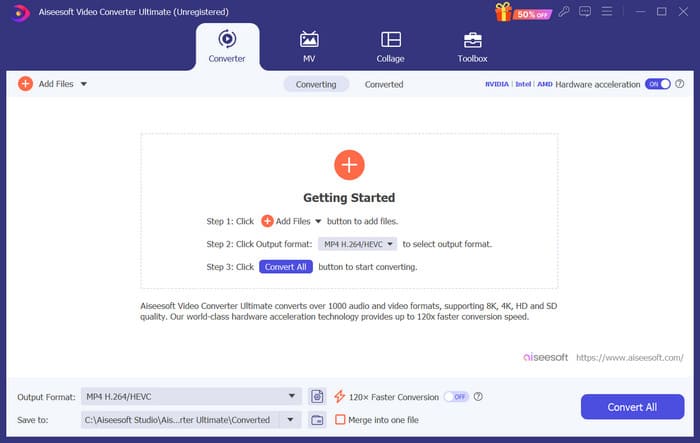
Passaggio 3. Per tagliare l’audio, fai clic su Taglia. Puoi regolare la durata del file. Una volta terminato il taglio, fai clic su Salva.
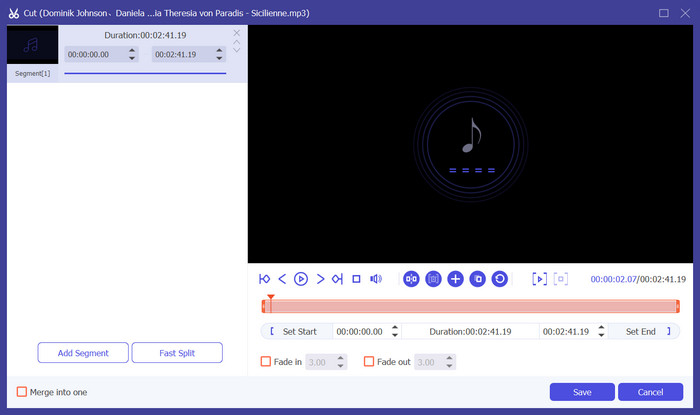
Passaggio 4. Per modificare il volume e la traccia audio dei tuoi memo vocali, fai clic su Modifica. Nella finestra che si apre, puoi effettuare le regolazioni desiderate. Al termine dell’editing, fai clic su OK.
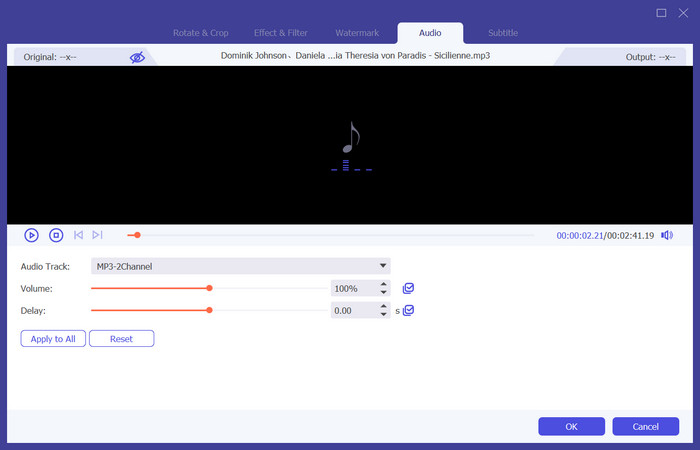
Passaggio 5. Se hai bisogno di cambiare il formato del file, apri il menu a discesa accanto a Formato di output. Qui puoi scegliere il formato di uscita per il tuo audio.
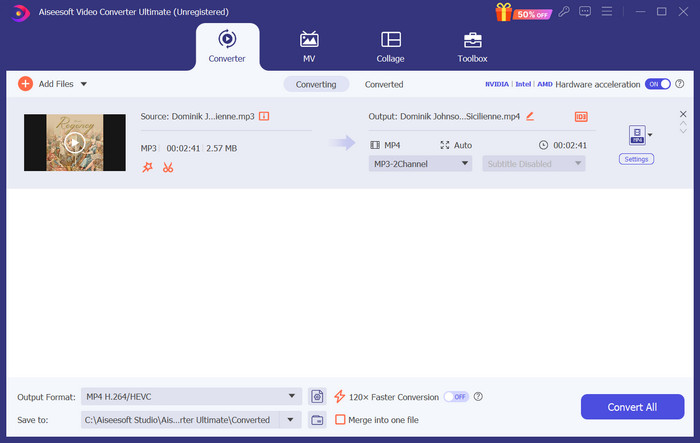
Passaggio 6. Quando vuoi esportare la suoneria modificata, fai clic su Converti tutto.
Parte 2. Come trasformare un promemoria vocale in una suoneria per iPhone
Consigliamo GarageBand se vuoi creare una suoneria con promemoria vocale sul tuo iPhone. Questa è un'applicazione sviluppata da Apple. Gli utenti possono usarla per creare musica sui loro dispositivi iOS. Ha molti strumenti per la produzione musicale, la registrazione, l'editing e il mixaggio. GarageBand può anche integrarsi con altri software Apple. Ciò significa che possiamo facilmente trasferire progetti tra GarageBand e altri software per ulteriori modifiche. Questa app è popolare tra utenti professionisti e principianti grazie alla sua interfaccia intuitiva, alle funzionalità estese e all'accessibilità. Tutte le impostazioni possono essere eseguite sul telefono senza l'ausilio di altri dispositivi.
Ecco cosa devi fare per trasformare un promemoria vocale in una suoneria.
Passaggio 1. Prima di impostare le suonerie, devi entrare nell’app Memo Vocali sul tuo iPhone per selezionare un memo vocale.
Passaggio 2. Dopo aver scelto il memo vocale desiderato, premi l’icona con i tre puntini. Seleziona Salva su File e tocca di nuovo Salva per confermare l’operazione.
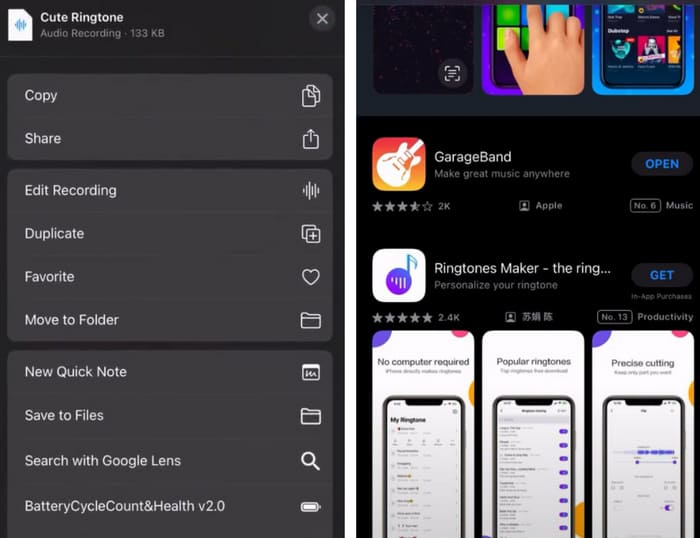
Passaggio 3. Apri GarageBand sul tuo iPhone e tocca Progetto.
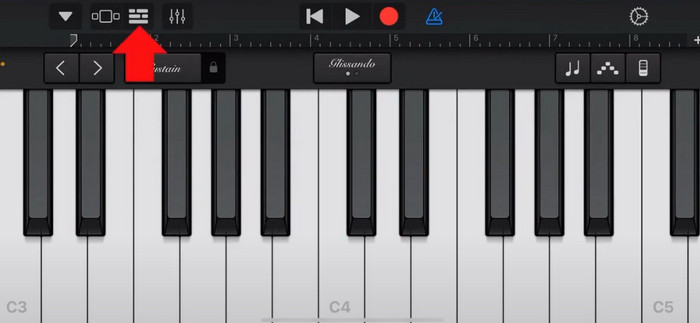
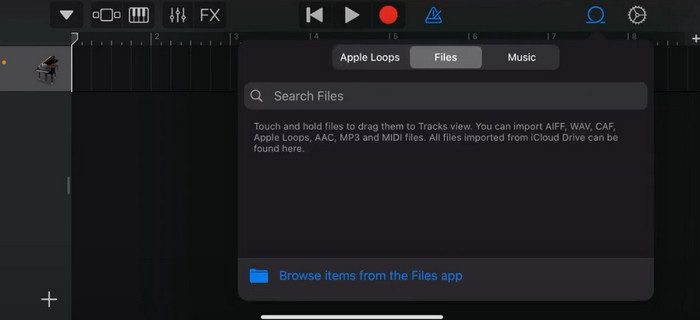
Passaggio 4. Scegli Loop > File. Dopodiché, tocca Sfoglia gli elementi dall’app File per selezionare il memo vocale desiderato.
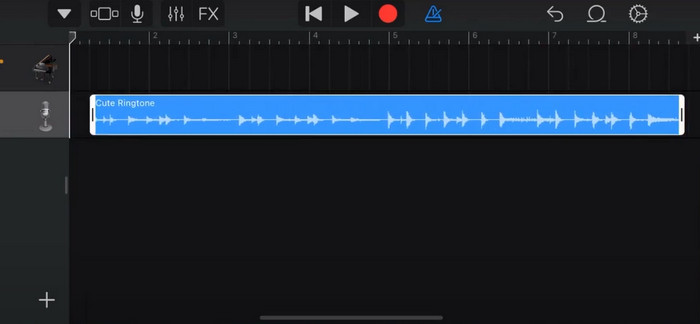
Passaggio 5. Trascina il file sulla timeline e rilascialo.
Passaggio 6. Disattiva Metronomo e tocca l’icona con la freccia verso il basso > I miei brani.
Passaggio 7. Tocca e tieni premuta la clip, quindi scegli Condividi.
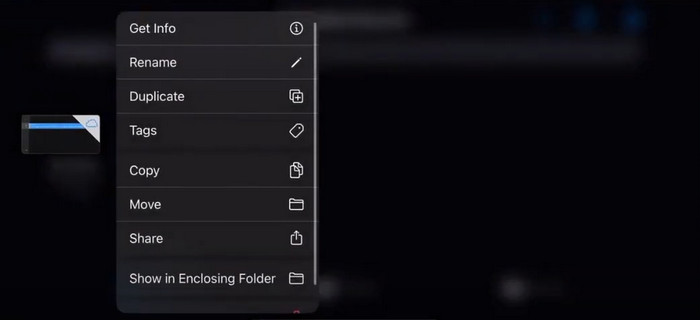
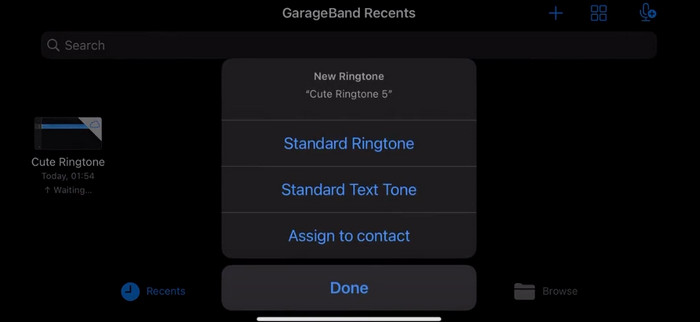
Passaggio 8. Scegli Suoneria tra tutte le opzioni e premi Esporta. Infine, tocca Usa suoneria come > Suoneria standard. In questo modo hai creato con successo una suoneria da un memo vocale.
Parte 3. Come trasformare una registrazione vocale in una suoneria su Android
Se utilizzi un telefono Android e vuoi trasformare la musica registrata in una suoneria, puoi farlo direttamente nell'app Impostazioni del tuo telefono. La procedura è molto semplice e non c'è bisogno di scaricare alcun software per questo processo. Tuttavia, se vuoi modificare l'audio registrato, puoi scegliere un software di editing audio e video professionale come FVC-picked Video Converter Ultimate.
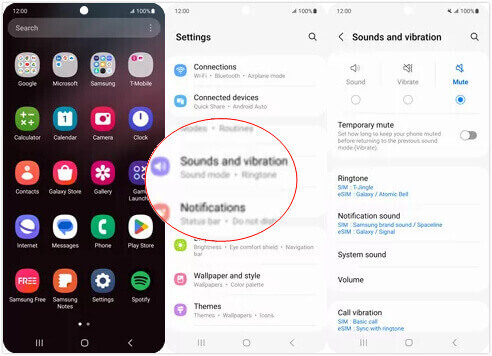
Successivamente ti insegneremo come creare una suoneria da una registrazione vocale su Android. In questa parte useremo come esempio uno smartphone Samsung. Prima di iniziare, assicurati di aver salvato il file di registrazione nell’app Registratore vocale.
Passaggio 1. Apri Impostazioni sul tuo telefono e seleziona Suoni e vibrazione.
Passaggio 2. Assicurati che Suono sia selezionato sotto Modalità audio. Quindi scegli Suono di notifica.
Passaggio 3. Seleziona il file musicale che hai registrato. Infine, torna alla schermata Home per applicare le impostazioni.
Parte 4. Domande frequenti sulla trasformazione di un promemoria vocale in una suoneria
In che formato sono le suonerie per Android?
Le suonerie per dispositivi Android possono essere disponibili in vari formati di file audio, ma i formati più comunemente supportati sono MP3, AAC, M4A, OGG e WAV.
Come faccio a salvare un memo vocale come canzone sul mio iPhone?
Apri l'app Voice Memos sul tuo iPhone e individua il memo vocale che vuoi salvare come canzone. Tocca il memo vocale per aprirlo, quindi premi l'icona di condivisione per vedere le opzioni di condivisione disponibili. Puoi scegliere di salvare il memo vocale nell'app File. Dopodiché, puoi aprire un'app musicale sul tuo iPhone che supporti l'importazione di file audio. App come GarageBand o Music Memos sono adatte.
Come registrare l'audio su Android Samsung?
Per registrare l’audio su un dispositivo Android Samsung, utilizza il Registratore vocale integrato. Aprilo e tocca Registra per avviare la registrazione. Una volta terminata, puoi salvare il file audio e assegnargli un nome per trovarlo più facilmente.
Conclusione
In questo articolo rispondiamo alla domanda su come trasformare un memo vocale in suoneria. Ti proponiamo uno dei migliori strumenti per modificare suonerie, FVC Video Converter Ultimate. Sono indicati i metodi per trasformare un memo vocale in suoneria su iPhone e sui telefoni Android. Inoltre, forniamo istruzioni complete passo dopo passo per ogni sezione, nel caso dovessi riscontrare problemi.
-
 Le 3 migliori soluzioni per comprimere i file WAV in dimensioni più piccole
 Se stai anche cercando modi per comprimere le dimensioni dei file audio WAV, leggi i nostri contenuti. Ti presenteremo diversi strumenti da tre aspetti.
-
 Tutorial approfondito sulla compressione audio nel 2024 (passo dopo passo)
 Hai bisogno di comprimere l'audio ma hai bisogno di aiuto per capire da dove iniziare? In questo post presenteremo le scelte migliori per ridurre la dimensione del file delle tue tracce.
-
 Compressori audio efficaci per utenti offline e online
 Hai qualche problema con file audio di grandi dimensioni? Sono disponibili molti compressori di file audio per gli utenti offline e online. Controllali qui.
