


 Video Converter Ultimate
 Screen Recorder
 Riparazione video
 Download sicuro
Scopri come rendere un'immagine più chiara con questi semplici metodi
Quando catturi un’immagine che risulta sfocata, viene considerata un difetto. Ed è molto frustrante ritrovarsi con una foto sfocata. Per fortuna, oggi esistono moltissime applicazioni che possono aiutarti a mettere a fuoco e rendere più nitida la tua immagine. Adobe Photoshop è tra i più famosi programmi di fotoritocco. Tuttavia, non è uno strumento adatto ai principianti. Perciò presenteremo i metodi più semplici che puoi usare per far sì che una foto sfocata raggiunga un’ottima qualità. Leggi il testo qui sotto per scoprire come rendere una foto più nitida con passaggi facili.

Parte 1. Come rendere un'immagine più chiara online
Con l'uso della tecnologia AI, ora ci sono molti upscaler di immagini online che possono aumentare la nitidezza dell'immagine automaticamente. L'utilizzo di app online per rendere più nitide le tue immagini è conveniente perché non è necessario scaricare nulla sul dispositivo. Salverà anche spazio di archiviazione sul tuo dispositivo perché puoi accedervi dal tuo browser.
FVC Free Image Upscaler è la più rinomata applicazione online se vuoi mettere a fuoco o rendere più chiara la tua immagine. Questo strumento è facile da usare perché dispone di un’interfaccia utente intuitiva. Inoltre, puoi migliorare la qualità della tua immagine con ingrandimenti di 2x, 4x, 6x e 8x. FVC Free Image Upscaler utilizza anche una tecnologia di IA (Intelligenza Artificiale) che rileva automaticamente le parti sfocate della tua immagine e le migliora. Ti consente di correggere con precisione i pixel persi, le texture di colore e molti altri dettagli.
Inoltre, supporta più formati di immagine, come PNG, JPG, JPEG e WebP. E la cosa fantastica di questo strumento online è che non hai bisogno di alcun account per accedervi. È anche gratuito e sicuro da usare. E nonostante sia un'app online, non contiene annunci fastidiosi che potrebbero distrarti ed è veloce ed efficiente da usare. Quindi, se stai cercando uno strumento conveniente, FVC Free Image Upscaler è lo strumento migliore.
Come rendere un'immagine più chiara online utilizzando FVC Free Image Upscaler:
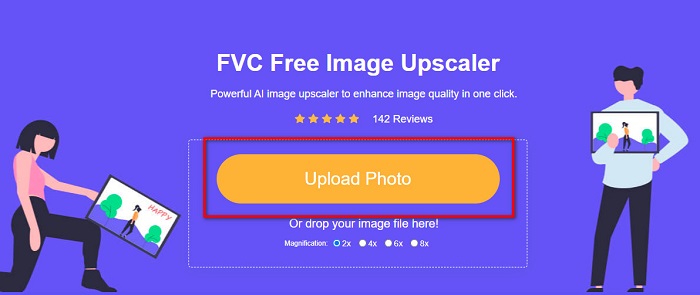
Passaggio 1. Sul computer, apri il browser e cerca FVC Free Image Upscaler nella barra di ricerca. In alternativa, puoi cliccare sul link fornito per andare direttamente alla pagina principale dell’app. Clicca il pulsante Upload Photo per avviare l’applicazione.
Passaggio 2.0 Dopo aver avviato l’app, clicca di nuovo su Upload Photo per aggiungere l’immagine che vuoi ingrandire/mettere a fuoco. Si apriranno i file del tuo computer, dove dovrai individuare la tua immagine e aprirla.
Passaggio 3. Quindi seleziona il preset di magnification che preferisci. Maggiore è l’ingrandimento, maggiore sarà la nitidezza della tua immagine. Tieni però presente che anche la dimensione del file aumenterà man mano che aumenta la qualità. Puoi scegliere una magnification tra 2x, 4x, 6x e 8x.
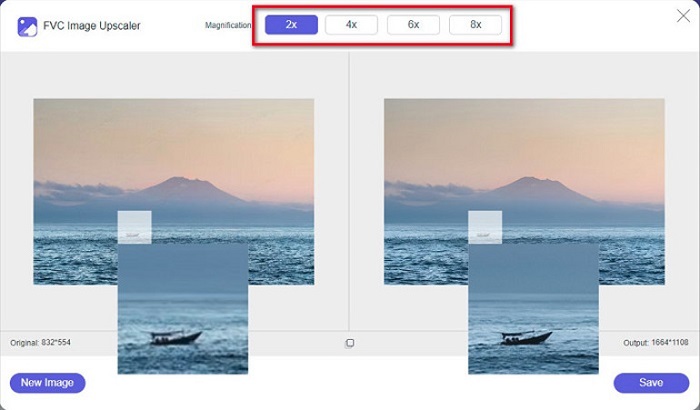
Passaggio 4. Vedrai i risultati sul lato destro dell’interfaccia. Se sei soddisfatto del risultato, clicca il pulsante Save per salvare l’immagine sul tuo dispositivo.
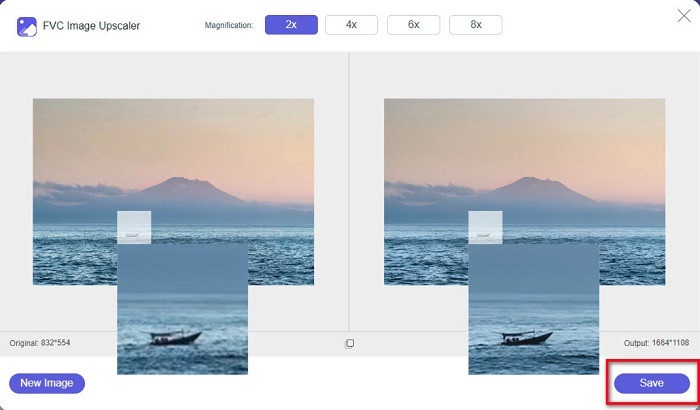
Aspetta solo che la tua immagine venga salvata e voilà! Ora puoi condividere la tua fantastica foto con gli amici o su altre piattaforme di social media.
Parte 2. Come rendere un'immagine più chiara offline
È anche utile utilizzare un'applicazione offline quando si desidera aumentare la nitidezza o modificare l'immagine. Molte applicazioni di fotoritocco sono offline; è necessario acquistarli prima di utilizzarli. Ma non preoccuparti; in questa parte, forniremo uno strumento offline gratuito che puoi utilizzare sul tuo desktop.
Paint.net è uno dei programmi di fotoritocco più utilizzati, gratuito e sicuro. Questo strumento offline ha un’interfaccia più semplice rispetto ad Adobe Photoshop, usato da molti professionisti. Sebbene l’interfaccia sia essenziale, è comunque in grado di produrre risultati eccellenti e ti permette di rendere più nitida una foto sfocata. Inoltre, dispone di altre funzioni di editing che possono aiutarti a migliorare la tua immagine. Con Paint.net puoi aumentare la nitidezza, correggere i colori e aggiungere uno sfondo alla tua foto.
Inoltre, spostando il cursore, puoi scegliere la nitidezza della tua immagine e rimuovere le parti sfocate di essa. Tuttavia, è disponibile solo su dispositivi Windows. Tuttavia, se vuoi ingrandire un'immagine mentre la nitidi, puoi usare Paint.net.
Come rendere un'immagine più grande e più chiara usando Paint.net:
Passaggio 1. Per prima cosa, scarica e installa Paint.net sul tuo computer e aprilo una volta completata l’installazione. Poi carica la tua immagine cliccando su File > Open.
Passaggio 2. Quindi vai su Effects > Photo > Sharpen. Apparirà un’altra finestra in cui potrai regolare la nitidezza dell’immagine per eliminarne la sfocatura.
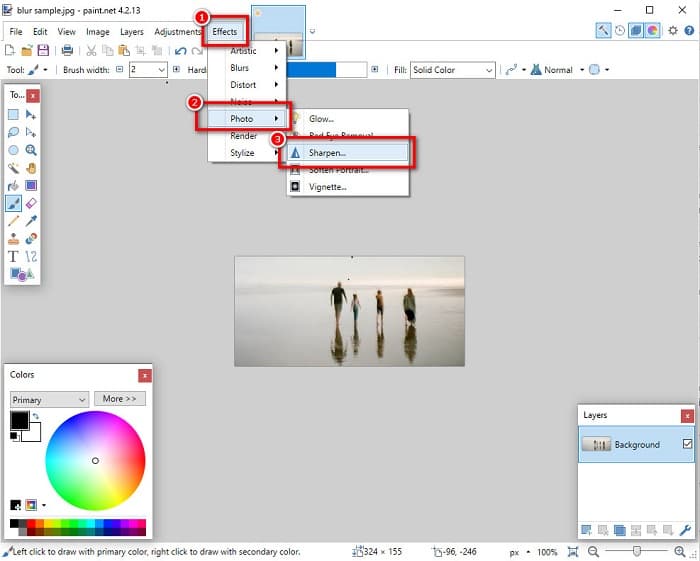
Passaggio 3. Nella scheda Sharpen, sposta il cursore per selezionare il livello di nitidezza desiderato. Puoi anche usare le frecce su/giù per scegliere il valore di nitidezza in modo numerico.
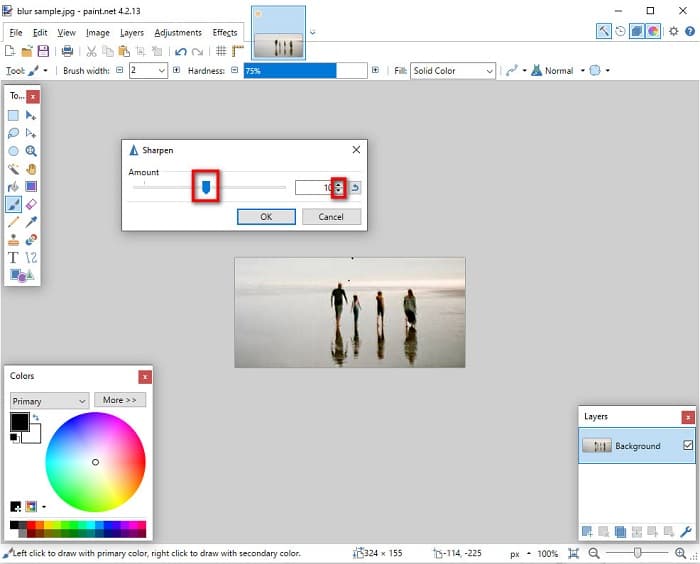
Passaggio 4. Infine, clicca sul pulsante OK e vai su File > Save per salvare il risultato sul tuo computer.
Parte 3. Come rendere un'immagine più chiara sul tuo iPhone
E se hai un'immagine sfocata acquisita utilizzando il tuo iPhone, puoi anche utilizzare un'app di sfocatura per il tuo dispositivo iPhone. Numerose app di modifica delle immagini che puoi scaricare da AppStore possono aiutarti a sfocare la tua immagine. Tuttavia, non tutte le app sono gratuite; è necessario acquistarli prima di utilizzarli. Fortunatamente, abbiamo trovato un'app per la sfocatura delle immagini che può essere utilizzata gratuitamente dall'AppStore. Leggi questa sezione completamente per imparare come rendere più chiara un'immagine sul tuo dispositivo iPhone.
Se ti stai chiedendo quale sia l’app gratuita di fotoritocco che può aiutarti a rimuovere la sfocatura da un’immagine, VSCO è l’app che fa per te. VSCO è una nota applicazione di fotoritocco disponibile per il download dall’App Store. Inoltre, quando rimuovi la sfocatura con VSCO, ci sono alcune impostazioni su cui devi concentrarti. Per rendere più nitida la tua foto con VSCO, devi regolare la chiarezza, la nitidezza e l’esposizione dell’immagine. VSCO offre anche altri strumenti di editing che puoi usare per modificare le tue immagini. Inoltre, supporta i formati immagine più comuni dell’iPhone, come HEIC e HEIF. Un piccolo limite di quest’app è che supporta solo pochi formati immagine e che devi acquistarla per utilizzare le funzioni di editing avanzate.
Come rendere un'immagine più chiara su iPhone utilizzando VSCO:
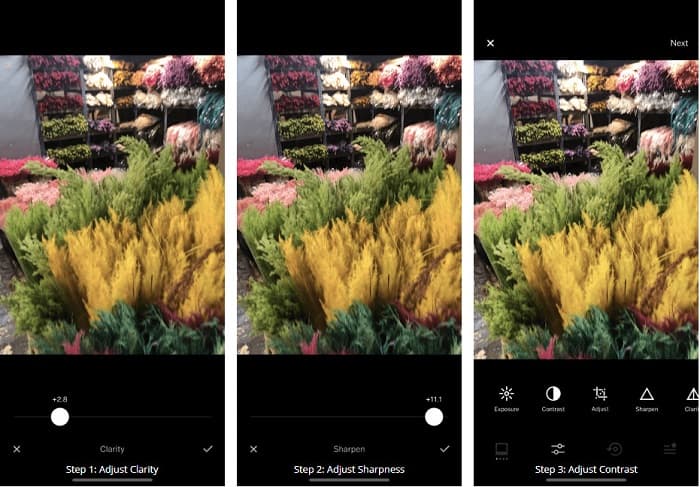
Passaggio 1. Installa VSCO dall’App Store, quindi apri l’app sul tuo iPhone.
Passaggio 2. Apri la tua immagine, poi vai su Clarity. L’opzione Clarity ti aiuterà a rimuovere il rumore su larga scala dall’immagine. Sposta leggermente il cursore Clarity nella parte inferiore dell’interfaccia.
Passaggio 3. Successivamente, regoleremo la nitidezza dell’immagine. La funzione Sharpen ti aiuterà a ottenere la definizione che desideri. Spostando il cursore, puoi selezionare il livello di nitidezza che vuoi per la tua foto.
Passaggio 4. Dopo aver terminato la regolazione di chiarezza e nitidezza, passiamo a regolare il Contrasto. Sposta l’opzione Contrast e il relativo cursore per scegliere il livello di luminosità e di ombra desiderato per l’immagine.
Passaggio 5. Infine, regoleremo l'Exposure della foto per schiarirla un po'. Aumentare l’esposizione dell’immagine ti aiuterà a bilanciare le zone scure con il contrasto. Ecco fatto! Regolando queste impostazioni, puoi ridurre la sfocatura della tua foto. Clicca qui per scoprire come ridimensionare un’immagine su iPhone.
Parte 4. Come rendere un'immagine più chiara sul tuo Android
Ci sono anche app su Android che puoi usare per rendere un'immagine più chiara. Quindi, se vuoi che un'immagine sfocata venga salvata nella tua Galleria, questa app può aiutarti a migliorare la tua immagine. Leggi questa parte per scoprire come sfocare un'immagine sul tuo dispositivo Android.
L’app Remini (per Android) è probabilmente una delle migliori app di fotoritocco che puoi usare sul tuo dispositivo Android. Questa app ti permette di modificare e persino mettere a fuoco un’immagine sfocata. Inoltre, è facile da usare ed è gratuita. Utilizzando l’opzione Enhance, puoi rendere la tua foto più chiara. Tuttavia, è necessario creare prima un account per poter usare l’app. E con la versione Pro, puoi accedere alle funzioni avanzate per rimuovere la sfocatura.
Come sbloccare un'immagine utilizzando Remini per Android:
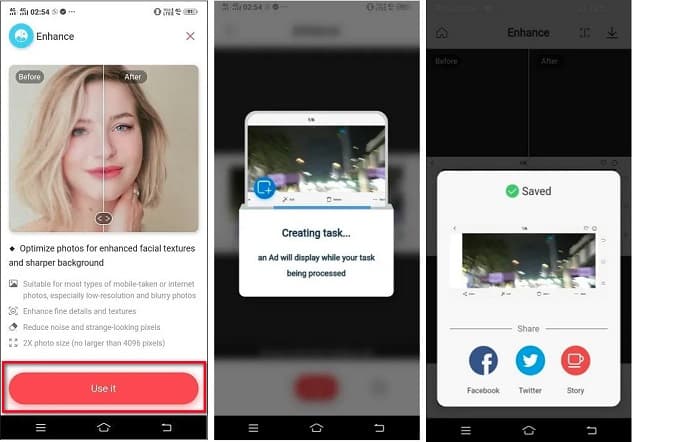
Passaggio 1. Installa Remini sul tuo dispositivo Android. Dopo l’installazione, apri subito l’app. Nella schermata principale, tocca il pulsante Use it per iniziare a rimuovere la sfocatura dalla tua immagine.
Passaggio 2. Quindi seleziona l’immagine e tocca il pulsante rosso nella parte inferiore dell’interfaccia. Verrà creata un’attività e verrà mostrata una pubblicità durante l’elaborazione.
Passaggio 3. Al termine, verrà mostrato il risultato finale, dove potrai confrontare il prima e il dopo dell’immagine. Se sei soddisfatto del risultato, salva la tua foto.
Parte 5. Domande frequenti su come rendere un'immagine più chiara
Posso usare GIMP per sfocare un'immagine?
Sì. GIMP è un fantastico software di fotoritocco che puoi utilizzare per sfocare la tua immagine. Puoi anche scaricare questa app sul tuo dispositivo Windows.
La sfocatura di un'immagine aumenta le dimensioni del file?
Sì. Sfocare un'immagine significa aumentare la qualità e la risoluzione della tua immagine. Quando la risoluzione aumenta, aumenta anche la dimensione del file dell'immagine.
Quale app posso usare per sfocare la mia immagine?
YouCam Perfect è un'applicazione che può aiutarti a sfocare la tua immagine. Con la sua tecnologia AI, puoi sfocare immediatamente la tua immagine.
Conclusione
In questo post abbiamo illustrato ciò che devi sapere su come rendere una foto più nitida. Quindi, se stai cercando applicazioni che permettono di rimuovere la sfocatura da un’immagine, i metodi sopra descritti ti aiuteranno a raggiungere il tuo obiettivo. Ma se preferisci usare uno strumento online con un’interfaccia facile da usare, scegli FVC Free Image Upscaler.
-
 Recensione effettiva di PicResize che devi conoscere questo 2022
 Vuoi sapere se PicResize è l'opzione migliore per modificare l'immagine? Leggi questo articolo mentre esaminiamo lo strumento generale.
-
 Tutto ciò che devi sapere sul Waifu2x e sull'alternativa
 Hai bisogno di saperne di più sul Waifu2x? Questo articolo fornisce le informazioni che devono essere evidenziate in questa app e nella sua alternativa.
-
 Come ottimizzare l'immagine per il Web utilizzando le migliori soluzioni [Veloce]
 Come ottimizzare l'immagine per il web? Avrai bisogno di un software affidabile e di un tutorial; tutte le informazioni sono qui.
